How to Avoid Cops on Waze
Waze does not watch for police itself — it shows police other drivers have reported. That only works if police alerts are switched on, under Settings, then Alerts and reports, then Reports, then Police.
- SystemAndroid
- AppWaze
- Last verifiedNovember 25, 2026
Every screenshot below is taken from the actual recording on this device — no stock images.
Steps
Open Waze
Open the Waze app. The Waze splash screen appears while the app loads, and the map opens a moment later.

Tap the menu, then Settings
Tap the menu button — the three lines in the top-left corner of the map — then tap Settings in the menu.
Tap Alerts and reports
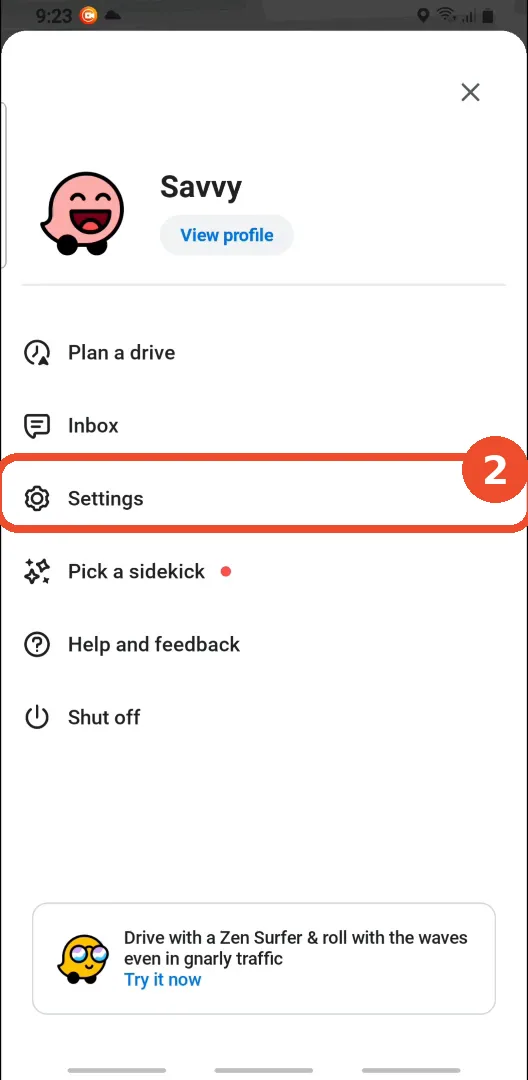
In Waze Settings, tap Alerts and reports, under Driving preferences.
Tap Reports
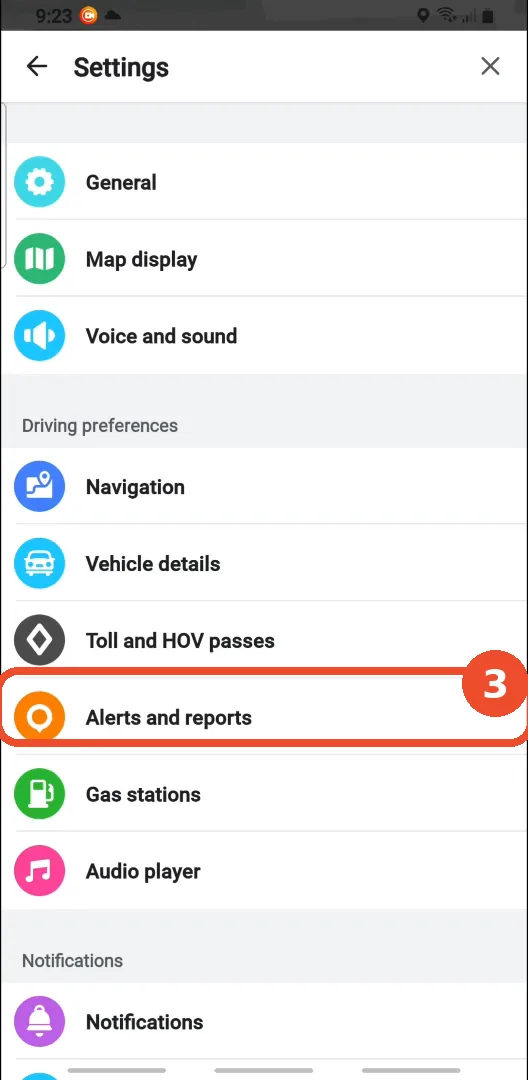
On the Alerts and reports page, tap Reports at the top. The page also lists Area, set to All, and Speed limit alerts, which the film leaves alone.
Tap Police
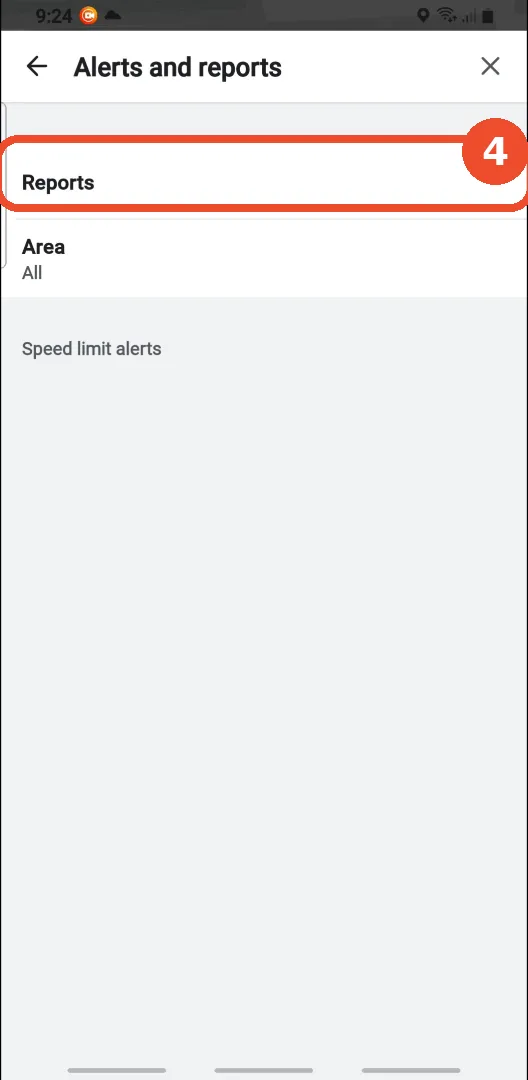
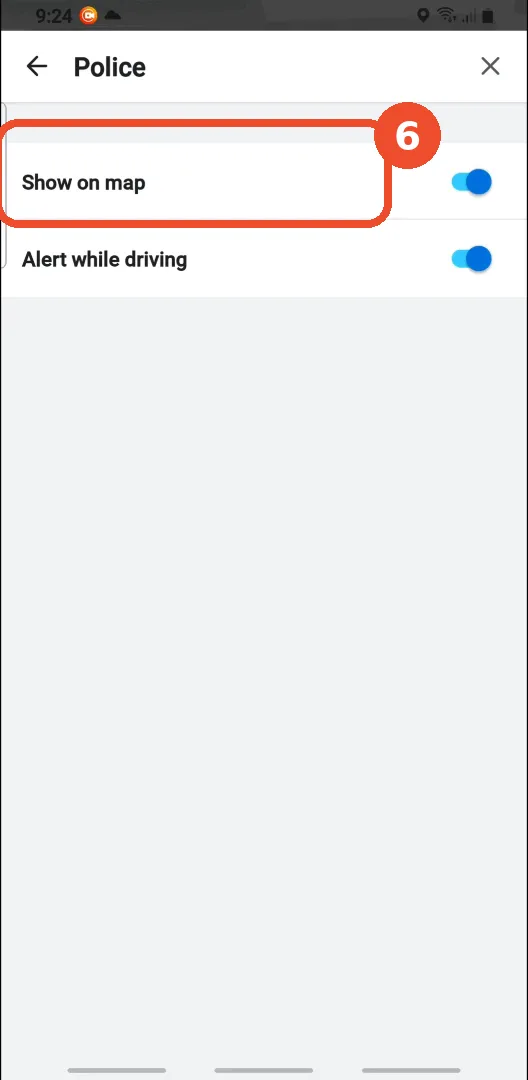
On the Reports list, tap Police. It already reads “Show on map, Alert while driving” underneath.
Check Show on map and Alert while driving are on
On the Police page, both switches — Show on map and Alert while driving — are already on. The film does not tap either one; it only opens the page to confirm they are on.
Check the map for live reports
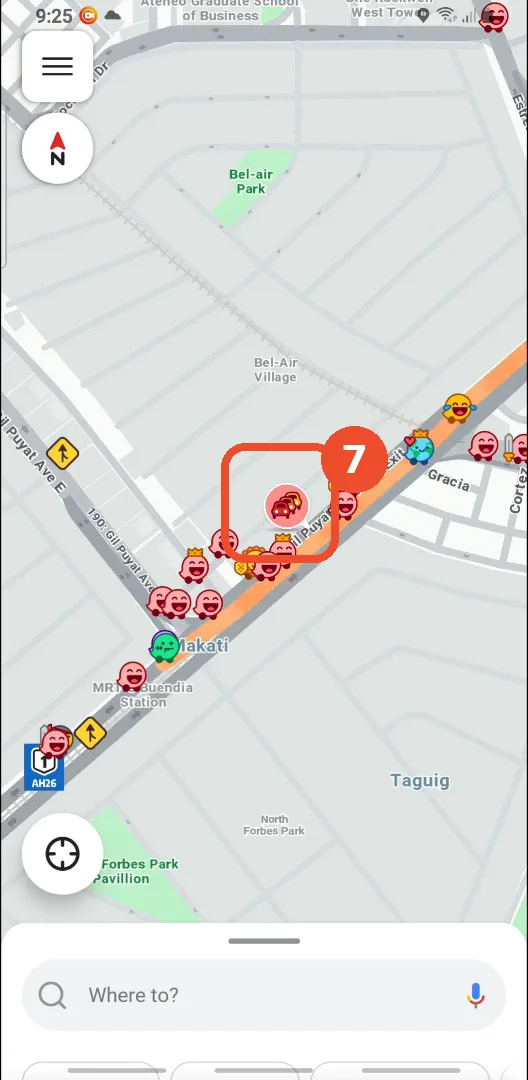
Back on the map, Waze shows live reports from other drivers — this shot shows a traffic report on Gil Puyat Ave. A police report would appear on the map in the same way when another Wazer reports police nearby.
Good to know
- Both police switches were already on when the film opened the Police page — the film checks them, it does not turn them on. If either is off on your phone, tap it on.
- A police icon only appears on the map when another Wazer has reported police nearby. In the film’s closing map shots (checked at 1:32, 1:42, 1:52, 2:02 and 2:07), traffic and other report icons are visible, but no police icon is clearly shown — so a quiet map means no reports, not that alerts are off.
- The same Reports list also holds Cameras, Railroad crossing, Crash history, Crash, Traffic, Hazards, Car on shoulder, Other hazards, Bad weather, Blocked lane, and Road features — each with its own Show on map and Alert while driving switches. The film leaves them as they were.
- The menu in the film shows the operator’s own Waze name, Savvy. That is the account name on this phone, not a setting to change.
More on Waze
- How to Activate Sound on Waze App
- How to Fix Waze Sound Not Working
- How to Use a Waze Route Offline
- How to Fix the No Network Connection Issue on Waze
- How to Change Waze Map Color
- How to Avoid Congestion Charge on Waze
- How to Change Waze North Up
Guide complete
Every step above comes from the original recording, with a screenshot for each step. Want more like this? Browse all Waze guides.