How to Avoid Congestion Charge on Waze
Waze has no congestion-charge switch of its own. The film’s workaround is two Navigation settings: route around toll roads, and tell Waze the car is a private car. Together they steer Waze away from tolled, chargeable roads.
- SystemAndroid
- AppWaze
- Last verifiedNovember 25, 2026
Every screenshot below is taken from the actual recording on this device — no stock images.
Steps
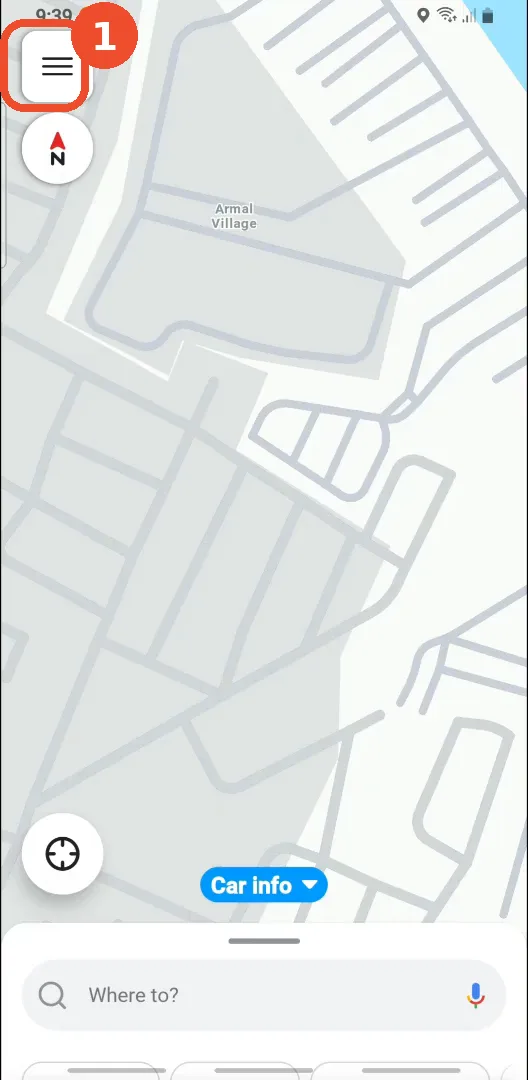
Open Waze
Open the Waze app. The film opens on the map, with the menu button in the top-left corner.
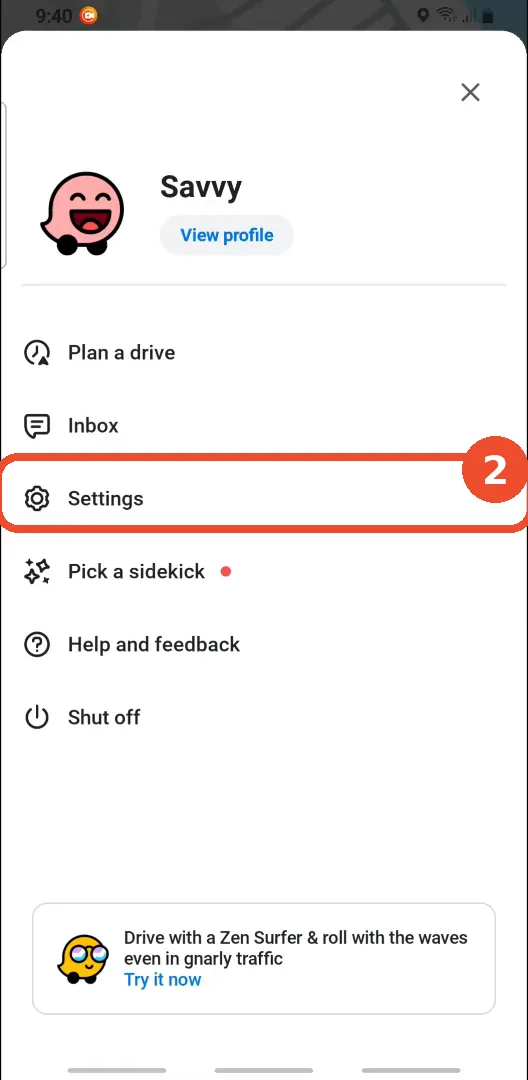
Tap the menu, then Settings
Tap the menu button — the three lines in the top-left corner — then tap Settings in the menu.
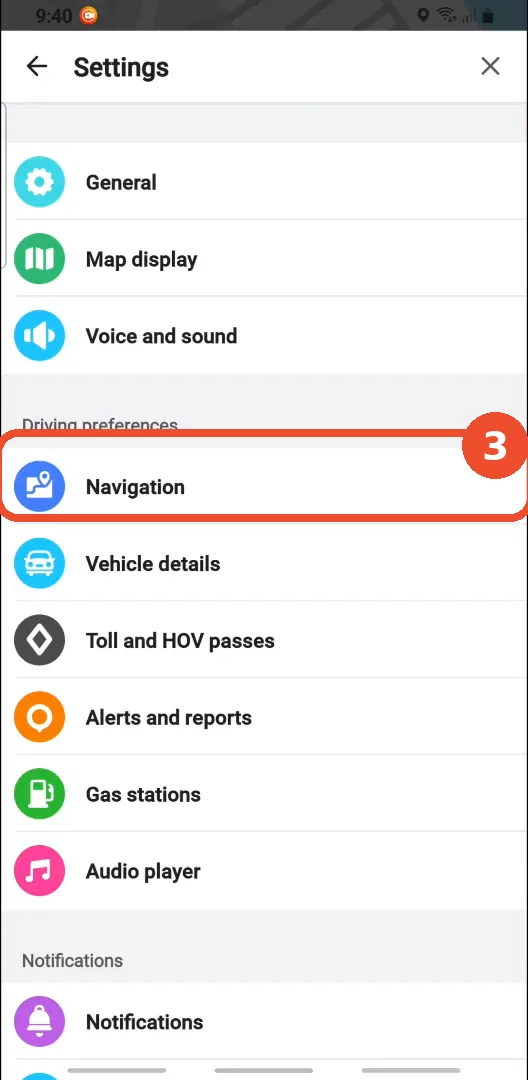
Tap Navigation
In Waze Settings, tap Navigation. It is the first row under Driving preferences.
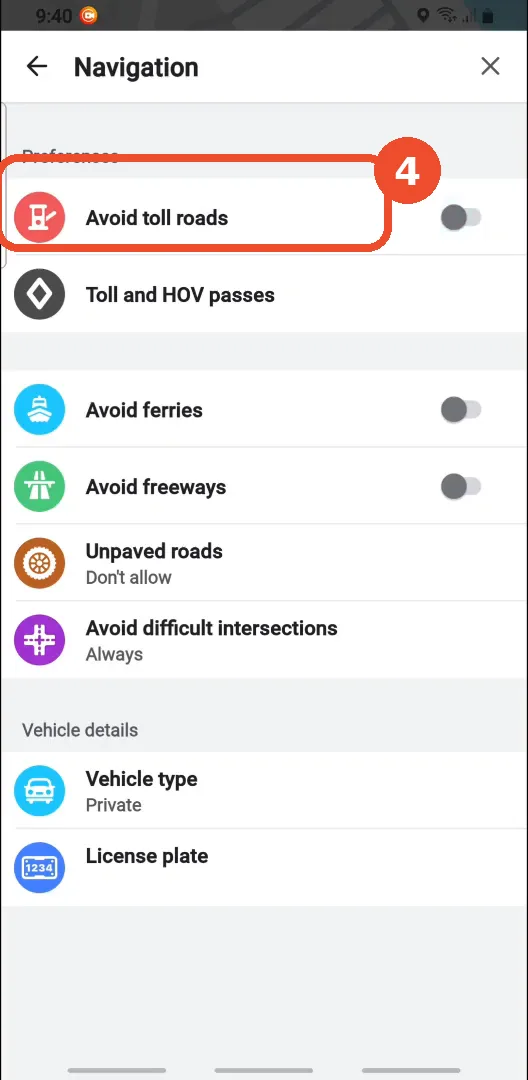
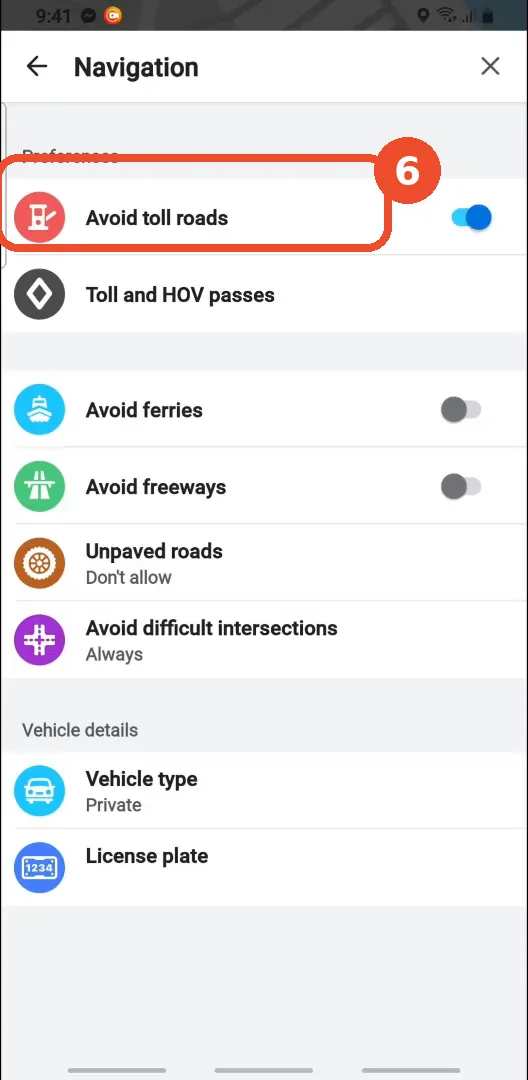
Turn on Avoid toll roads
On the Navigation page, find Avoid toll roads at the top of Preferences. The switch is already on when the page opens; the film taps it off and straight back on to show the switch working — this shot catches it off, mid-demonstration — and leaves it on.
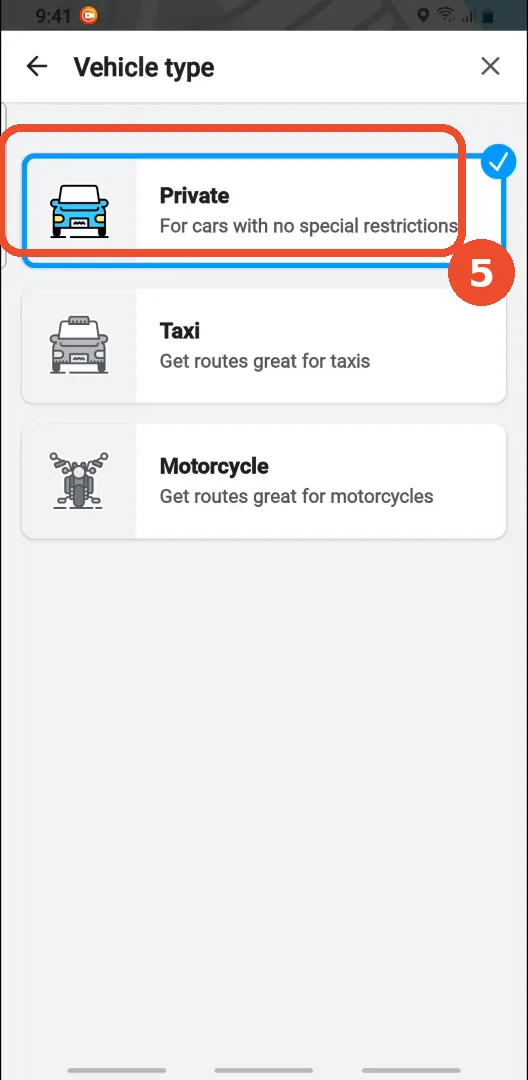
Tap Vehicle type and check Private is selected
Under Vehicle details on the same page, tap Vehicle type. Private is already selected — “For cars with no special restrictions” — with a check mark. The film does not change it; it only opens the page to confirm.
Check Avoid toll roads is on
Go back to the Navigation page. Avoid toll roads reads on and Vehicle type reads Private. That is the setup the film leaves in place.
Good to know
- Congestion charges usually apply only at certain hours — the film gives London weekdays 7:00 a.m. to 6:00 p.m. as an example. Outside those hours Waze may still route you through, since the charge is not active then.
- Avoid toll roads is a routing preference, not a guarantee: the film notes a tolled route can still appear, because Waze also relies on user reports and map data. Check the route it offers before you drive.
- Avoid toll roads was already switched on when the Navigation page opened in the film, and Vehicle type was already set to Private — the film demonstrates the settings rather than changing them.
- A message notification from another app briefly pops over the film at around 1:52; it is not part of Waze and nothing in it is needed for these steps.
- The menu in the film shows the operator’s own Waze name, Savvy. That is the account name on this phone, not a setting to change.
More on Waze
- How to Activate Sound on Waze App
- How to Fix Waze Sound Not Working
- How to Use a Waze Route Offline
- How to Fix the No Network Connection Issue on Waze
- How to Change Waze Map Color
- How to Change Waze North Up
- How to Avoid Cops on Waze
Guide complete
Every step above comes from the original recording, with a screenshot for each step. Want more like this? Browse all Waze guides.