How to Activate Sound on Waze App
Waze has a Sounds switch of its own, and it is easy to leave it off — or to have your phone silence it with Do not disturb. Turn Sounds on in Waze’s Voice and sound settings, check your phone’s Sound mode and volume, and make sure Do not disturb is off.
- SystemAndroid
- AppWaze
- Last verifiedNovember 23, 2026
Every screenshot below is taken from the actual recording on this device — no stock images.
Steps
Open Waze
Open the Waze app. The film opens on the map, with the menu button in the top-left corner.
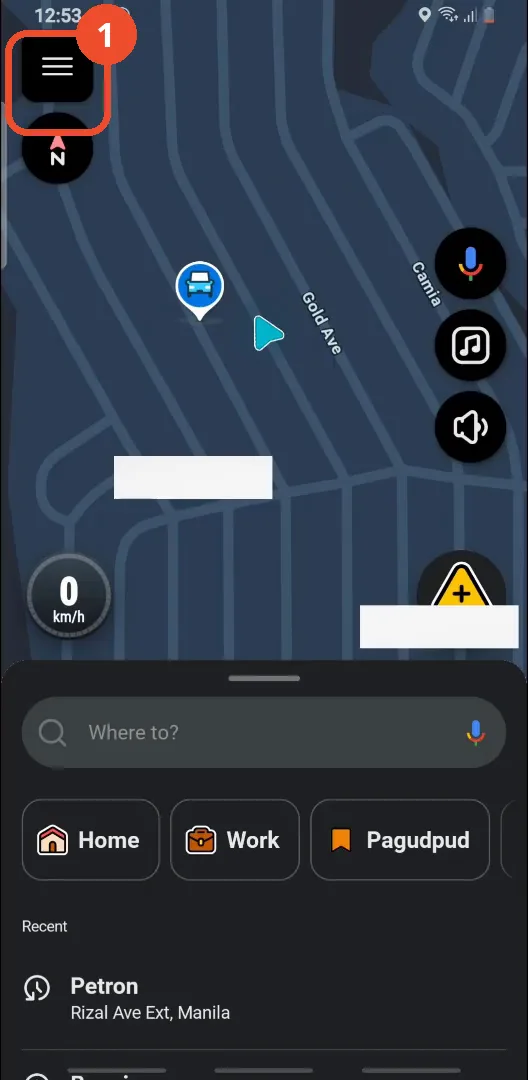
Tap the menu, then Settings
Tap the menu button — the three lines in the top-left corner — then tap Settings in the menu.
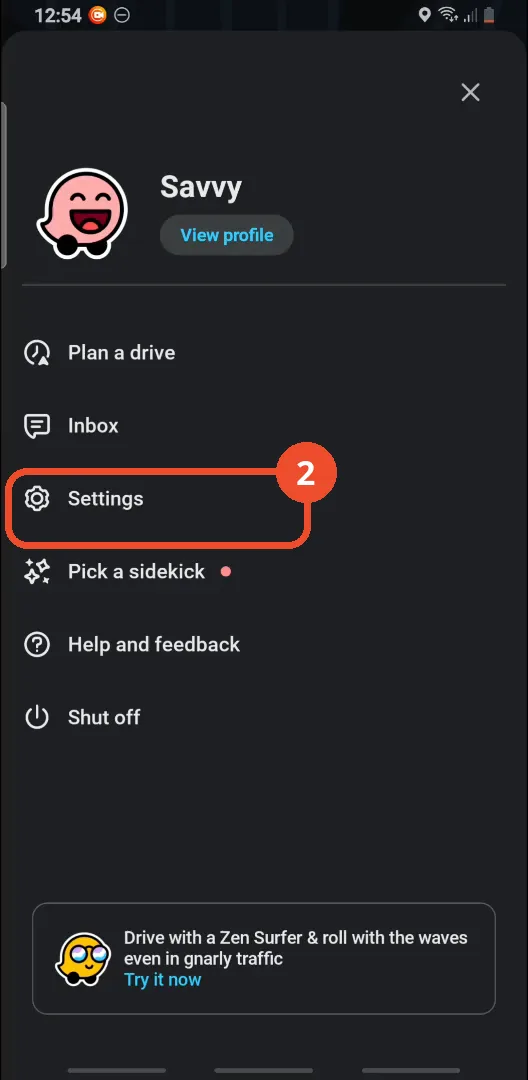
Tap Voice and sound
In Waze Settings, tap Voice and sound.
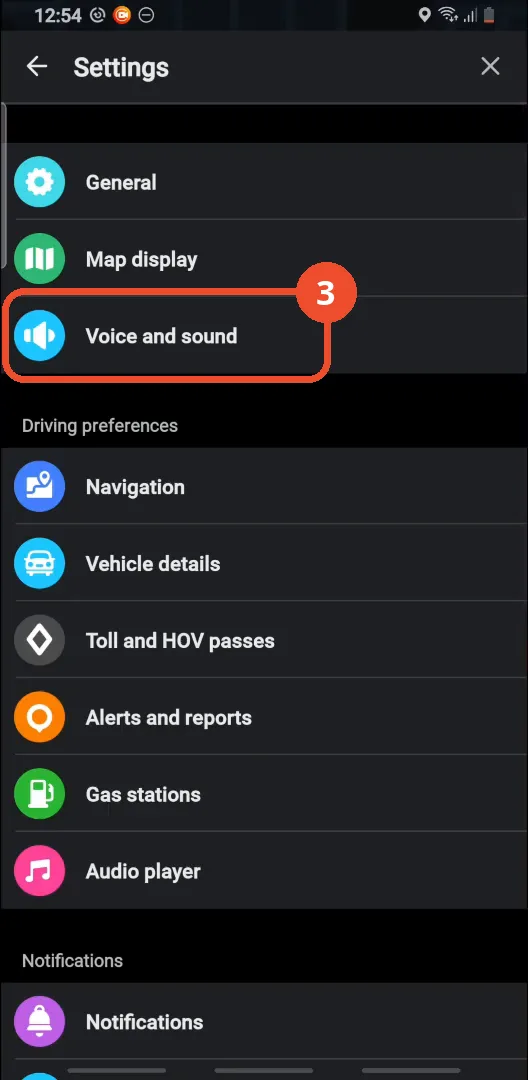
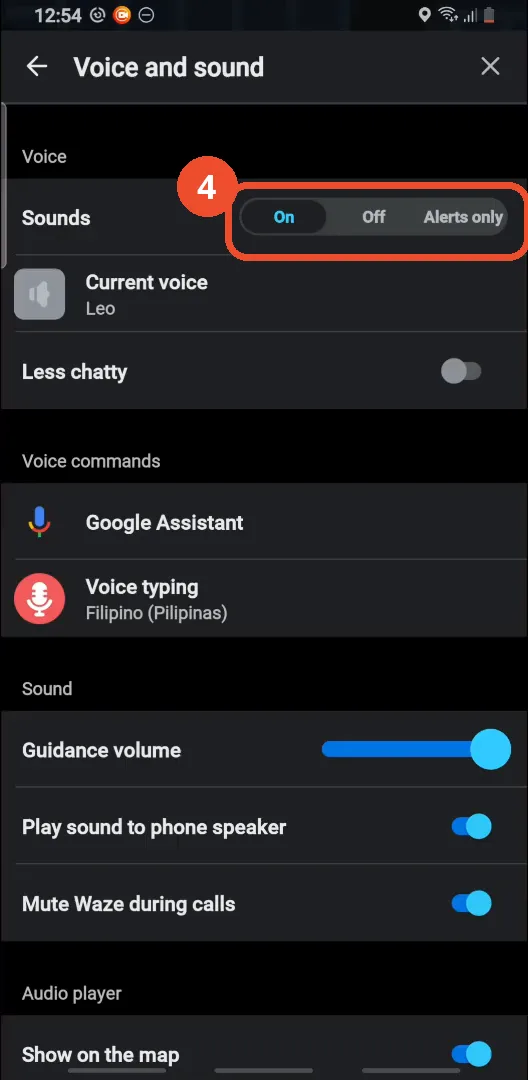
Check Sounds is On and Guidance volume is up
Sounds should be set to On — the On end of the switch is highlighted blue — and the Guidance volume slider should be turned up. In the film both are already on, as is Play sound to phone speaker, so there is nothing to change on this page. The Current voice is Leo.
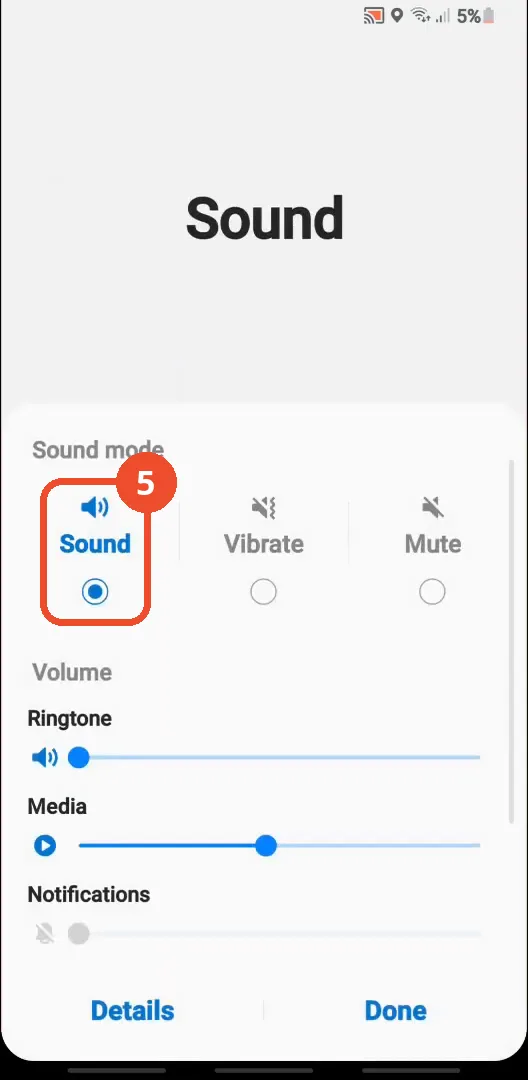
Check your phone’s Sound settings
The film cuts to the phone’s Sound settings. Make sure Sound mode is set to Sound — not Vibrate or Mute — and that the Media volume is turned up. The film shows the panel but does not drag a slider on camera, so set yours yourself.
Make sure Do not disturb is off
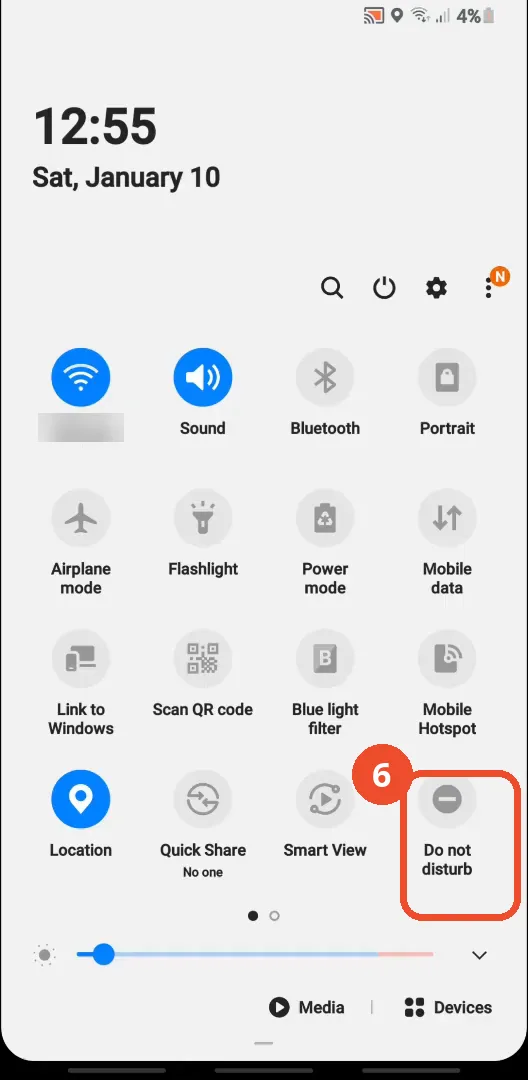
Swipe down to the quick settings and check the Do not disturb tile. In the film it starts on — blue — and the film taps it off; grey means it is off. With Do not disturb on, nothing makes a sound.
Good to know
- Nothing on the Voice and sound page is actually changed in the film — Sounds, Guidance volume, and Play sound to phone speaker are all already on. If yours are off, this page is where to turn them on.
- The narration calls the Sounds control a blue toggle. On screen it is an On / Off / Alerts only switch, with the On end highlighted blue.
- The film mentions changing the voice, but it never opens the voice list on camera — the Current voice stays Leo. Tap Current voice if you want a different voice.
- The phone’s Sound panel shows Notifications and System greyed out while Do not disturb is on. That is the panel telling you Do not disturb is silencing them, not a separate setting to fix.
- If sound still does not work after all of this, check Waze’s app permissions — the permissions fix is covered in How to Fix Waze Sound Not Working.
More on Waze
Guide complete
Every step above comes from the original recording, with a screenshot for each step. Want more like this? Browse all Waze guides.