How to Turn Off TikTok Comments on Live
TikTok live comments can cover the video. You cannot switch comments off in settings — instead, swipe the live itself to slide the whole comment panel away.
✅ Tested on
- SystemAndroid
- AppTikTok
- Also works oniPhone (TikTok looks the same on iOS)
- Last verifiedOctober 29, 2026
Every screenshot below is taken from the actual recording on this device — no stock images.
Steps
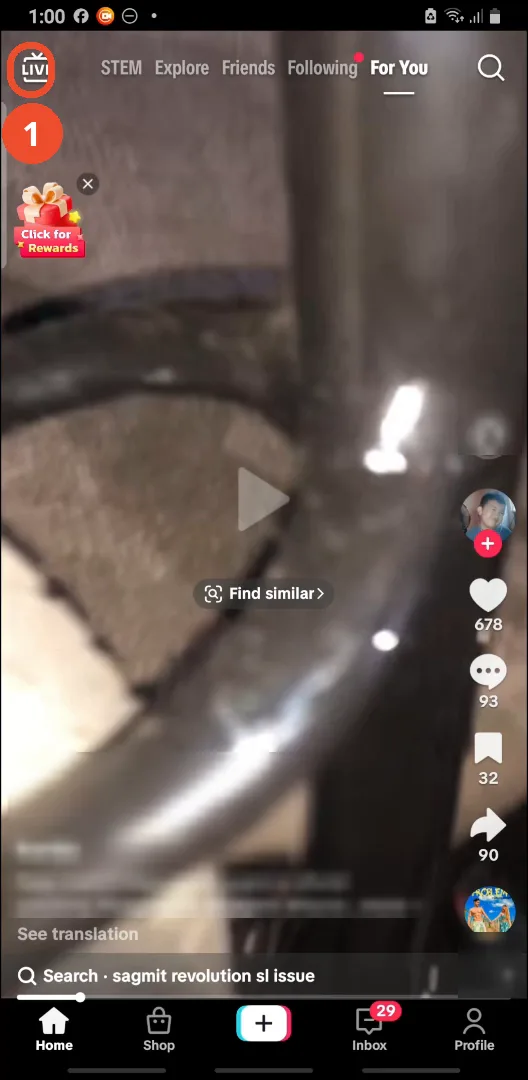
Tap LIVE at the top left
Open TikTok and tap LIVE at the top left of the feed to browse live streams.
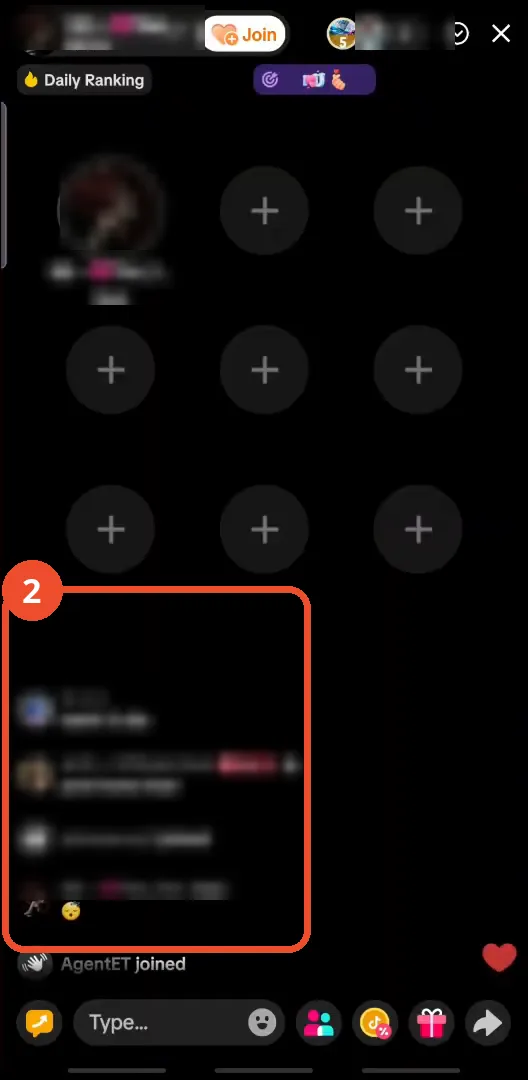
Join a live
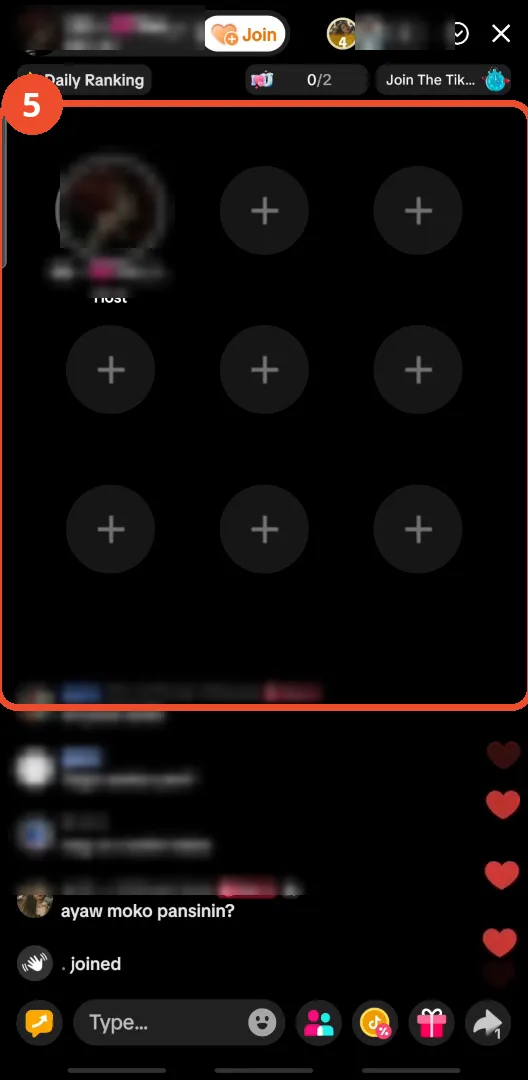
Tap a live to join it. Comments from viewers run along the bottom of the screen.
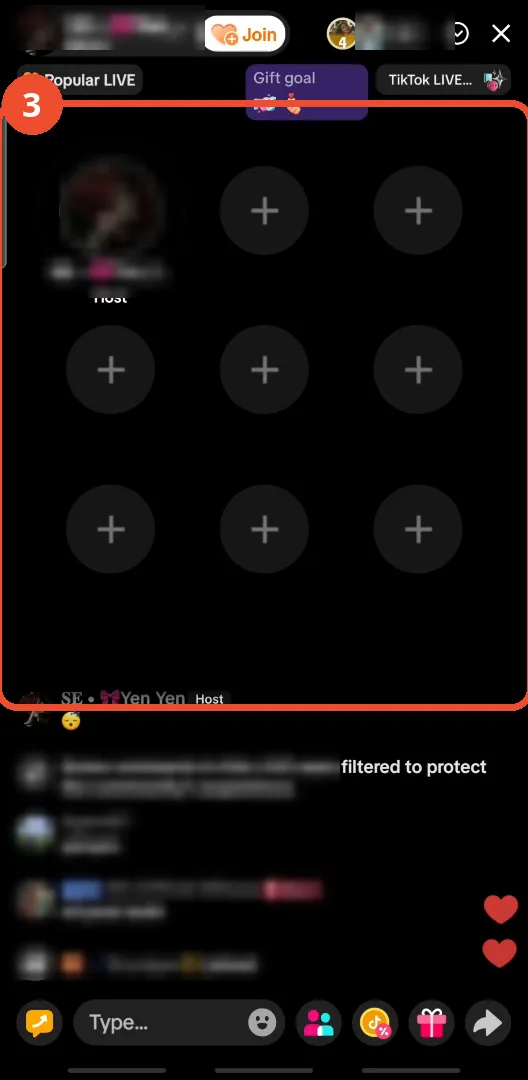
Swipe right on the live
To hide the comments, swipe right across the live video itself. The comment panel slides away with the swipe.
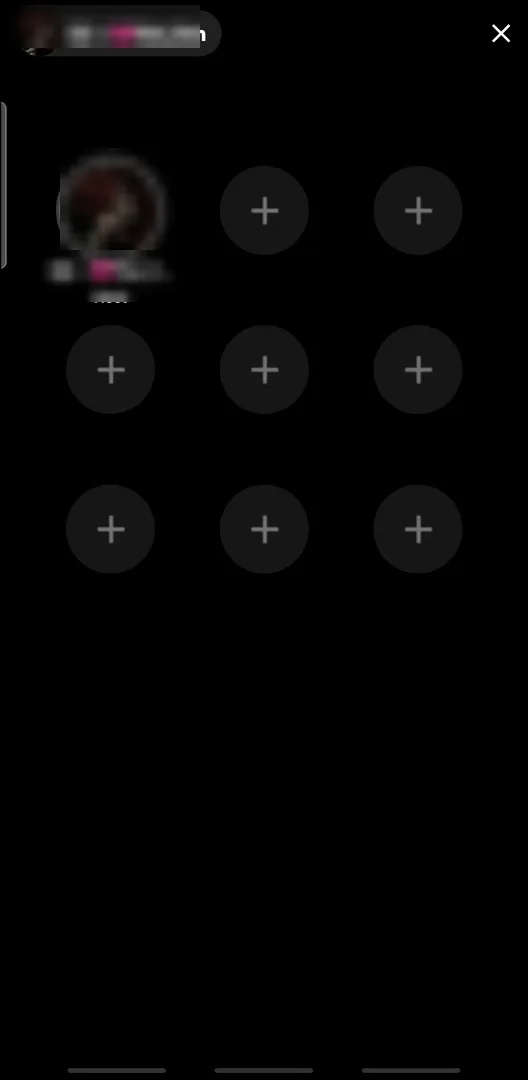
Check the comments are gone
Only the live itself remains — no comment feed and no comment bar at the bottom. That is the proof the comments are hidden.
Swipe left to bring comments back
Swipe left across the video and the comment feed and comment bar return, so you can toggle the view any time.
Good to know
- This hides comments only on your screen; other viewers still see them, and the host is unaffected.
- Swiping left restores the feed instantly, so this is a viewing preference, not a moderation action.
- The video also suggests checking the Play Store for TikTok updates first, so the gestures behave as shown.
More on TikTok
- How to Fix the ‘Tapping Too Fast’ Error on TikTok
- How to Hide TikTok Posts from Certain Followers
- How to Fix TikTok Messages Not Sending
- How to Watch TikTok Without Installing the App
- How to Fix TikTok Notifications Not Working
- How to Fix the TikTok ‘Unrecognized Device’ Error
- How to See Comments You Liked on TikTok
- How to Report a TikTok Account
- How to Fix TikTok Video Quality Compression
- How to Remove Multiple Followers on TikTok