How to Save TikTok Videos Without Watermark
TikTok’s own post settings let you keep a clean copy of a video you posted: switch on Save to device and switch off Save posts with watermark before you post, then download the posted video from its own menu. This only works for your own posts — the toggle says so itself — but for those, no third-party downloader is needed.
- SystemAndroid
- AppTikTok
- Last verifiedNovember 2, 2026
Every screenshot below is taken from the actual recording on this device — no stock images.
Steps
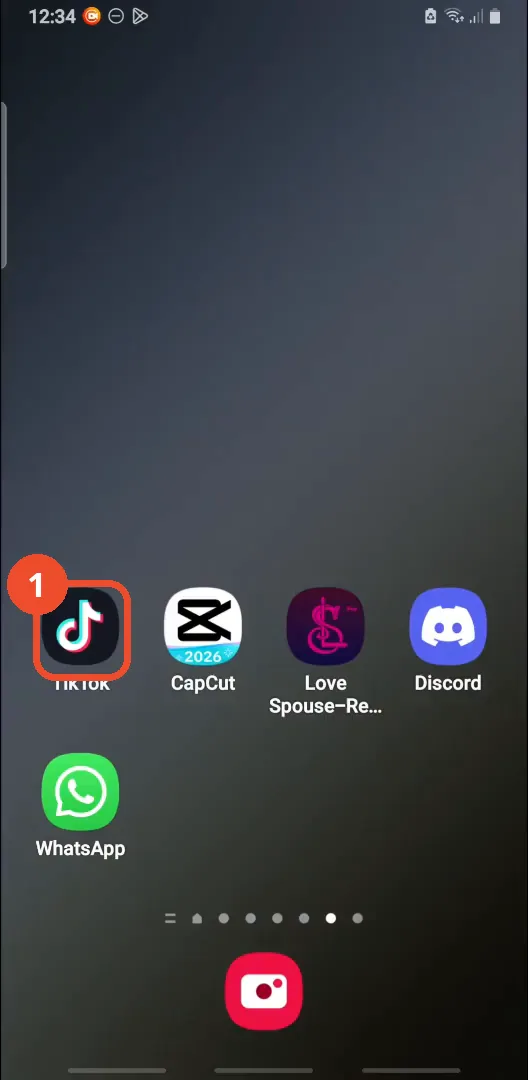
Open TikTok
Open the TikTok app on your phone.
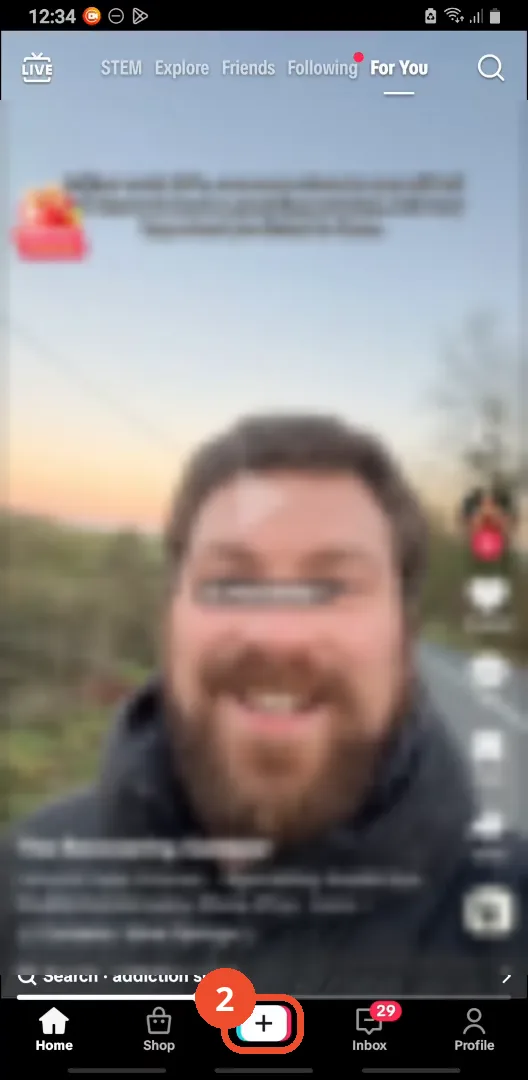
Tap + to create a post
In the feed, tap the + button in the bottom centre to create a post. (The feed video behind it is blurred out — it belongs to another creator and is not part of the method.)
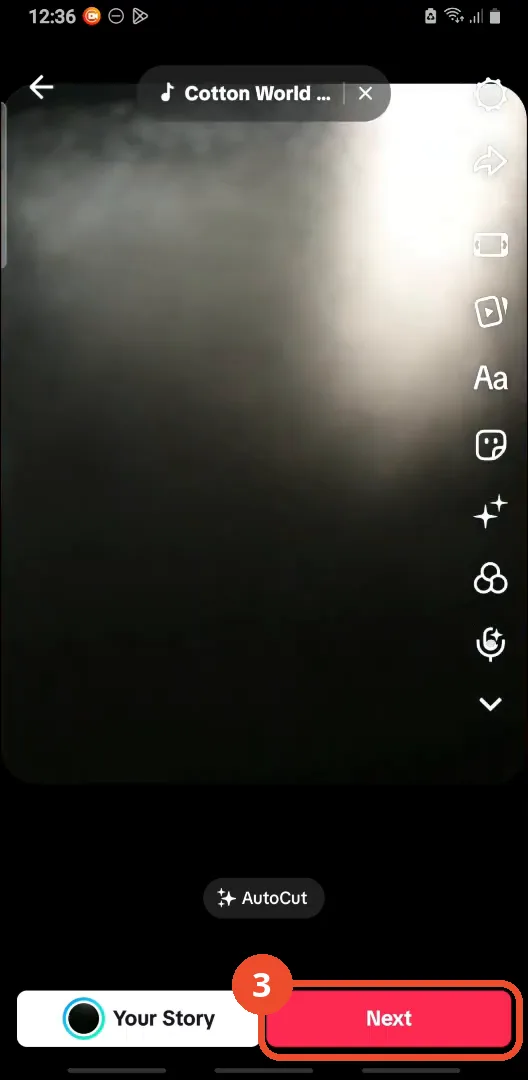
Make your video and tap Next
Record or pick your video, edit it as usual, then tap Next at the bottom right.
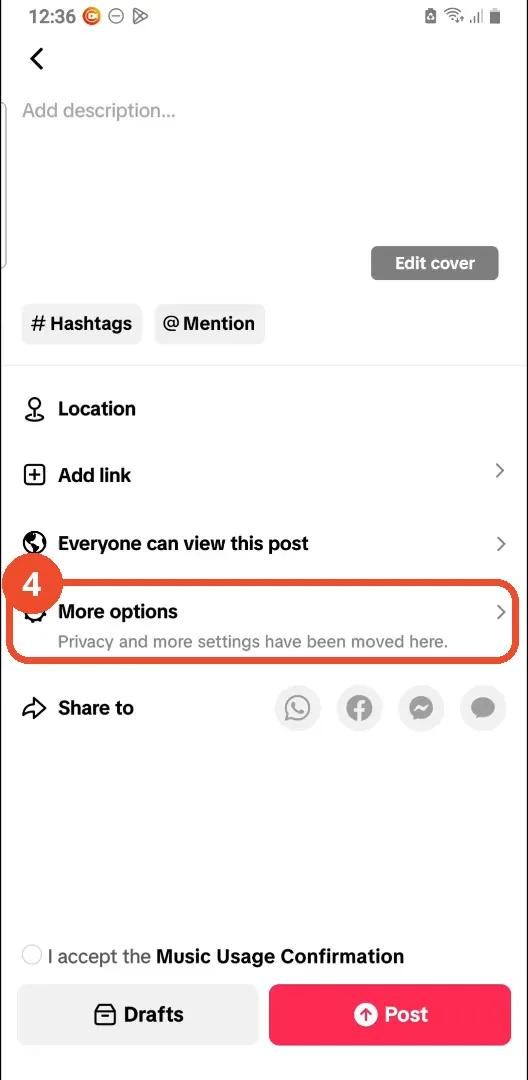
Tap More options
On the post screen, tap More options — the row with the gear icon, above Share to.
Turn on Save to device
Make sure Save to device is switched ON (teal). This is what makes TikTok keep a local copy of your post.
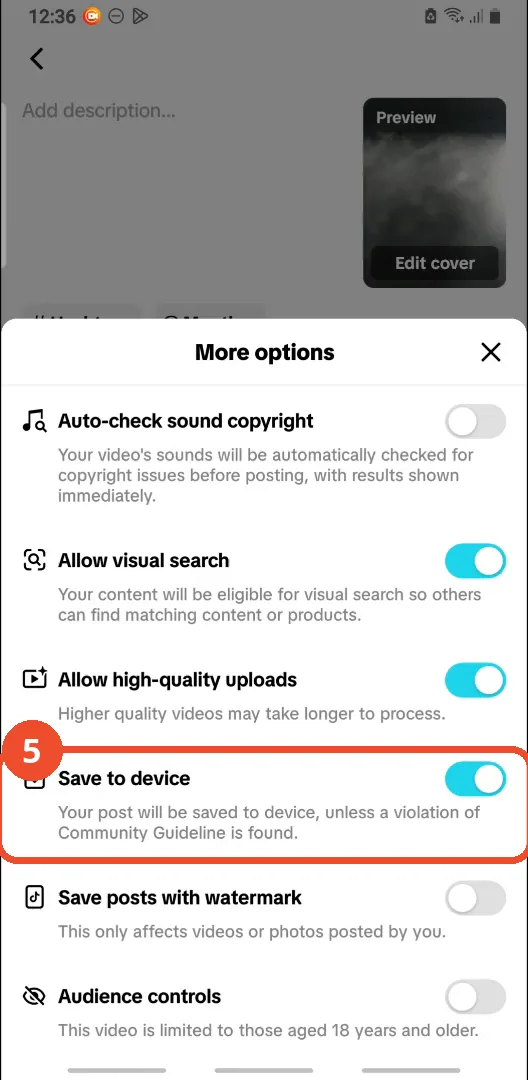
Turn off Save posts with watermark
Make sure Save posts with watermark is switched OFF (grey). This is the setting that strips the TikTok logo and username from your saved copy.

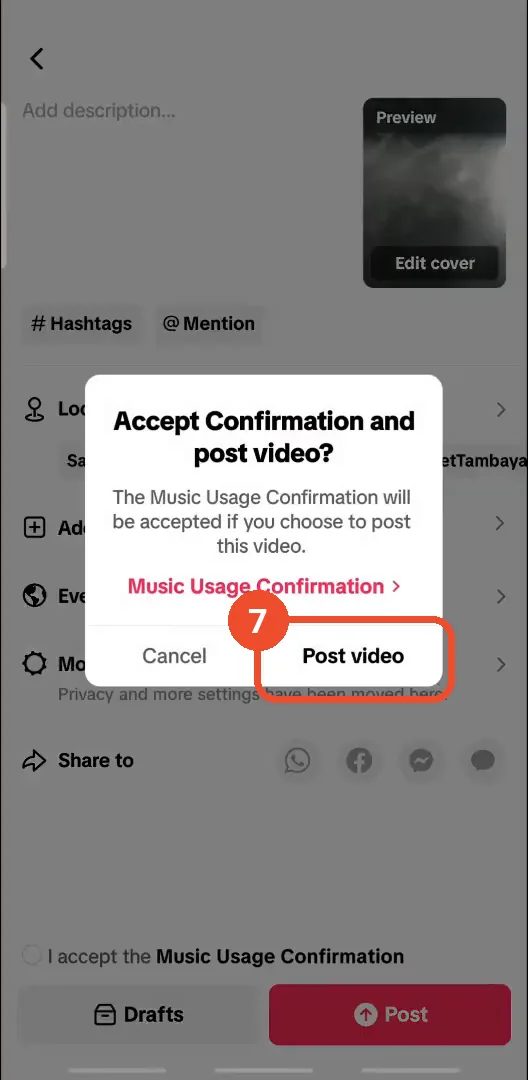
Post the video
Close the sheet, tap Post, then confirm with Post video in the music-usage dialog.
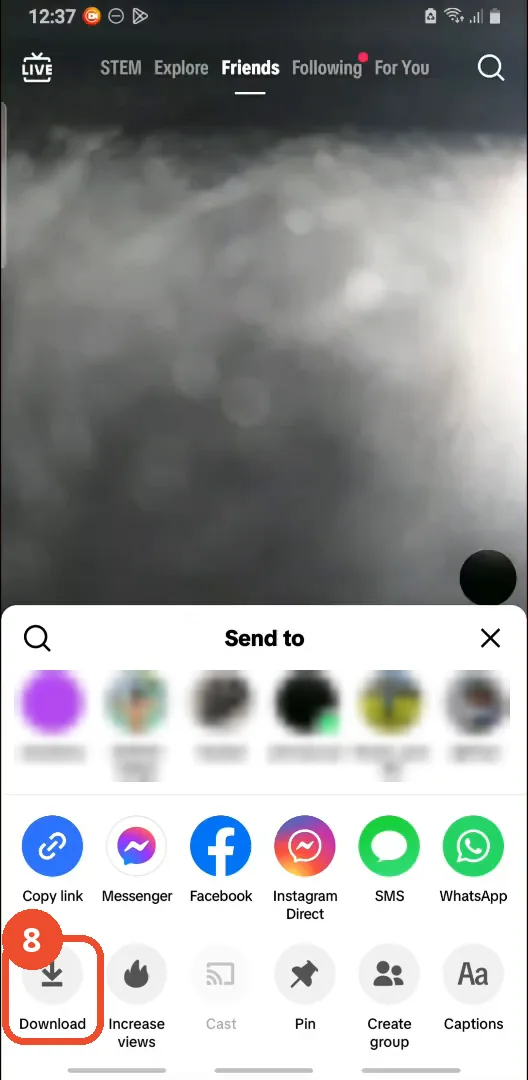
Tap the menu, then Download
Open your posted video, tap the three dots to open its menu, then tap Download at the bottom left. (The Send-to contact row is blurred out — those are other users.)
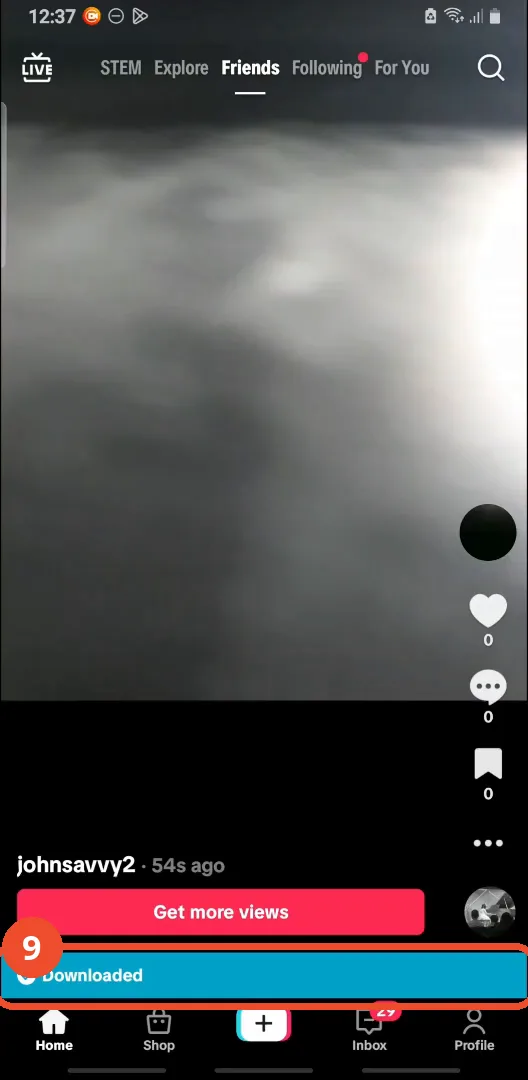
Check for the Downloaded banner
A Downloaded banner confirms the video saved to your device.
Find it in your Gallery, watermark-free
Open the video in your Gallery and play it: it plays with no TikTok watermark on it.

Good to know
- This only works for videos you posted yourself — the watermark toggle itself says it only affects videos or photos posted by you. It does not remove the watermark from other people’s videos.
- Save to device must be ON, or no local copy is made at all.
- The method uses only TikTok’s own in-app settings. No third-party downloader, website, or tool appears anywhere in the video.
- After downloading, the saved copy in your Gallery carries no TikTok logo or username watermark.
- If the download option is missing on a post, check that Save to device is on and that the post finished uploading first.
More on TikTok
- How to Fix the ‘Tapping Too Fast’ Error on TikTok
- How to Hide TikTok Posts from Certain Followers
- How to Watch TikTok Without Installing the App
- How to Fix TikTok Notifications Not Working
- How to Fix the TikTok ‘Unrecognized Device’ Error
- How to See Comments You Liked on TikTok
- How to Report a TikTok Account
- How to Fix TikTok Video Quality Compression
- How to Remove Multiple Followers on TikTok
- How to Turn Off TikTok Comments on Live
- How to Fix TikTok Search Not Showing Videos (No Results Error)
- Fix TikTok Couldn’t Play Video Error
- Fix TikTok Messages Not Sending
- How to Know If Someone Deleted Your Comment on TikTok
- Fix TikTok Privacy Settings Restricted
- Fix TikTok Likes Not Registering
- How to Block Someone on TikTok Without Viewing Their Profile
- How to View TikTok Profiles Privately Without Notifications
- How to Fix the TikTok Login Expired Error
- Fix TikTok Live Unavailable Error
- How to Buy Coins on TikTok
- How to Hide Your Following List on TikTok Without Going Private