How to Hide TikTok Posts from Certain Followers
TikTok has no “hide this post from one person” button, so the recording uses the two methods that actually work. Method 1 (steps 1–4): block the follower. That is total — they can no longer see your posts, find your profile or message you. Method 2 (steps 5–6): set a post’s audience to Friends. That is softer and per video: the post becomes visible only to followers you follow back. Some names and photos in the follower screenshots are blurred for privacy; the buttons are all in their real places.
- SystemAndroid
- AppTikTok
- Also works oniPhone (the menus are the same)
- Last verifiedOctober 28, 2026
Every screenshot below is taken from the actual recording on this device — no stock images.
Before you start
- Blocking also removes the person from your followers and unfollows them from your side.
- TikTok does not notify the person that you blocked them — the confirmation dialog says so itself.
- The Friends audience is set per video; new posts default back to your account’s normal audience.
Steps
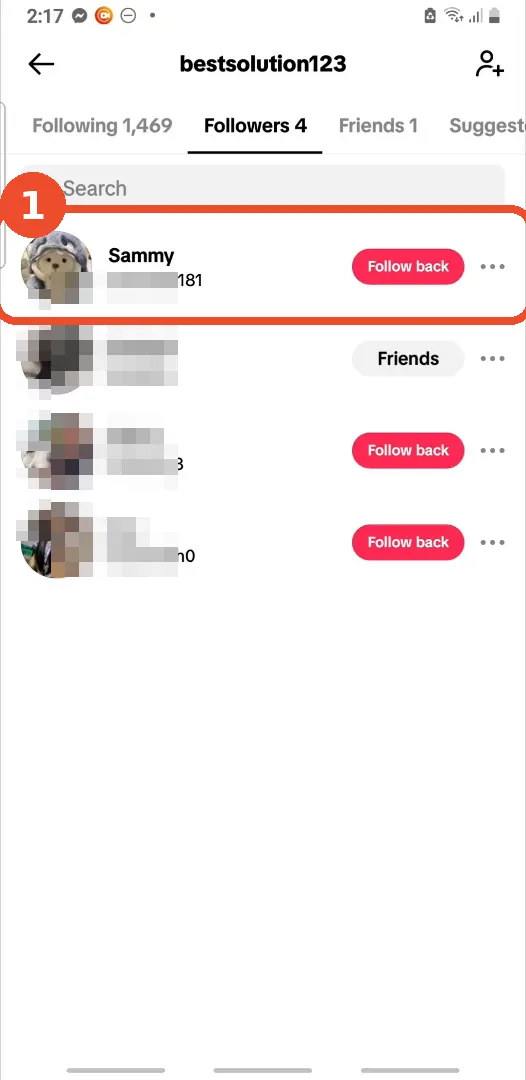
Open your Followers list and pick the person
On your profile, open the Followers list and tap the follower you want to hide your posts from (here: Sammy).
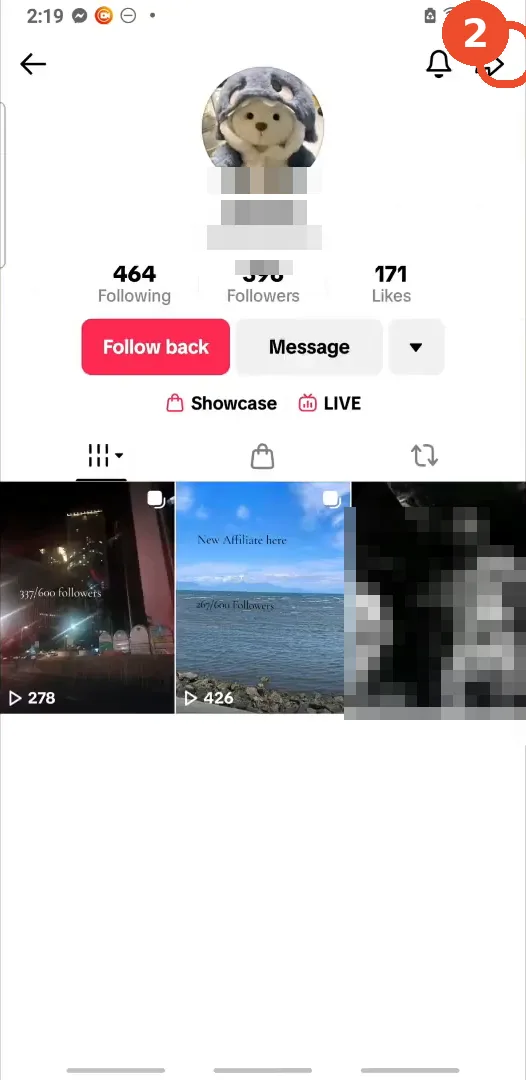
Tap the share icon on their profile
On their profile, tap the share icon at the top right.
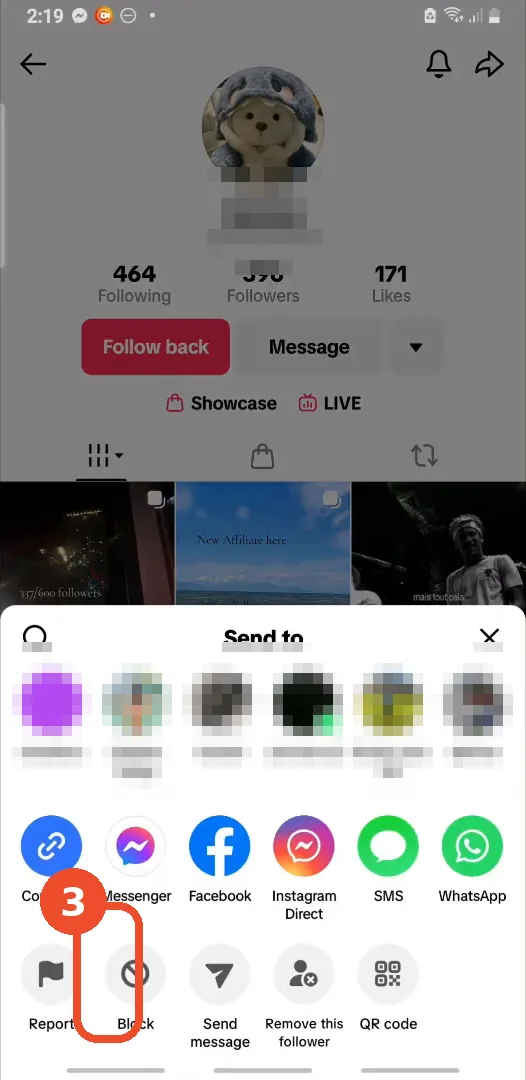
Tap Block
In the Send to sheet, tap Block in the bottom row of actions.
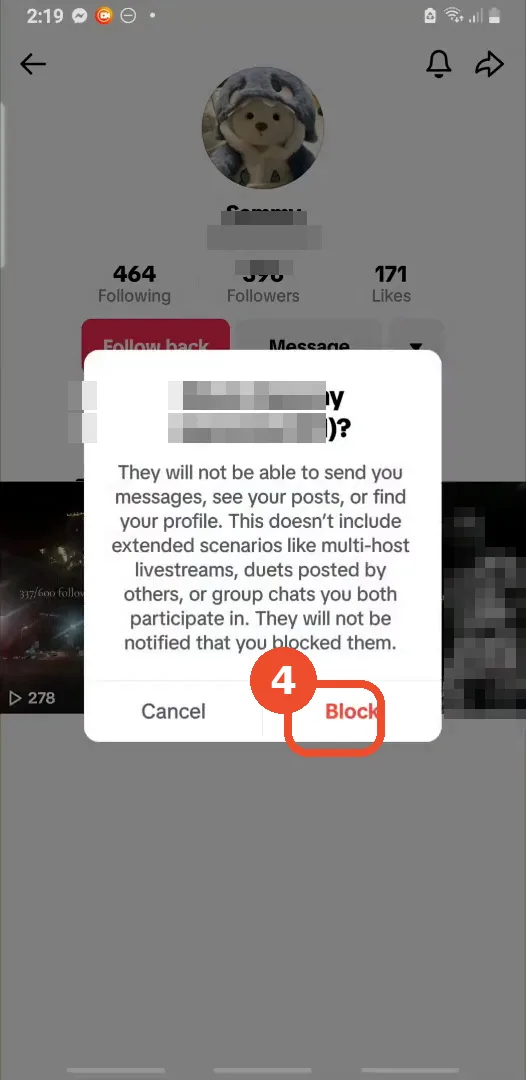
Confirm with Block
Read the confirmation — they will not be able to send you messages, see your posts or find your profile, and they are not notified — then tap Block.
Or open Privacy settings on your own post
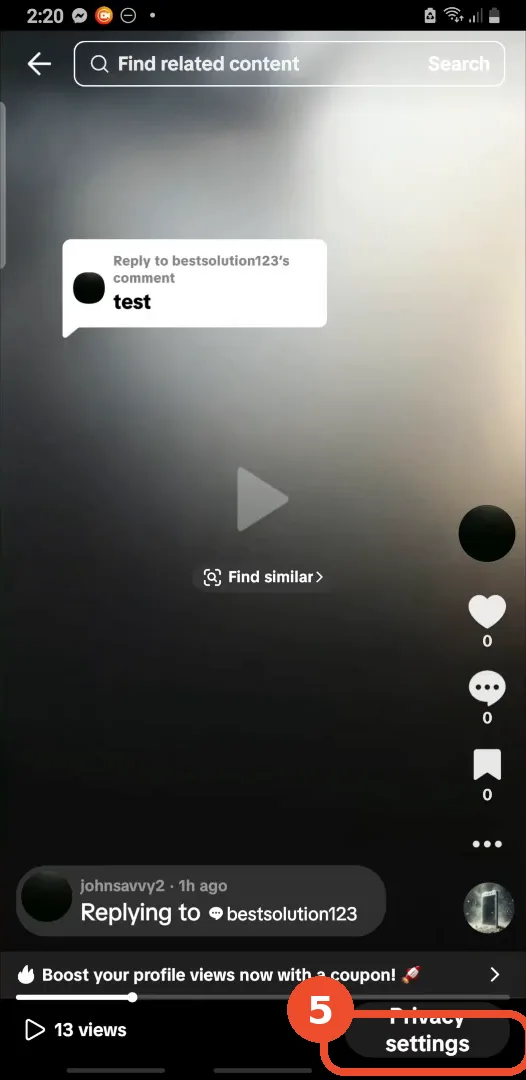
Method 2, for a single post instead of a person: open your own video and tap Privacy settings at the bottom right while it plays.
Set Who can watch this video to Friends
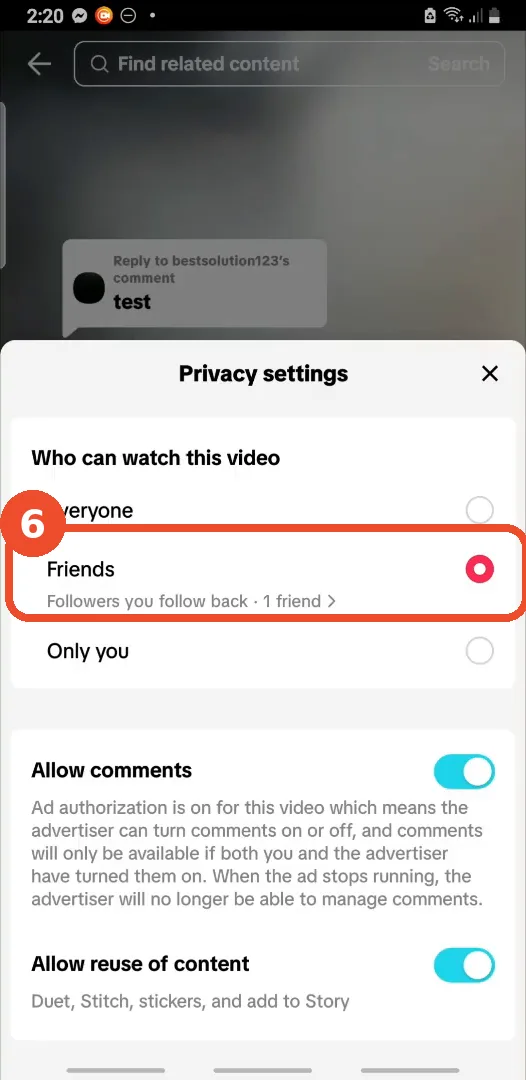
Set Who can watch this video to Friends. From now on this post is visible only to followers you follow back — everyone else, including the follower you want to avoid, cannot watch it.
Which method should you use?
- Block when the person should not find you at all: it covers every post, past and future, plus messages and profile search.
- Friends when you just want a quieter audience for one video and do not want to cut the person off completely.
- Neither method deletes anything: unblocking the person, or switching the post back to Everyone, restores visibility.