How to Fix TikTok Video Quality Compression
TikTok trims upload quality by default to save data. Two switches fix it: Data Saver off in Settings, and Allow high-quality uploads on every post.
- SystemAndroid
- AppTikTok
- Also works oniPhone (TikTok looks the same on iOS)
- Last verifiedOctober 29, 2026
Every screenshot below is taken from the actual recording on this device — no stock images.
Steps
Open Settings and privacy
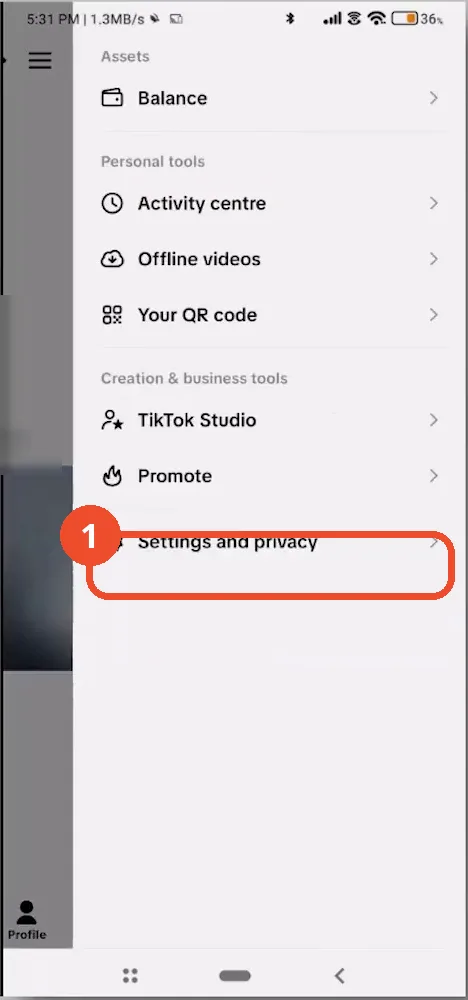
Open TikTok, go to your profile and tap the menu (three lines) to open this side menu. Then tap Settings and privacy near the bottom.
Tap Data Saver
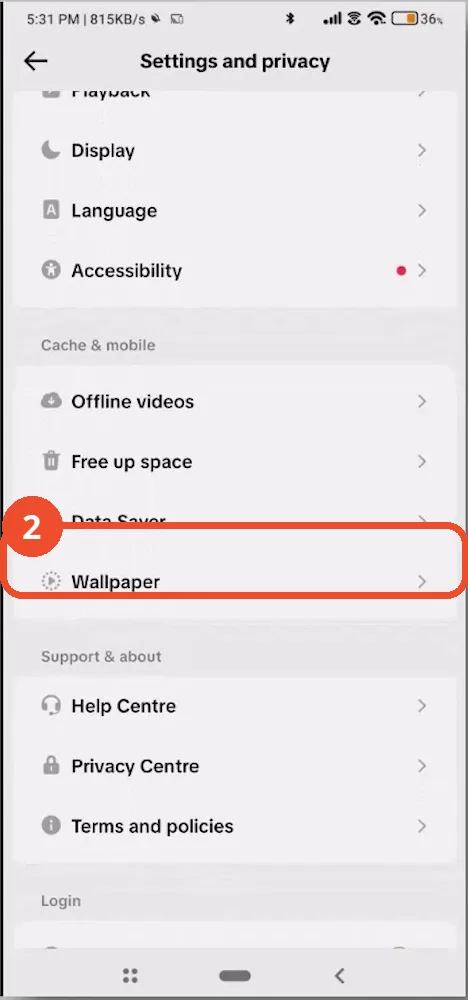
In Settings and privacy, scroll to the Cache & mobile section and tap Data Saver.
Turn Data Saver off
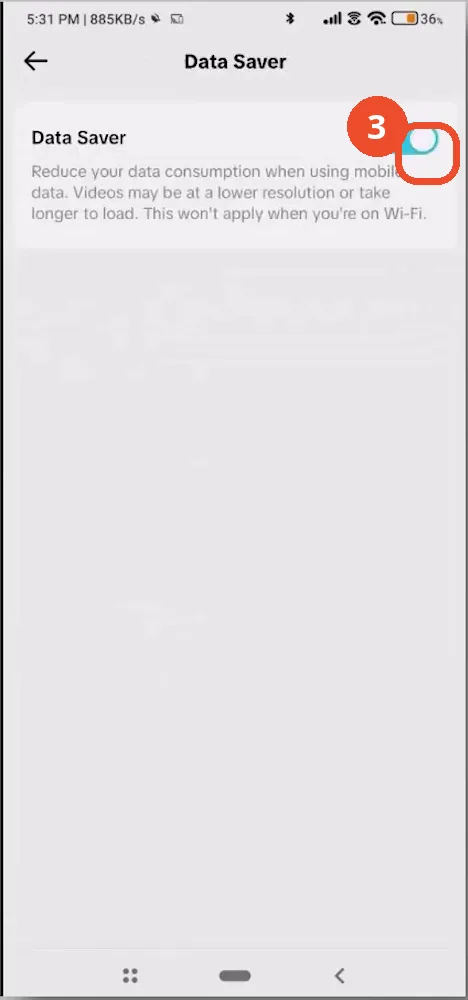
Tap the Data Saver toggle to switch it off. While it is on, TikTok lowers video resolution to save mobile data.
Tap More options on the post screen
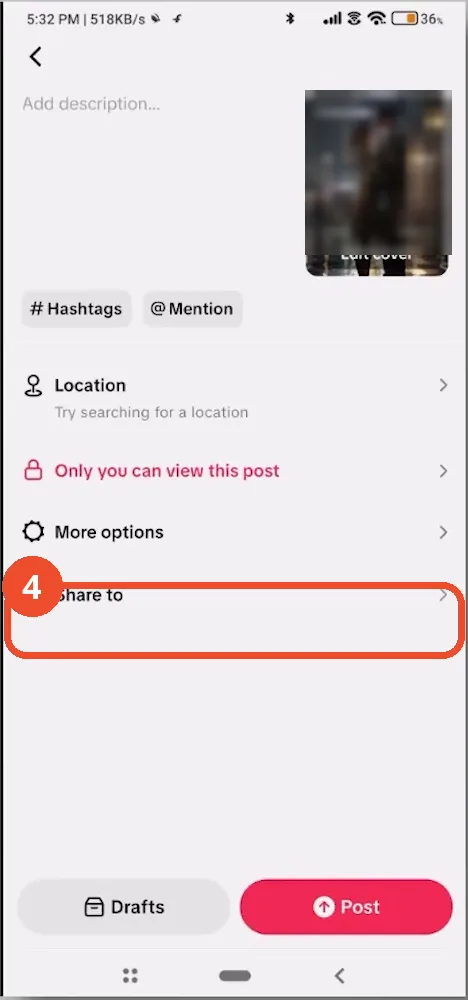
Start uploading a video as usual. On the final post screen, scroll down and tap More options above the Post button.
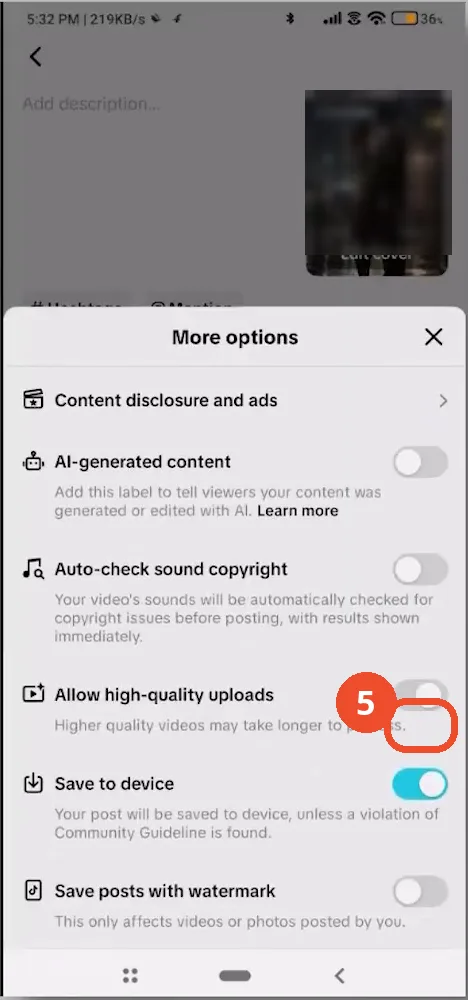
Turn on Allow high-quality uploads
In the More options sheet, find Allow high-quality uploads and tap its toggle to switch it on.
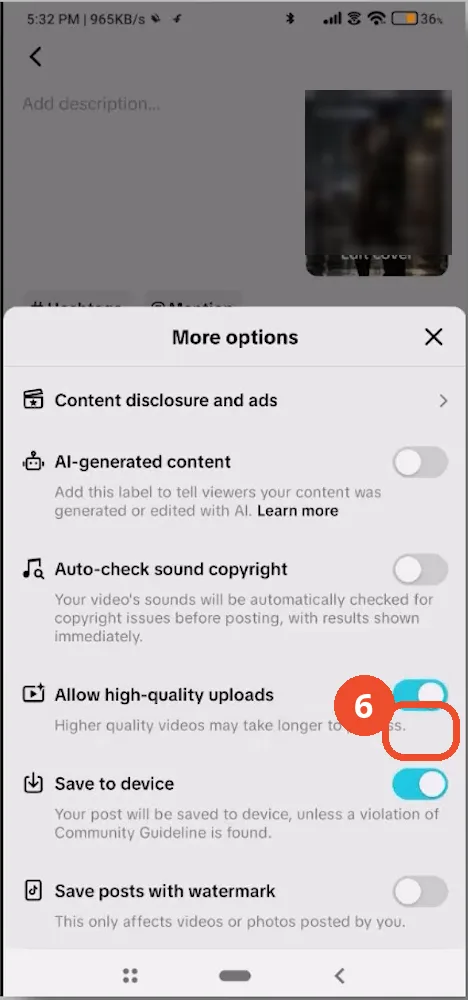
Check the toggle stays on before posting
The toggle is now blue (on). Double-check it here every time before you tap Post — the video notes it can reset itself.
Good to know
- Data Saver only affects mobile data — TikTok says it does not apply on Wi-Fi, but the upload toggle still matters for quality.
- Record with your phone’s camera app in 1080p instead of TikTok’s in-app camera, which downscales footage, then upload from your camera roll.
- Allow high-quality uploads can reset itself, so check the toggle on the post screen before every upload.
More on TikTok
- How to Fix the ‘Tapping Too Fast’ Error on TikTok
- How to Hide TikTok Posts from Certain Followers
- How to Fix TikTok Messages Not Sending
- How to Watch TikTok Without Installing the App
- How to Fix TikTok Notifications Not Working
- How to Fix the TikTok ‘Unrecognized Device’ Error
- How to See Comments You Liked on TikTok
- How to Report a TikTok Account