How to Fix TikTok Analytics Not Showing
If your TikTok analytics page is blank or missing, the usual causes are a personal (non-Pro) account, TikTok still processing a recent post, or a corrupted cache. Check your account type, confirm the analytics page exists, then clear the cache — and give new posts 24 to 72 hours to show data.
- SystemAndroid
- AppTikTok
- Last verifiedNovember 3, 2026
Every screenshot below is taken from the actual recording on this device — no stock images.
Steps
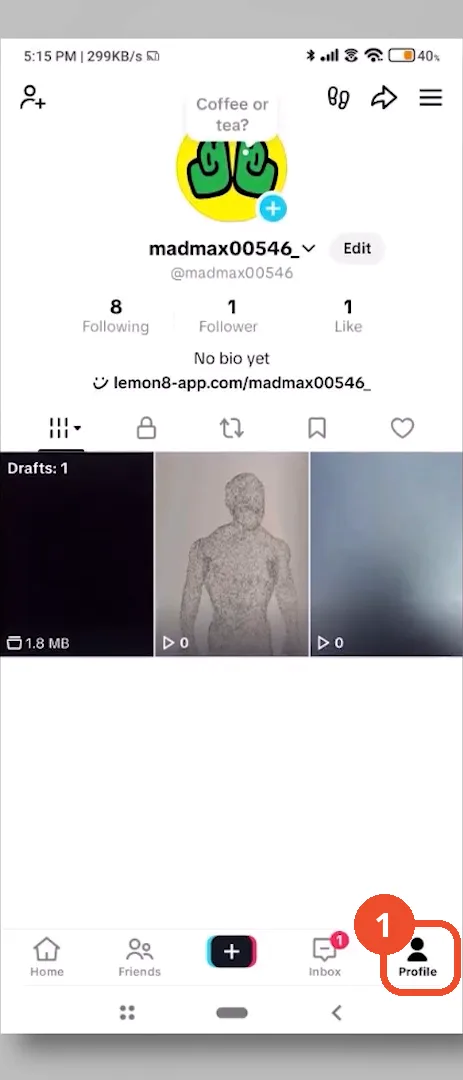
Open TikTok and go to your profile
Open TikTok and tap Profile in the bottom navigation.
Open the profile menu
On your profile, tap the three-line menu in the top right to open the menu.
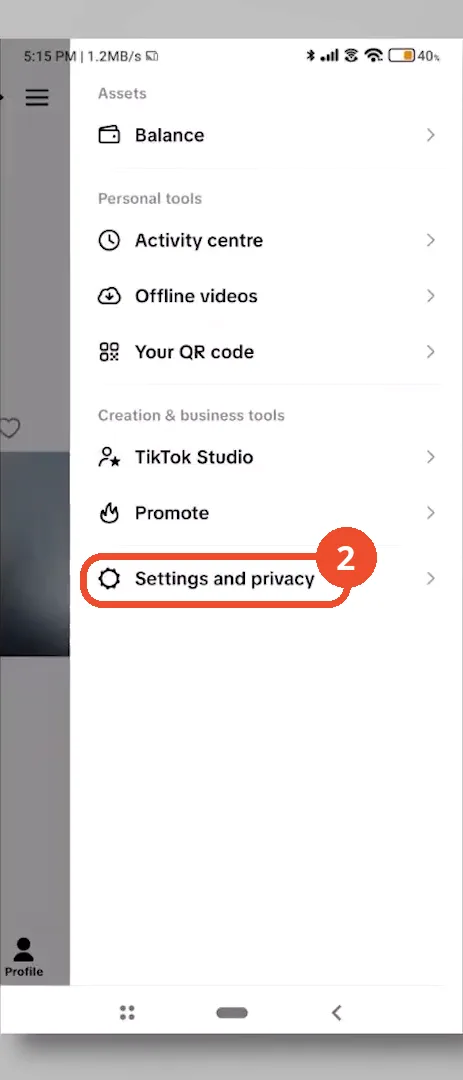
Open Settings and privacy
In the menu, tap Settings and privacy.
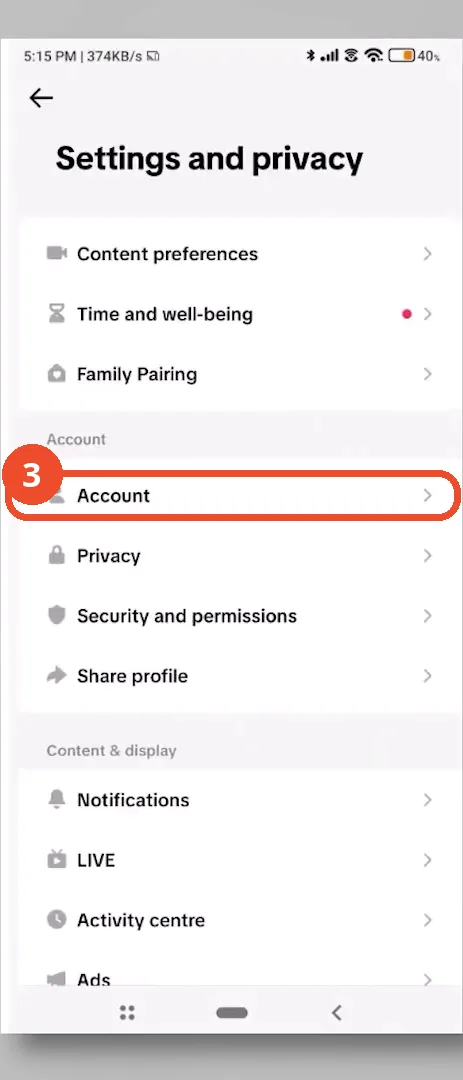
Check your account type
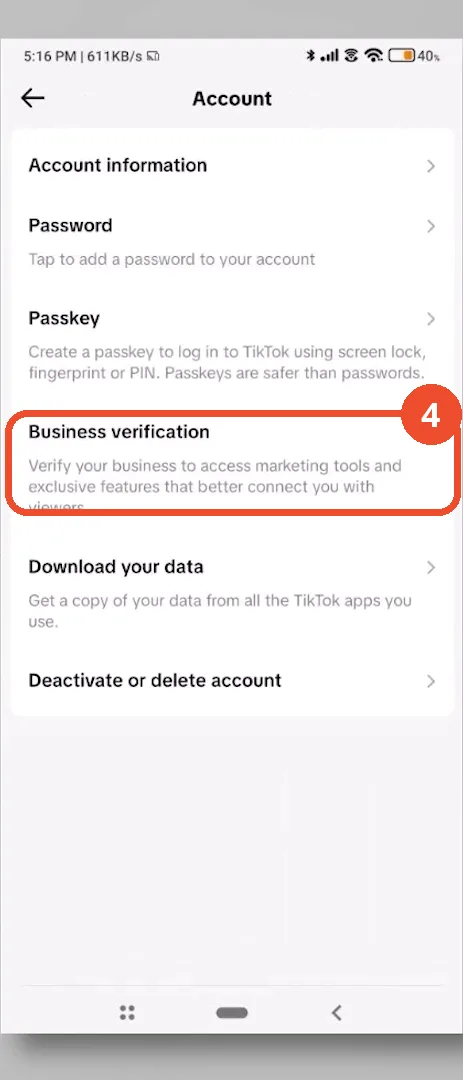
In Settings and privacy, tap Account. A personal account gets no detailed analytics: the page should offer a switch to a Business or Creator account, or show Business verification if the account already has business features. This demo account already has business features, so no switch row appears here.
Confirm the analytics page exists
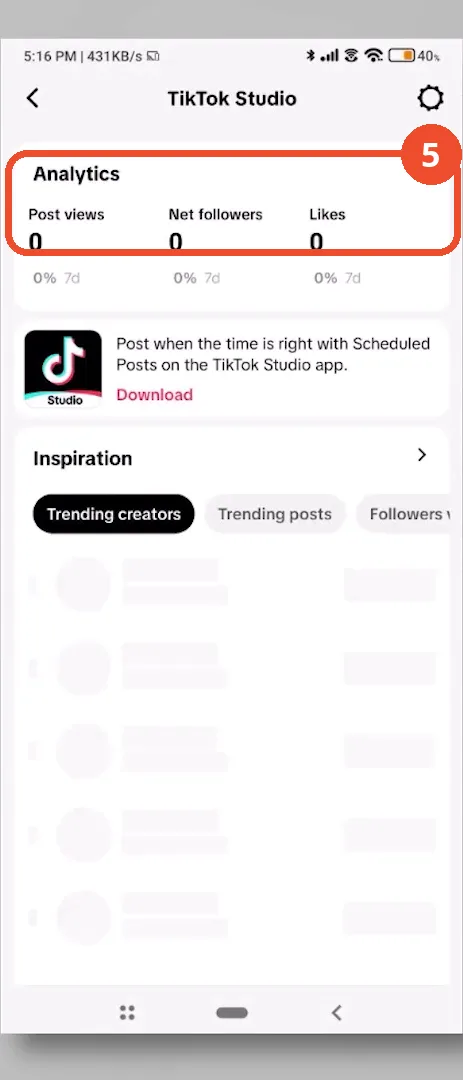
Open TikTok Studio and check Analytics. If the page loads but shows zeros, TikTok is still processing: new posts can take 24 to 72 hours before engagement data appears.
Clear the cache
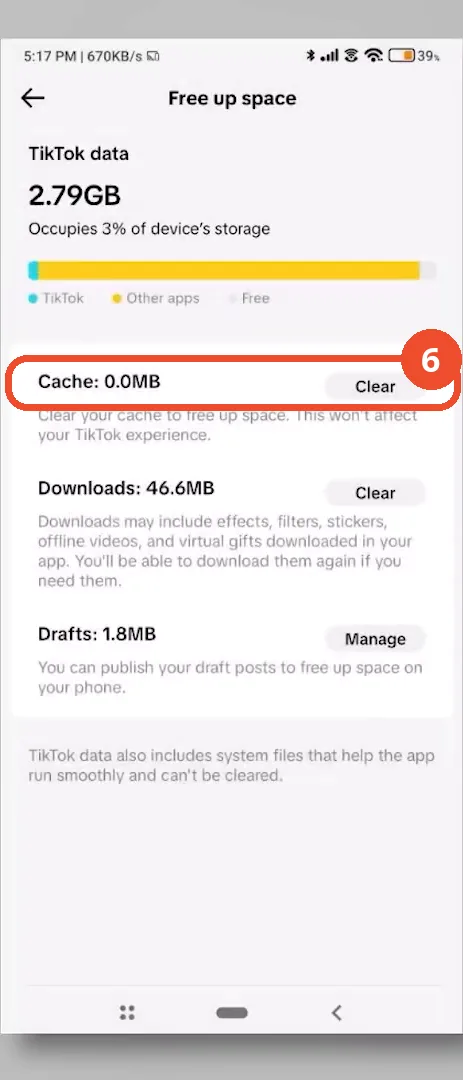
Back in Settings and privacy, scroll to Free up space and tap Clear next to Cache. This refreshes the app without deleting saved videos or drafts.
Good to know
- TikTok only shows detailed analytics for Business or Creator (Pro) accounts; a personal account has no analytics tab at all.
- The account-type switch itself is not tapped on camera in this video: the demo account already has business features (TikTok Studio and an Analytics page), so the Account page shows Business verification instead of a switch row.
- New posts need 24 to 72 hours before TikTok finishes processing their engagement data; a page of zeros right after posting is normal.
- Clearing the cache does not delete saved videos or drafts.
- The video also advises updating TikTok in the Play Store to patch dashboard bugs; the update tap itself is not shown on camera, so it is not a step here.
- In the recorded Free up space frame the Cache line already reads 0.0MB, so the Clear tap’s visible effect is not shown on camera.
More on TikTok
- How to Fix the ‘Tapping Too Fast’ Error on TikTok
- How to Hide TikTok Posts from Certain Followers
- How to Watch TikTok Without Installing the App
- How to Fix TikTok Notifications Not Working
- How to Fix the TikTok ‘Unrecognized Device’ Error
- How to See Comments You Liked on TikTok
- How to Report a TikTok Account
- How to Fix TikTok Video Quality Compression
- How to Remove Multiple Followers on TikTok
- How to Turn Off TikTok Comments on Live
- How to Fix TikTok Search Not Showing Videos (No Results Error)
- Fix TikTok Couldn’t Play Video Error
- Fix TikTok Messages Not Sending
- How to Know If Someone Deleted Your Comment on TikTok
- Fix TikTok Privacy Settings Restricted
- Fix TikTok Likes Not Registering
- How to Block Someone on TikTok Without Viewing Their Profile
- How to View TikTok Profiles Privately Without Notifications
- How to Fix the TikTok Login Expired Error
- How to Buy Coins on TikTok
- How to Hide Your Following List on TikTok Without Going Private
- How to Save TikTok Videos Without Watermark
- Fix TikTok Live Unavailable Error