How to Fix TikTok Notifications Not Working
When TikTok stops notifying you, the cause is almost never TikTok’s servers — it is one of four switches, and each one can silence the app on its own: the in-app toggles, TikTok’s own quiet-hours schedule, the phone’s Do Not Disturb, and Android’s battery limits. The recording checks all four in that order. Finish all five steps; fixing only the first one you find is why this problem keeps coming back for most people.
- SystemAndroid
- AppTikTok 45.0.42
- Also works onOther Android phones (system menu names vary slightly)
- Last verifiedOctober 28, 2026
Every screenshot below is taken from the actual recording on this device — no stock images.
Before you start
- The steps move between TikTok and the phone’s system Settings — that is normal, the switches live in both places.
- Menu names in system Settings differ a little between phone brands; the TikTok screens in steps 1–2 are identical everywhere.
- After the fixes, ask a friend to like a post or follow you to test — notifications resume immediately, there is no waiting period.
Steps
Turn on in-app notifications
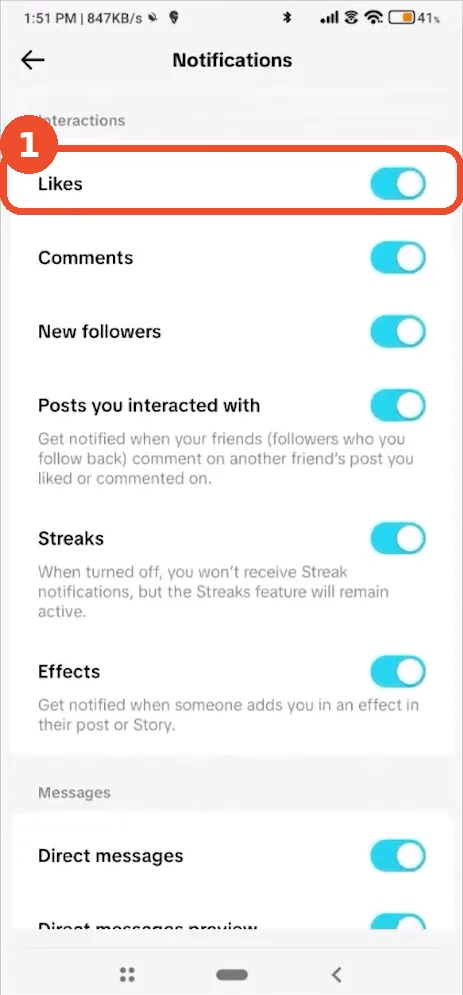
In TikTok, go to Profile → ☰ → Settings and privacy → Notifications and make sure the toggles are on — Likes, Comments, New followers and the rest of the Interactions list, plus Direct messages further down.
Check the push notification schedule
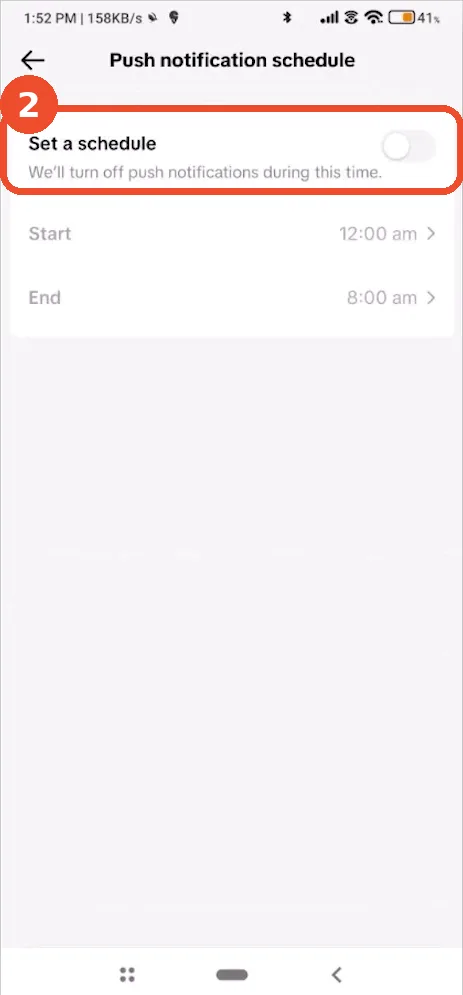
Still on the Notifications page, tap Push notification schedule. If Set a schedule is on, TikTok holds your push notifications during the hours shown (here 12:00 am to 8:00 am) — turn the schedule off, or expect silence at night.
Turn off Do not disturb
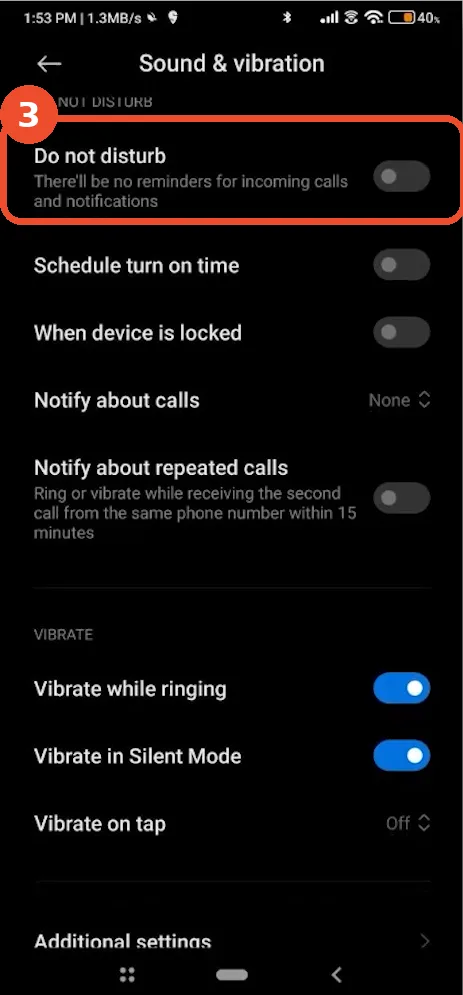
Open the phone’s Settings → Sound & vibration and make sure Do not disturb is off. While it is on, it suppresses TikTok along with everything else, and no app setting can override it.
Open TikTok’s notification settings
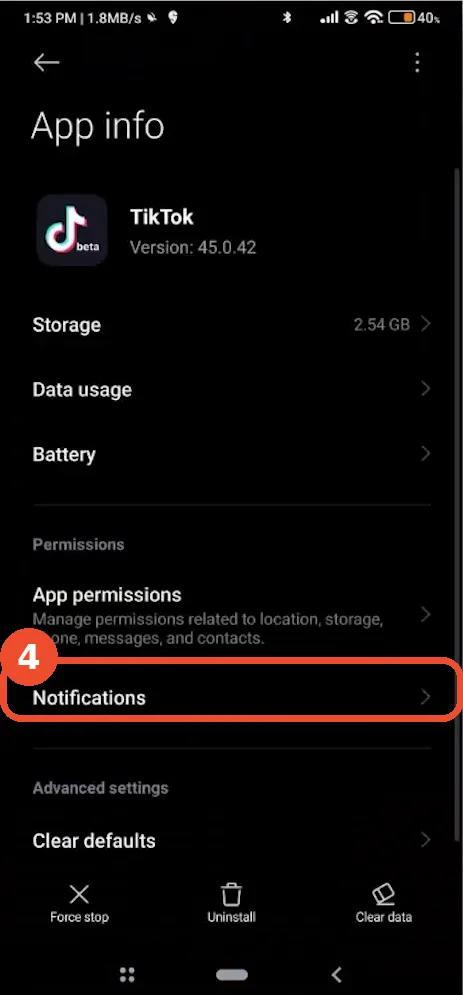
In system Settings, open App info for TikTok (Apps → TikTok) and tap Notifications, then allow notifications there too. The recording’s App info page shows TikTok version 45.0.42 — the app this guide was verified on.
Set battery to No restrictions
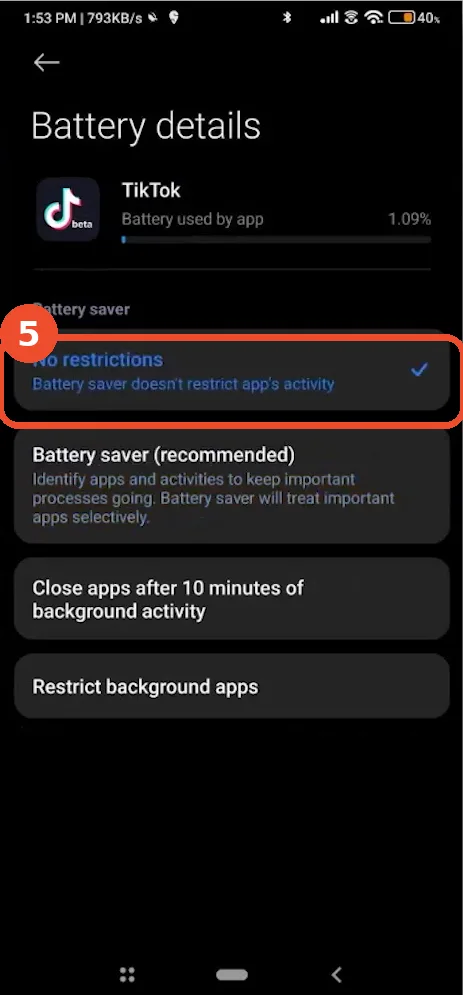
Back on the App info page, tap Battery and choose No restrictions. Aggressive battery saving kills TikTok in the background, and a killed app cannot receive pushes — this is the step most people miss.
If notifications are still missing
- Restart the phone once after changing these settings; a stuck notification listener clears more often than people expect.
- Check per-account basics: a brand-new account with no activity has nothing to notify about — the first like or follow triggers the first alert.
- If everything arrives except direct-message alerts, that toggle lives separately at the bottom of the step 1 page (Direct messages).