How to Edit Captions on TikTok
Captions describe your video, add context and help it reach more people. TikTok can generate them automatically from your video’s audio, and you can review and correct every line before you post.
- SystemAndroid
- AppTikTok
- Last verifiedNovember 9, 2026
Every screenshot below is taken from the actual recording on this device — no stock images.
Steps
Open TikTok and tap the + icon
Open TikTok and tap the + icon in the bottom bar. The camera opens.

Tap the upload thumbnail to pick a video
Tap the gallery thumbnail at the bottom right to pick a video from your phone instead of recording a new one.
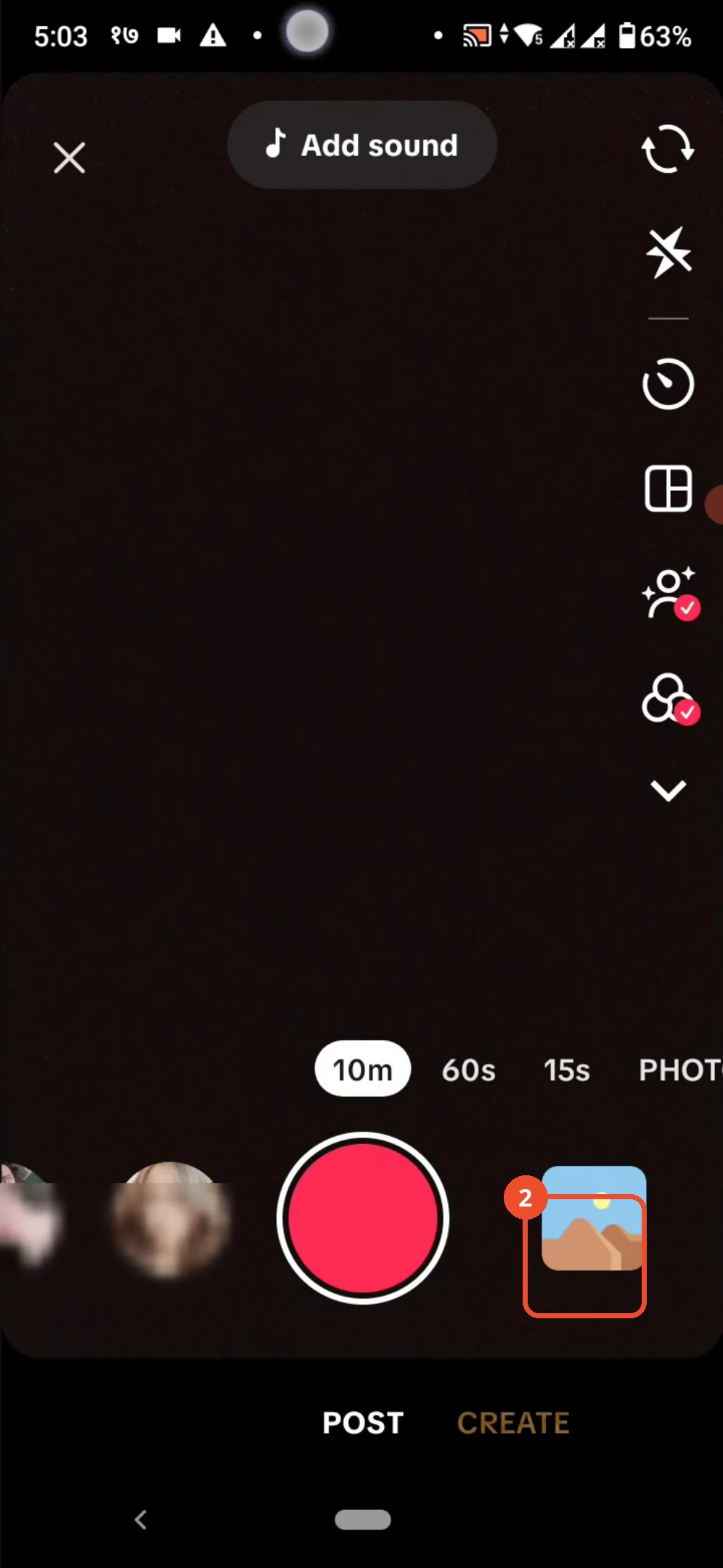
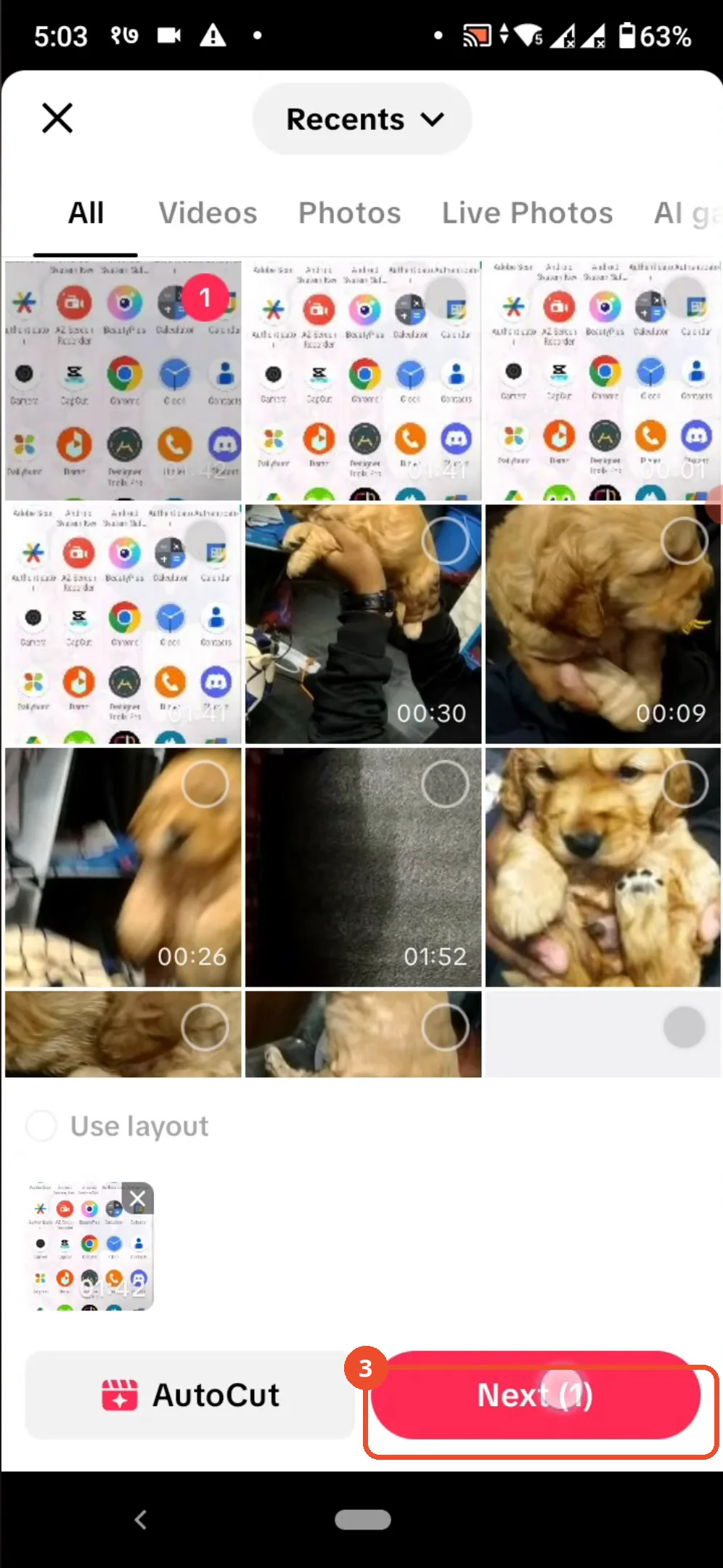
Select the video and tap Next
Tap the video you want to caption - it gets a number badge - then tap Next at the bottom right.
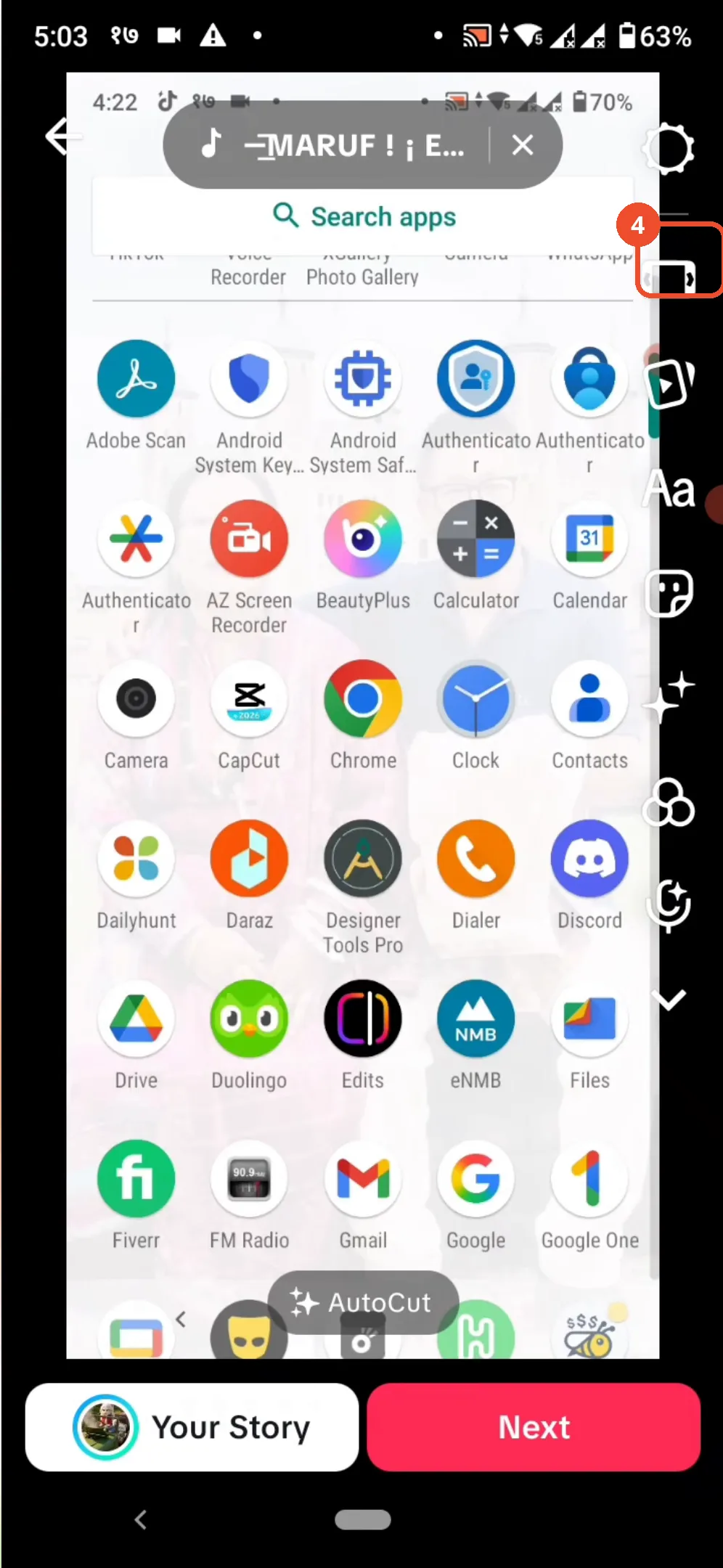
Tap the horizontal-phone settings icon
In the editor, tap the icon on the right that looks like a phone lying on its side. The editing toolbar appears at the bottom of the screen.
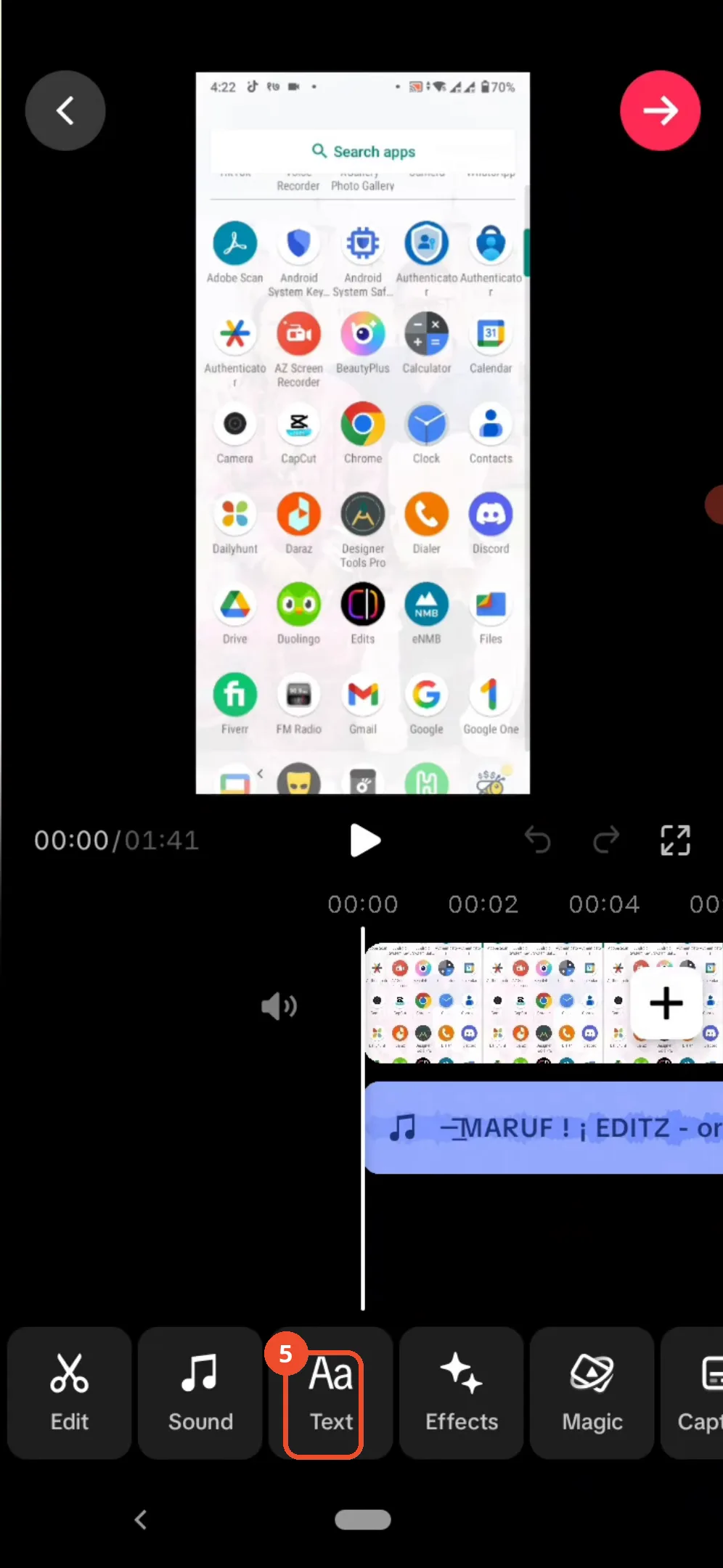
Tap Text
Tap Text in the editing toolbar at the bottom.
Go back and tap Captions
Press back to leave the text box. The Captions option appears at the bottom - tap it, and TikTok automatically adds captions and detects your language.
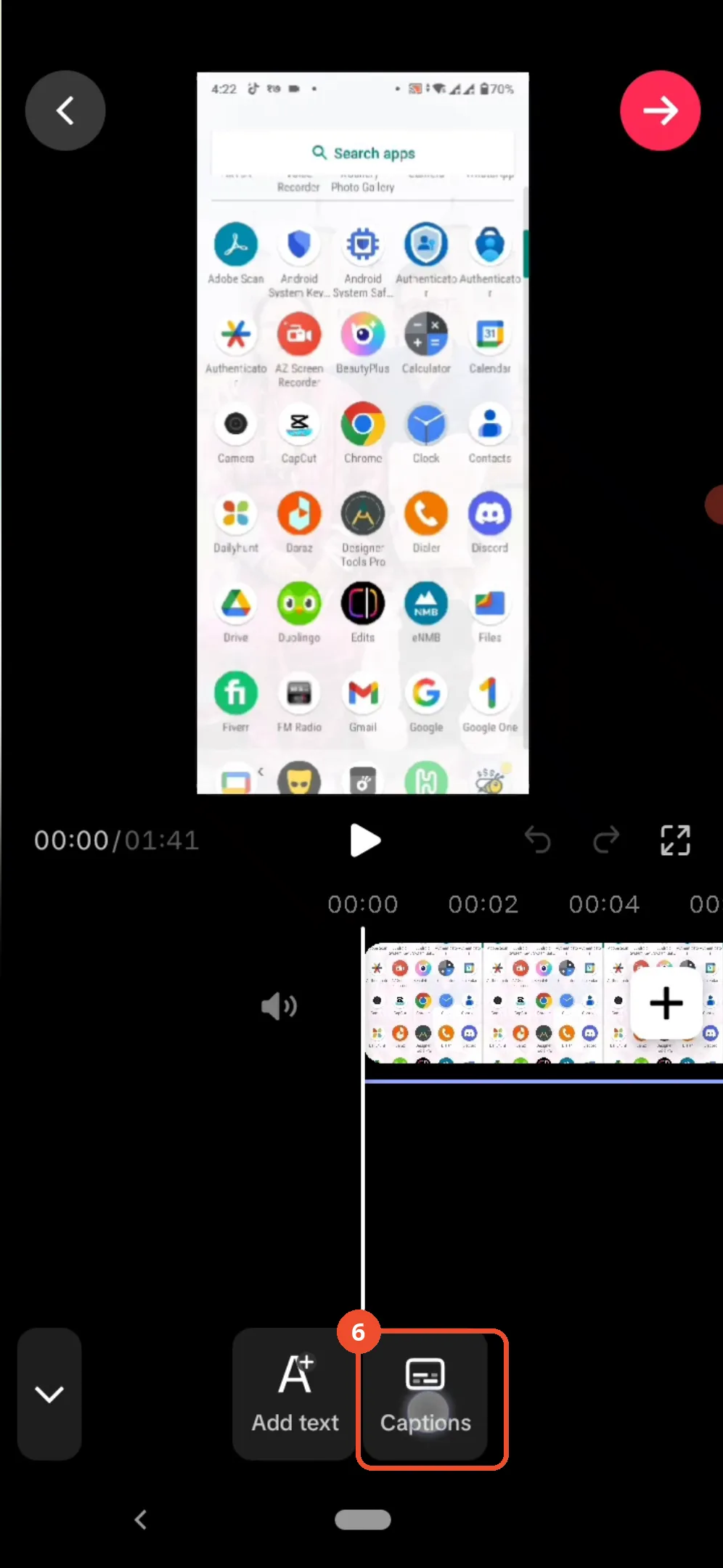
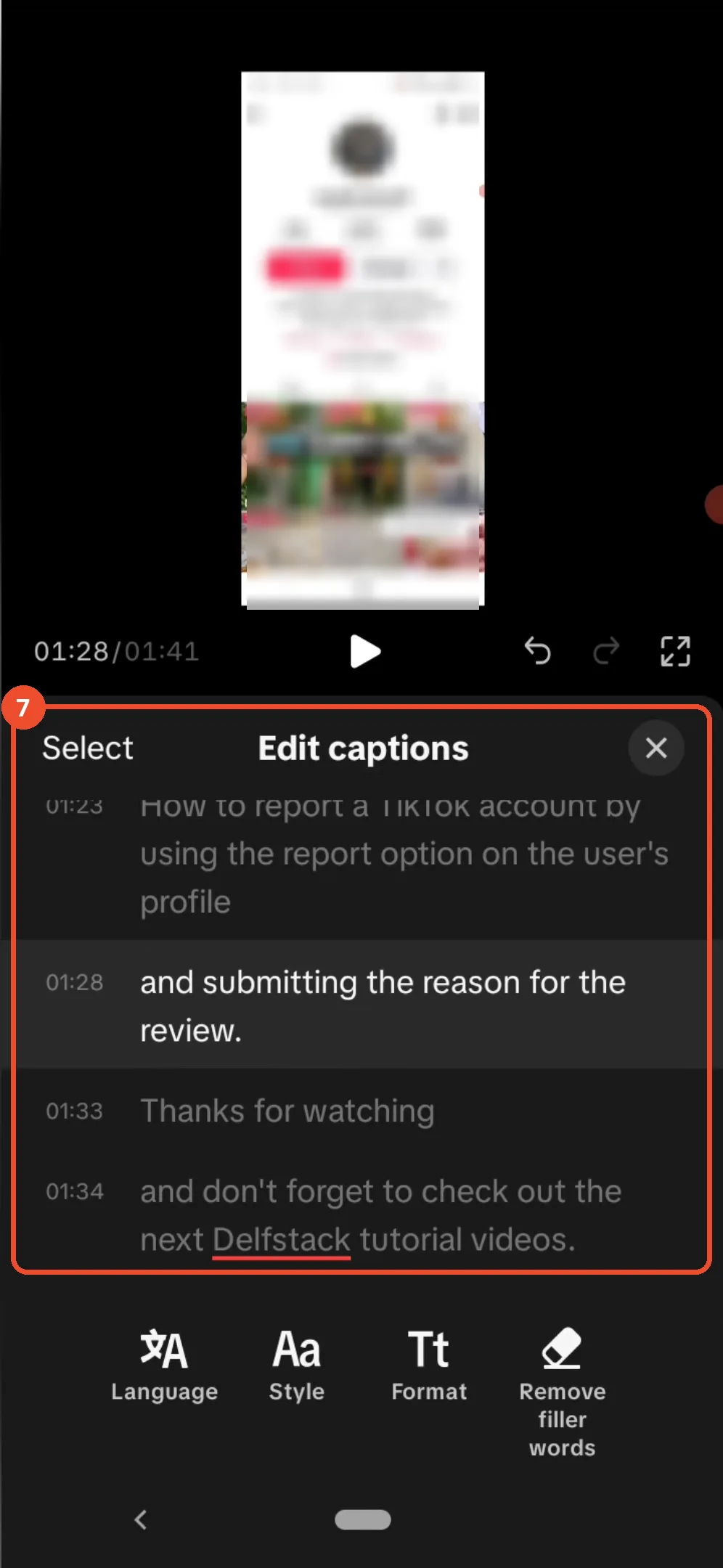
Review the auto-generated captions
The Edit captions panel lists every generated line with its timestamp. Read through the lines and tap any line to correct it.
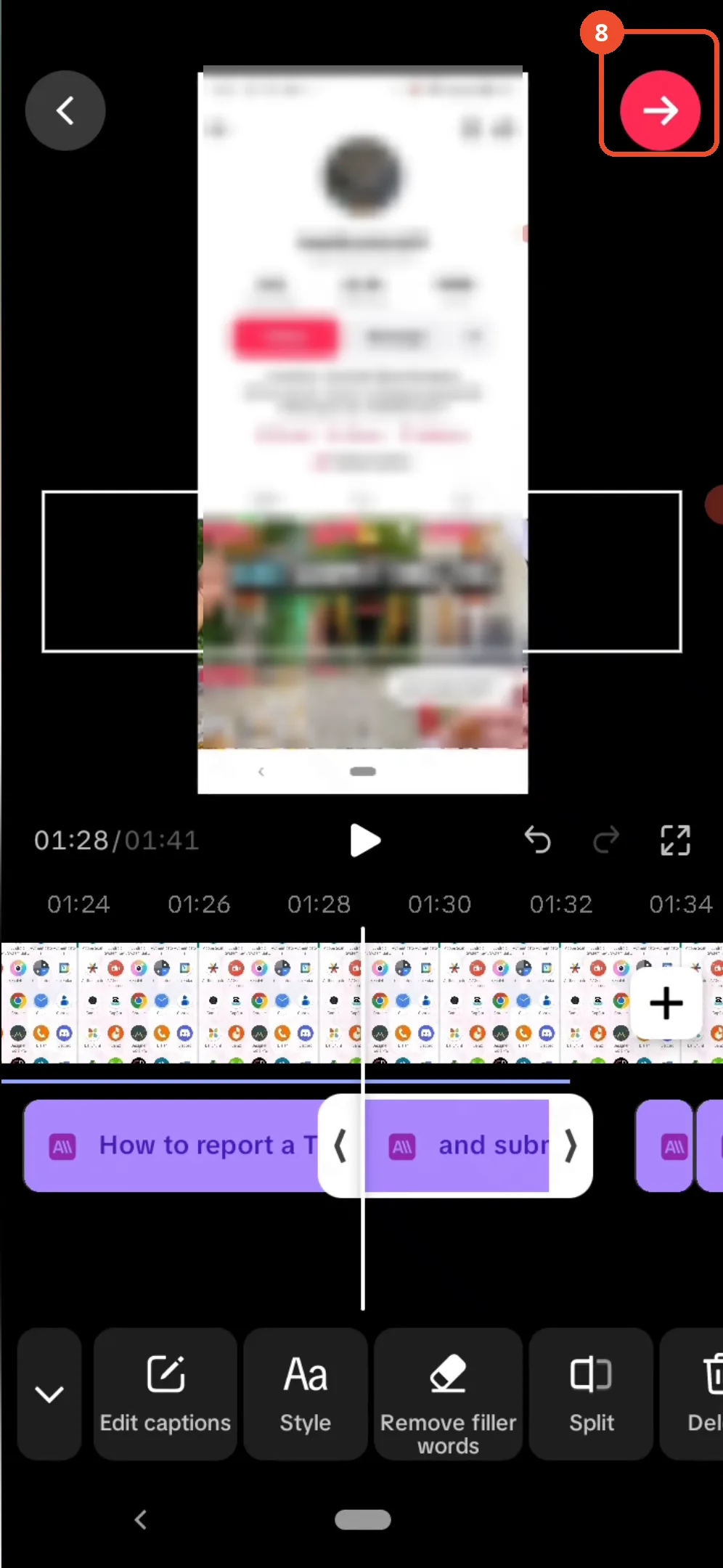
Tap the arrow to continue to posting
When the captions look right, tap the red arrow at the top right to continue to the post screen, where you can post the video or save it as a draft.
Good to know
- TikTok detects the language of your video automatically when it generates captions.
- The film’s video is a screen recording, so its captions come from the recorded audio - the same flow works for a video you record in the app.
- The film ends on the caption editor: the final Post tap and saving as a draft are described in the narration but not shown on camera.
- Review every caption line before posting - auto-generated captions can mishear words, and you can tap any line in the Edit captions panel to fix it.
More on TikTok
- How to Fix the ‘Tapping Too Fast’ Error on TikTok
- How to Hide TikTok Posts from Certain Followers
- How to Watch TikTok Without Installing the App
- How to Fix TikTok Notifications Not Working
- How to Fix the TikTok ‘Unrecognized Device’ Error
- How to See Comments You Liked on TikTok
- How to Report a TikTok Account
- How to Fix TikTok Video Quality Compression
- How to Remove Multiple Followers on TikTok
- How to Turn Off TikTok Comments on Live
- How to Fix TikTok Search Not Showing Videos (No Results Error)
- Fix TikTok Couldn’t Play Video Error
- Fix TikTok Messages Not Sending
- How to Know If Someone Deleted Your Comment on TikTok
- Fix TikTok Privacy Settings Restricted
- Fix TikTok Likes Not Registering
- How to Block Someone on TikTok Without Viewing Their Profile
- How to View TikTok Profiles Privately Without Notifications
- How to Fix the TikTok Login Expired Error
- How to Buy Coins on TikTok
- How to Hide Your Following List on TikTok Without Going Private
- How to Save TikTok Videos Without Watermark
- Fix TikTok Live Unavailable Error
- How to Fix TikTok Analytics Not Showing
- How to Link Instagram to TikTok
- How to Delete or Remove Your TikTok Profile Photo
- How to Remove TikTok Watermark from Saved Videos
- How to Recover a Banned TikTok Account
- How to Delete a TikTok Story
- How to Fix Maximum Number of Attempts Reached on TikTok
- How to Change Your TikTok Profile Picture
- How to Delete Your TikTok Comments One by One
- How to Check for the Find Similar Setting on TikTok
- How to Add a Linktree Link to Your TikTok Bio
- How to Fix a TikTok Video Uploaded But Not Showing
- How to Enable Auto Scroll on TikTok for Hands-Free Playback
- How to See Who Viewed Your TikTok Profile
- How to Tell If Someone Has Blocked You on TikTok
- How to Get Access to TikTok LIVE and Why It May Not Appear
- How to Reply to a TikTok Comment with a Video