How to Delete Your TikTok Comments One by One
TikTok does not offer a way to delete all your comments at once - despite what the video title promises. You can delete them one by one from your comment history: open Activity Center, find the comment, open its video, long-press it, and tap Delete.
- SystemAndroid
- AppTikTok
- Last verifiedNovember 7, 2026
Every screenshot below is taken from the actual recording on this device — no stock images.
Steps
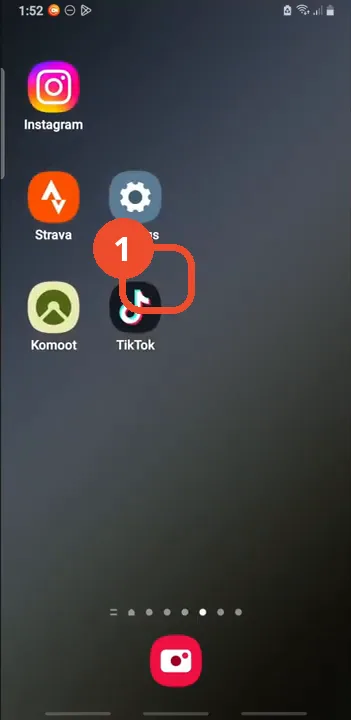
Open TikTok
Open TikTok from your home screen.
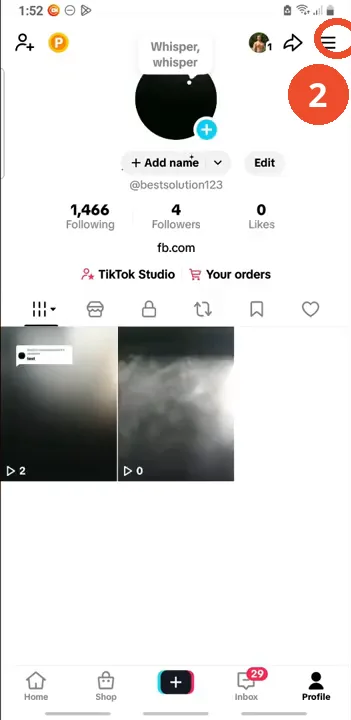
Go to your profile and open the menu
Tap Profile at the bottom right, then tap the three lines at the top right to open the menu.
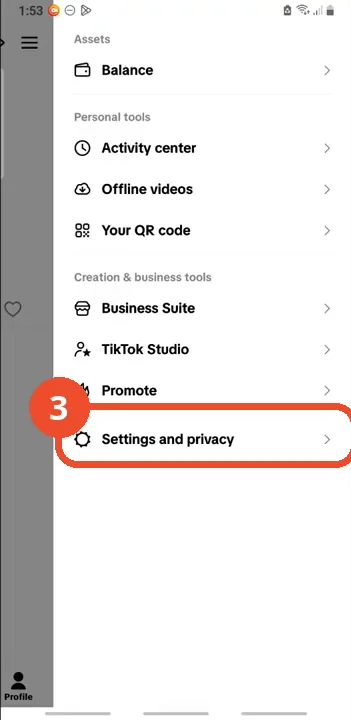
Tap Settings and privacy
In the menu, tap Settings and privacy at the bottom.
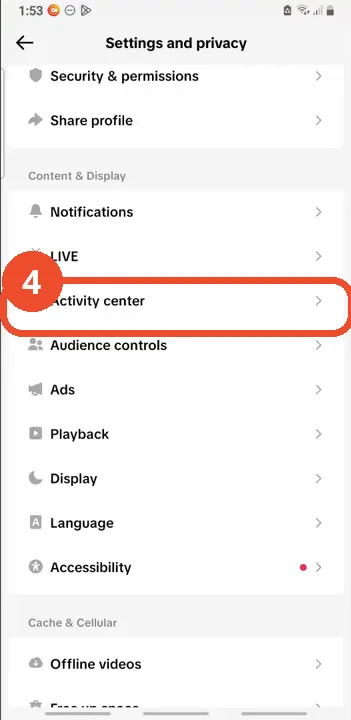
Tap Activity center
In Settings and privacy, scroll to the Content & Display section and tap Activity center.
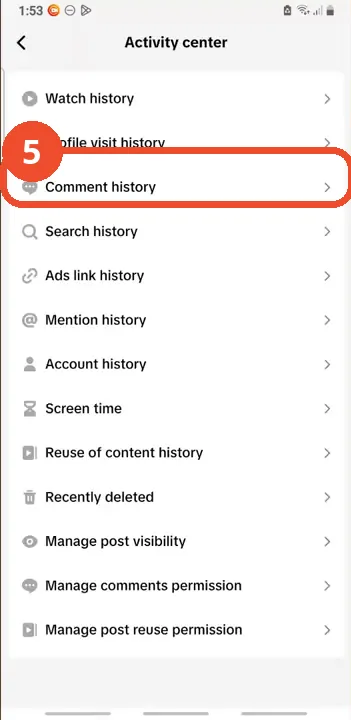
Tap Comment history
In Activity center, tap Comment history to see every comment you have left on TikTok.
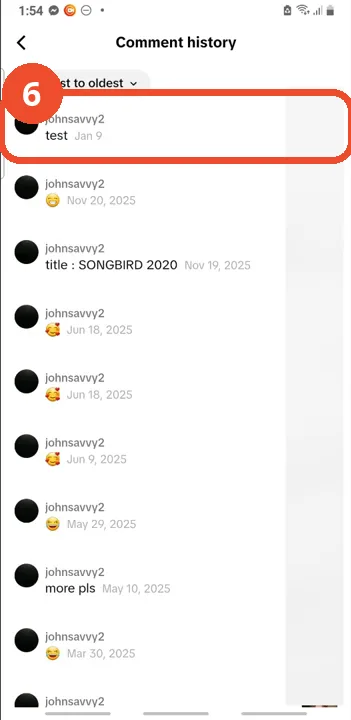
Tap a comment to open its video
Tap the comment you want to delete - the film taps the top entry, ’test’ from Jan 9 - to open the video it was left on.
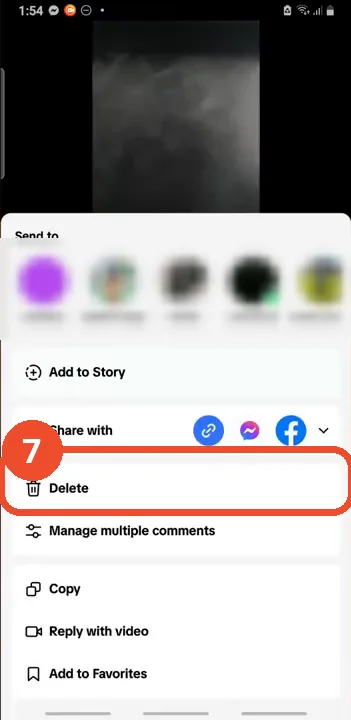
Long-press your comment and tap Delete
On the video, open the comments, then long-press your comment. In the menu that appears, tap Delete.
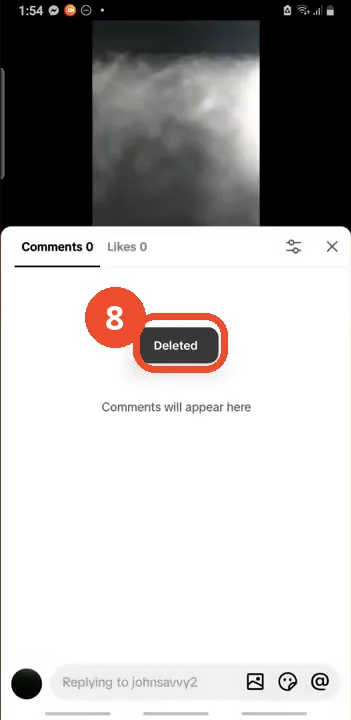
Check the comment is gone
TikTok shows a ‘Deleted’ notice and the comments list drops to 0. Back in Comment history, the entry is gone too.
Good to know
- Despite the video title, TikTok has no delete-all-comments feature: the narration itself says there is no way to delete all TikTok comments at once. You have to delete them one by one, repeating these steps for each comment.
- Use the ‘Newest to oldest’ dropdown at the top of Comment history to sort your comments oldest-first if you want to work through them in order - the film opens the sort menu but leaves the default in place.
- The narration says to tap the video on the right side of a comment row, but in the filmed version of Comment history the rows show no video thumbnail - tapping the comment itself opens the video.
- The deleted comment disappears from Comment history as well: after the delete, the ’test’ entry from Jan 9 is gone from the list.
- The comments in the film belong to the operator’s test account (@bestsolution123, shown as johnsavvy2 in Comment history). The people suggested in the share sheet are blurred in the screenshots.
More on TikTok
- How to Fix the ‘Tapping Too Fast’ Error on TikTok
- How to Hide TikTok Posts from Certain Followers
- How to Watch TikTok Without Installing the App
- How to Fix TikTok Notifications Not Working
- How to Fix the TikTok ‘Unrecognized Device’ Error
- How to See Comments You Liked on TikTok
- How to Report a TikTok Account
- How to Fix TikTok Video Quality Compression
- How to Remove Multiple Followers on TikTok
- How to Turn Off TikTok Comments on Live
- How to Fix TikTok Search Not Showing Videos (No Results Error)
- Fix TikTok Couldn’t Play Video Error
- Fix TikTok Messages Not Sending
- How to Know If Someone Deleted Your Comment on TikTok
- Fix TikTok Privacy Settings Restricted
- Fix TikTok Likes Not Registering
- How to Block Someone on TikTok Without Viewing Their Profile
- How to View TikTok Profiles Privately Without Notifications
- How to Fix the TikTok Login Expired Error
- How to Buy Coins on TikTok
- How to Hide Your Following List on TikTok Without Going Private
- How to Save TikTok Videos Without Watermark
- Fix TikTok Live Unavailable Error
- How to Fix TikTok Analytics Not Showing
- How to Link Instagram to TikTok
- How to Delete or Remove Your TikTok Profile Photo
- How to Remove TikTok Watermark from Saved Videos
- How to Recover a Banned TikTok Account
- How to Delete a TikTok Story
- How to Fix Maximum Number of Attempts Reached on TikTok
- How to Change Your TikTok Profile Picture
- How to Fix a TikTok Video Uploaded But Not Showing
- How to Check for the Find Similar Setting on TikTok
- How to Add a Linktree Link to Your TikTok Bio