How to Delete or Remove Your TikTok Profile Photo
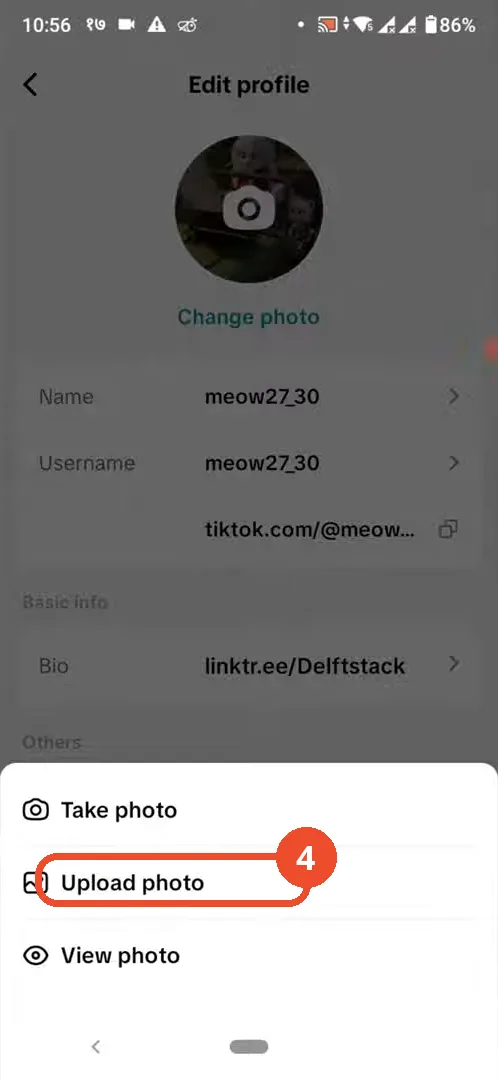
TikTok offers no Remove option for your profile photo: the menu only has Take photo, Upload photo, and View photo. So removing it means replacing it with a blank picture — download a default profile picture, upload it from Edit profile, and save.
- SystemAndroid
- AppTikTok
- Last verifiedNovember 3, 2026
Every screenshot below is taken from the actual recording on this device — no stock images.
Steps
Open TikTok and go to your profile
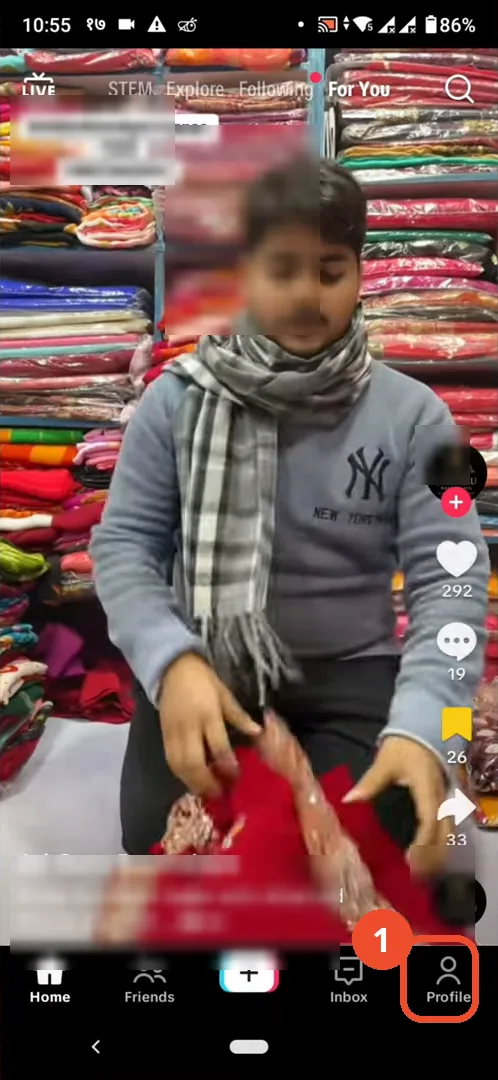
Open TikTok and tap Profile in the bottom-right corner of the navigation bar.
Tap Edit on your profile
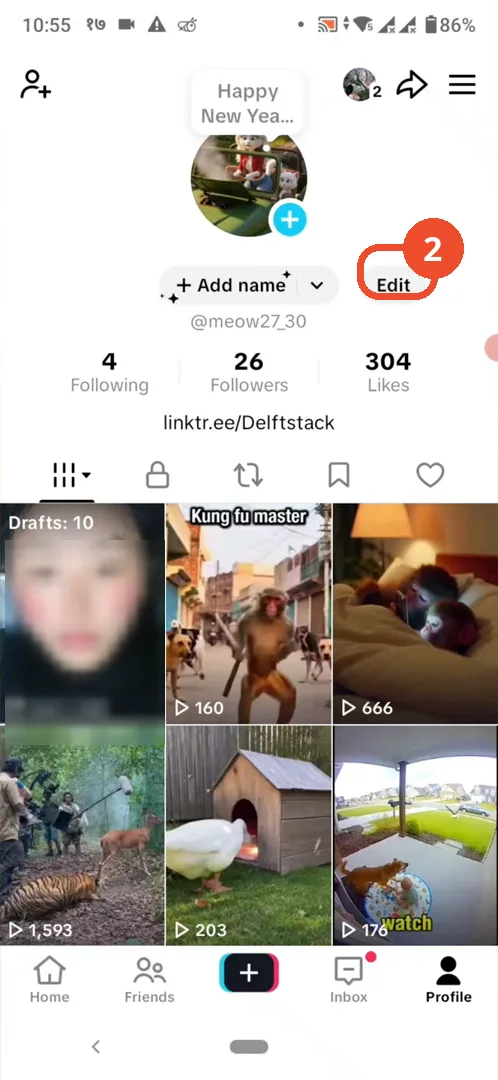
On your profile page, tap Edit below your current photo.
Tap Change photo
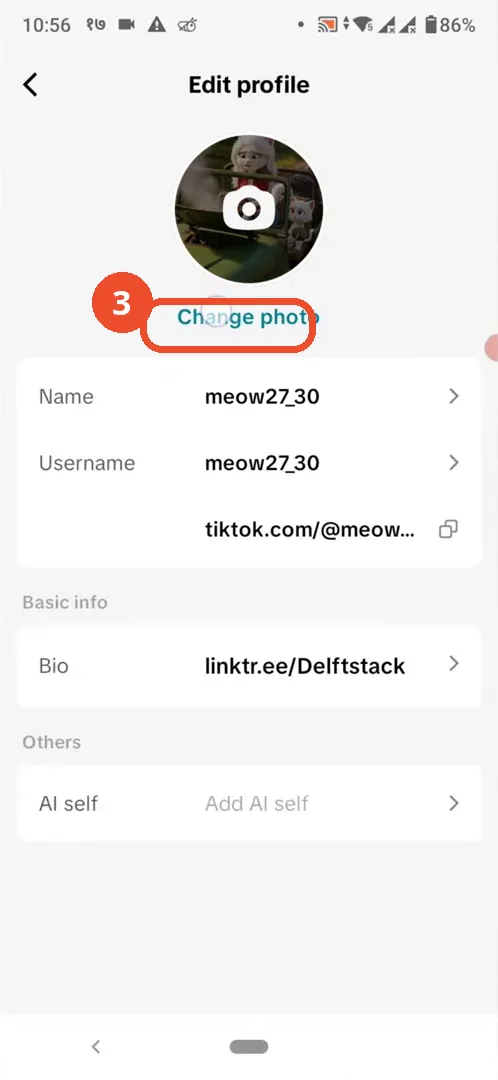
On the Edit profile page, tap Change photo under your current photo.
Tap Upload photo (there is no Remove option)
The menu offers only Take photo, Upload photo, and View photo — no Remove option. That is why the video replaces the photo instead: first download a blank or default profile picture from your browser (the video advises searching for “default profile picture”; this browser step is not shown on camera), then tap Upload photo here.
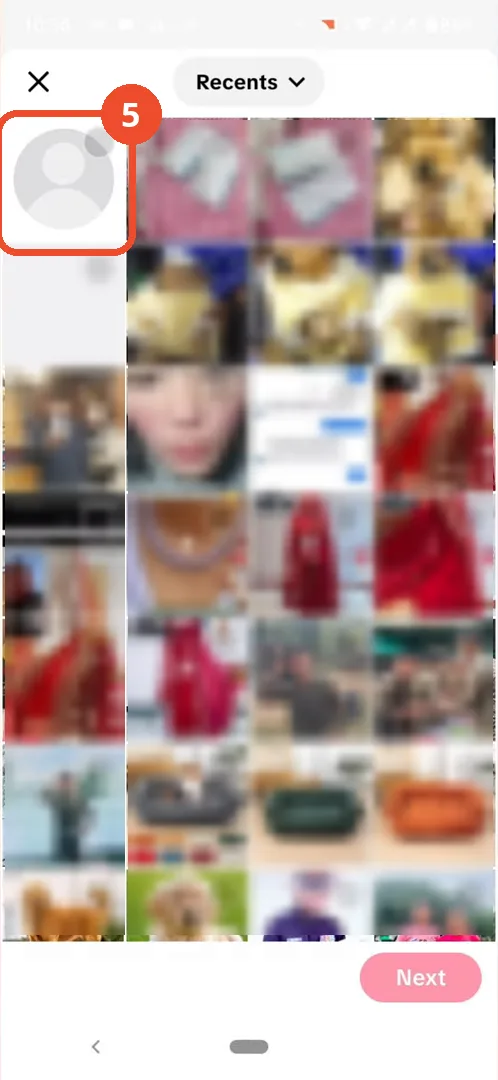
Pick the blank picture and tap Next
In the photo picker, tap the blank default avatar (here the most recent item, top left), then tap Next at the bottom right.
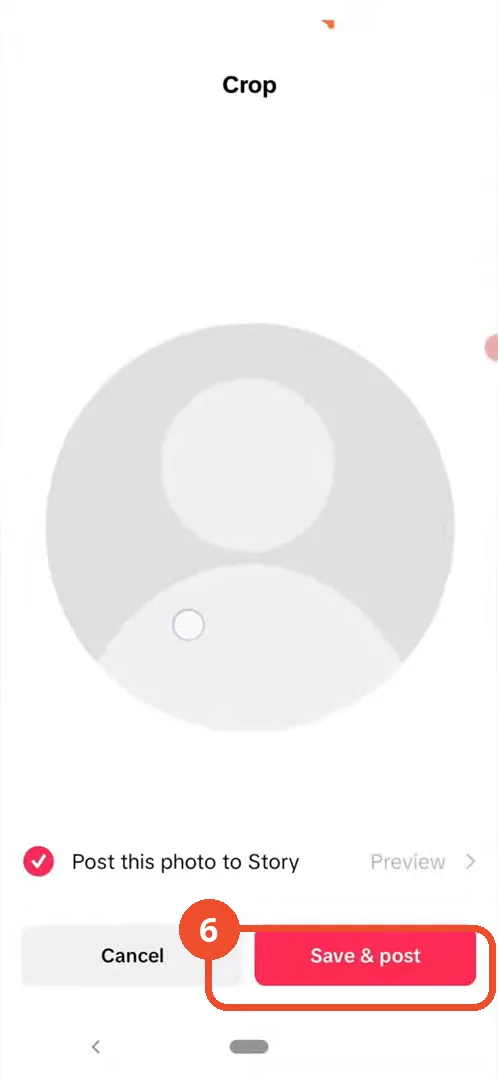
Crop and tap Save & post
On the Crop screen, adjust the crop if needed and tap Save & post. Uncheck “Post this photo to Story” first if you do not want the picture shared as a Story — it is checked by default.
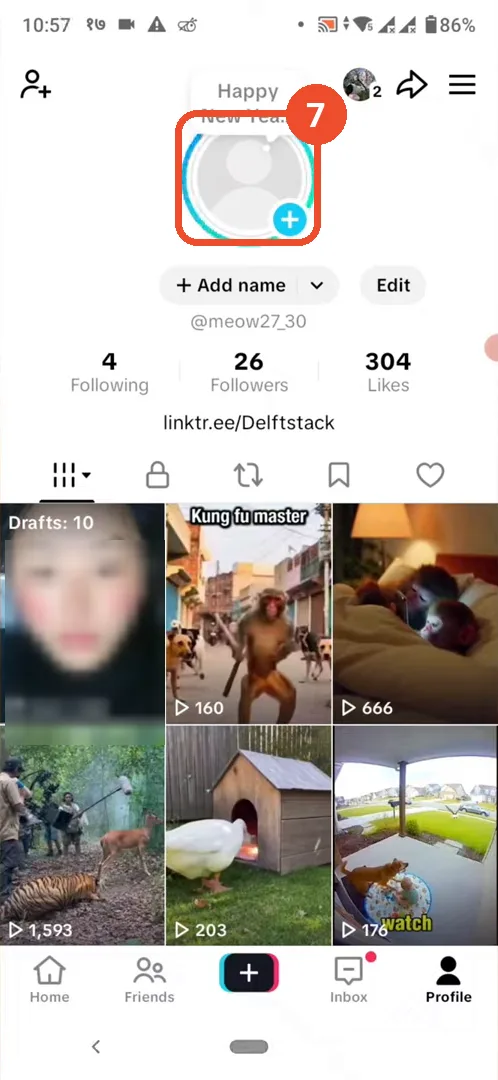
Check your profile photo is now blank
Back on your profile, the avatar is now the blank default picture — the old photo is gone.
Good to know
- TikTok shows no Remove or Delete option in this photo menu (Take photo, Upload photo, View photo only), so replacement with a blank image is the demonstrated workaround, not a true delete.
- The browser search and download of the default picture is narration-only: no Chrome frame appears in the recording (frames at t=44-54 still show the TikTok photo menu). The picker frame shows the blank avatar as the most recent item, and the Crop screen confirms it was selected.
- On the Save screen, “Post this photo to Story” is checked by default; uncheck it if you do not want a Story post.
- Demonstrator account @meow27_30 is kept, per the batch10 TikTok precedent (same account as link-instagram-to-tiktok). The video-grid face thumbnail is blurred in steps 2 and 7; the feed video face, phone number, shop name/caption, and shop avatar are blurred in step 1; the photo-picker grid is blurred except the boxed blank-avatar tile in step 5.
More on TikTok
- How to Fix the ‘Tapping Too Fast’ Error on TikTok
- How to Hide TikTok Posts from Certain Followers
- How to Watch TikTok Without Installing the App
- How to Fix TikTok Notifications Not Working
- How to Fix the TikTok ‘Unrecognized Device’ Error
- How to See Comments You Liked on TikTok
- How to Report a TikTok Account
- How to Fix TikTok Video Quality Compression
- How to Remove Multiple Followers on TikTok
- How to Turn Off TikTok Comments on Live
- How to Fix TikTok Search Not Showing Videos (No Results Error)
- Fix TikTok Couldn’t Play Video Error
- Fix TikTok Messages Not Sending
- How to Know If Someone Deleted Your Comment on TikTok
- Fix TikTok Privacy Settings Restricted
- Fix TikTok Likes Not Registering
- How to Block Someone on TikTok Without Viewing Their Profile
- How to View TikTok Profiles Privately Without Notifications
- How to Fix the TikTok Login Expired Error
- How to Buy Coins on TikTok
- How to Hide Your Following List on TikTok Without Going Private
- How to Save TikTok Videos Without Watermark
- Fix TikTok Live Unavailable Error
- How to Fix TikTok Analytics Not Showing
- How to Link Instagram to TikTok