How to Add a Linktree Link to Your TikTok Bio
Linktree packs all your links into one URL. Paste that URL into the Bio field on your TikTok profile and anyone visiting your profile can reach everything you share from a single link.
✅ Tested on
- SystemAndroid
- AppTikTok
- Last verifiedNovember 7, 2026
Every screenshot below is taken from the actual recording on this device — no stock images.
Steps
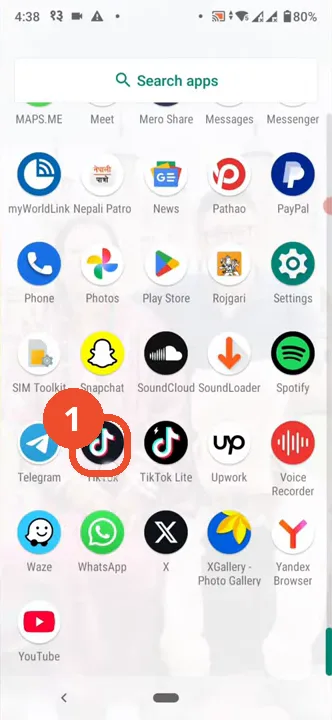
Open TikTok
Open TikTok from your app drawer.
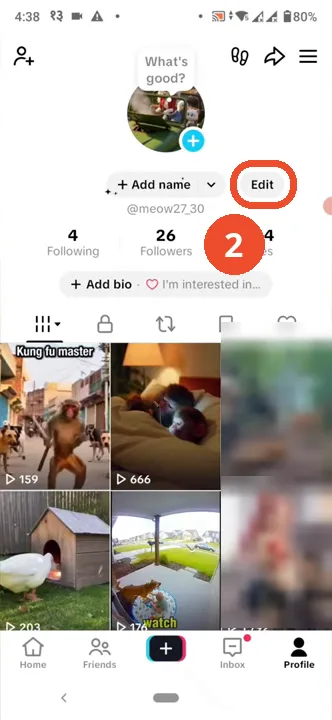
Go to your profile and tap Edit profile
Tap Profile at the bottom right, then tap Edit on your profile page.
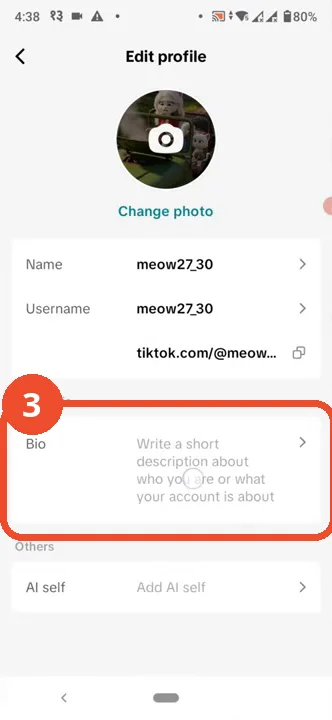
Tap Bio
On the Edit profile page, tap Bio under Basic info.
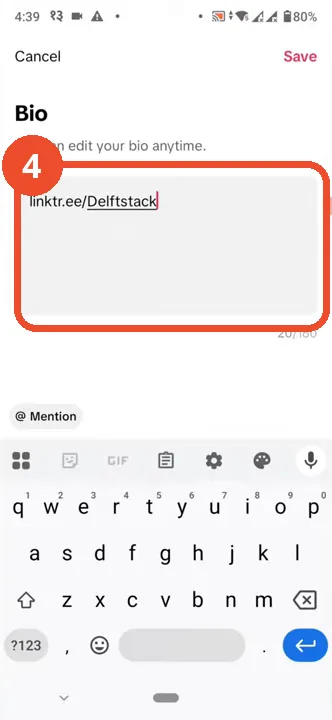
Paste your Linktree URL into the bio field
Paste your Linktree URL (for example linktr.ee/Delftstack) into the Bio field.
Tap Save and check the link on your profile
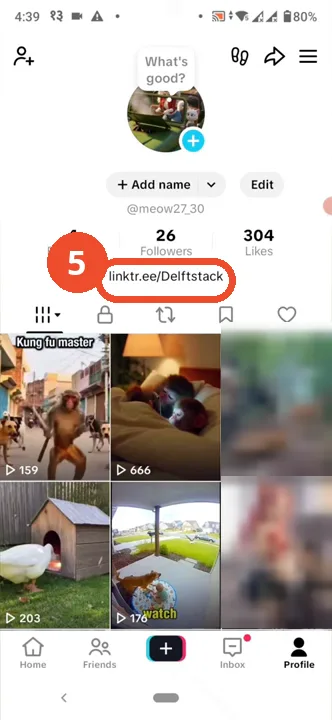
Tap Save at the top right. TikTok returns to your profile, where your Linktree link now appears under your bio.
Good to know
- Set up your Linktree account and links first - that part is narration only and is not shown on camera. The film works with the finished URL (linktr.ee/Delftstack).
- The film cuts from the empty Bio field to the filled one, so the paste gesture itself is not shown frame by frame - type or paste the URL, then tap Save.
- The film does not show the bio link being tapped to confirm it opens Linktree. After saving, tap the link on your own profile to check it opens your Linktree page.
- The demo account is the operator’s test account (@meow27_30). Faces in the profile video grid are blurred in the screenshots.
More on TikTok
- How to Fix the ‘Tapping Too Fast’ Error on TikTok
- How to Hide TikTok Posts from Certain Followers
- How to Watch TikTok Without Installing the App
- How to Fix TikTok Notifications Not Working
- How to Fix the TikTok ‘Unrecognized Device’ Error
- How to See Comments You Liked on TikTok
- How to Report a TikTok Account
- How to Fix TikTok Video Quality Compression
- How to Remove Multiple Followers on TikTok
- How to Turn Off TikTok Comments on Live
- How to Fix TikTok Search Not Showing Videos (No Results Error)
- Fix TikTok Couldn’t Play Video Error
- Fix TikTok Messages Not Sending
- How to Know If Someone Deleted Your Comment on TikTok
- Fix TikTok Privacy Settings Restricted
- Fix TikTok Likes Not Registering
- How to Block Someone on TikTok Without Viewing Their Profile
- How to View TikTok Profiles Privately Without Notifications
- How to Fix the TikTok Login Expired Error
- How to Buy Coins on TikTok
- How to Hide Your Following List on TikTok Without Going Private
- How to Save TikTok Videos Without Watermark
- Fix TikTok Live Unavailable Error
- How to Fix TikTok Analytics Not Showing
- How to Link Instagram to TikTok
- How to Delete or Remove Your TikTok Profile Photo
- How to Remove TikTok Watermark from Saved Videos
- How to Recover a Banned TikTok Account
- How to Delete a TikTok Story
- How to Fix Maximum Number of Attempts Reached on TikTok
- How to Change Your TikTok Profile Picture
- How to Fix a TikTok Video Uploaded But Not Showing
- How to Delete Your TikTok Comments One by One
- How to Check for the Find Similar Setting on TikTok