How to View All Comments on an Instagram Post
There are two places to read comments: Your activity shows every comment you have left, and any post’s comment icon opens that post’s comments. This guide follows the film through both — the operator’s own comments under Your activity, then the comments on the operator’s own post — with sorting, filtering and the manage-comments menu along the way.
- SystemAndroid
- AppInstagram
- Last verifiedNovember 9, 2026
Every screenshot below is taken from the actual recording on this device — no stock images.
Steps
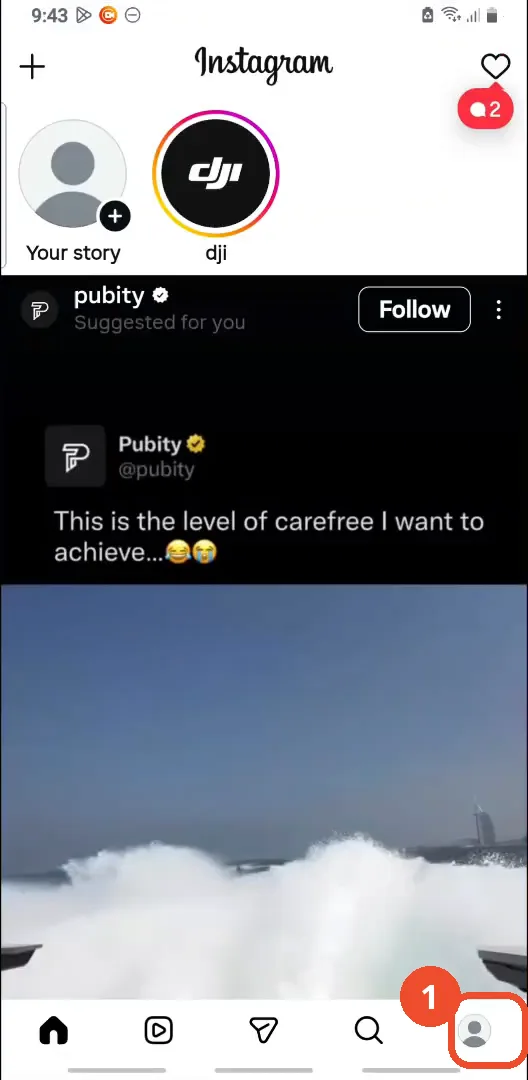
Open Instagram and go to your profile
Open Instagram, then tap your profile picture at the bottom right.
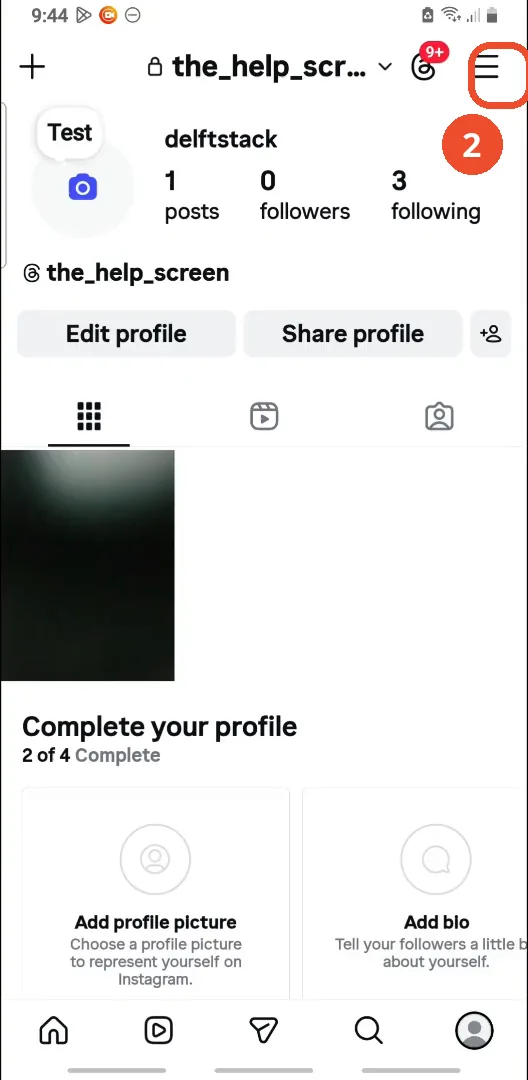
Tap the menu
Tap the three lines at the top right of your profile.
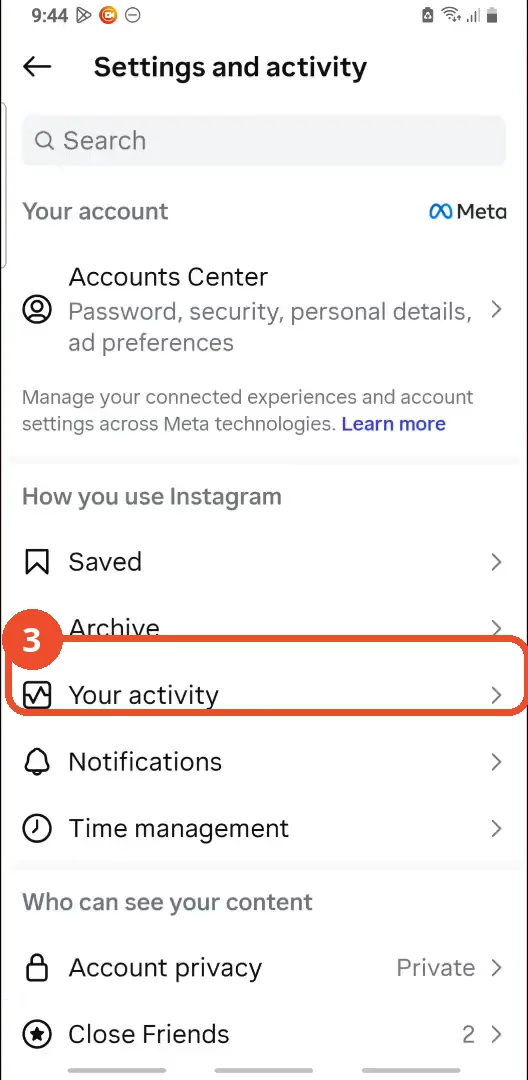
Tap Your activity
On the Settings and activity page, under How you use Instagram, tap Your activity.
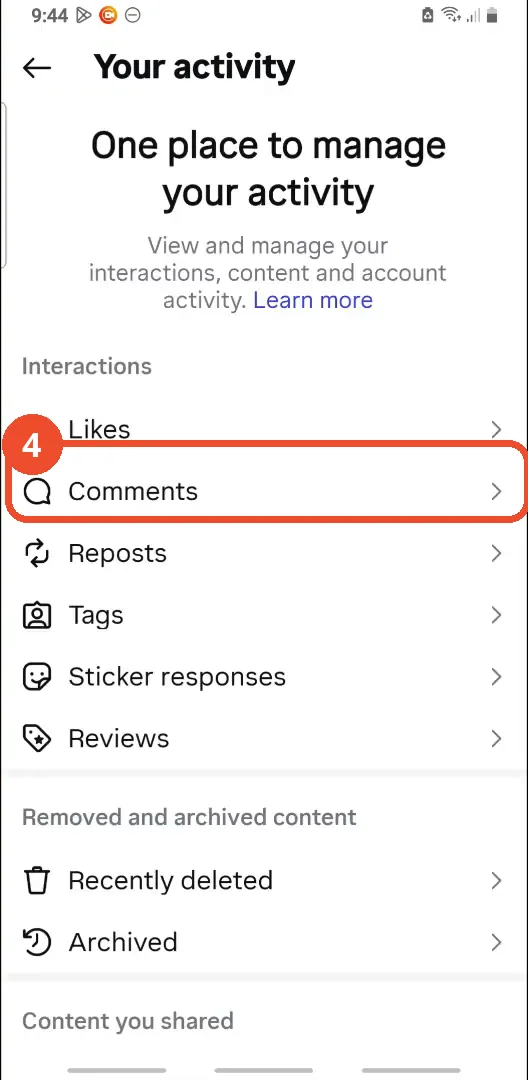
Tap Comments
On the Your activity page, under Interactions, tap Comments.
See all your comments
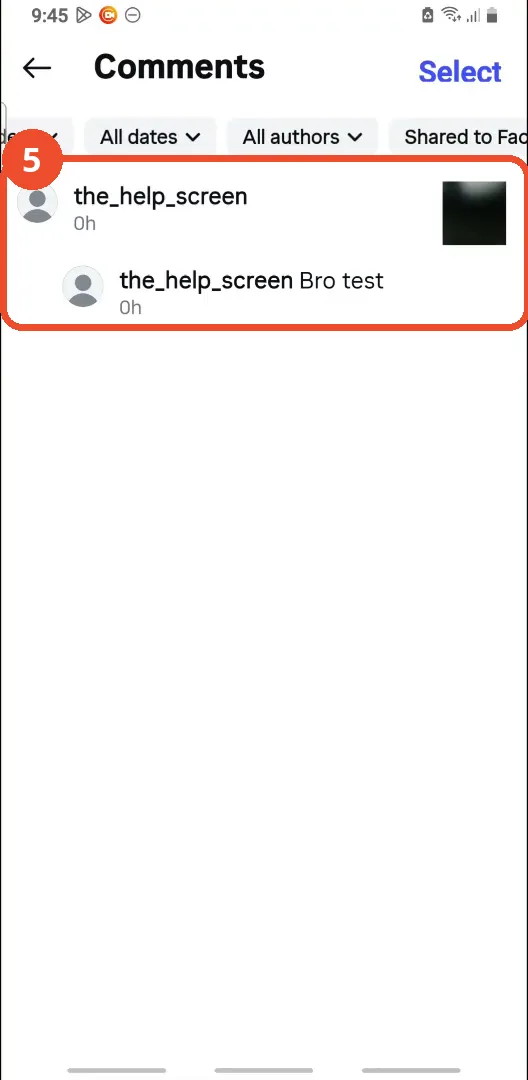
Your comments are listed here, newest first by default. The film’s account has two comments, both its own.
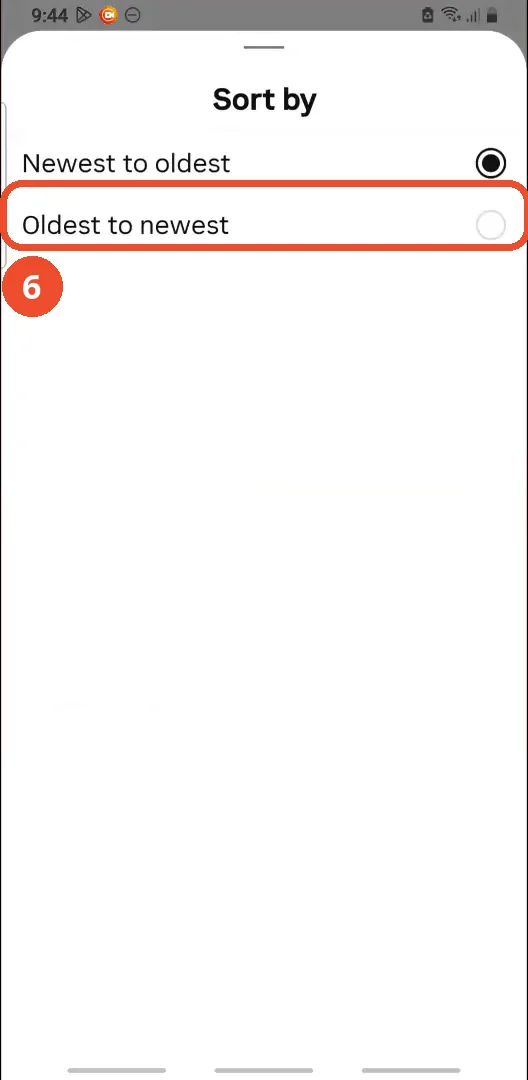
Sort by newest or oldest
Tap the sort chip at the top of the list to open the Sort by sheet, where you can choose Newest to oldest or Oldest to newest.
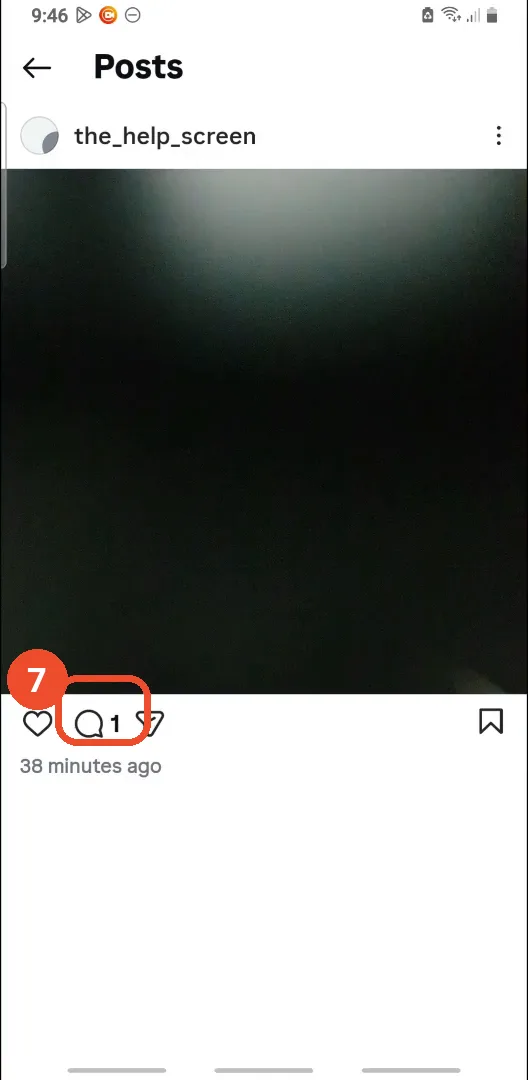
Open a post and tap the comment icon
Go to the post and tap the speech-bubble icon under it. The icon shows 1, the number of comments on this post.
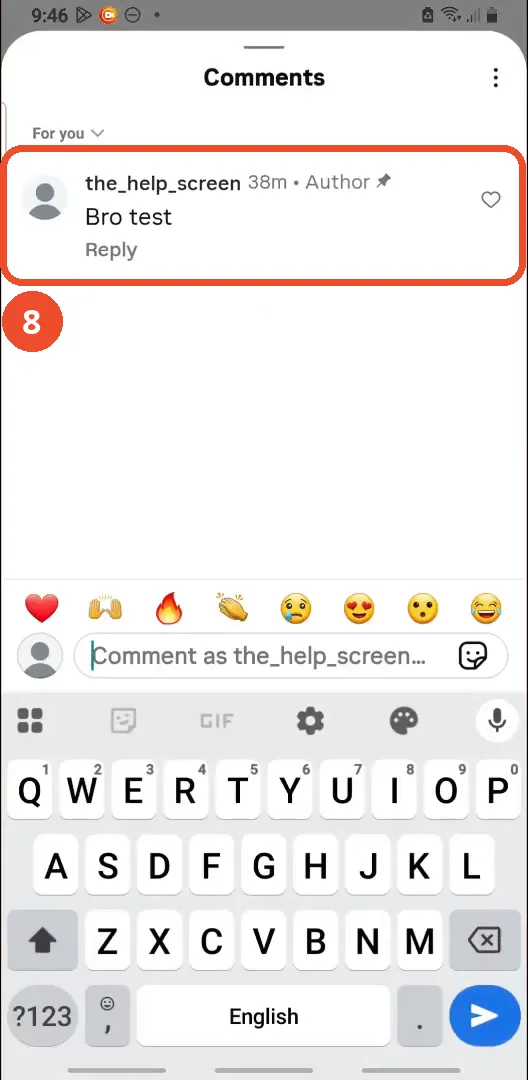
Read the post’s comments
The post’s comments open in a sheet. Here there is one comment, “Bro test”, left by the post’s own author 38 minutes ago.
Switch between For you and Most recent
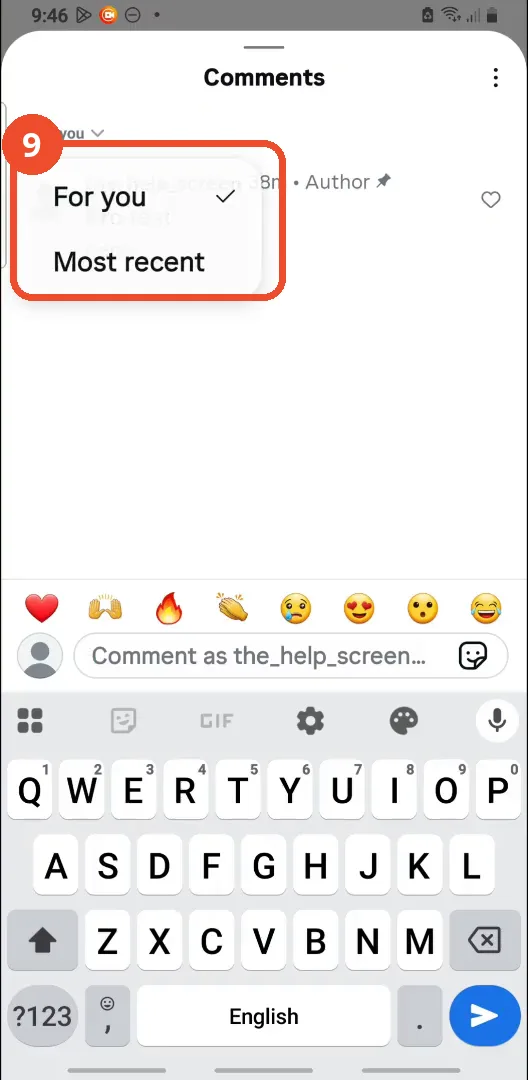
Tap the For you dropdown at the top of the comments sheet: choosing Most recent puts the latest comments first.
Tap the three dots to manage comments
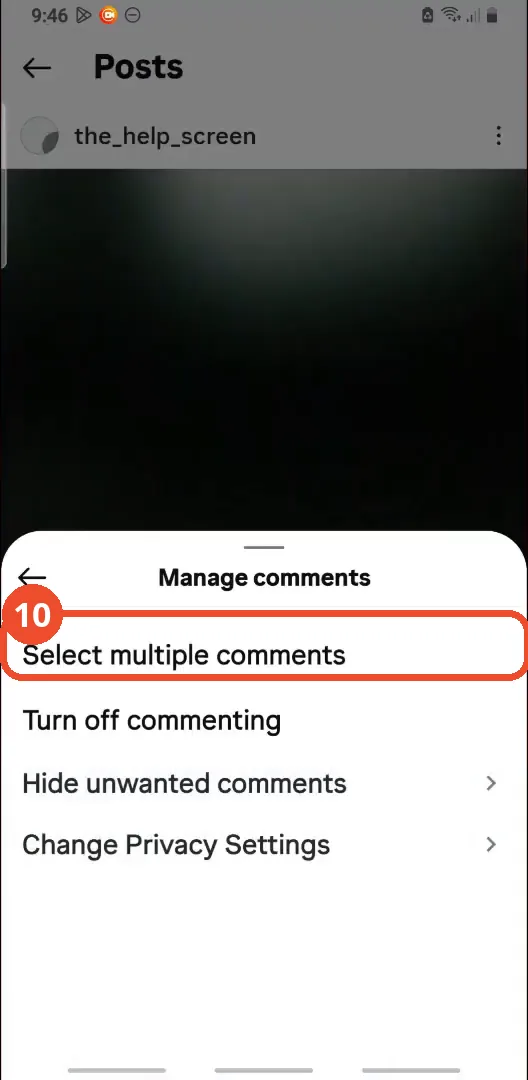
Tap the three-dot menu at the top right of the comments sheet to open Manage comments: Select multiple comments, Turn off commenting, Hide unwanted comments and Change Privacy Settings.
Good to know
- The film’s first pass at the Comments list renders as a blank white screen for about 15 seconds (roughly 1:01–1:17): the list only becomes visible as the Sort by sheet opens, and the screenshot below uses a later, identical view of the same list.
- Filtering by Shared to Facebook finds nothing: the film applies that filter and gets a “No results” page, then clears all filters to bring the comments back.
- The date filter offers Past week, Past month, Past year and a Date range; the film opens that sheet but leaves All dates selected.
- Both comments in the film are the operator’s own — “Bro test” and one with no visible text — left on the operator’s own post, so the list and the post show the same two comments.
- The operator’s account is a test account (@the_help_screen, display name Test, 1 post, 0 followers, 3 following) — your own counts and comments will differ.
- The Manage comments sheet only opens the menu: the film shows Select multiple comments, Turn off commenting, Hide unwanted comments and Change Privacy Settings, but does not use any of them.
More on Instagram
- How to Comment on Your Own Instagram Story
- How to Hide Your Instagram Story from Everyone at Once
- How to Find the Email Associated with Your Instagram Account (2026 Guide)
- How to Unfollow Multiple People on Instagram
- How to Hide Your Instagram Account from Search
- How to View Instagram Stories Without Being Seen
- How to Tag Someone on Instagram (Posts and Stories)