How to Hide Who You Follow on Instagram (Privacy Guide)
Instagram has no button that hides who you follow: the only way to keep your following list from strangers is to make your account private. Then only followers you approve can see your followers and following lists - and your posts. The film switches a public account to private on camera.
- SystemAndroid
- AppInstagram
- Last verifiedNovember 15, 2026
Every screenshot below is taken from the actual recording on this device — no stock images.
Steps
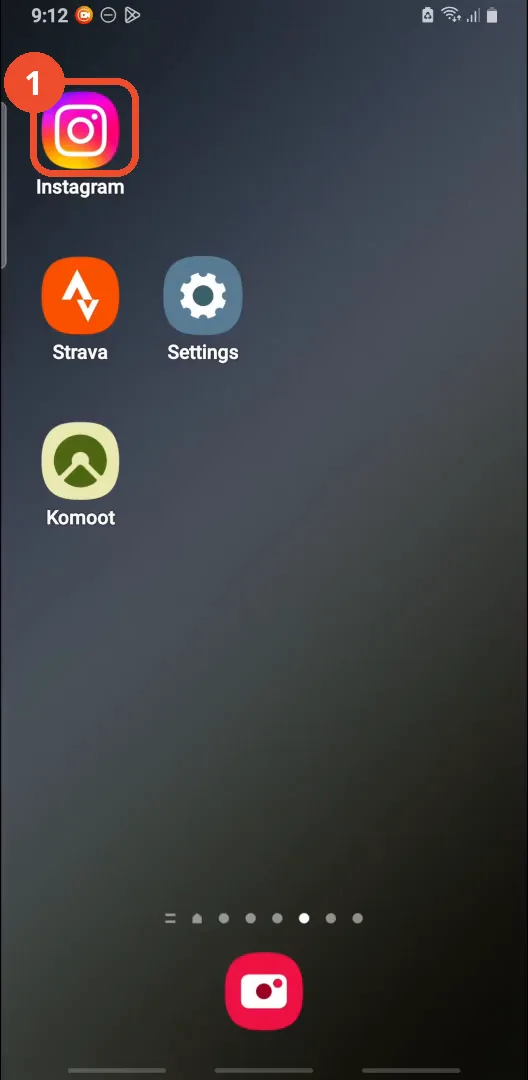
Open Instagram
On the home screen, tap the Instagram icon.
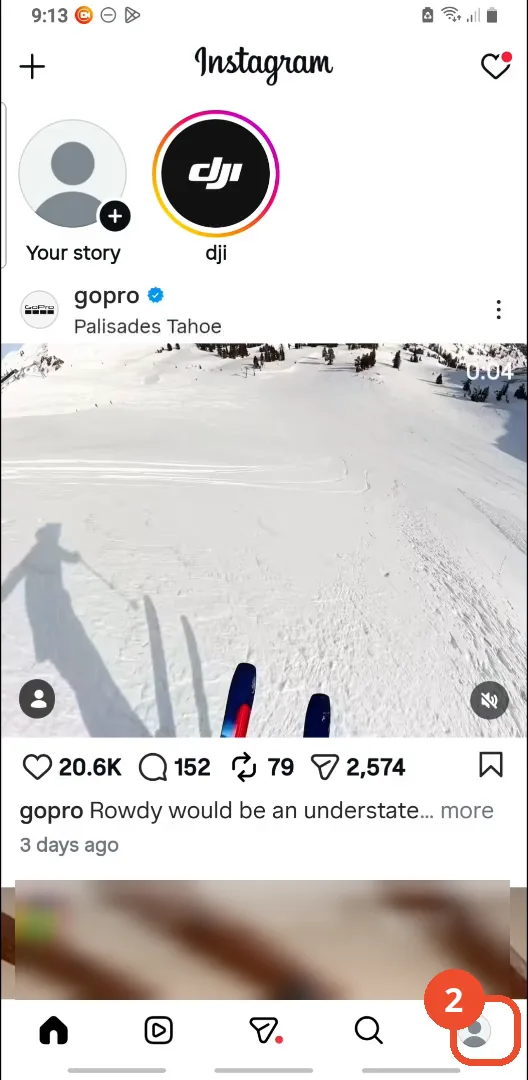
Go to your profile
In Instagram, tap your profile picture at the bottom right.
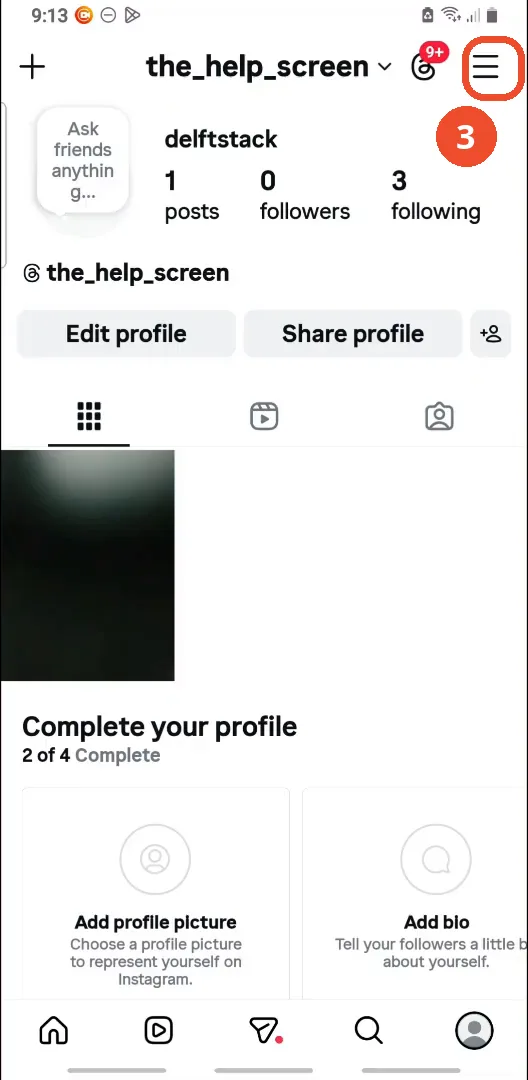
Tap the menu
On your profile, tap the three lines at the top right. This opens Settings and activity directly - no separate menu sheet appears.
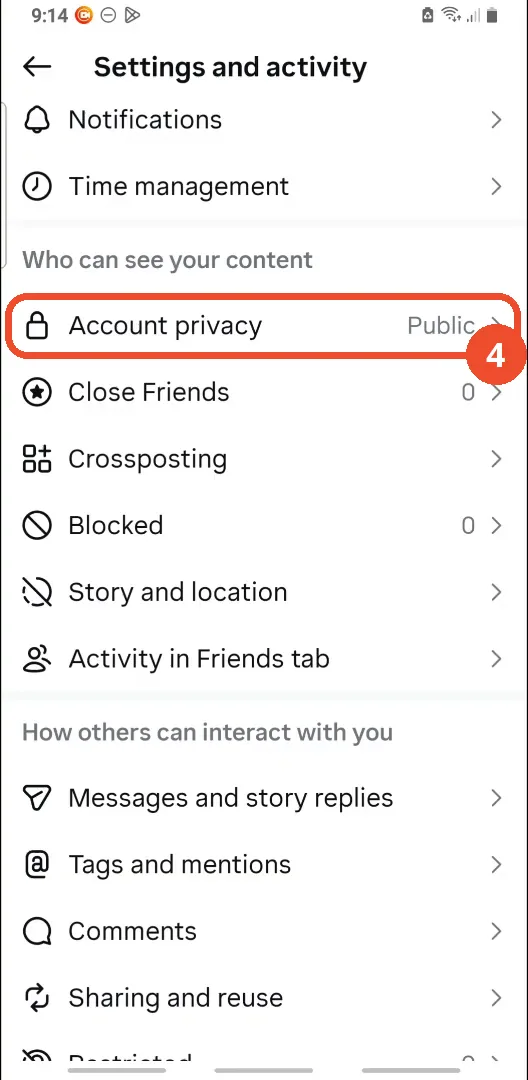
Tap Account privacy
On the Settings and activity page, scroll down to Who can see your content and tap Account privacy. It reads Public here.
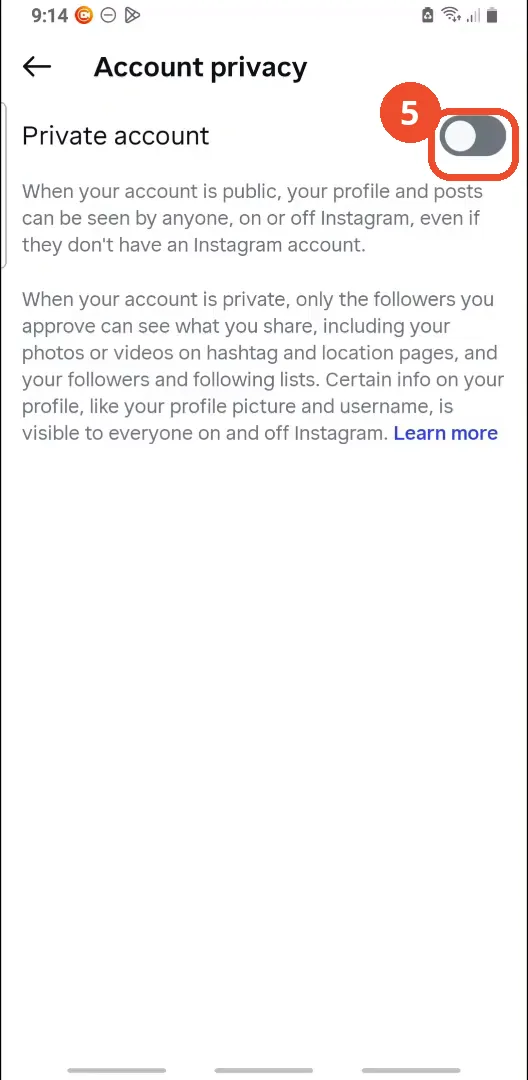
Turn on Private account
On the Account privacy page, tap the Private account switch to turn it on. Instagram warns that only followers you approve will then see what you share, including your followers and following lists.
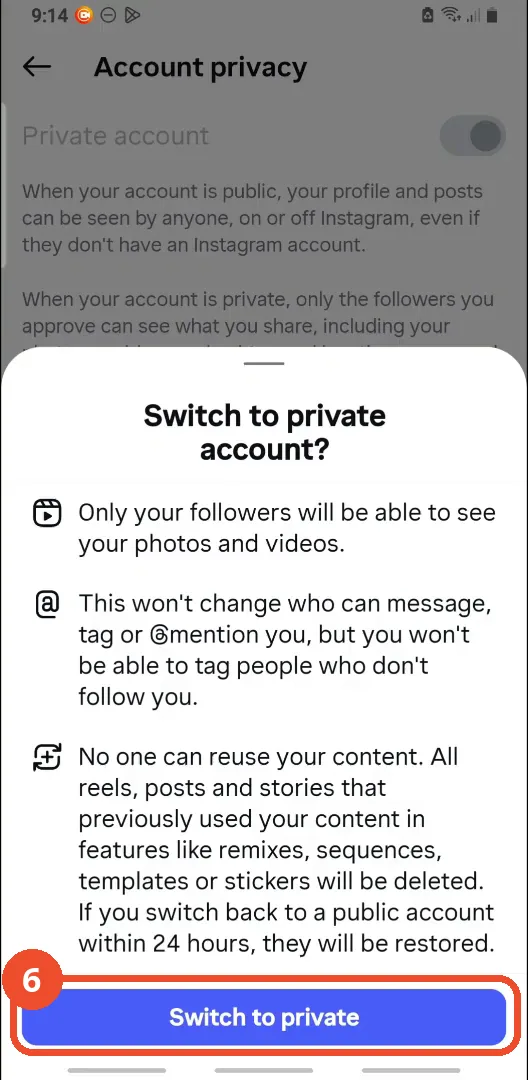
Tap Switch to private
A confirmation sheet explains what switching to private does. Tap the blue Switch to private button at the bottom to confirm.
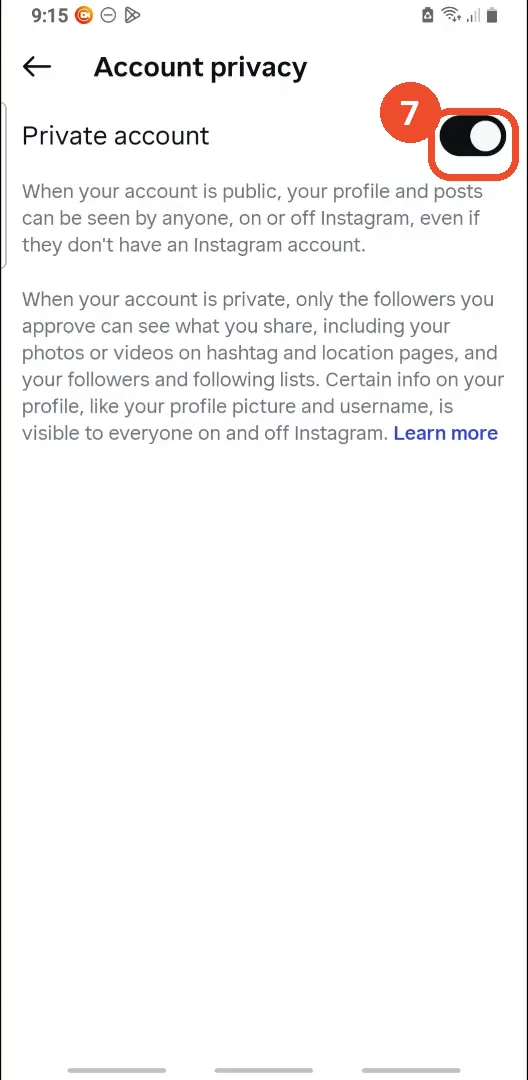
Check the account is private
Back on the Account privacy page, check the Private account switch is now on - the black switch with the knob on the right. Your following list is now hidden from everyone who does not follow you.
Good to know
- There is no direct way to hide your following list: the film says so at the start, and going private is the workaround it demonstrates.
- Going private hides your following list from non-followers only: people who already follow you can still see who you follow. The film says to remove unwanted followers or block specific people if you want them excluded.
- Unlike How to Hide Your Instagram Account from Search, which only shows an account that is already private and then turns to Limit interactions, this film actually flips the Private account switch on a public account - the toggle goes from off to on on camera, and the Switch to private sheet is confirmed.
- Switching to private also stops other people reusing your content: the confirmation sheet says reels, posts and stories that used your content in remixes, sequences, templates or stickers will be deleted (restored if you switch back within 24 hours).
- Certain profile info stays public even on a private account: your profile picture and username remain visible to everyone, on and off Instagram.
- The film’s account is the operator’s own @the_help_screen. It had 1 post, 0 followers and 3 following when filmed - and was public at the start, unlike in the later last-seen film where it is already private.
More on Instagram
- How to Comment on Your Own Instagram Story
- How to Hide Your Instagram Story from Everyone at Once
- How to Find the Email Associated with Your Instagram Account (2026 Guide)
- How to Unfollow Multiple People on Instagram
- How to Hide Your Instagram Account from Search
- How to View Instagram Stories Without Being Seen
- How to Tag Someone on Instagram (Posts and Stories)
- How to Search Multiple Hashtags on Instagram
- How to Make Your Instagram Bio Multiple Lines
- How to Follow a Hashtag on Instagram (2026 Workaround)
- How to Clear Cache on Instagram
- How to Copy an Instagram Comment (Screenshot + OCR Workaround)
- How to Hide Instagram Chats Without Deleting Them
- How to Change Email on Instagram
- How to Comment a GIF on Instagram
- How to Hide Notes from Someone on Instagram (Close Friends Workaround)
- How to View All Comments on an Instagram Post
- How to Hide Your Last Seen on Instagram
- How to Delete Multiple Posts on Instagram