How to Hide Instagram Chats Without Deleting Them
Instagram has no direct way to hide a chat, so this film uses Restrict instead: restricting someone moves their messages to Message requests, so the chat disappears from your inbox without being deleted. The film also shows how to unrestrict the person to bring the chat back, and where the Disappearing messages option lives.
- SystemAndroid
- AppInstagram
- Last verifiedNovember 12, 2026
Every screenshot below is taken from the actual recording on this device — no stock images.
Steps
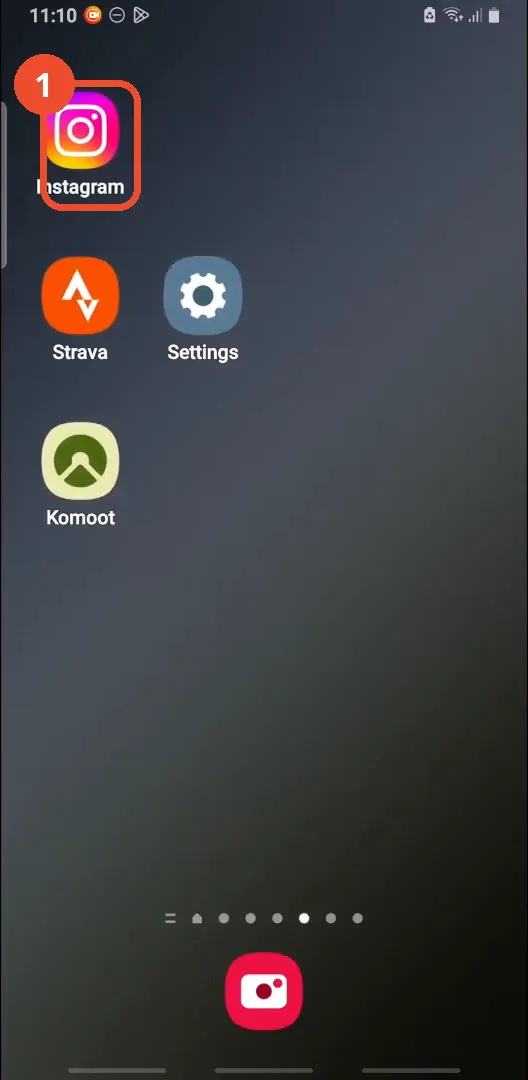
Open Instagram
On the home screen, tap the Instagram icon.
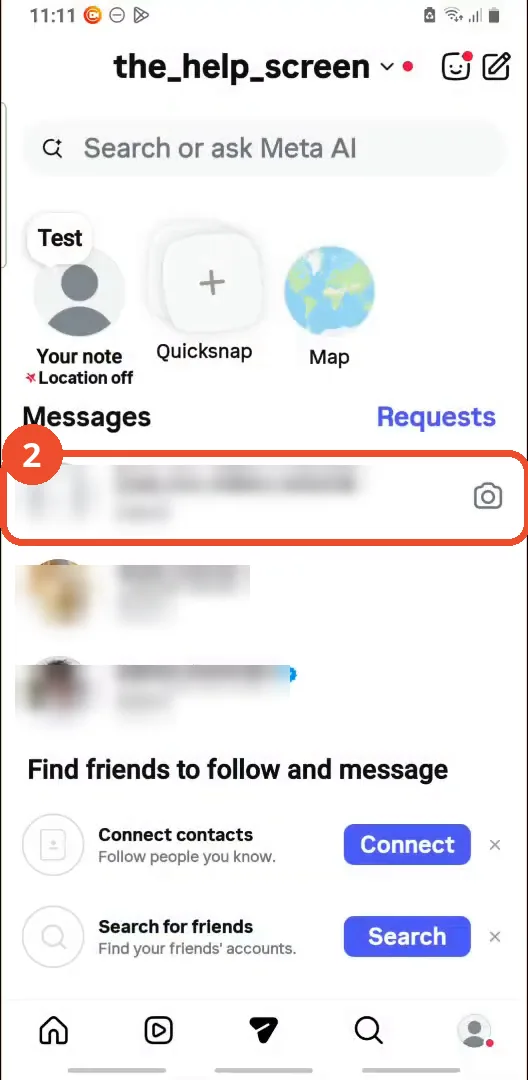
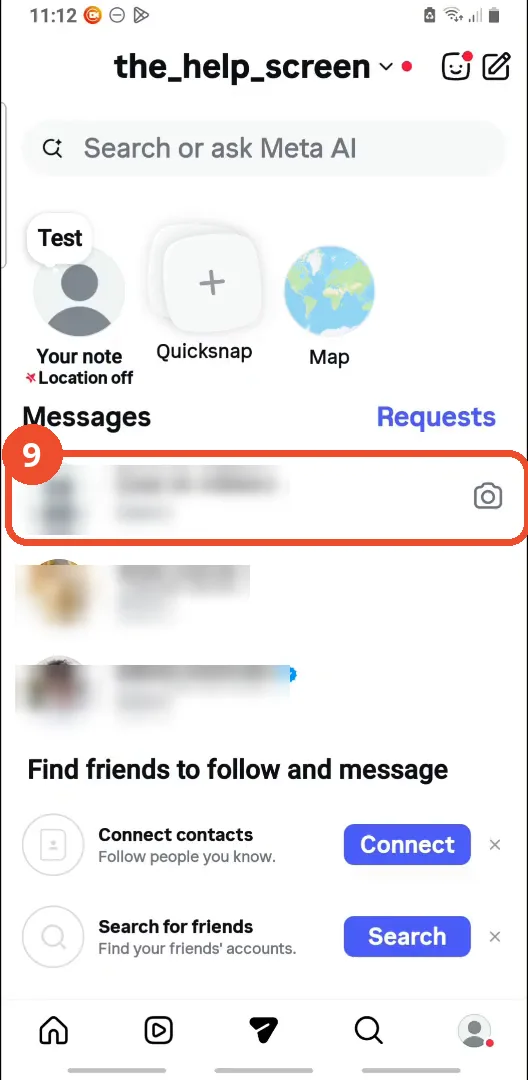
Open your messages
Open Instagram and tap the Messenger icon to open your inbox, then tap the chat you want to hide.
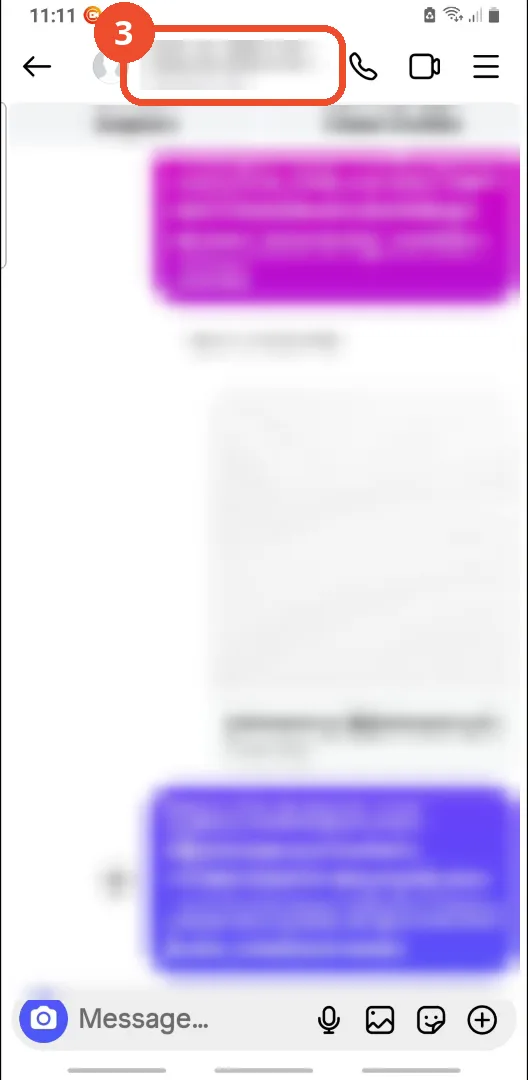
Tap their name at the top
Inside the chat, tap the person’s name at the top to open the chat details. The message text is blurred here - it is a private conversation.
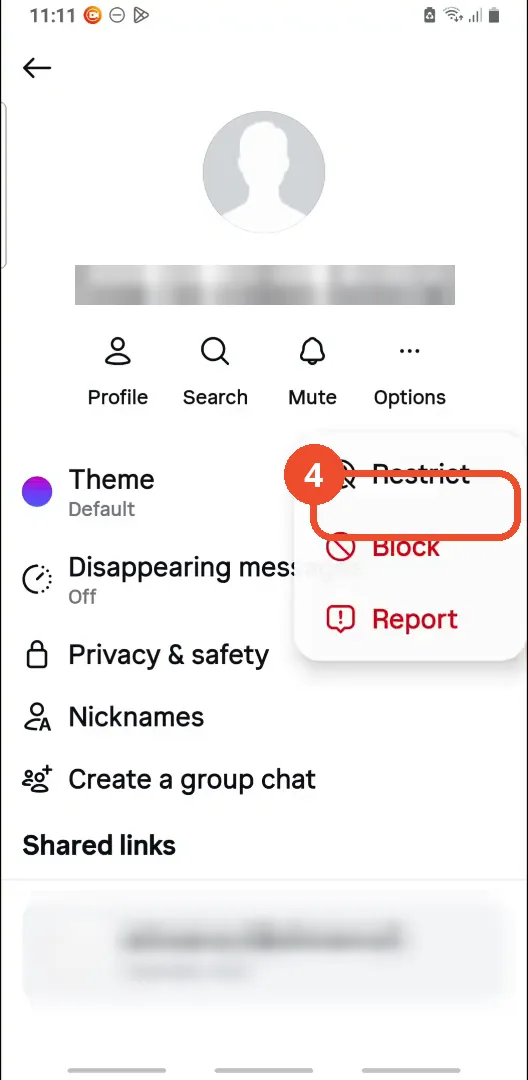
Tap Options, then Restrict
On the details screen, tap the three-dot Options menu and choose Restrict.
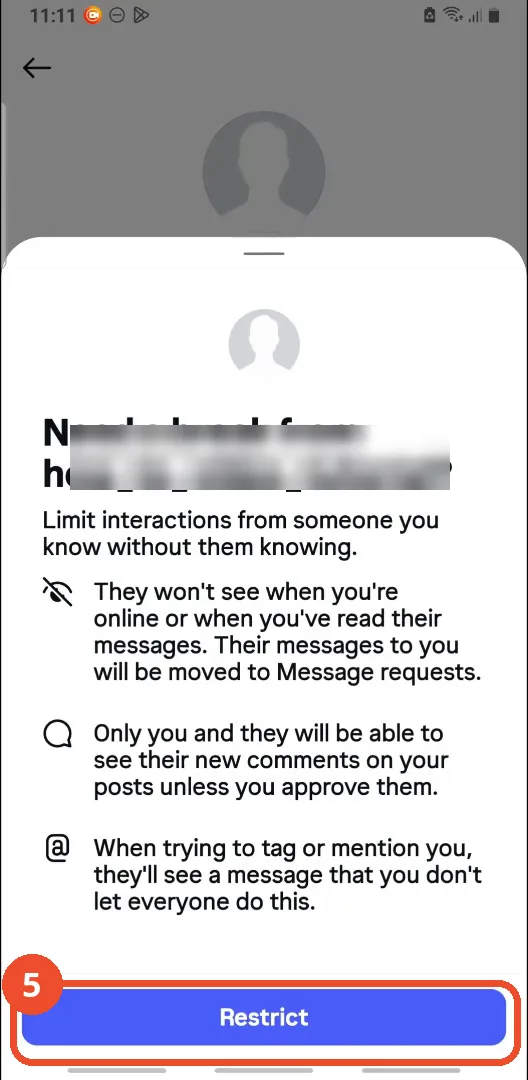
Tap Restrict to confirm
Confirm with the blue Restrict button. Instagram explains that their messages will move to Message requests and they will not see when you are online or have read their messages.
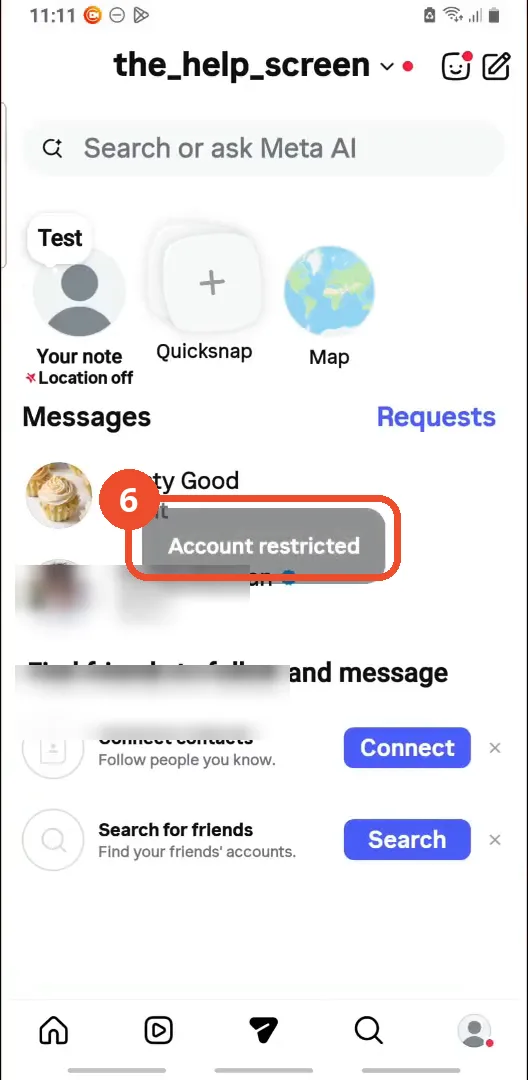
Check the chat is gone
Back in the inbox, the chat is gone - only the other conversations remain - and a toast confirms “Account restricted”.
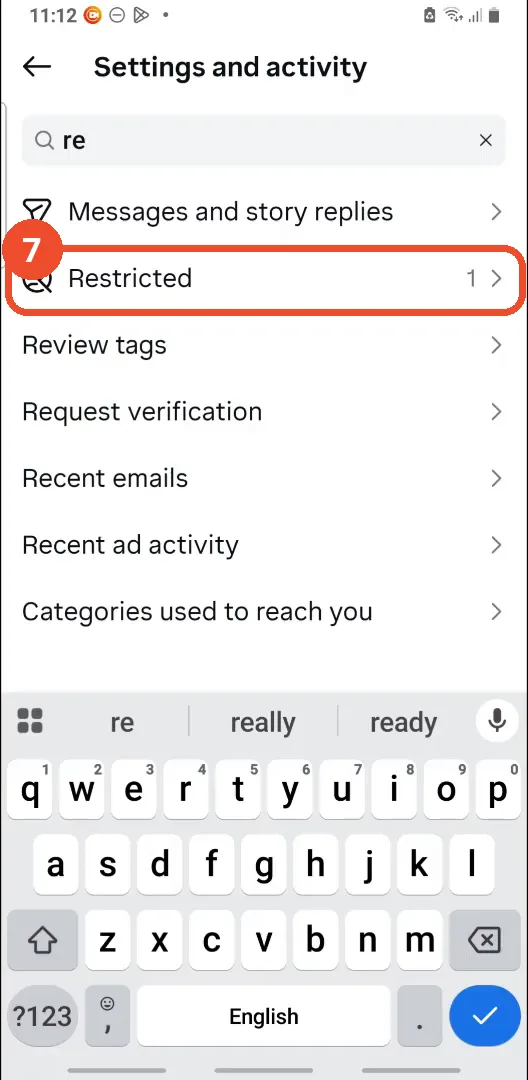
Search Settings for Restricted
To bring the chat back, open Settings and activity, tap the search bar and type “re” - Restricted appears with a count of 1.
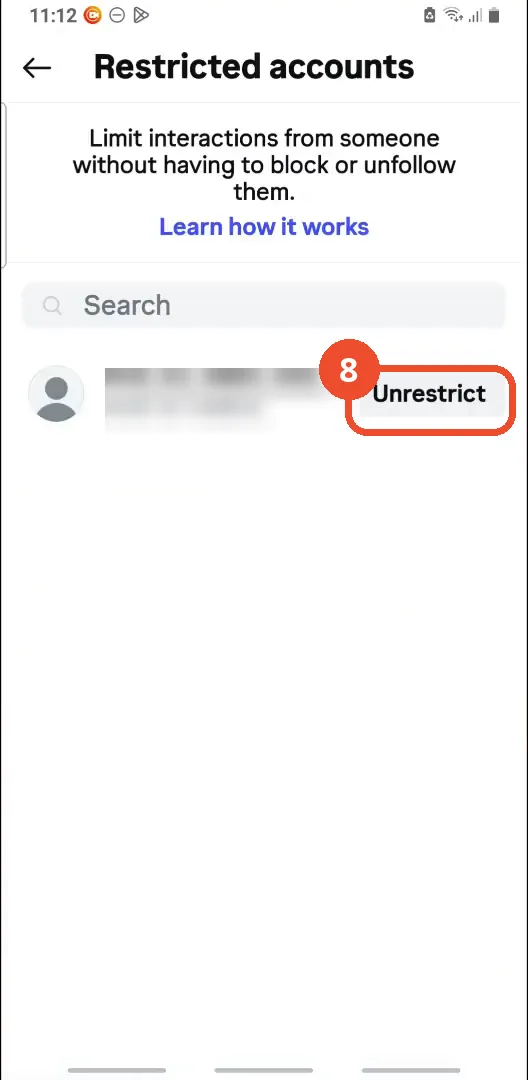
Tap Unrestrict
Open Restricted accounts and tap Unrestrict next to the account.
Check the chat is back
The chat returns to the Messages list - now shown under the account’s display name.
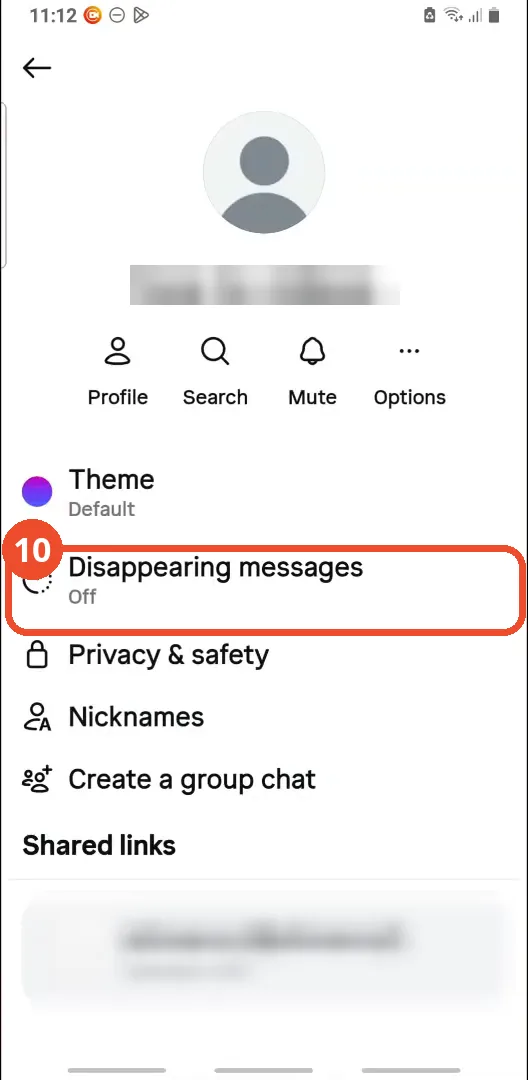
Open Disappearing messages
As a second option, open the chat details again and tap Disappearing messages. The film shows the options - Off, “Once they’re seen”, 24 hours and 7 days - but does not switch any of them on.
Good to know
- There is no hide-chat feature in Instagram - Restrict is a workaround: the chat moves to Message requests, it is not deleted, and the other person is not told.
- Restricting also hides your online status and read receipts from that person, and their new comments on your posts stay hidden until you approve them.
- The film says the chat moves to Message requests but never opens the Requests tab on camera - the removal from the inbox is what is actually shown.
- The chat is not gone for good: Settings and activity > search “Restricted” > Unrestrict brings it straight back to the inbox.
- Disappearing messages is a different, second option - it hides message text after it is seen, but the chat itself stays in your inbox. The film shows the options screen but does not turn the feature on.
- The account used in the film is blurred throughout; only the operator’s own account name is left visible.
- The film opens with an “Introducing the Instagram map” pop-up in the inbox - that is a one-off announcement, not part of hiding a chat.
More on Instagram
- How to Comment on Your Own Instagram Story
- How to Hide Your Instagram Story from Everyone at Once
- How to Find the Email Associated with Your Instagram Account (2026 Guide)
- How to Unfollow Multiple People on Instagram
- How to Hide Your Instagram Account from Search
- How to View Instagram Stories Without Being Seen
- How to Tag Someone on Instagram (Posts and Stories)
- How to Search Multiple Hashtags on Instagram
- How to Make Your Instagram Bio Multiple Lines
- How to Follow a Hashtag on Instagram (2026 Workaround)
- How to View All Comments on an Instagram Post
- How to Clear Cache on Instagram
- How to Copy an Instagram Comment (Screenshot + OCR Workaround)