How to Delete Multiple Posts on Instagram
Instagram lets you delete several posts in one go from Your activity: open Posts under Content you shared, tap Select, tick the posts, then Delete and confirm. The film selects both posts on the operator’s account and reaches the confirmation dialog - but the final Delete is never tapped on camera, so nothing is actually deleted in the film.
- SystemAndroid
- AppInstagram
- Last verifiedNovember 15, 2026
Every screenshot below is taken from the actual recording on this device — no stock images.
Steps
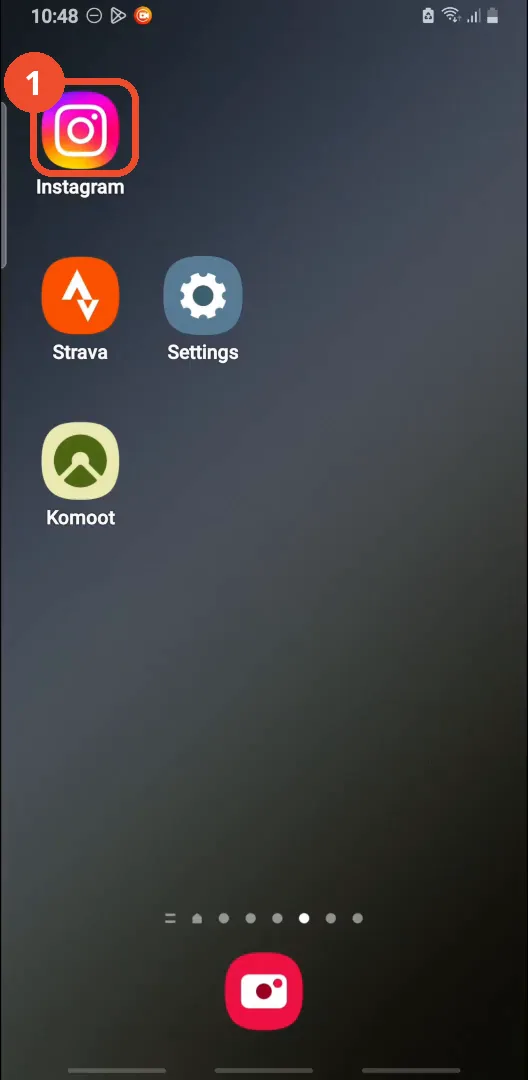
Open Instagram
On the home screen, tap the Instagram icon.
Go to your profile
In Instagram, tap your profile picture at the bottom right.

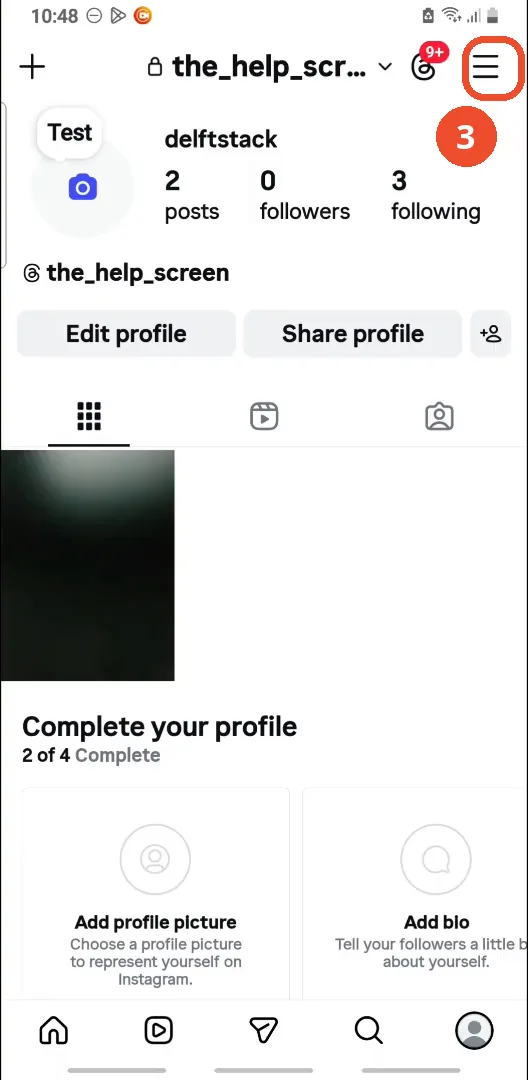
Tap the menu
On your profile, tap the three lines at the top right. This opens Settings and activity directly - no separate menu sheet appears.
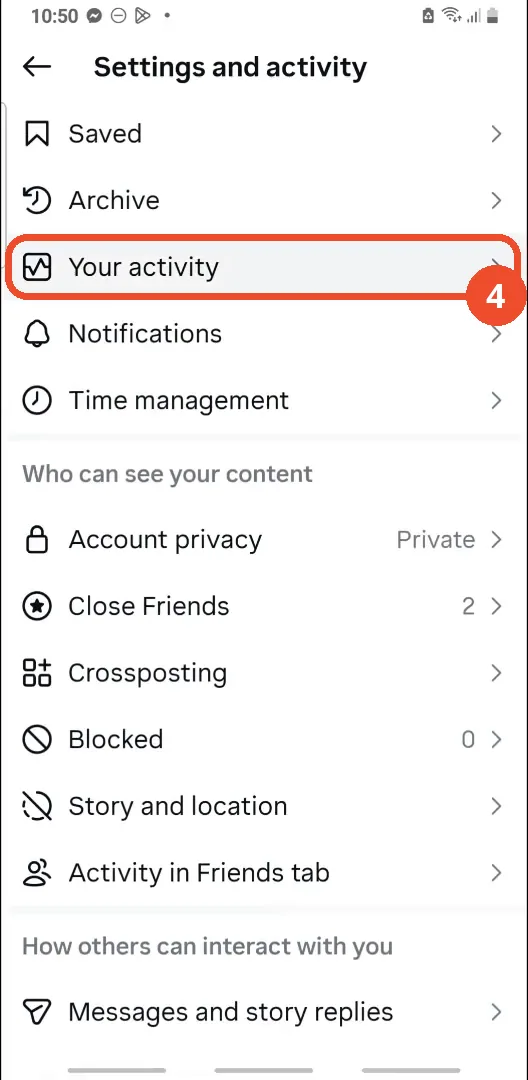
Tap Your activity
On the Settings and activity page, scroll down to How you use Instagram and tap Your activity.
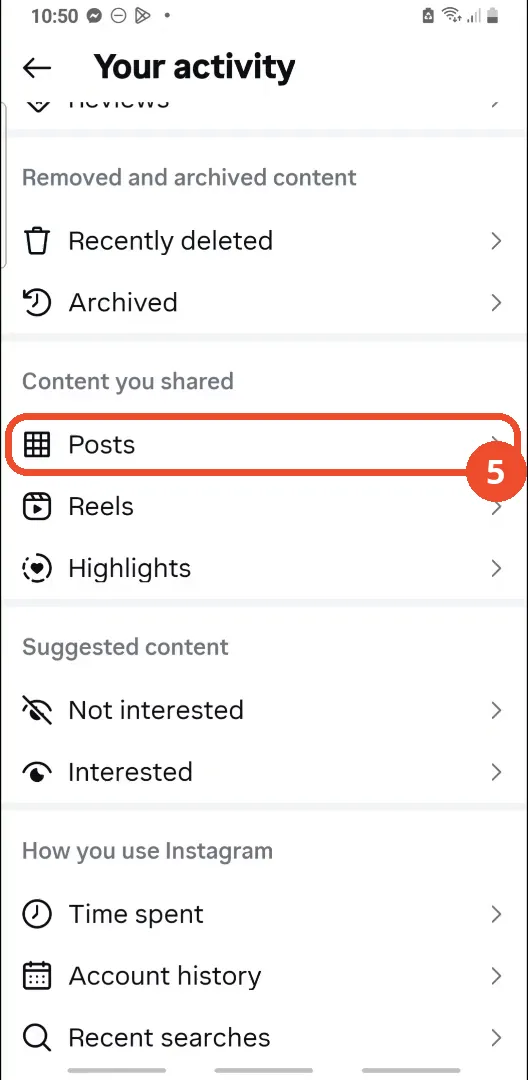
Tap Posts
On the Your activity page, scroll down to Content you shared and tap Posts.
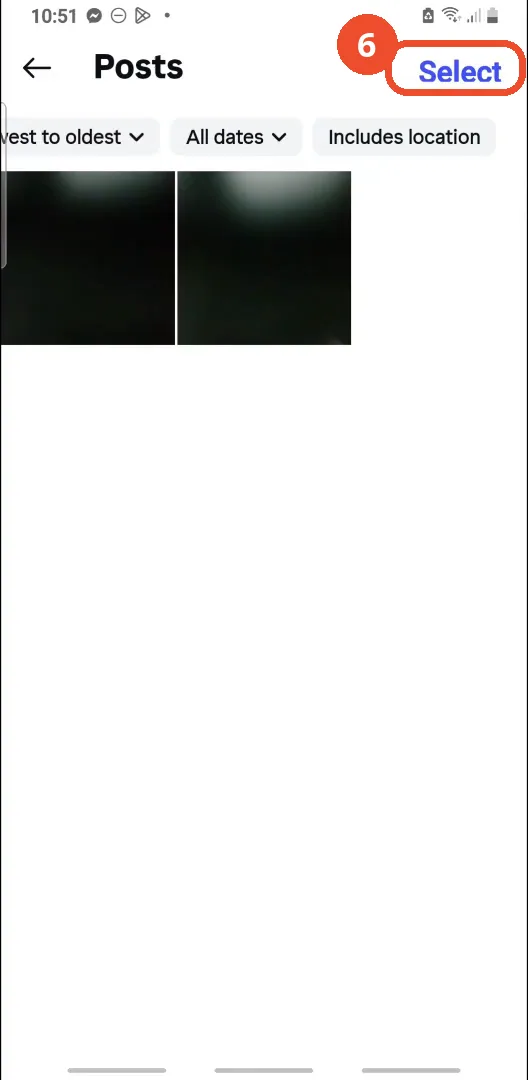
Tap Select
On the Posts page, tap Select at the top right to enter selection mode.
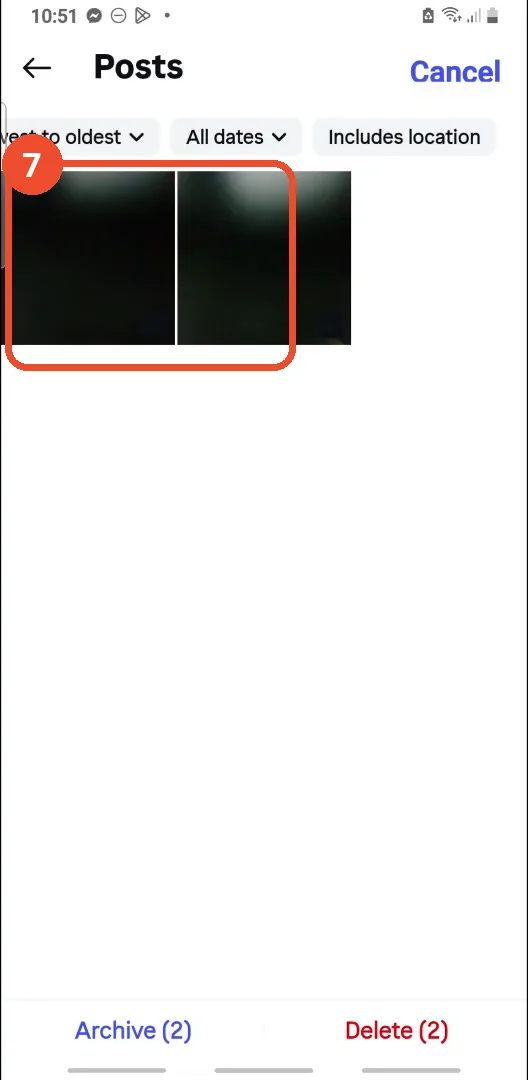
Select the posts to delete
Tap each post you want to delete. Here both of the account’s posts are selected - the bottom bar reads Archive (2) and Delete (2).
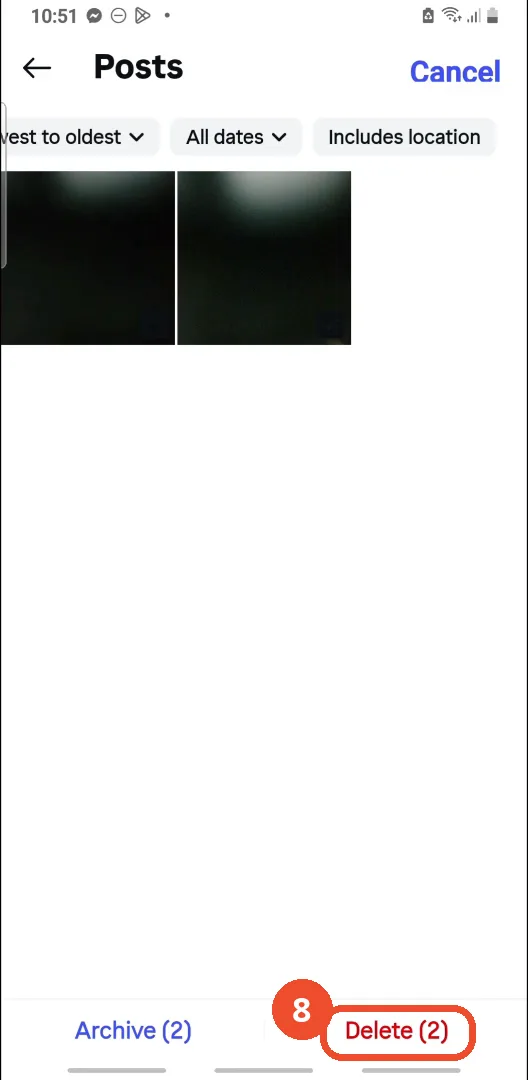
Tap Delete
Tap the red Delete (2) at the bottom right. Archive, on the left, would hide the posts without deleting them.
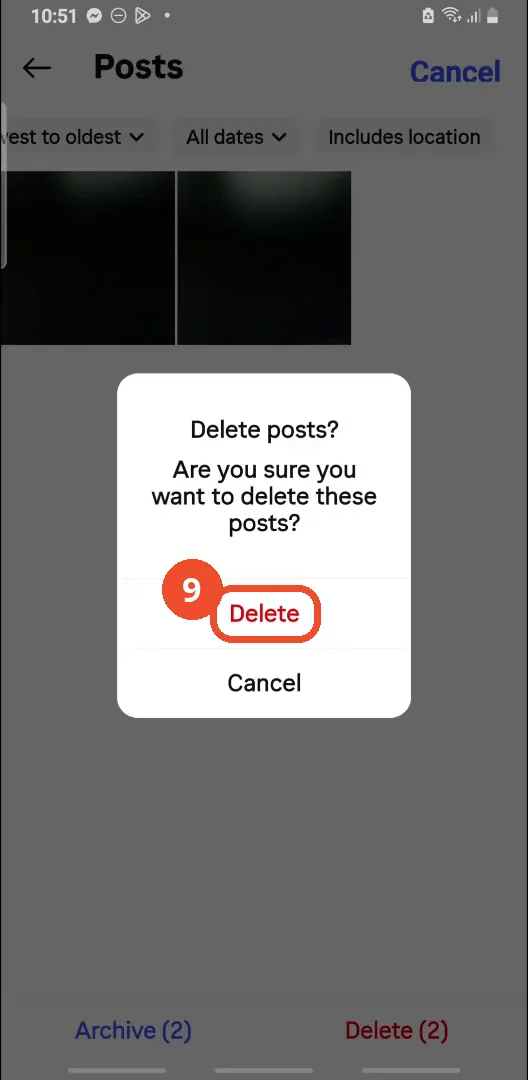
Check the confirmation dialog
Instagram asks ‘Delete posts? Are you sure you want to delete these posts?’ The film ends on this dialog - the final Delete is not tapped on camera, so the posts are not actually deleted in the film. Tap Delete here to finish.
Good to know
- The deletion is not shown completing: the film ends on the ‘Delete posts? Are you sure you want to delete these posts?’ dialog with the final Delete untapped. To finish, tap Delete in that dialog.
- Archive is the non-destructive alternative on the same bar: archived posts leave your profile but stay saved. Deleted posts first land in Recently deleted - the row is visible on the Your activity page - rather than vanishing at once.
- You can narrow the list first: the Posts page offers sorting (newest to oldest or oldest to newest) and filters by date and location. The film opens the Sort by and Filter by date sheets but does not apply a filter - both posts are selected without one.
- Only posts are covered here: Reels and Highlights sit in their own rows under Content you shared.
- The film’s account is the operator’s own @the_help_screen, with 2 posts, 0 followers and 3 following - both of its posts are the black squares selected for deletion.
- The same Select route works for a single post too - just tick one instead of several.
More on Instagram
- How to Comment on Your Own Instagram Story
- How to Hide Your Instagram Story from Everyone at Once
- How to Find the Email Associated with Your Instagram Account (2026 Guide)
- How to Unfollow Multiple People on Instagram
- How to Hide Your Instagram Account from Search
- How to View Instagram Stories Without Being Seen
- How to Tag Someone on Instagram (Posts and Stories)
- How to Search Multiple Hashtags on Instagram
- How to Make Your Instagram Bio Multiple Lines
- How to Follow a Hashtag on Instagram (2026 Workaround)
- How to Clear Cache on Instagram
- How to Copy an Instagram Comment (Screenshot + OCR Workaround)
- How to Hide Instagram Chats Without Deleting Them
- How to Change Email on Instagram
- How to Comment a GIF on Instagram
- How to Hide Notes from Someone on Instagram (Close Friends Workaround)
- How to View All Comments on an Instagram Post
- How to Hide Your Last Seen on Instagram
- How to Hide Who You Follow on Instagram (Privacy Guide)