How to Copy an Instagram Comment (Screenshot + OCR Workaround)
Instagram does not let you copy a comment: long-pressing one only offers Report and Block account. The film’s workaround is to screenshot the comment, crop the screenshot to the text, and run it through the free OCR site imagetotext.info - the extracted text can then be copied and pasted anywhere.
- SystemAndroid
- AppInstagram
- Last verifiedNovember 12, 2026
Every screenshot below is taken from the actual recording on this device — no stock images.
Steps
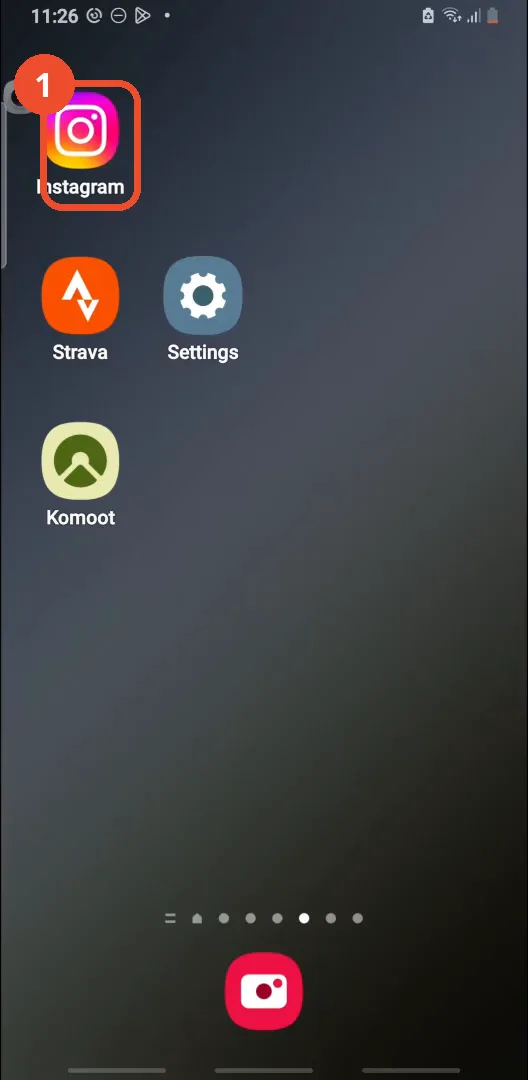
Open Instagram
On the home screen, tap the Instagram icon.
Open the comments
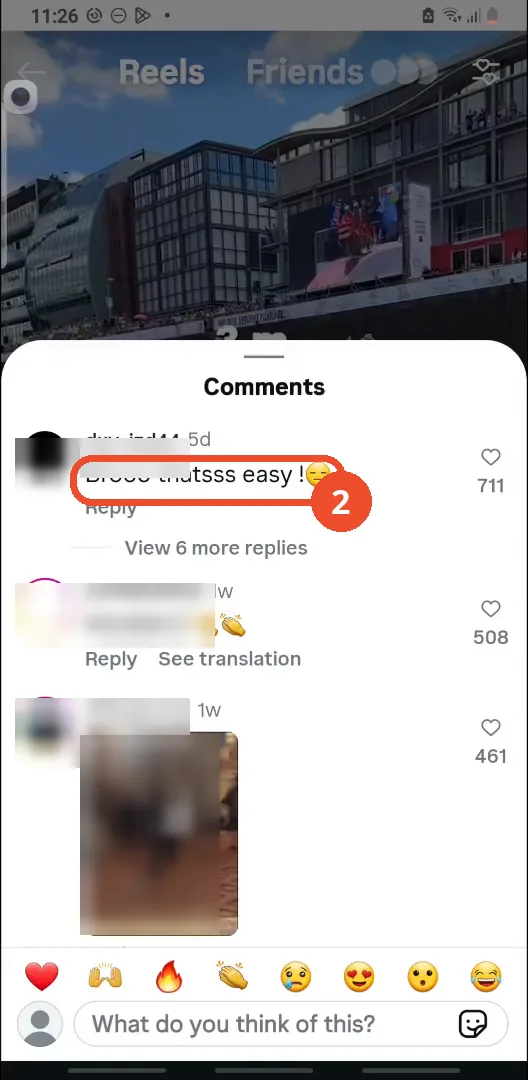
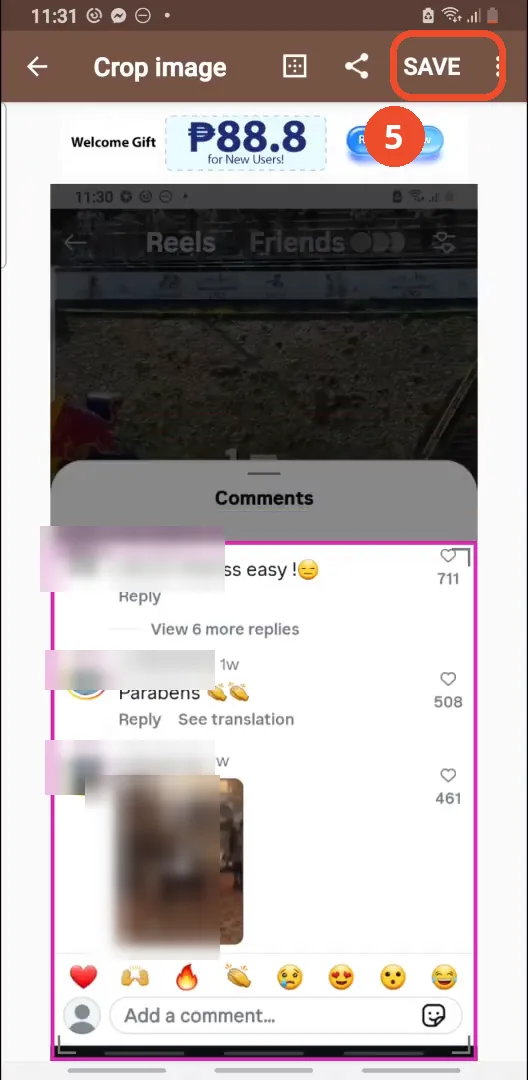
Open a post - the film uses a Red Bull Reel - and tap the comment icon to open the comments. The comment to copy reads “Brooo thatsss easy!”
Long-press the comment
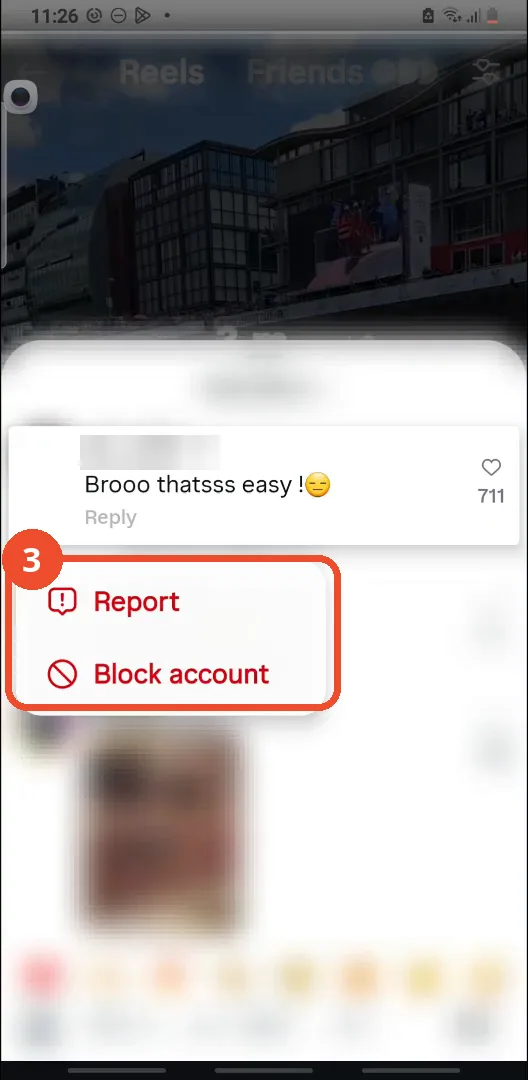
Long-press the comment. The menu that appears offers only Report and Block account - there is no Copy option.
Take a screenshot
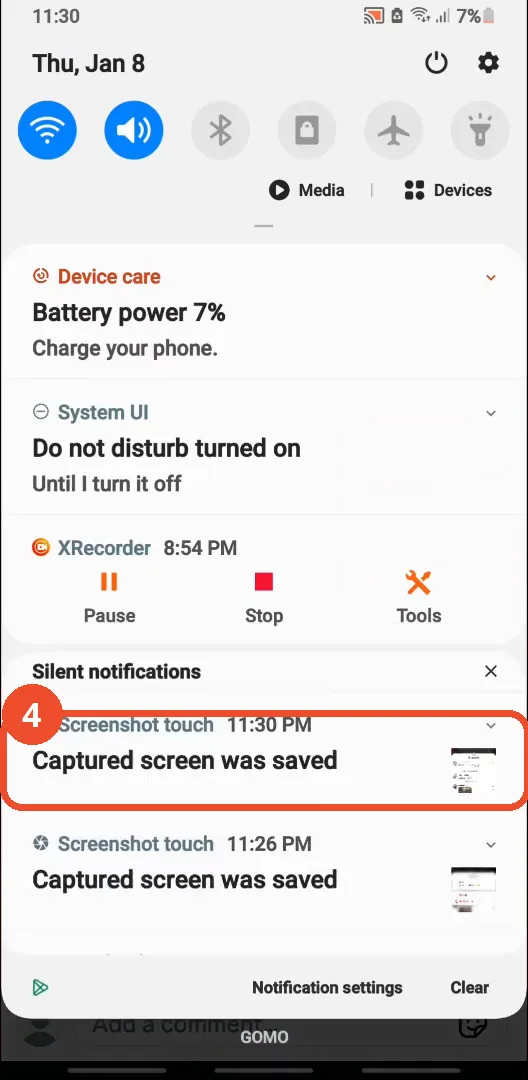
Since Instagram will not copy the text, take a screenshot of the comments instead. The notification shade confirms “Captured screen was saved” at 11:30 PM.
Crop the screenshot to the comment
Open the screenshot, crop it down to the comment text, and tap SAVE.
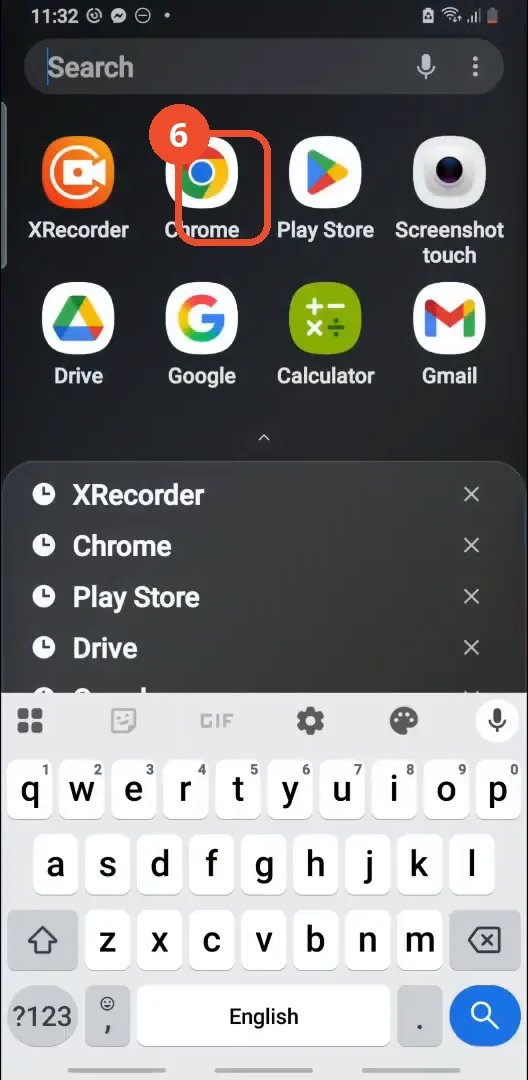
Open Chrome
Leave Instagram and open Chrome.
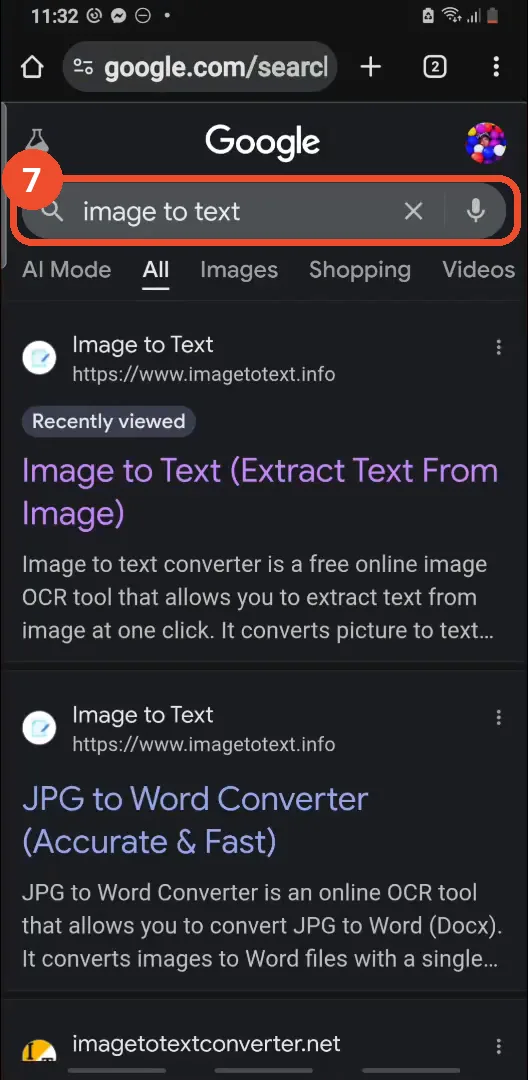
Search Google for image to text
Search Google for “image to text”.
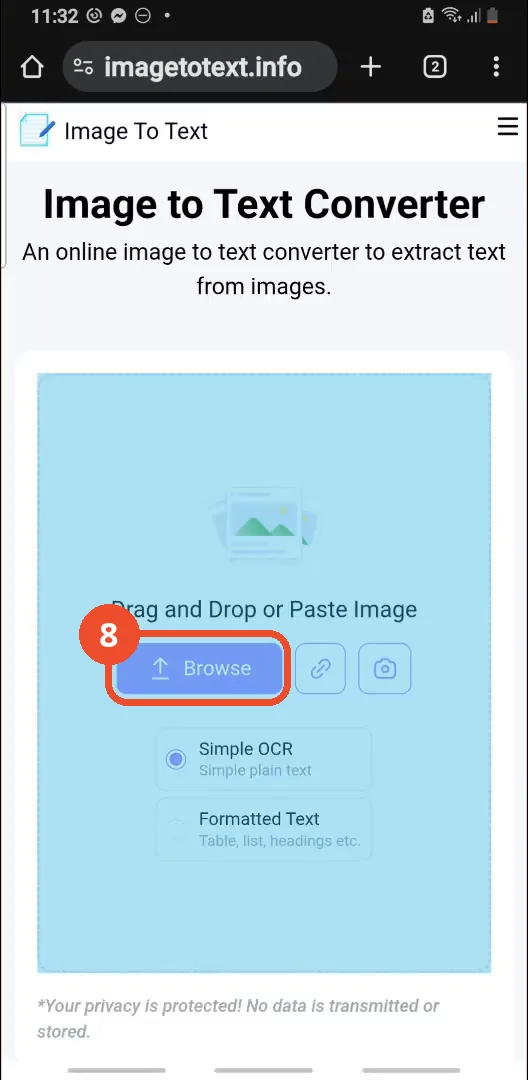
Open imagetotext.info
Open the first result, imagetotext.info, and tap Browse.
Choose the cropped screenshot
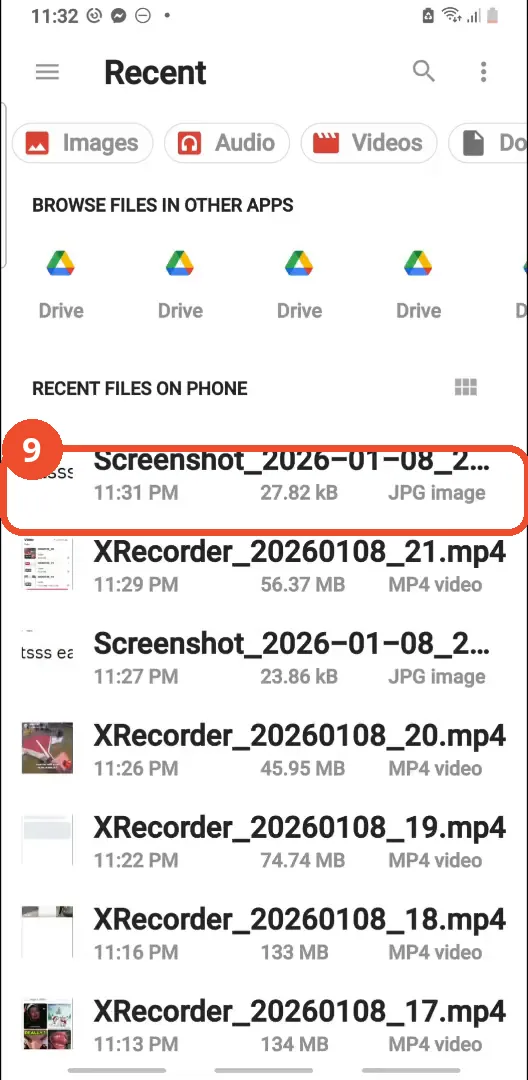
Pick the cropped screenshot from Recent files - the 11:31 PM JPG at the top of the list.
Check the extracted text
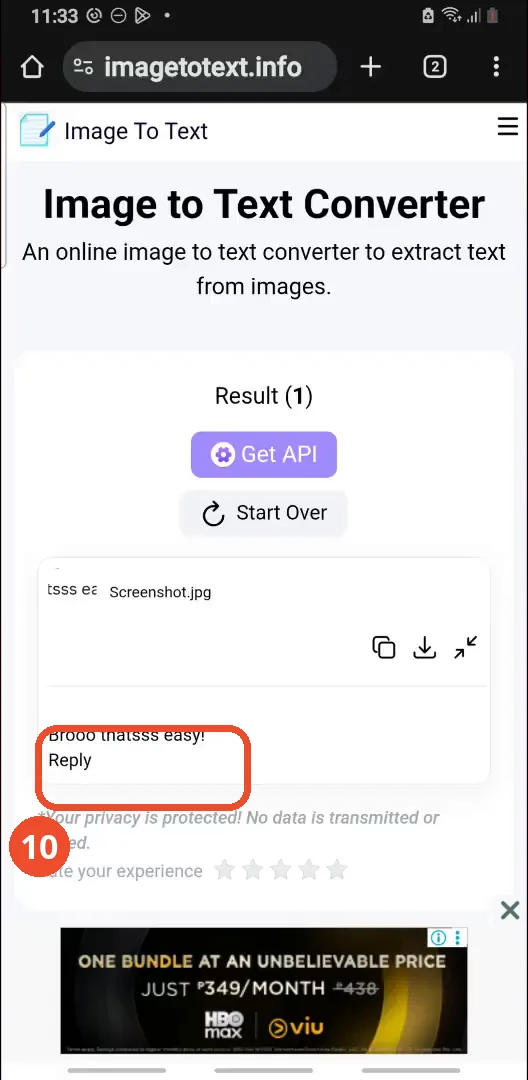
The tool reads the image and returns the comment as text: “Brooo thatsss easy!” followed by “Reply”. Tap the copy icon next to the result to copy it.
Paste the copied text
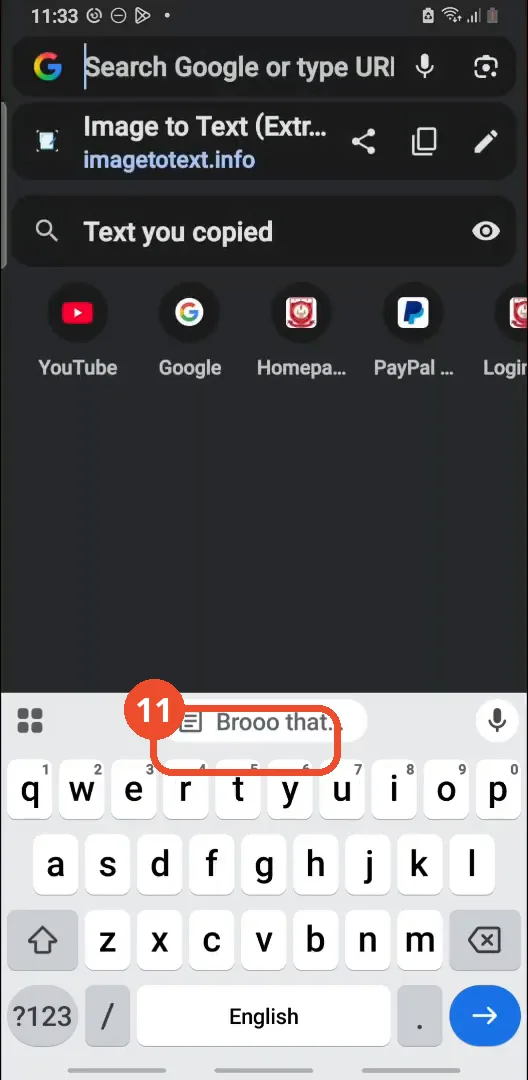
Open any text field - here the Chrome address bar - and the keyboard offers the copied text (“Brooo that…”) from the clipboard. Tap the suggestion to paste it.
Good to know
- There is no Copy option for Instagram comments: long-pressing the comment in the film shows only Report and Block account.
- The workaround needs a third-party OCR site (imagetotext.info) - the text never comes from Instagram itself, and uploading a screenshot sends that image to the site.
- The crop in the film covers the whole comments area, so the OCR result also picks up the word “Reply” under the comment - crop tighter if you want only the comment itself.
- The comment copied here reads “Brooo thatsss easy!” - it is a stranger’s comment on a public Red Bull Reel; the account names and avatars in the screenshots are blurred.
- The notification shade shows screenshots saved at 11:26 PM and 11:30 PM; the 11:30 PM one is the comments screenshot used for the OCR step.
- OCR can misread emoji or unusual characters, so check the extracted text before pasting it somewhere.
More on Instagram
- How to Comment on Your Own Instagram Story
- How to Hide Your Instagram Story from Everyone at Once
- How to Find the Email Associated with Your Instagram Account (2026 Guide)
- How to Unfollow Multiple People on Instagram
- How to Hide Your Instagram Account from Search
- How to View Instagram Stories Without Being Seen
- How to Tag Someone on Instagram (Posts and Stories)
- How to Search Multiple Hashtags on Instagram
- How to Make Your Instagram Bio Multiple Lines
- How to Follow a Hashtag on Instagram (2026 Workaround)
- How to View All Comments on an Instagram Post
- How to Clear Cache on Instagram
- How to Hide Instagram Chats Without Deleting Them