How to Comment a GIF on Instagram
Instagram lets you reply to a post with a GIF instead of words: open the comments, tap the smiley face next to the comment field, switch to the GIF tab, search GIPHY and tap a GIF — it posts immediately, with no send button to press.
- SystemAndroid
- AppInstagram
- Last verifiedNovember 13, 2026
Every screenshot below is taken from the actual recording on this device — no stock images.
Steps
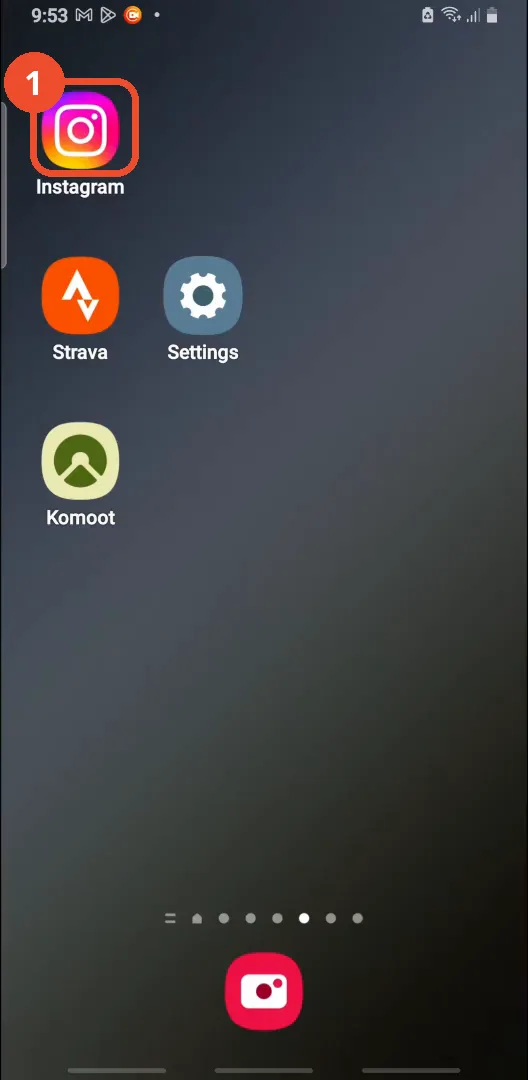
Open Instagram
On the home screen, tap the Instagram icon.
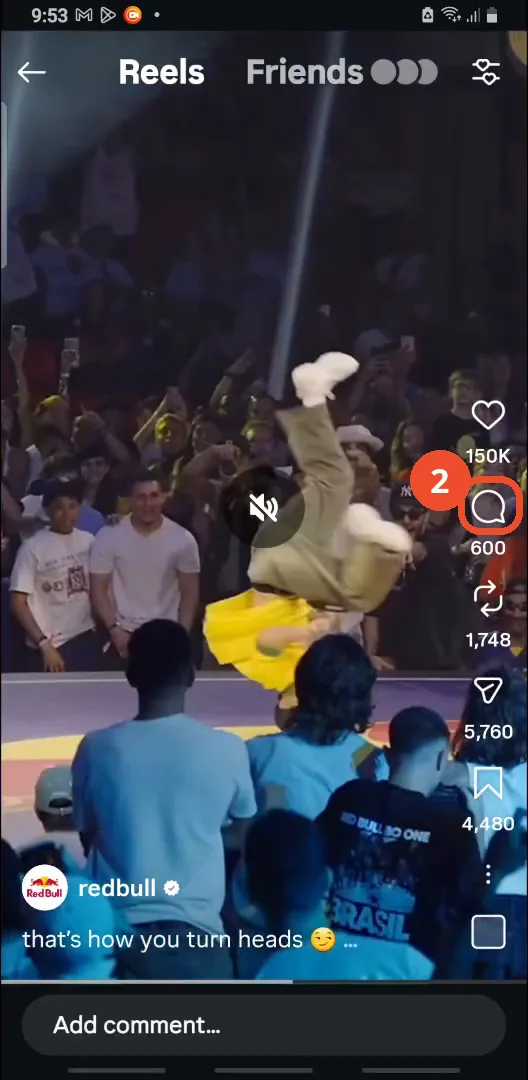
Tap the comment icon
Open a post — the film uses a Red Bull Reel — and tap the comment bubble on the right side. It shows 600 comments.
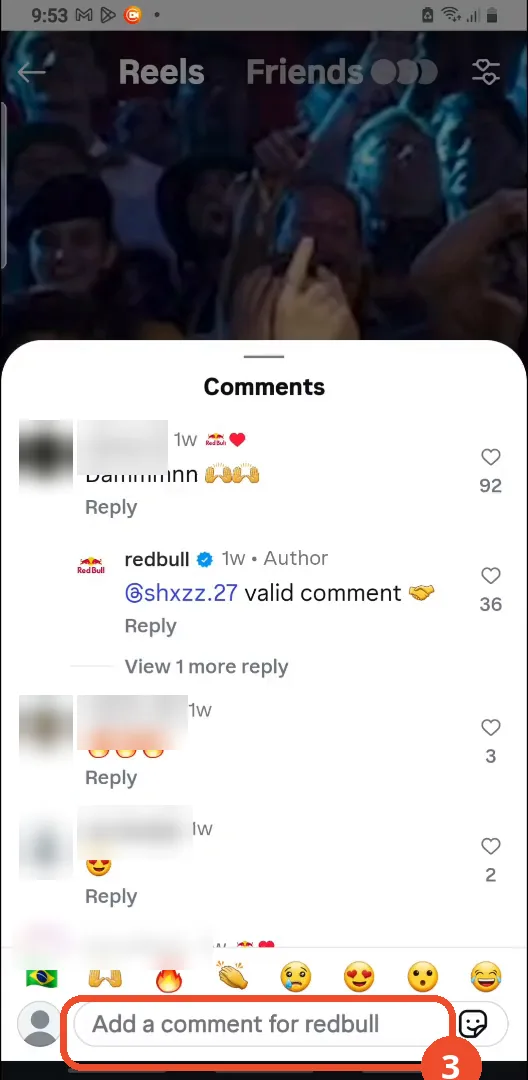
Tap Add a comment
In the comments sheet, tap the Add a comment field at the bottom.
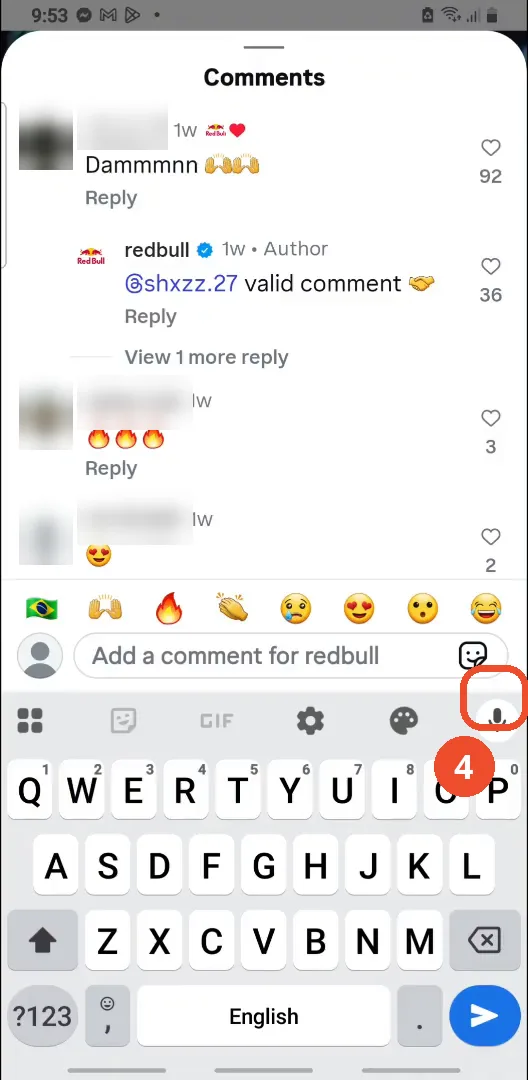
Tap the smiley face icon
With the keyboard open, tap the smiley face icon at the right end of the comment field.
Tap GIF
The sheet offers Create your avatar first. Ignore that and tap the GIF tab at the bottom right.
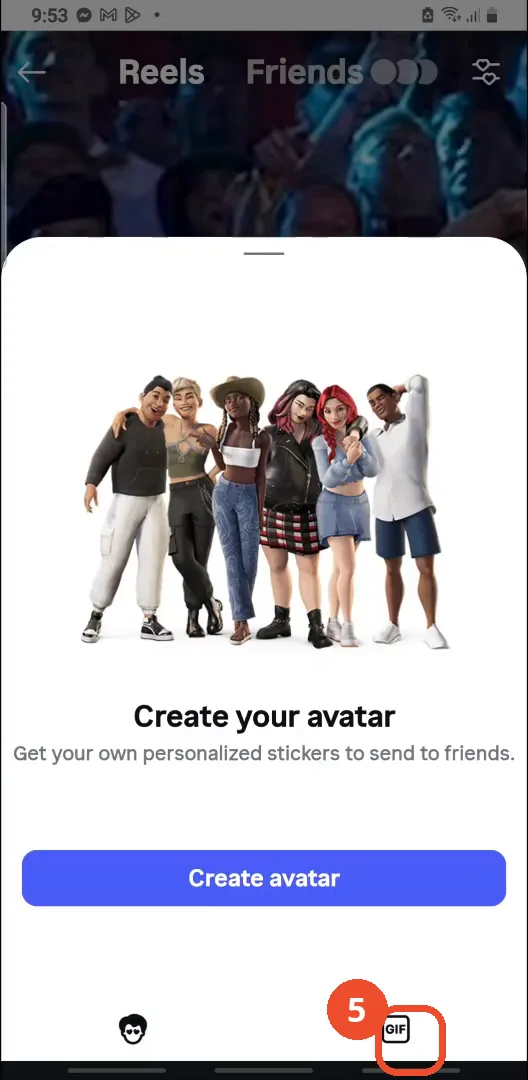
Tap Search GIPHY
In the GIF picker, tap the Search GIPHY bar at the top.
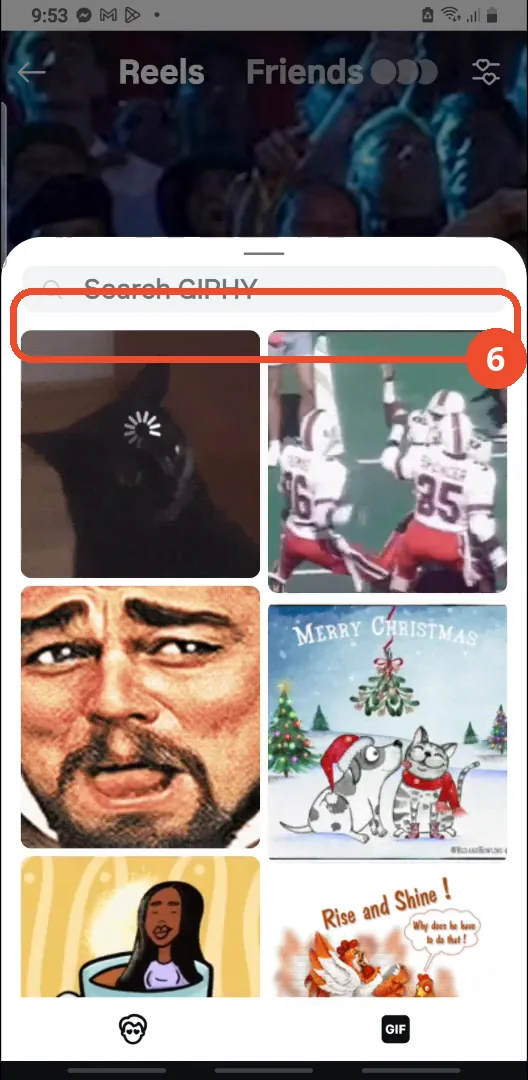
Type a keyword
Type a keyword for the GIF you want. The film types “dance” and the results start loading.
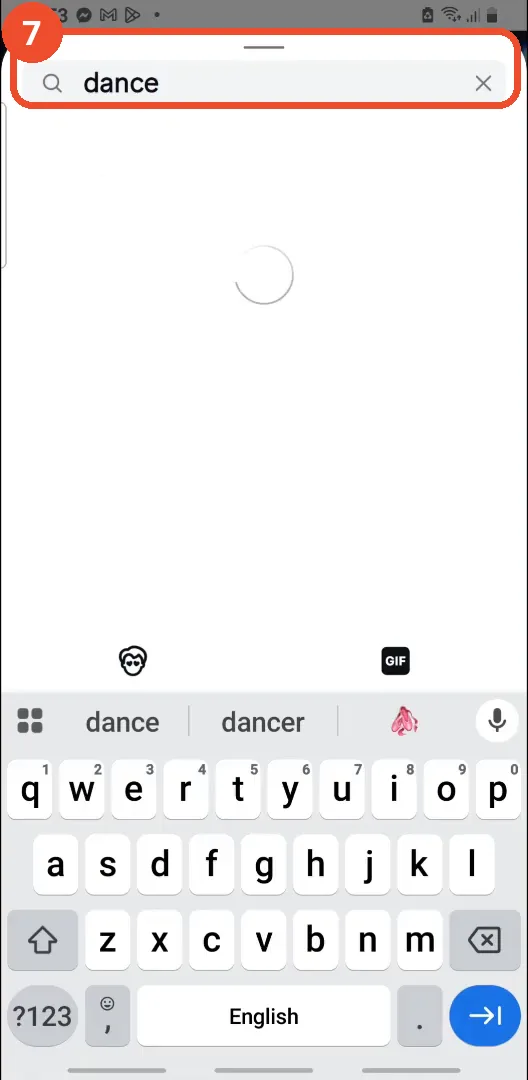
Pick a GIF
Tap a GIF from the results. The film picks the first one, a dancing man at the top left.

Check the GIF is posted
The GIF is posted at once as your comment — here under the_help_screen, 53 seconds ago — at the top of the comments.
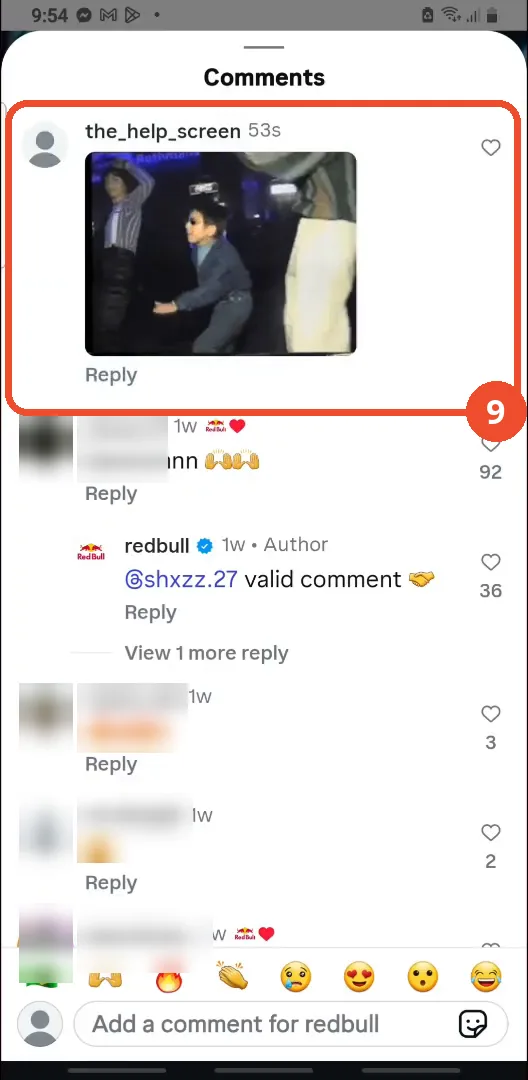
Good to know
- The GIF posts the moment you tap it — there is no send button and no text is added. The film’s GIF appears under the operator’s own account, the_help_screen, seconds later.
- GIFs come from GIPHY: the picker shows trending GIFs first, and the search box finds GIFs for any keyword — the film searches “dance” and picks the first result, a dancing man.
- The smiley face icon opens a choice, not the GIF picker directly: the sheet first offers Create your avatar, and GIF is the tab at the bottom right.
- The post used here is a public Red Bull Reel with 600 comments. Commenter names and avatars in the screenshots are blurred; the Red Bull account is left visible because it is a verified brand account.
- This posts a new GIF comment of your own. Just viewing the comments on a post is a separate task — see How to View All Comments on an Instagram Post.
More on Instagram
- How to Comment on Your Own Instagram Story
- How to Hide Your Instagram Story from Everyone at Once
- How to Find the Email Associated with Your Instagram Account (2026 Guide)
- How to Unfollow Multiple People on Instagram
- How to Hide Your Instagram Account from Search
- How to View Instagram Stories Without Being Seen
- How to Tag Someone on Instagram (Posts and Stories)
- How to Search Multiple Hashtags on Instagram
- How to Make Your Instagram Bio Multiple Lines
- How to Follow a Hashtag on Instagram (2026 Workaround)
- How to Clear Cache on Instagram
- How to Copy an Instagram Comment (Screenshot + OCR Workaround)
- How to Hide Instagram Chats Without Deleting Them
- How to View All Comments on an Instagram Post
- How to Change Email on Instagram
- How to Hide Notes from Someone on Instagram (Close Friends Workaround)