How to Change Email on Instagram
Changing the email on Instagram goes through Accounts Center, not Instagram’s own settings: Profile, menu, Accounts Center, Profiles and personal details, Contact info, then Add new contact and Add email. The film types a new address and Instagram sends a confirmation code to it — but the film stops at the code screen, so the code is never entered on camera.
- SystemAndroid
- AppInstagram
- Last verifiedNovember 13, 2026
Every screenshot below is taken from the actual recording on this device — no stock images.
Steps
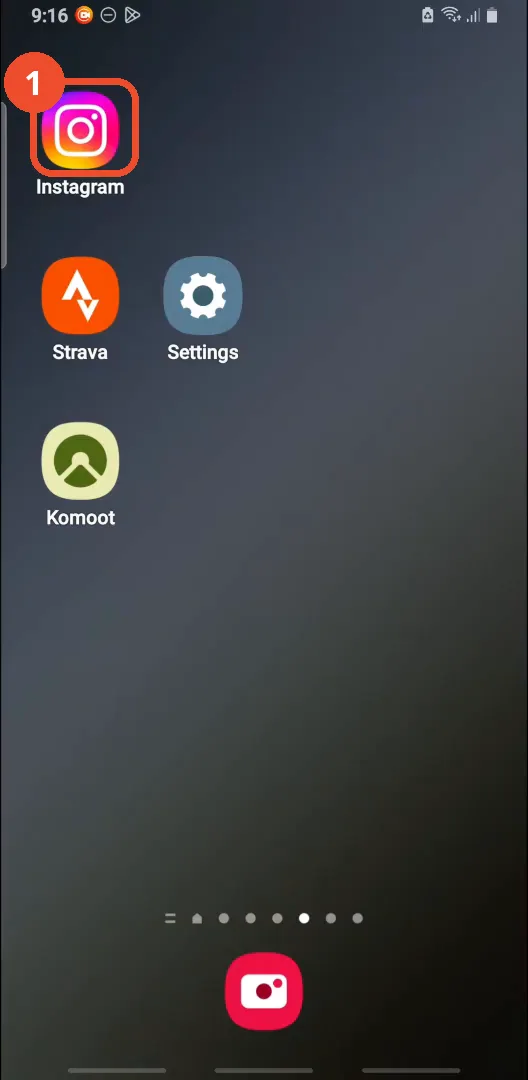
Open Instagram
On the home screen, tap the Instagram icon.
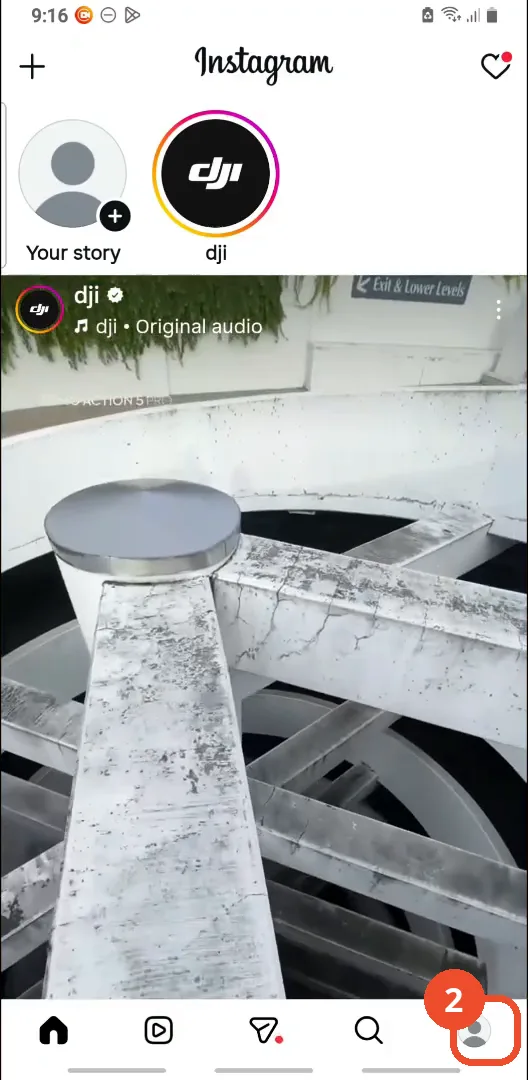
Go to your profile
In Instagram, tap your profile picture at the bottom right.
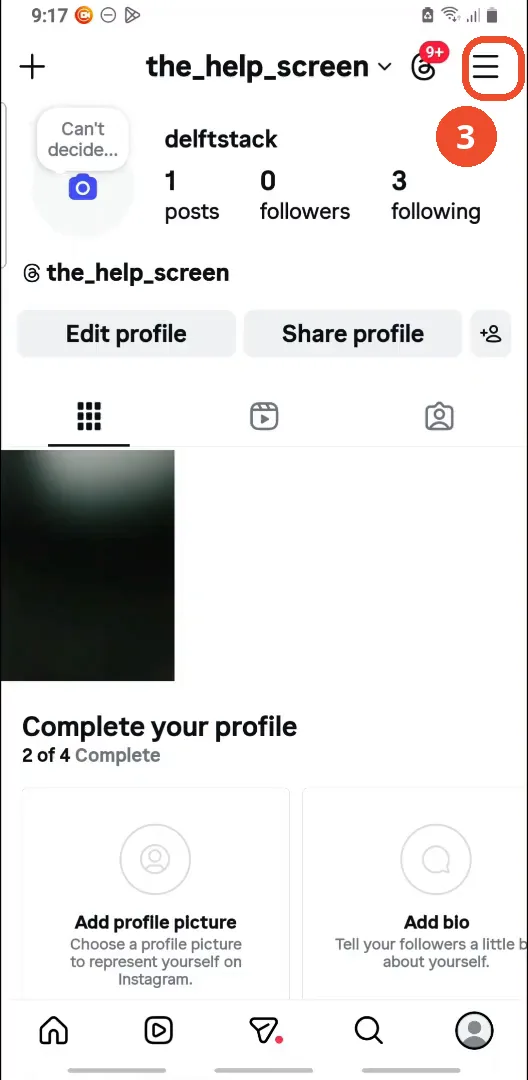
Tap the menu
On your profile, tap the three lines at the top right to open the menu.
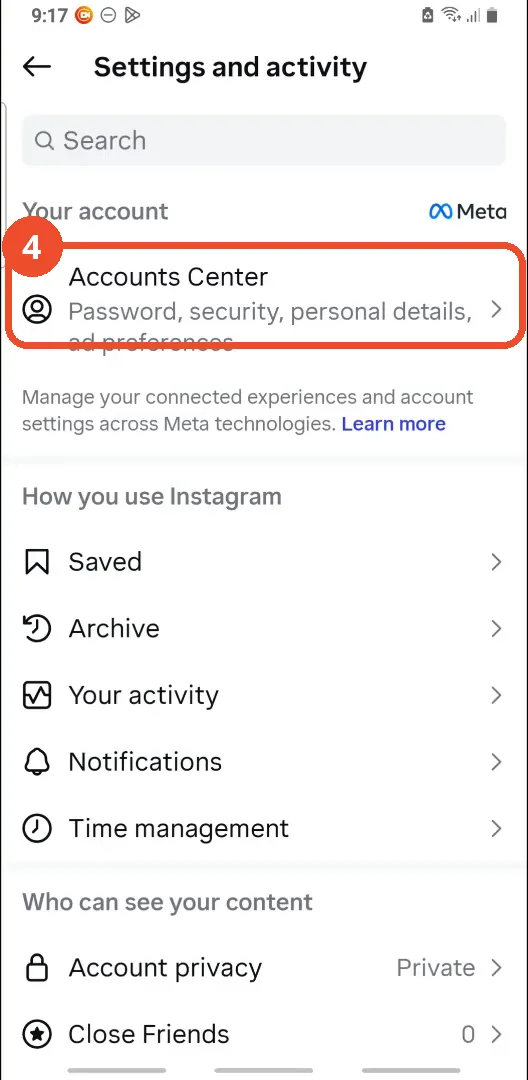
Tap Accounts Center
On the Settings and activity page, tap Accounts Center at the top, under Your account.
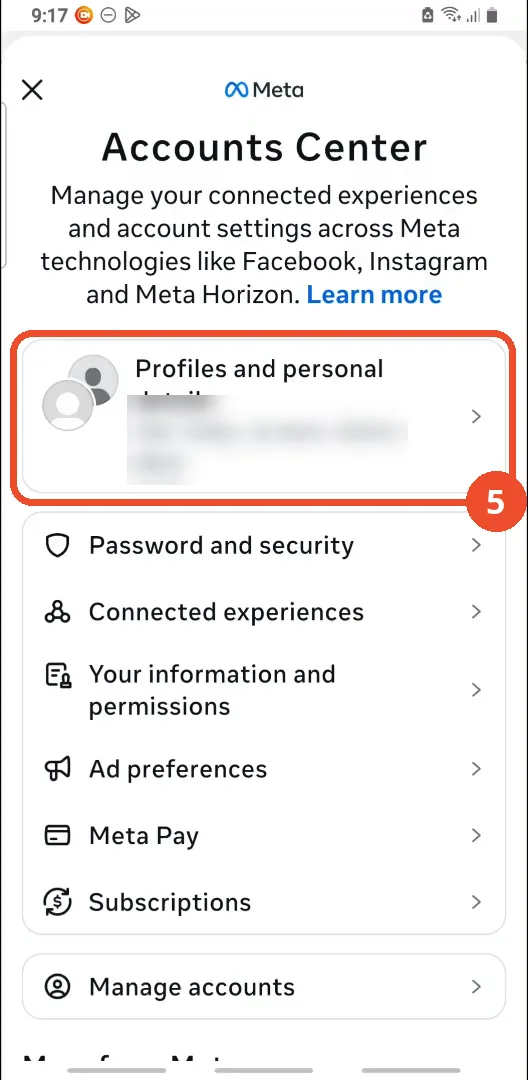
Tap Profiles and personal details
In Accounts Center, tap Profiles and personal details — the first card, showing the profiles linked here.
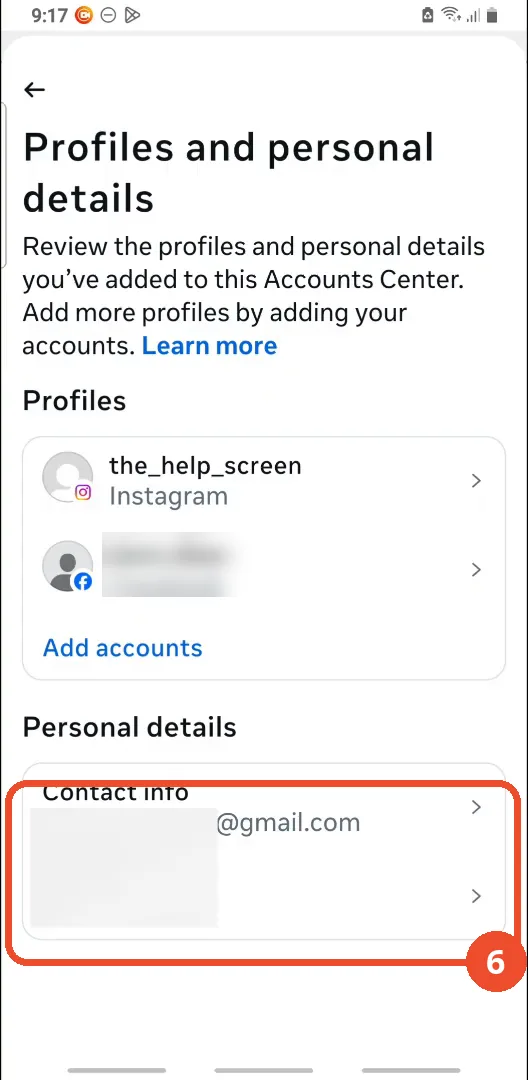
Tap Contact info
Under Personal details, tap Contact info. The row shows the end of one of the account’s email addresses.
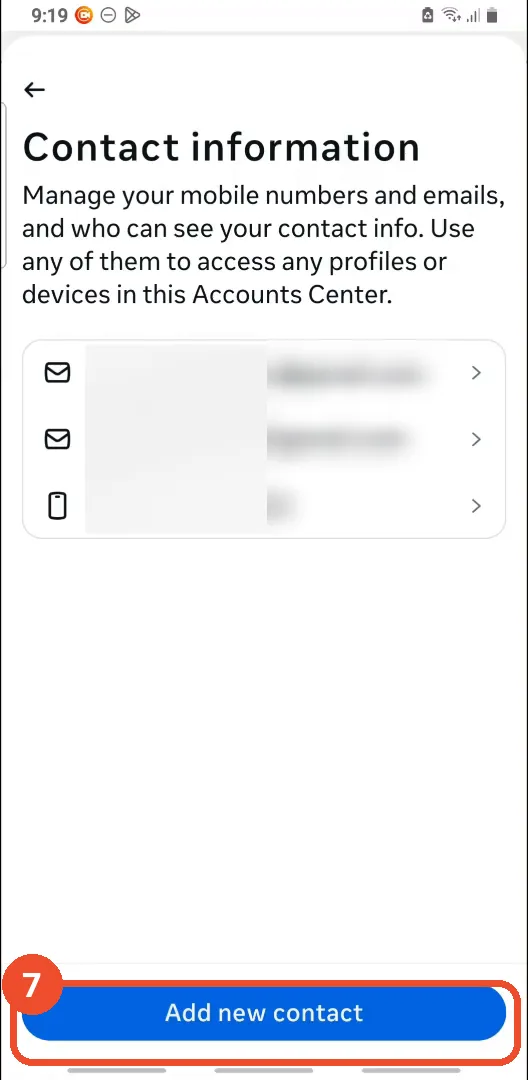
Tap Add new contact
On the Contact information page, tap the blue Add new contact button at the bottom.
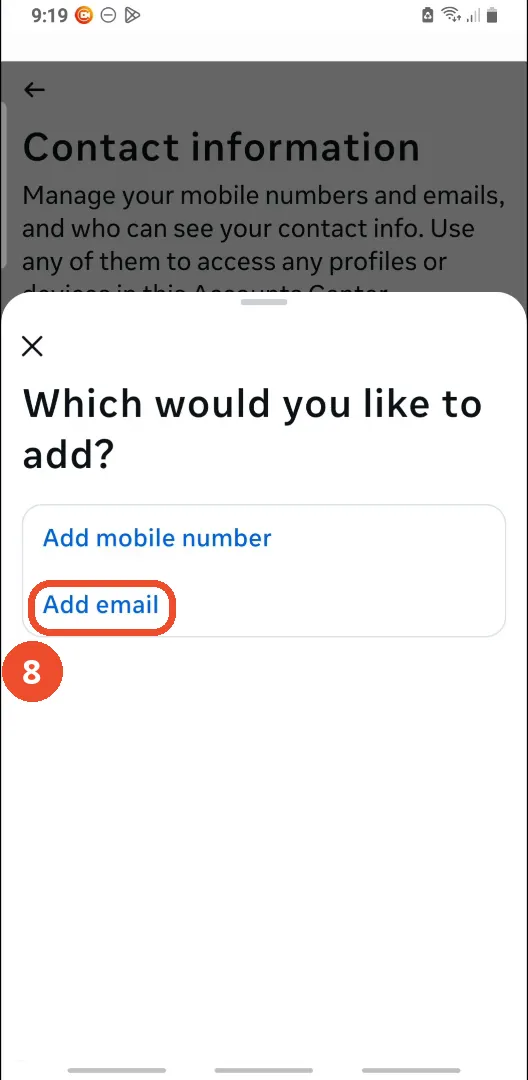
Choose Add email
When Instagram asks what you would like to add, choose Add email.
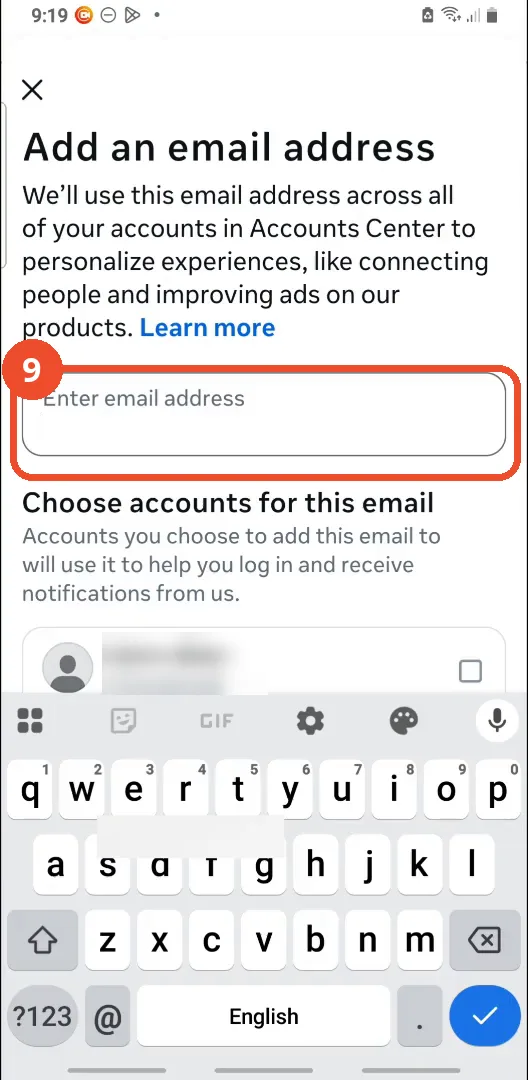
Enter your new email
Tap the Enter email address field and type your new email address. The film jumps from the empty field to the filled one — no keystrokes are shown, and the typed address is blanked out in the film.
Check the confirmation code screen
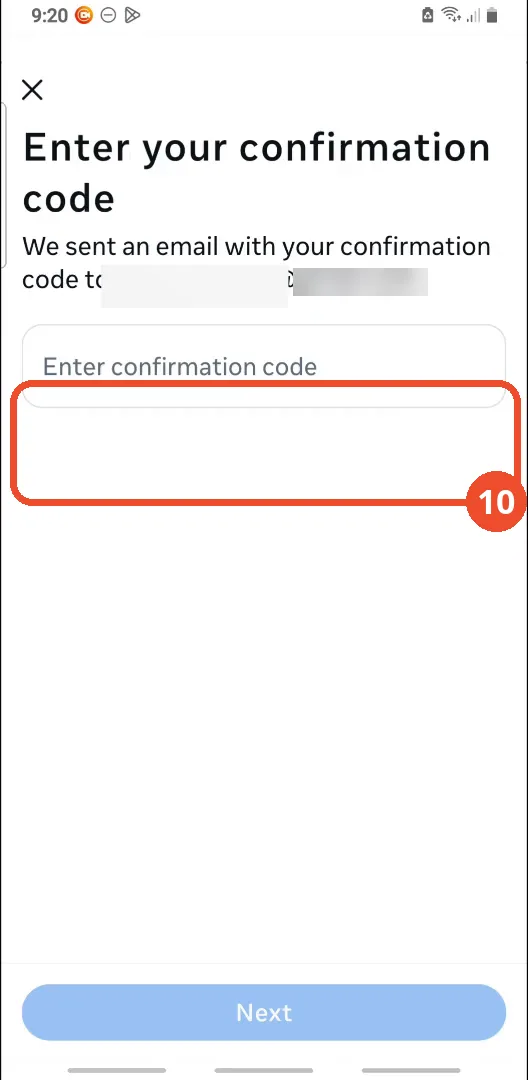
Tap Next and Instagram sends a confirmation code to the new address. The film stops here on the Enter your confirmation code screen — no code is entered on camera, so the change is not shown completing.
Good to know
- This changes the email on the account. To see the email that is currently on it, see How to Find the Email Associated with Your Instagram Account (2026 Guide) — the two films share the same route as far as Contact info, then split: finding stops at the list, changing adds a new address.
- The email change is not shown finishing: the film ends on the confirmation-code screen with the code field empty. To finish, open the inbox of the new address, copy the code Instagram sent, and enter it here.
- The typing is cut: the film jumps from the empty email field (keyboard up) to the filled field, and the typed address is blanked out in the film itself, so no new address is visible anywhere in the screenshots.
- Adding the email replaces the address currently on the Instagram account — Instagram warns so in red under the account name. The linked Facebook profile is left unchecked, so the new email is added to the Instagram account only.
- The account’s current addresses are blanked out in the film itself; only the @gmail.com endings show. The operator’s account is the_help_screen, a demo account with 1 post and 0 followers.
- You can only change the email of your own account, and Instagram sends the confirmation code to the new address — so the new inbox must be one you can open.
More on Instagram
- How to Comment on Your Own Instagram Story
- How to Hide Your Instagram Story from Everyone at Once
- How to Find the Email Associated with Your Instagram Account (2026 Guide)
- How to Unfollow Multiple People on Instagram
- How to Hide Your Instagram Account from Search
- How to View Instagram Stories Without Being Seen
- How to Tag Someone on Instagram (Posts and Stories)
- How to Search Multiple Hashtags on Instagram
- How to Make Your Instagram Bio Multiple Lines
- How to Follow a Hashtag on Instagram (2026 Workaround)
- How to Clear Cache on Instagram
- How to Copy an Instagram Comment (Screenshot + OCR Workaround)
- How to Hide Instagram Chats Without Deleting Them
- How to View All Comments on an Instagram Post
- How to Comment a GIF on Instagram
- How to Hide Notes from Someone on Instagram (Close Friends Workaround)