How to Track Family Members on Google Maps
To track a family member, the sharing has to be set up on their phone first: open Location Sharing in the Google Maps app, choose how long to share, allow location access, and send them the link. The film shares the link to itself for the tutorial, and it never shows another person opening the link. The tracking half is narration only.
- SystemiOS
- AppGoogle Maps app
- Last verifiedNovember 16, 2026
Every screenshot below is taken from the actual recording on this device — no stock images.
Steps
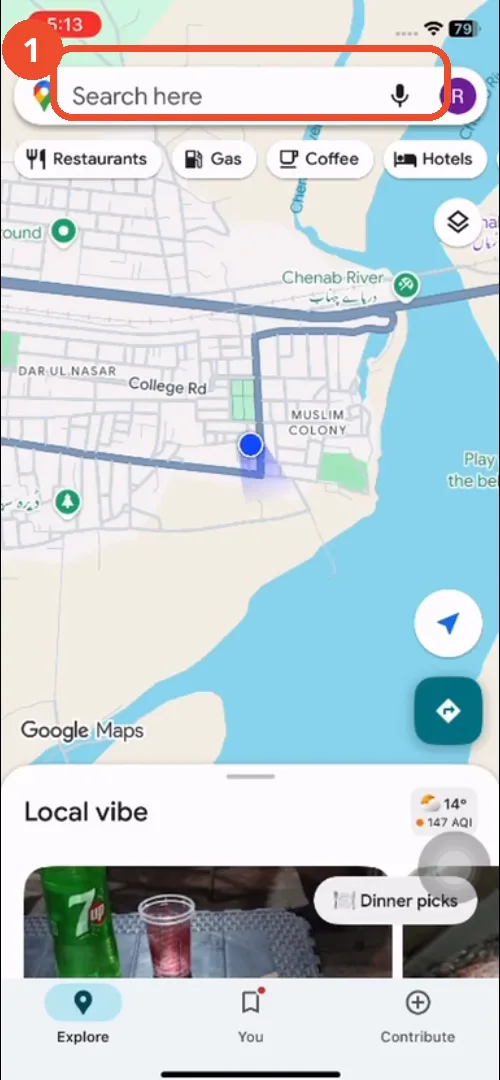
Open Google Maps
Open the Google Maps app on the family member’s phone.
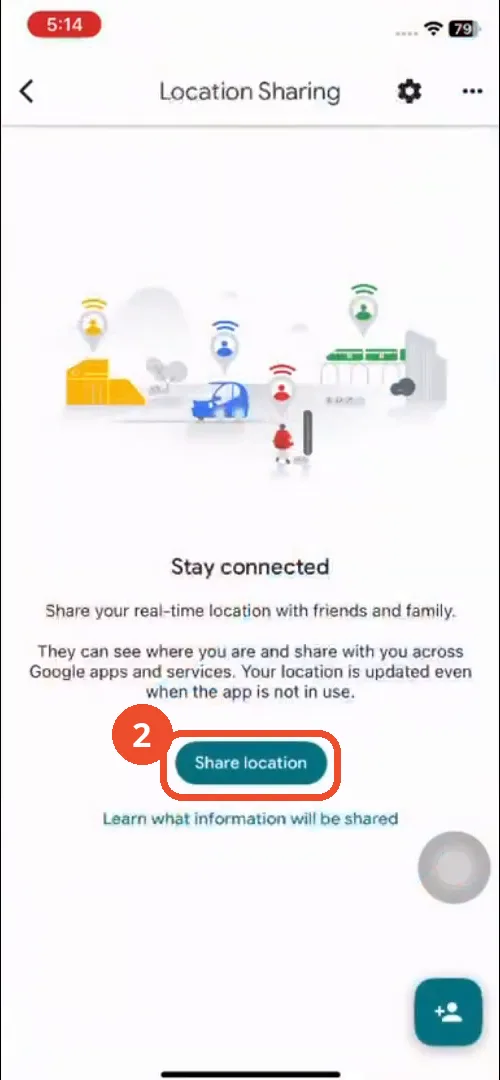
Open Location Sharing and tap Share location
Open Location Sharing. The “Stay connected” page explains that friends and family can see where you are. Tap Share location.
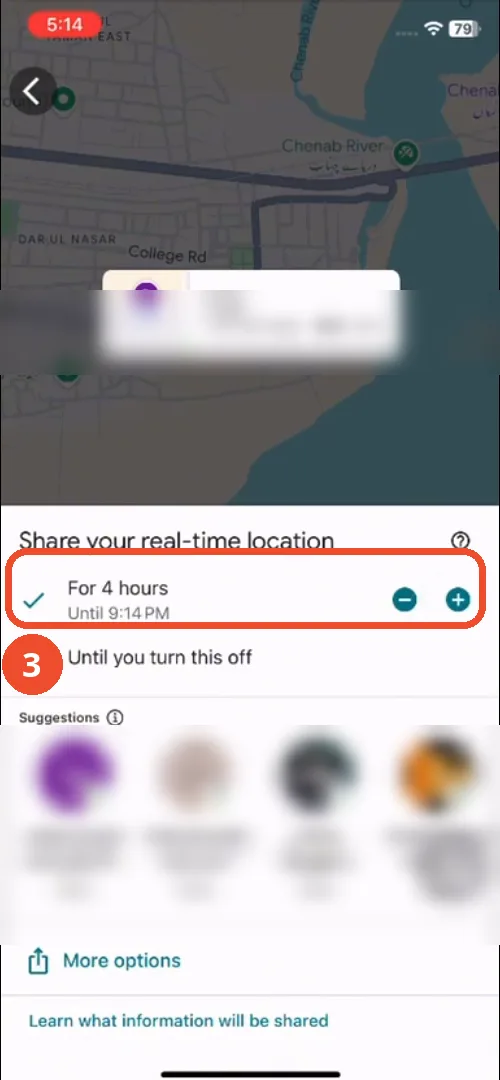
Choose how long to share
The “Share your real-time location” sheet offers “For 4 hours”, until 9:14 PM, and “Until you turn this off”. “For 4 hours” is the one selected on camera. Contact names and email addresses below are blurred in the screenshot.
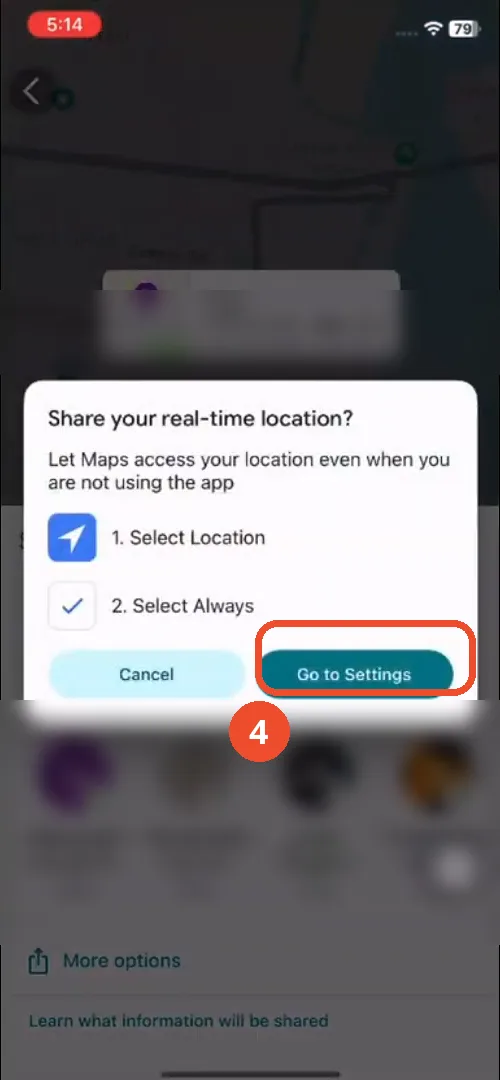
Tap Go to Settings
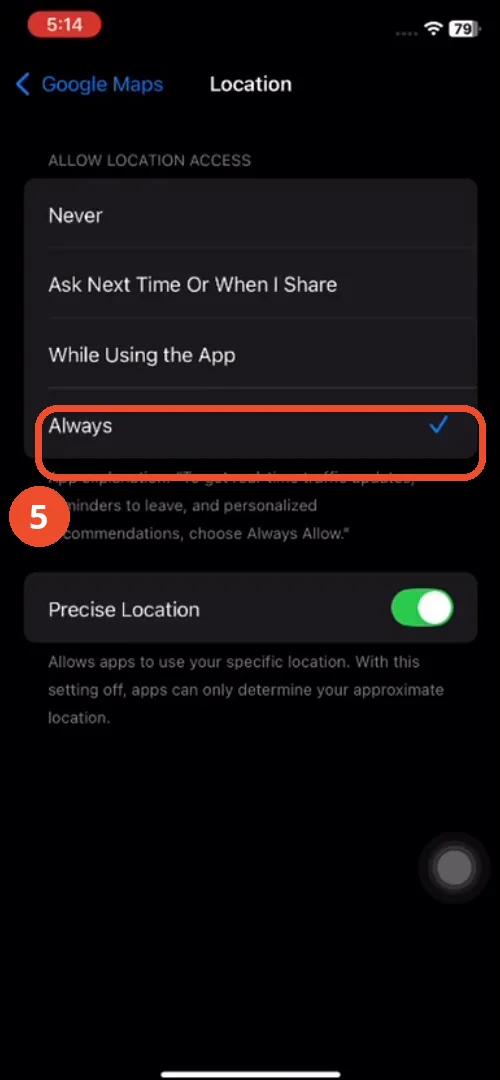
A popup says location sharing needs two things: select a location, and select Always. Tap Go to Settings.
Tap Always
In the location settings, tap Always. The sheet shows the blue tick on Always, with Precise Location switched on.
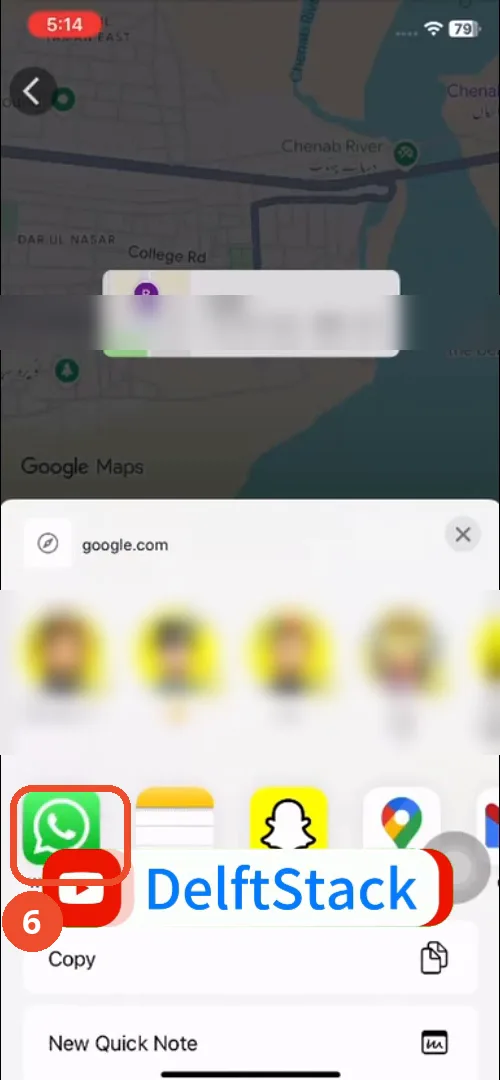
Pick WhatsApp to send the link
The iOS share sheet opens for the google.com link. The film goes on to WhatsApp’s Send to screen, it is sharing the link to itself for the tutorial, so tap WhatsApp here. Contact faces and names in the sheet are blurred in the screenshot.
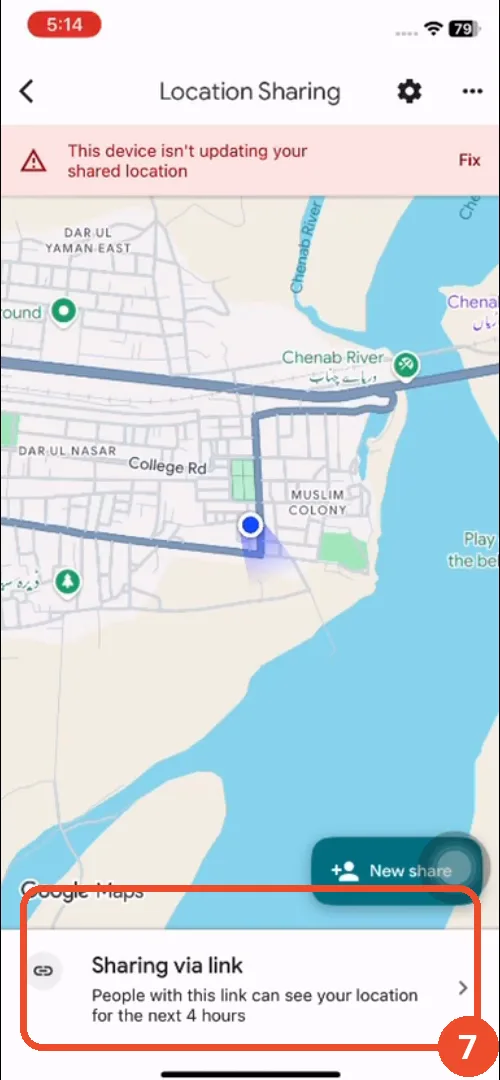
Check Sharing via link
Back in Location Sharing, the map shows “Sharing via link: People with this link can see your location for the next 4 hours”. Note the warning at the top: “This device isn’t updating your shared location”. The film’s own screen says the live location is not updating.
Good to know
- The film never shows another family member opening the link. The tracking half is narration only. It shares the link to itself “for tutorial purposes”.
- The film’s own screen warns “This device isn’t updating your shared location” while sharing is on. The location is not live in the film.
- The duration on camera is “For 4 hours”, until 9:14 PM. “Until you turn this off” is the other option and is not selected.
- Location permission must be “Always”. The film is sent to Settings for that, and the iOS sheet shows Always ticked with Precise Location on.
- Contact names, faces and email addresses in the share sheets are blurred in the screenshots.
- The film was recorded on an iPhone. The permission sheet wording (“Ask Next Time Or When I Share”, “Precise Location”), the iOS share sheet and the home-indicator bar all point to iOS. No phone model is named anywhere.