How to Remove Labels from Google Maps
Google Maps labels your home, your work, and places you have saved - and those labels sit on the map for anyone looking over your shoulder. This tutorial follows the film exactly: remove the Home label from your saved places, then switch off every label at once from the Layers panel.
- SystemWindows (browser)
- AppGoogle Maps web app
- Last verifiedNovember 18, 2026
Every screenshot below is taken from the actual recording on this device — no stock images.
Steps
Open Google Maps
Open Google Maps in a desktop browser and sign in to your Google account. The film opens on Montclair, New Jersey.
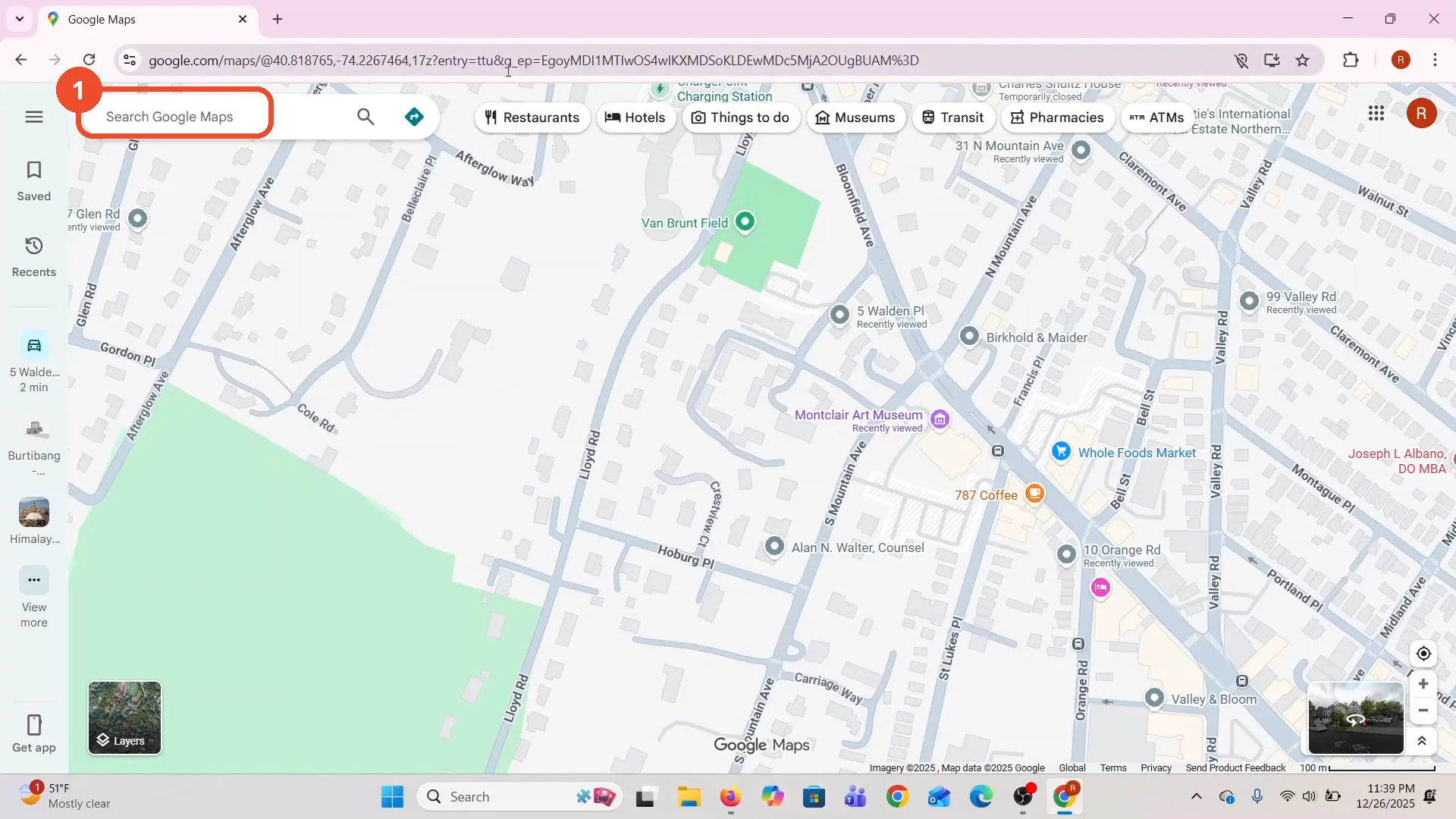
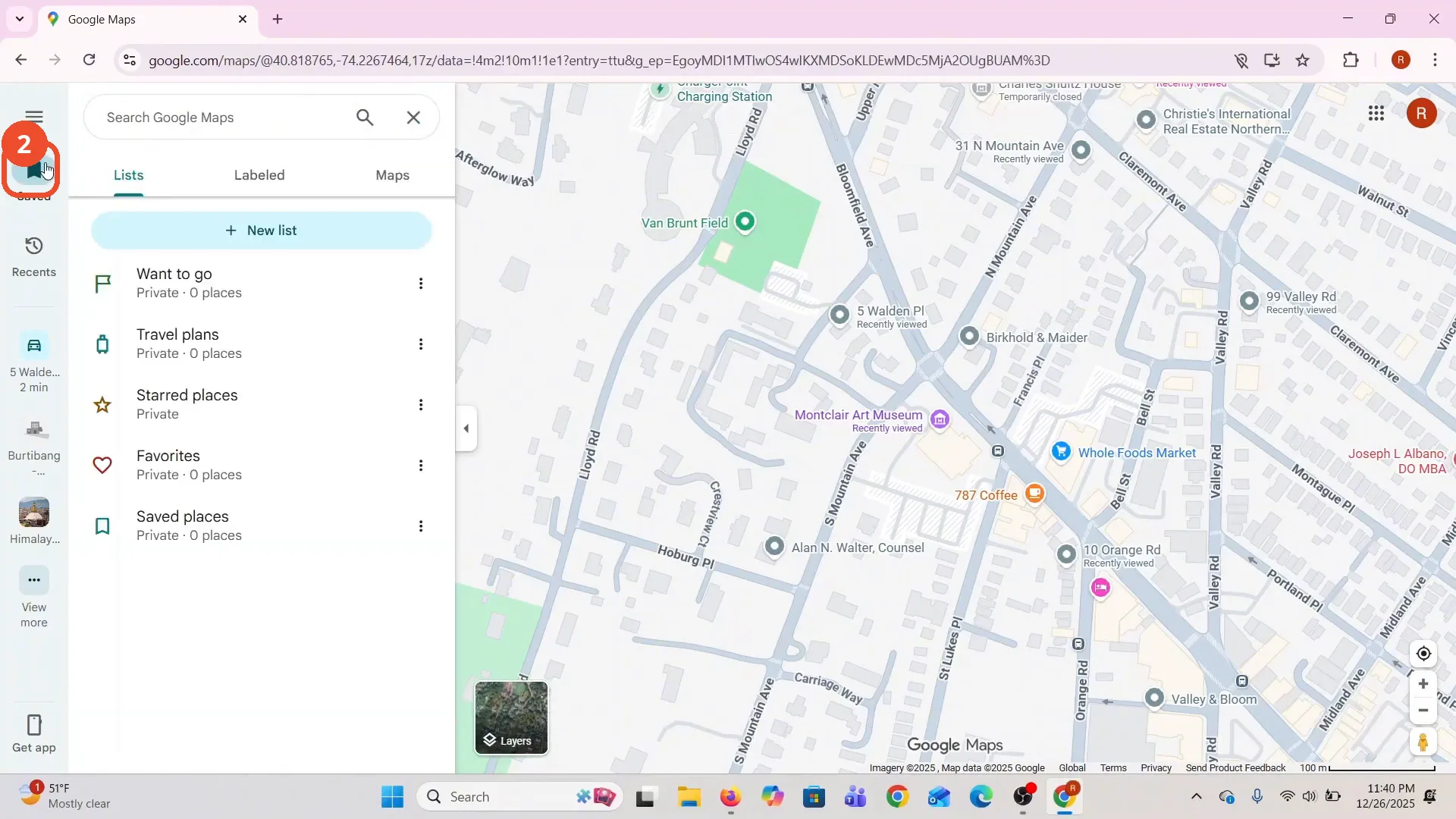
Click Saved in the left sidebar
In the left sidebar, click Saved, the bookmark icon. The Saved panel opens with your lists.
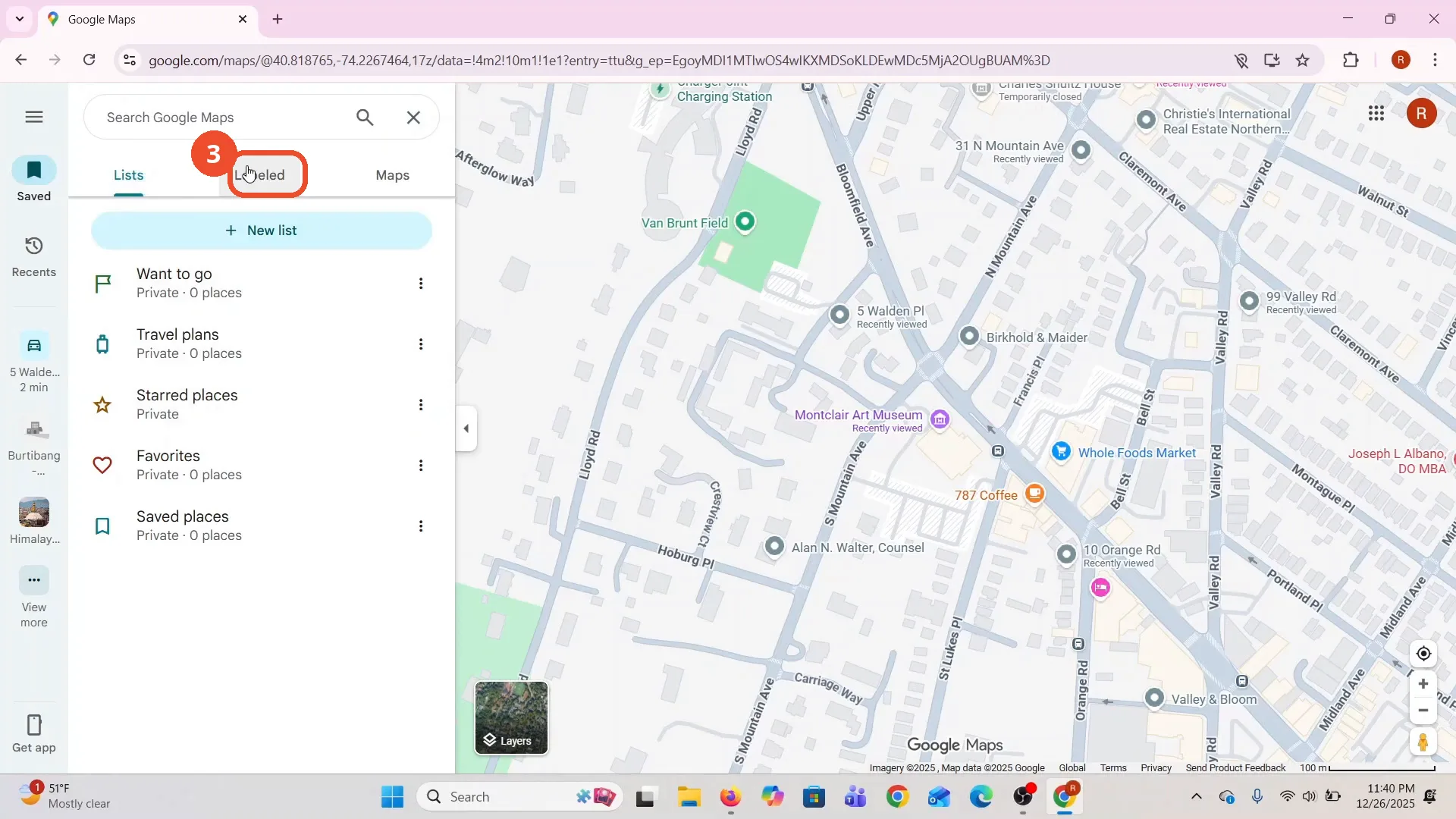
Click Labeled
At the top of the Saved panel, click the Labeled tab. Your labeled places appear: Home and Work.
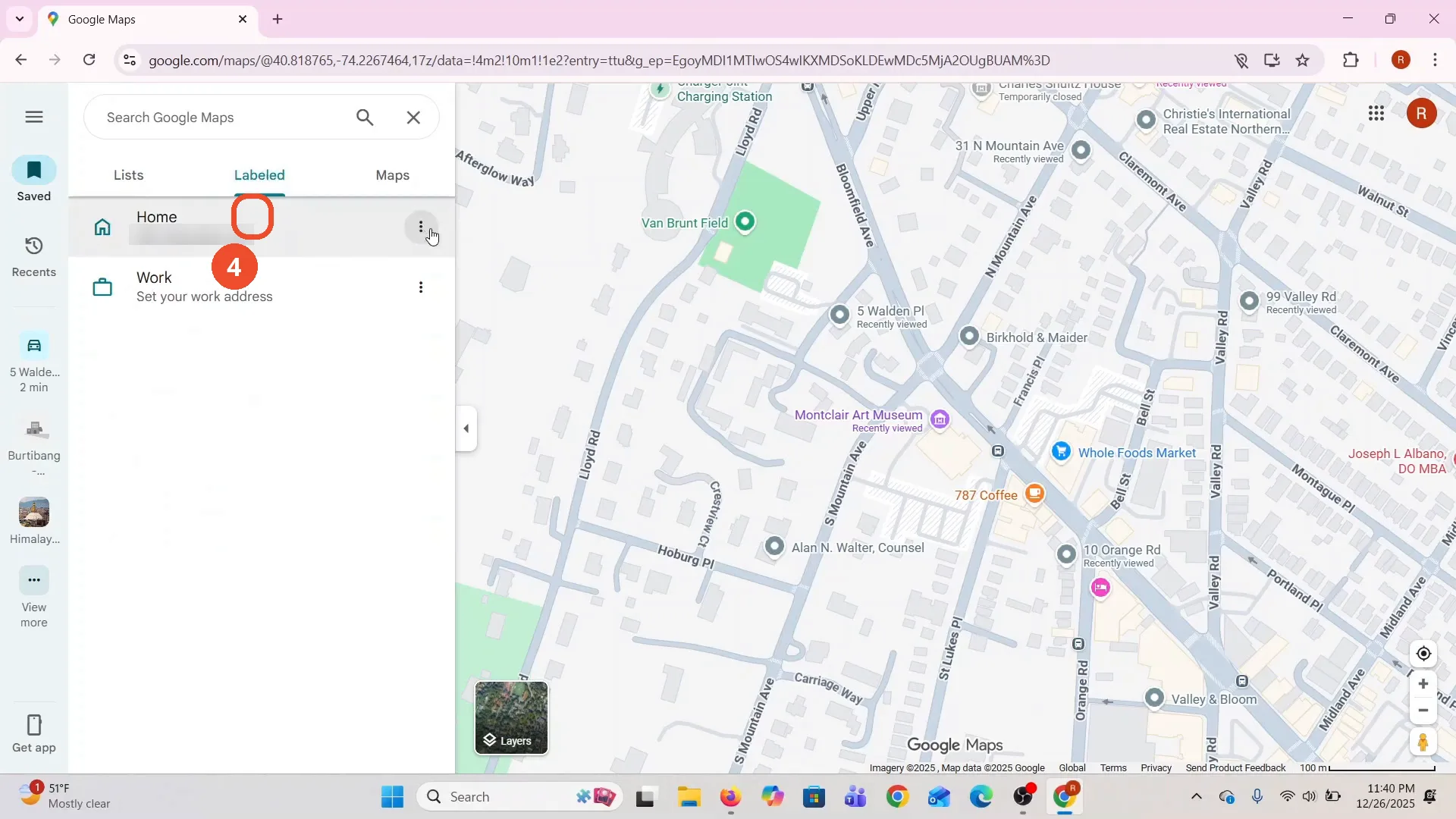
Click the three dots next to Home
Find Home in the labeled list and click the three dots at the right end of its row.
Choose Remove address
A small menu opens with one option: Remove address. Click it.
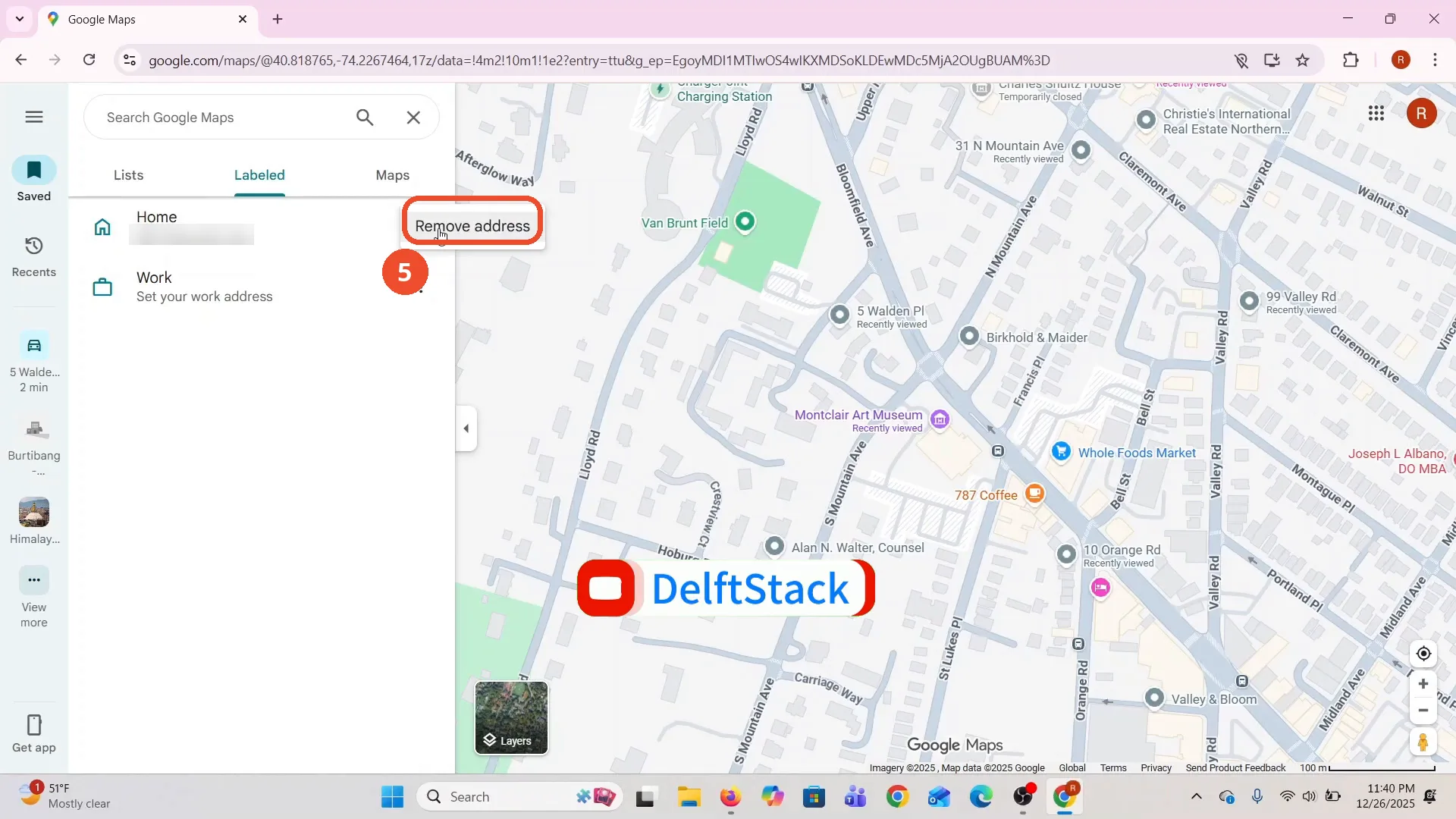
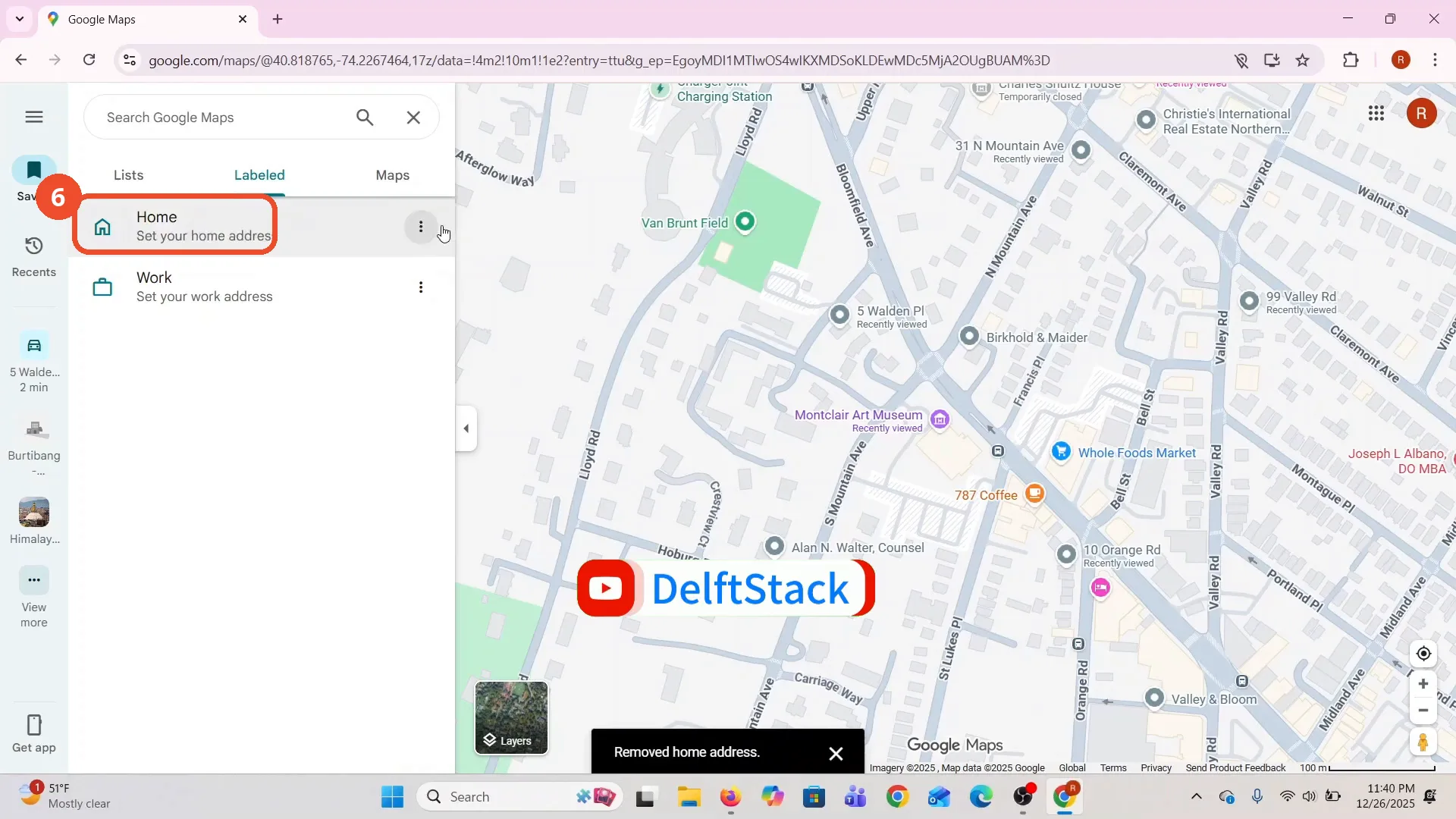
Check that Home is removed
Home now reads ‘Set your home address’, and a ‘Removed home address.’ message appears at the bottom. The label is gone.
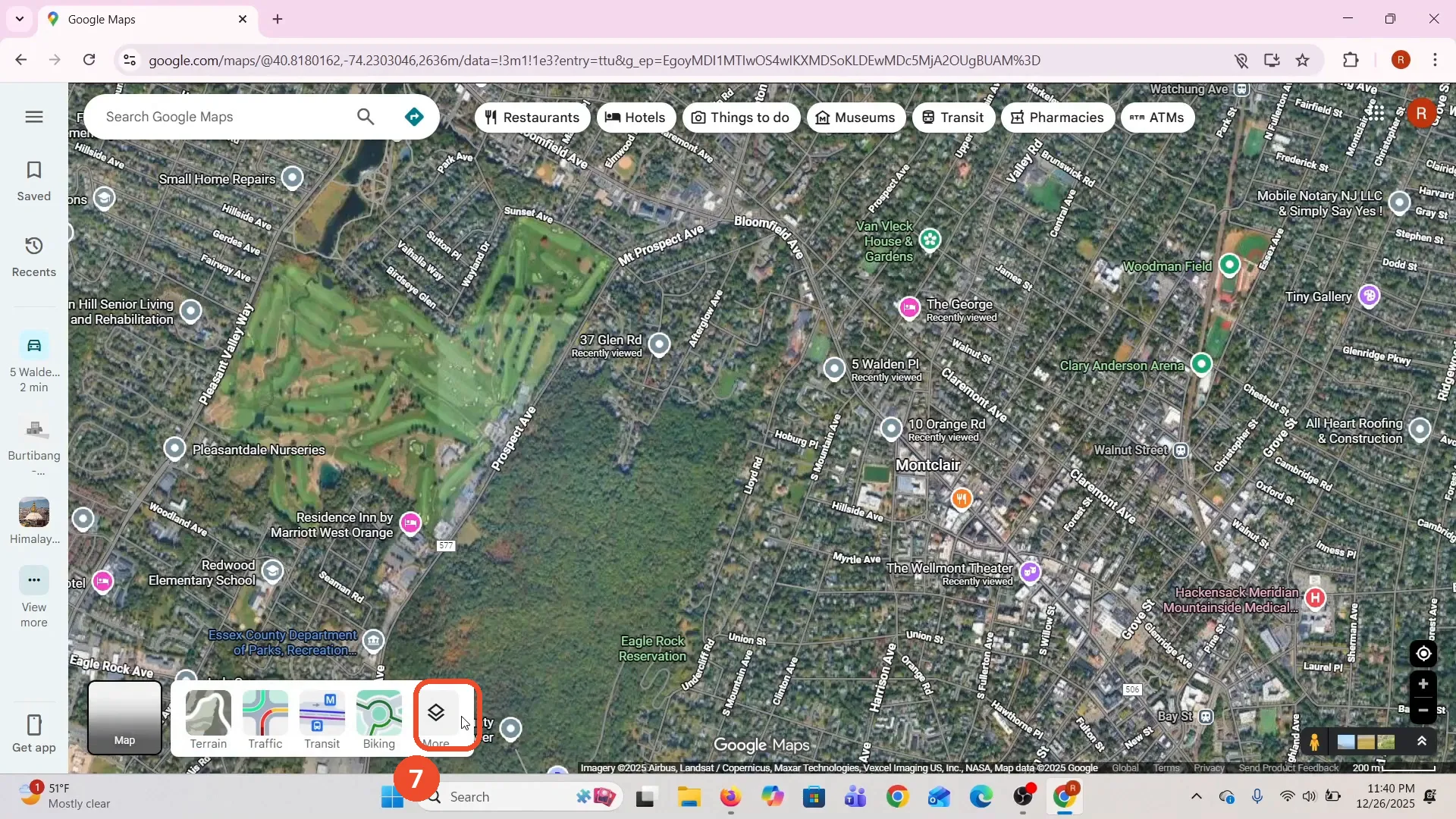
Open Layers, then click More
There is a second way to clear labels: click Layers at the bottom left of the map, then click More at the right end of the strip. The film switches the map to Satellite view here, though the narration never mentions it.
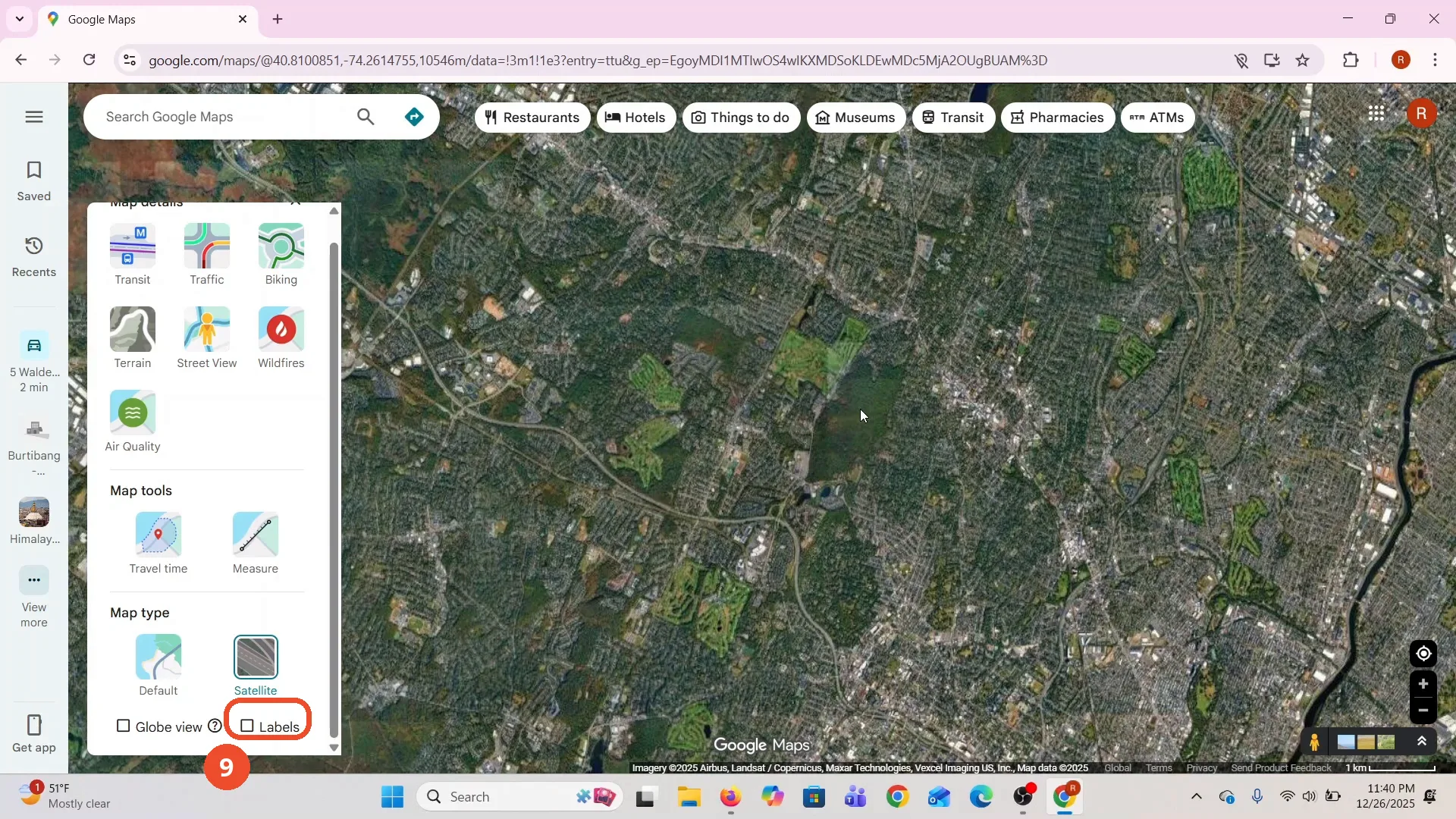
Open Map details and find Labels
The Map details panel opens. At the bottom, under Map type, the Labels box is still ticked.
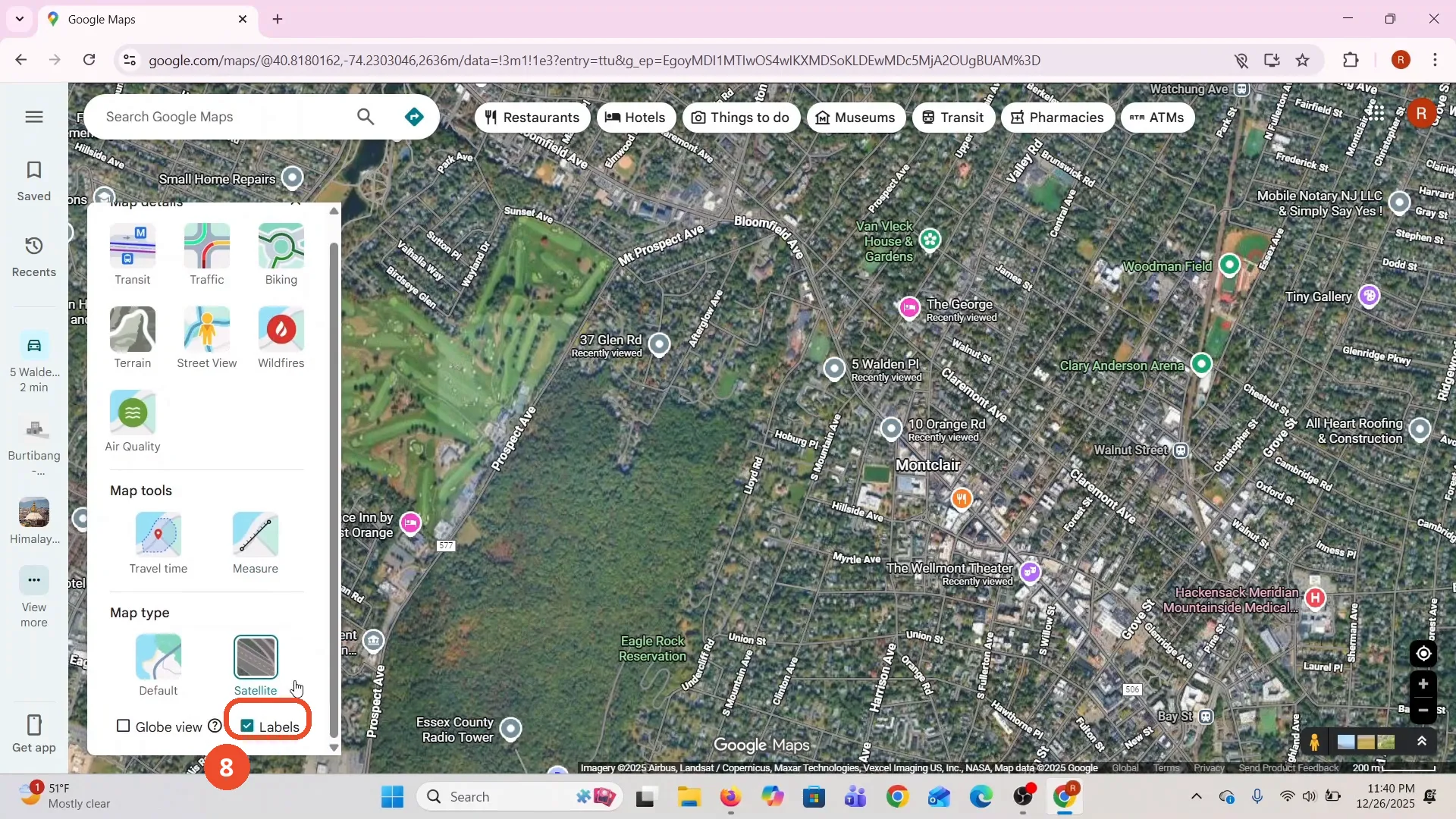
Uncheck Labels and check the map
Click the Labels checkbox to untick it. The place names disappear from the satellite map at once.
Good to know
- Removing a label this way only removes that one labeled place. Home is the film’s own labeled address; Work is left alone and still reads ‘Set your work address’.
- Unchecking Labels hides the place names from the map at once - the film shows the satellite view left as plain imagery. Tick the box again to bring the labels back.
- The film switches the map to Satellite view before opening More, but the narration never mentions it. The Labels checkbox is in the same Map details panel on the normal map, so you can skip the satellite step.
- The ‘Removed home address.’ message at the bottom is the proof the first method worked: Home changes to ‘Set your home address’ in the Labeled list.
- Your labeled places live under Saved, then Labeled. The same list is where you set a home or work address in the first place.
More on Google Maps
- How to Fix Blank Google Maps in Firefox
- How to Track Family Members on Google Maps
- How to Get Compass on Google Maps
- How to Change Routes in Google Maps
- How to Change the Year in Google Maps and View Past Locations
- How to Create a Walking Route on Google Maps
- How to Change Google Maps from Walking to Driving
- How to Pin Multiple Locations on Google Maps