How to Get Compass on Google Maps
Google Maps shows a compass only in Globe view. This tutorial follows the film exactly: search for the White House, switch to Satellite, turn on Globe view, and read the compass that appears on the right. The film was recorded in the Google Maps web app in a desktop browser.
- SystemWindows (browser)
- AppGoogle Maps web app
- Last verifiedNovember 17, 2026
Every screenshot below is taken from the actual recording on this device — no stock images.
Steps
Open Google Maps
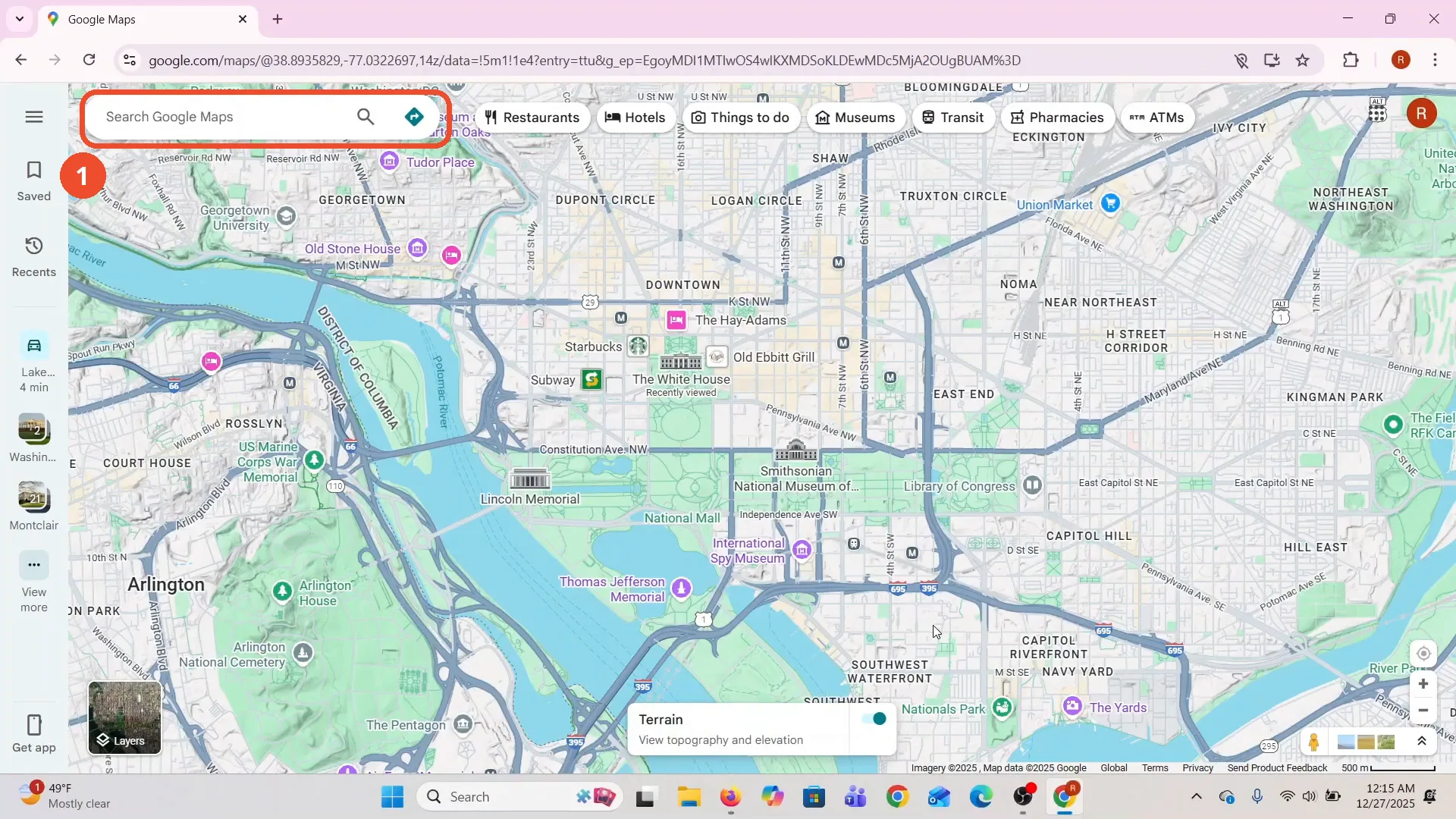
Open Google Maps in a desktop browser. The film opens on a map of Washington, DC.
Search for the White House
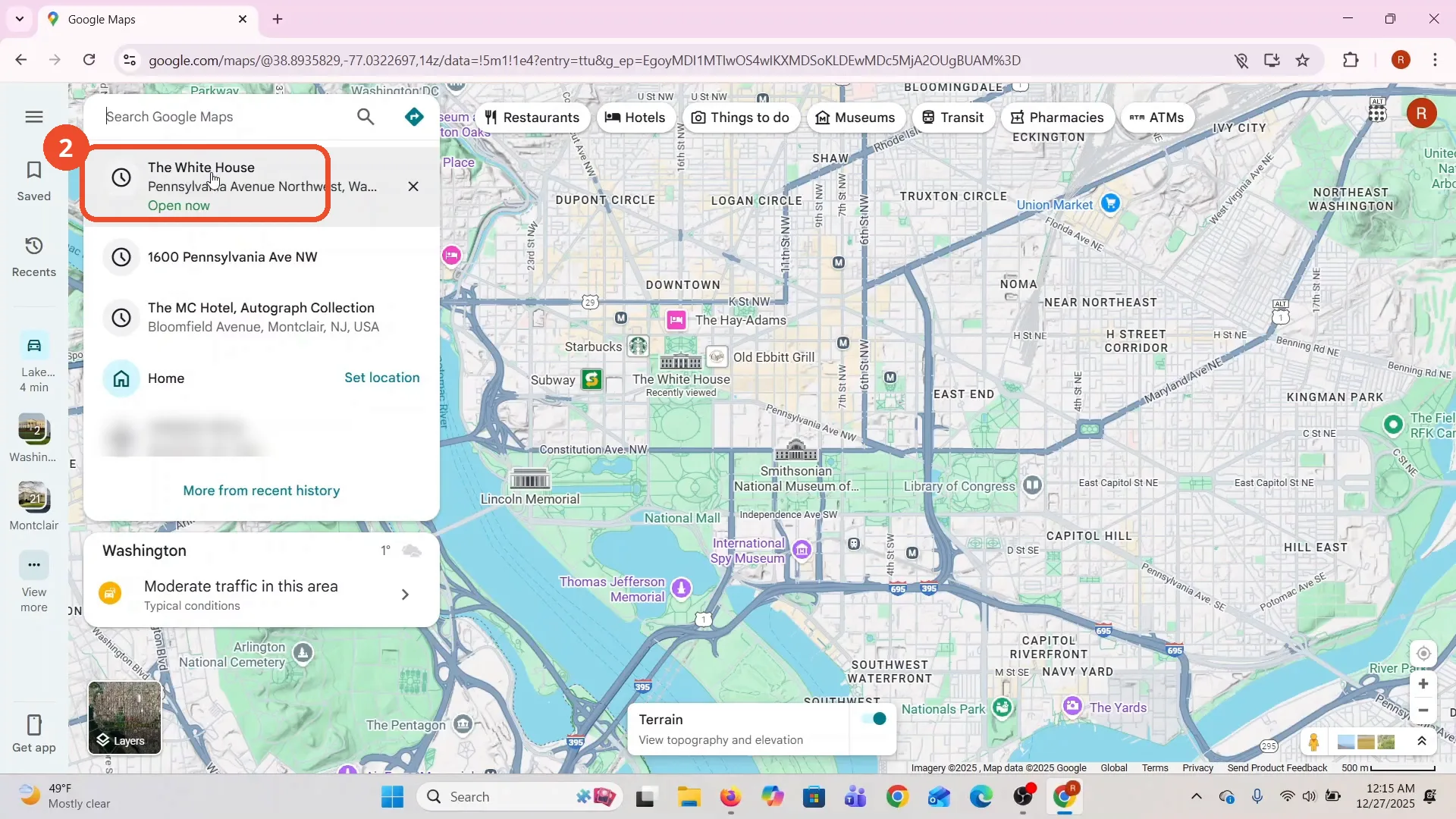
Click the search box and type the place you want to check. The film searches for the White House and picks the first suggestion. A street address in the recent searches below is blurred in the screenshot.
Open Layers and switch to Satellite
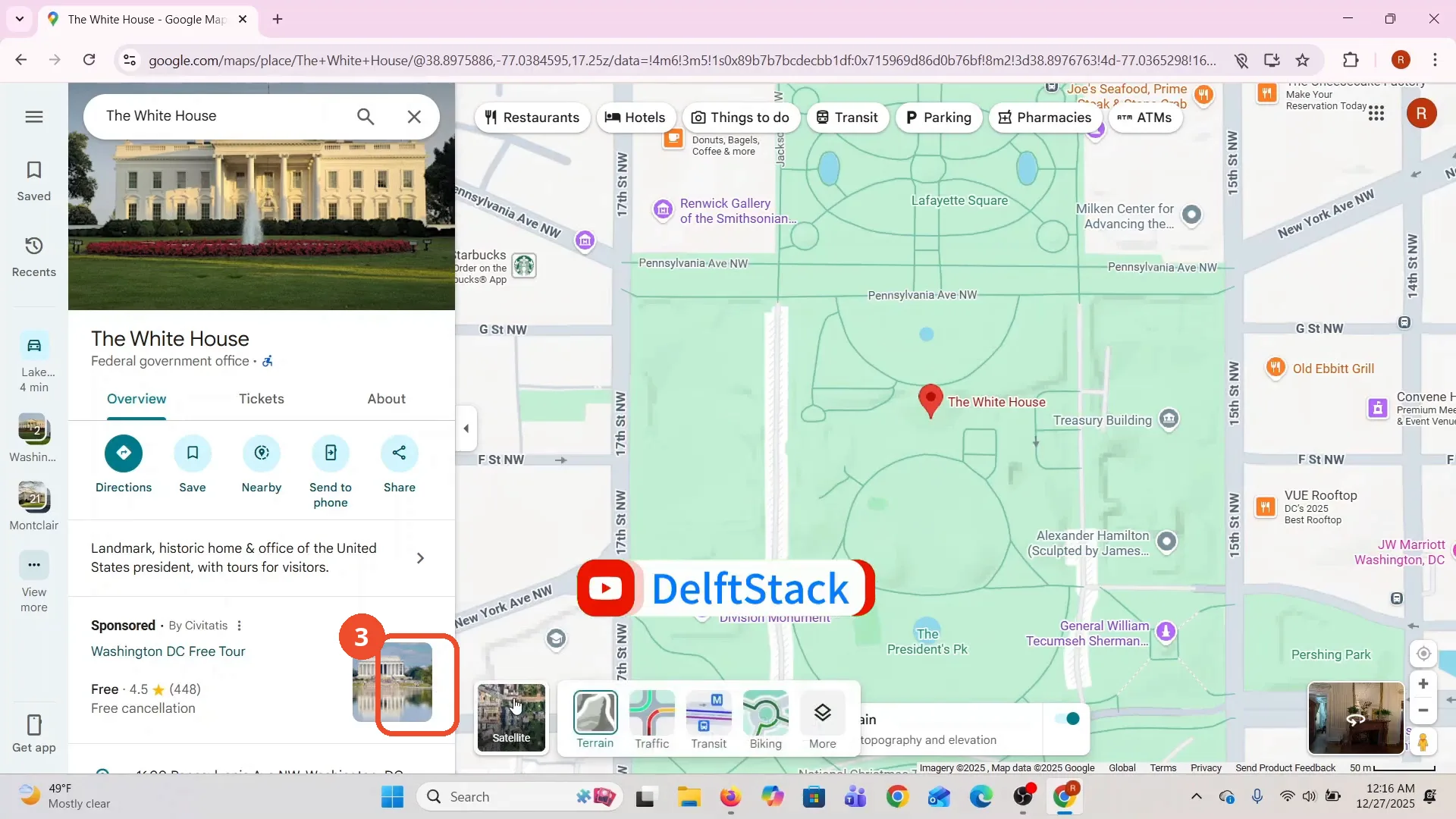
Click Layers at the bottom left, then click the Satellite tile in the strip that opens.
Zoom in on the White House
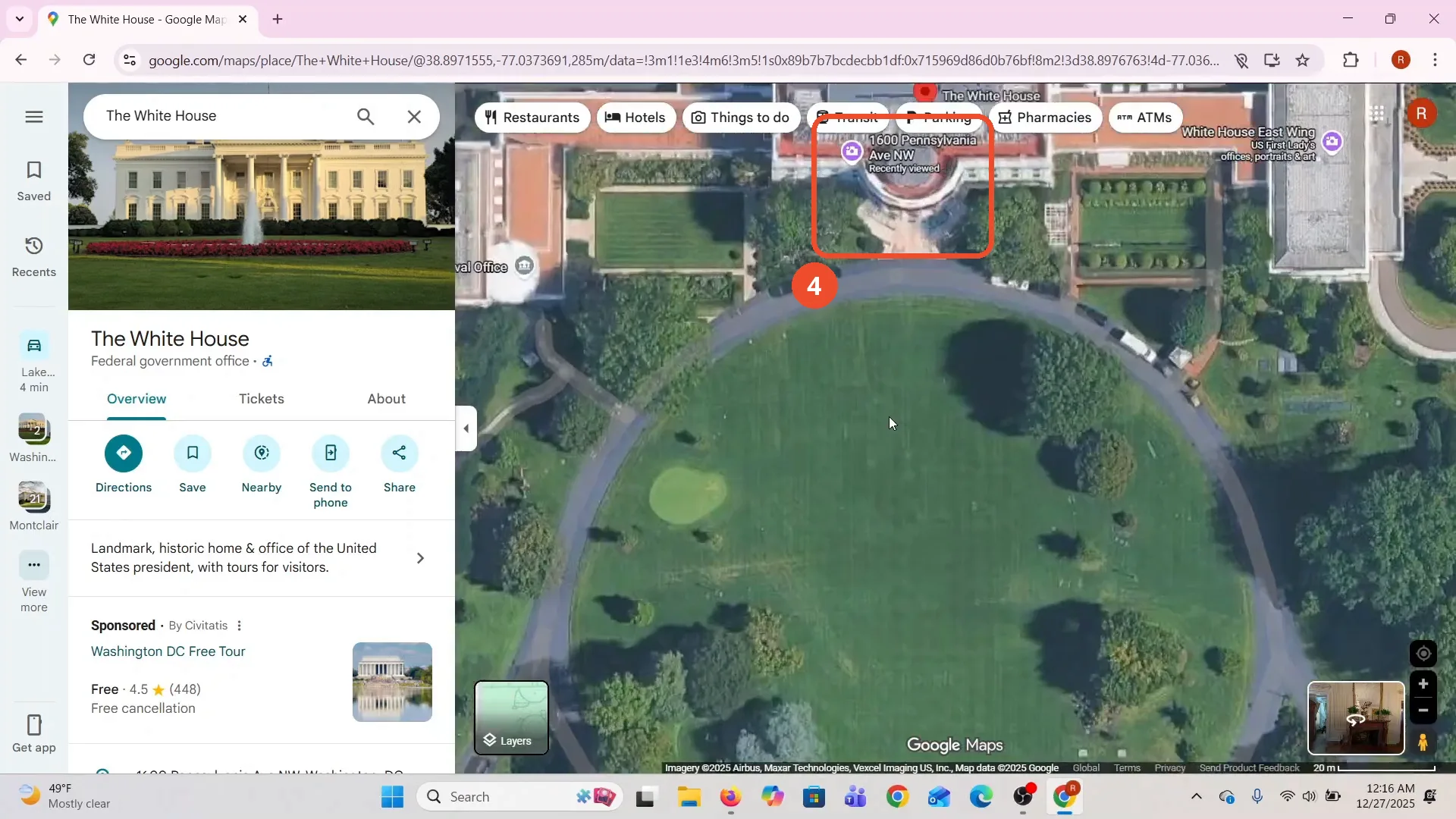
Zoom in until the White House fills the view. The satellite image shows the building, the South Lawn and the driveway clearly.
Open Layers and find Globe view
Click Layers again. In the Map details panel, Globe view is at the bottom, under Map type.
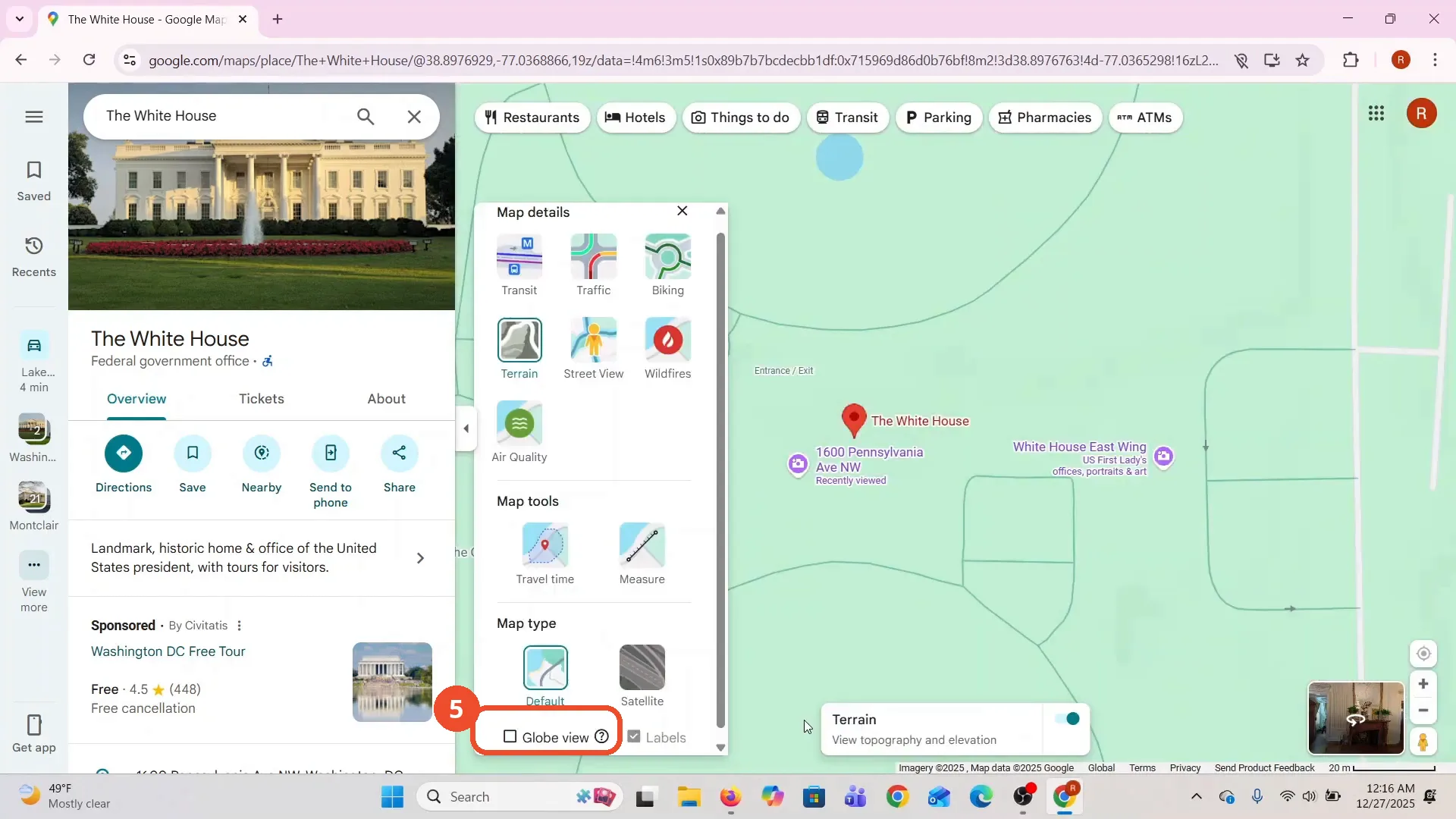
Turn on Globe view and check the compass
Tick the Globe view checkbox. The compass appears on the right side of the map, above the 3D button: a black circle with a red and white needle.
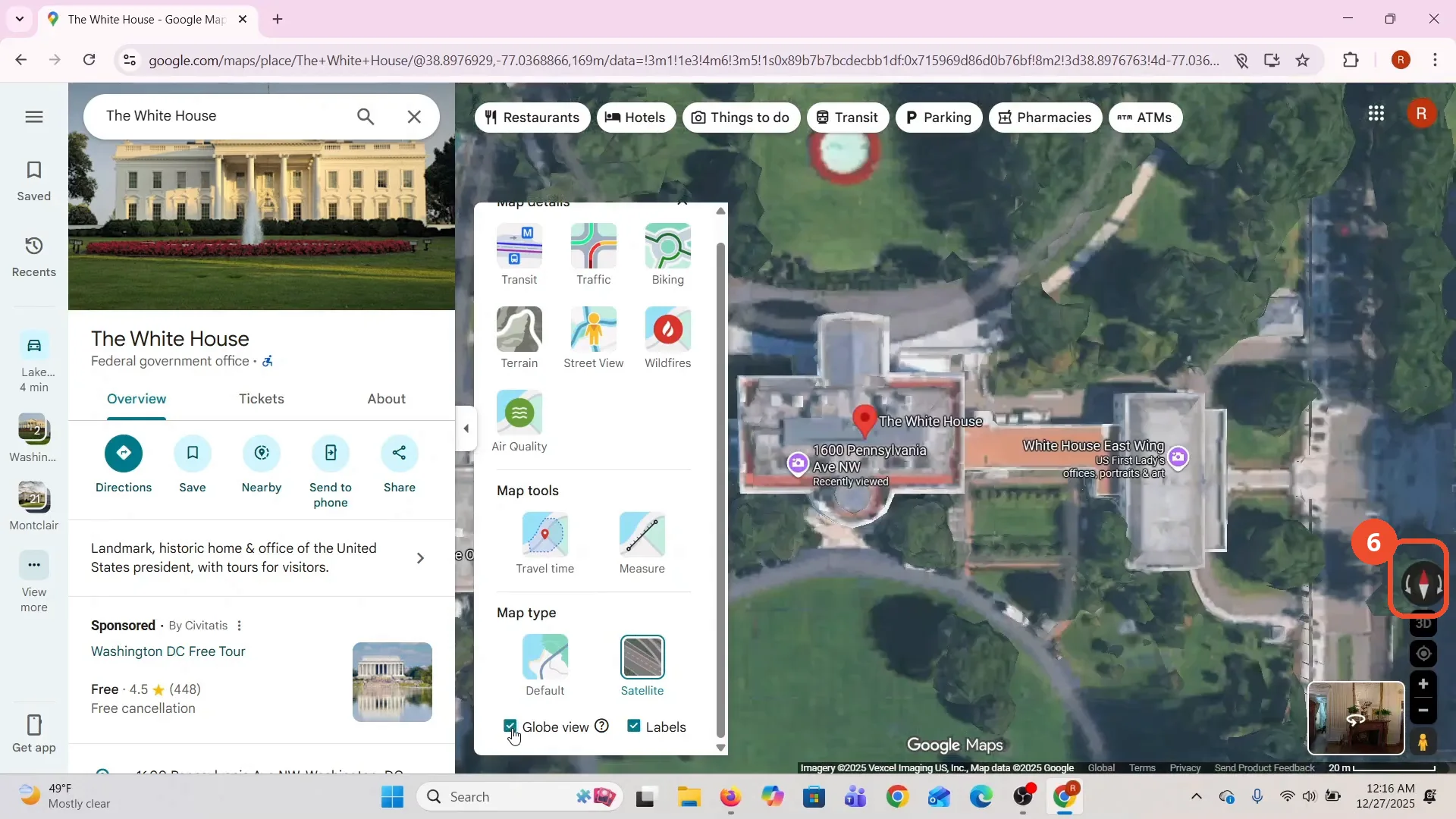
Read the compass
The red half of the needle points north and the white half points south. The film reads the White House from this as south-facing.
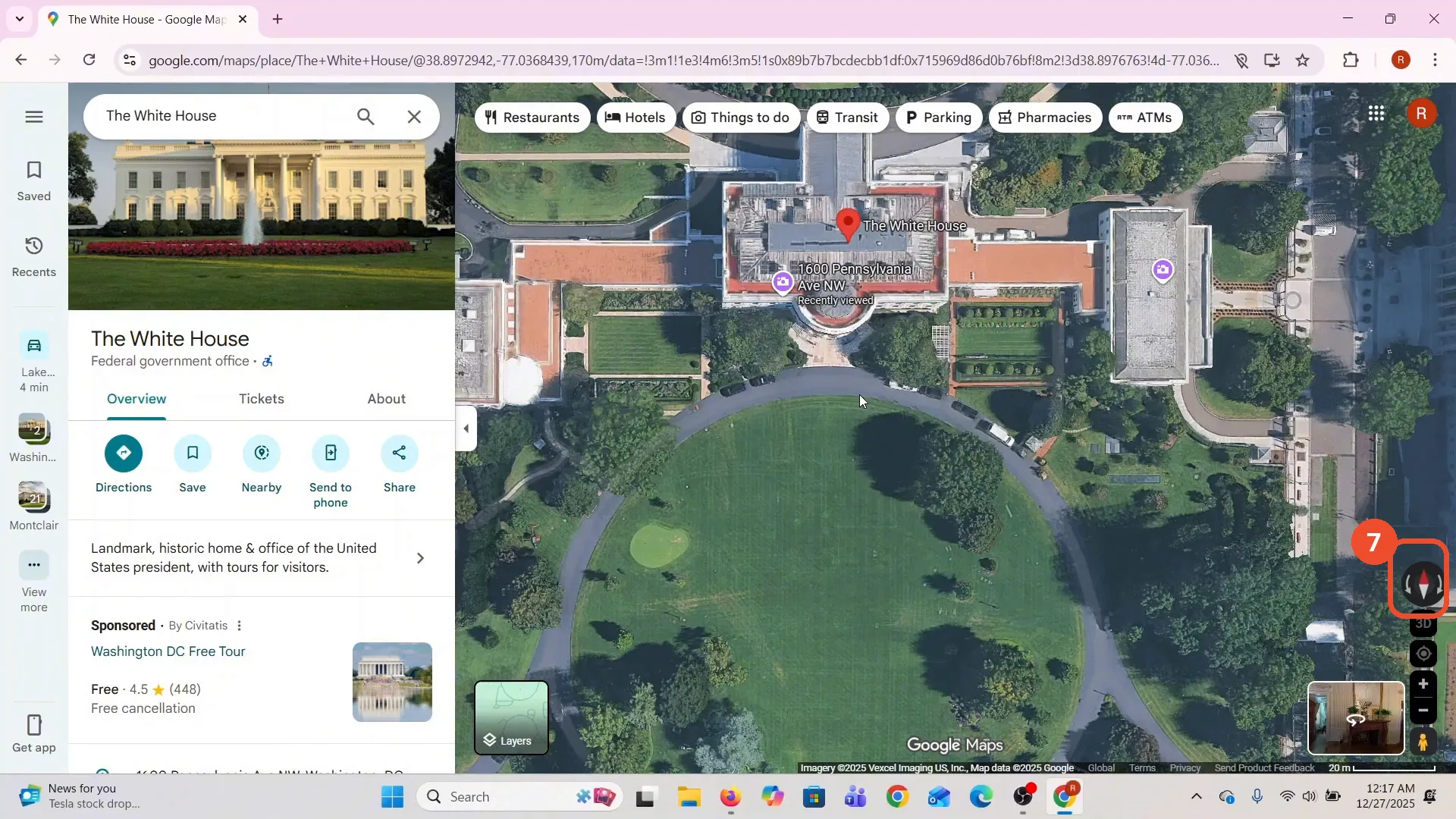
Good to know
- The film’s narration says to open Layers and go to “More”, but there is no More step on camera: the Globe view checkbox sits in the same Layers panel, under Map type. The article follows what the camera shows.
- The narration says “click on the compass”, but no click on the compass is visible on camera. The film shows the compass and reads it; it never shows the cursor clicking it.
- The compass appears only after Globe view is ticked. Before that, at t=52, the right side of the map has no compass.
- The “south-facing” reading is the narrator’s interpretation of the map. The compass itself only shows north (red) and south (white).
- The film was recorded in the Google Maps web app in a desktop browser. The compass sits at the right edge of the map, above the 3D button.
- A street address in the film’s recent searches is blurred in the step 2 screenshot.