How to Fix Blank Google Maps in Firefox
The film promises fixes for a blank Google Maps in Firefox, but it never shows a blank map on camera. Maps loads normally at the start, before any fix is applied. So treat the steps below as the settings the film actually changes, not as a proven cure: the film unchecks two Performance settings, checks the graphics driver, and opens the tracking-protection panel.
- SystemWindows (browser)
- AppGoogle Maps web app
- Last verifiedNovember 16, 2026
Every screenshot below is taken from the actual recording on this device — no stock images.
Steps
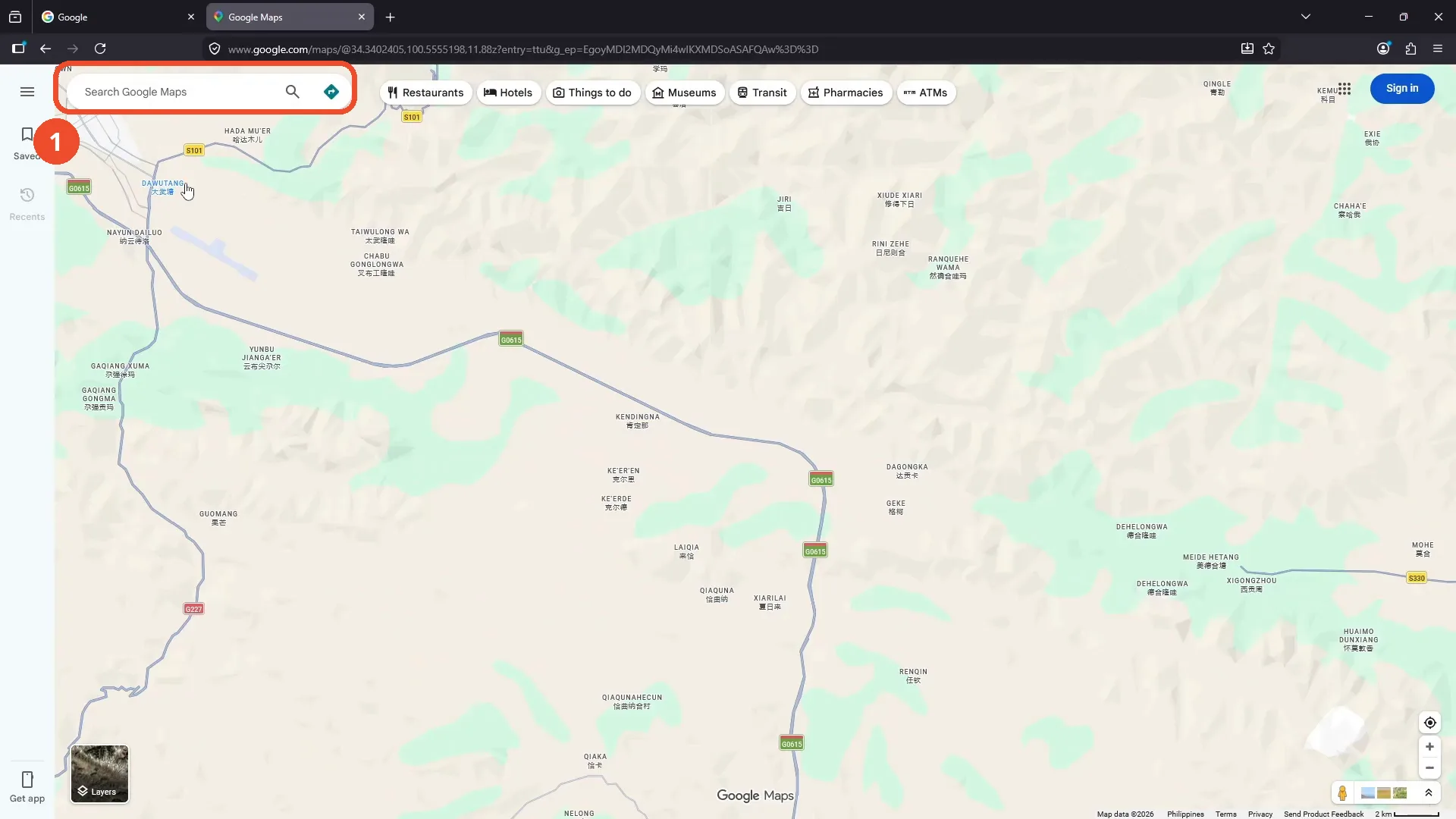
Open Google Maps in Firefox
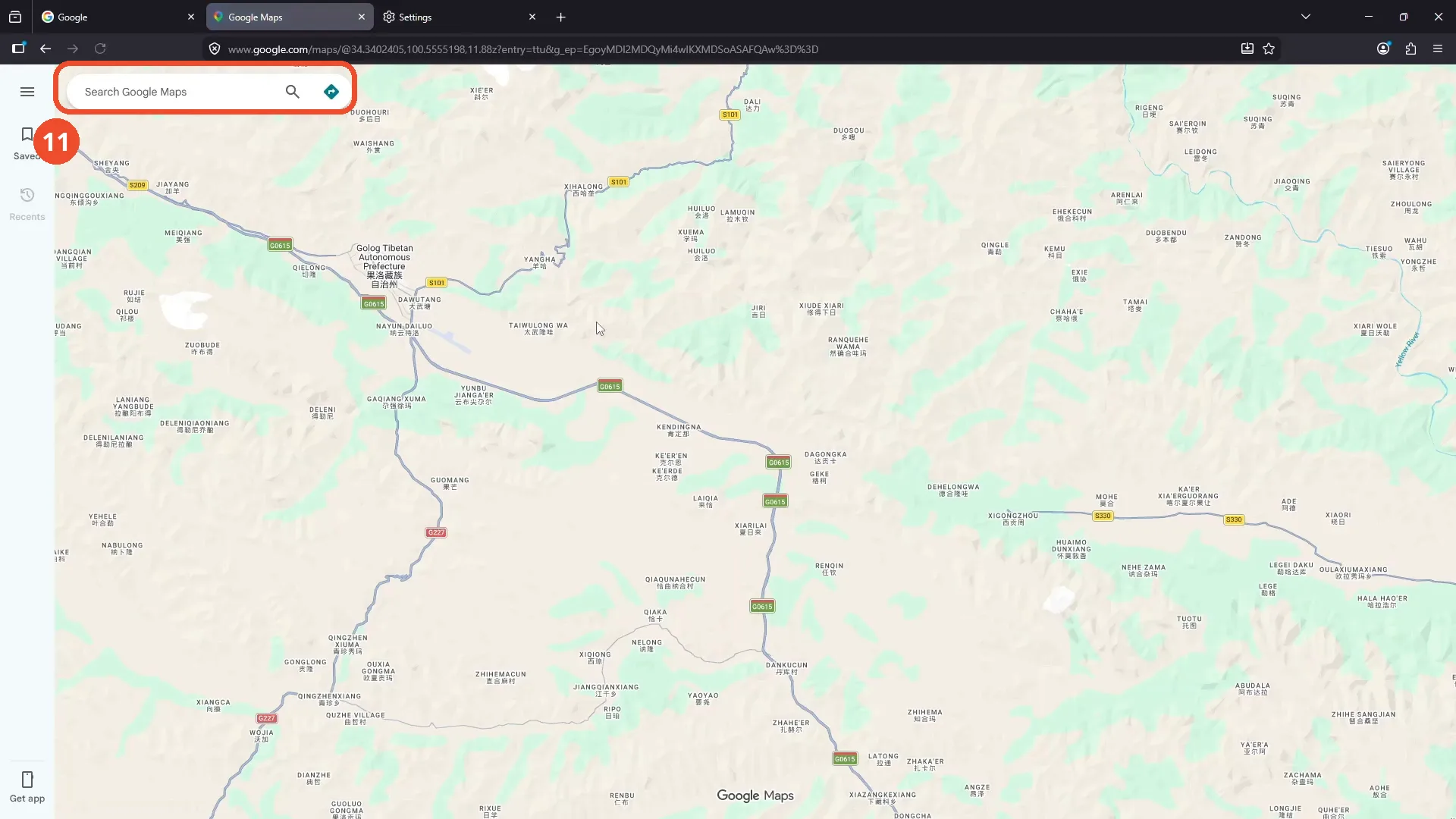
Open Google Maps in Firefox. The film never shows the blank map it describes. The map loads normally here, before any fix is applied.
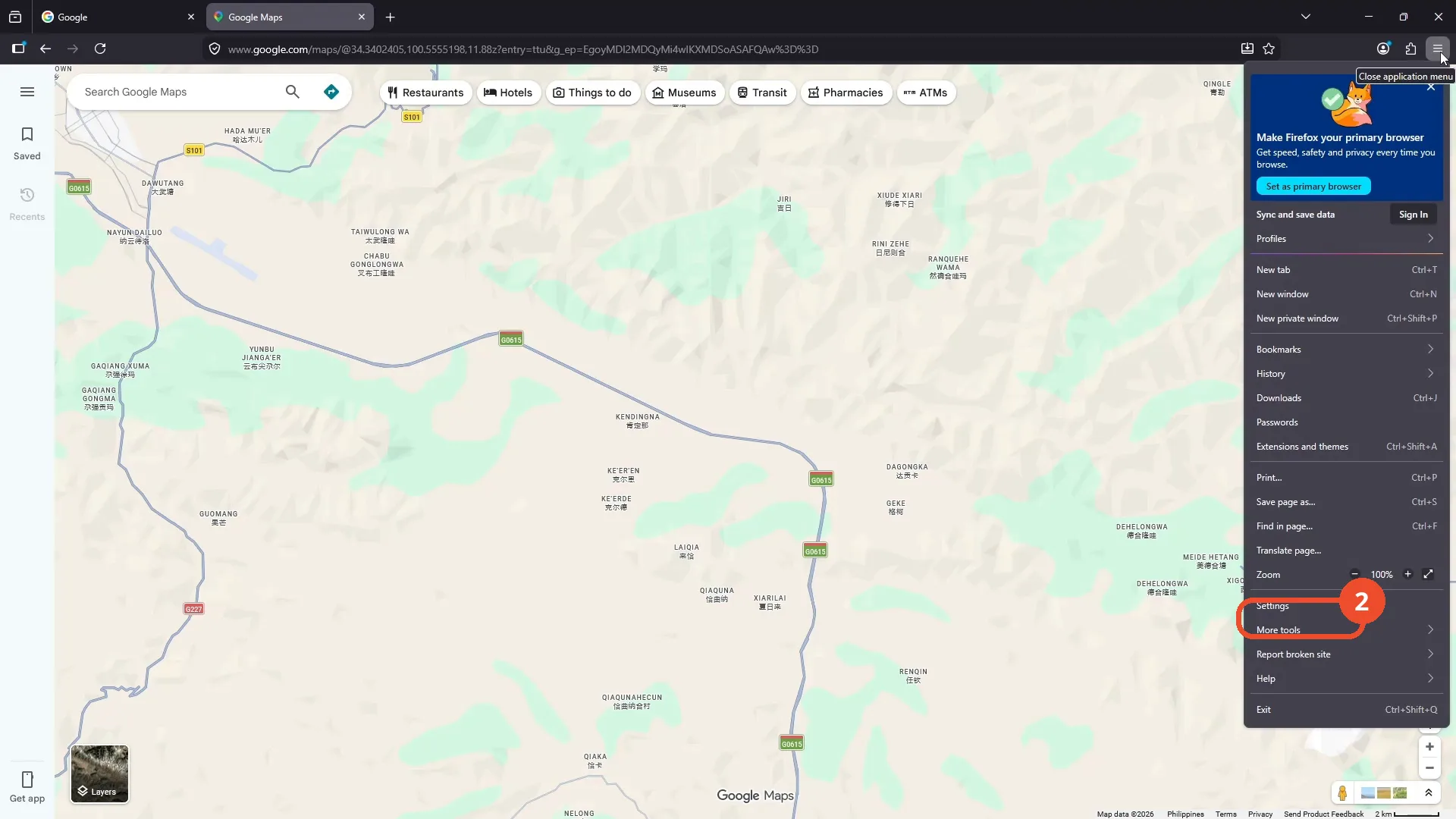
Open the menu and click Settings
Click the hamburger menu, the three lines at the top right, then click Settings near the bottom of the menu.
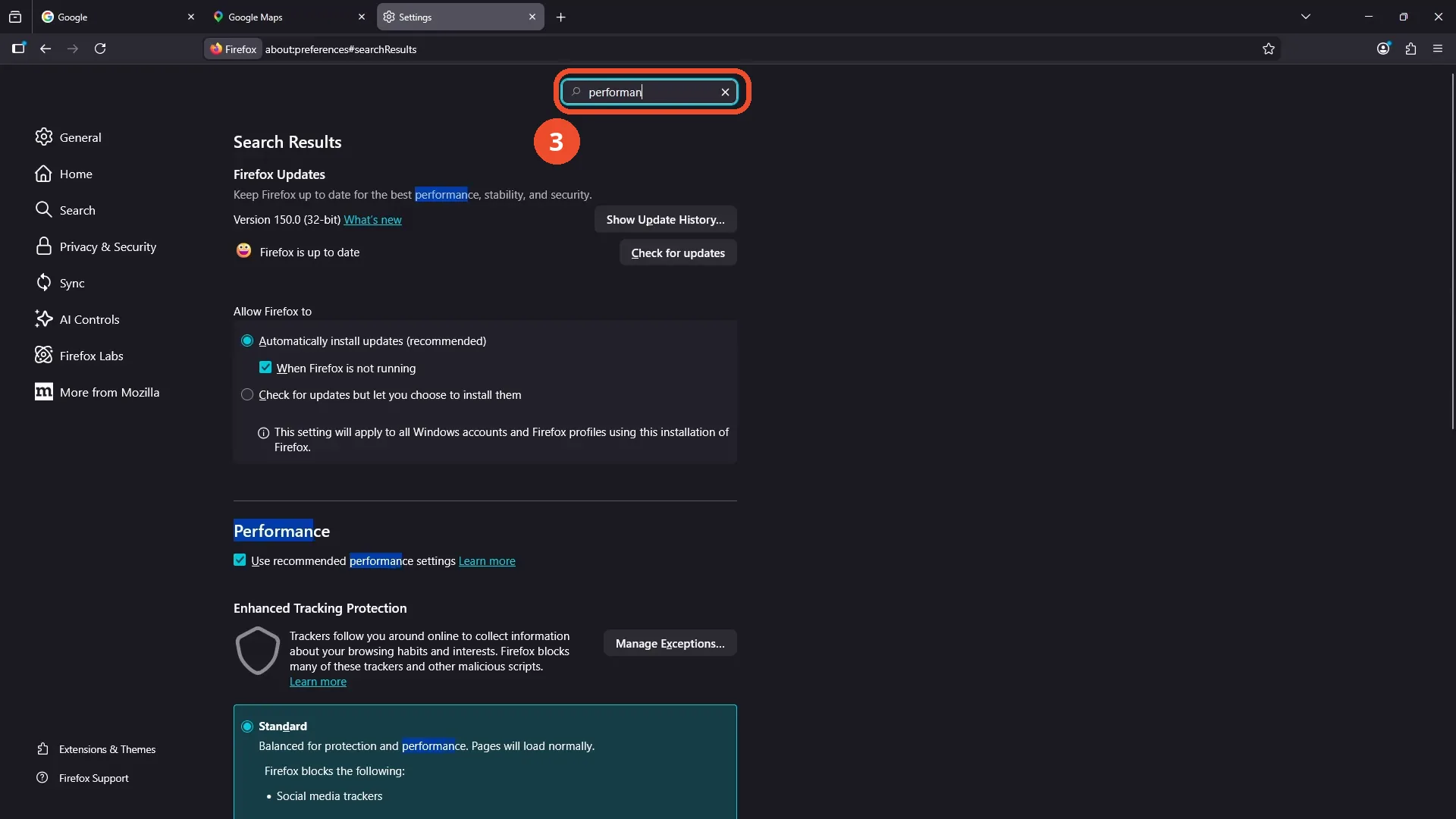
Search for performance
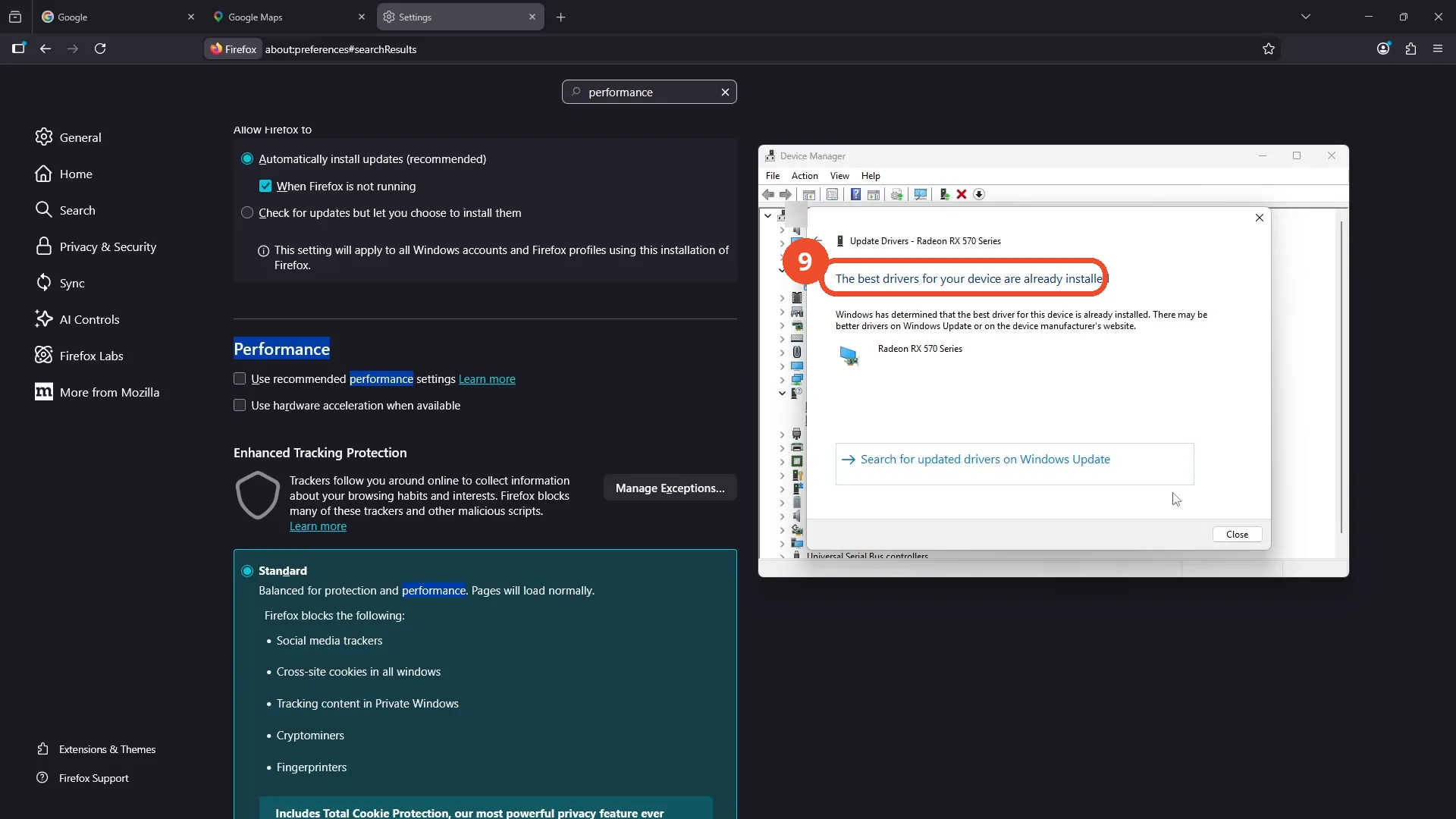
In Settings, type performance in the search box at the top. The Performance section is highlighted in the results.
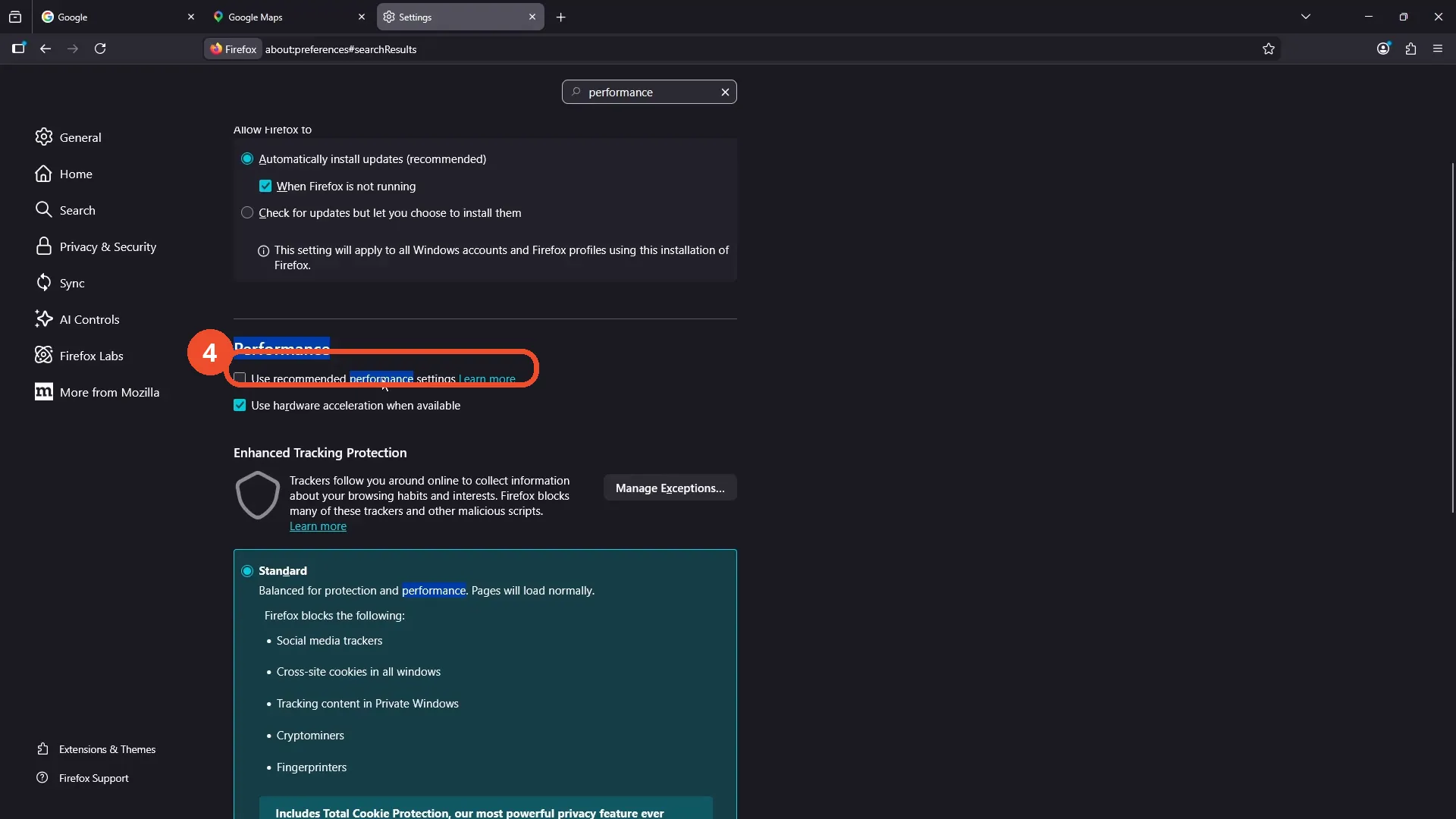
Uncheck Use recommended performance settings
Under Performance, uncheck “Use recommended performance settings”.
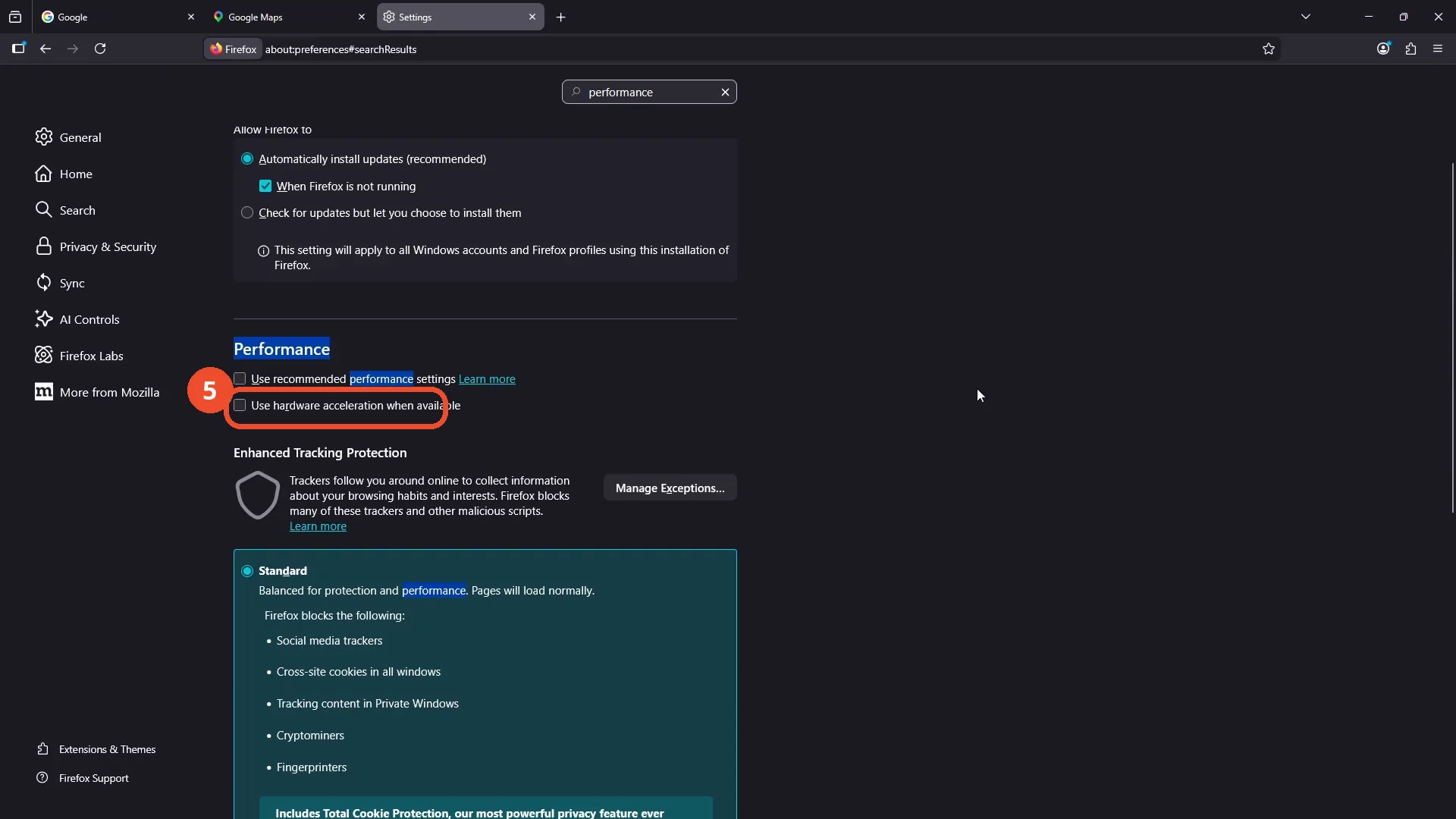
Uncheck Use hardware acceleration when available
If that does not fix it, uncheck “Use hardware acceleration when available” as well. The film unchecks it too.
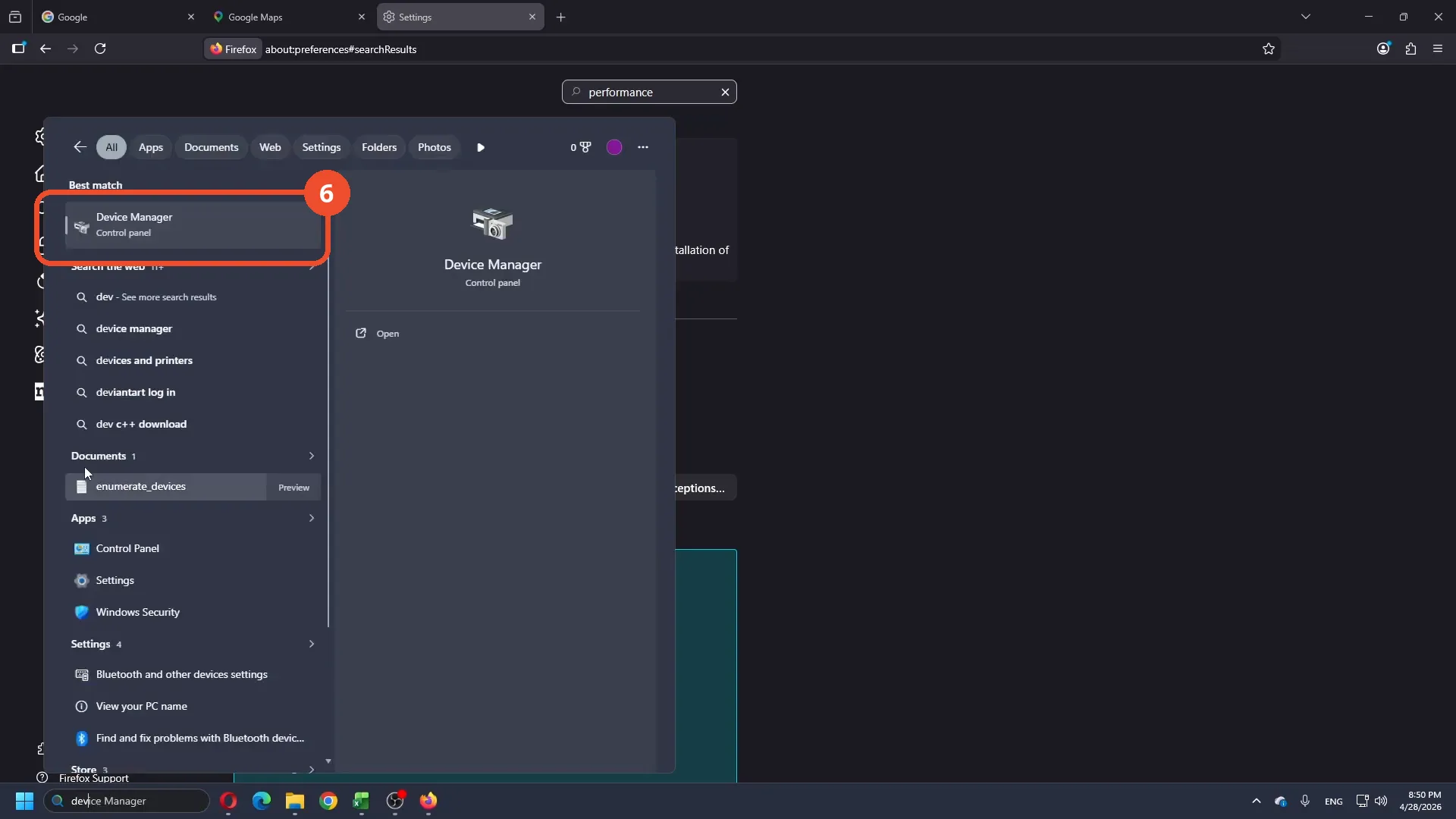
Search for Device Manager
Open the Start menu and search for Device Manager, then open the Best match result.
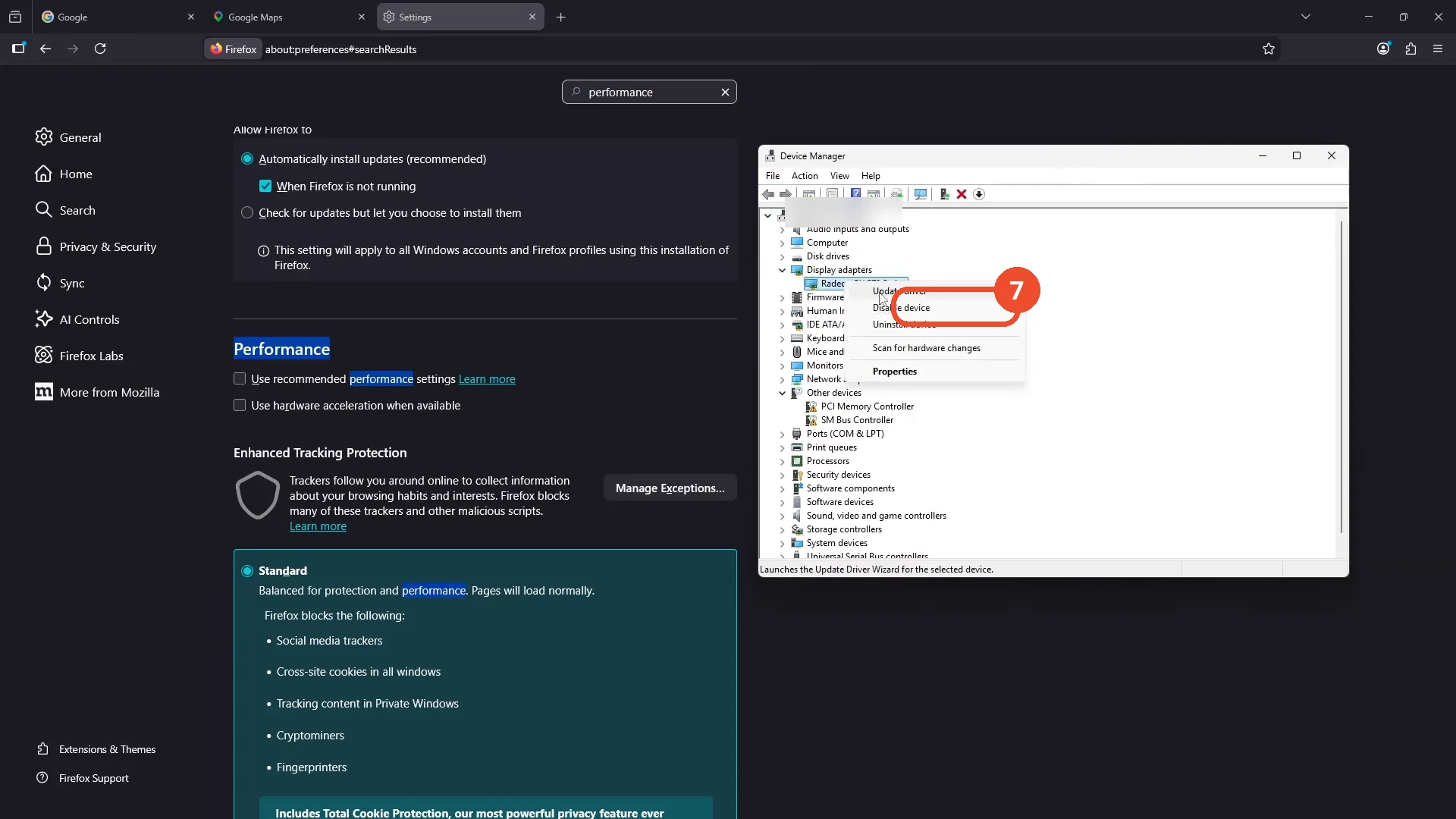
Right-click the adapter and click Update driver
In Device Manager, expand Display adapters, right-click the graphics adapter, here a Radeon RX 570 Series, and click Update driver in the menu.
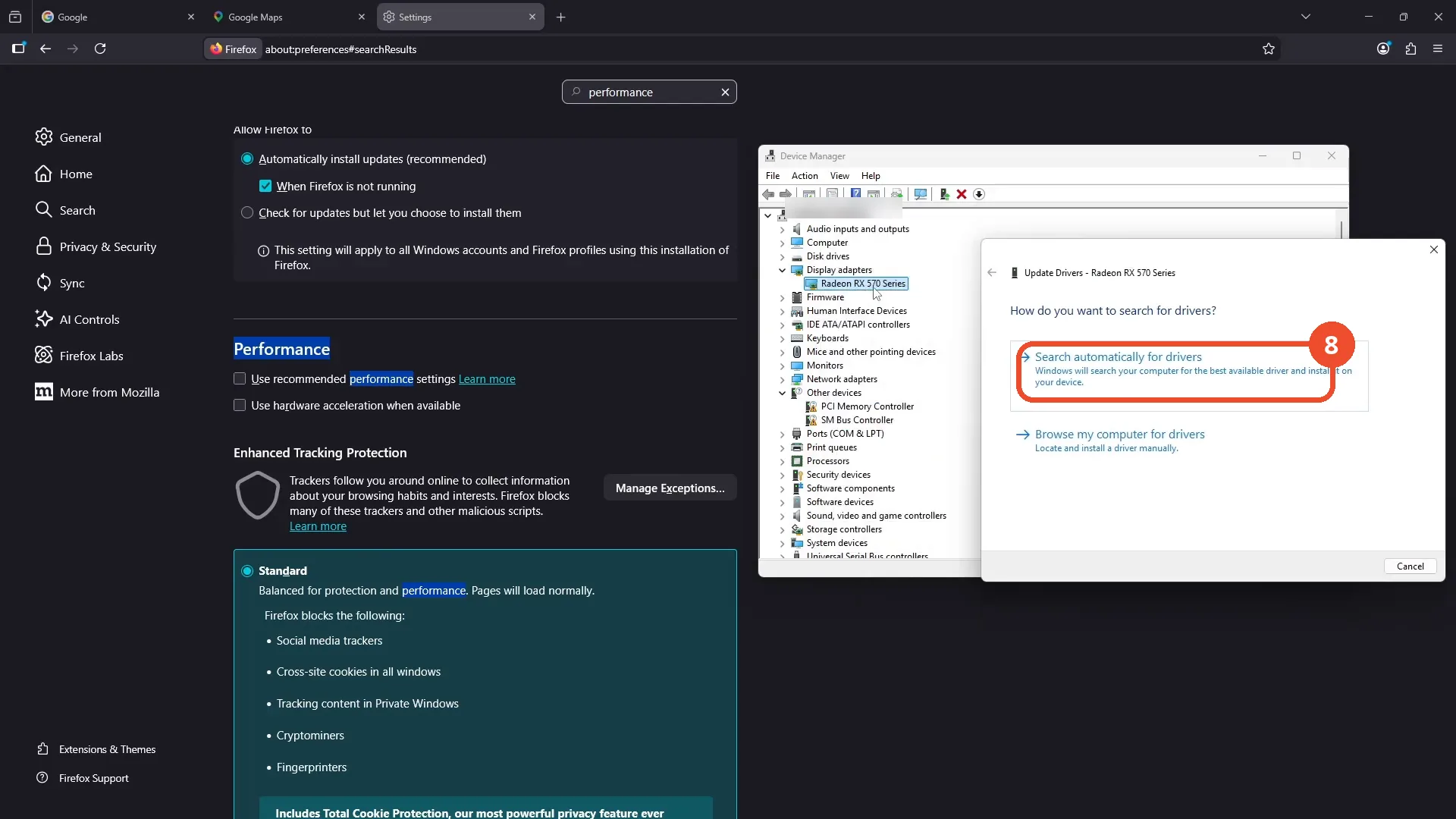
Click Search automatically for drivers
In the Update Drivers window, click “Search automatically for drivers”.
Check the driver result
Windows reports “The best drivers for your device are already installed”. No driver update is downloaded: the driver was already up to date.
Open the shield panel
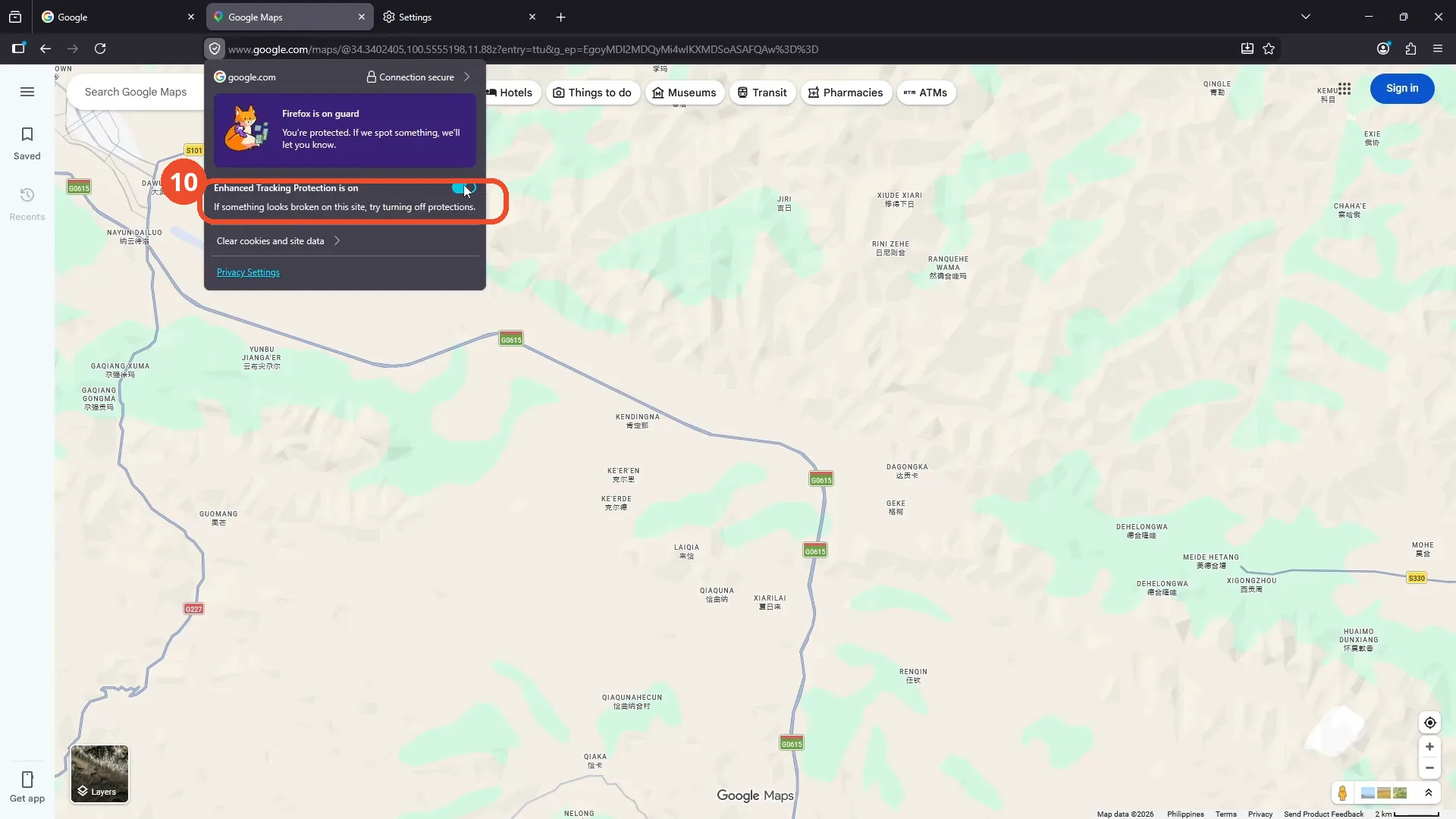
Back in Firefox, click the shield icon at the top left to open Enhanced Tracking Protection. The panel says “Enhanced Tracking Protection is on”. The film only opens the panel: the toggle stays on, so turning it off is narrated, not shown.
Check Maps loads again
After the panel closes, the film cuts to Maps reloading and the map loads again. That reload is not tied to any change on camera, because the protection toggle was never switched off.
Good to know
- The film never shows a blank Google Maps page. The grey stripes at 00:10 are a wipe transition over the Google homepage, and Maps loads normally at 00:14, before any fix is applied.
- Both Performance checkboxes are unchecked on camera: “Use recommended performance settings” by 00:47 and “Use hardware acceleration when available” by 00:54.
- The driver check finds nothing to update. Device Manager reports “The best drivers for your device are already installed” for the Radeon RX 570 Series.
- The film only opens the Enhanced Tracking Protection panel. The toggle stays on through 00:95 to 00:98, and the shield icon looks the same afterwards. Turning it off is narrated, not shown.
- No fix in the film is proven to work on camera, because the map was already loading before the fixes.
- The computer name in Device Manager is blurred in the screenshots.