How to Find Latitude and Longitude on Google Maps
Google Maps shows the latitude and longitude of any point you right-click. Open the map, right-click the spot, and the coordinates appear at the top of the menu - click them to copy them to your clipboard.
- SystemWindows (browser)
- AppGoogle Maps web app
- Last verifiedNovember 22, 2026
Every screenshot below is taken from the actual recording on this device — no stock images.
Steps
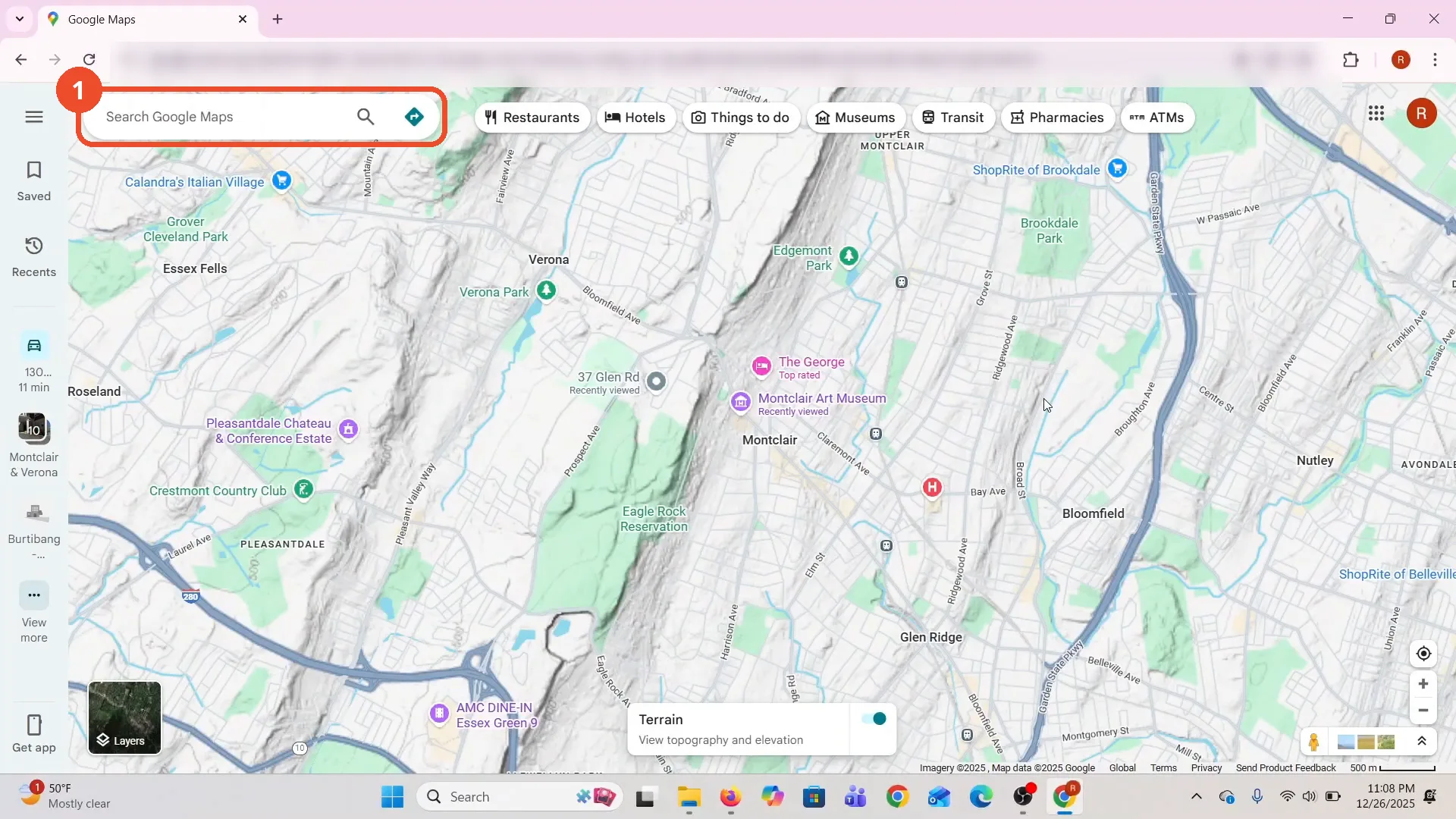
Open Google Maps
Open Google Maps in your browser. The film opens on a Terrain map of the Montclair and Verona area in New Jersey.
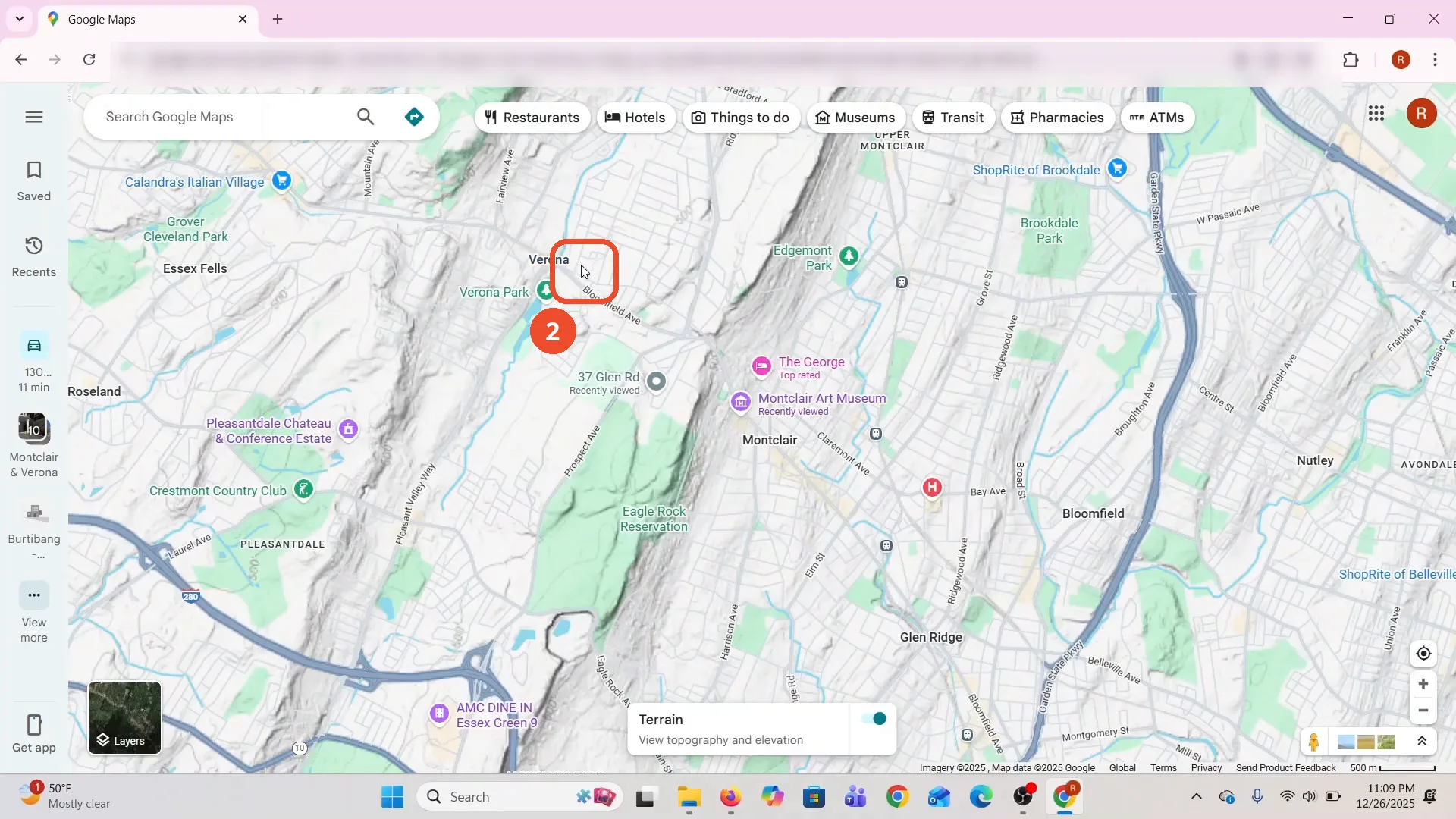
Pick a point on the map
Move your cursor to the exact spot you want the coordinates of - the film picks a point near Verona Park.
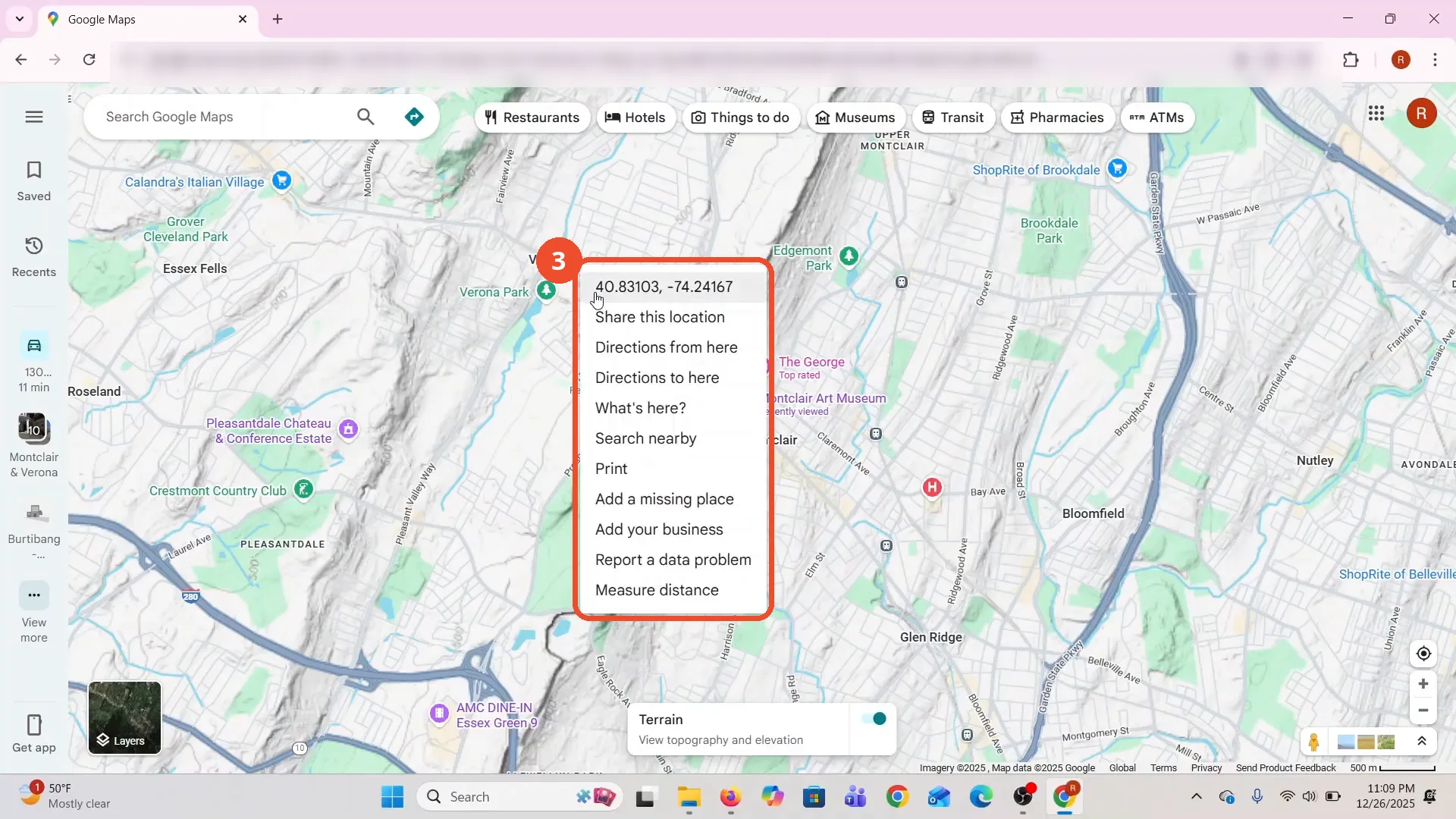
Right-click the spot
Right-click the spot to open the map menu. The coordinates of that point, 40.83103, -74.24167, appear at the top of the menu.
Click the coordinates to copy them
Click the coordinates line at the top of the menu. That copies the latitude and longitude to your clipboard.
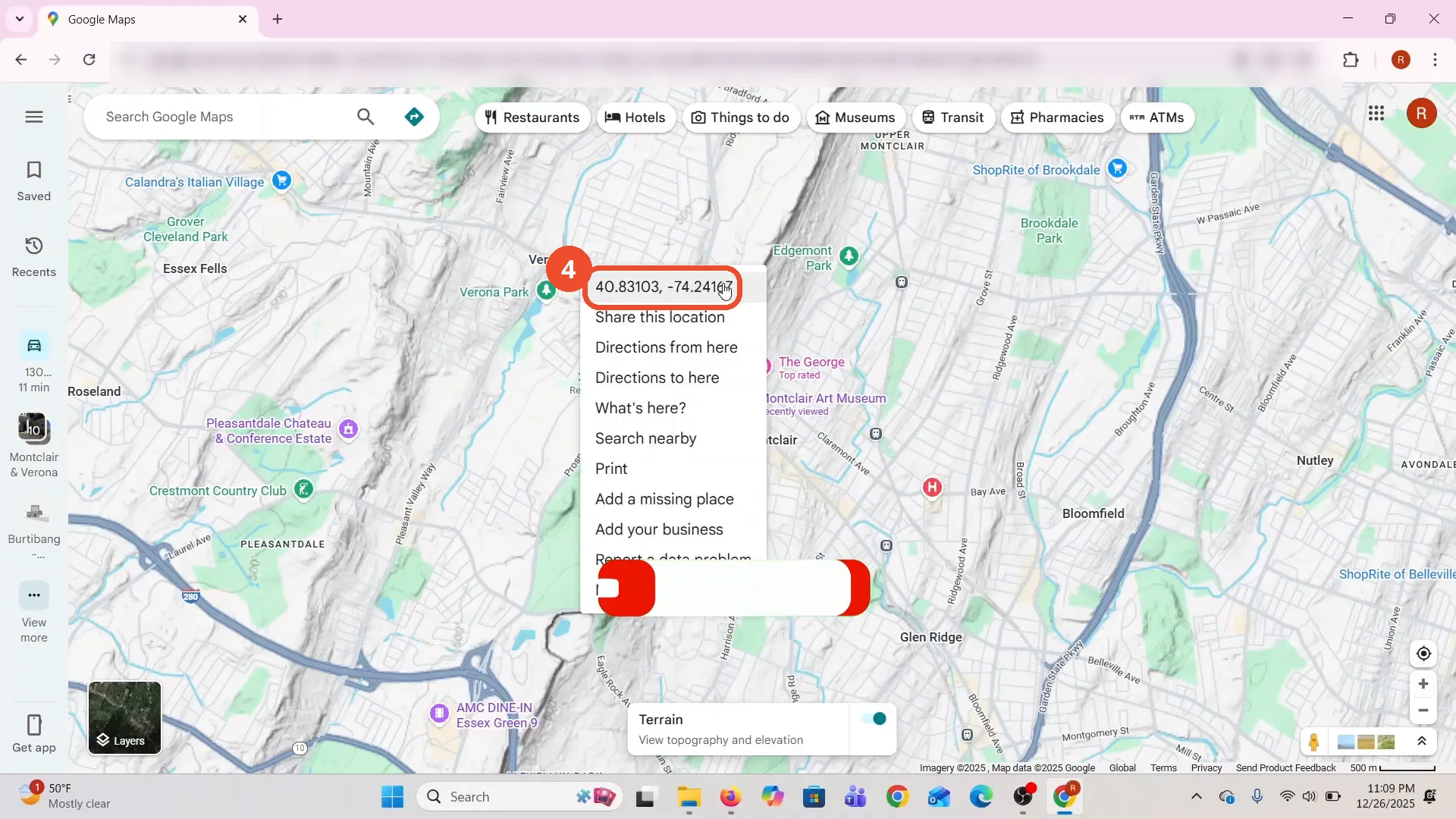
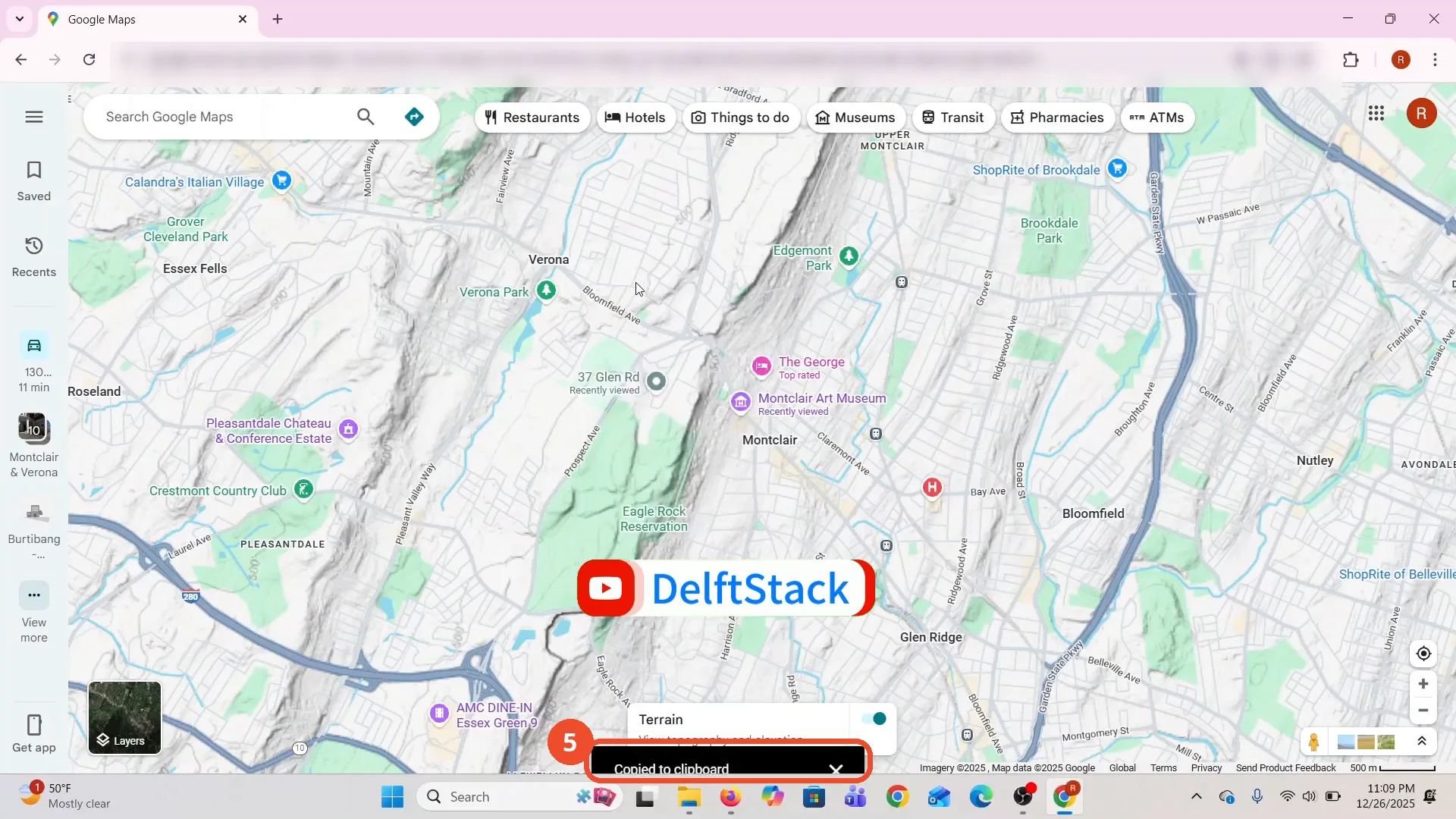
Check the Copied to clipboard message
A Copied to clipboard message appears at the bottom of the map, confirming the coordinates are copied.
Use the copied coordinates
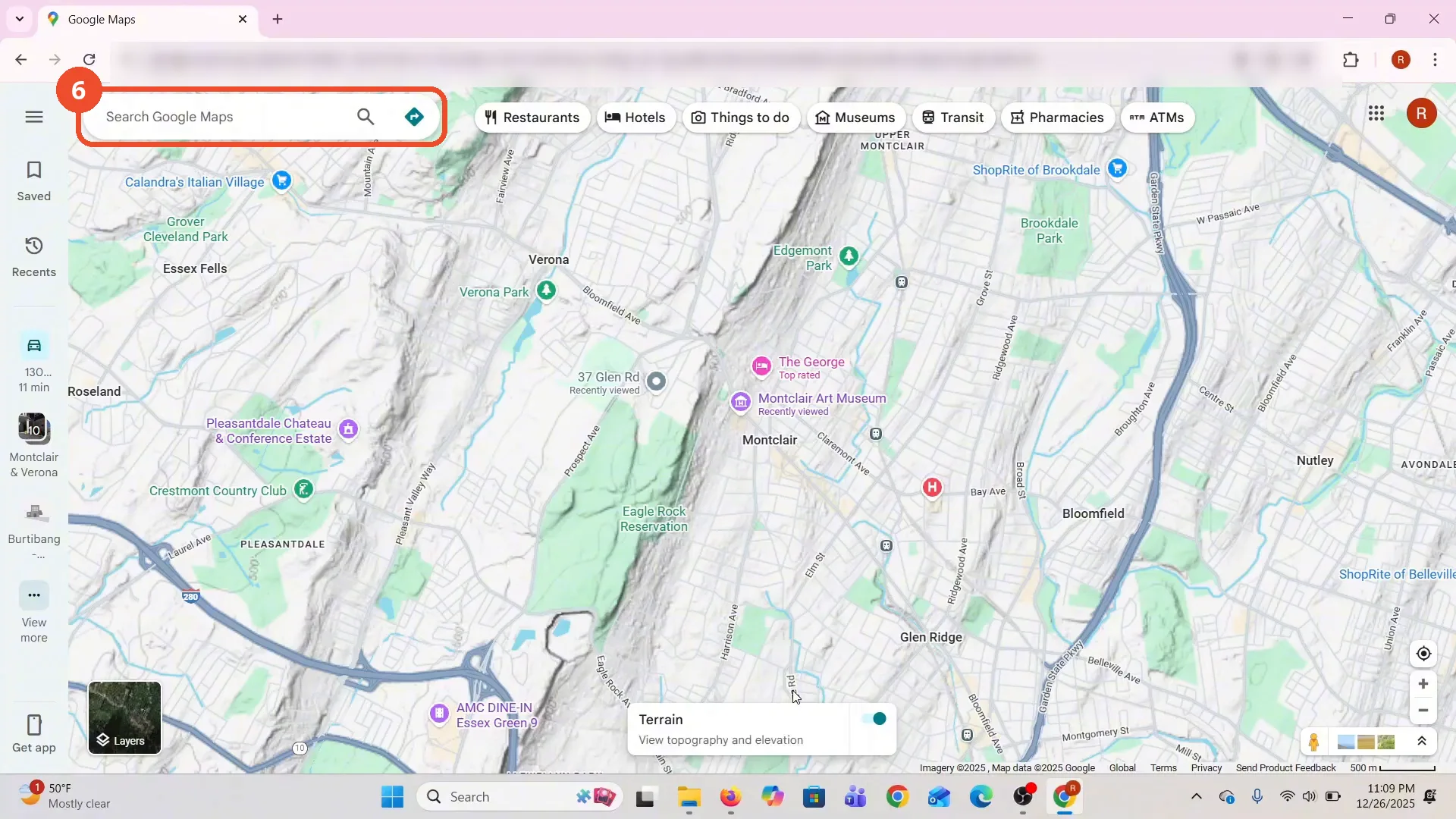
Paste the coordinates wherever you need them - into a message, a document, or back into the Google Maps search box to jump to that point.
Good to know
- The coordinates belong to the exact point the film clicked, in Verona Park, New Jersey (40.83103, -74.24167). Click anywhere else and the menu shows that spot’s coordinates instead.
- The film ends at the Copied to clipboard message - it never pastes the coordinates anywhere on camera. Paste them into any app, message, or document yourself.
- The Terrain layer shown in the film is only the map style the recording used - the right-click menu works the same on the default map style.
- If the menu does not open, make sure you are right-clicking on the map itself, not on the search box or the left-hand panel.
More on Google Maps
- How to Fix Blank Google Maps in Firefox
- How to Track Family Members on Google Maps
- How to Get Compass on Google Maps
- How to Change Routes in Google Maps
- How to Change the Year in Google Maps and View Past Locations
- How to Change Google Maps from Walking to Driving
- How to Pin Multiple Locations on Google Maps
- How to Remove Labels from Google Maps
- How to Change Vehicle Icon on Google Maps
- How to Delete Saved Trips on Google Maps
- How to See Elevation on Google Maps
- How to Add Multiple Stops on Google Maps
- Blur Your Home on Google Maps to Protect Your Privacy
- How to Avoid Toll Roads on Google Maps
- How to Create a Walking Route on Google Maps
- How to Delete Google Maps History and Manage Your Privacy
- Measure Distance Between Two Points in Google Maps
Guide complete
Every step above comes from the original recording, with a screenshot for each step. Want more like this? Browse all Google Maps guides.