How to Delete Saved Trips on Google Maps
A saved trip in Google Maps is a list of places. Open Saved, open the Travel plans list, and click the cross on the place you want to drop. The film removes its only saved place this way.
- SystemWindows (browser)
- AppGoogle Maps web app
- Last verifiedNovember 19, 2026
Every screenshot below is taken from the actual recording on this device — no stock images.
Steps
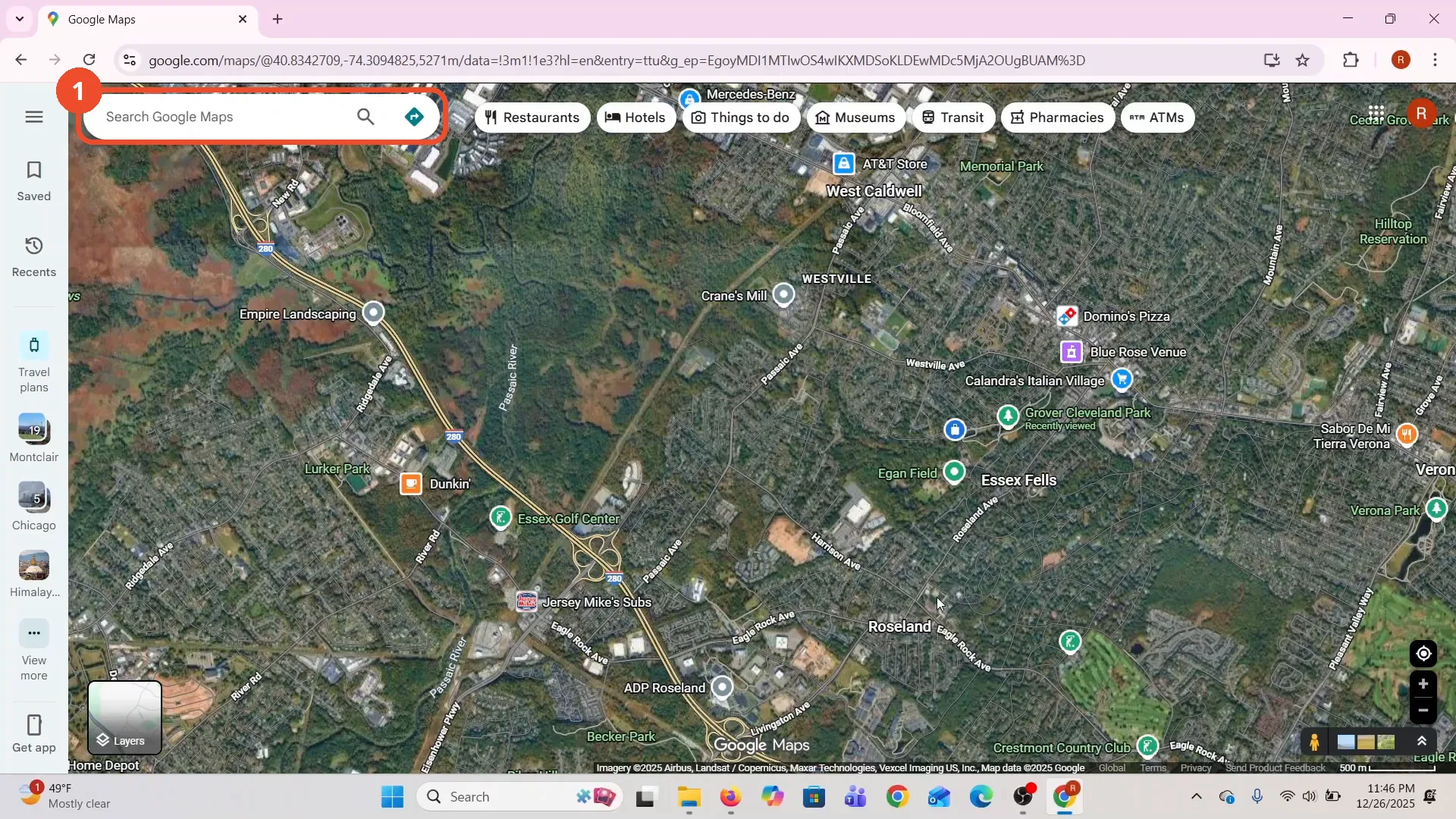
Open Google Maps and sign in
Open Google Maps in your browser and sign in to the account where you saved the trip.
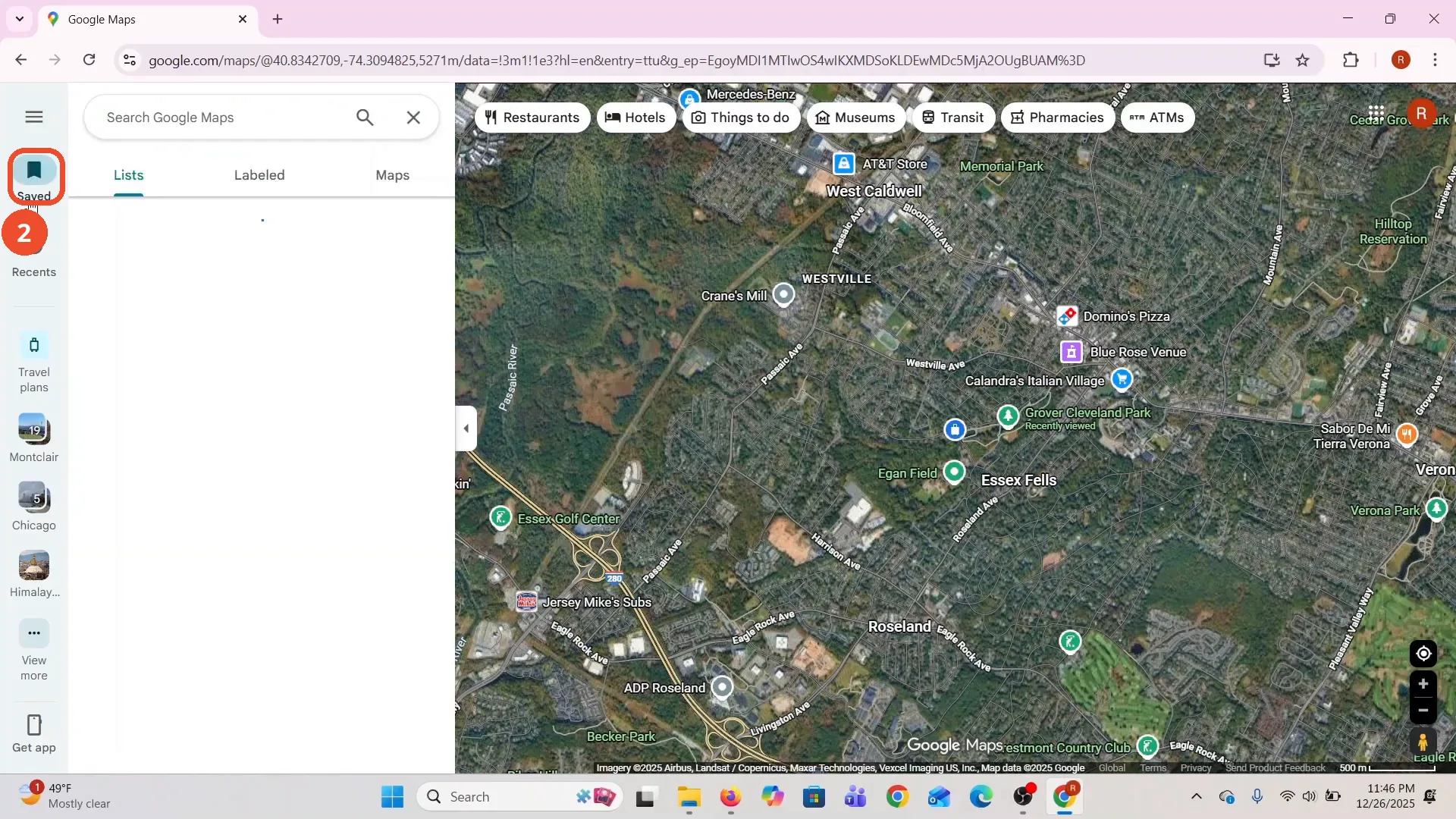
Click Saved in the left menu
In the left-hand menu, click Saved. Your lists appear in the side panel.
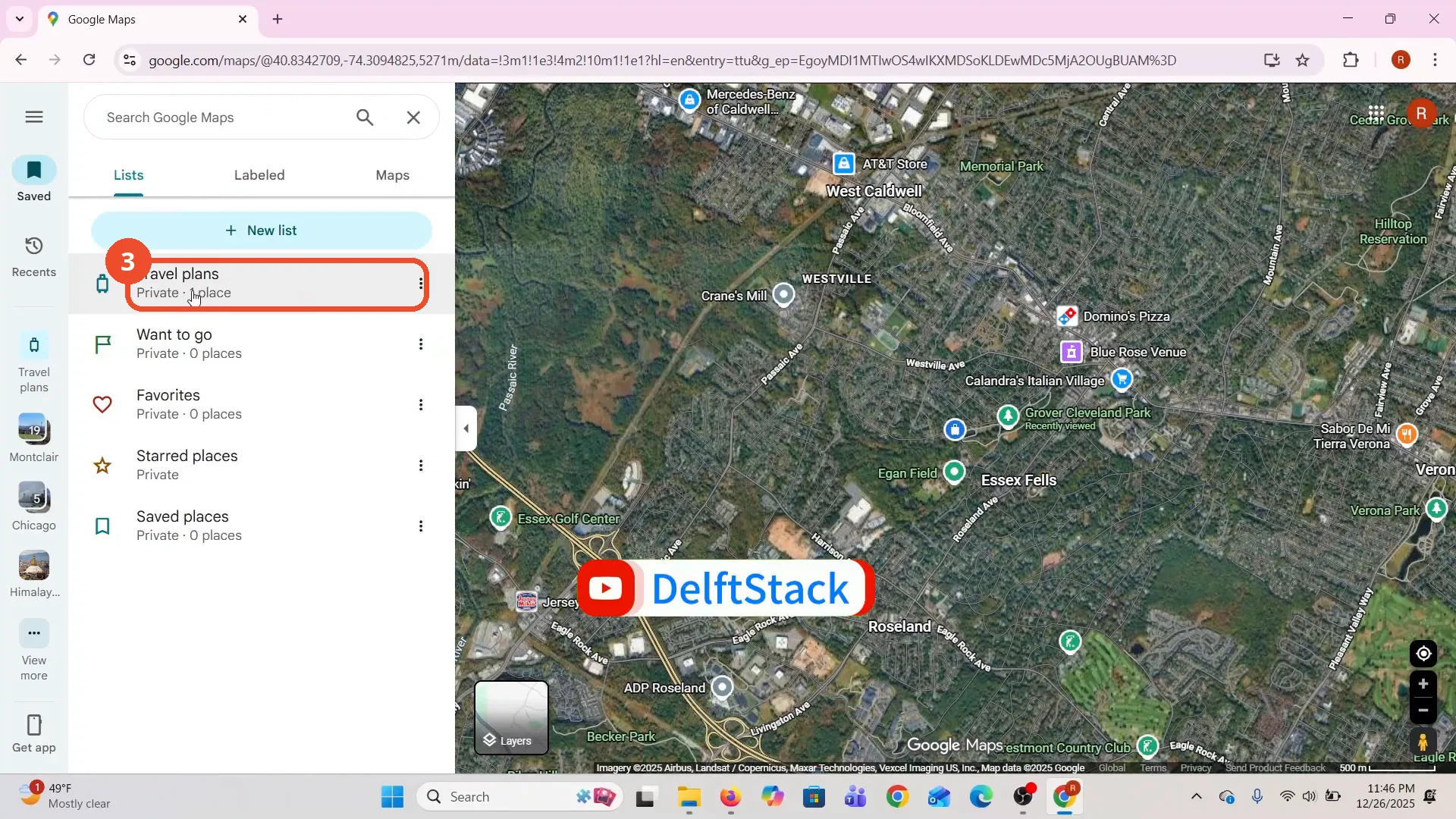
Open Travel plans
Click Travel plans in the Lists tab. The film has a single saved place in this list.
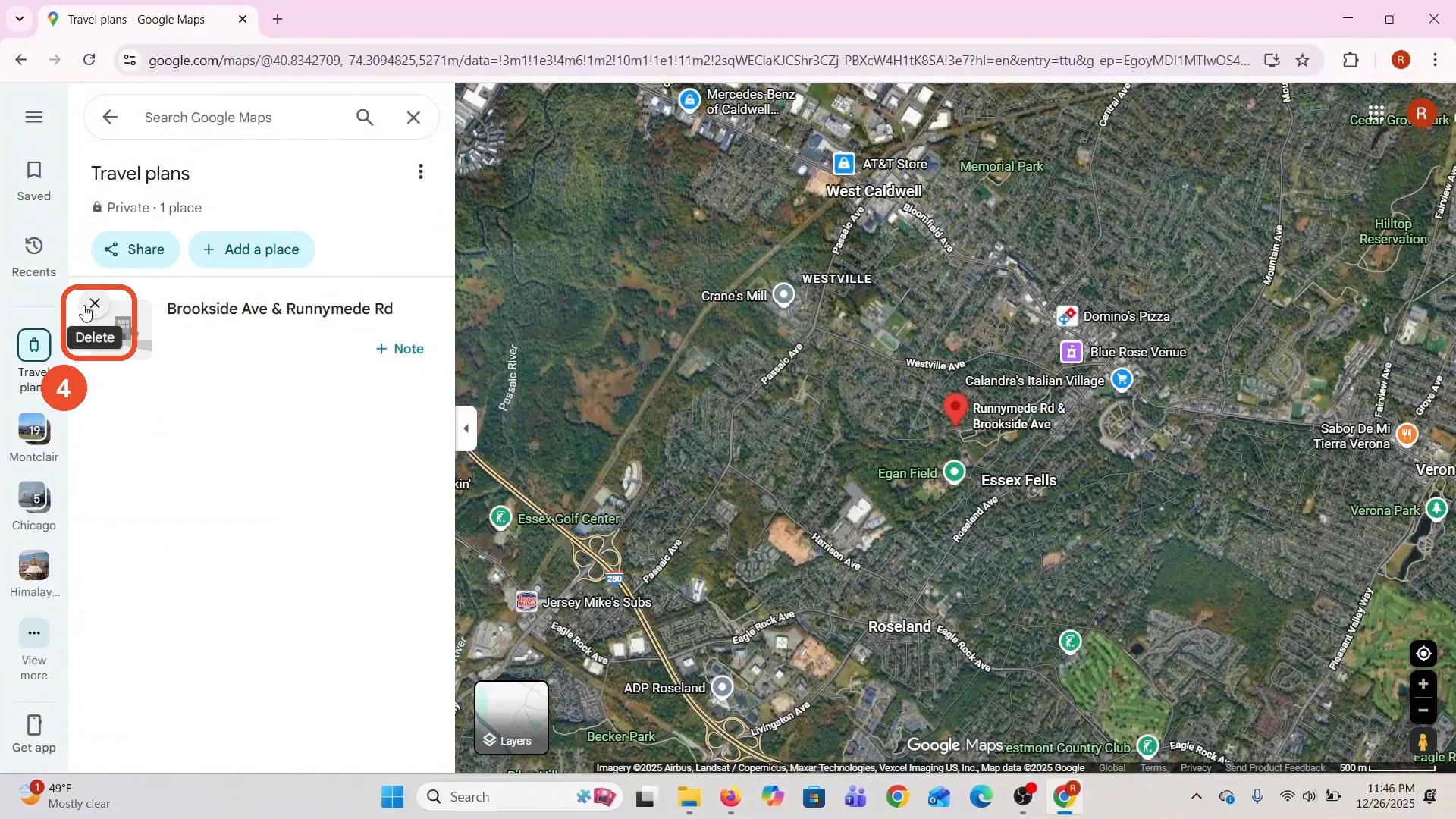
Click the cross on the saved place
Hover the saved place and click the cross that appears on its thumbnail — a Delete tooltip confirms what it does. There is no extra confirmation after this.
Check the list is empty
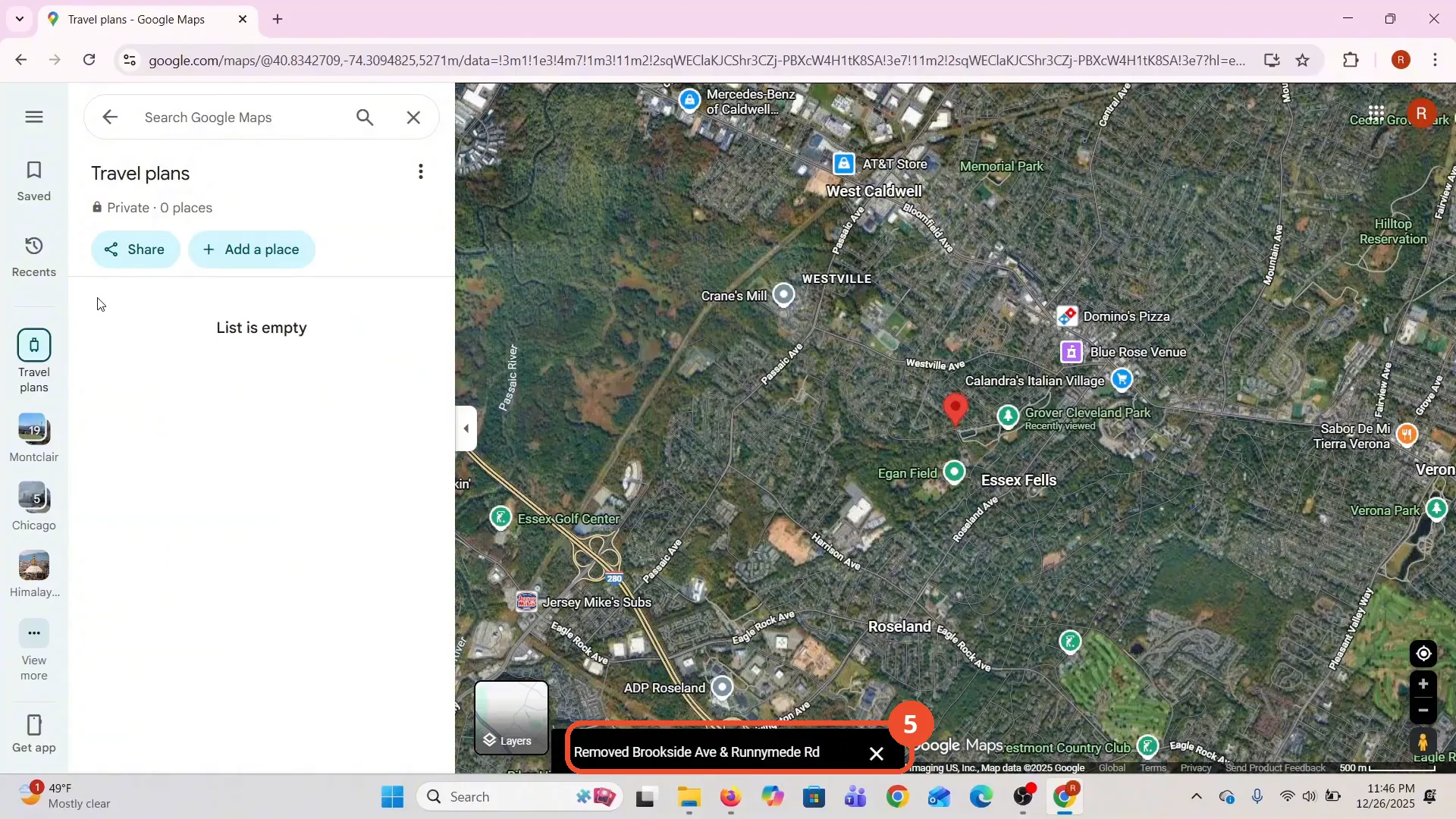
The list now reads “Private · 0 places” and “List is empty”, with a “Removed Brookside Ave & Runnymede Rd” message at the bottom.
Good to know
- The film removes a place from the Travel plans list, not the list itself — the empty list stays.
- There is no confirmation dialog: the place is removed as soon as you click the cross.
- The saved place is a street intersection near the operator’s area; the removal is shown in full on camera.
More on Google Maps
- How to Fix Blank Google Maps in Firefox
- How to Track Family Members on Google Maps
- How to Get Compass on Google Maps
- How to Change Routes in Google Maps
- How to Change the Year in Google Maps and View Past Locations
- How to Change Google Maps from Walking to Driving
- How to Pin Multiple Locations on Google Maps
- How to Remove Labels from Google Maps
- How to Create a Walking Route on Google Maps
- How to Change Vehicle Icon on Google Maps
- How to See Elevation on Google Maps