How to Delete Google Maps History and Manage Your Privacy
Your Google Maps visits are saved as Search history in your Google account. Open Google Search settings, check what is saved in My Activity, and delete a whole day’s activity - or set older activity to auto-delete.
- SystemWindows (browser)
- AppGoogle Maps web app
- Last verifiedNovember 22, 2026
Every screenshot below is taken from the actual recording on this device — no stock images.
Steps
Open Google Maps
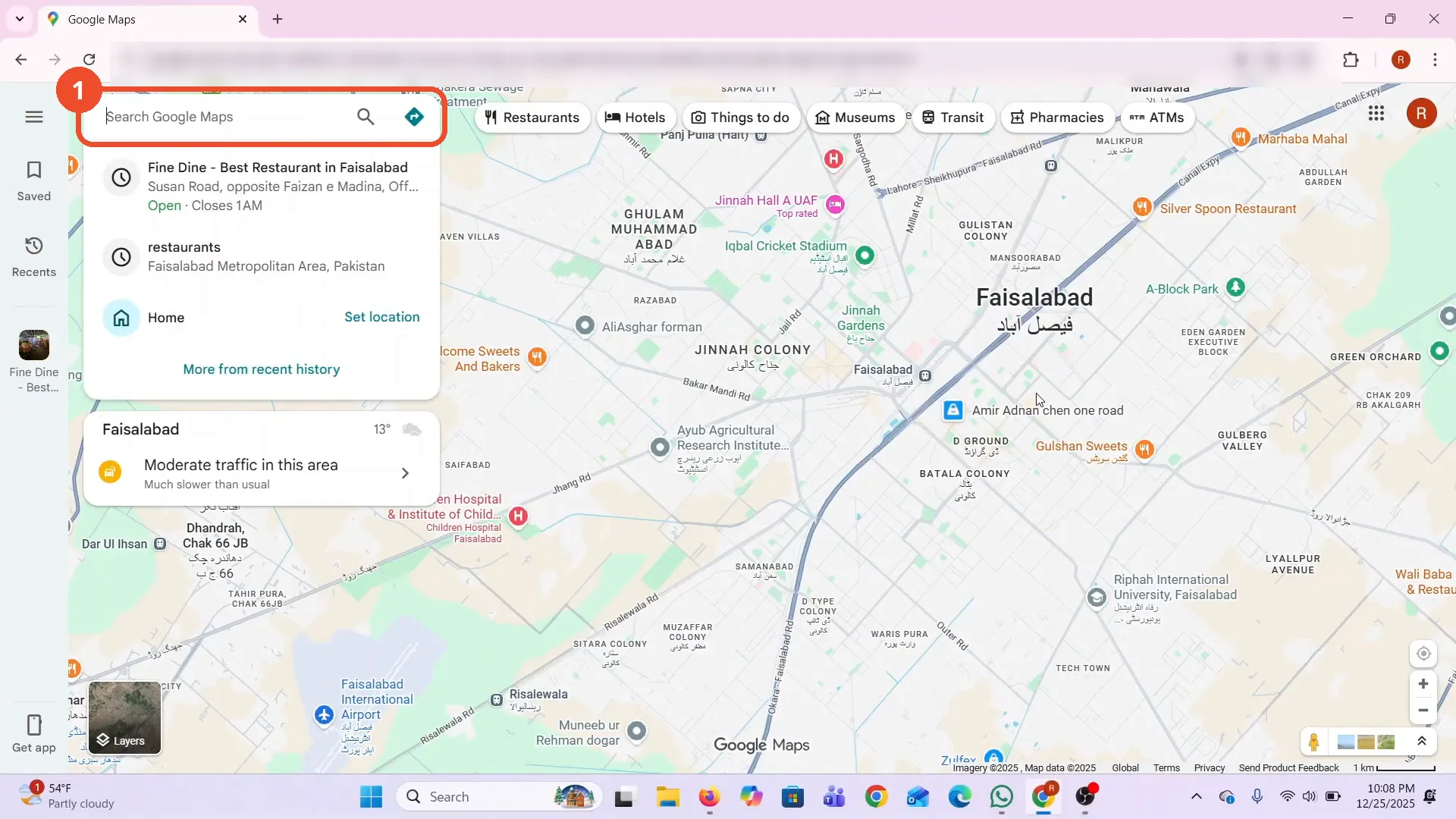
Open Google Maps in your browser. The film opens on a map of Faisalabad, Pakistan, with the search box focused and recent searches listed below it.
Open Search settings and click Search history
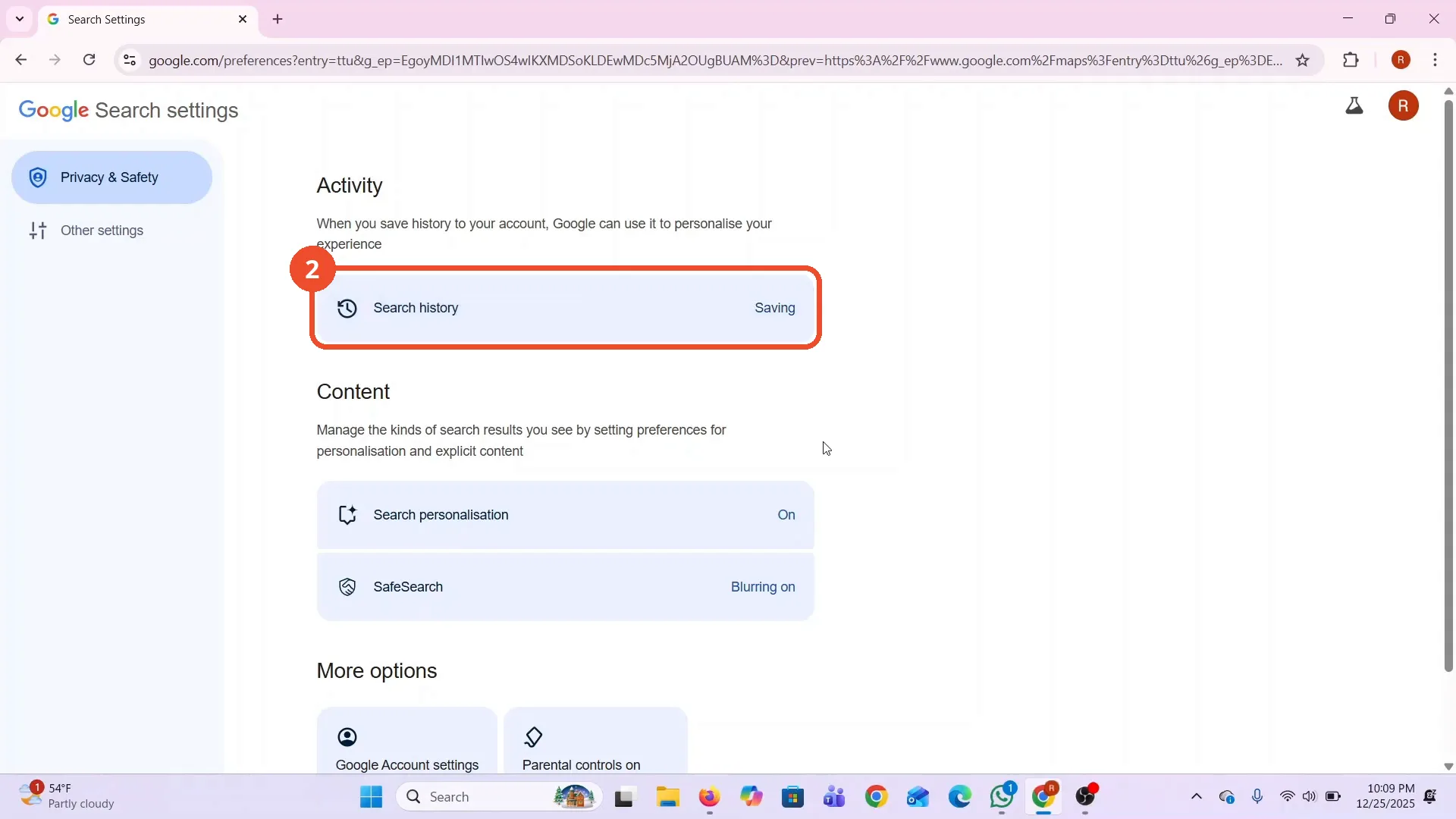
The film cuts to the Google Search settings page. Under Activity, Search history is set to Saving - click it to open My Activity.
Check your saved Maps activity
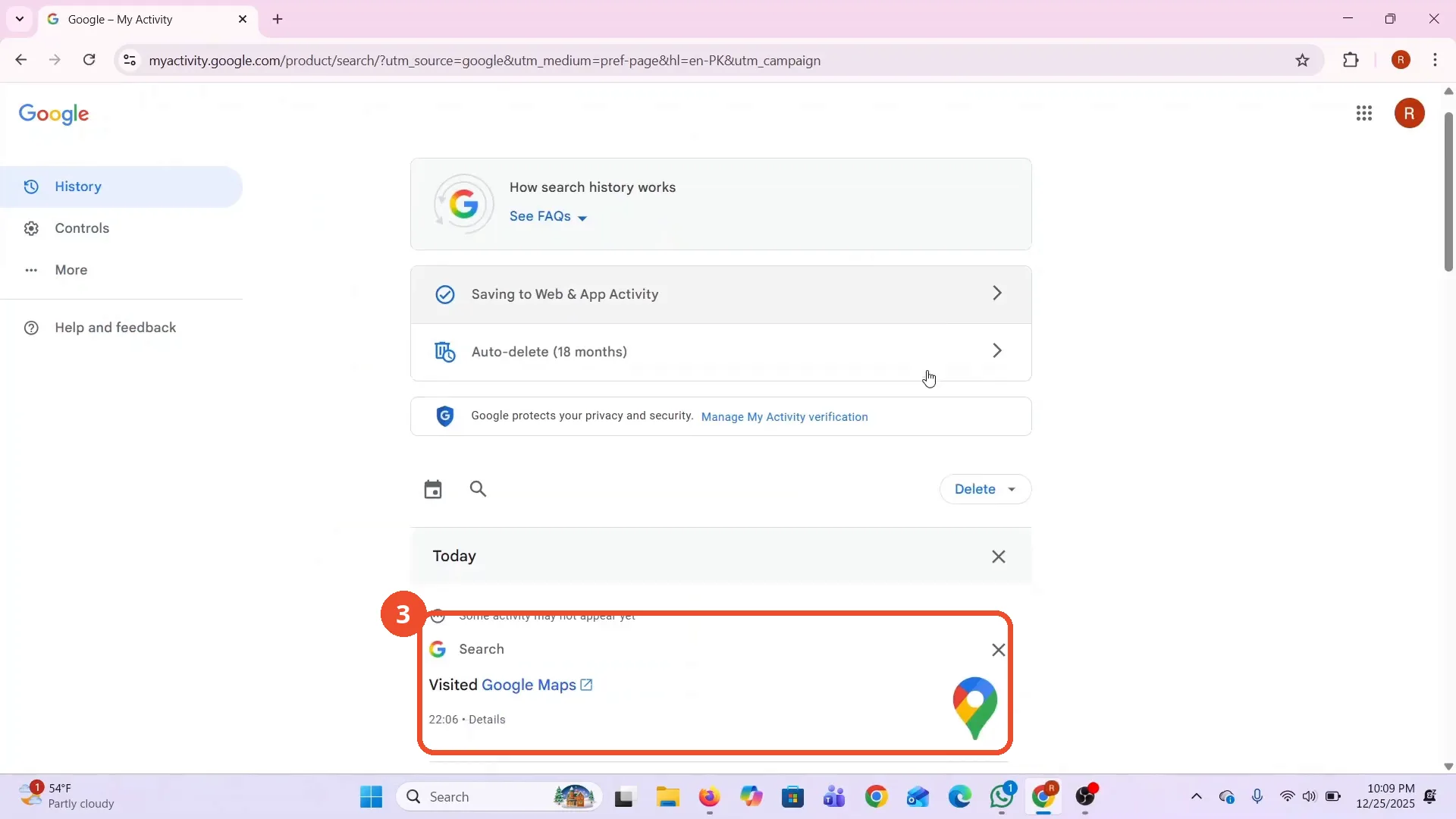
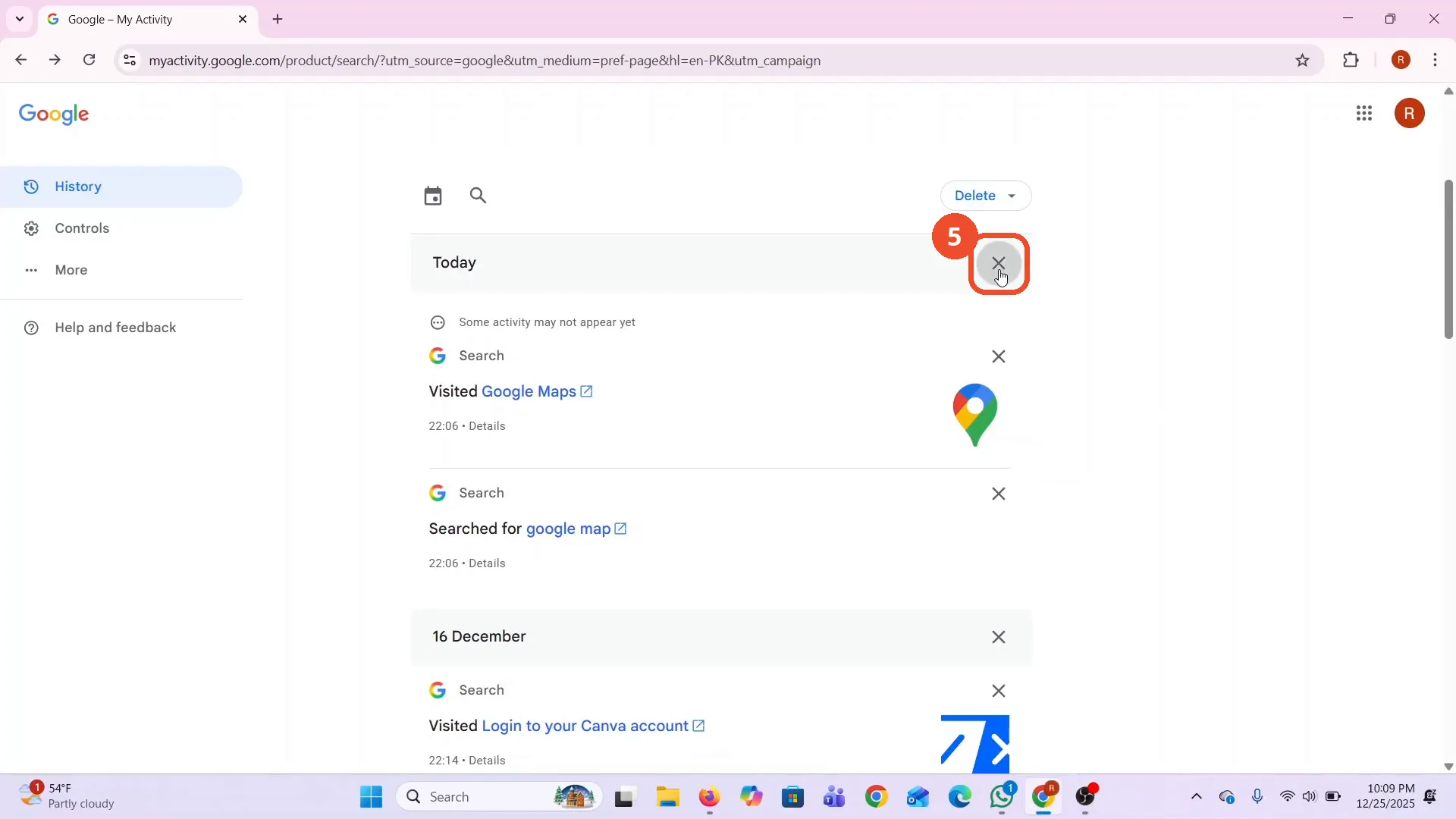
My Activity lists your saved history by day. Under Today the film’s list shows Visited Google Maps at 22:06 and a search for google map.
Open the auto-delete options
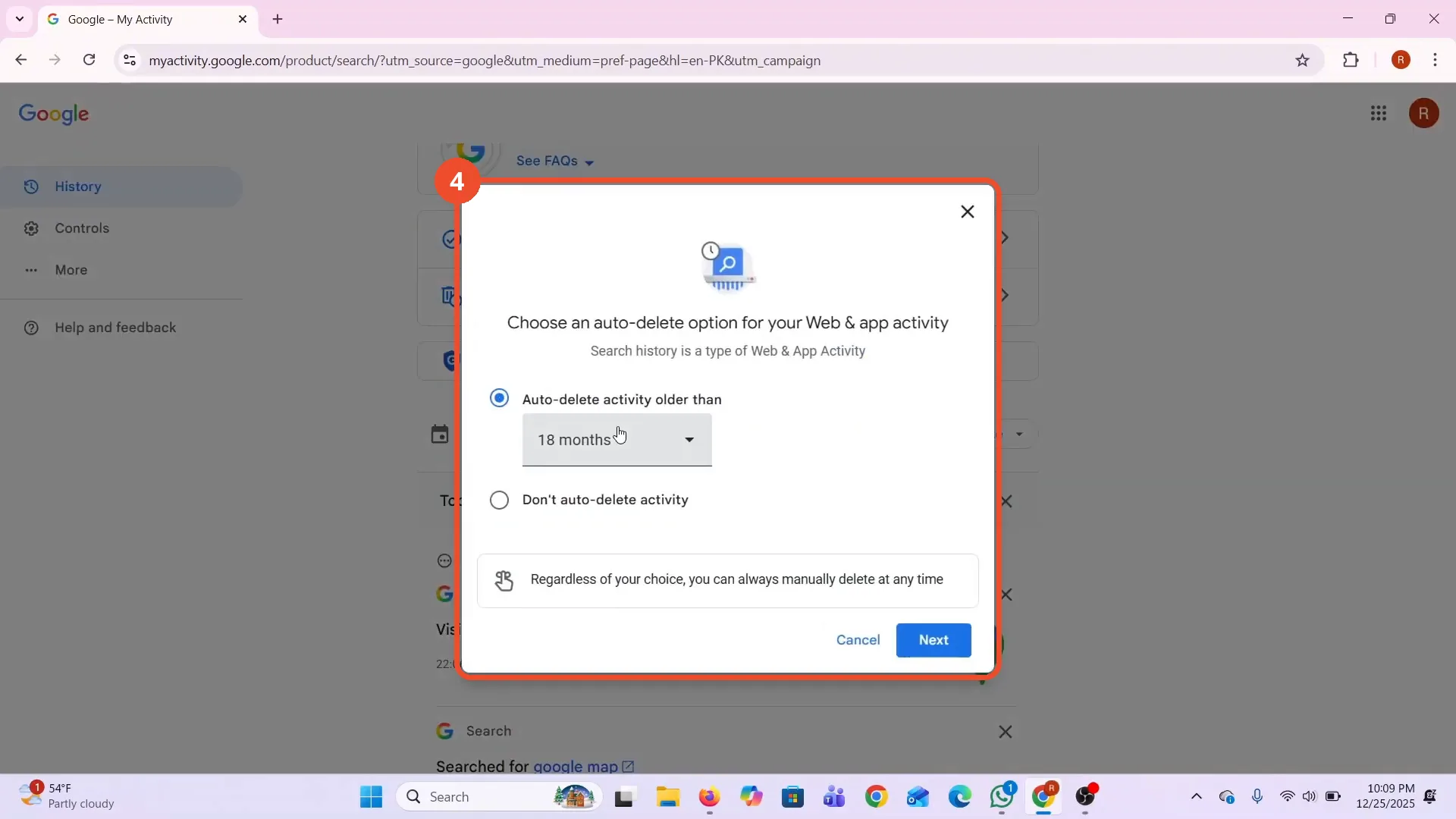
Click the Auto-delete (18 months) row to open the auto-delete options for Web and App Activity. Search history is a type of Web and App Activity, and the film leaves 18 months selected.
Delete a whole day’s activity
Back on the history list, click the X beside Today to delete that whole day’s activity at once.
Confirm the deletion
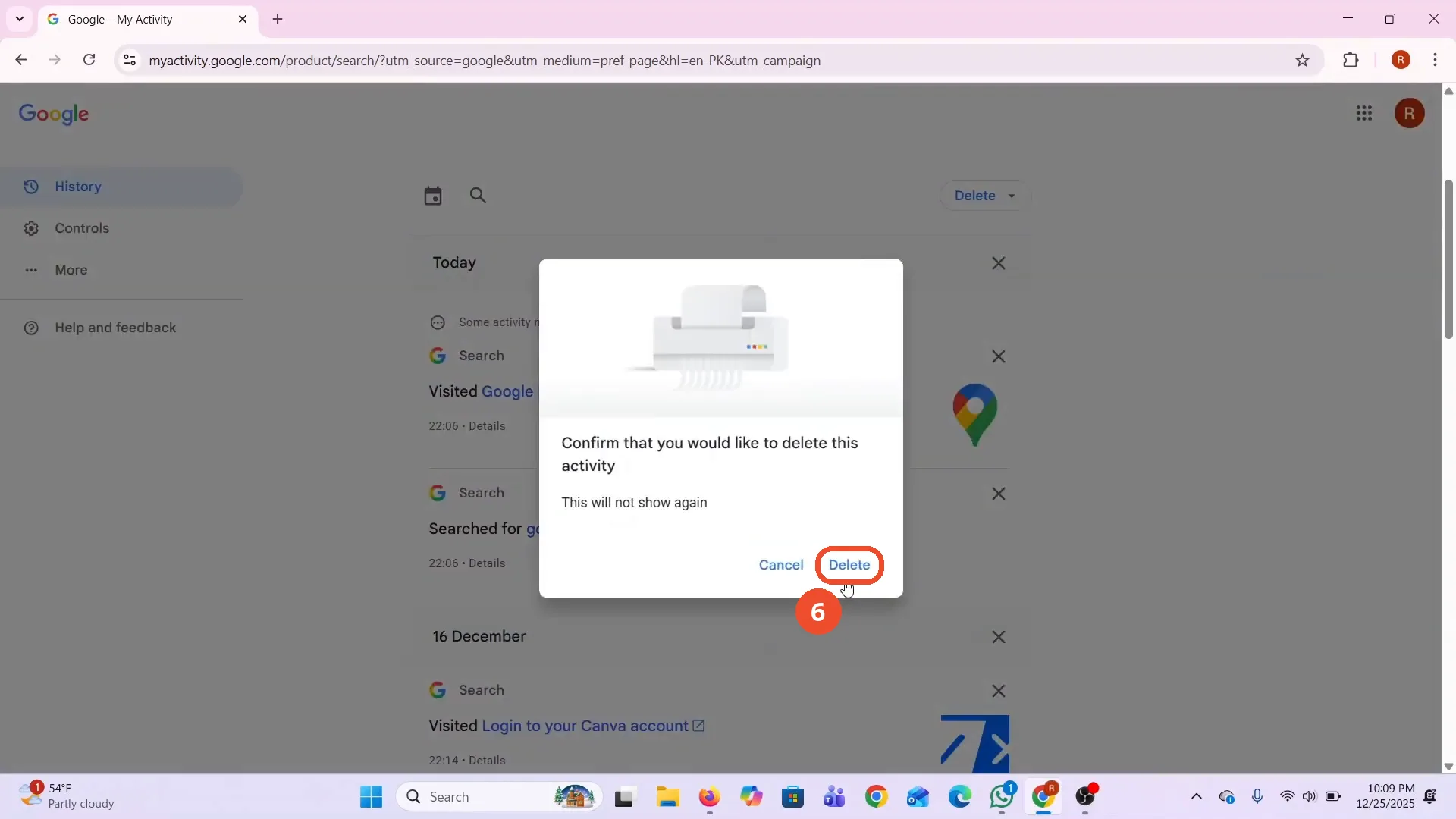
Google asks you to confirm: Confirm that you would like to delete this activity. Click Delete.
Check that the deletion is complete
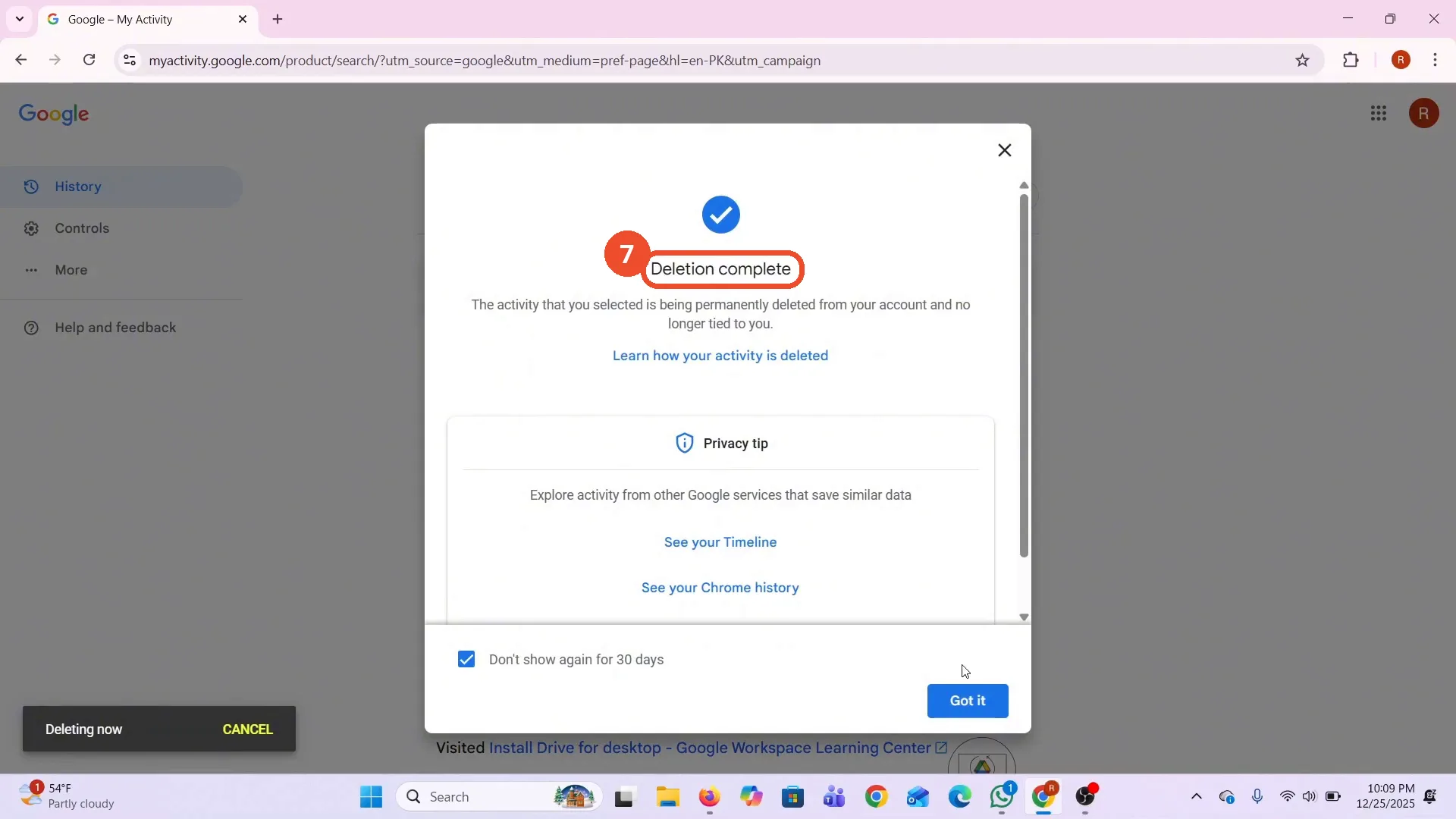
Google shows Deletion complete: the activity you selected is being permanently deleted from your account. The Today section is gone from the list afterwards.
Good to know
- The film deletes only one day’s activity: it clicks the X beside Today, confirms, and Google reports Deletion complete. To delete a different range, use the Delete menu at the top of the My Activity list.
- The auto-delete setting is only shown, not changed: the film opens the options, finds 18 months already selected, looks at the 3, 18, and 36 month choices, and closes the dialog with the X.
- The film never shows the step from Google Maps to the Search settings page - it cuts from the map to the settings. Open Google Search settings (google.com/preferences) in your browser to follow along.
- The film’s Home location was never set - the Maps search box shows Home with a Set location link - so no home address appears anywhere in this guide.
More on Google Maps
- How to Fix Blank Google Maps in Firefox
- How to Track Family Members on Google Maps
- How to Get Compass on Google Maps
- How to Change Routes in Google Maps
- How to Change the Year in Google Maps and View Past Locations
- How to Change Google Maps from Walking to Driving
- How to Pin Multiple Locations on Google Maps
- How to Remove Labels from Google Maps
- How to Change Vehicle Icon on Google Maps
- How to Delete Saved Trips on Google Maps
- How to See Elevation on Google Maps
- How to Add Multiple Stops on Google Maps
- Blur Your Home on Google Maps to Protect Your Privacy
- How to Avoid Toll Roads on Google Maps
- How to Create a Walking Route on Google Maps
- How to Find Latitude and Longitude on Google Maps
- Measure Distance Between Two Points in Google Maps
Guide complete
Every step above comes from the original recording, with a screenshot for each step. Want more like this? Browse all Google Maps guides.