How to Change Language on Google Maps
Google Maps lets you switch the language of the whole interface from its menu — no account setting to dig through. Open the menu, click Language, pick a language, and the page reloads in that language. The film picks French.
- SystemWindows (browser)
- AppGoogle Maps web app
- Last verifiedNovember 23, 2026
Every screenshot below is taken from the actual recording on this device — no stock images.
Steps
Open Google Maps
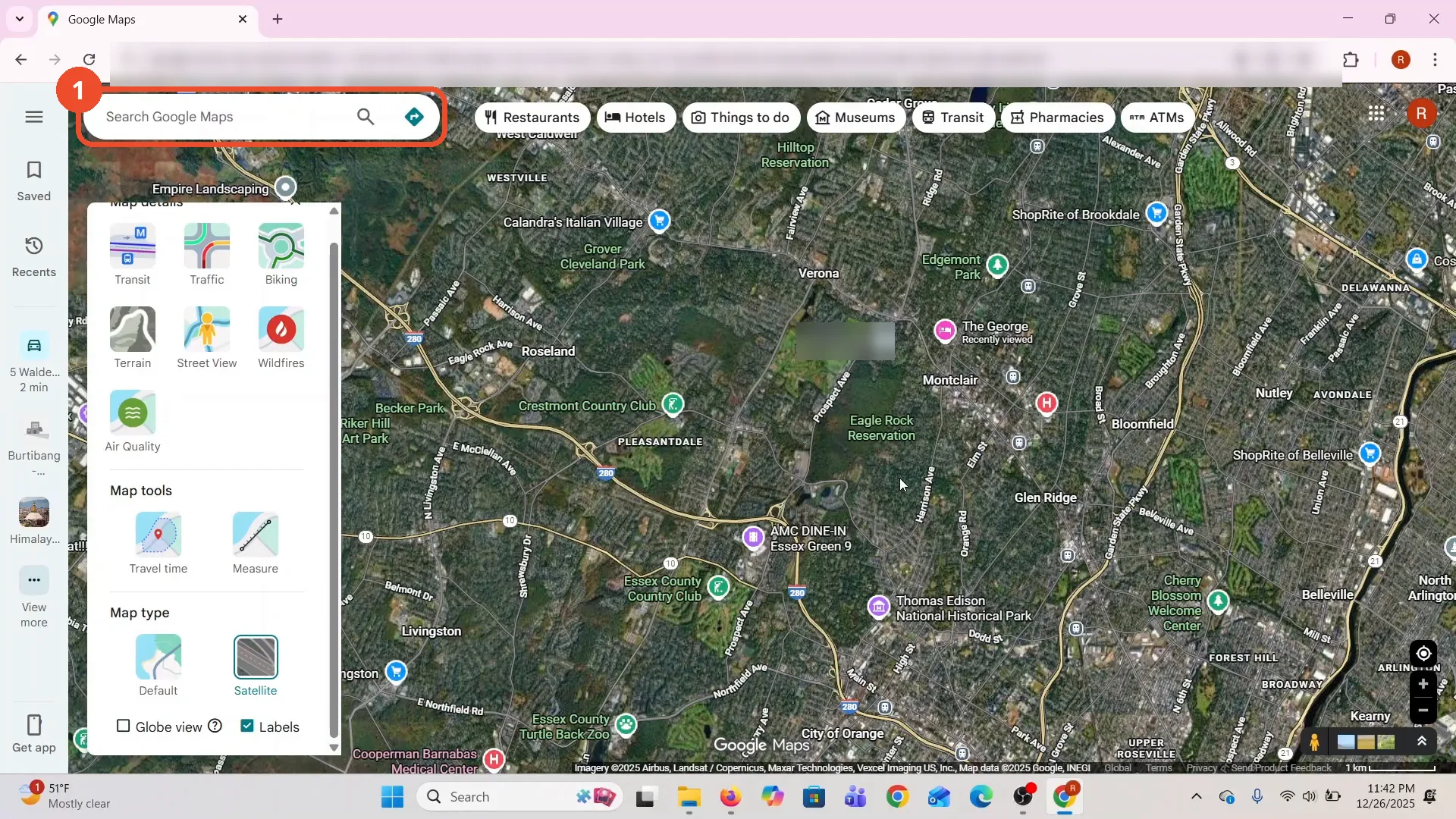
Open Google Maps in your browser. The film opens on Google Maps already, in satellite view over Verona, New Jersey, with the Map details panel already open — the trip to google.com/maps itself is not shown on camera.
Click the menu button
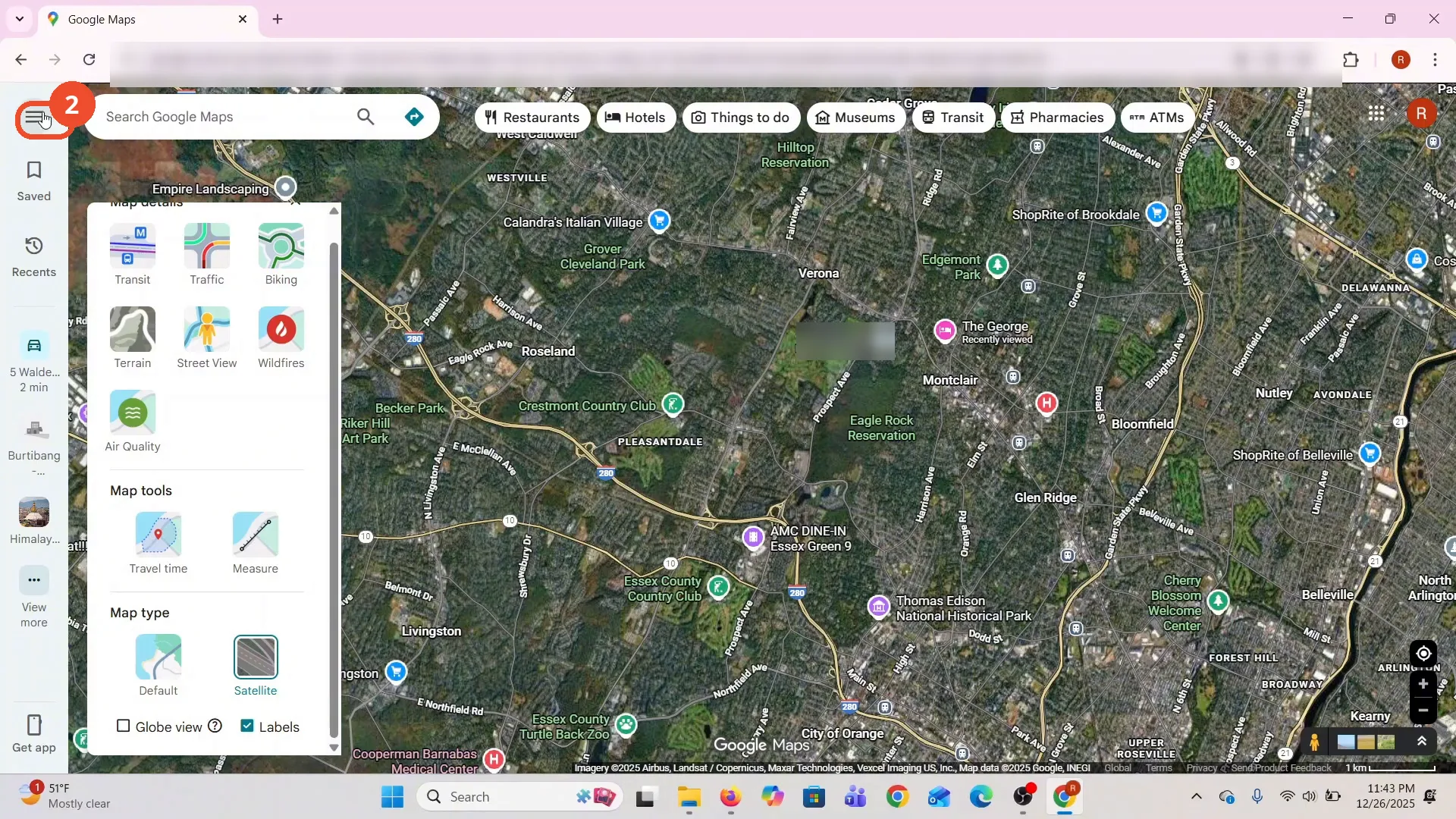
Click the menu button (the three lines) at the top left of the map.
Click Language
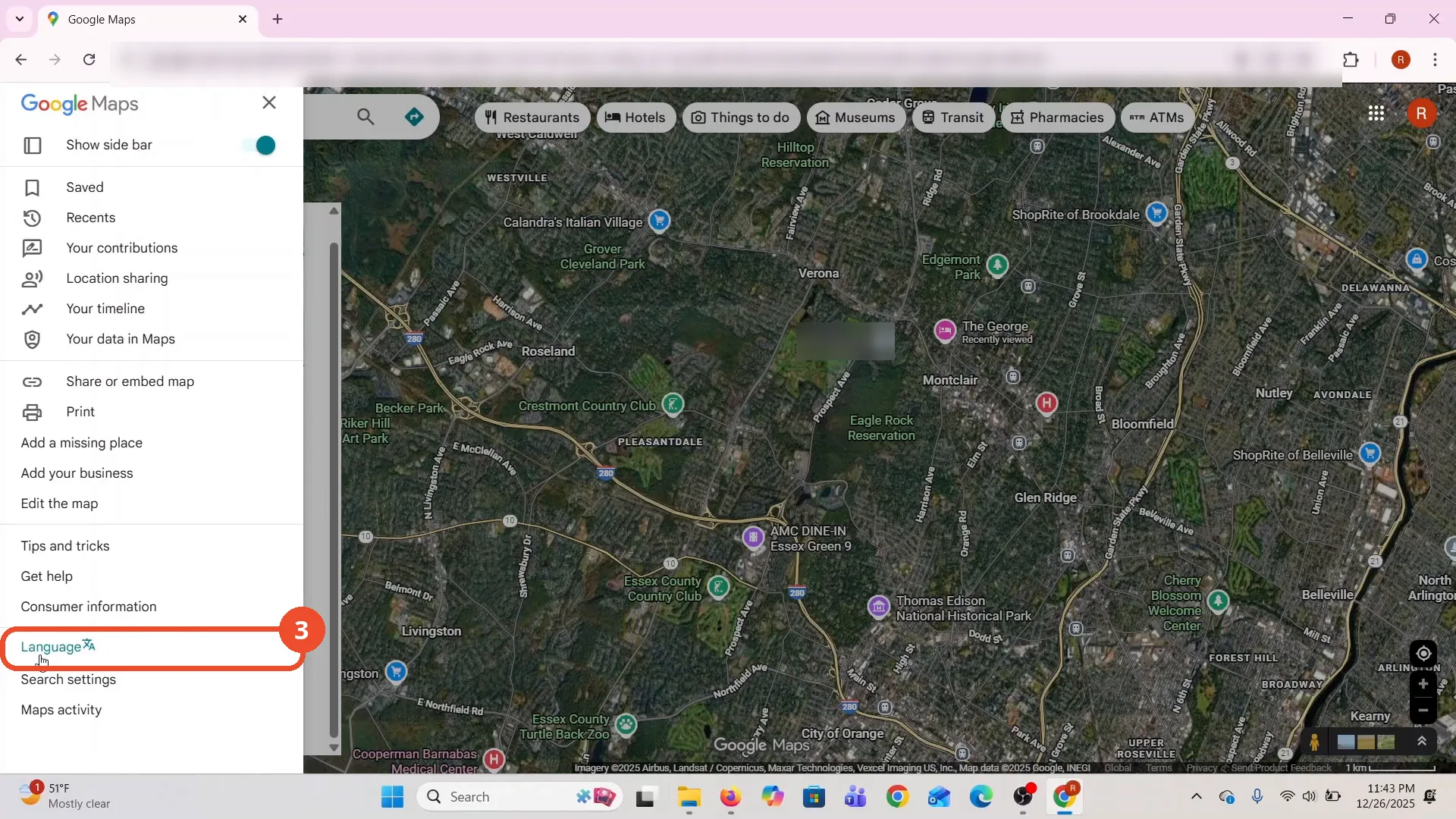
Click Language near the bottom of the menu.
Select Français (France)
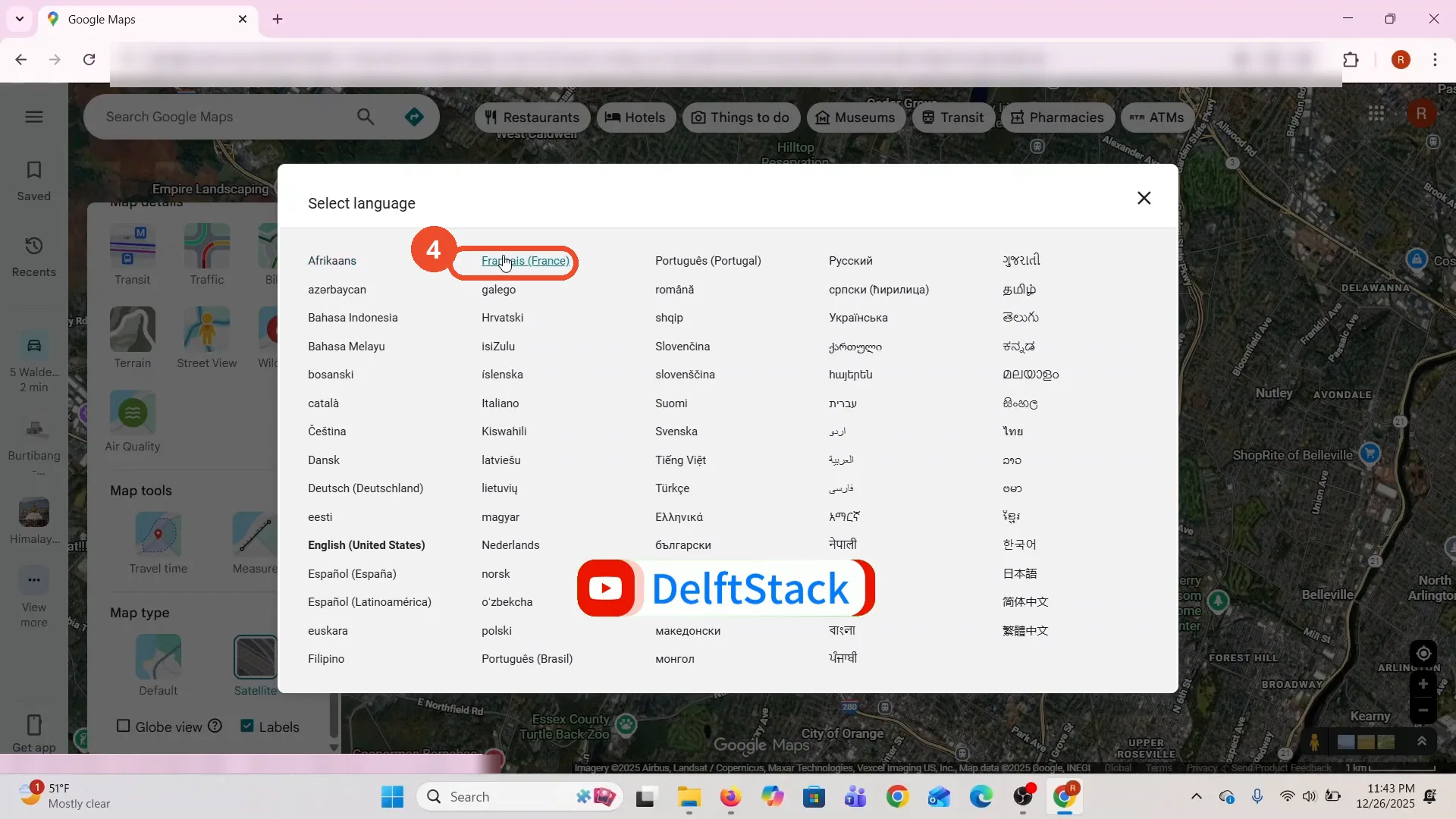
Click Français (France) at the top of the second column. Google Maps applies the new language and reloads the page.
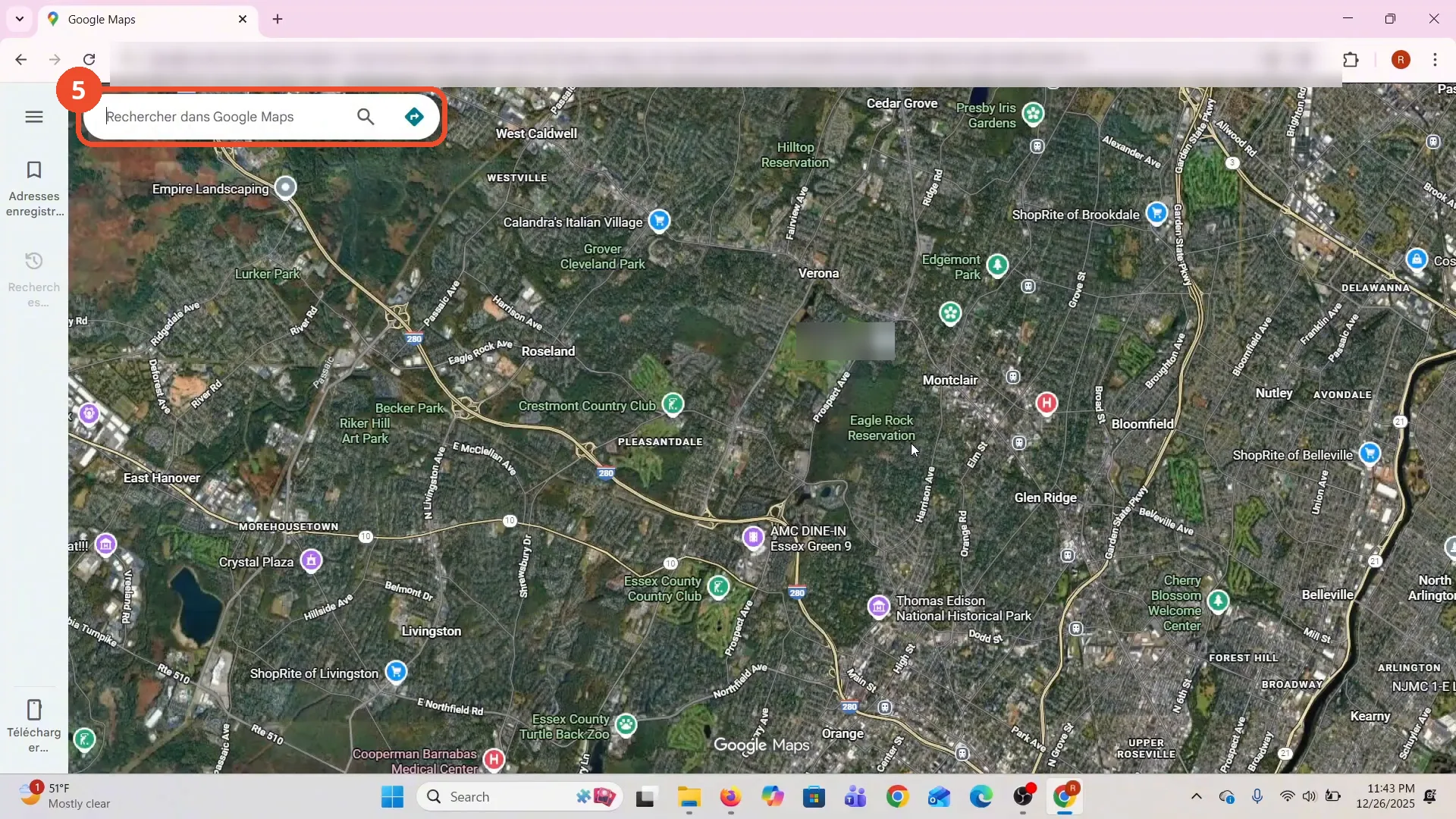
Check the interface is in French
The interface is now in French: the search box reads “Rechercher dans Google Maps”, the side menu shows French labels, and the address ends in hl=fr.
Good to know
- The film demonstrates this on desktop Chrome only. The narration says you can also do it on your phone, but no phone is shown on camera.
- The narration says you need to be signed in to your Google account first. The film is recorded signed in (the account avatar is visible at the top right), but the film never shows what happens signed out.
- The narration also says voice navigation changes with the language you pick, but the film never starts navigation, so that part is not shown on camera.
- Picking a language reloads Google Maps — the film briefly shows the Google loading screen, then the interface comes back in French. Your map stays on the same place.
- To switch back, repeat the same steps and pick English (United States) from the list — it is in the first column of the language dialog.
- The language dialog lists dozens of languages in their own names — Français (France), Deutsch (Deutschland), Español (España) — so you can find yours even before the interface switches.
More on Google Maps
- How to Fix Blank Google Maps in Firefox
- How to Track Family Members on Google Maps
- How to Get Compass on Google Maps
- How to Change Routes in Google Maps
- How to Change the Year in Google Maps and View Past Locations
- How to Change Google Maps from Walking to Driving
- How to Pin Multiple Locations on Google Maps
- How to Remove Labels from Google Maps
- How to Change Vehicle Icon on Google Maps
- How to Delete Saved Trips on Google Maps
- How to See Elevation on Google Maps
- How to Add Multiple Stops on Google Maps
- Blur Your Home on Google Maps to Protect Your Privacy
- How to Avoid Toll Roads on Google Maps
- How to Find Latitude and Longitude on Google Maps
- How to Delete Google Maps History and Manage Your Privacy
- Measure Distance Between Two Points in Google Maps
- How to Create a Walking Route on Google Maps
Guide complete
Every step above comes from the original recording, with a screenshot for each step. Want more like this? Browse all Google Maps guides.