Blur Your Home on Google Maps to Protect Your Privacy
Google Maps lets you ask Google to blur your home in Street View. Open your home in Street View, report the image, choose My home, and fill in the request form - blurring is permanent, so be sure before you submit.
- SystemWindows (browser)
- AppGoogle Maps web app
- Last verifiedNovember 20, 2026
Every screenshot below is taken from the actual recording on this device — no stock images.
Steps
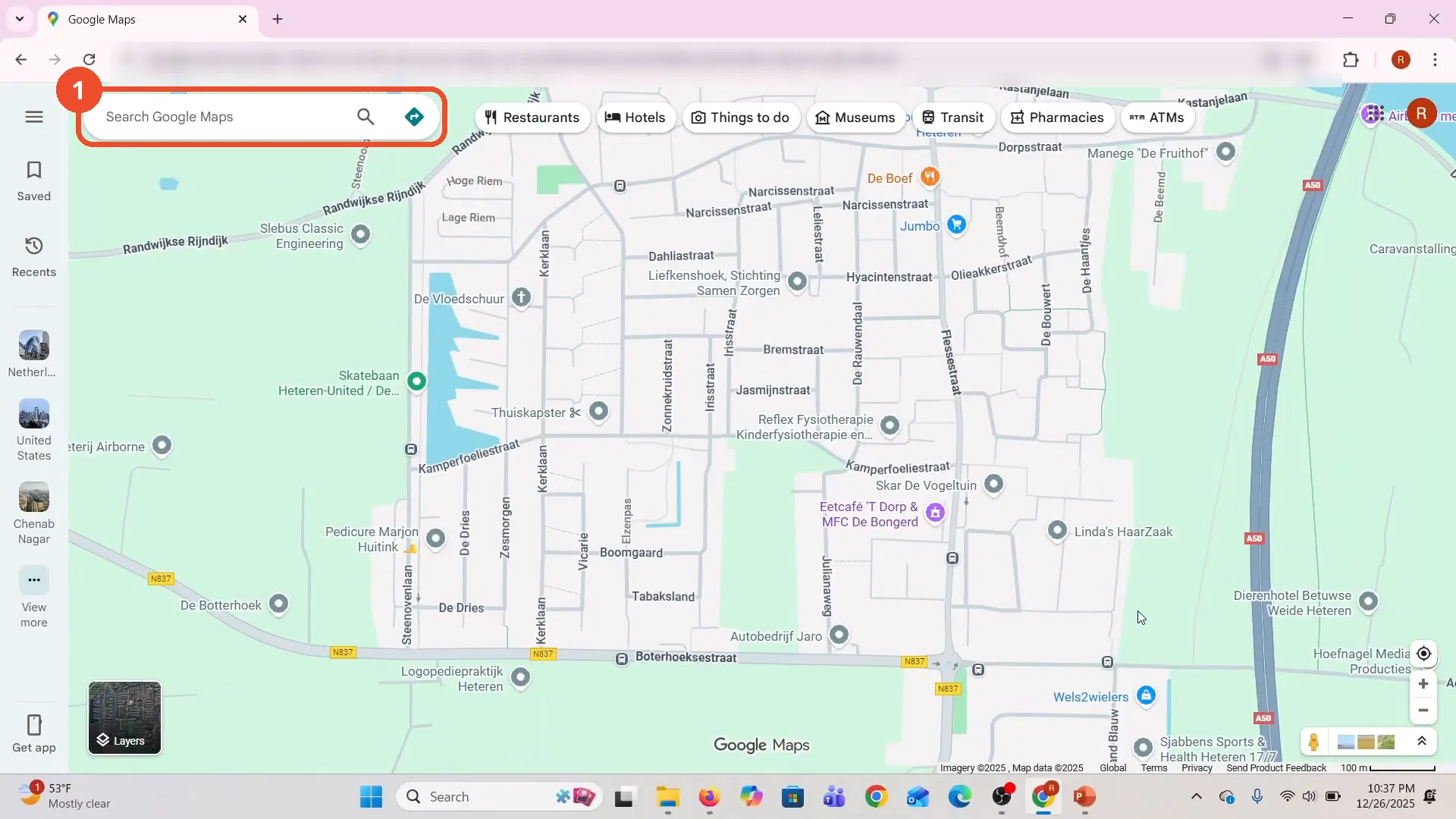
Open Google Maps and find your home
Open Google Maps in your browser and go to your home address. The film opens on the map around the home.
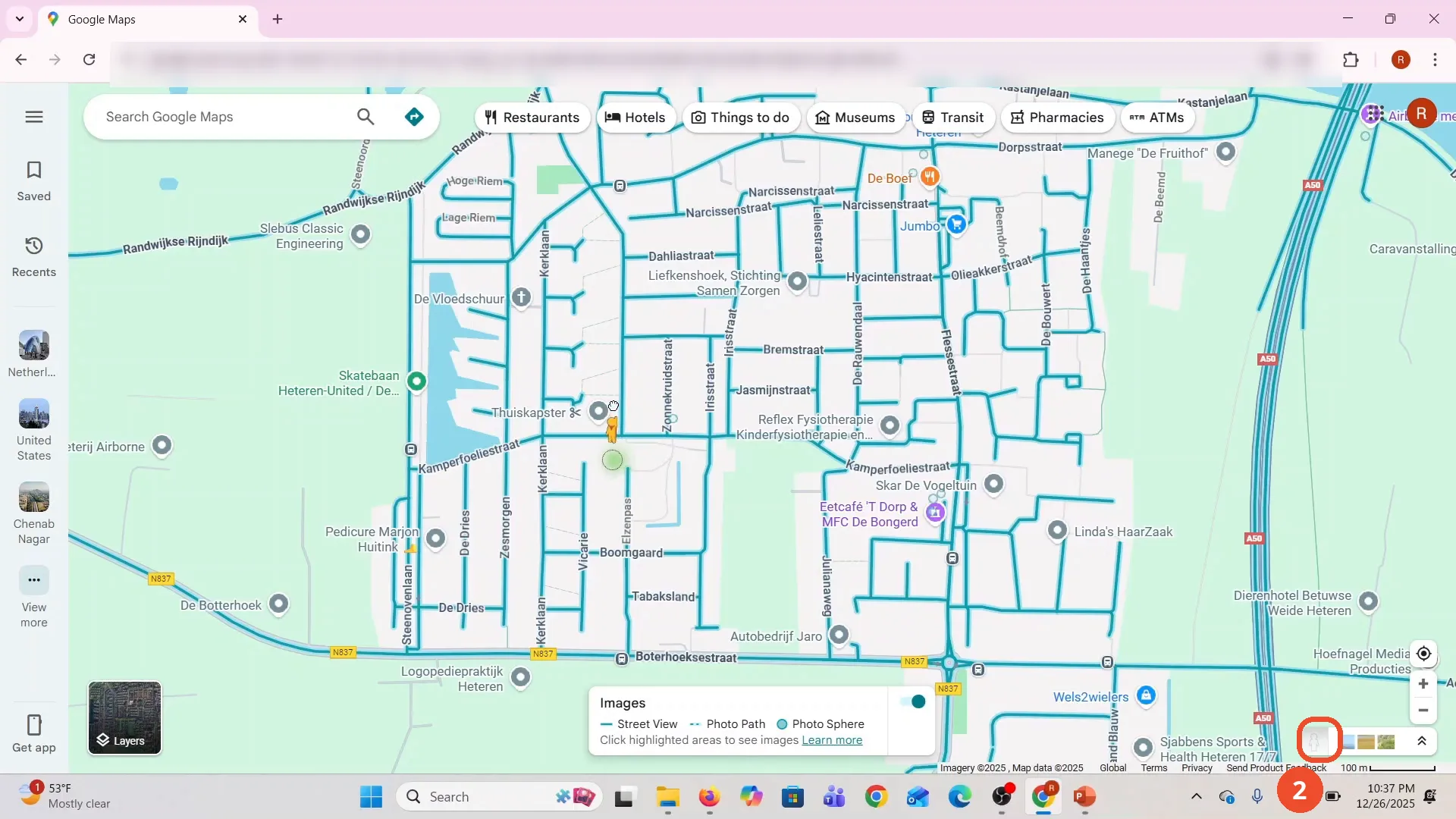
Drag Pegman onto your street
Drag the yellow Pegman from the bottom-right corner onto your street to open Street View. The film first turns on the Street View coverage layer, shown as blue lines on the streets.
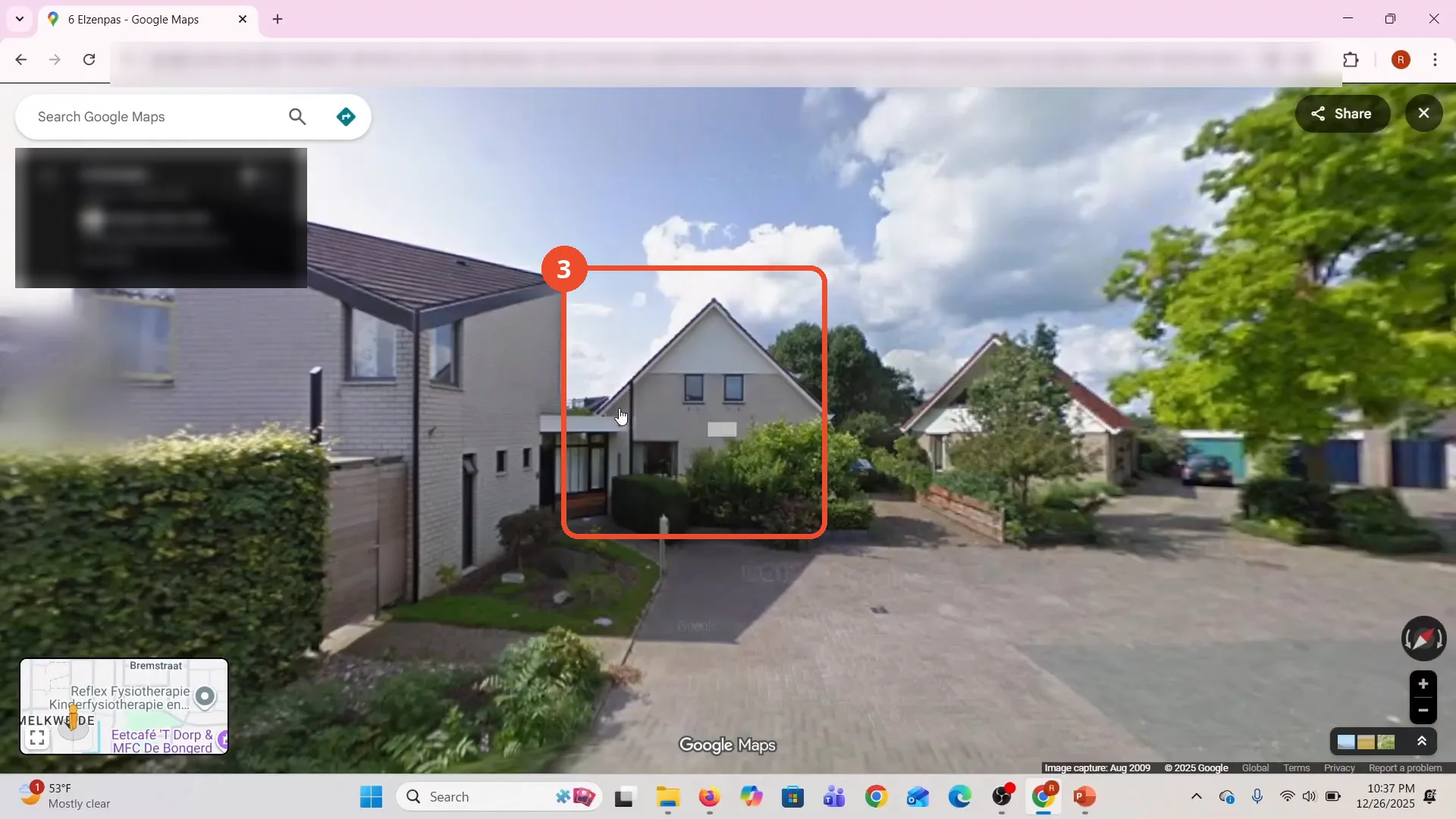
Check the Street View shows your home
Street View opens on your street. Check that the house in view is the one you want blurred - the film’s view shows the home in the centre of the frame.
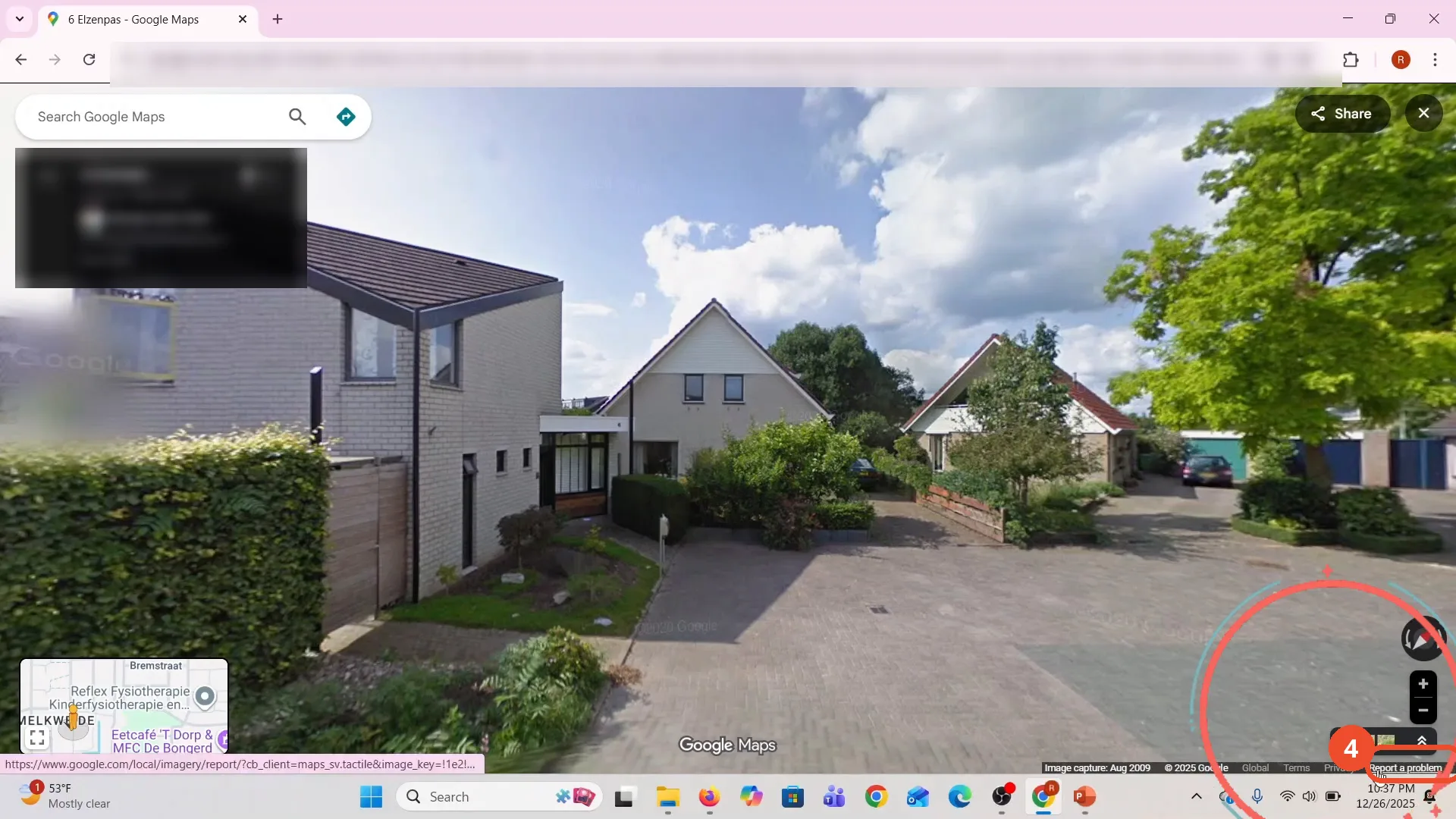
Click Report a problem
Click Report a problem in the bar at the bottom of the Street View - the film circles the link here. The Street View report page opens.
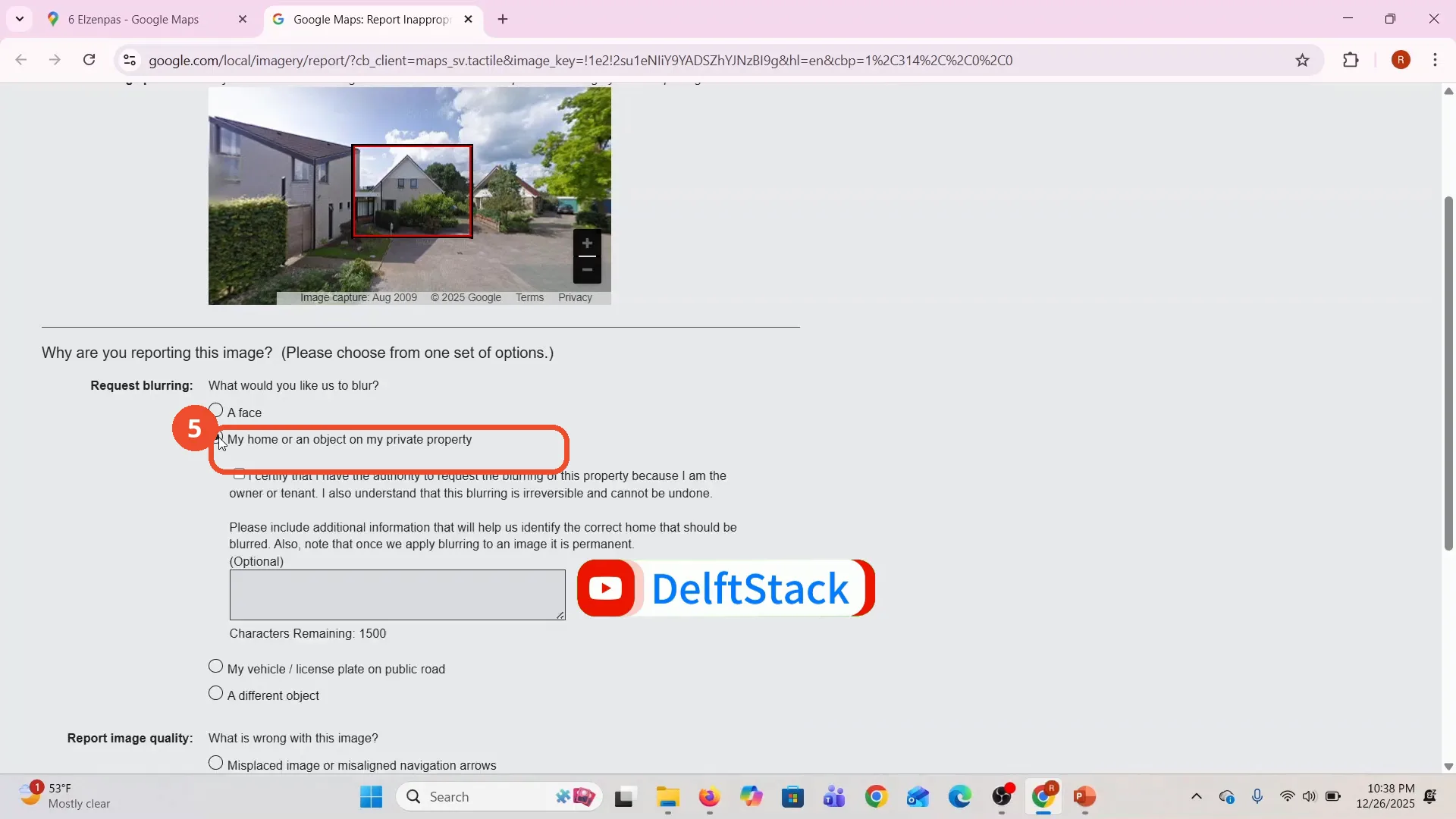
Choose My home
On the report page, under Request blurring, choose My home or an object on my private property. The form expands with a certification note.
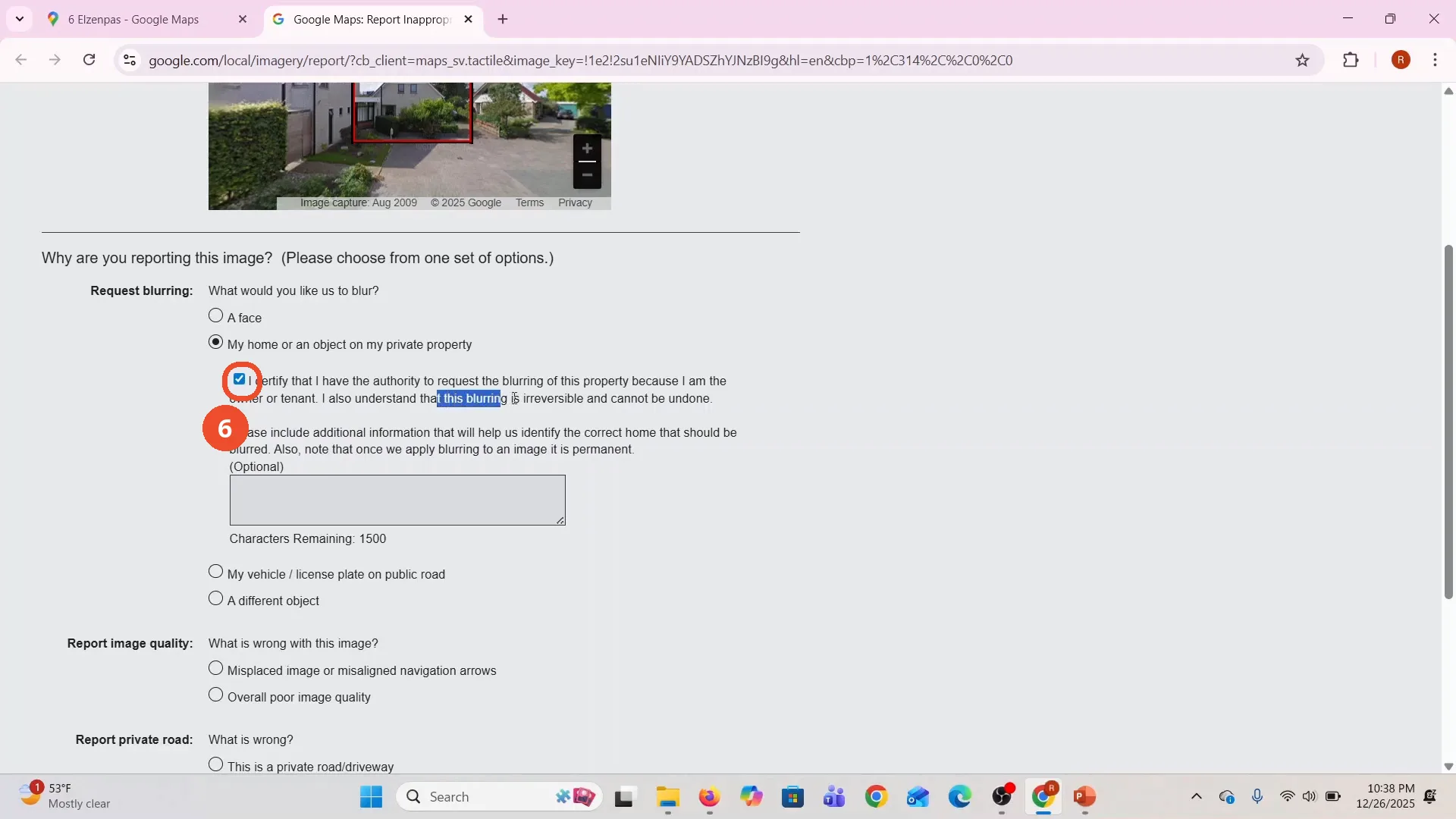
Tick the certify checkbox
Tick the box certifying that you have the authority to request the blurring because you are the owner or tenant, and that you understand the blurring is irreversible and cannot be undone.
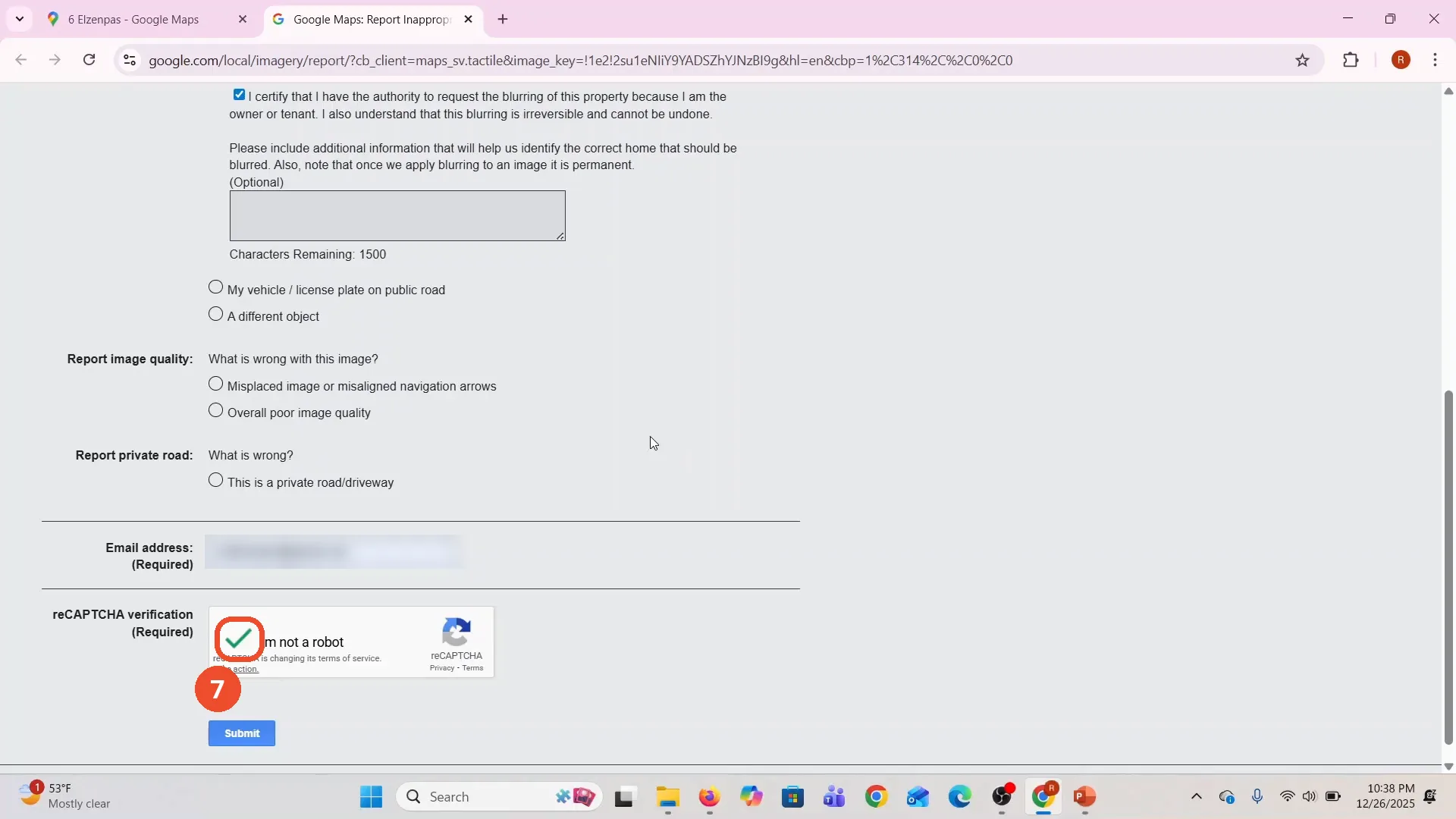
Enter your email and complete the CAPTCHA
Enter your email address in the Email address field and tick I’m not a robot to complete the CAPTCHA - the film shows the green check here. Then click Submit to send the request.
Good to know
- The film fills in the form and completes the CAPTCHA, but it never clicks Submit and no confirmation is shown - the request is not sent on camera, so click Submit yourself to finish.
- Blurring is permanent and cannot be undone - Google says so on the form, and the film highlights the same warning.
- The home address and the operator’s email address are blurred in the screenshots.
- The report page shows a preview of the Street View image with a red rectangle over the home - that rectangle marks what you are asking Google to blur.
- The Street View photo in the film is from August 2009; your own Street View image may be newer.
More on Google Maps
- How to Fix Blank Google Maps in Firefox
- How to Track Family Members on Google Maps
- How to Get Compass on Google Maps
- How to Change Routes in Google Maps
- How to Change the Year in Google Maps and View Past Locations
- How to Change Google Maps from Walking to Driving
- How to Pin Multiple Locations on Google Maps
- How to Remove Labels from Google Maps
- How to Change Vehicle Icon on Google Maps
- How to Delete Saved Trips on Google Maps
- How to See Elevation on Google Maps
- How to Create a Walking Route on Google Maps
- How to Add Multiple Stops on Google Maps
- How to Avoid Toll Roads on Google Maps
Guide complete
Every step above comes from the original recording, with a screenshot for each step. Want more like this? Browse all Google Maps guides.