How to Avoid Toll Roads on Google Maps
Google Maps can route you around toll roads. Get driving directions, open Route options, and tick Avoid tolls - the route updates to skip any toll roads.
- SystemWindows (browser)
- AppGoogle Maps web app
- Last verifiedNovember 20, 2026
Every screenshot below is taken from the actual recording on this device — no stock images.
Steps
Open Google Maps
Open Google Maps in your browser. The film opens on a satellite view of Montclair, New Jersey.
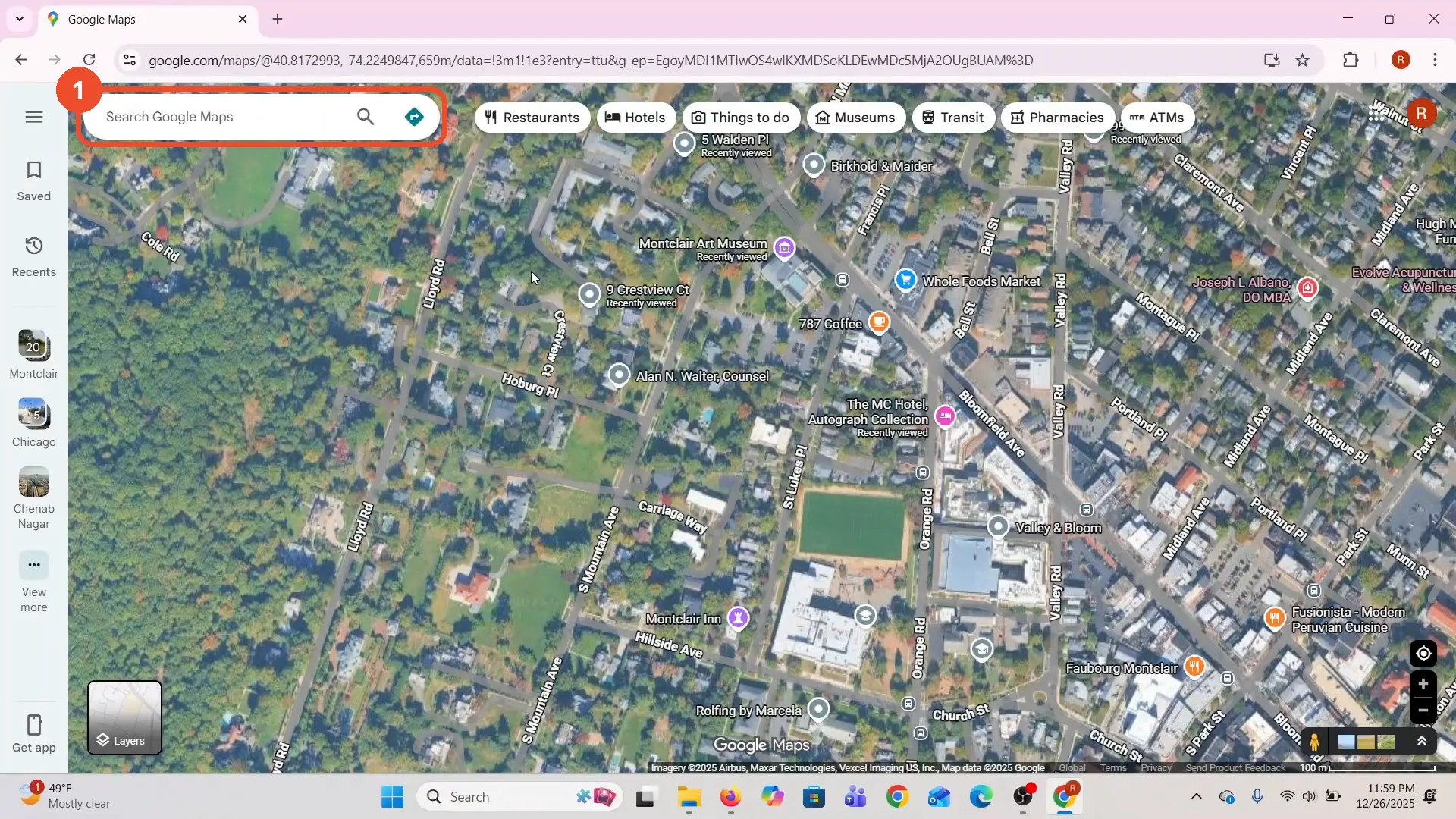
Click Directions and choose your starting point
Click the Directions arrow, then click the starting-point field and pick your start - the film picks Montclair Art Museum, 3 S Mountain Ave, from the suggestions.
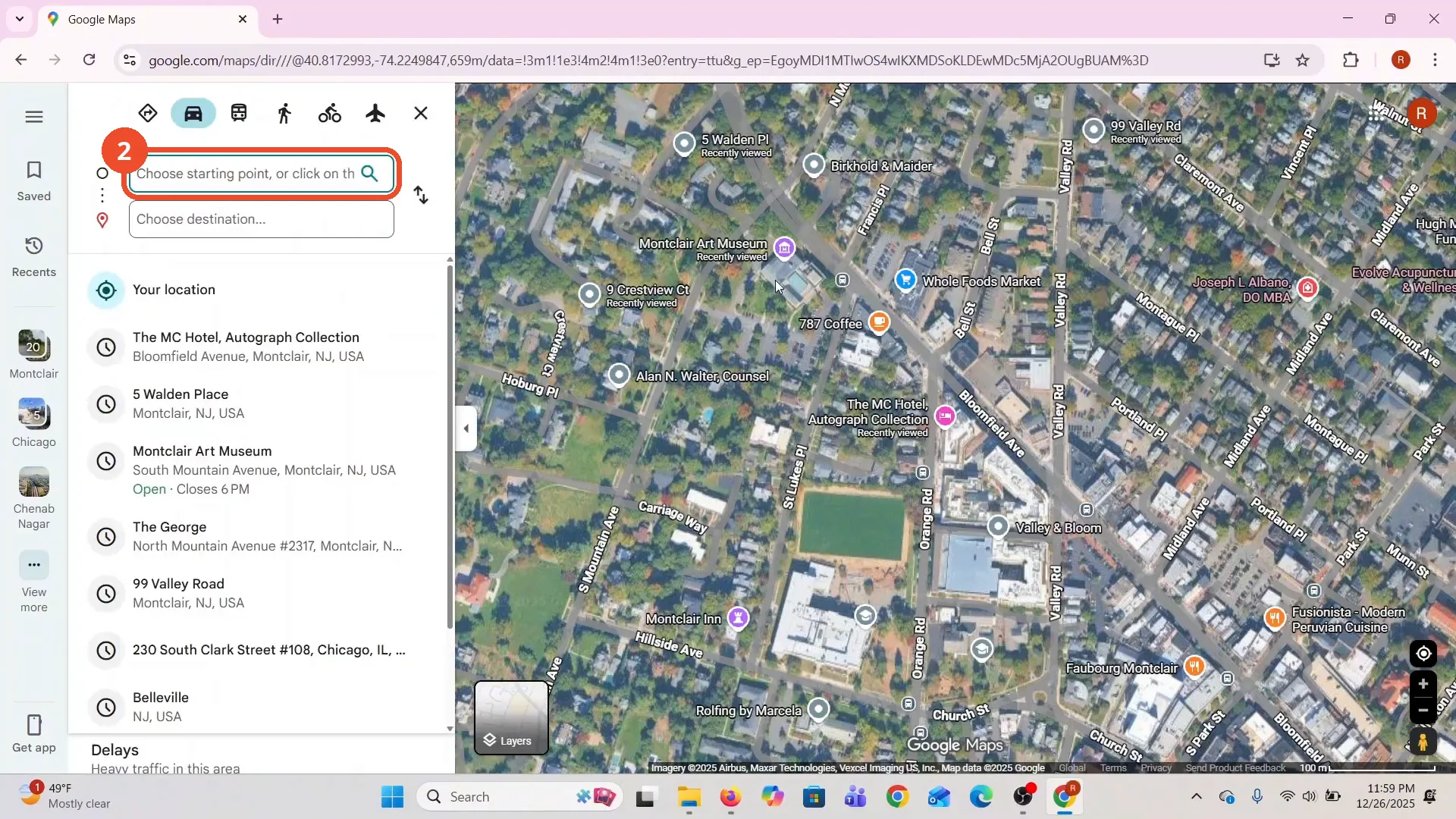
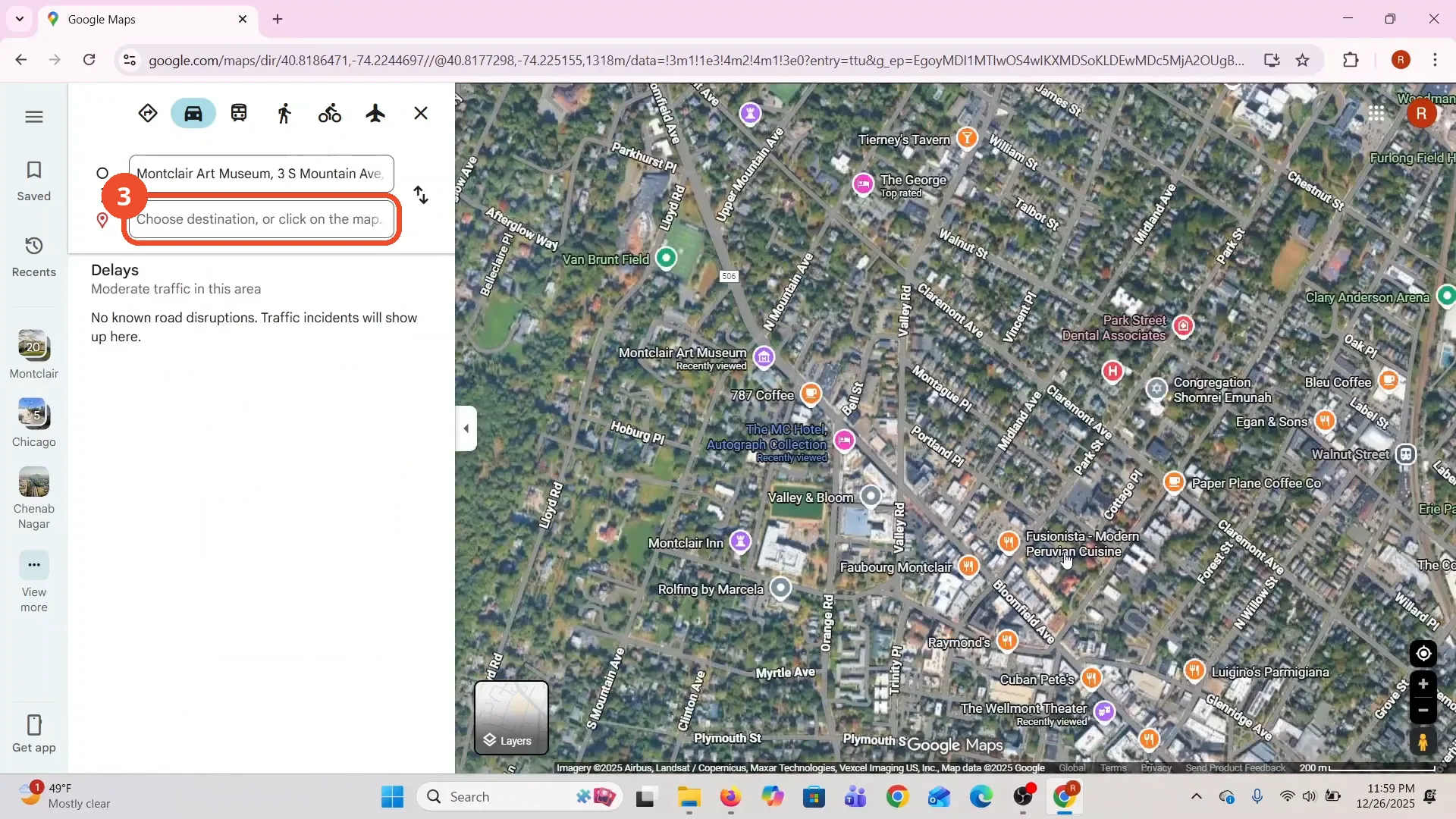
Choose your destination
Click the destination field and pick where you are going - the film picks Lake Crescent Inc, 25 Park St.
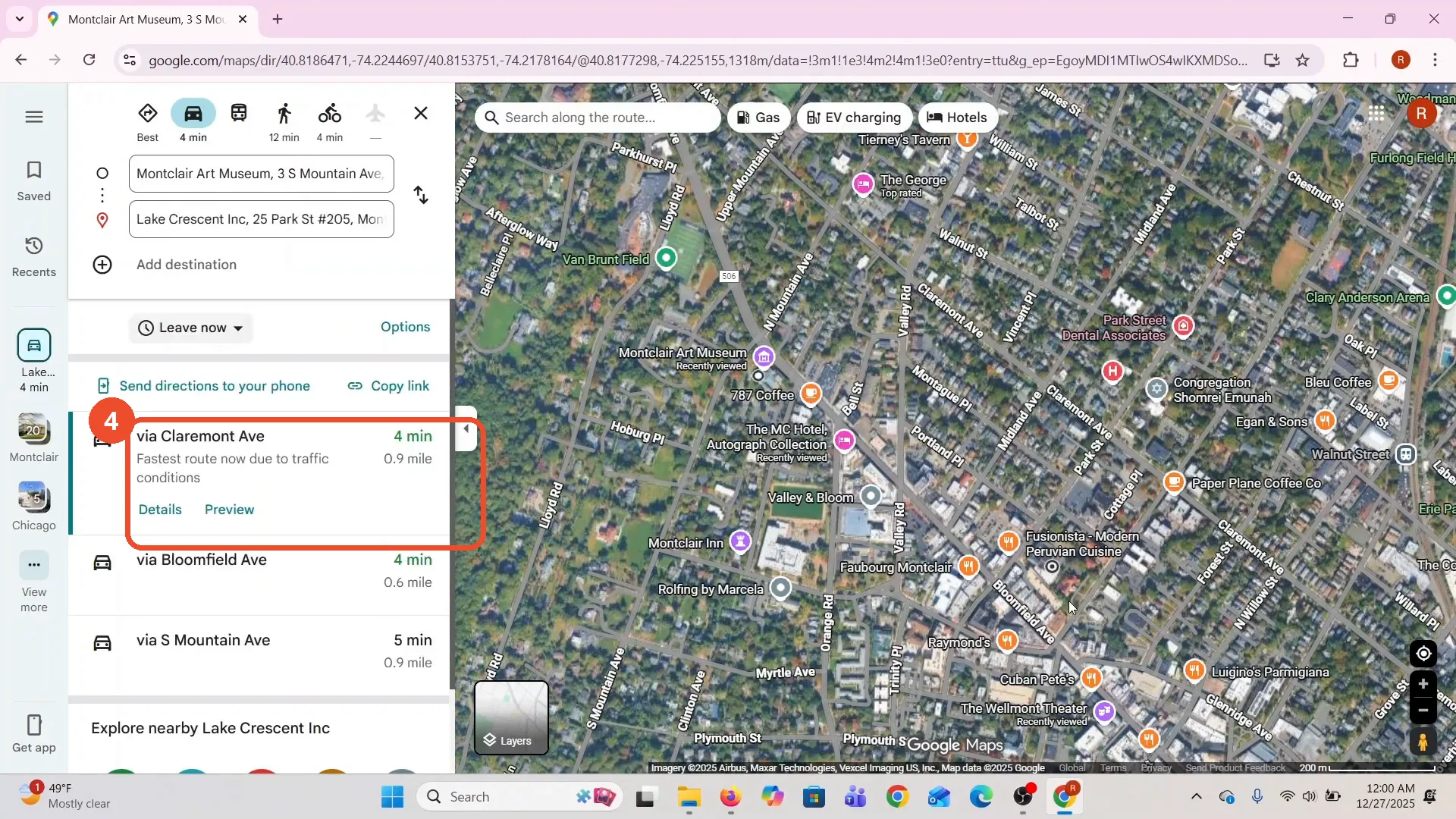
Check the route
Google Maps shows the driving routes. The fastest is via Claremont Ave: 4 minutes, 0.9 mile.
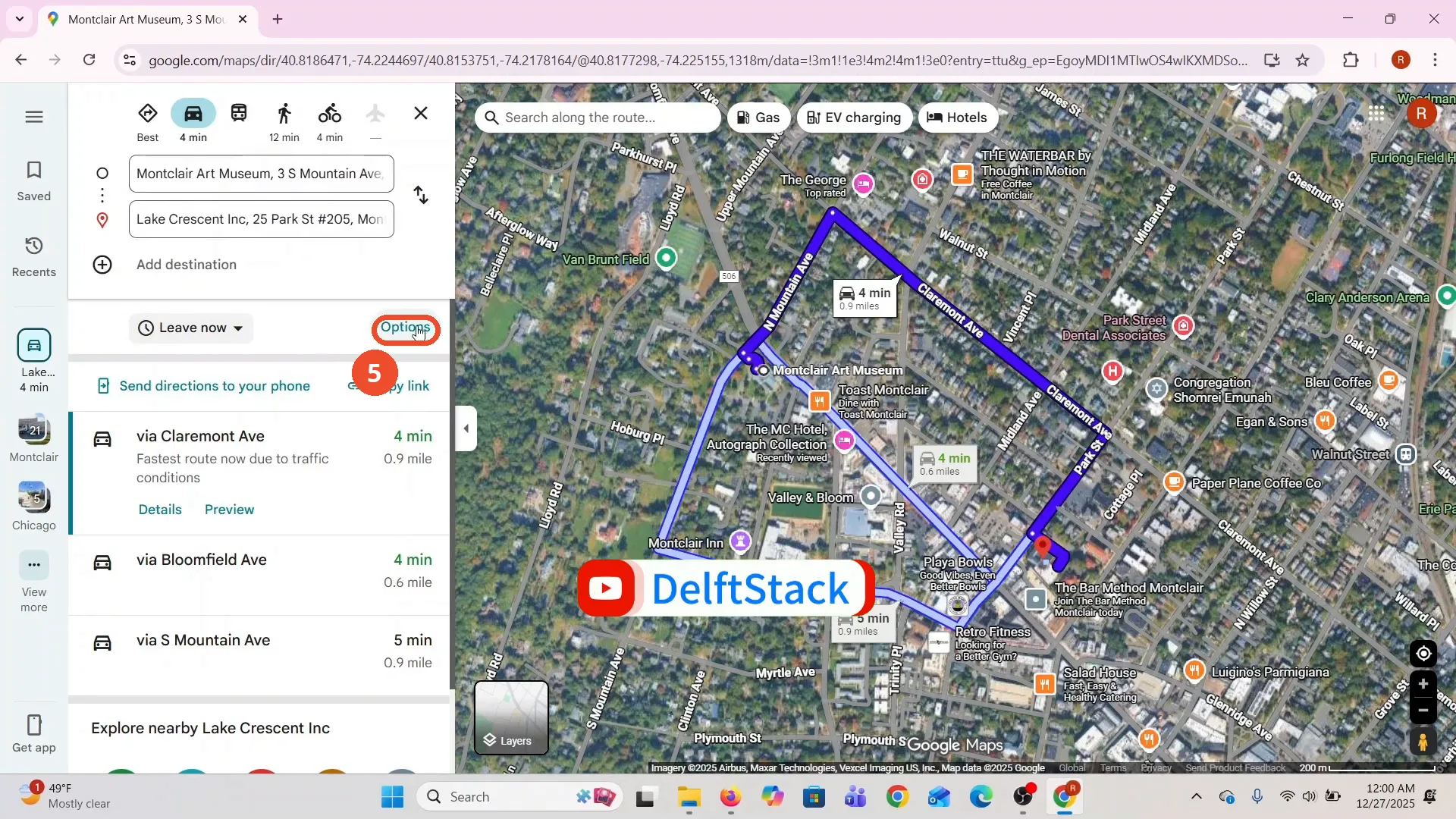
Click Options
Click Options at the bottom of the route panel to open the Route options panel.
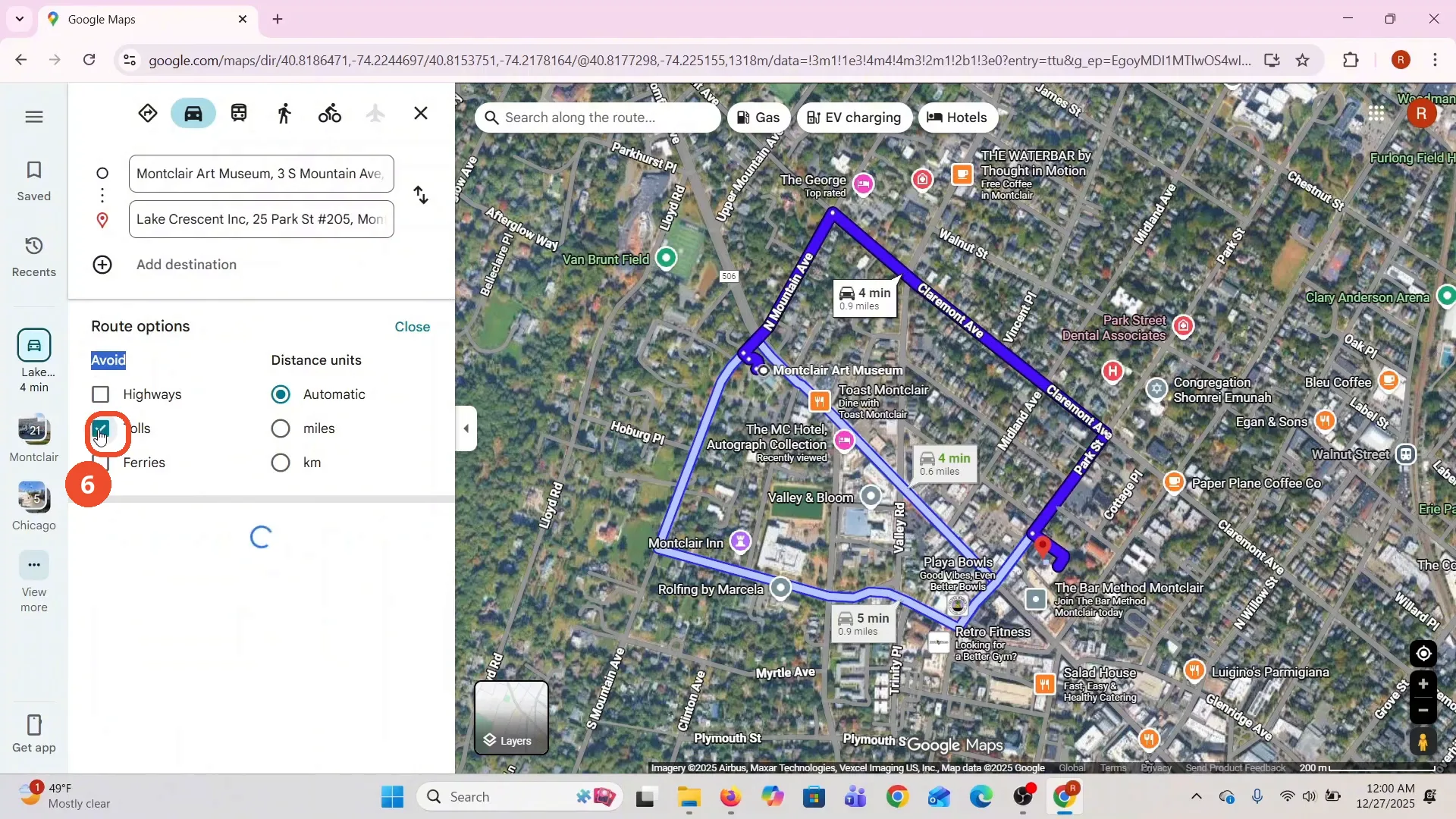
Tick Avoid tolls
In Route options, tick the Tolls box under Avoid. The film ticks it here - the box turns teal with a check mark - and the route starts recomputing.
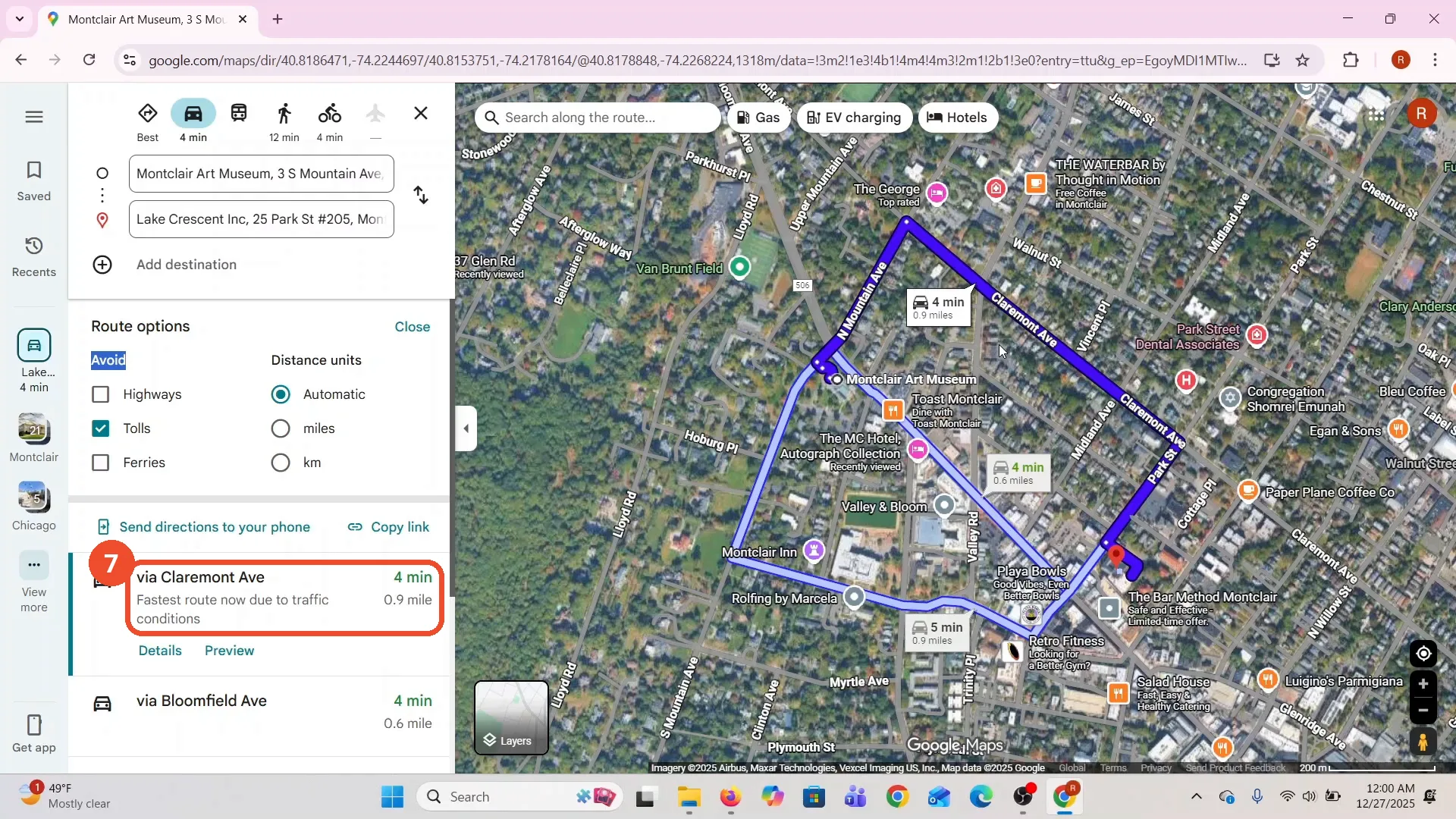
Check the updated route
The Tolls box stays ticked and the route below still reads via Claremont Ave, 4 minutes. On this short local route the time does not change, because there are no toll roads on it to avoid.
Good to know
- The film ticks Avoid tolls on camera, but the route itself does not change: via Claremont Ave stays 4 minutes, because this short local route has no toll roads.
- The narration says to make sure you are signed in to your Google account, but the film never shows signing in - it starts on the map already.
- Route options also lets you avoid highways and ferries, and switch distance units between Automatic, miles, and km.
- The film’s own blue highlight on the word Avoid in the Route options panel is part of the video, not an annotation.
More on Google Maps
- How to Fix Blank Google Maps in Firefox
- How to Track Family Members on Google Maps
- How to Get Compass on Google Maps
- How to Change Routes in Google Maps
- How to Change the Year in Google Maps and View Past Locations
- How to Change Google Maps from Walking to Driving
- How to Pin Multiple Locations on Google Maps
- How to Remove Labels from Google Maps
- How to Change Vehicle Icon on Google Maps
- How to Delete Saved Trips on Google Maps
- How to See Elevation on Google Maps
- How to Create a Walking Route on Google Maps
- How to Add Multiple Stops on Google Maps
- Blur Your Home on Google Maps to Protect Your Privacy
Guide complete
Every step above comes from the original recording, with a screenshot for each step. Want more like this? Browse all Google Maps guides.