How to Add Multiple Stops on Google Maps
Google Maps lets you add extra stops to a driving route with Add destination. Set your start and destination, add each stop, then drag the stops into the order you want to visit them.
- SystemWindows (browser)
- AppGoogle Maps web app
- Last verifiedNovember 20, 2026
Every screenshot below is taken from the actual recording on this device — no stock images.
Steps
Open Google Maps
Open Google Maps in your browser. The film opens on a map of Montclair, New Jersey, with the search panel already showing recent searches.
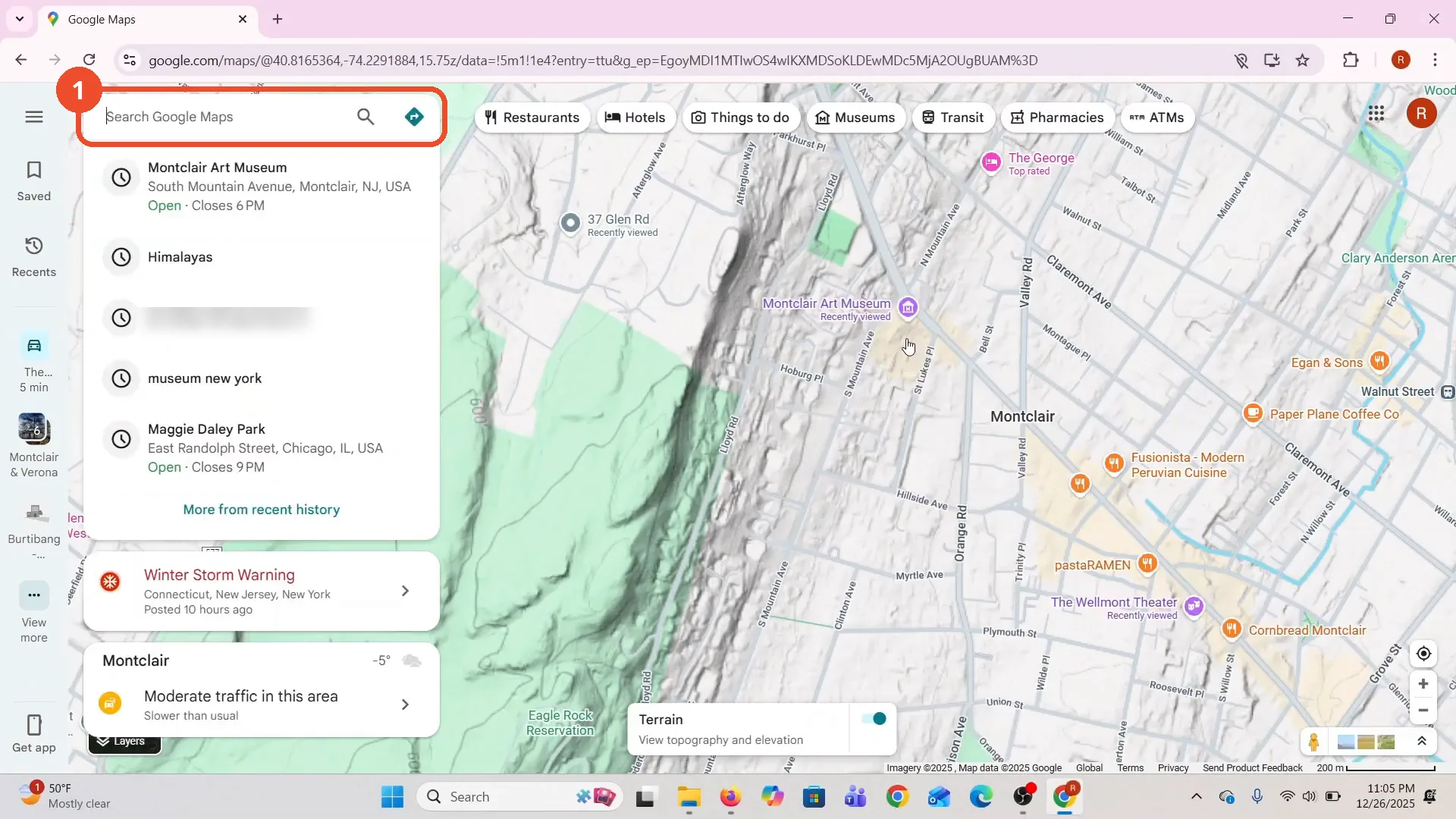
Click Directions and choose your starting point
Click the Directions arrow at the top of the search panel, then click the starting-point field and type your start - the film types The George and picks The George, 37 N Mountain Ave.
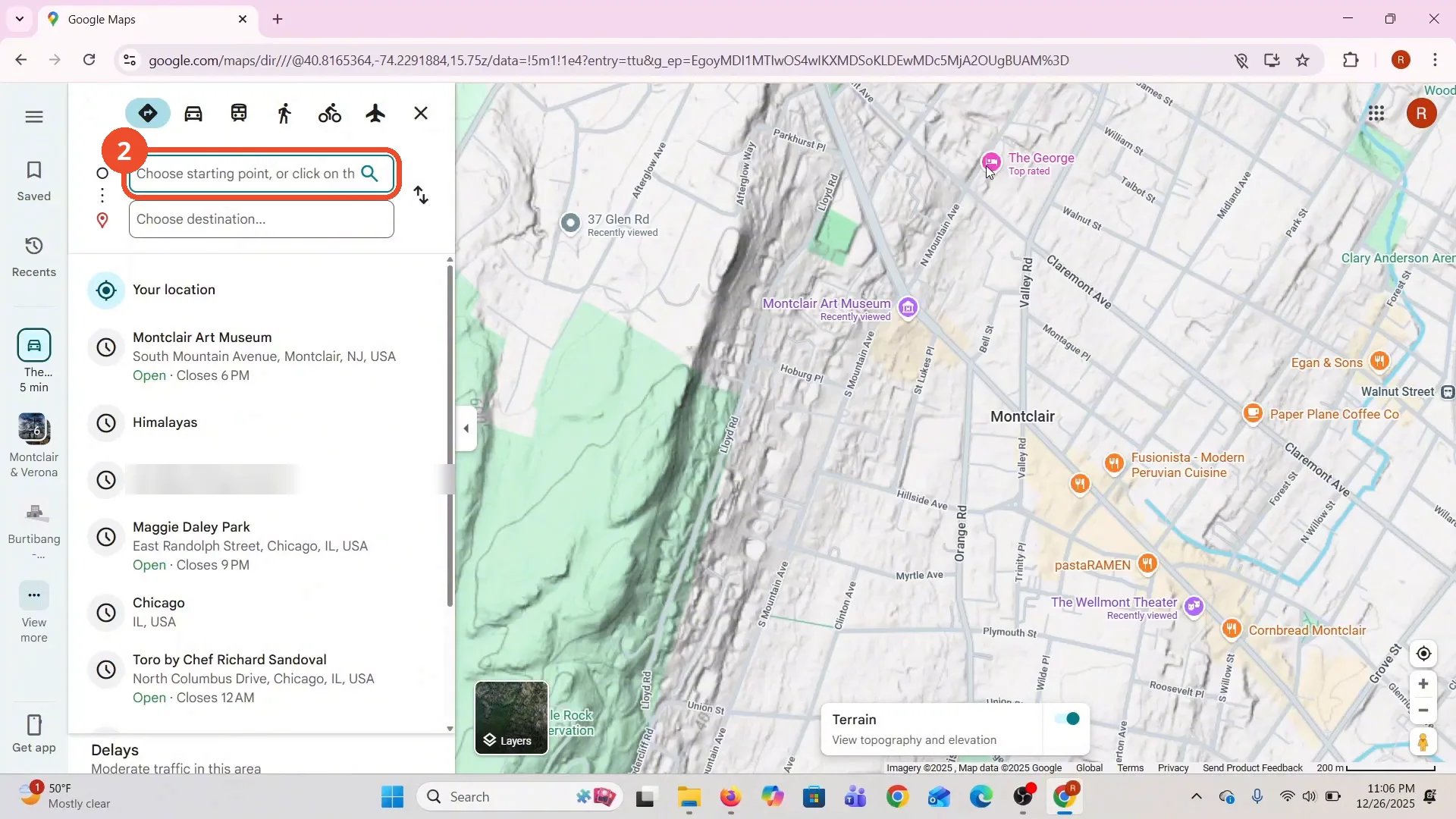
Set your destination
Click the destination field and choose where you are going. The film clicks a place on the map, so the destination field fills with its coordinates (40.81204, -74.21551) instead of a street address.
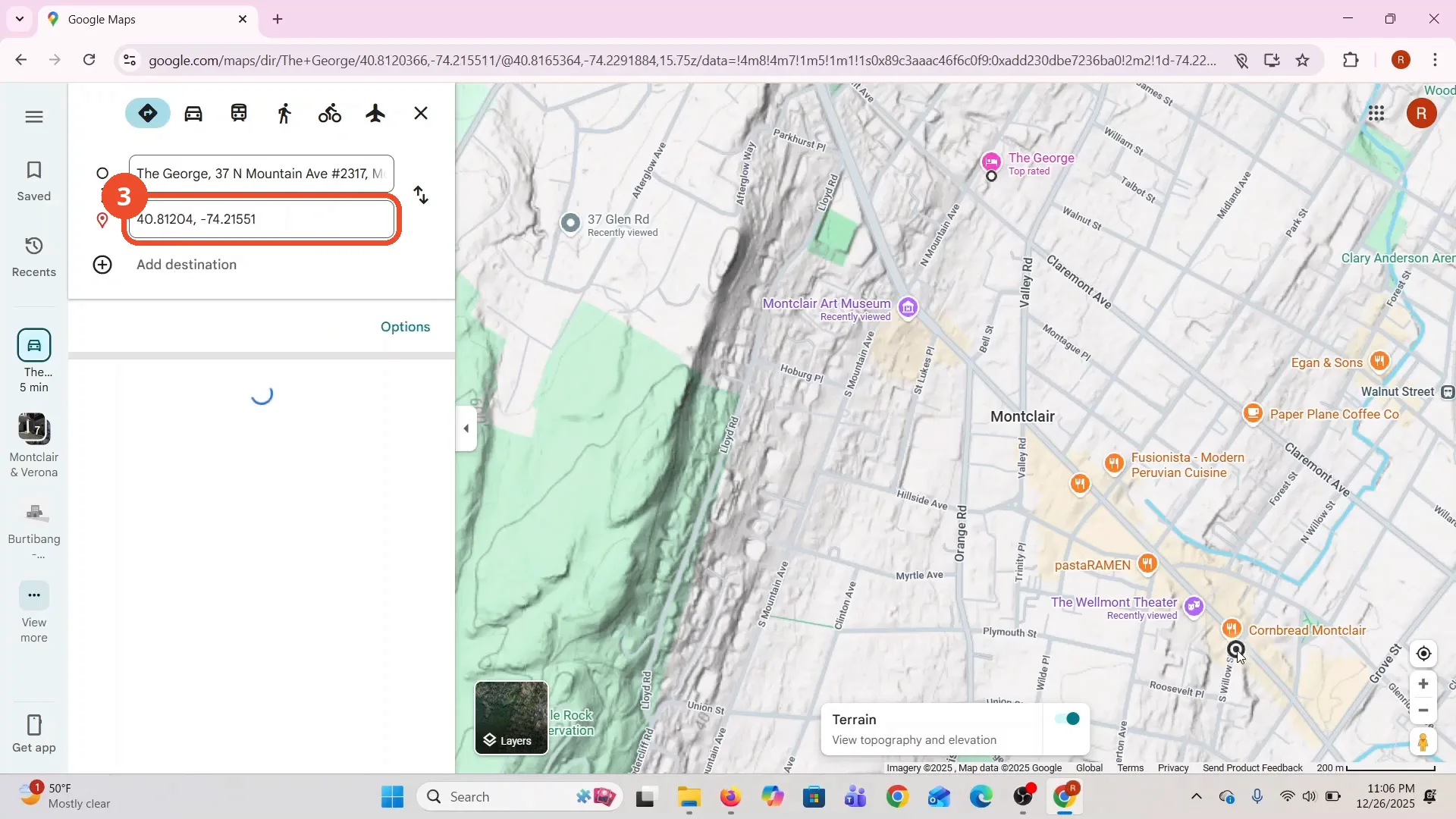
Click Add destination
Click Add destination under the destination field - the film’s cursor is on it here. A new empty destination field appears below, and the first destination has resolved to 366 Bloomfield Ave, Montclair.
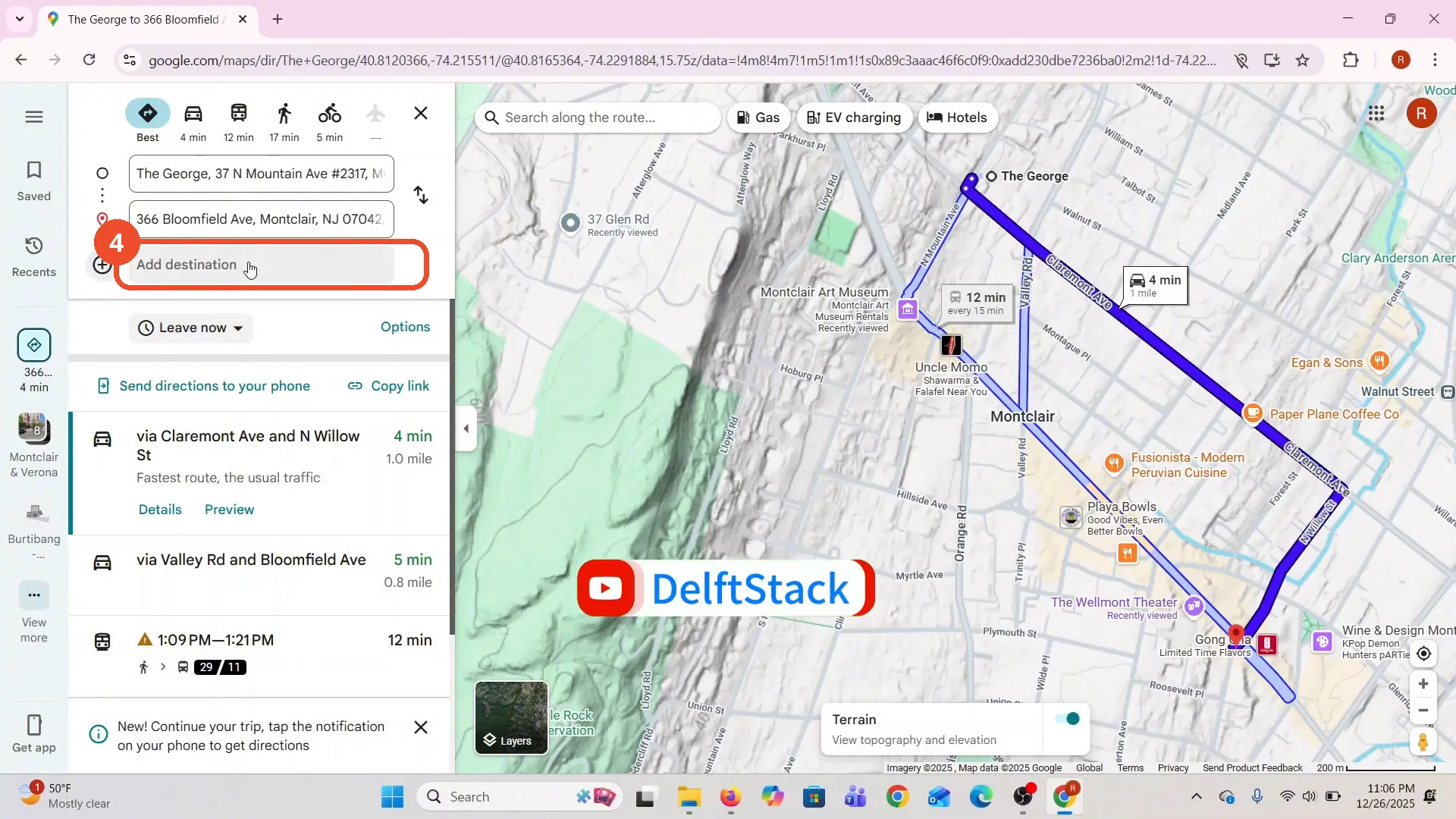
Add your first extra stop
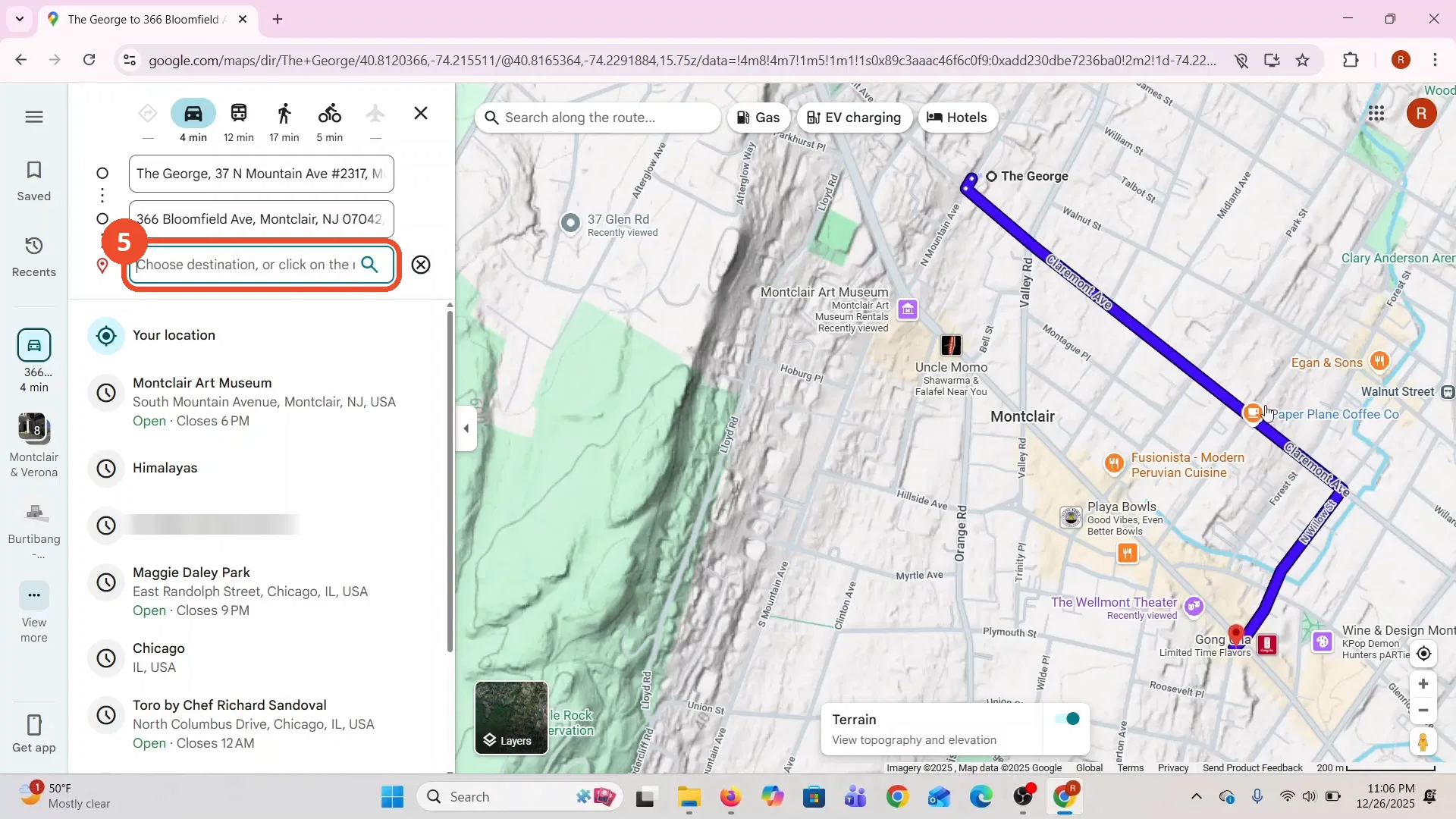
Click the new field and choose your next stop - the film clicks another place on the map. The stop appears as coordinates (40.81808, -74.21245) in the new field.
Add one more stop
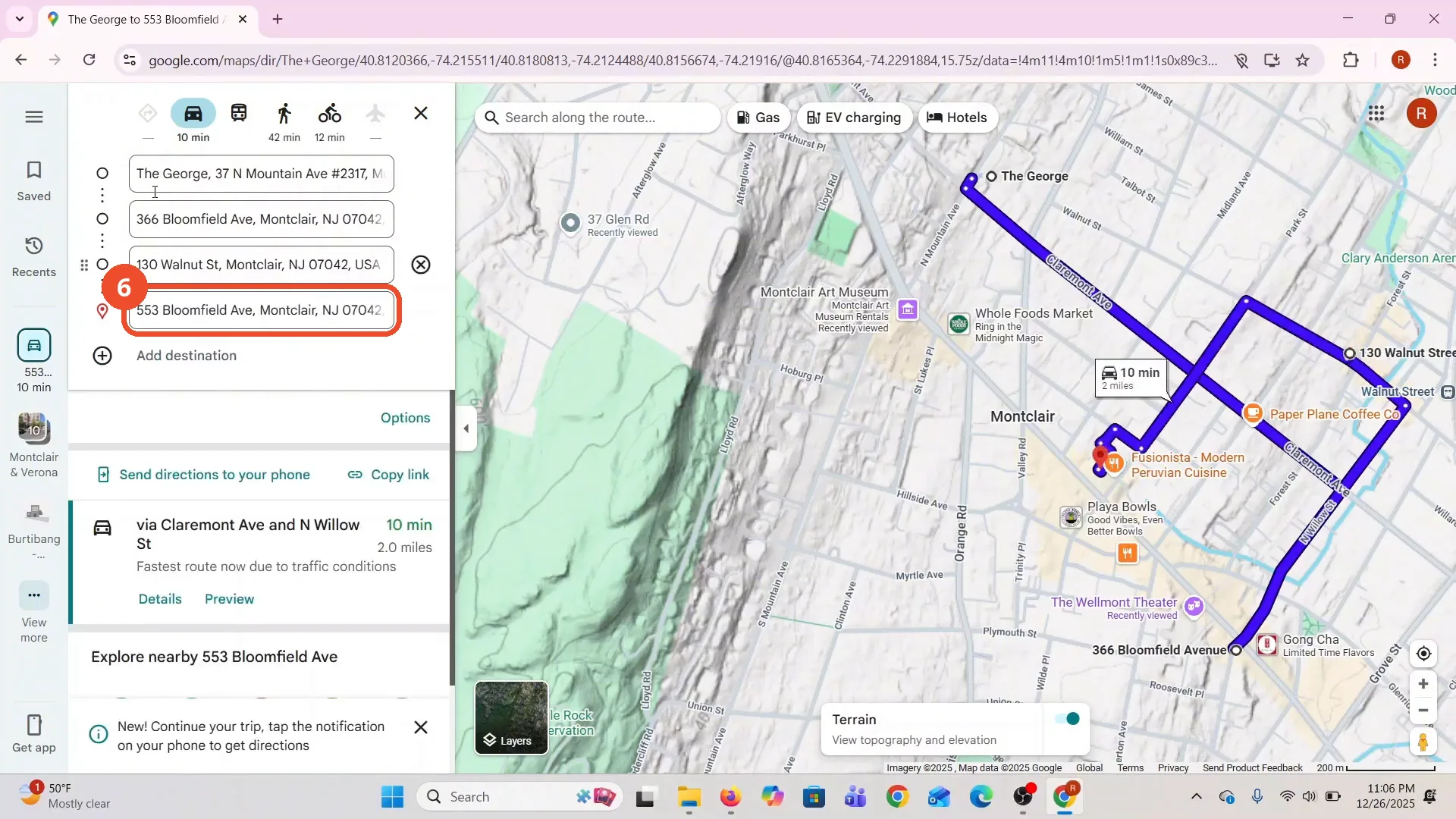
Click Add destination again and add one more stop. The film adds 553 Bloomfield Ave, so the route now runs The George to 366 Bloomfield Ave to 130 Walnut St to 553 Bloomfield Ave, 10 minutes by car. The earlier coordinate stop has resolved to 130 Walnut St.
Drag a stop to reorder the route
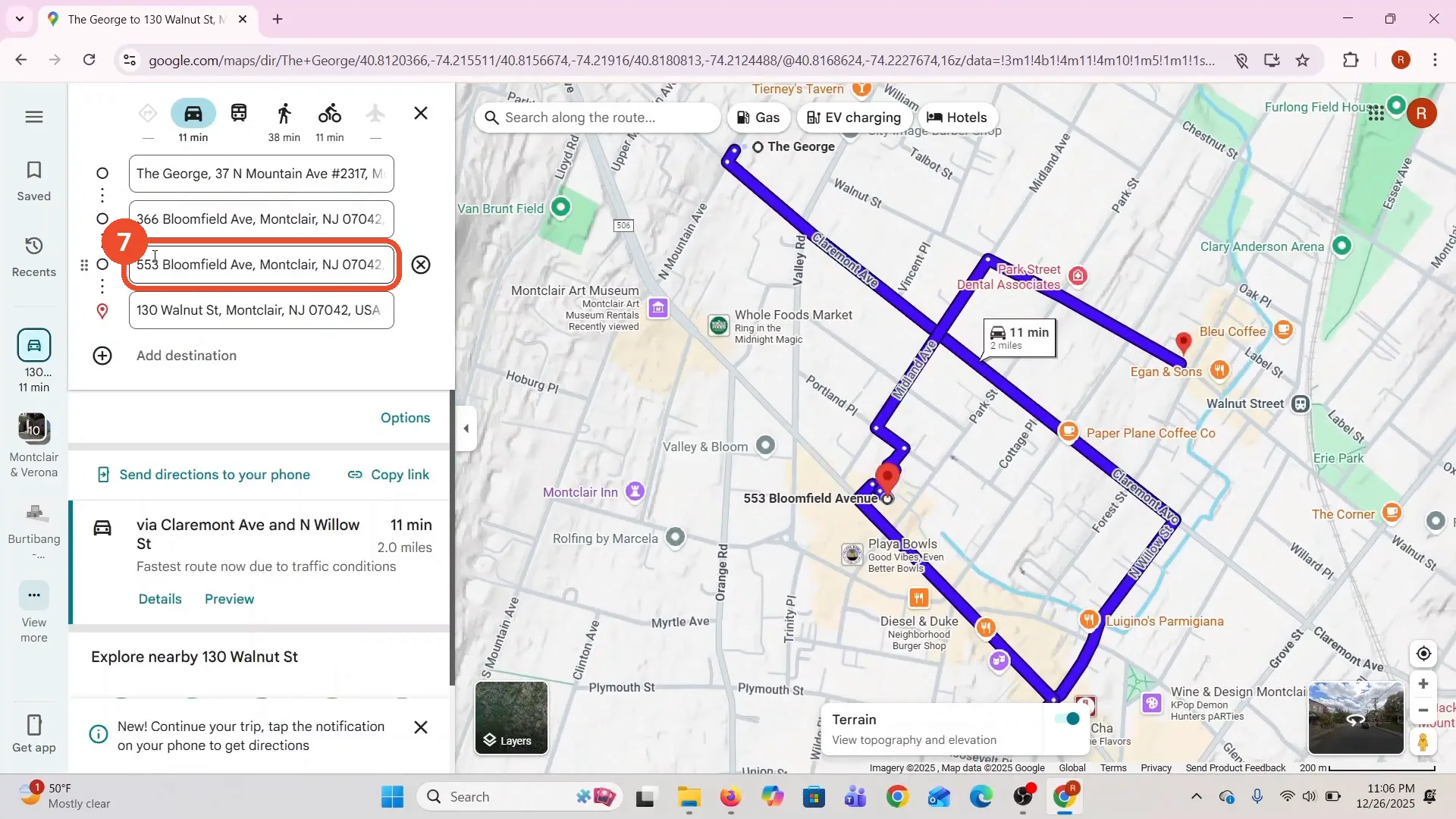
Drag a stop by the grip handle at the left of its row to change the visit order. The film drags 553 Bloomfield Ave above 130 Walnut St, and the drive time updates from 10 to 11 minutes.
Good to know
- The narration names the stops Egan and Sons and Fusionista Modern, but on screen the film adds them by clicking the map - they appear as coordinates that resolve to 130 Walnut St and 553 Bloomfield Ave, and the business names never appear in the directions panel.
- The film opens on a route that is already on screen before the title card; the steps above start from the fresh Directions search that follows it.
- You can keep adding stops with Add destination - the film adds two extra stops, for four places in total.
- Dragging a stop changes the visit order and the drive time: moving 553 Bloomfield Ave above 130 Walnut St changes the route from 10 to 11 minutes.
- The home address in the film’s recent-searches list is blurred in the screenshots.
More on Google Maps
- How to Fix Blank Google Maps in Firefox
- How to Track Family Members on Google Maps
- How to Get Compass on Google Maps
- How to Change Routes in Google Maps
- How to Change the Year in Google Maps and View Past Locations
- How to Change Google Maps from Walking to Driving
- How to Pin Multiple Locations on Google Maps
- How to Remove Labels from Google Maps
- How to Change Vehicle Icon on Google Maps
- How to Delete Saved Trips on Google Maps
- How to See Elevation on Google Maps
- How to Create a Walking Route on Google Maps
- Blur Your Home on Google Maps to Protect Your Privacy
- How to Avoid Toll Roads on Google Maps
Guide complete
Every step above comes from the original recording, with a screenshot for each step. Want more like this? Browse all Google Maps guides.