How to Set Up Out of Office Reply in Gmail
Gmail’s vacation responder sends an automatic reply while you are away. Turn it on in Settings, pick your dates, write a subject and a message, and save — anyone who emails you during that time gets your reply once, and Gmail repeats it at most once every four days per person. The film sets the reply up with a first day of 9 February 2026, the subject “out of office”, and the message “hi, sorry I’m away, until next week”. One honest note: the film demonstrates every control but never shows Save Changes being clicked — step 9 explains.
- SystemWindows (browser)
- AppGmail web app
- Last verifiedNovember 24, 2026
Every screenshot below is taken from the actual recording on this device — no stock images.
Steps
Open Gmail
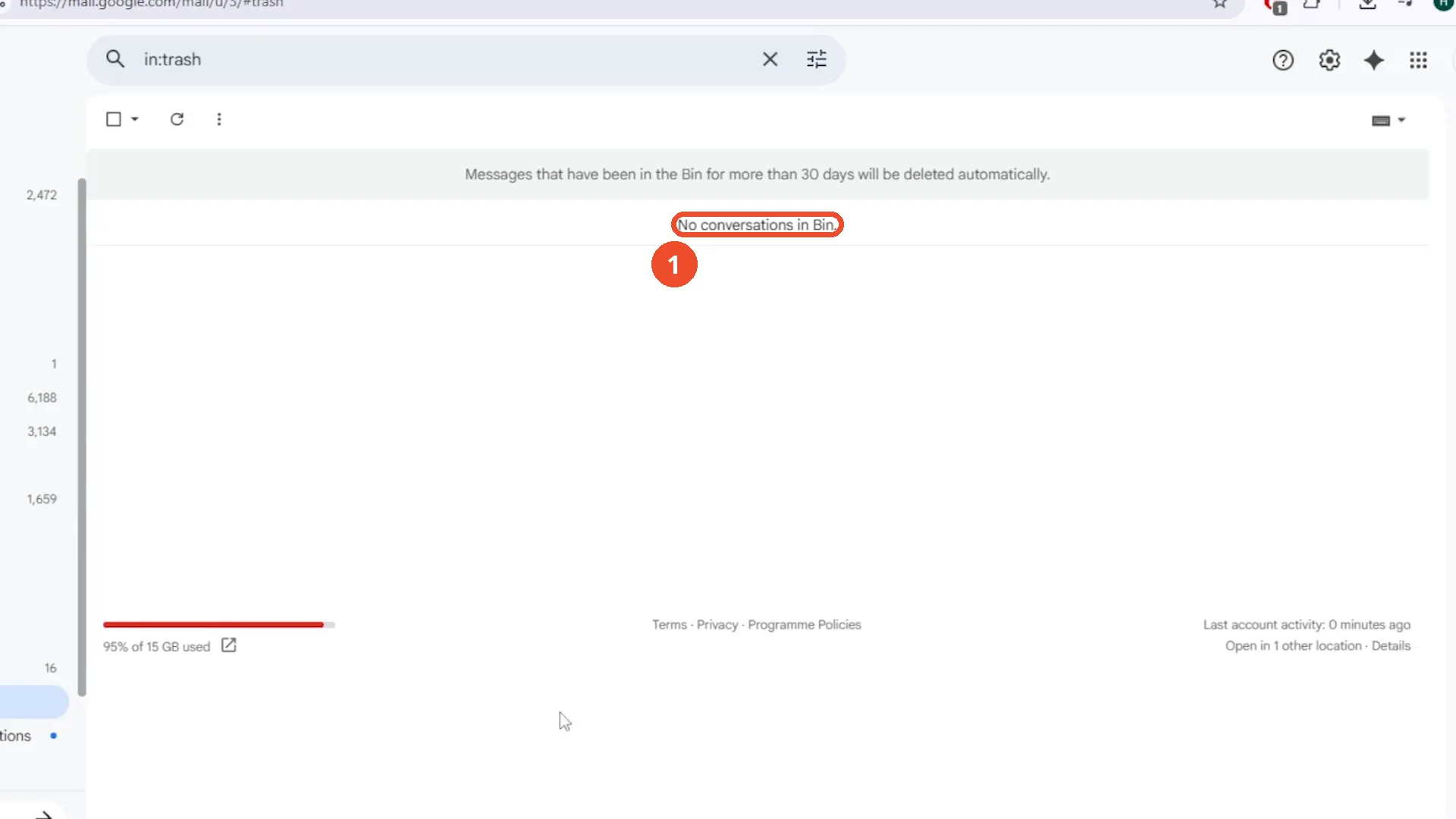
Open Gmail in your browser and sign in. The film opens on the Bin view, which is empty — “No conversations in Bin.” — not on the inbox.
Click the Settings gear
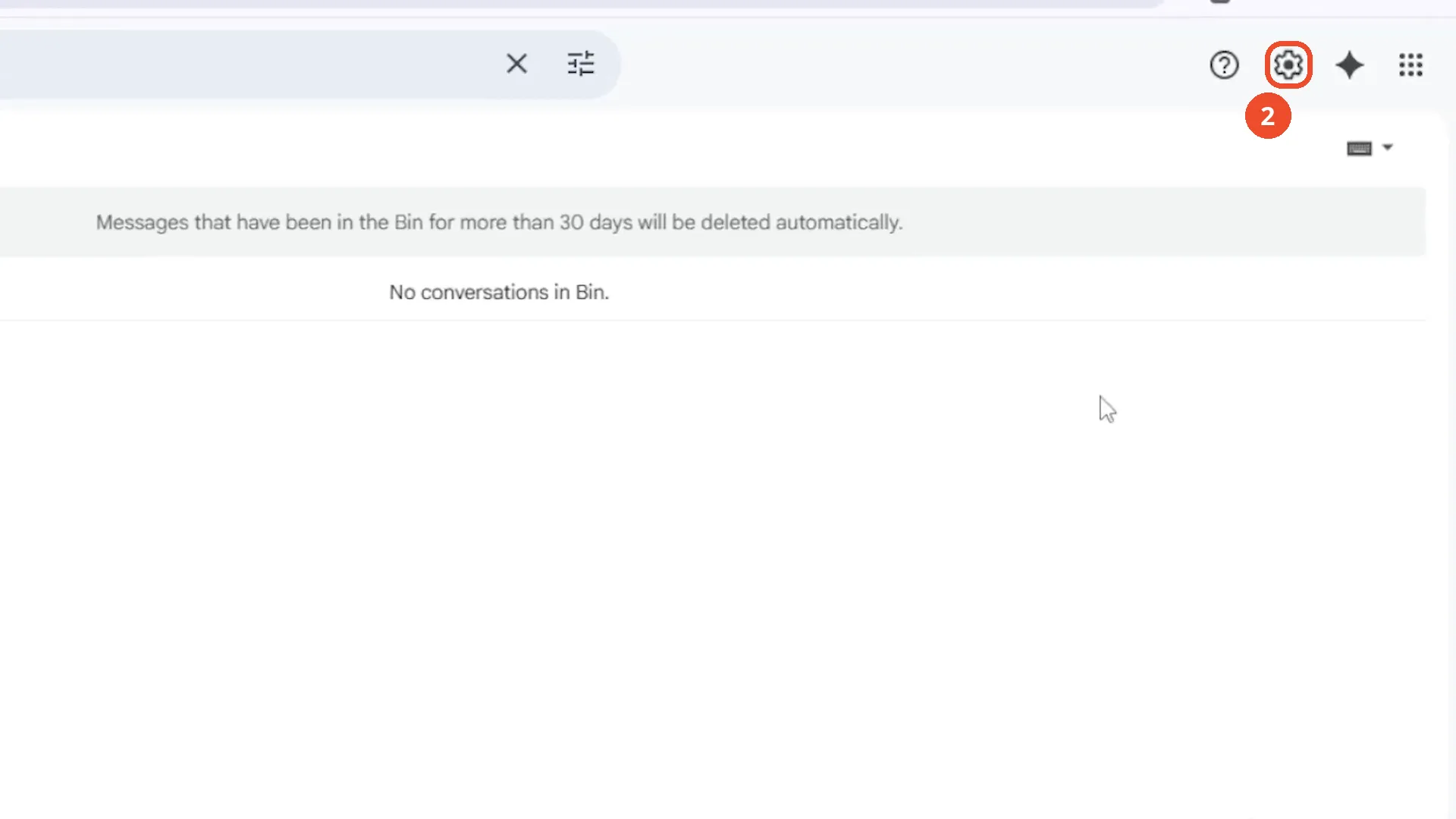
At the top right of Gmail, click the gear icon. The Quick settings panel opens on the right.
Click See all settings
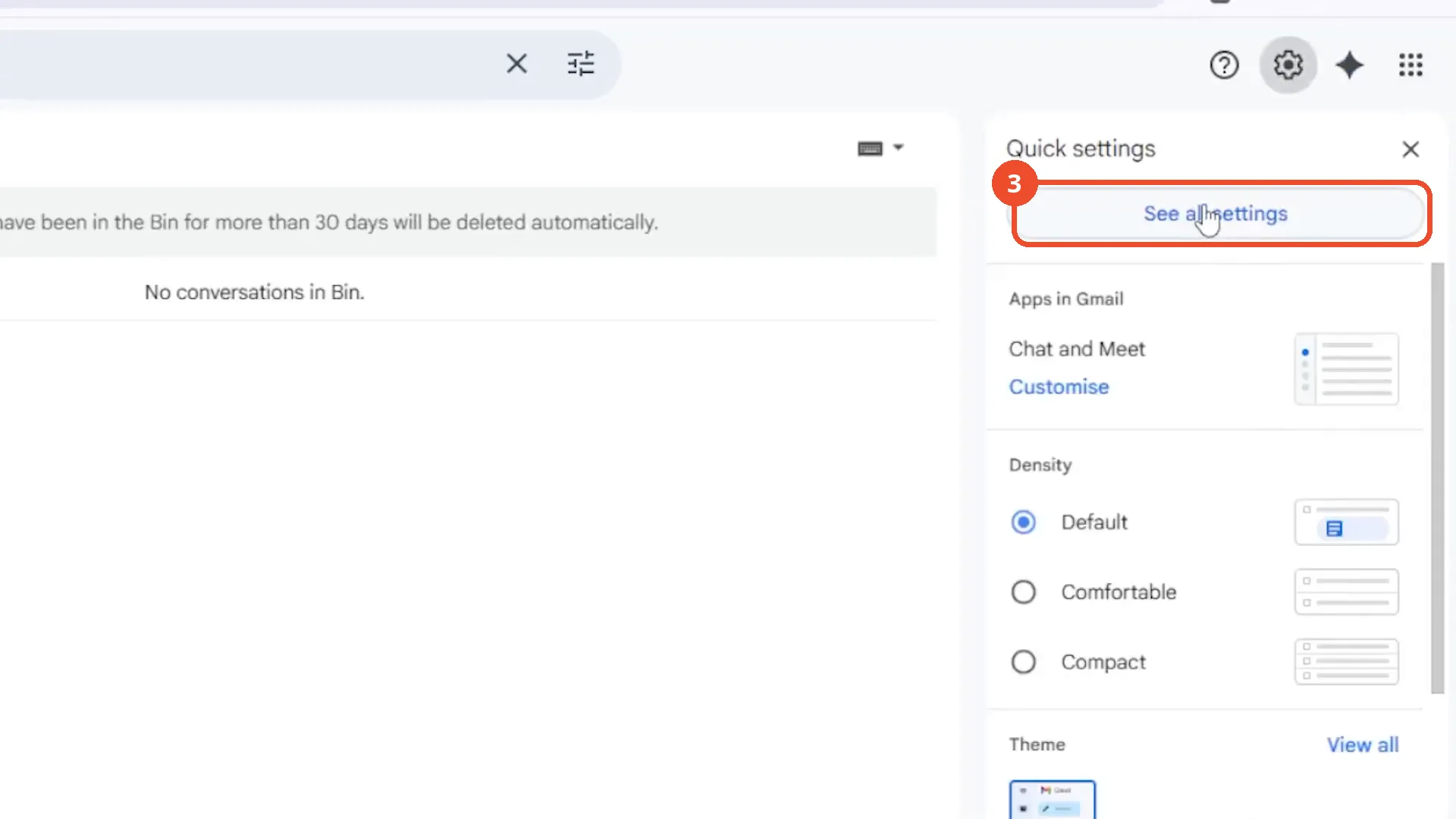
At the top of the Quick settings panel, click “See all settings”. Gmail opens the full Settings page on the General tab.
Turn on Out of Office AutoReply
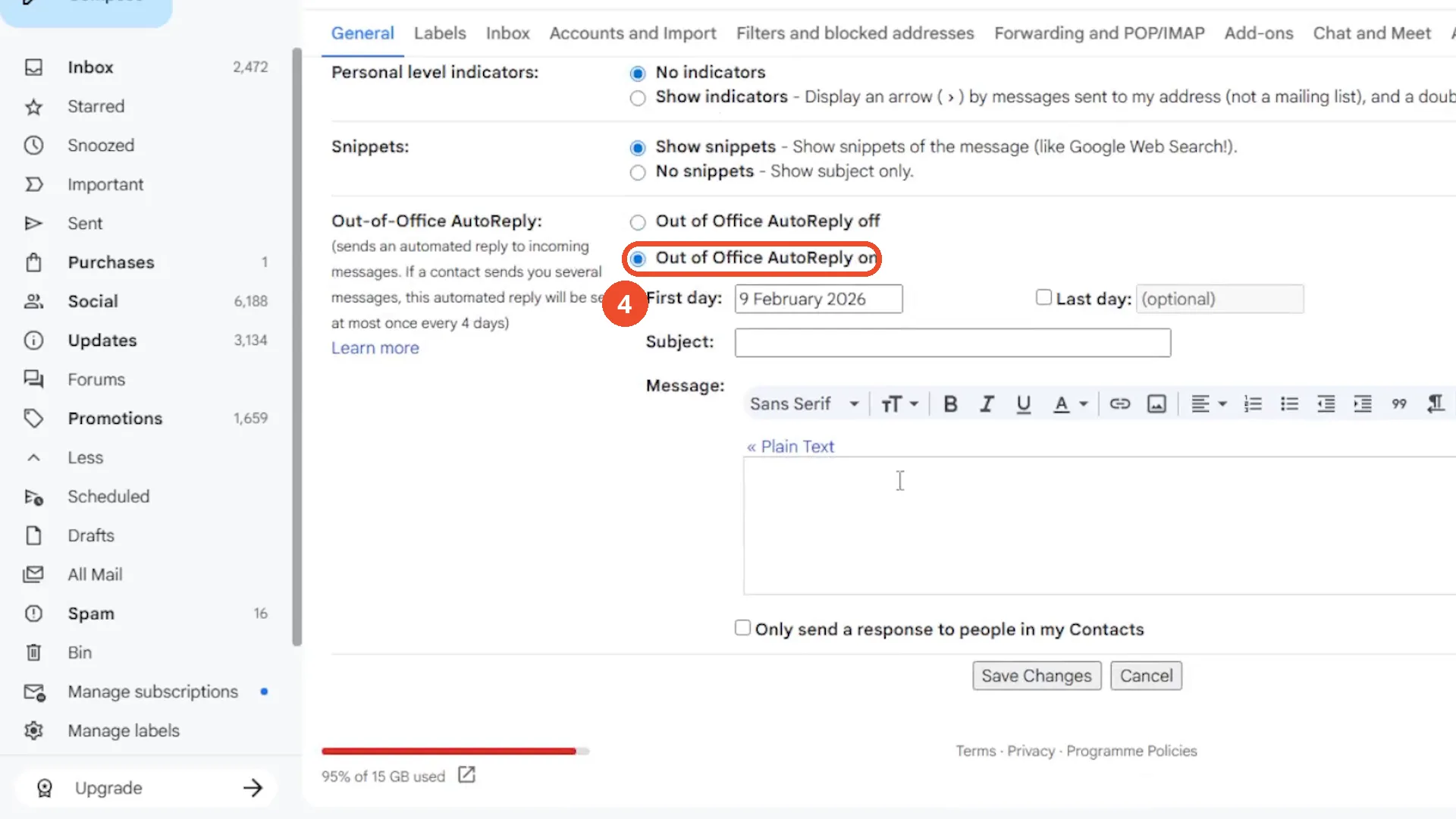
Scroll down to the “Out-of-Office AutoReply” section and select “Out of Office AutoReply on”. First day already shows 9 February 2026 — Gmail fills in the current day by default. The film never opens the date picker, so click the First day field if you want a different start date.
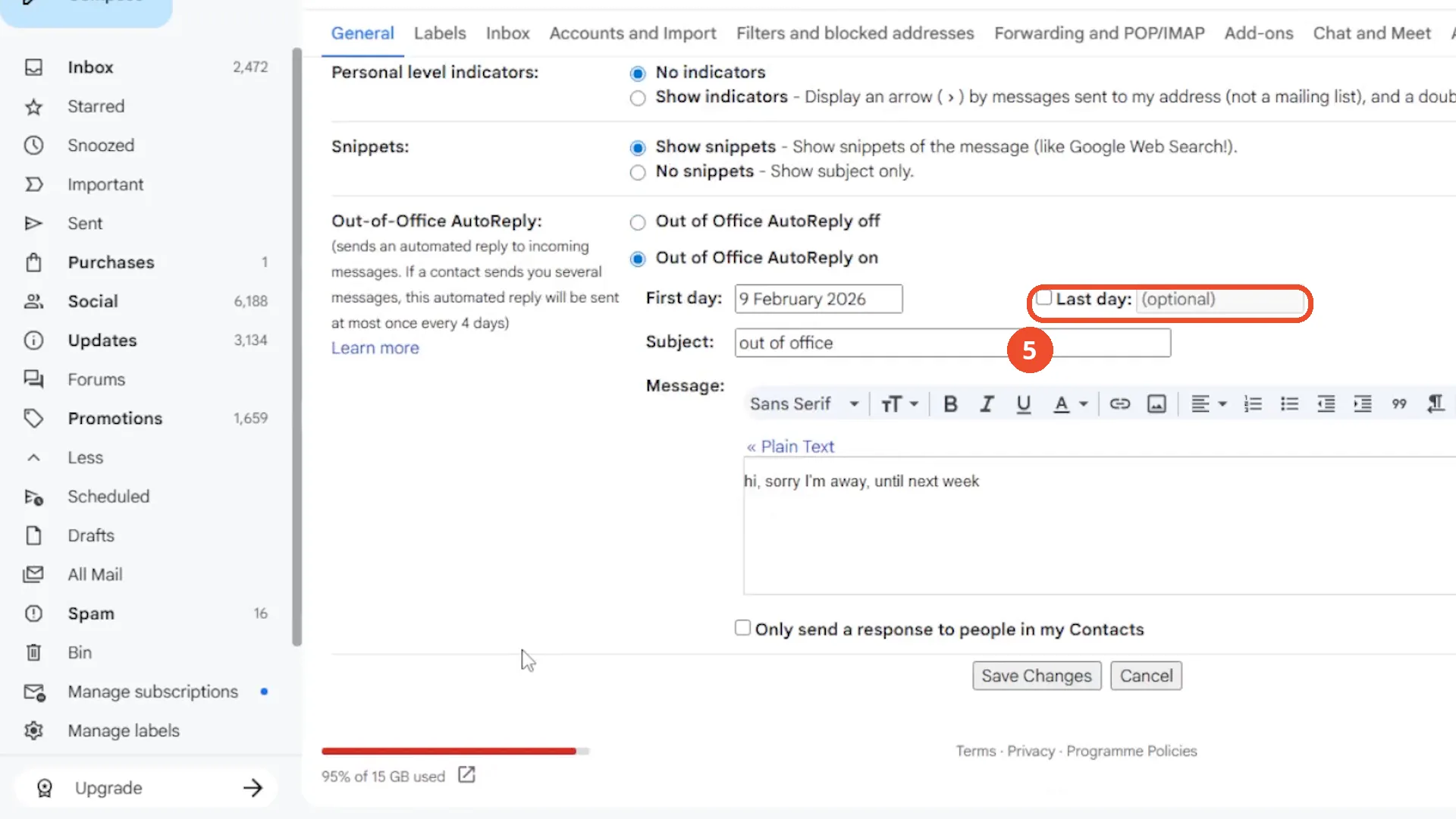
Set the last day (optional)
If you know when you will be back, tick the “Last day” box and pick your return date. Ticking it fills in 16 February 2026 — a week after the first day — as the film shows in a zoomed-in shot, which then unticks it again. The finished set-up in the film leaves Last day empty, so the reply would keep going until you turn it off yourself.
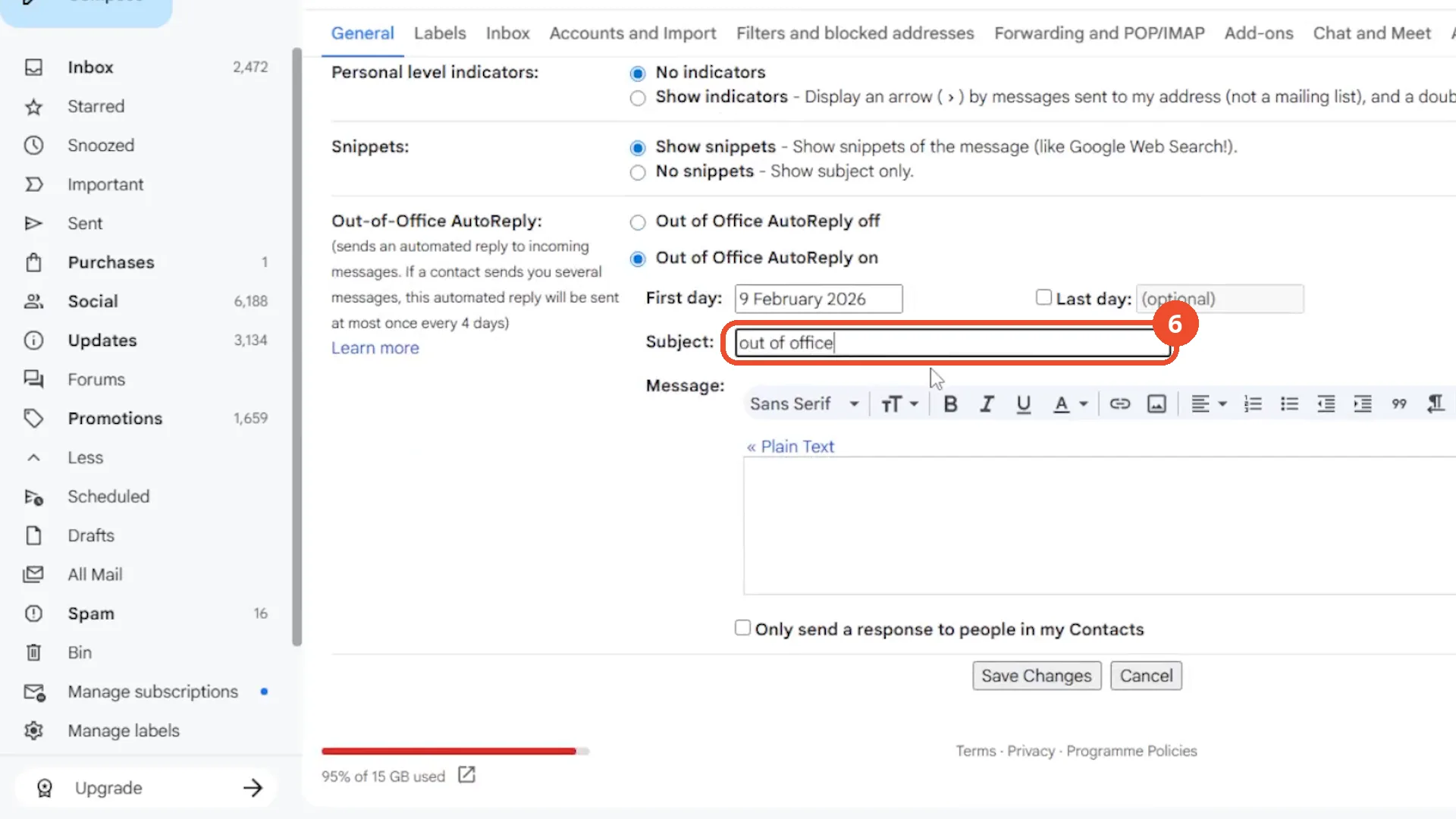
Type a subject
Click the Subject field and type a short subject, such as “out of office”. This is the subject line people see on the automatic reply.
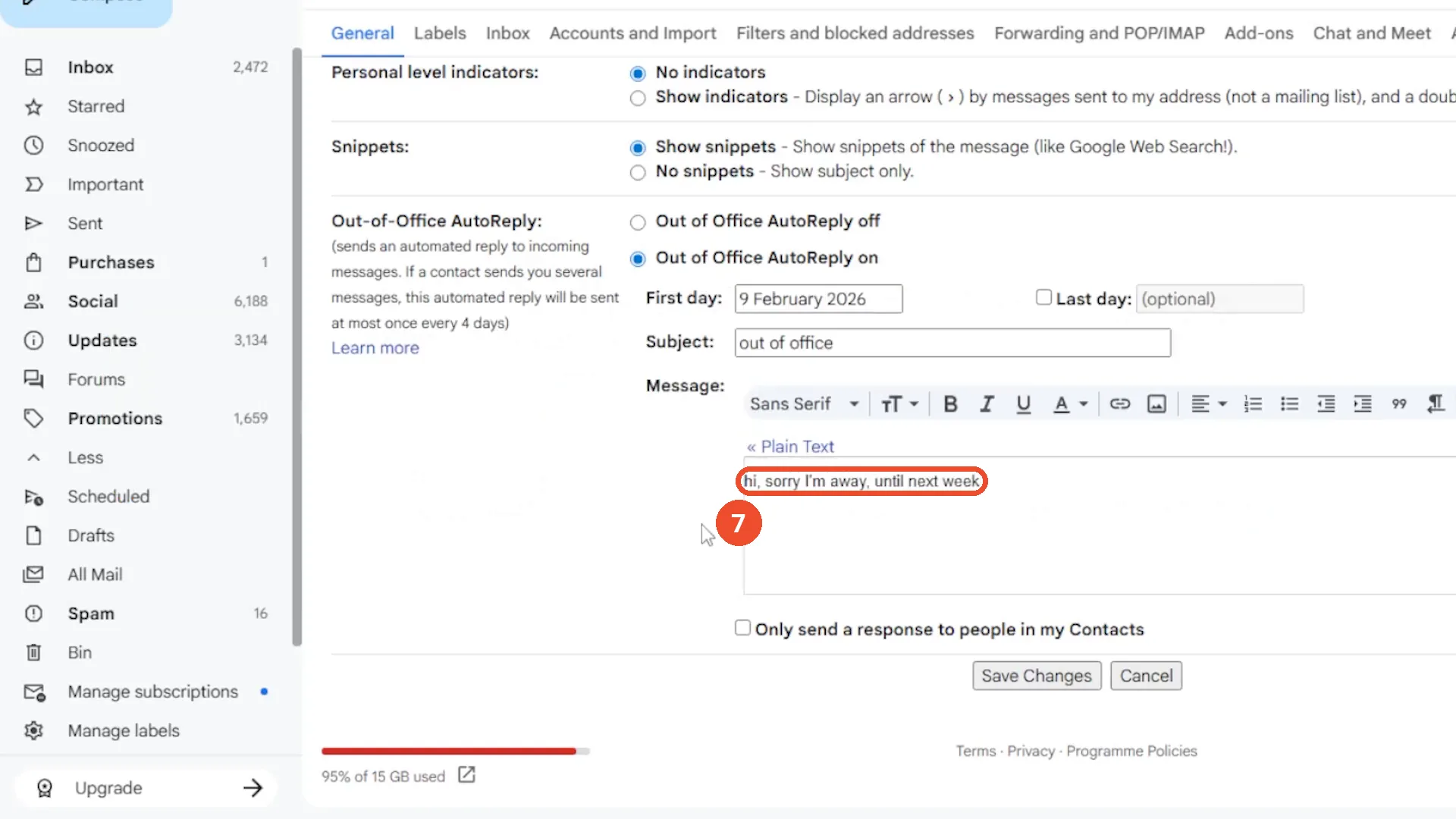
Type your message
Click in the Message box and write a short, polite message explaining you are unavailable. The film writes: “hi, sorry I’m away, until next week”. Mention when you will be back or who to contact if something is urgent.
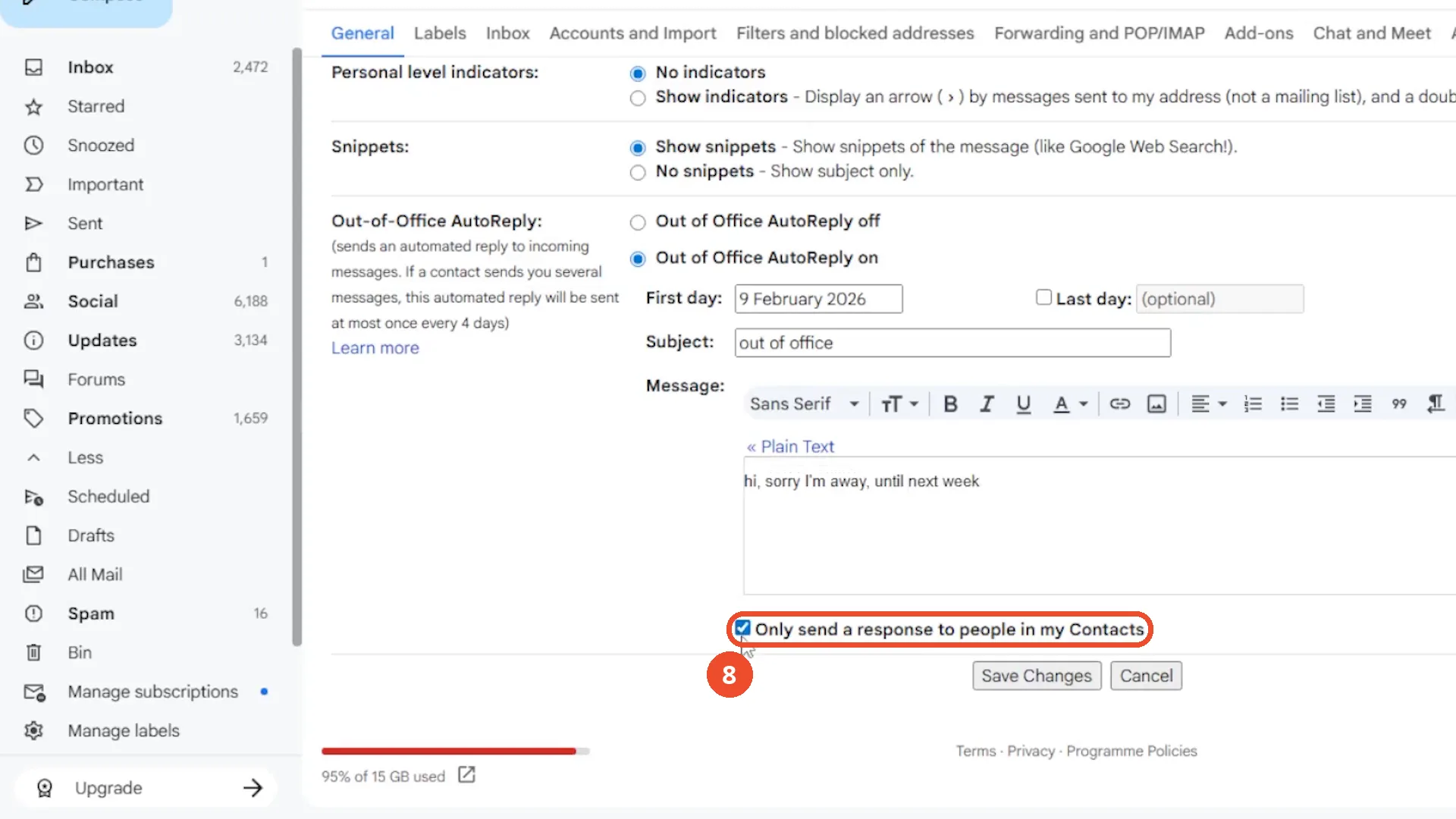
Limit replies to your contacts (optional)
Tick “Only send a response to people in my Contacts” if you only want people in your contacts to get the reply. The film ticks the box, then unticks it again before finishing — so the finished set-up replies to everyone who emails you.
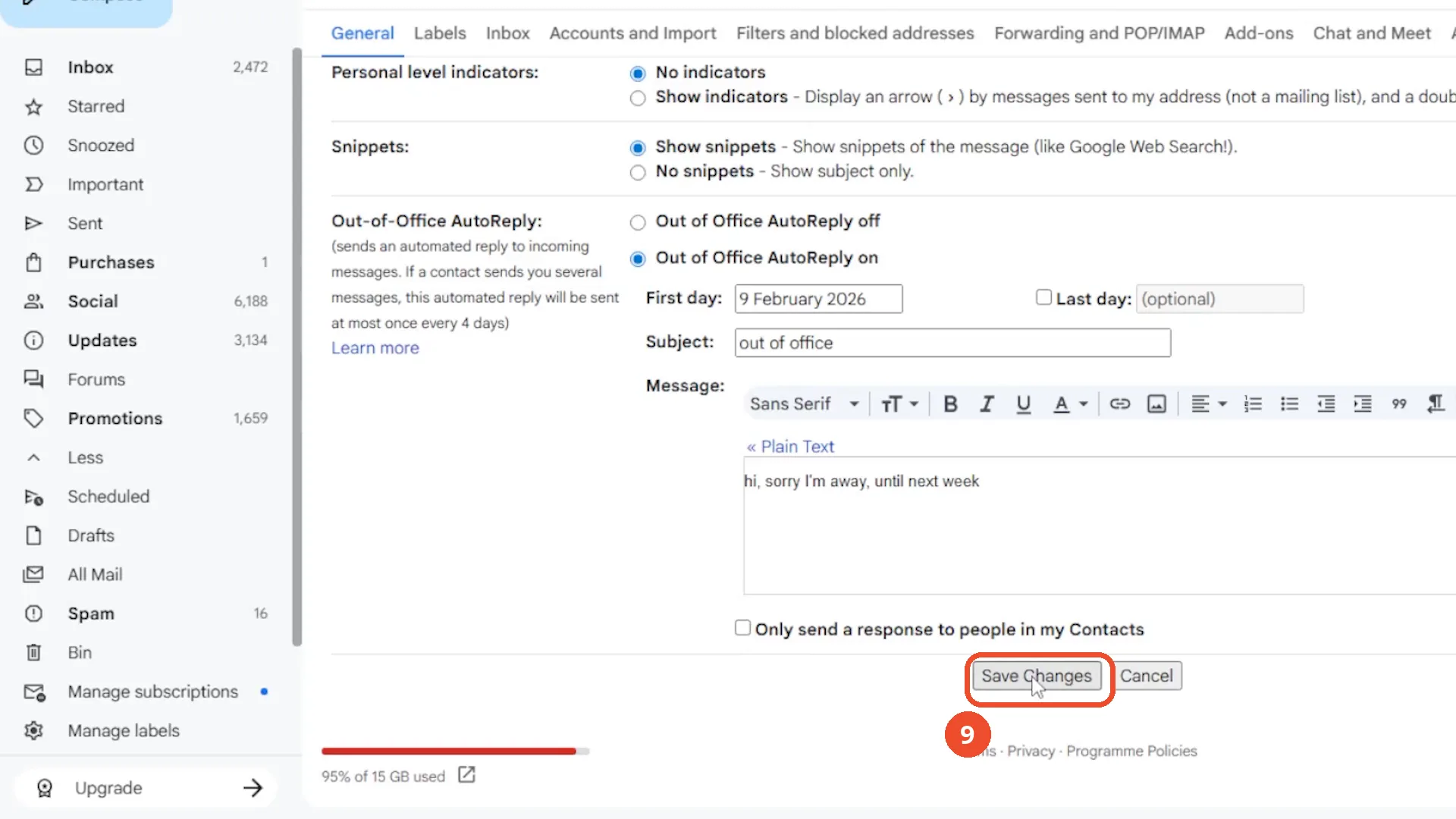
Check the set-up and click Save Changes
Check that the responder is on and your dates, subject, and message are right, then click “Save Changes” to activate the reply. Note: the film only hovers over Save Changes — it never shows the click or a saved confirmation — so make sure you click it yourself.
Good to know
- Gmail sends the automatic reply once per person every few days — at most once every 4 days, as the settings page itself says — not on every single email.
- If you leave Last day empty, Gmail keeps sending the reply until you turn the responder off manually.
- The film ticks the Last day box and Gmail fills in 16 February 2026, exactly a week after the first day, then unticks it — the finished set-up has no end date.
- The film also ticks “Only send a response to people in my Contacts” and then unticks it, so the finished set-up replies to everyone, not just contacts.
- The film hovers over Save Changes but never shows the click, a saving indicator, or a saved confirmation in any frame. Click Save Changes yourself — without it, the responder is not activated.
- When you are back, turn the responder off in the same section: select “Out of Office AutoReply off” and click Save Changes again. The film never demonstrates this — it is narration only.
- First day is pre-filled with the current day (9 February 2026 in the film). Click the field to pick a different start date; the film never opens the date picker.
- The film opens on the Bin view, not the inbox, and the recording crops off the left edge of the sidebar in places. Neither affects the steps.
More on Gmail
- How to Create a Contact Group in Gmail
- How to Delete All Emails Before a Certain Date in Gmail
- How to Delete Folders in Gmail
- How to Delete All Unread Emails in Gmail
- How to Recover Deleted Emails in Gmail
- How to Automatically Forward Specific Emails in Gmail Using Filters
- How to Send Encrypted Emails in Gmail Using Confidential Mode
- How to Change the Archive Option to Delete in Gmail
- How to Automatically Move Emails to a Folder in Gmail
- How to Delete All Promotional Emails in Gmail at Once
- How to Forward an Entire Email Thread in Gmail
- How to Delete Attachments in Gmail
- How to Change Font Color in Gmail
- How to Delete Contacts From Gmail
- How to Change the Gmail Background
- How to Change Gmail to Dark Mode
- How to Create Folders in Gmail
- How to Block and Unblock an Email Address in Gmail
- How to Find Archived Emails in Gmail
- How to Recover a Forgotten Gmail Password
- How to Change Font Size in Gmail
- How to Change Your Email Signature in Gmail
- How to Delete All Emails in Gmail (Mass Delete Everything)
- How to Download Emails from Gmail in Bulk
Guide complete
Every step above comes from the original recording, with a screenshot for each step. Want more like this? Browse all Gmail guides.