How to Recover Deleted Emails in Gmail
Deleted emails are not gone right away: Gmail keeps them in Trash for 30 days. This tutorial moves one back to the inbox, then shows the faster in:trash search for finding a deleted email without scrolling through Trash.
- SystemWindows (browser)
- AppGmail web app
- Last verifiedNovember 16, 2026
Every screenshot below is taken from the actual recording on this device — no stock images.
Steps
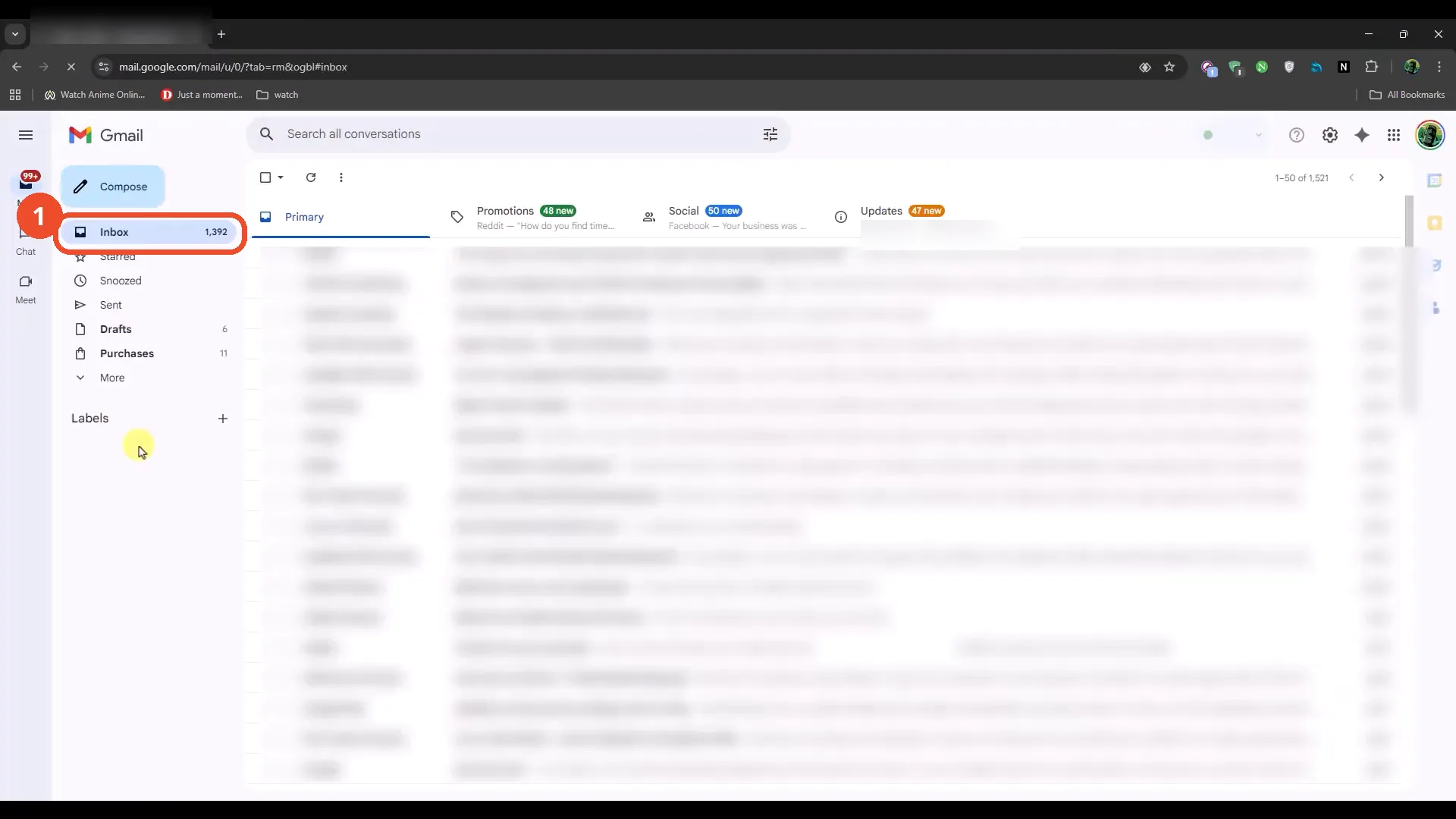
Open Gmail in your browser
Open Gmail in a desktop browser and sign in. The inbox loads with 1,392 messages.
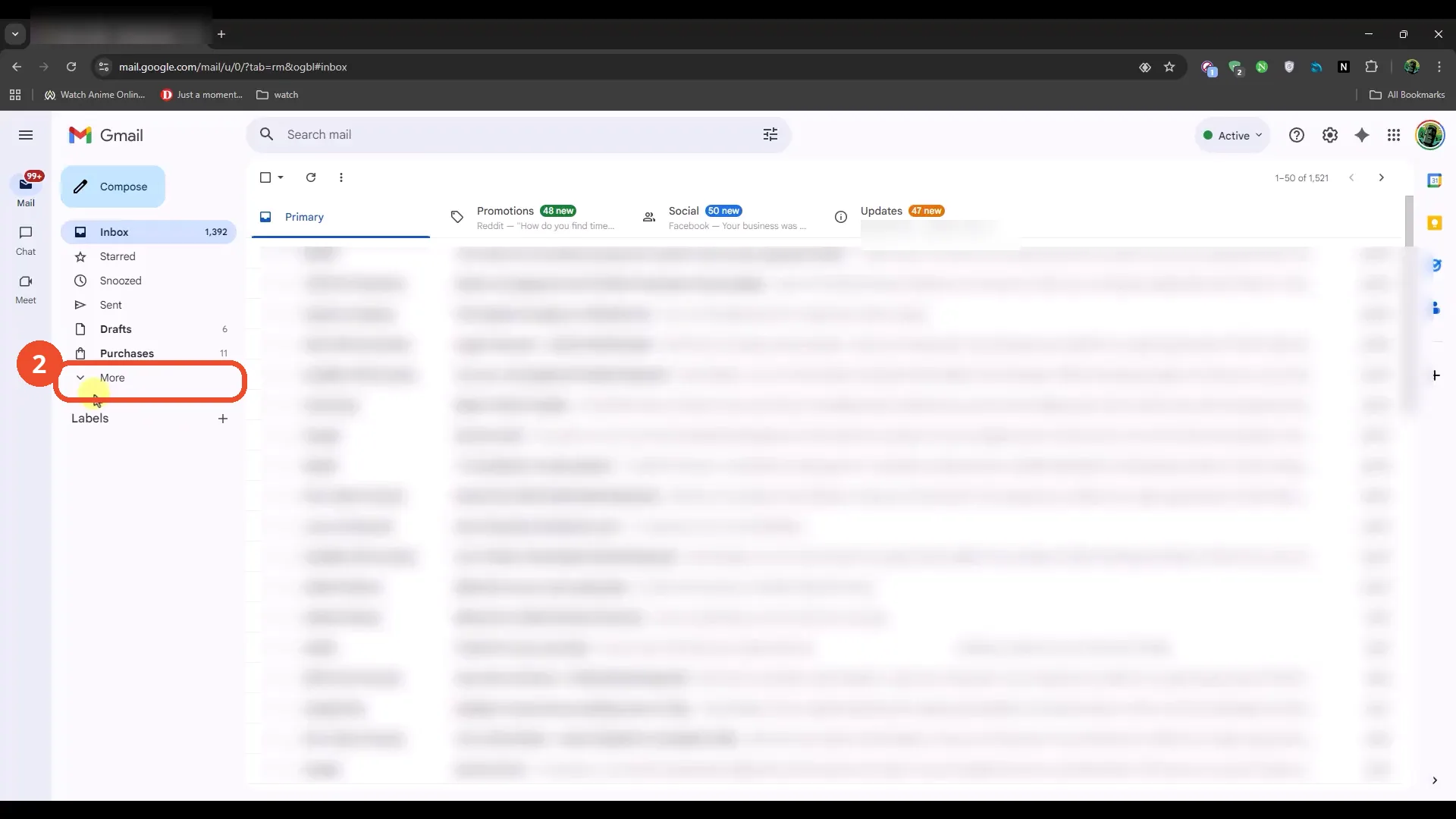
Click More to expand the sidebar
Trash is not in the short sidebar list, so click More near the bottom of the left sidebar to expand the full list.
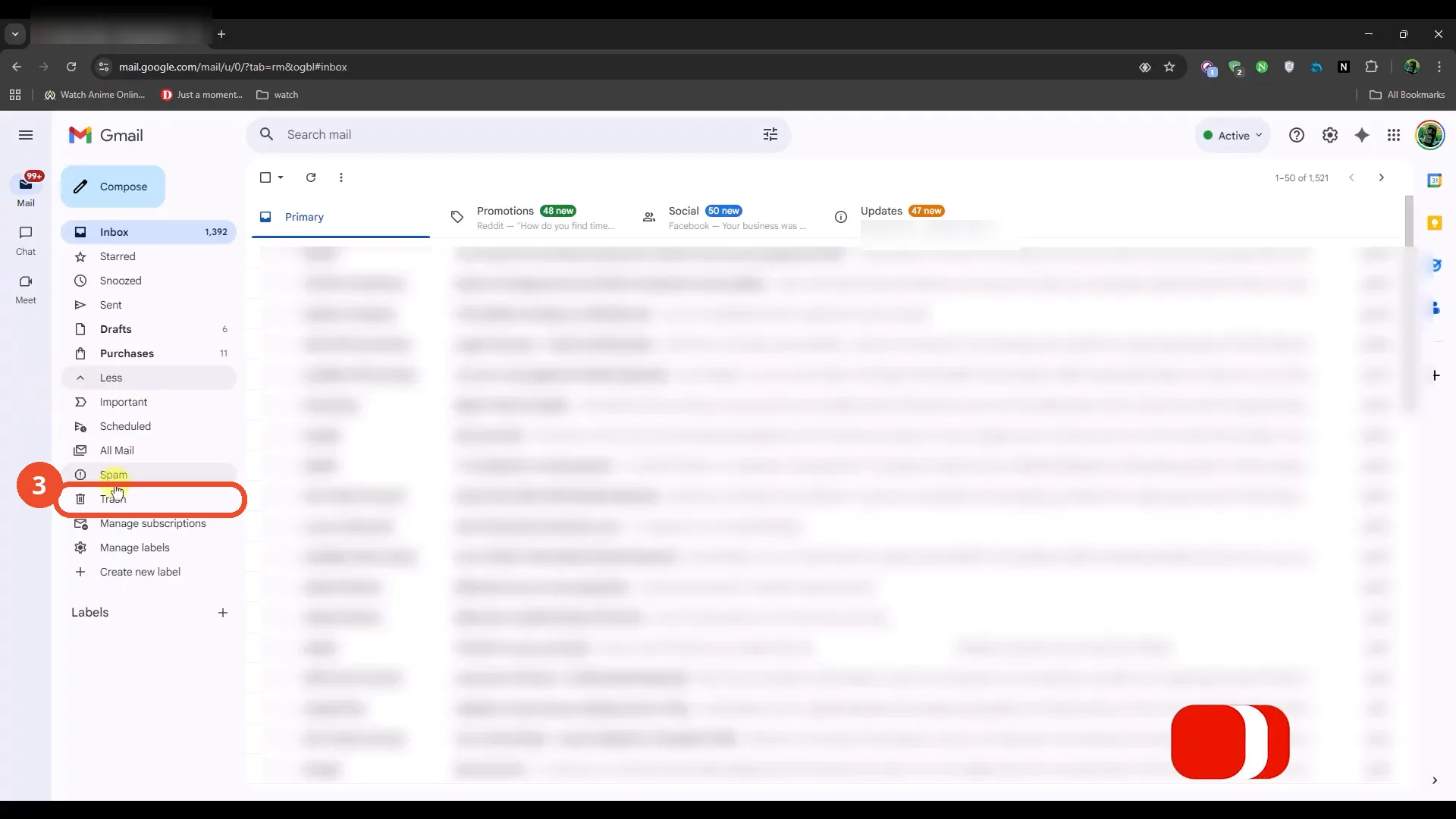
Click Trash
In the expanded list, click Trash.
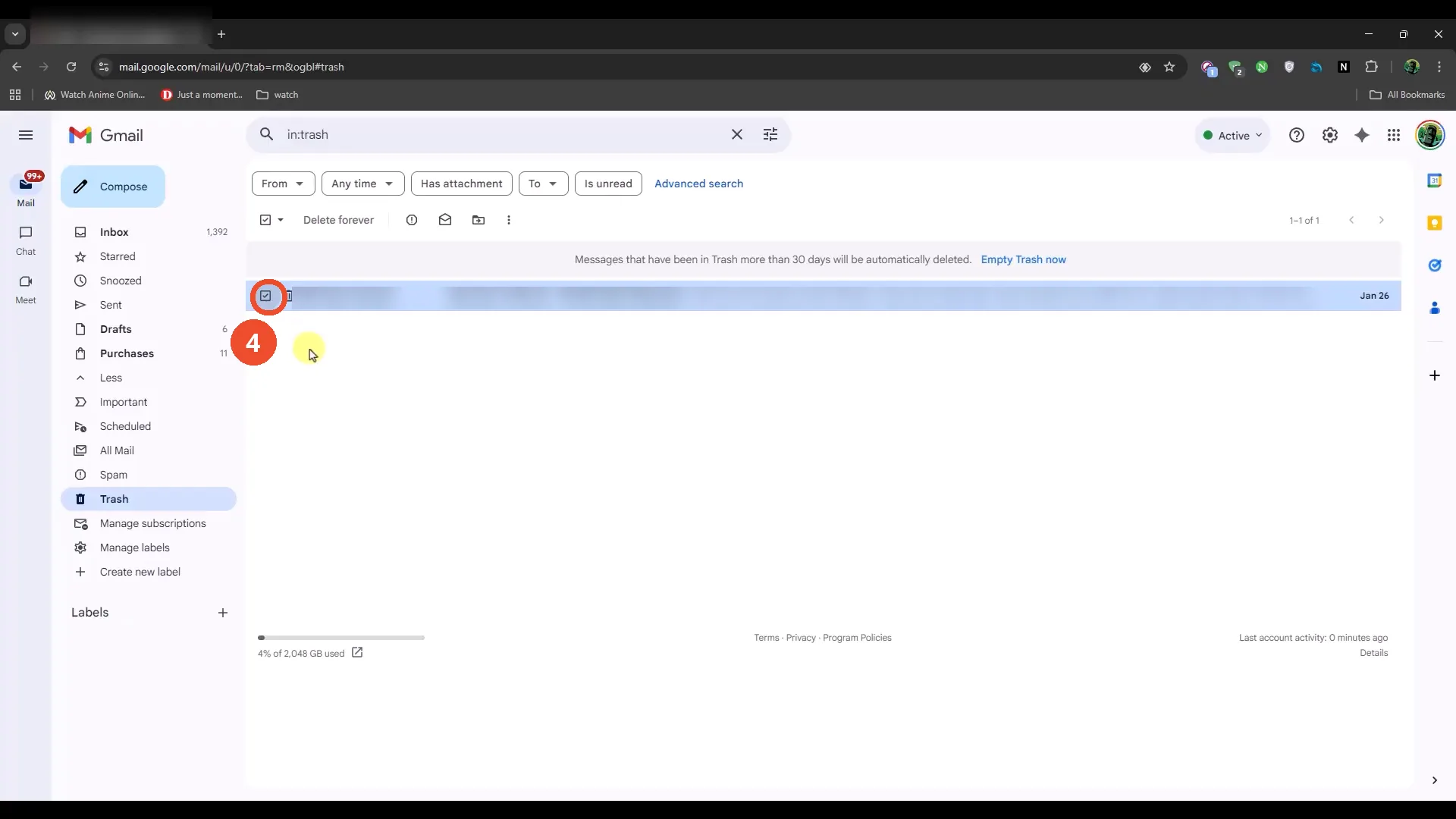
Tick the checkbox next to the email
Trash holds a single email. Tick the checkbox at the left of its row; the row turns blue and the toolbar gains its action icons. The email itself is a real message, so its sender, subject and snippet are blurred in the screenshot.
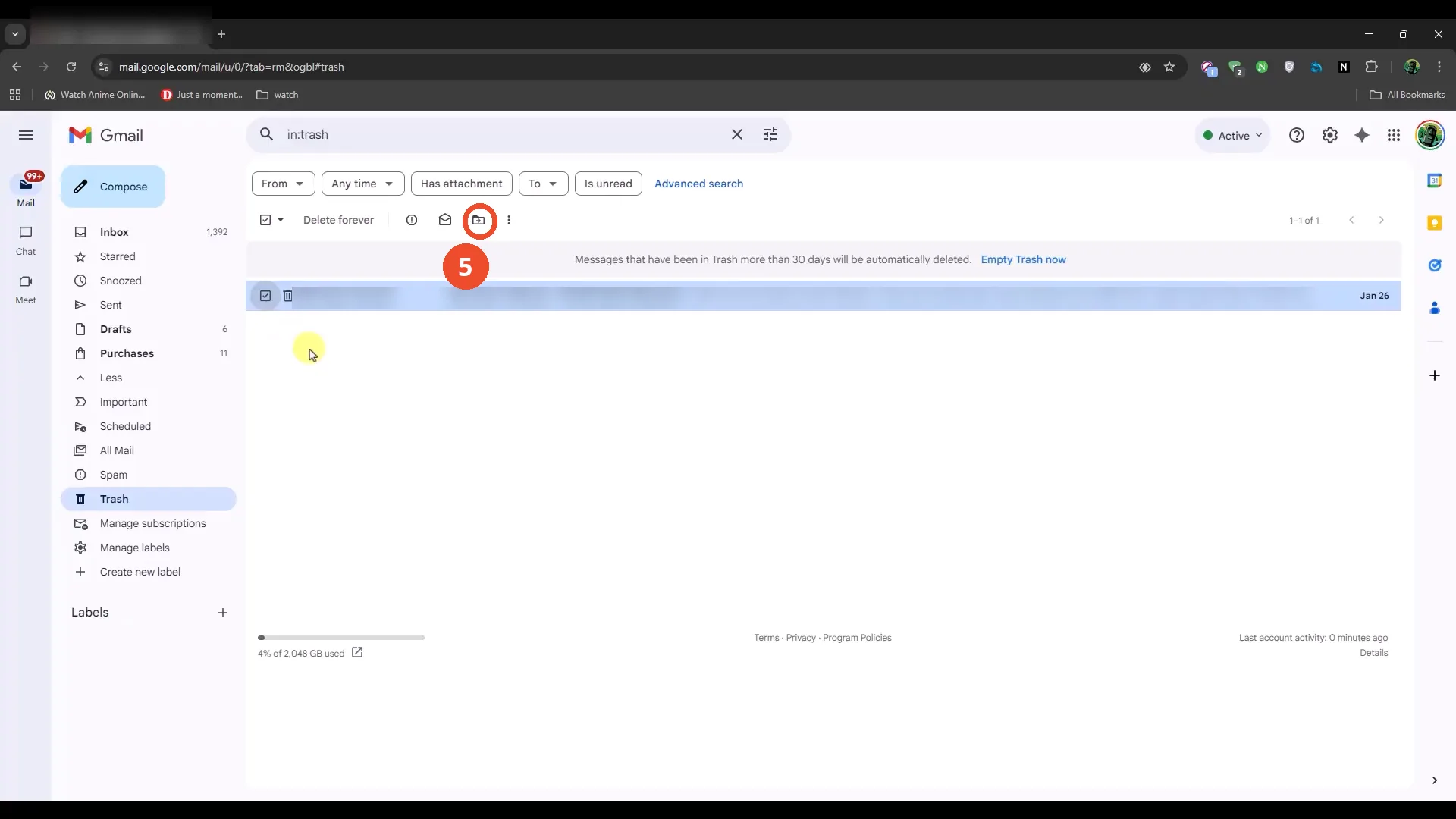
Click the Move to icon
In the toolbar, click the Move to icon — the folder with an arrow.
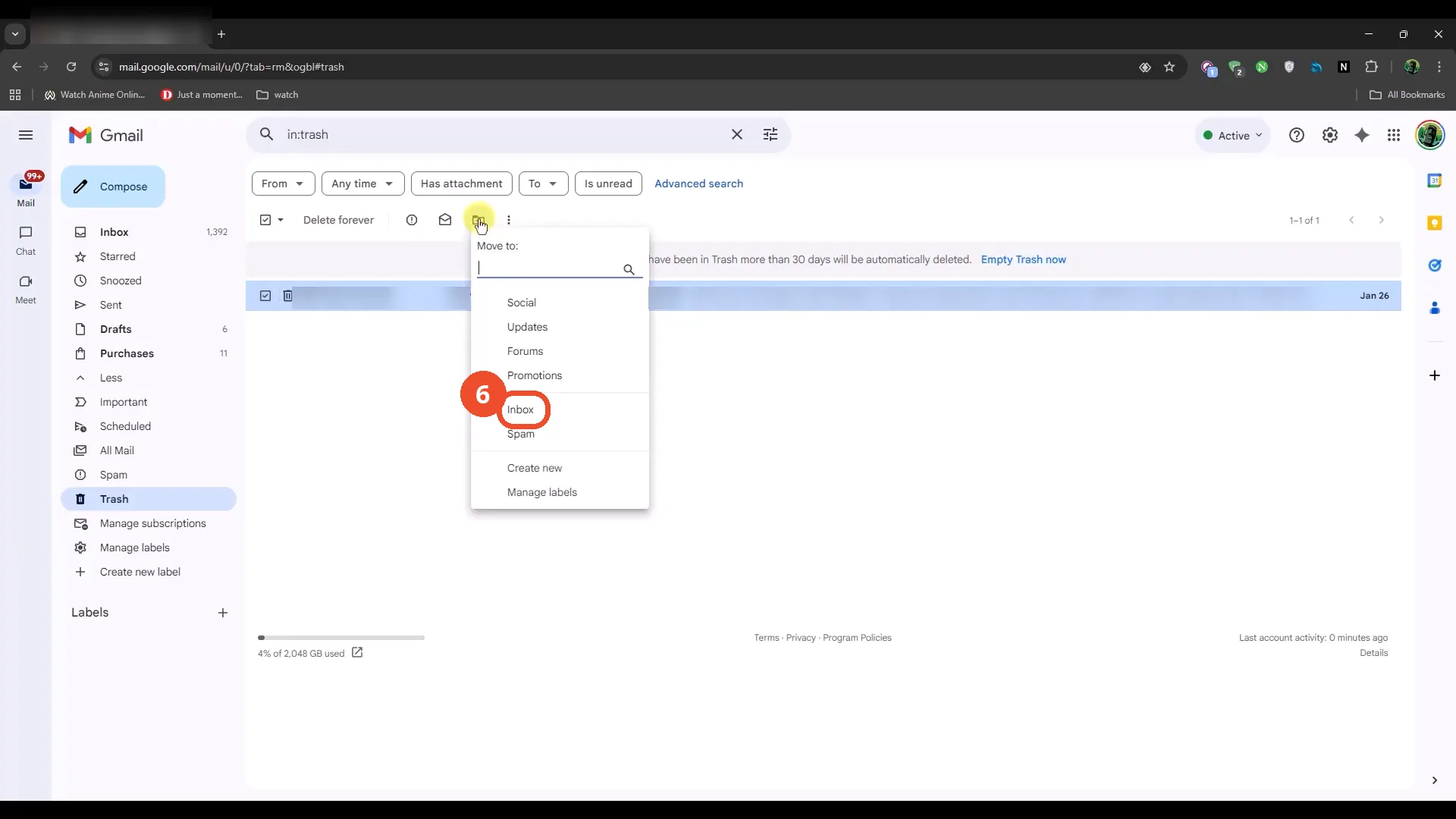
Choose Inbox from the Move to menu
A menu lists the places the email can go. Click Inbox.
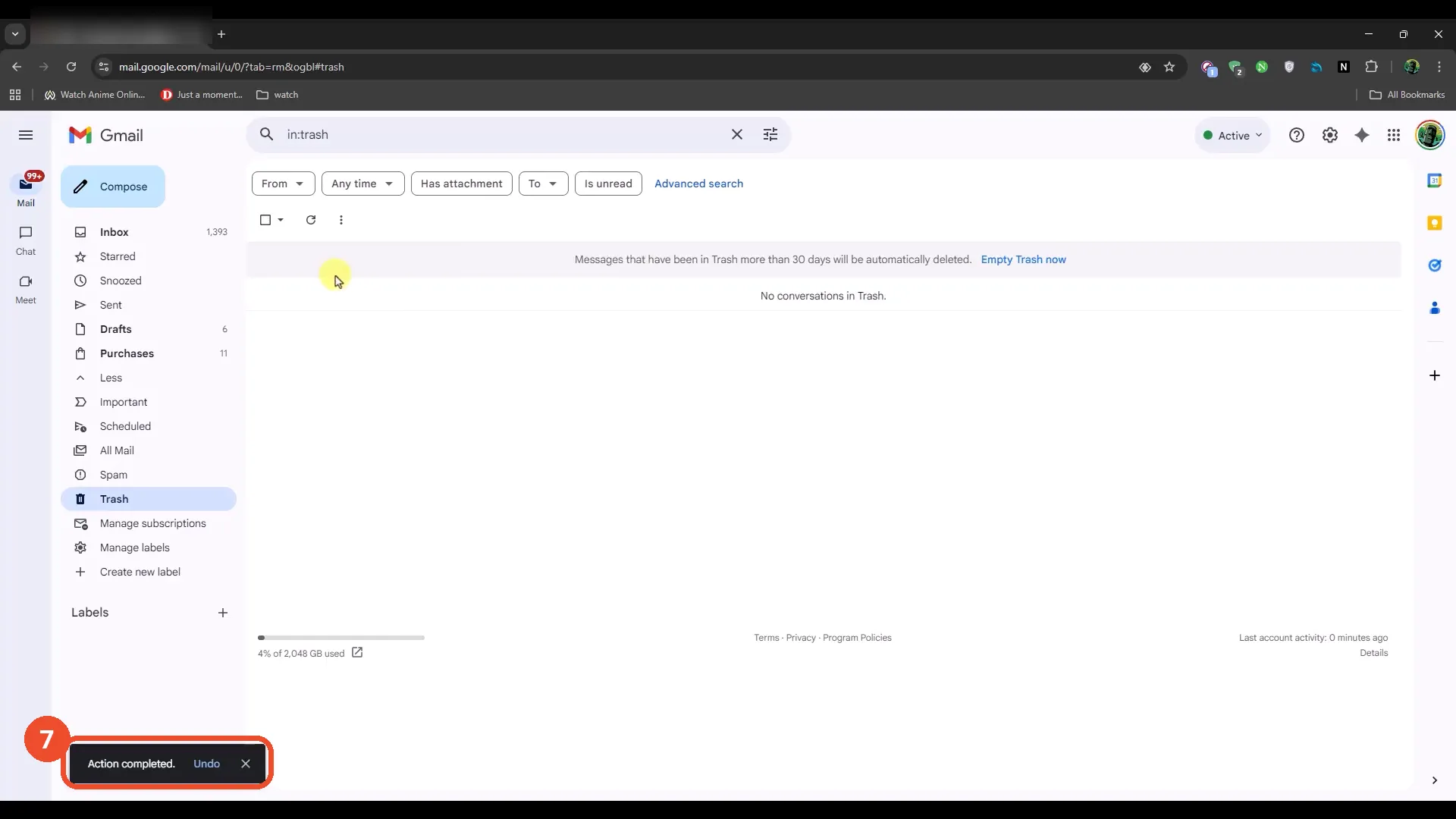
Check Trash is empty
Trash now reads ‘No conversations in Trash’, and a toast at the bottom left reads ‘Action completed’. Back in the inbox the count has risen from 1,392 to 1,393 — the email is home.
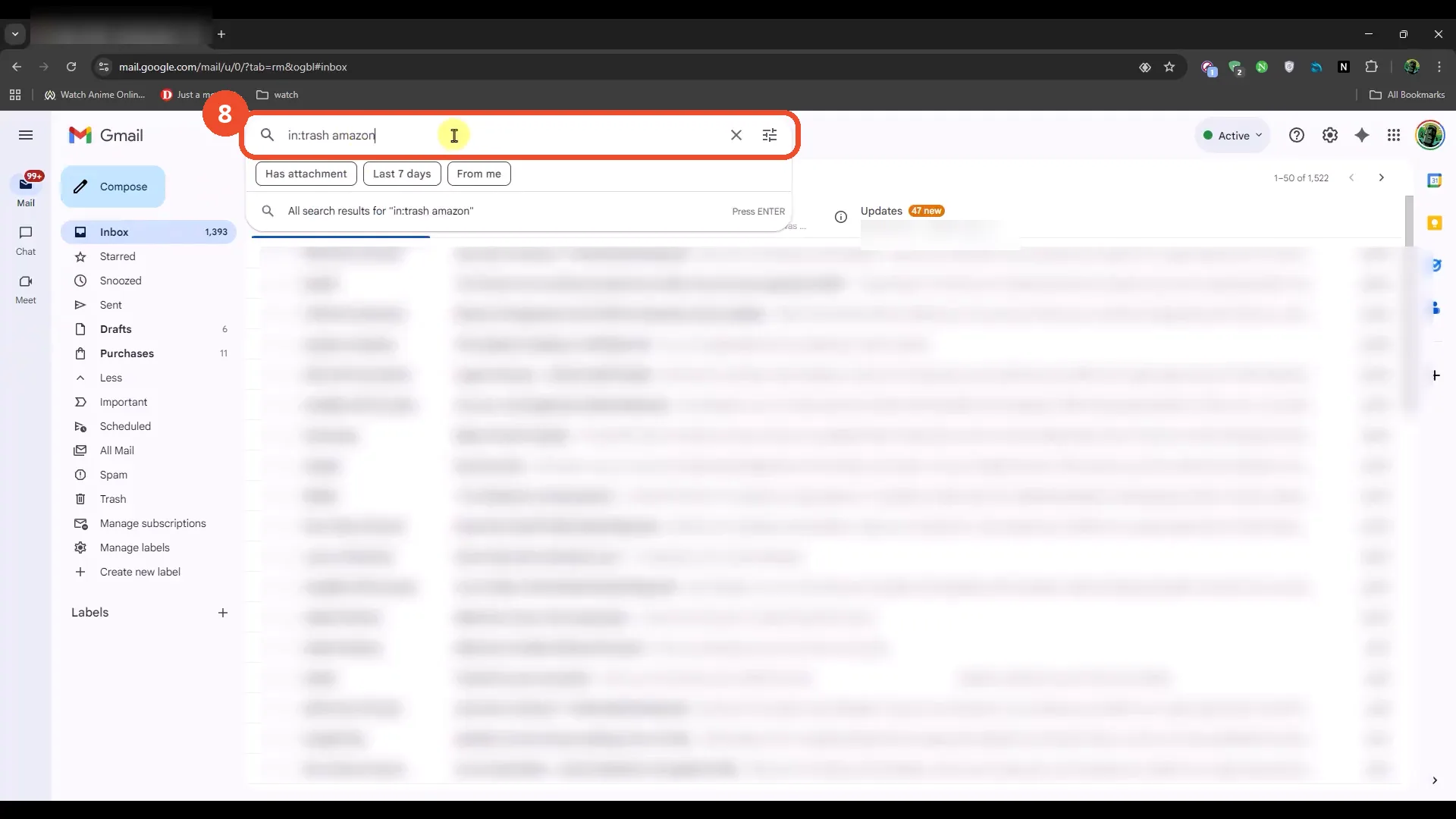
Type in:trash plus a keyword
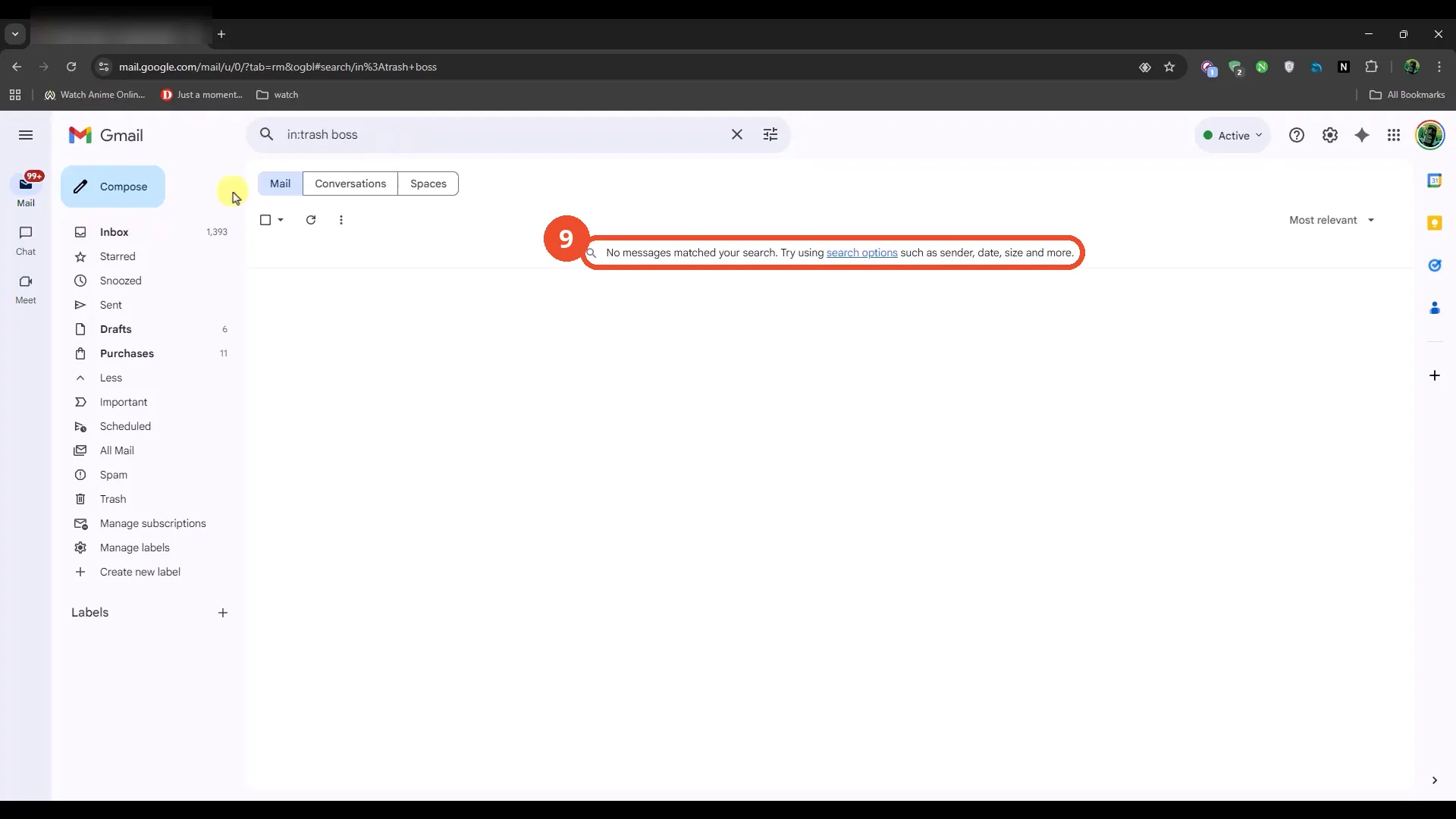
For the faster way back, click the search bar and type in:trash followed by a keyword from the missing email. The film types ‘amazon’, then changes the keyword to ‘boss’.
Press Enter and read the results
Press Enter. The search for ‘in:trash boss’ returns ‘No messages matched your search’ — expected here, because Trash is empty: the email was already moved back to the inbox in the earlier steps.
Good to know
- The film recovers one real email from Trash on camera: Trash shows ‘No conversations in Trash’ afterwards, the toast reads ‘Action completed’, and the inbox count rises from 1,392 to 1,393.
- The email in Trash is a real message from a third party, addressed to the operator by first name, so its sender, subject and snippet are blurred in the screenshots.
- The film’s in:trash demo types ‘amazon’ first, then changes the keyword to ‘boss’; the search for ‘in:trash boss’ returns no messages, because Trash is empty by then — the email was already moved back to the inbox.
- Gmail deletes Trash messages permanently after 30 days, so recover them before then.
- Opening Trash puts in:trash in the search bar automatically; typing in:trash plus a keyword searches only inside Trash.
- The browser tab shows the operator’s own account; the account part of the tab title is blurred in the screenshots.