How to Recover a Forgotten Gmail Password
If you cannot remember your Gmail password, start from the Google sign-in page and click Forgot password? — Google’s Account recovery then asks you to confirm on your phone. The film shows the recovery flow up to that phone check; the phone confirmation and the new-password screen that follow are not shown in the film, so the steps below cover what the film actually demonstrates.
- SystemWindows (browser)
- AppGmail web app
- Last verifiedNovember 22, 2026
Every screenshot below is taken from the actual recording on this device — no stock images.
Steps
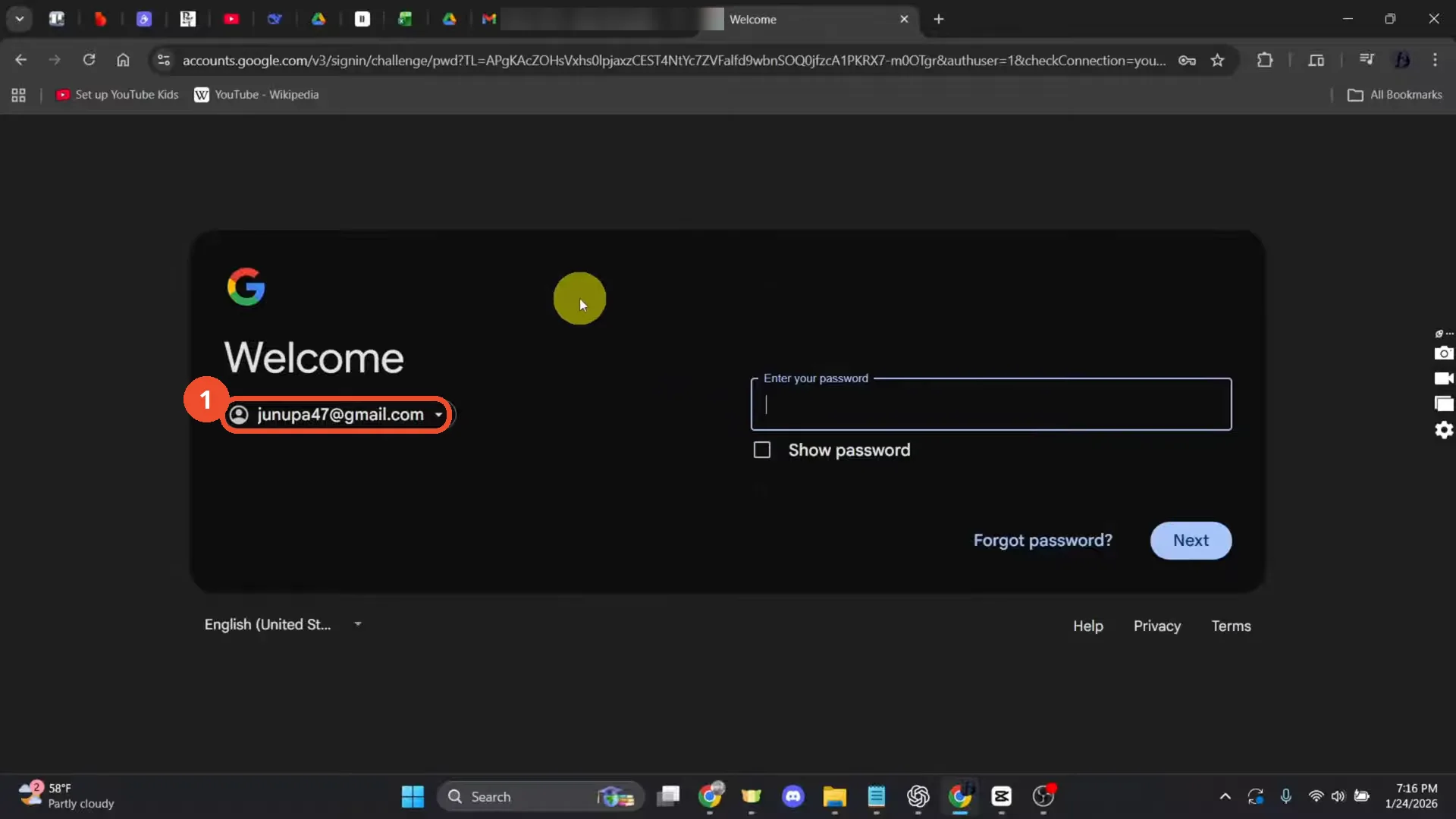
Go to the Google sign-in page
Open the Google sign-in page for the account. The film shows the Welcome page for junupa47@gmail.com with the password field empty — do not type your old password here.
Click Forgot password?
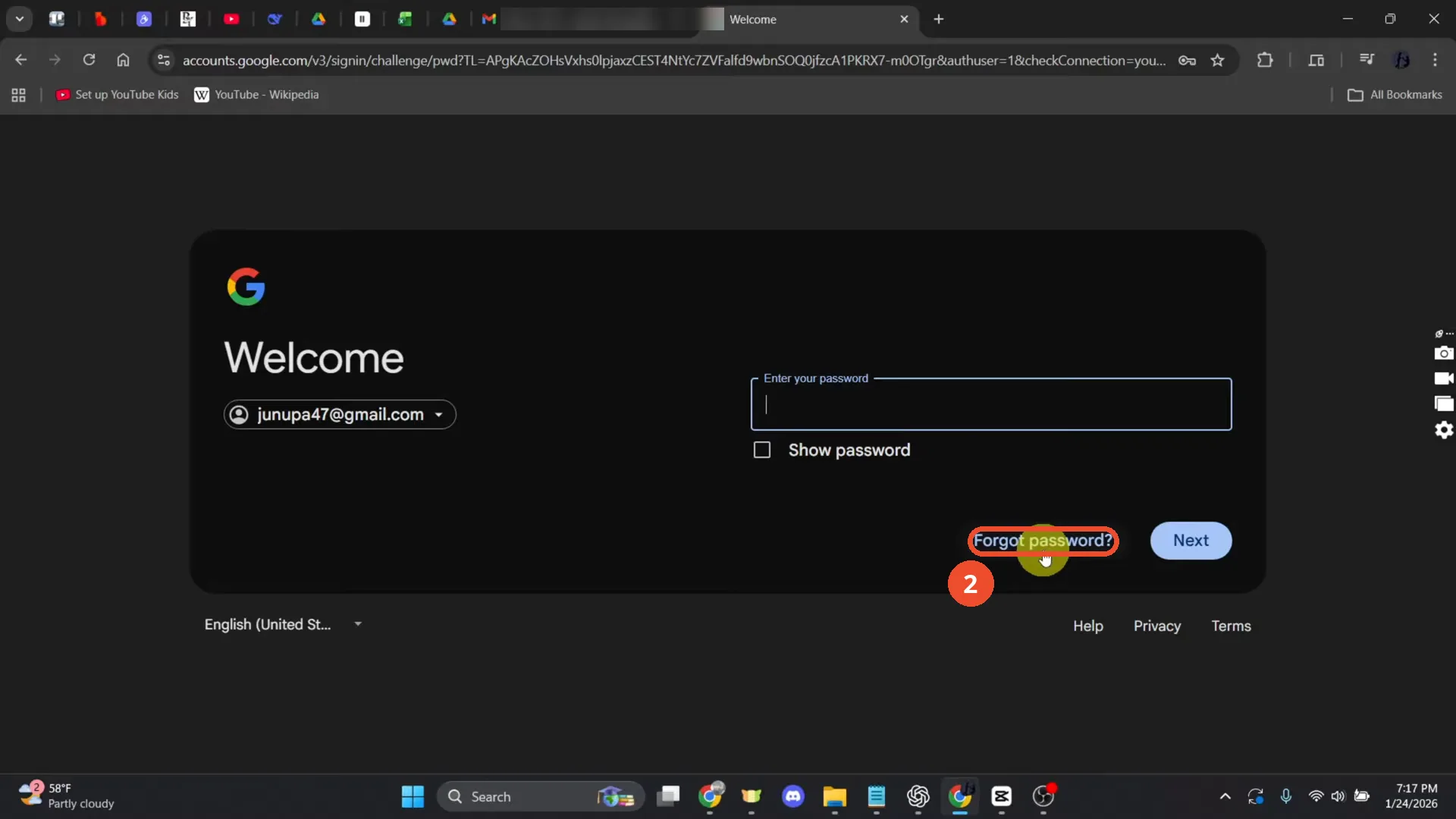
Under the password field, click Forgot password?.
Check your phone and tap the number
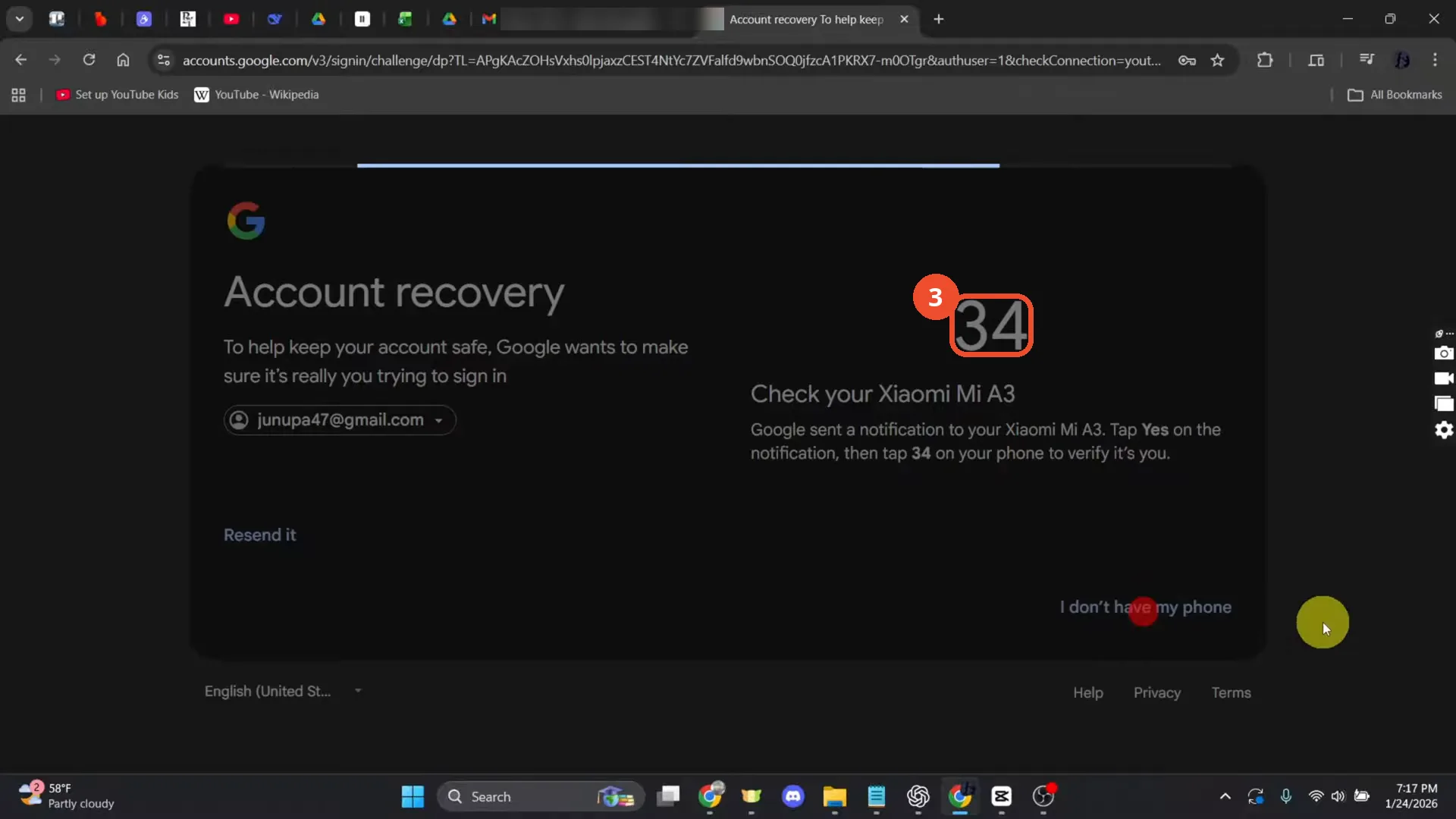
The screen asks you to check your phone — here a Xiaomi Mi A3. It says: tap Yes on the notification Google sent to the phone, then tap the number shown on this screen (34 in the film). The phone itself is never shown.
The number changes while you wait
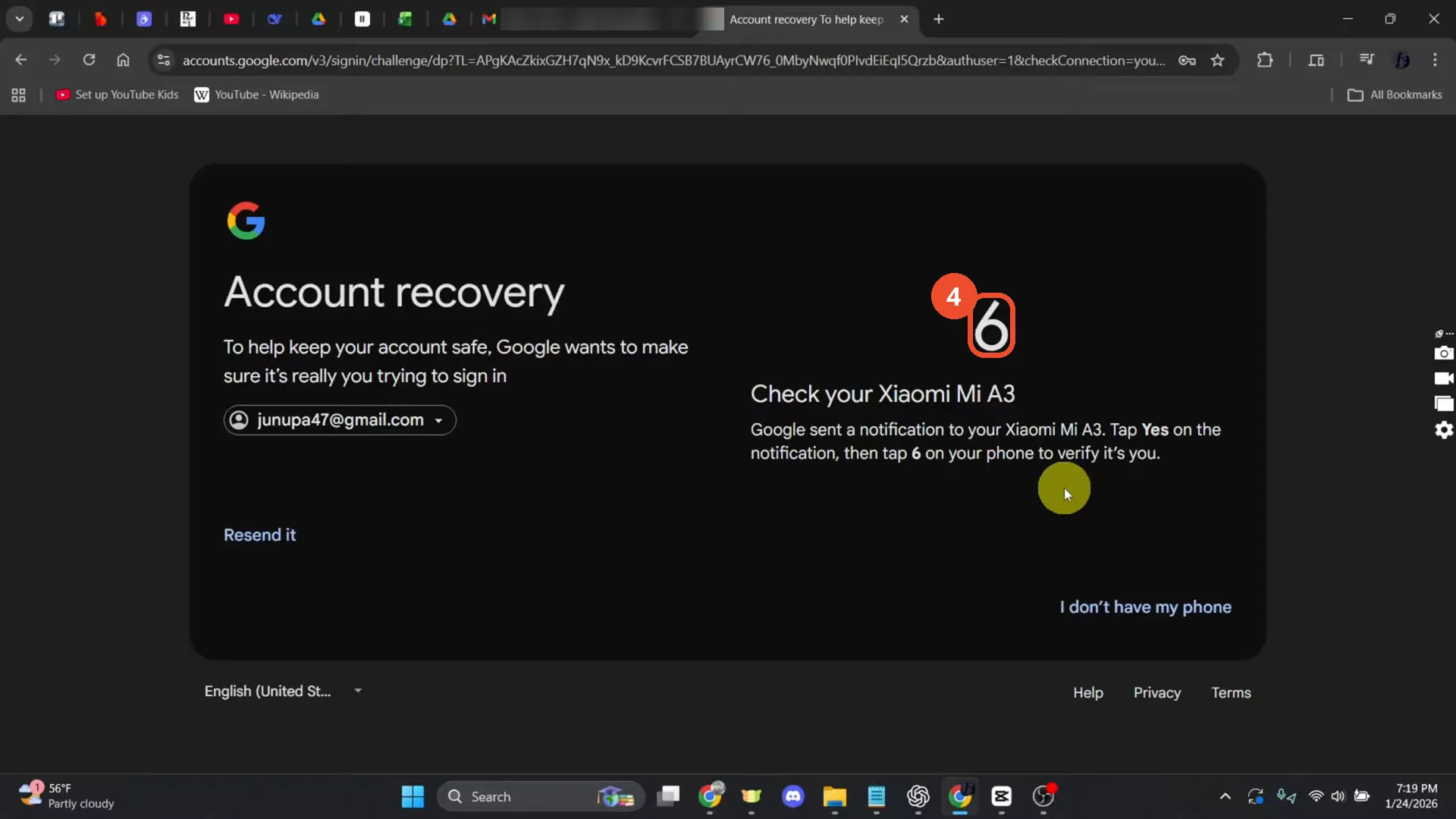
The number on the recovery screen changes while you wait: in the film it is 6 a minute later. Tap the number currently on screen. The film ends here — the phone confirmation and the new-password screen are not shown.
Good to know
- The film only gets as far as the phone check — the phone confirmation and the new-password screen that follow are not shown, so this article covers only the steps the film actually demonstrates.
- The number on the recovery screen changes while you wait: in the film it is 34 at first and 6 a minute later. Tap the number currently shown on your screen.
- If you do not have the phone with you, click “I don’t have my phone” on the recovery screen for other ways to verify — that link is visible in the film but never clicked.
- Never share the recovery number or any code Google sends you with anyone; Google will never ask for it by email or message.
- The account shown is the operator’s own junupa47@gmail.com, kept visible per precedent; the other account name in a background browser tab is blurred.
More on Gmail
- How to Create a Contact Group in Gmail
- How to Delete All Emails Before a Certain Date in Gmail
- How to Delete Folders in Gmail
- How to Delete All Unread Emails in Gmail
- How to Recover Deleted Emails in Gmail
- How to Automatically Forward Specific Emails in Gmail Using Filters
- How to Send Encrypted Emails in Gmail Using Confidential Mode
- How to Change the Archive Option to Delete in Gmail
- How to Automatically Move Emails to a Folder in Gmail
- How to Delete All Promotional Emails in Gmail at Once
- How to Forward an Entire Email Thread in Gmail
- How to Delete Attachments in Gmail
- How to Change Font Color in Gmail
- How to Delete Contacts From Gmail
- How to Change the Gmail Background
- How to Change Gmail to Dark Mode
- How to Create Folders in Gmail
- How to Download Emails from Gmail in Bulk
- How to Block and Unblock an Email Address in Gmail
- How to Find Archived Emails in Gmail
Guide complete
Every step above comes from the original recording, with a screenshot for each step. Want more like this? Browse all Gmail guides.