How to Download Emails from Gmail in Bulk
Gmail has no bulk-download button, but Google Takeout does the job: it exports your whole mailbox as a ZIP file and emails you a download link. This tutorial exports Mail only, so you get just your emails and nothing else.
- SystemWindows (browser)
- AppGmail web app
- Last verifiedNovember 16, 2026
Every screenshot below is taken from the actual recording on this device — no stock images.
Steps
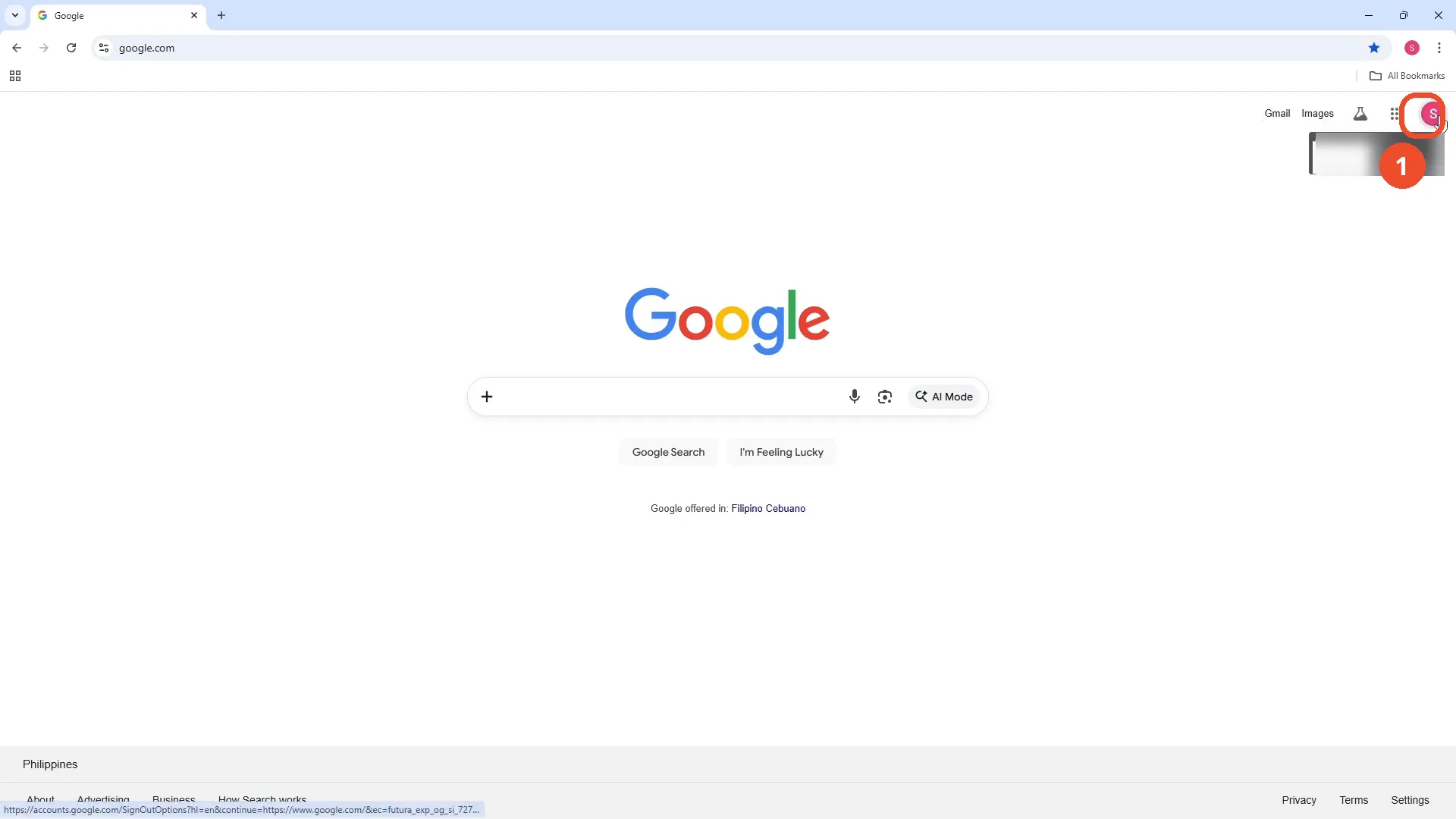
Click your profile picture at the top right
Open Chrome and go to google.com, then click your profile picture (the coloured circle with your initial) at the top right of the page.
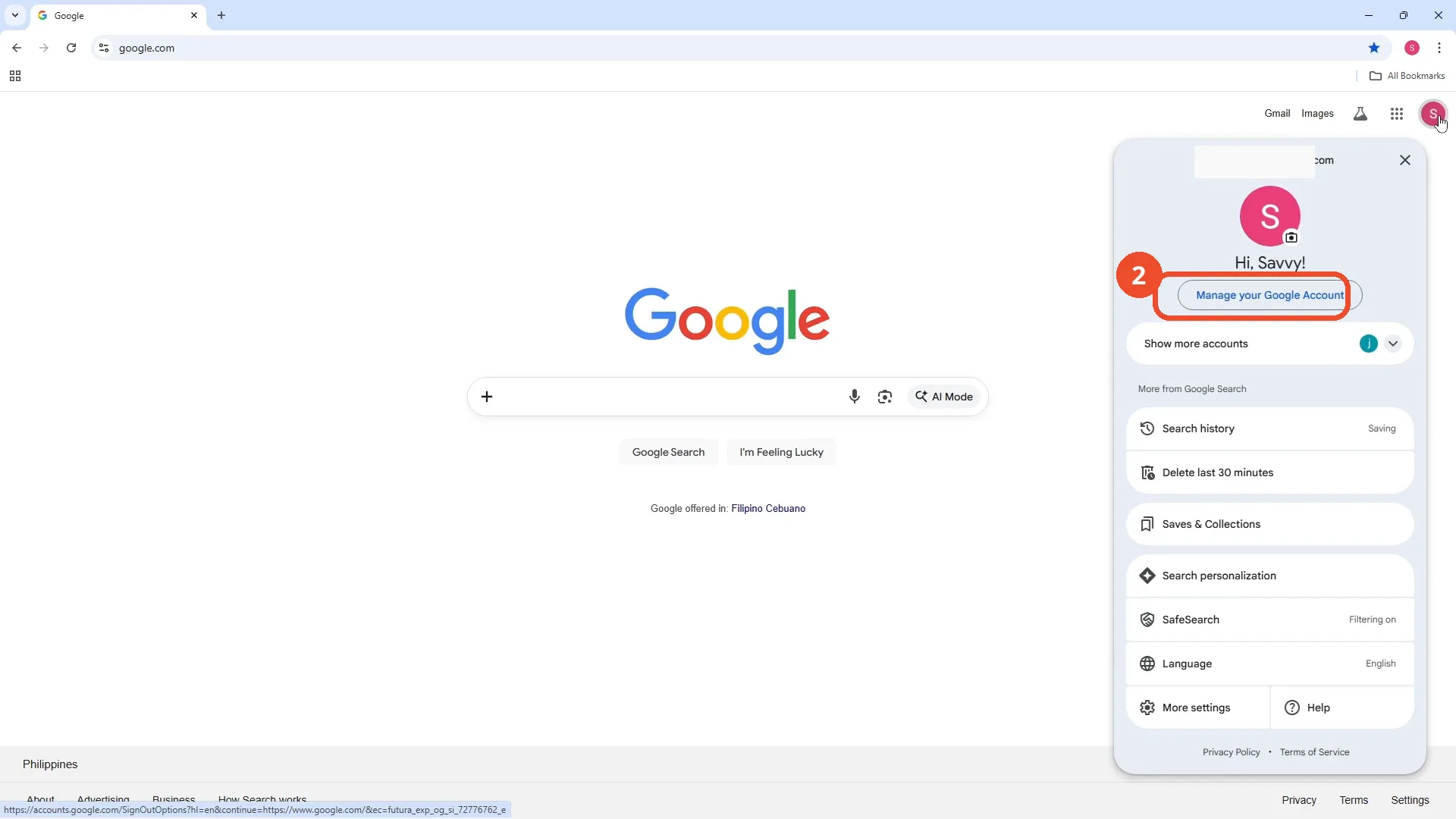
Click Manage your Google Account
In the menu that opens, click Manage your Google Account. The panel greets the operator by name; the email address at the top is blurred in the film itself.
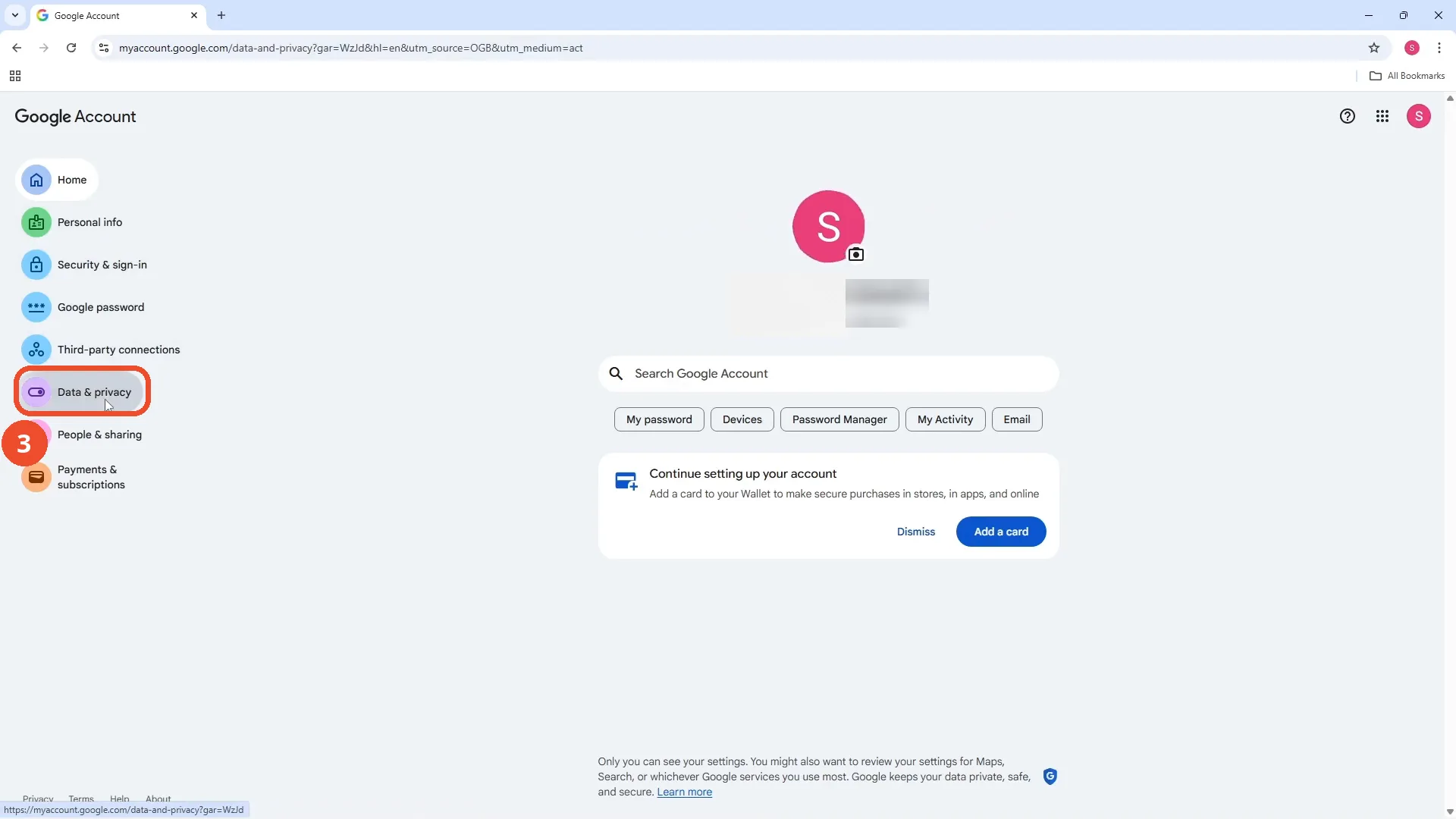
Click Data & privacy
On your Google Account page, click Data & privacy in the menu on the left.
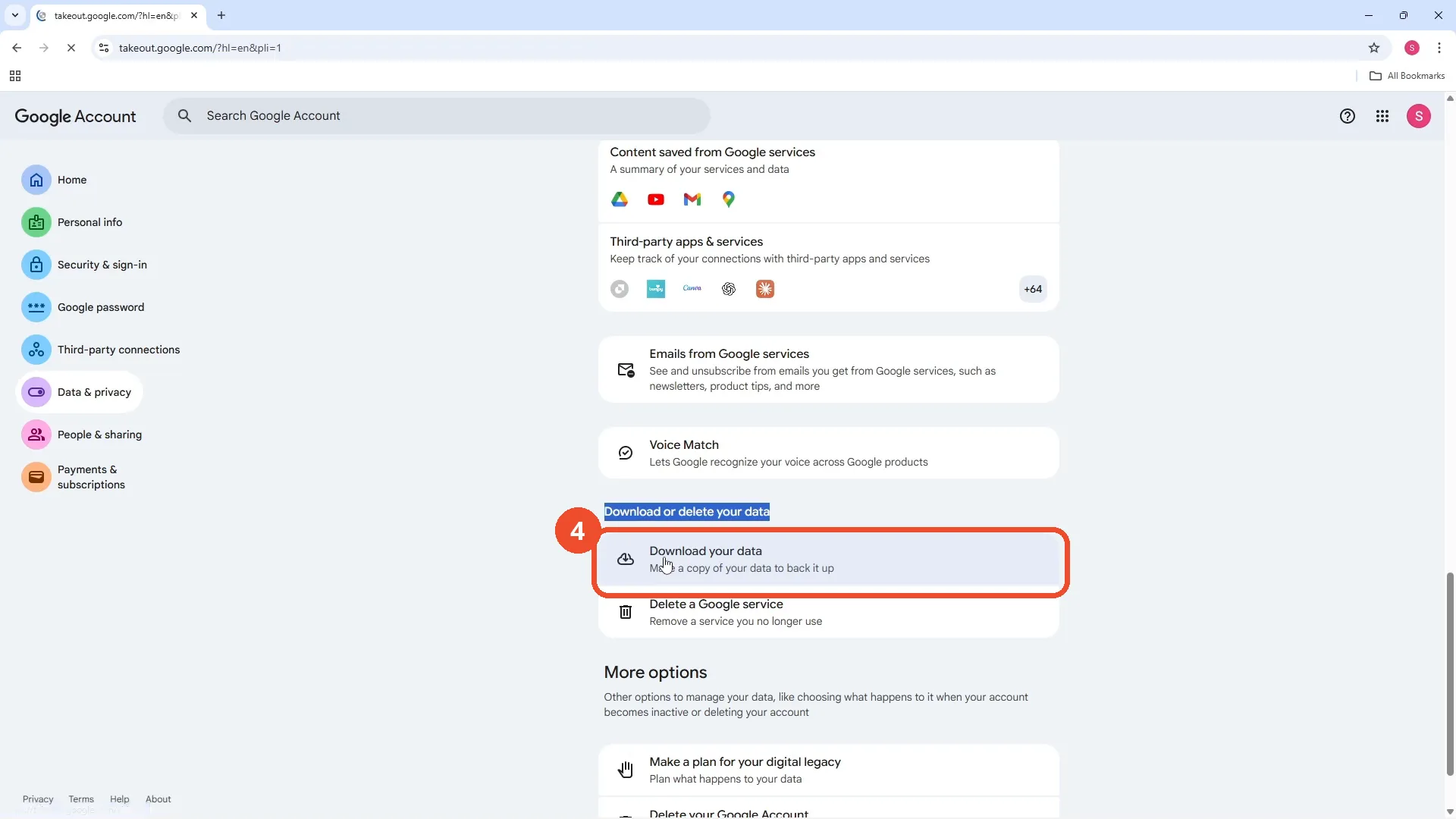
Scroll down and click Download your data
Scroll down to the ‘Download or delete your data’ section and click Download your data.
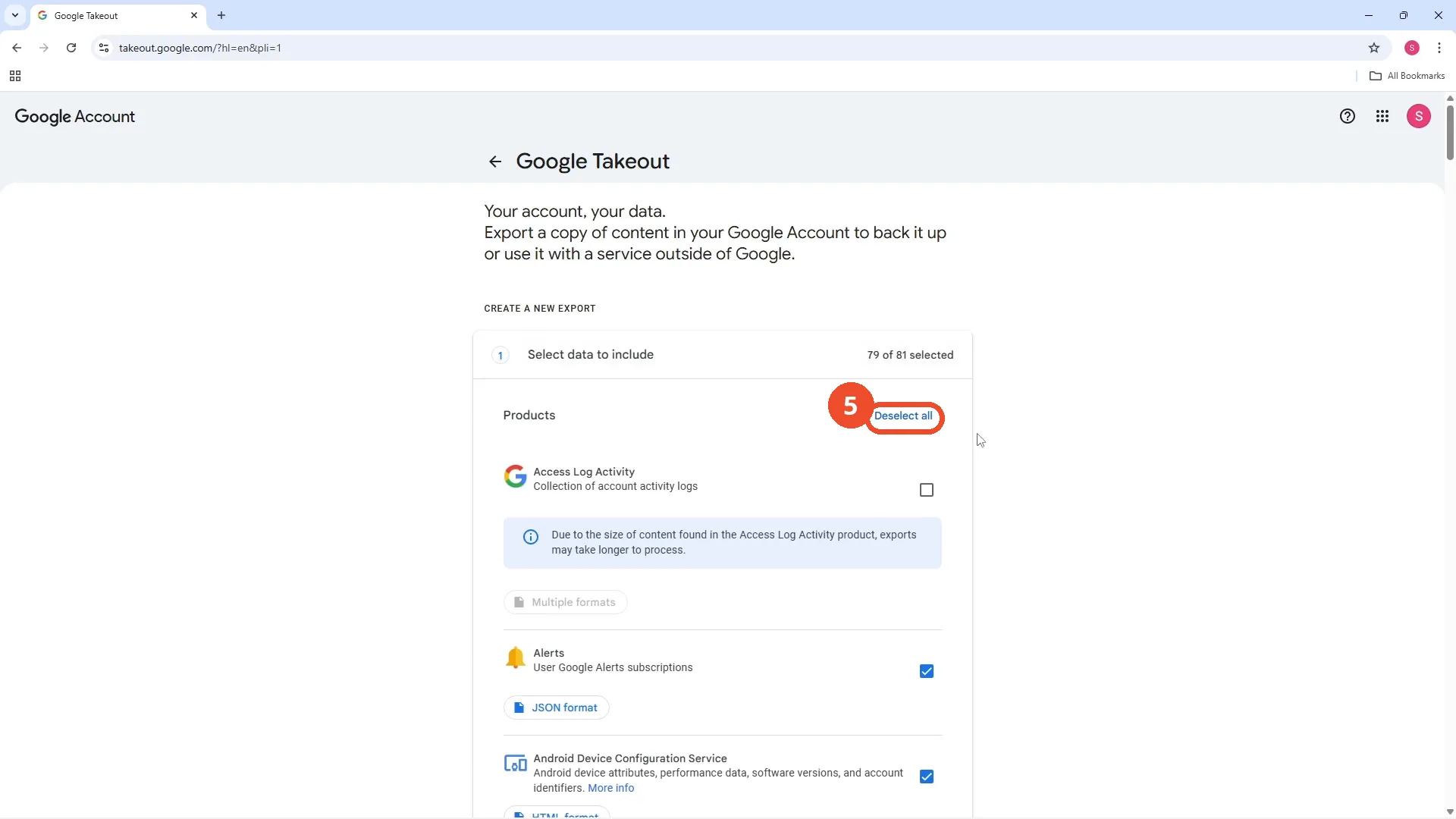
Click Deselect all
Google Takeout opens with 79 of 81 products selected. Click Deselect all at the top right so the export does not include everything.
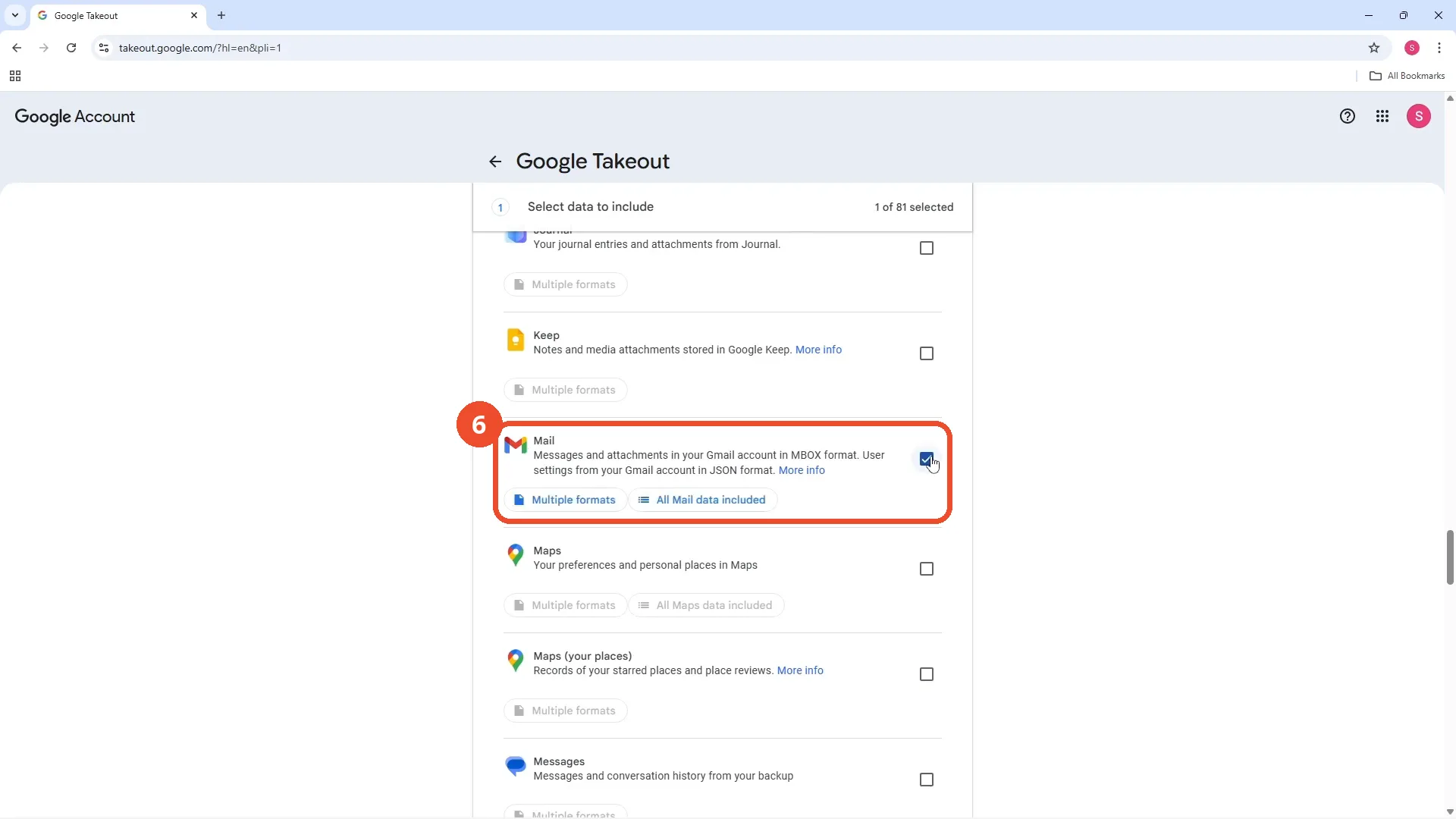
Find Mail and tick its checkbox
Press Ctrl+F, type mail, and tick the checkbox next to Mail. The header now reads ‘1 of 81 selected’.
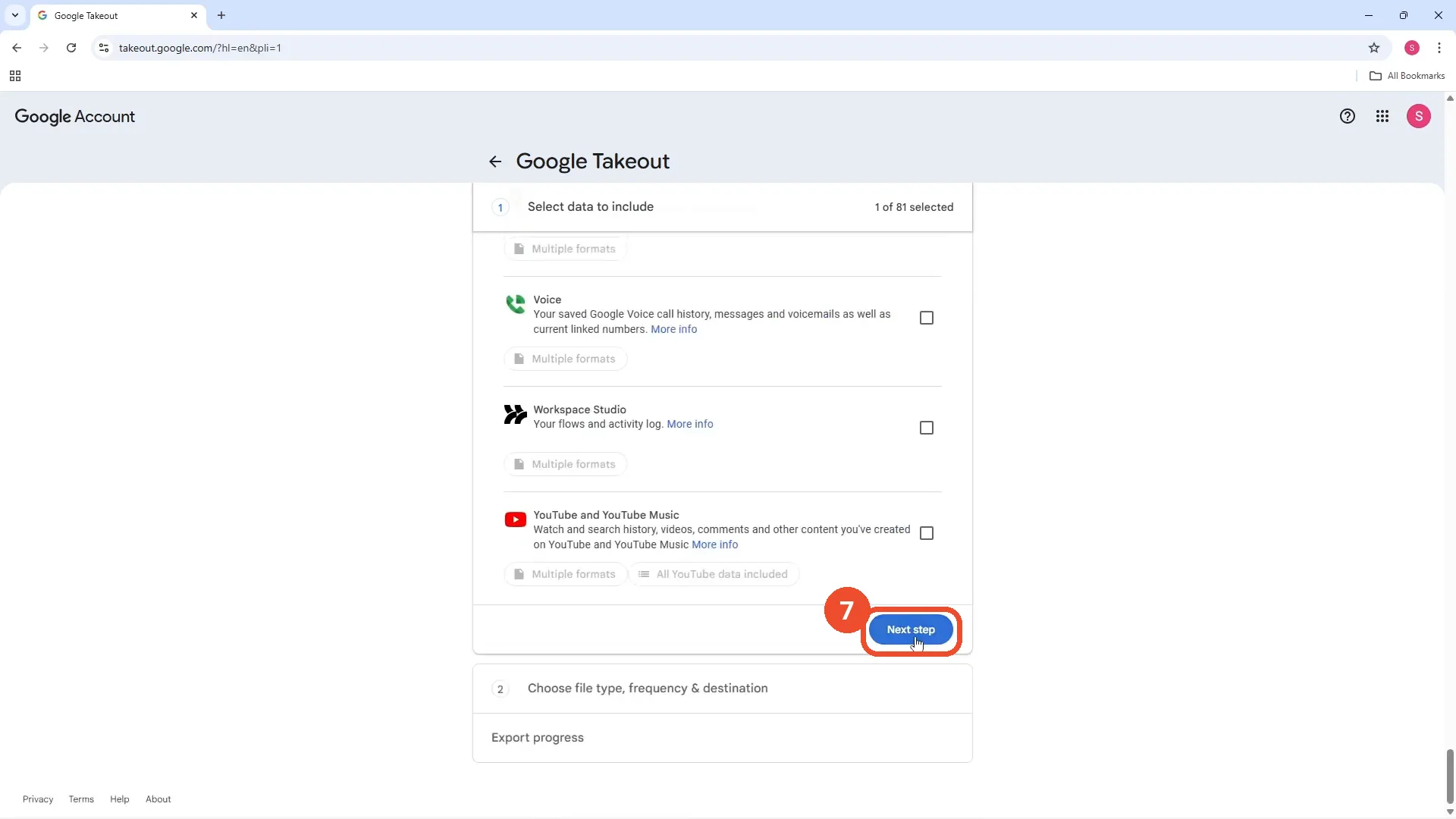
Click Next step
Scroll to the bottom of the product list and click the blue Next step button.
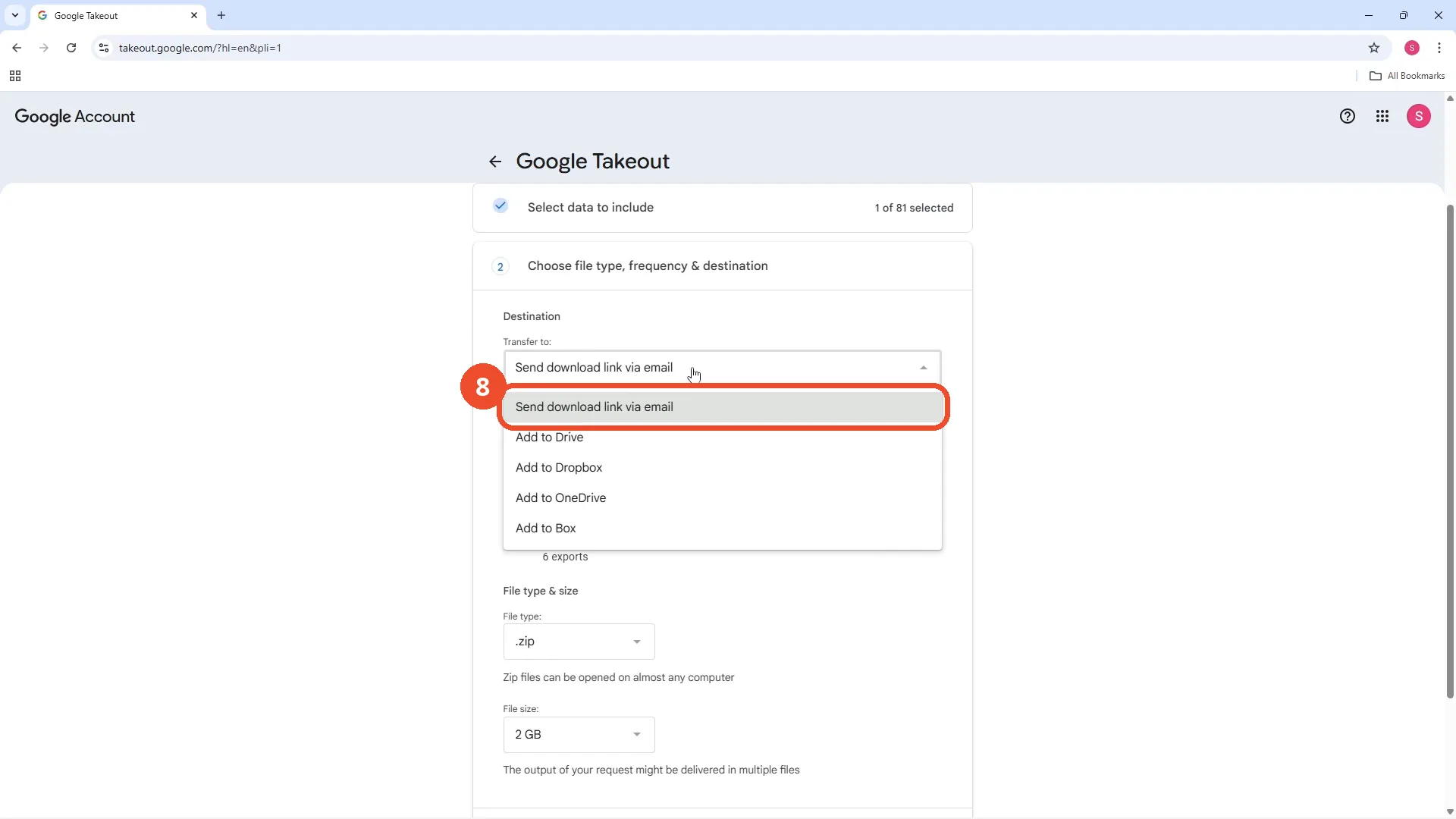
Choose Send download link via email
Open the ‘Transfer to’ list and choose Send download link via email. Google will email you a download link when the export is ready.
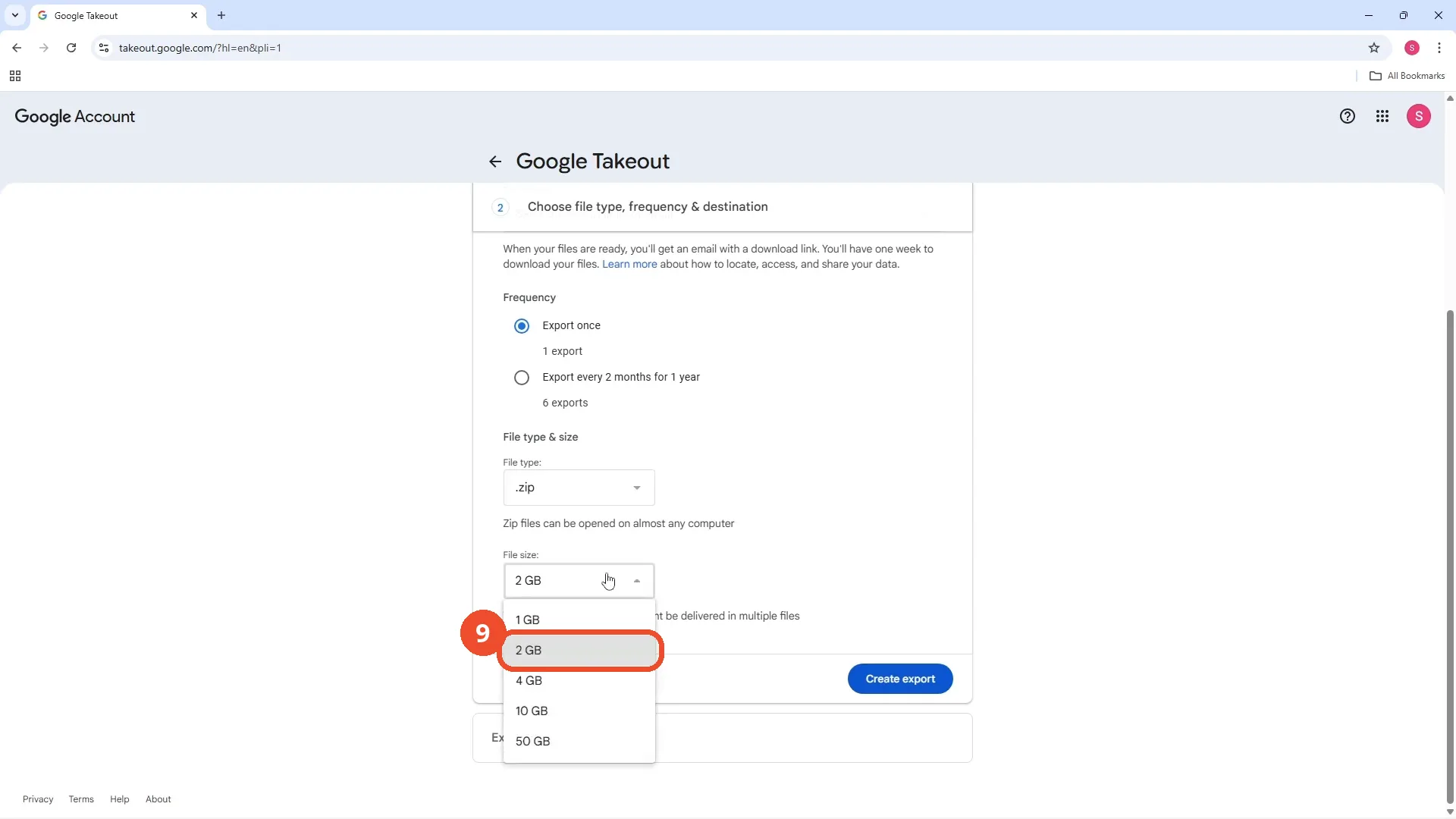
Choose 2 GB as the file size
Leave Frequency on Export once and File type on .zip, then open the File size list and choose 2 GB.
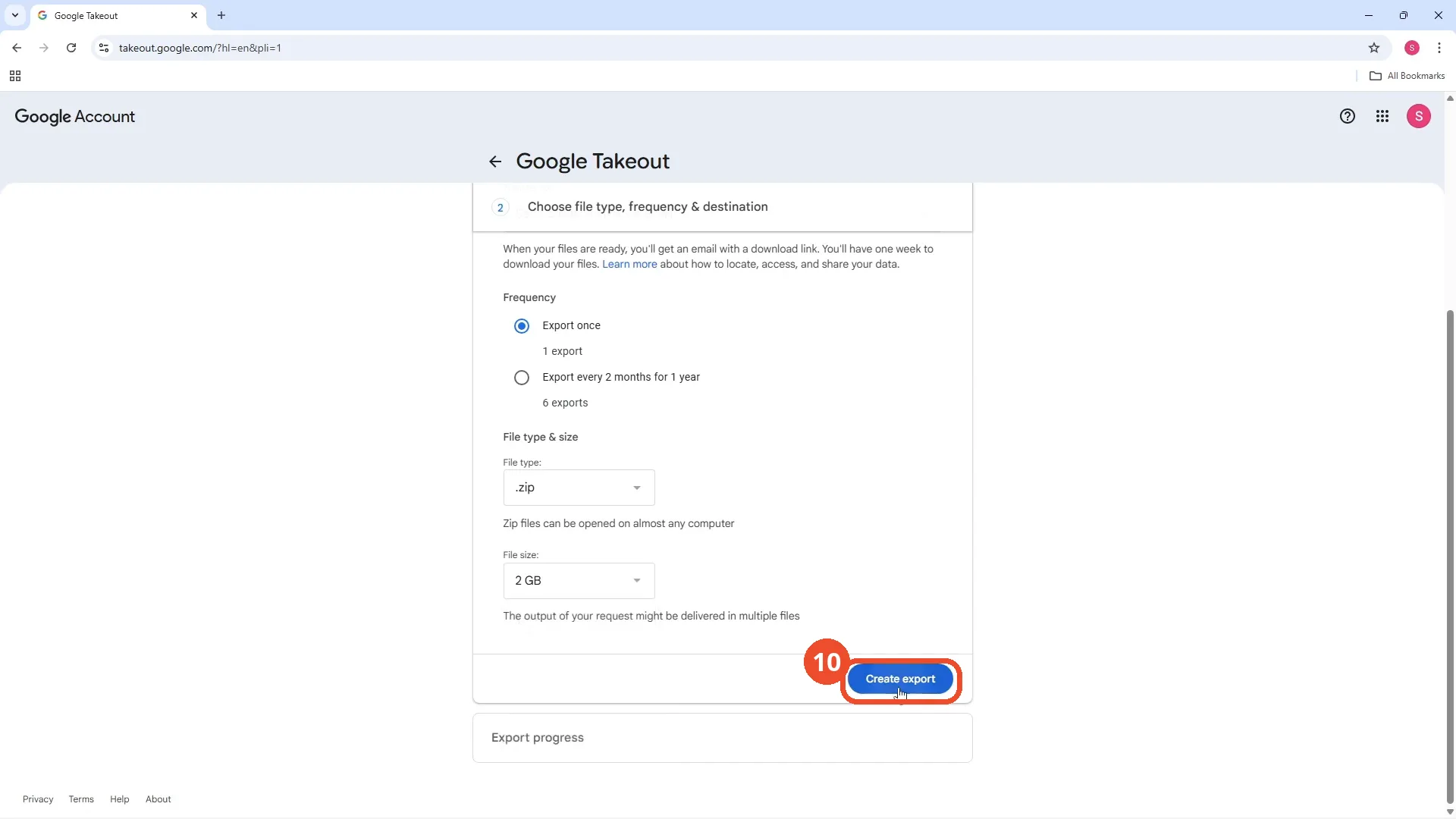
Click Create export
Click the blue Create export button at the bottom right.
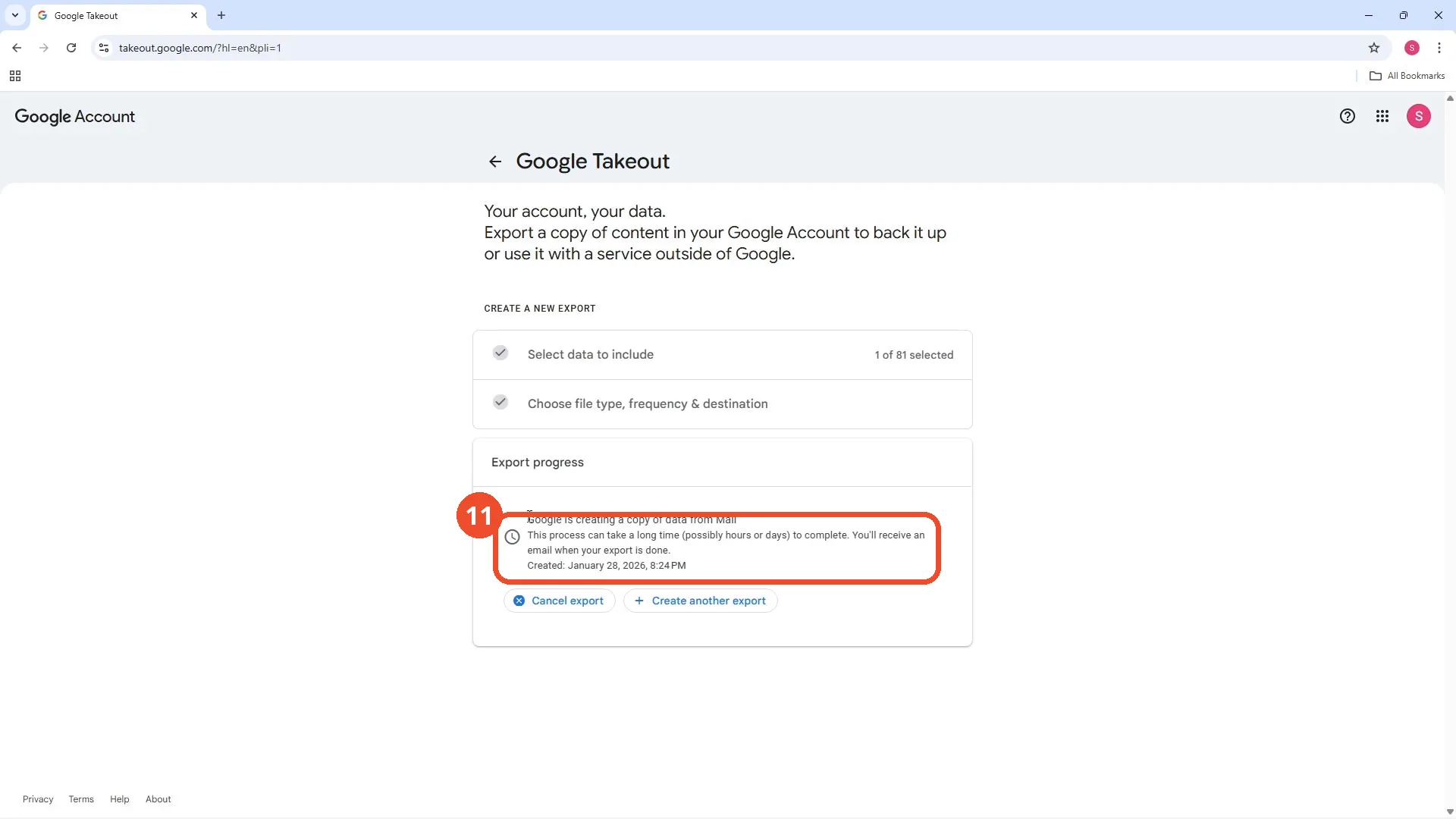
Check the export is in progress
Takeout shows ‘Google is creating a copy of data from Mail’ under Export progress. This can take hours or days; Google emails you when the export is ready to download.
Good to know
- Google Takeout is the way to download emails in bulk; Gmail itself has no export button.
- Deselect all first, then tick Mail only — otherwise the export includes all 81 Google products. The film’s export shows ‘1 of 81 selected’.
- The export does not download instantly. Takeout says the process can take hours or days, and Google emails you a download link when it is ready. The film’s export was created on January 28, 2026 and was still being prepared when the film ended.
- Export once, ZIP and 2 GB are the settings the film uses; the download link stays valid for one week.
- The profile menu and the Google Account page show the operator’s own account; the email parts are blurred in the screenshots.