How to Delete Folders in Gmail
Gmail does not really have folders — it has labels, and they work the same way. This tutorial deletes a label two ways: from the sidebar, and from Settings. Both ways only delete the label itself; the emails stay in your inbox and in All Mail.
- SystemWindows (browser)
- AppGmail web app
- Last verifiedNovember 15, 2026
Every screenshot below is taken from the actual recording on this device — no stock images.
Steps
Open Gmail in your browser
Open Gmail in a desktop browser and sign in. The inbox loads with your labels in the left sidebar.
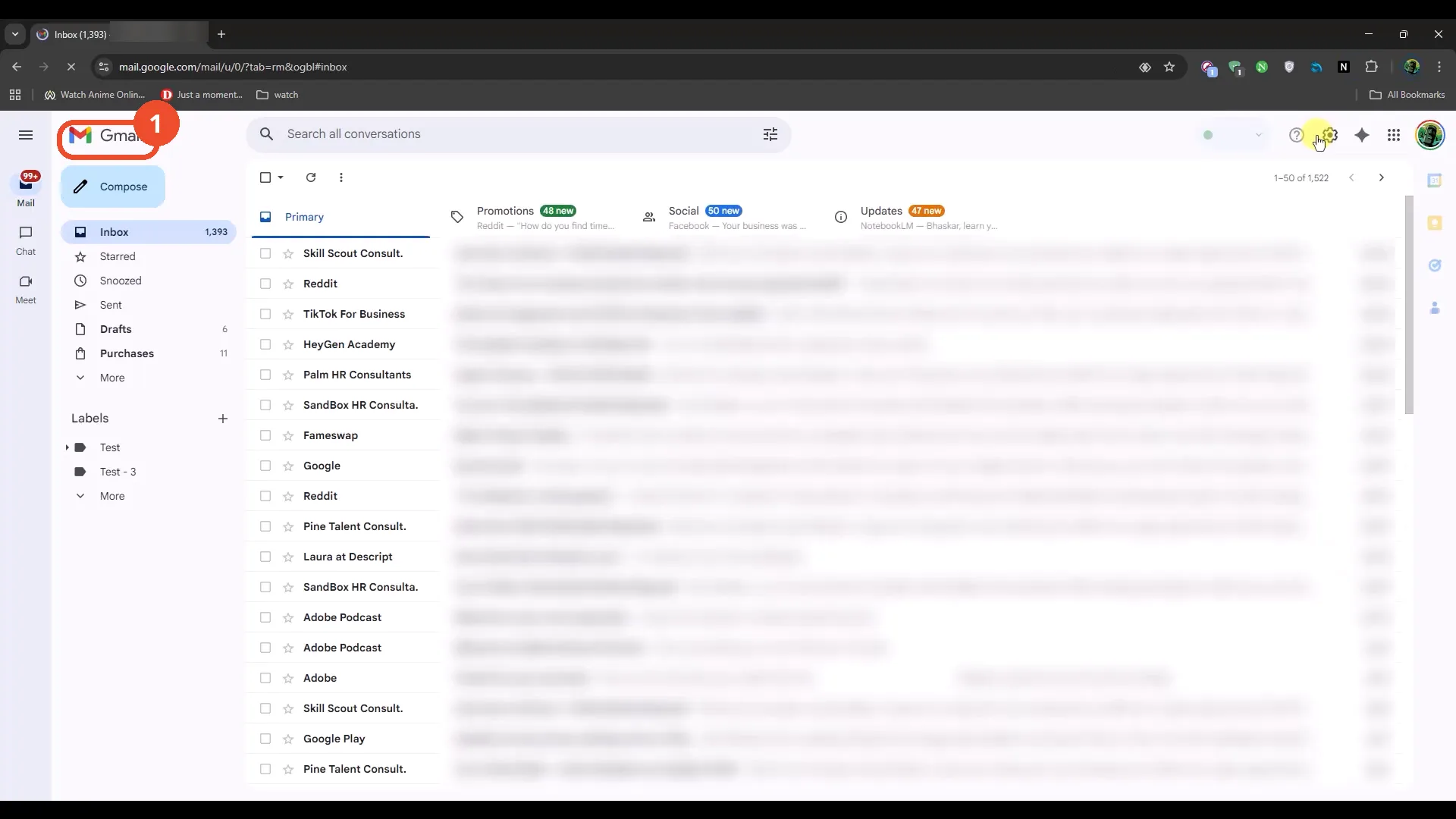
Expand the label to see its sublabels
In the left sidebar, find the label you want to delete. The demo labels Test - 2 and Test - 3 sit under a label called Test, so click the small arrow next to Test to expand it and see them.
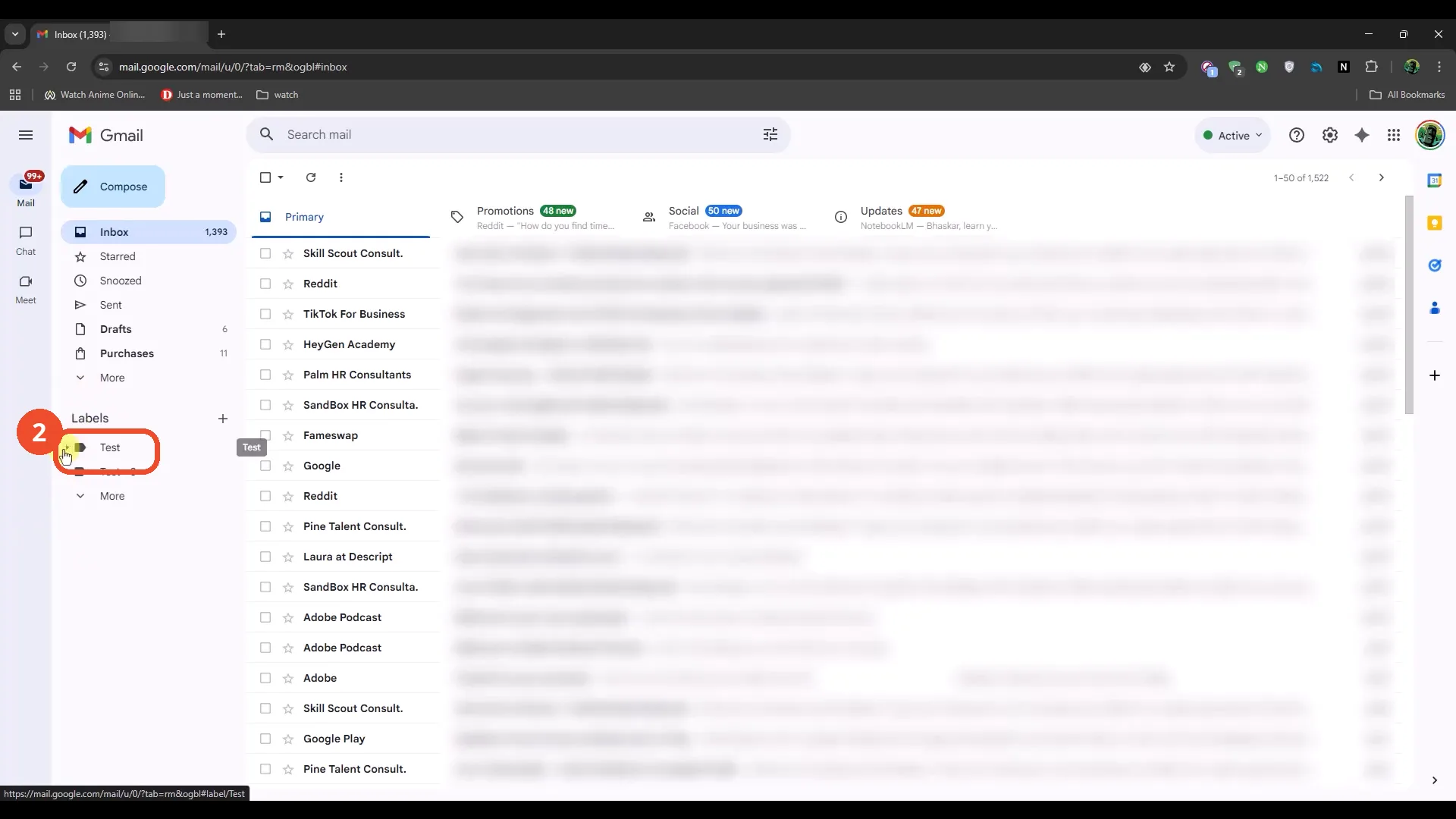
Hover the label and click the three dots
Hover over the label — here Test - 2 — and click the three vertical dots that appear at the right of the row.
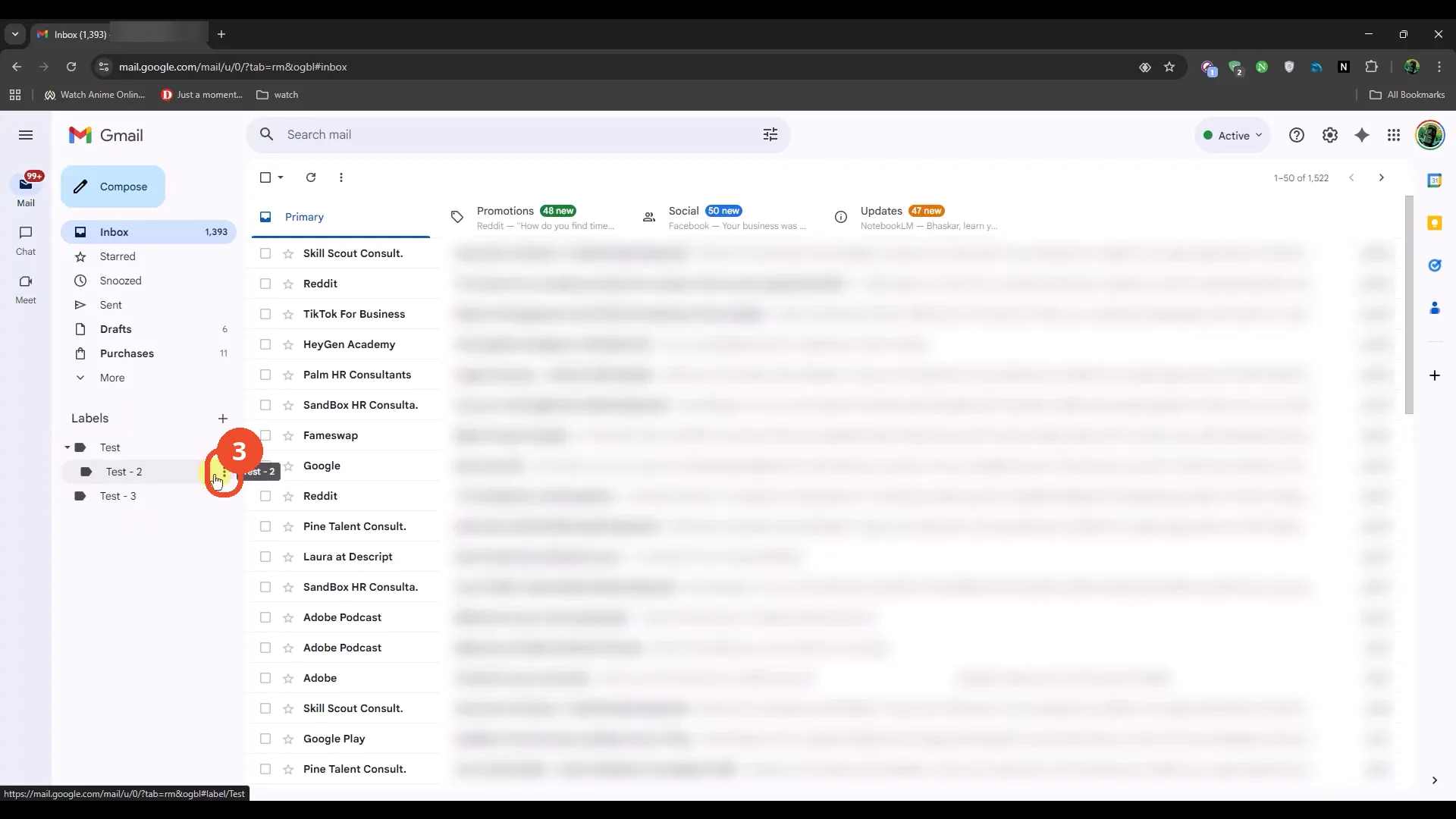
Click Remove label
In the menu that opens, click Remove label.
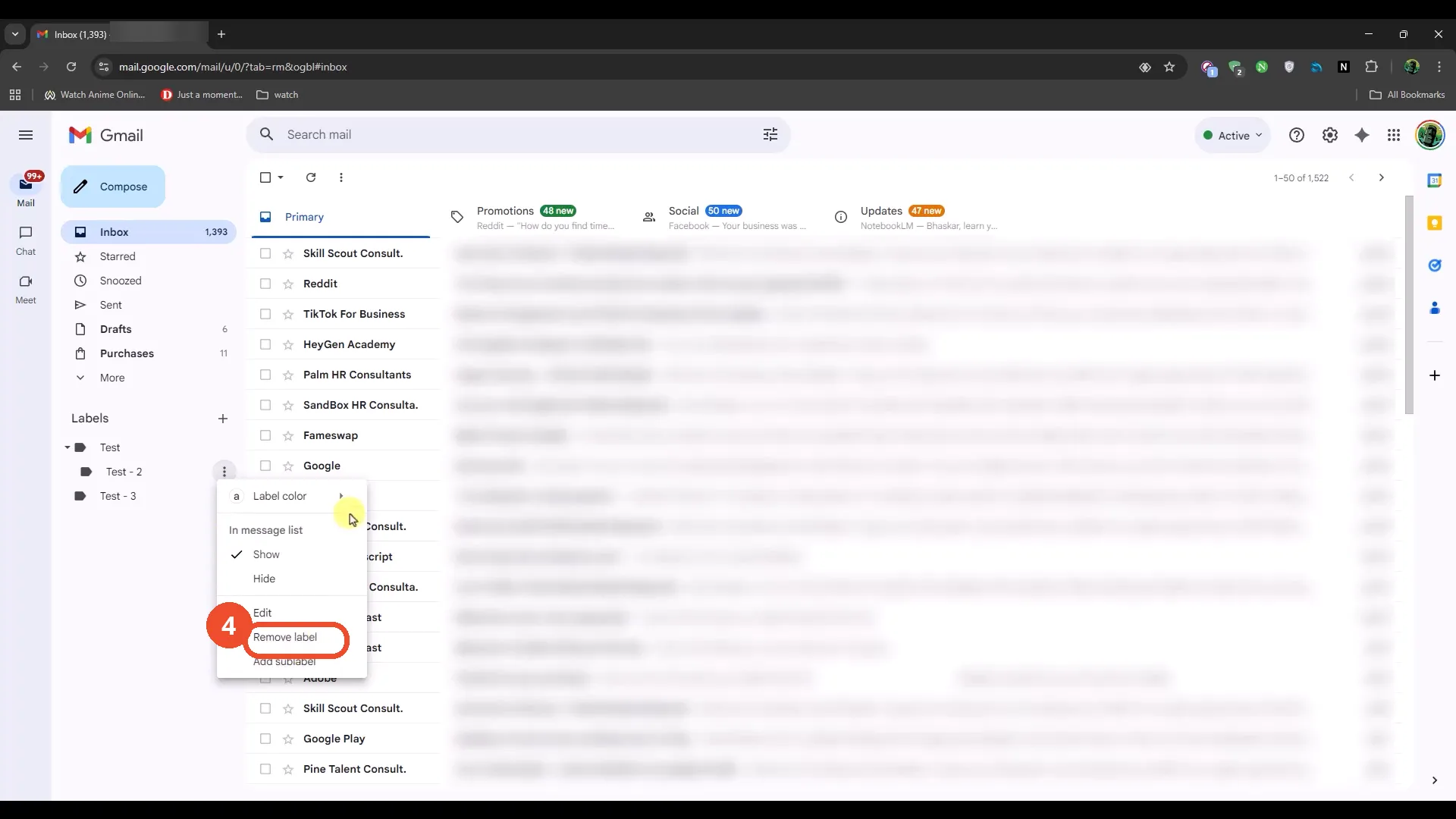
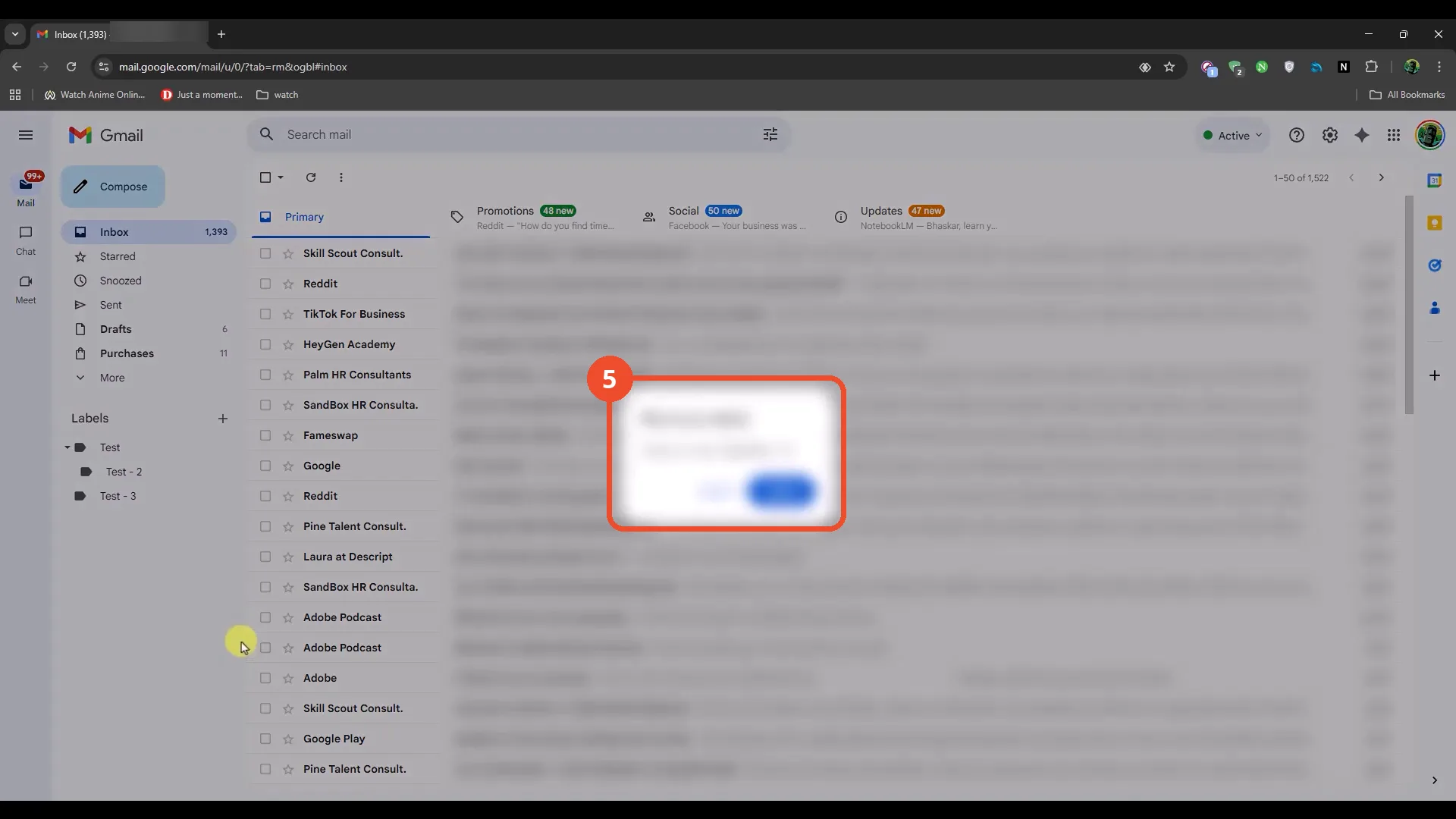
Confirm the deletion
Click Delete in the confirmation dialog. The dialog itself is blurred in the film, so its text is not readable in the screenshot.
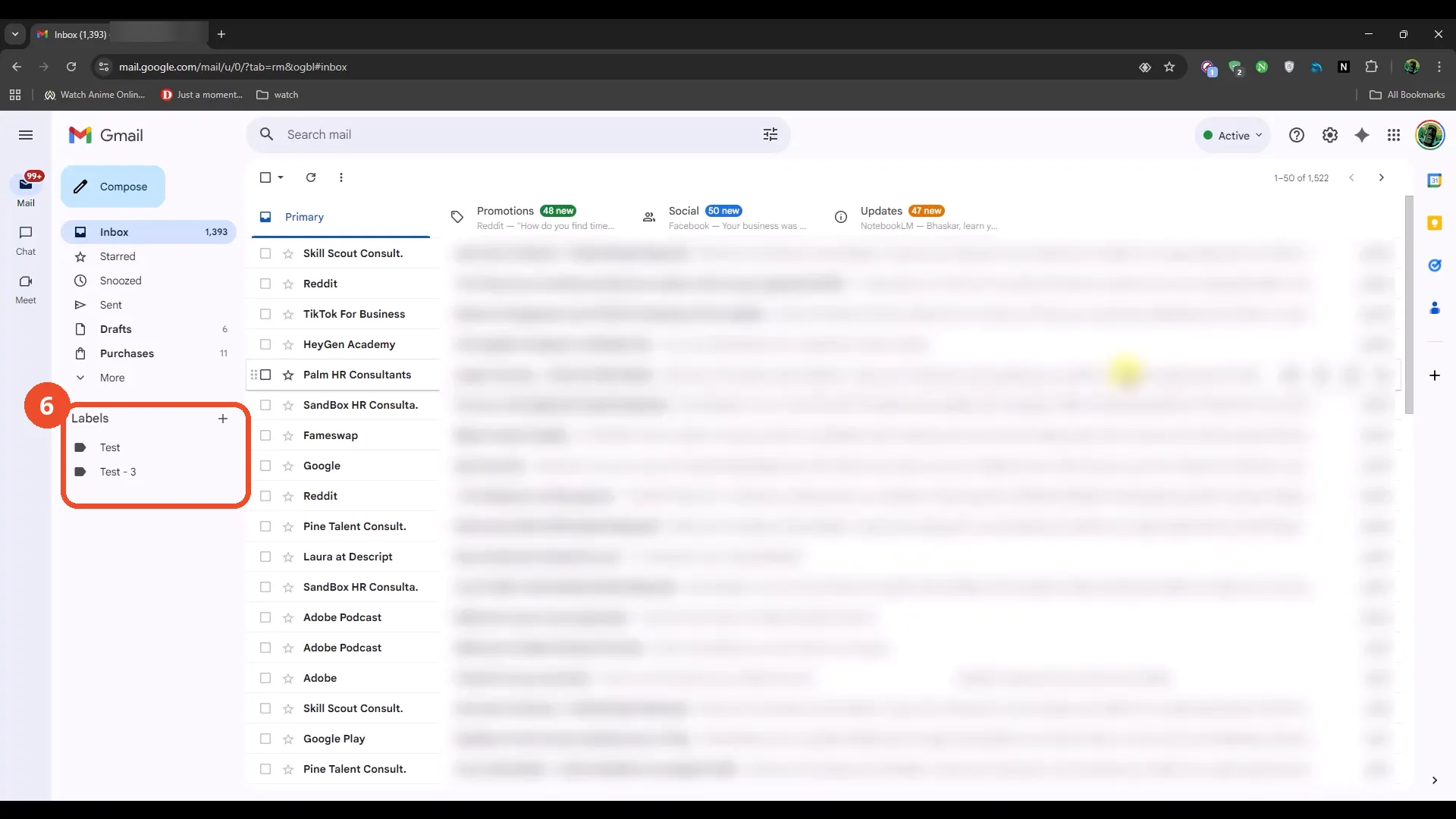
Check the label is gone
Back in the inbox, look at the Labels section in the sidebar: Test - 2 is gone, and only Test and Test - 3 are left.
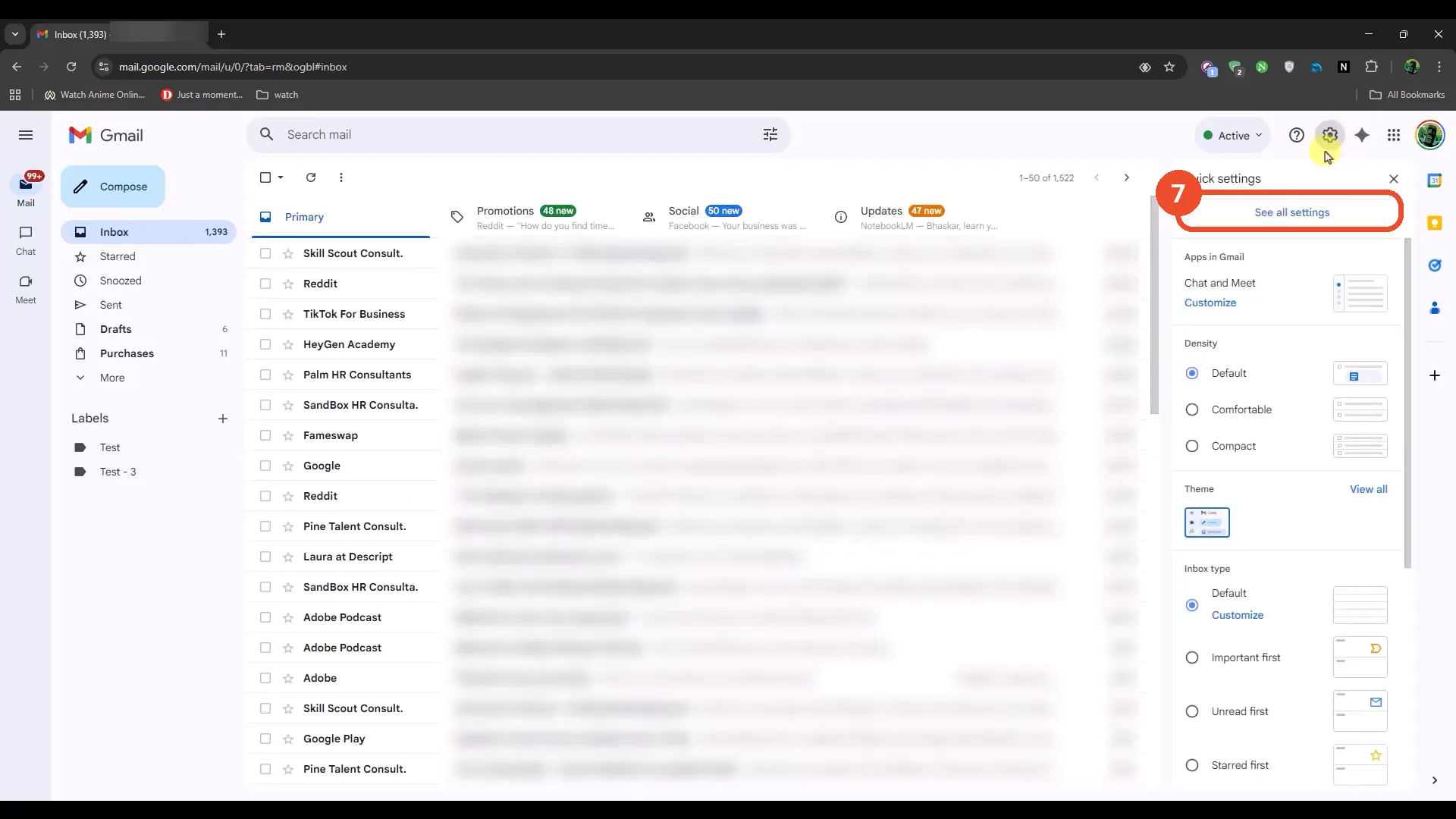
Click the Settings gear, then See all settings
For the second method, click the Settings gear at the top right, then click See all settings at the top of the Quick settings panel.
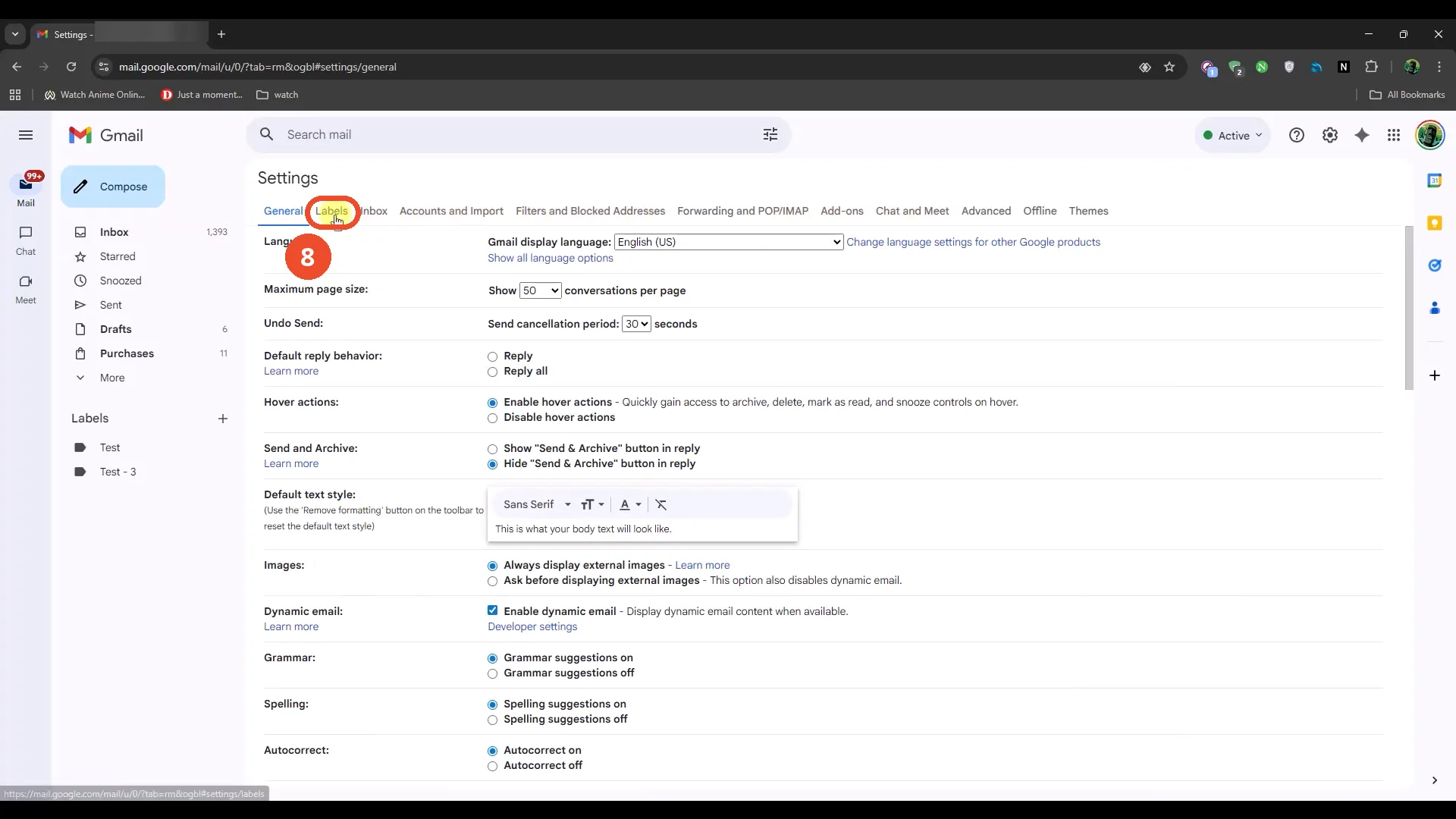
Click the Labels tab
On the Settings page, click the Labels tab at the top.
Find the label and click remove
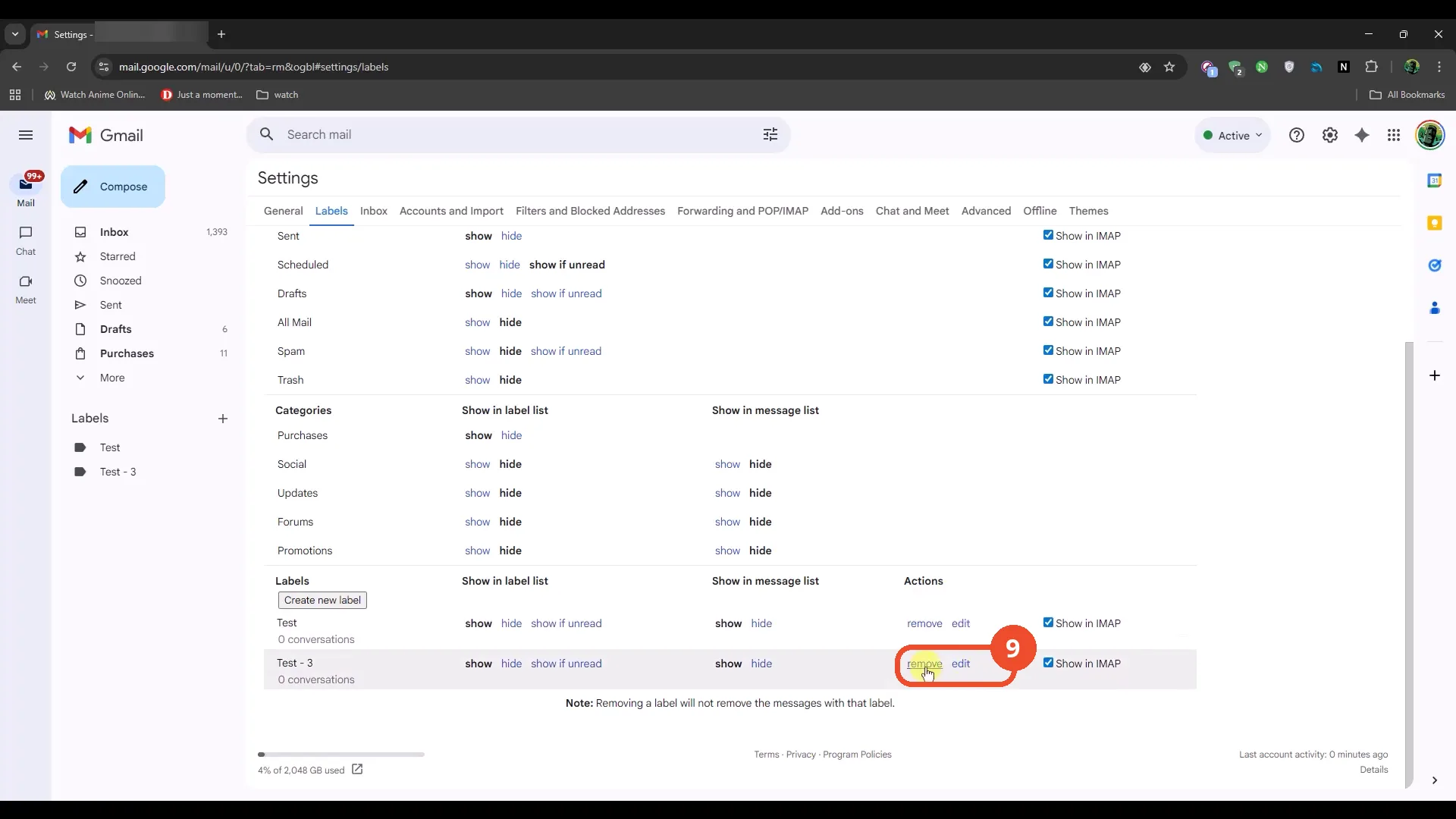
Scroll down to the Labels section, find the label — here Test - 3, with 0 conversations — and click the remove link at the far right of its row.
Click Delete to confirm
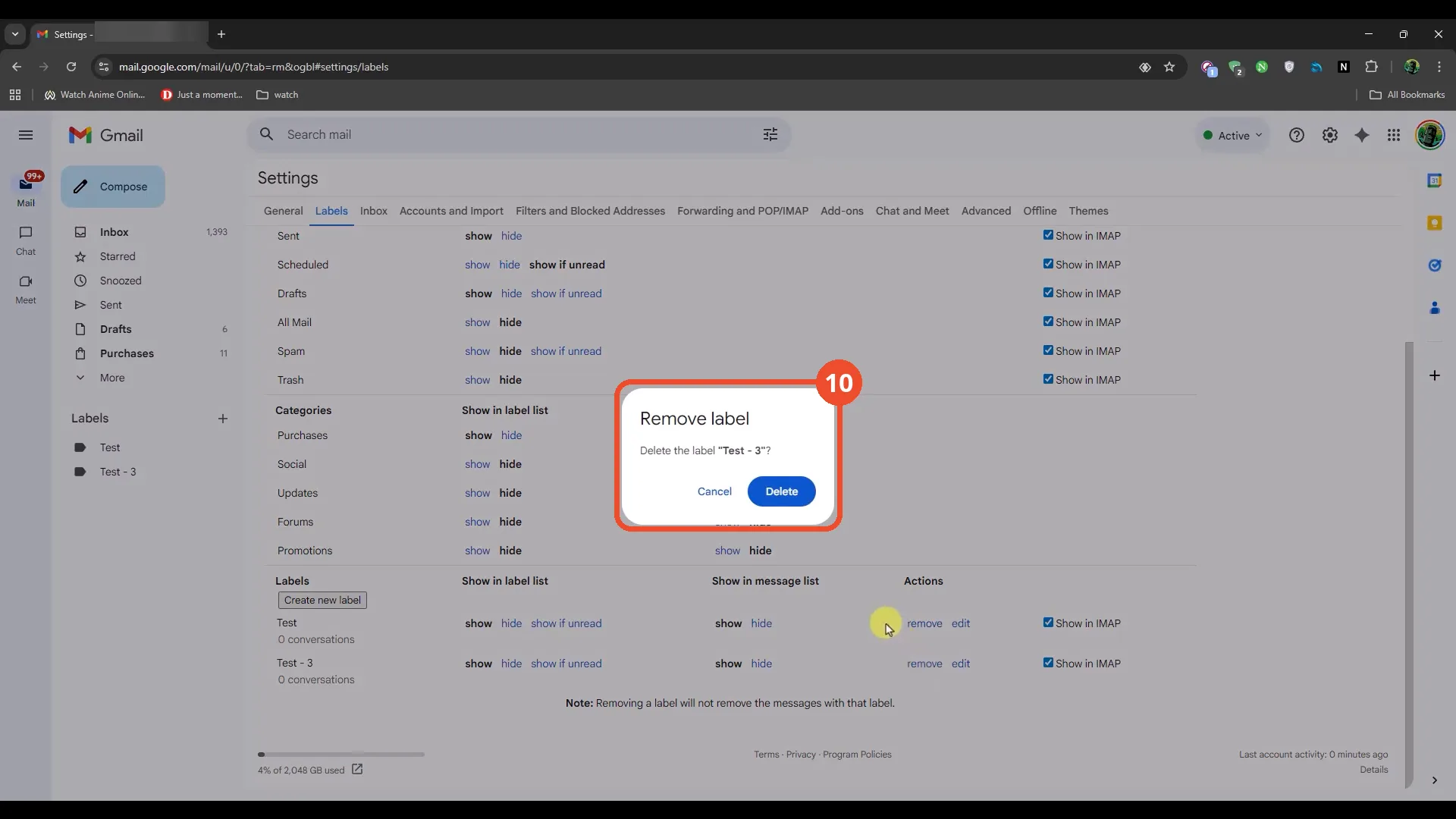
A dialog asks ‘Delete the label “Test - 3”?’ Click the blue Delete button.
Check the confirmation toast
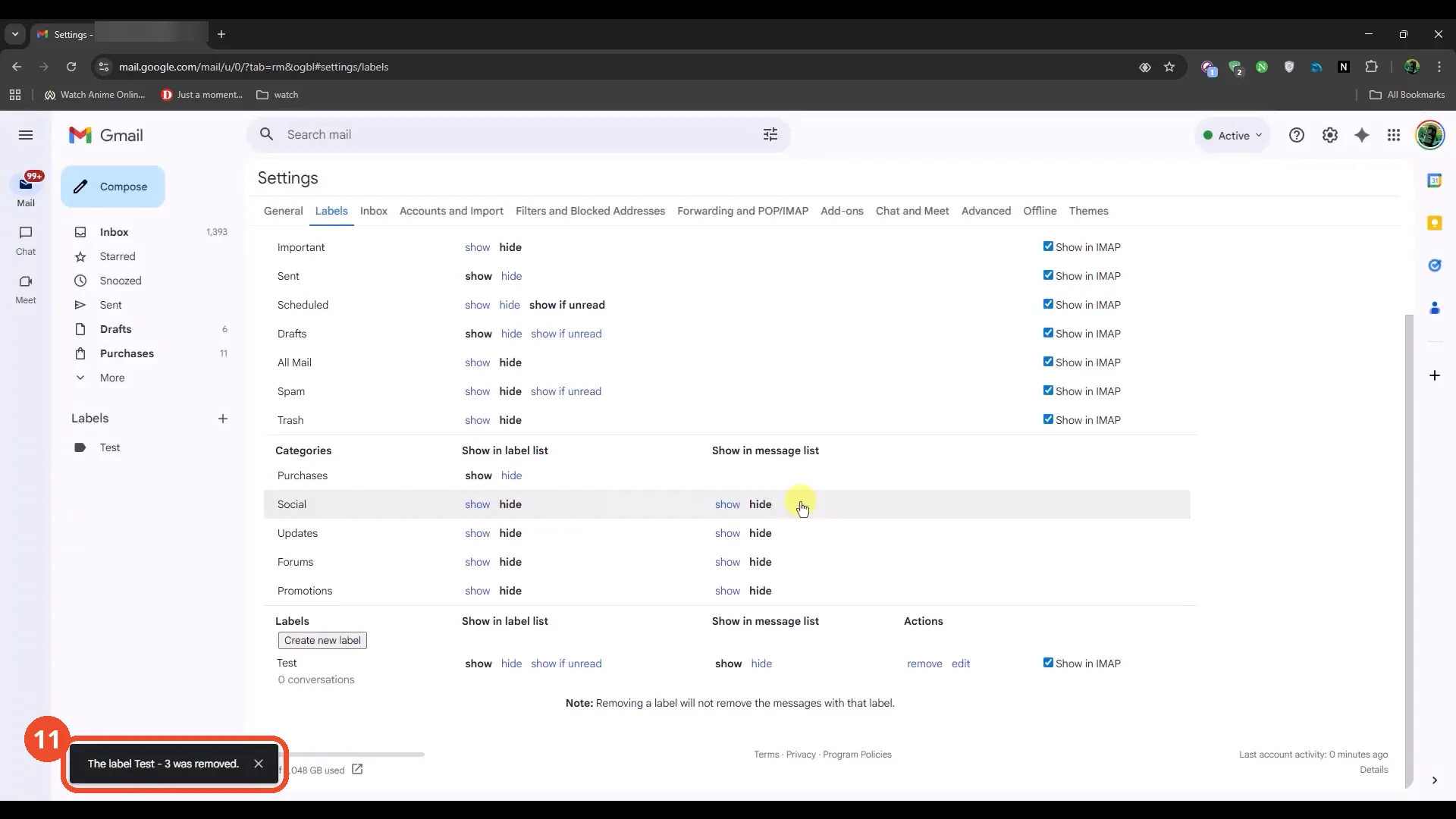
Gmail shows a toast at the bottom left: ‘The label Test - 3 was removed.’ The sidebar now lists only Test.
Good to know
- The film deletes two demo labels: Test - 2 from the sidebar and Test - 3 from Settings. Both have 0 conversations.
- The confirmation dialog in the first method is blurred in the film itself, so its text is not readable in the screenshot. The second method’s dialog reads ‘Delete the label “Test - 3”?’ and is fully visible.
- Deleting a label never deletes the emails. The Settings page says so directly: ‘Removing a label will not remove the messages with that label.’
- Test - 2 and Test - 3 are sublabels of a label called Test, so expand Test in the sidebar to see them.
- The browser tab shows the operator’s own account; the email part of the tab title is blurred in the screenshots.