How to Delete Attachments in Gmail
Gmail does not delete attachments on their own — you delete the emails that carry them. Search for has:attachment, delete the matches, then empty Trash to free the space. The film works through three emails this way; read the notes below before you follow along.
- SystemWindows (browser)
- AppGmail web app
- Last verifiedNovember 19, 2026
Every screenshot below is taken from the actual recording on this device — no stock images.
Steps
Open Gmail and go to your inbox
Open Gmail in your browser and sign in. The film opens on the inbox, in dark mode, with the search bar at the top.
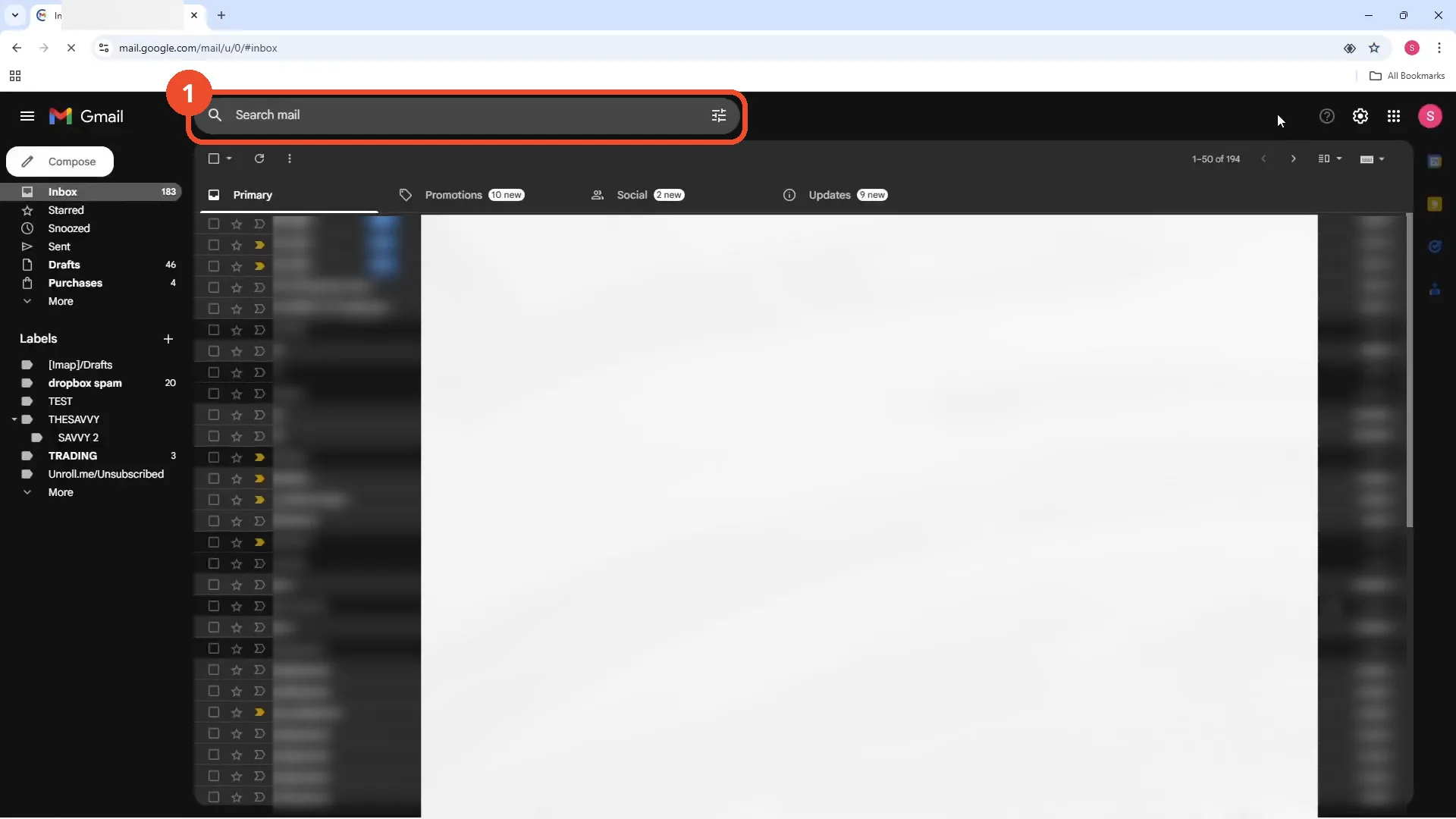
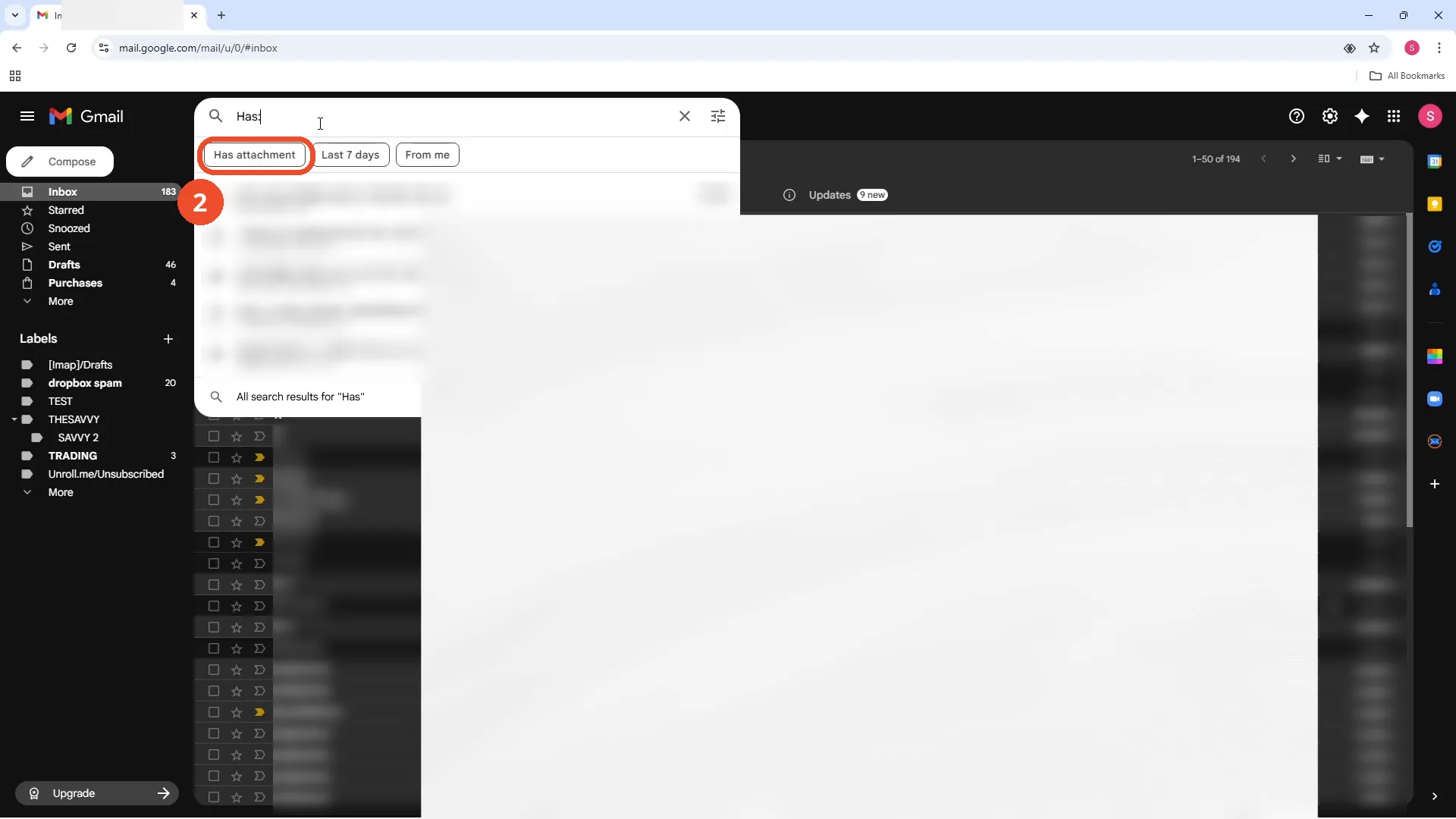
Search for has:attachment
Click the search bar and type has:attachment, then pick the “Has attachment” suggestion. The film types “Has” and the suggestion appears below the search box.
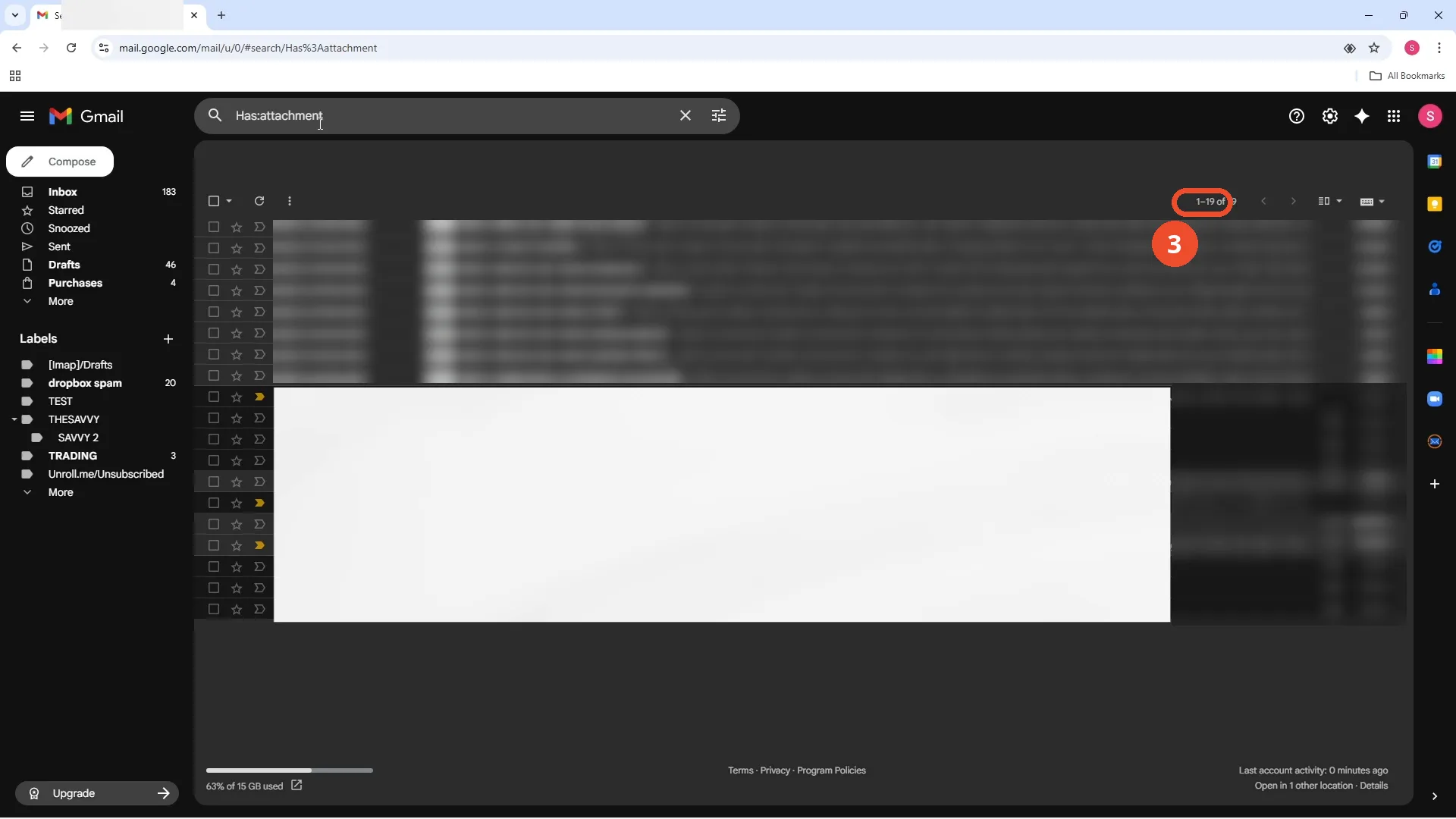
Press Enter to see the matching emails
Press Enter. Gmail lists every email with an attachment — 19 in the film — with the count at the top right.
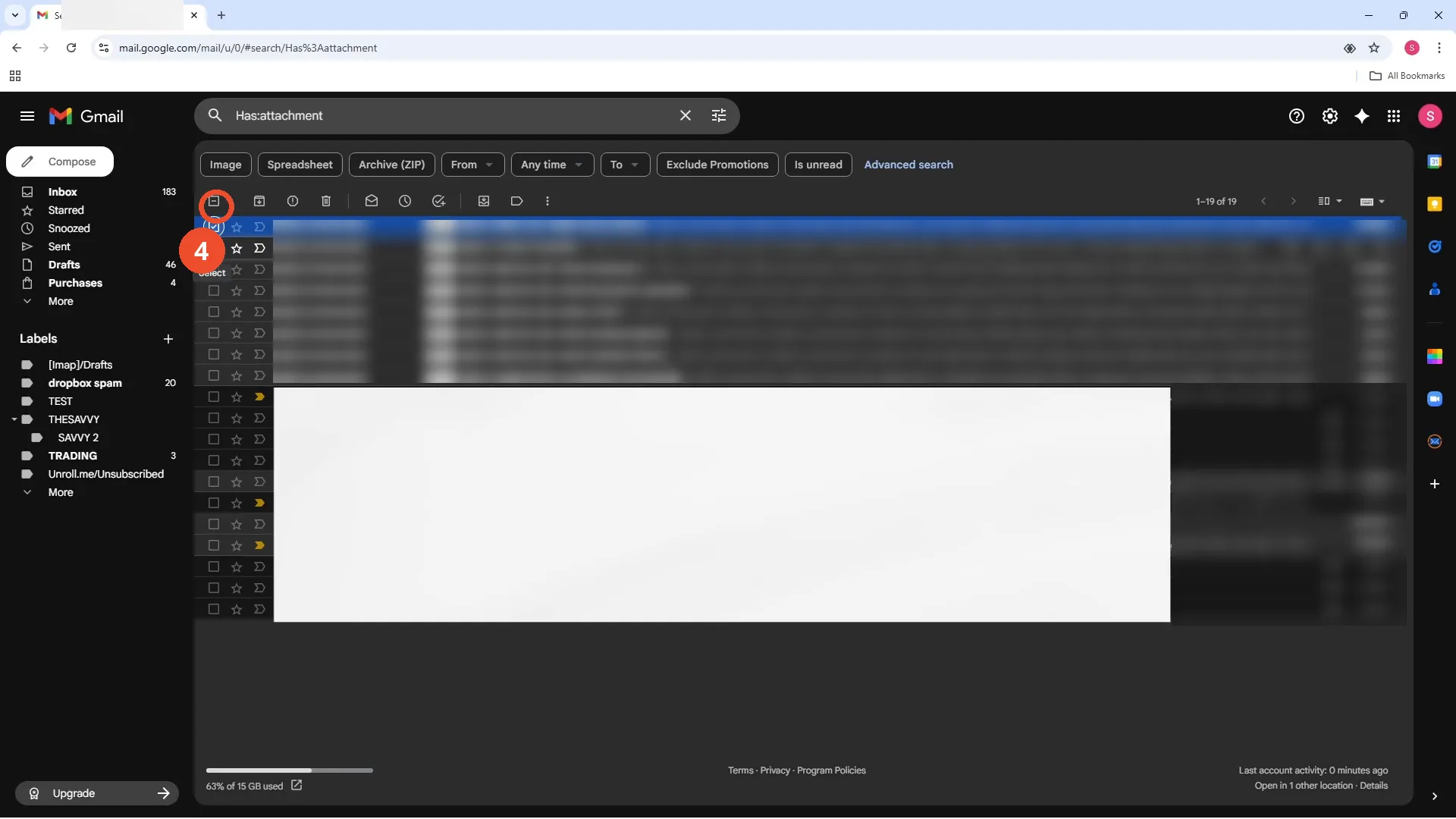
Select the emails to delete
Use the checkbox at the top of the list to select the matching emails, or tick rows one by one. The film ticks the rows it wants to delete — three in total.
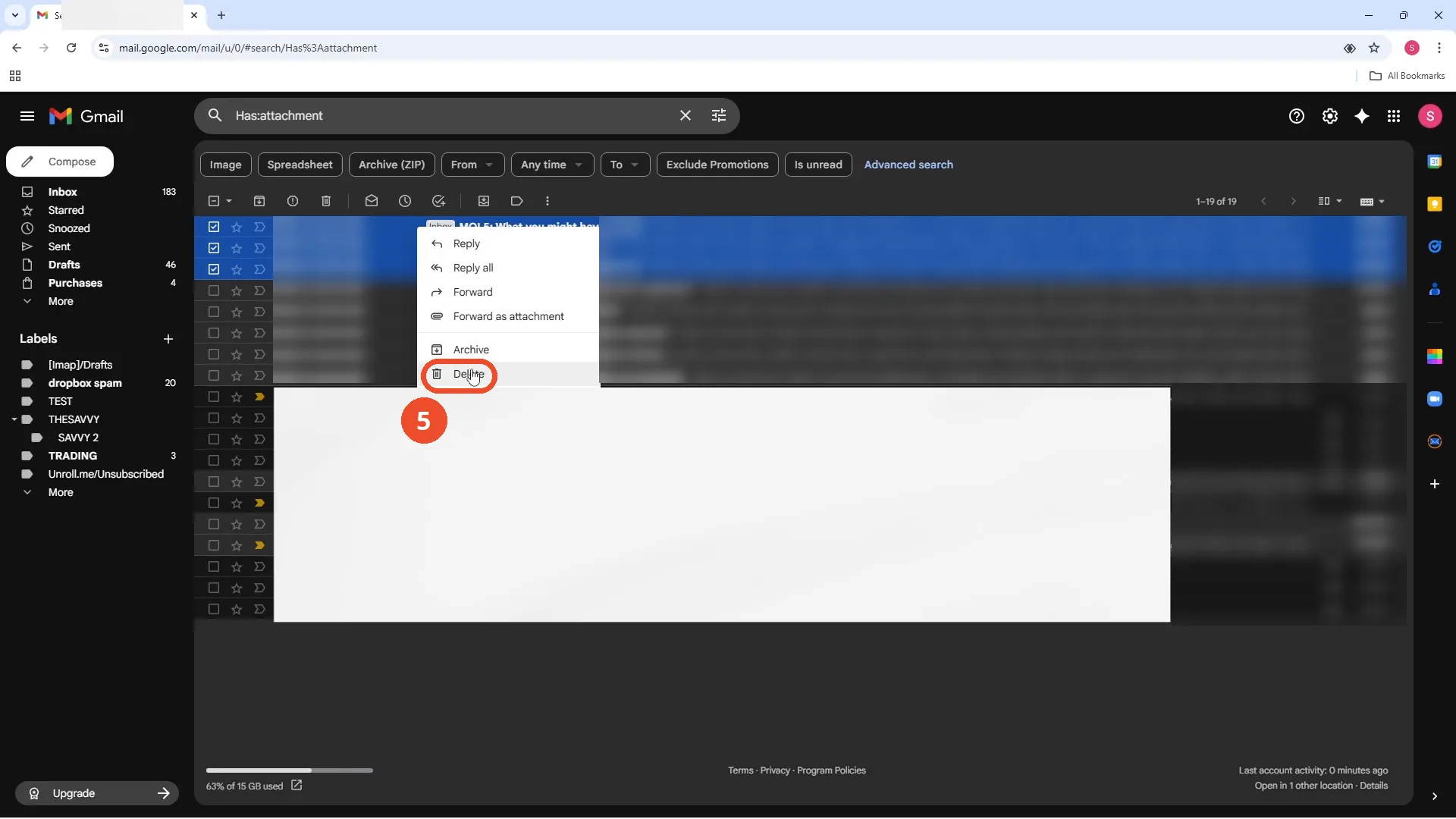
Right-click and choose Delete
Right-click one of the selected emails and choose Delete from the menu. The film’s menu lists Reply, Reply all, Forward, Forward as attachment, Archive, and Delete.
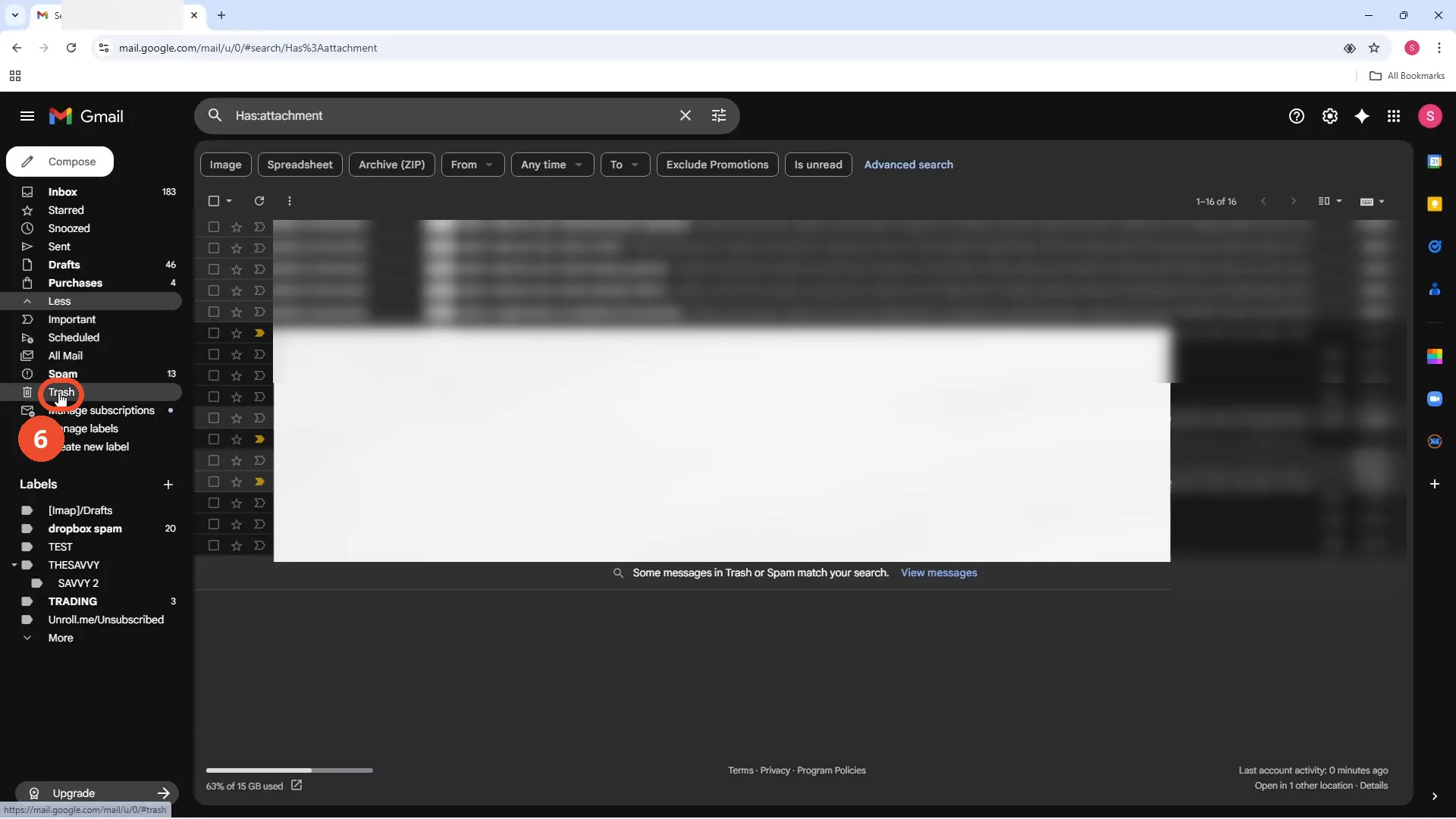
Open Trash to finish the job
Deleted emails sit in Trash for 30 days. To free the space now, expand More in the left sidebar and open Trash.
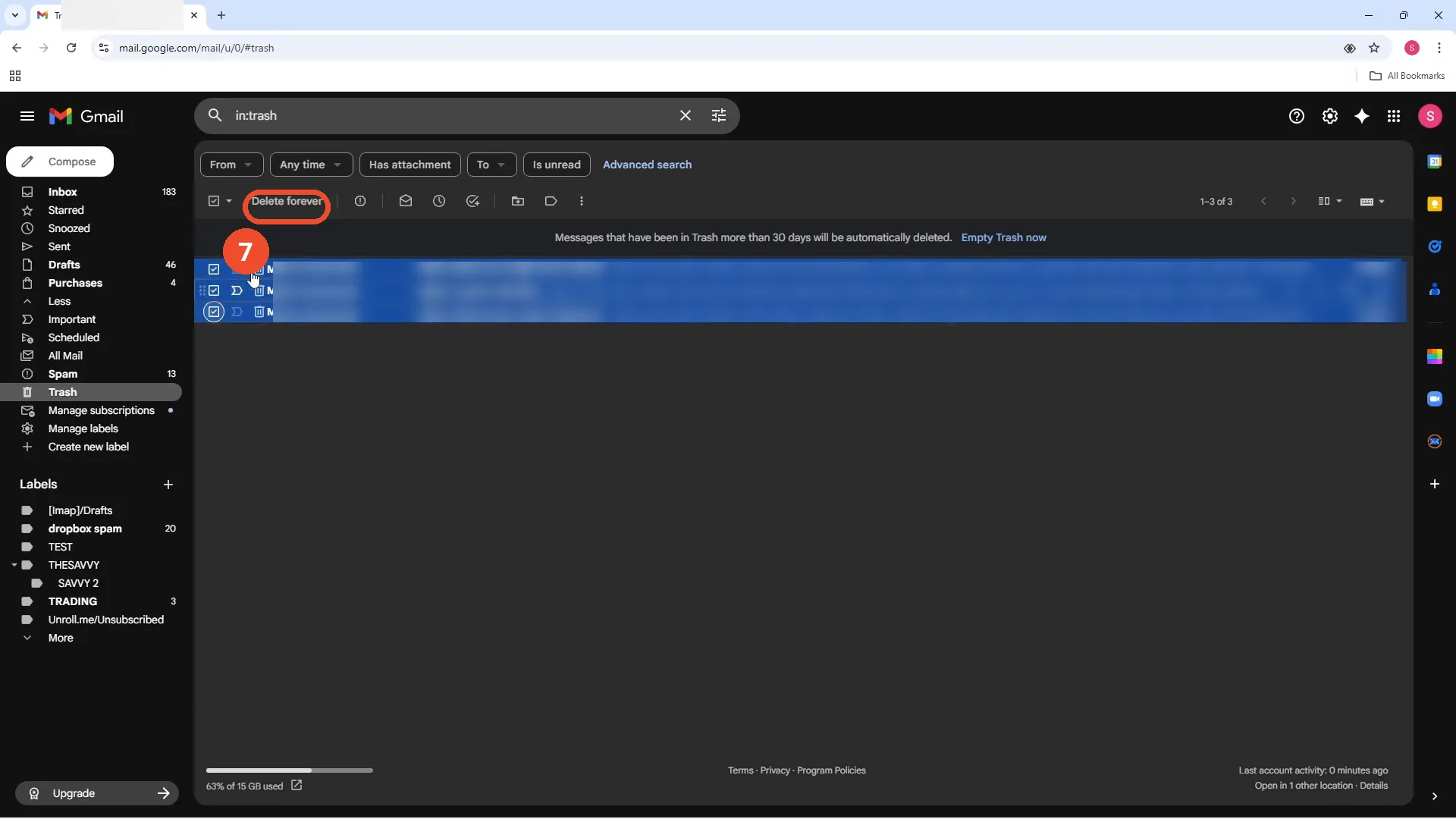
Select all in Trash and click Delete forever
In Trash, tick the emails and click Delete forever at the top. The film ticks the three rows one by one, then clicks Delete forever.
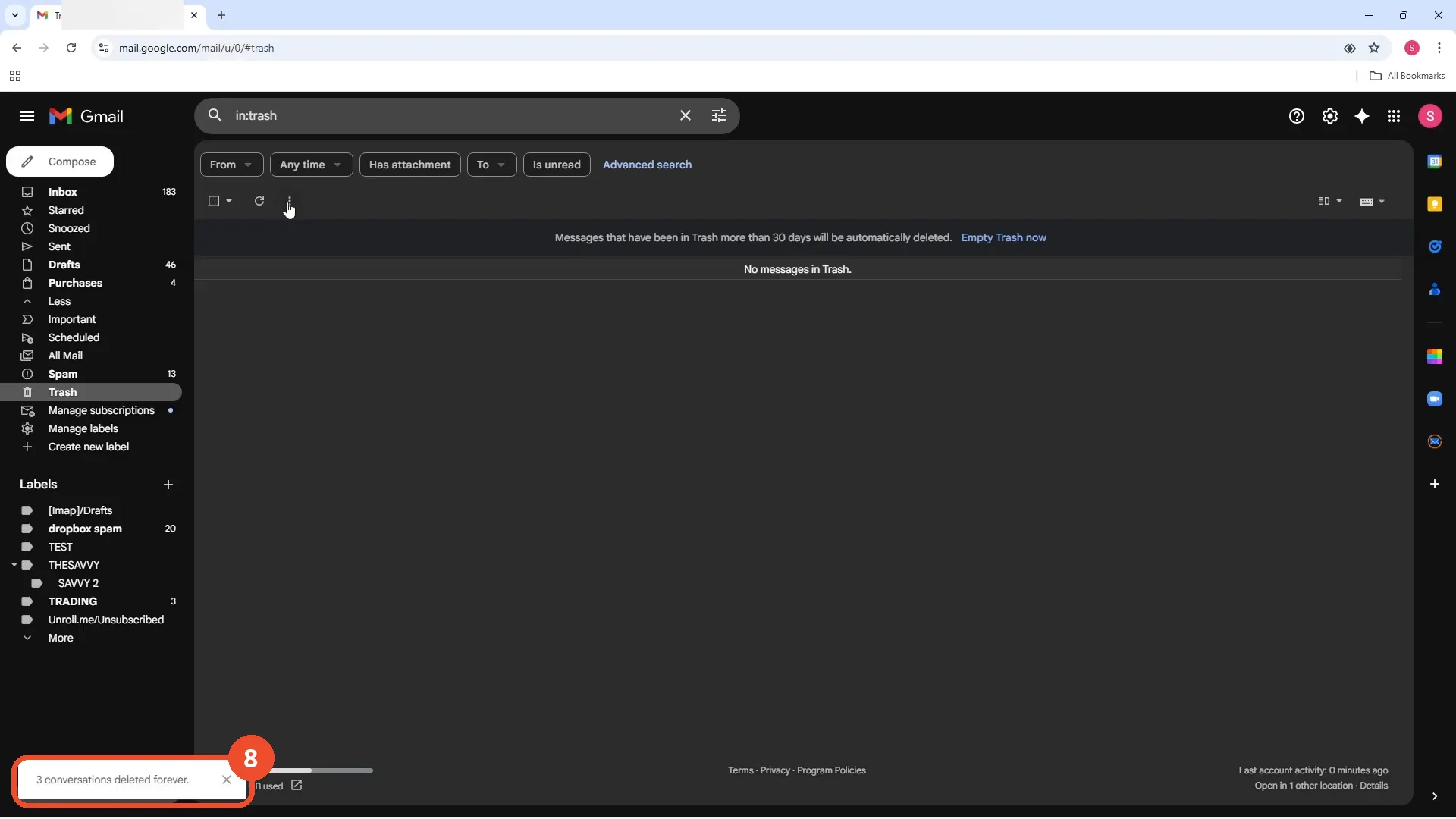
Check that Trash is empty
Gmail confirms with a “3 conversations deleted forever” message, and Trash shows “No messages in Trash.” The space is freed.
Good to know
- Only 3 of the 19 matching emails are deleted in the film — the rest stay in the inbox. Deleting all 19 would mean selecting them all before Delete.
- The “select all” in Trash is narration only: the film ticks the three Trash rows one by one.
- Deleted emails stay in Trash for 30 days before Gmail removes them permanently; Delete forever skips the wait.
- A blue “Manage subscriptions in one place” popup appears briefly and is dismissed; it is not part of the steps.
- The film itself pastes a white rectangle over some list rows to redact them; that blank box is part of the recording, not a missing image.
More on Gmail
- How to Create a Contact Group in Gmail
- How to Delete All Emails Before a Certain Date in Gmail
- How to Delete Folders in Gmail
- How to Delete All Unread Emails in Gmail
- How to Recover Deleted Emails in Gmail
- How to Automatically Forward Specific Emails in Gmail Using Filters
- How to Send Encrypted Emails in Gmail Using Confidential Mode
- How to Change the Archive Option to Delete in Gmail
- How to Automatically Move Emails to a Folder in Gmail
- How to Delete All Promotional Emails in Gmail at Once
- How to Forward an Entire Email Thread in Gmail
- How to Download Emails from Gmail in Bulk
- How to Change Font Color in Gmail
- How to Delete Contacts From Gmail