How to Delete All Promotional Emails in Gmail at Once
Gmail’s Promotions tab collects thousands of marketing emails. The film clears the whole tab at once: it selects all 3,867 conversations in Promotions and moves them to Trash in a single bulk action - with a confirmation dialog in between. Read the notes below before you follow along: Trash still needs emptying, and the film never does that part on camera.
- SystemWindows (browser)
- AppGmail web app
- Last verifiedNovember 18, 2026
Every screenshot below is taken from the actual recording on this device — no stock images.
Steps
Open Gmail in your browser
Open Gmail in your browser and sign in. The film starts on the Primary tab; this account’s inbox holds 1,393 conversations.
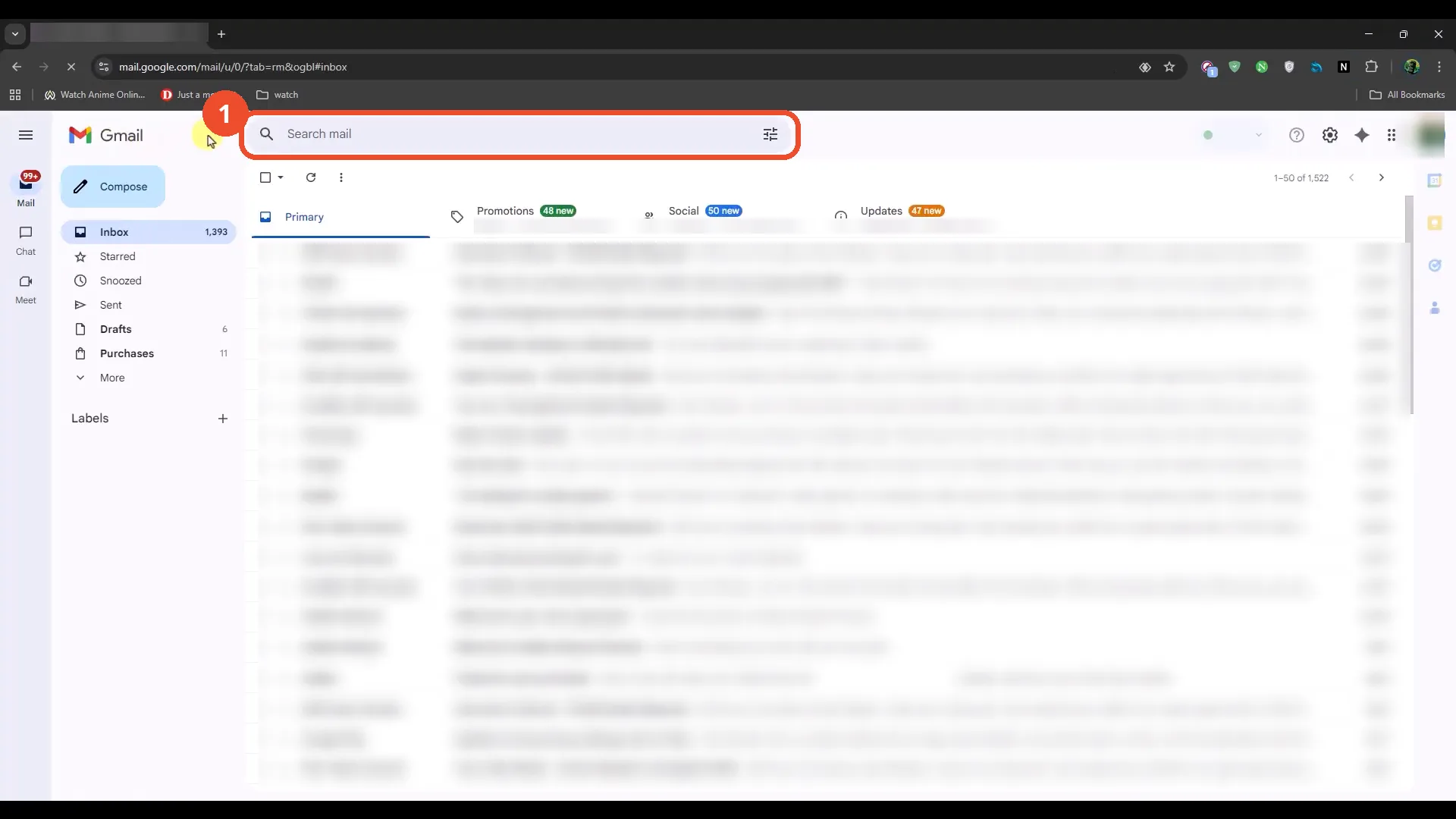
Click the Promotions tab
Click the Promotions tab at the top of the inbox. It shows 48 new messages; the tab holds 3,867 conversations in this account.
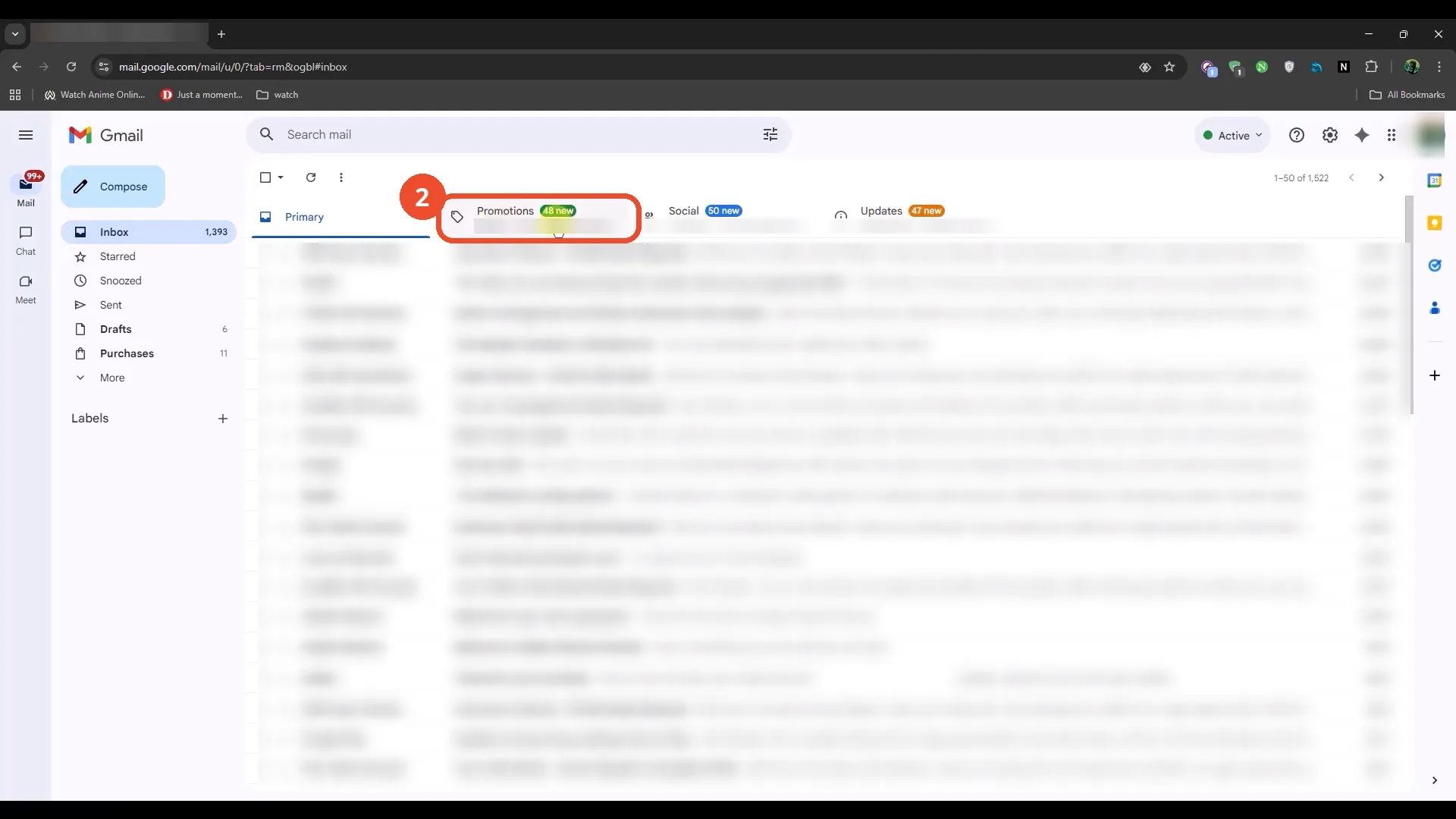
Tick the checkbox at the top to select the page
Tick the checkbox at the top left of the list. That selects the 50 conversations on the page, and Gmail offers a link to select everything in the tab: ‘Select all 3,867 conversations in Promotions’.
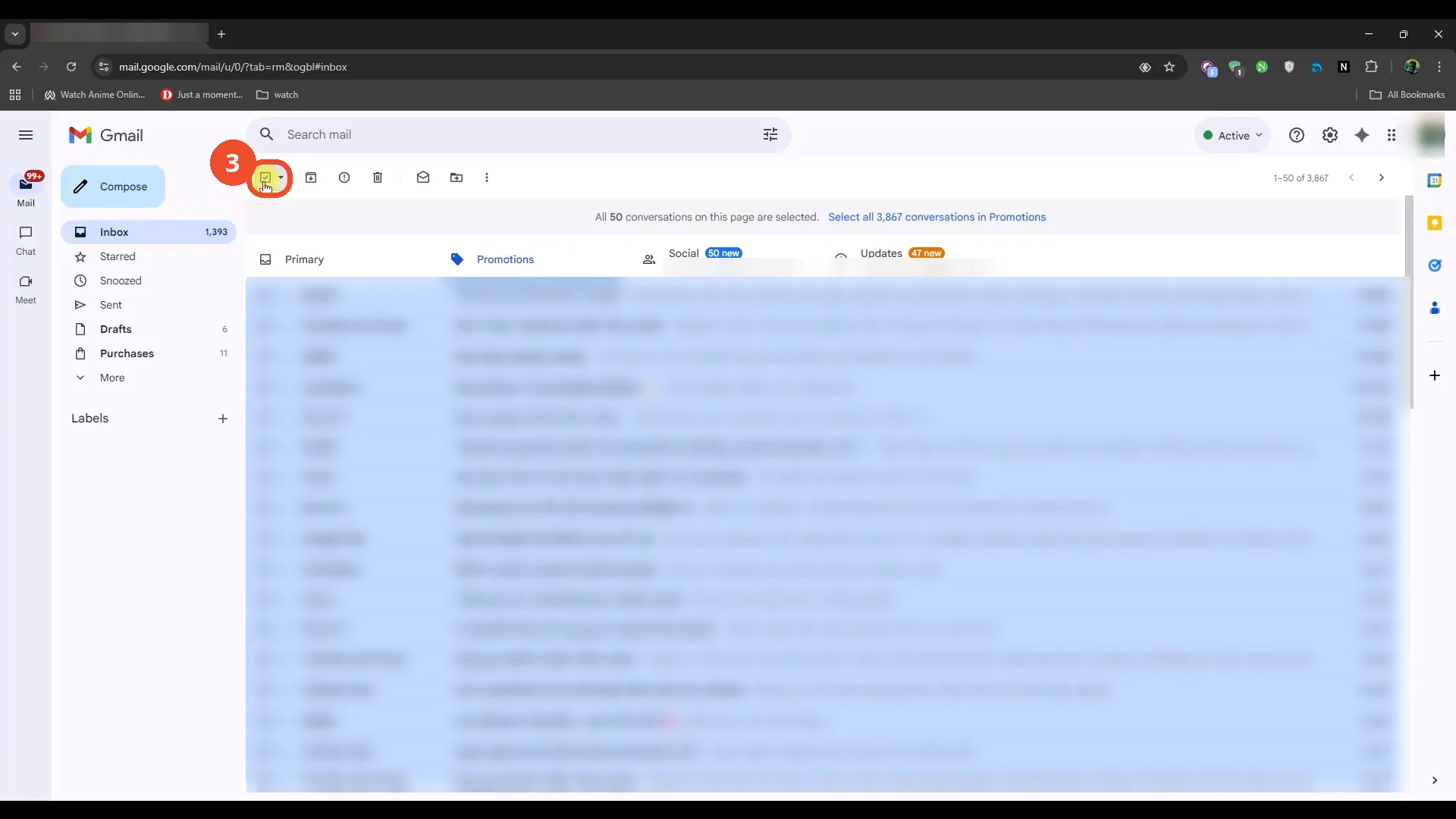
Click Select all 3,867 conversations in Promotions
Click the blue ‘Select all 3,867 conversations in Promotions’ link. The banner changes to ‘All 3,867 conversations in Promotions are selected’ - now the whole tab, not just the 50 on screen, is selected.
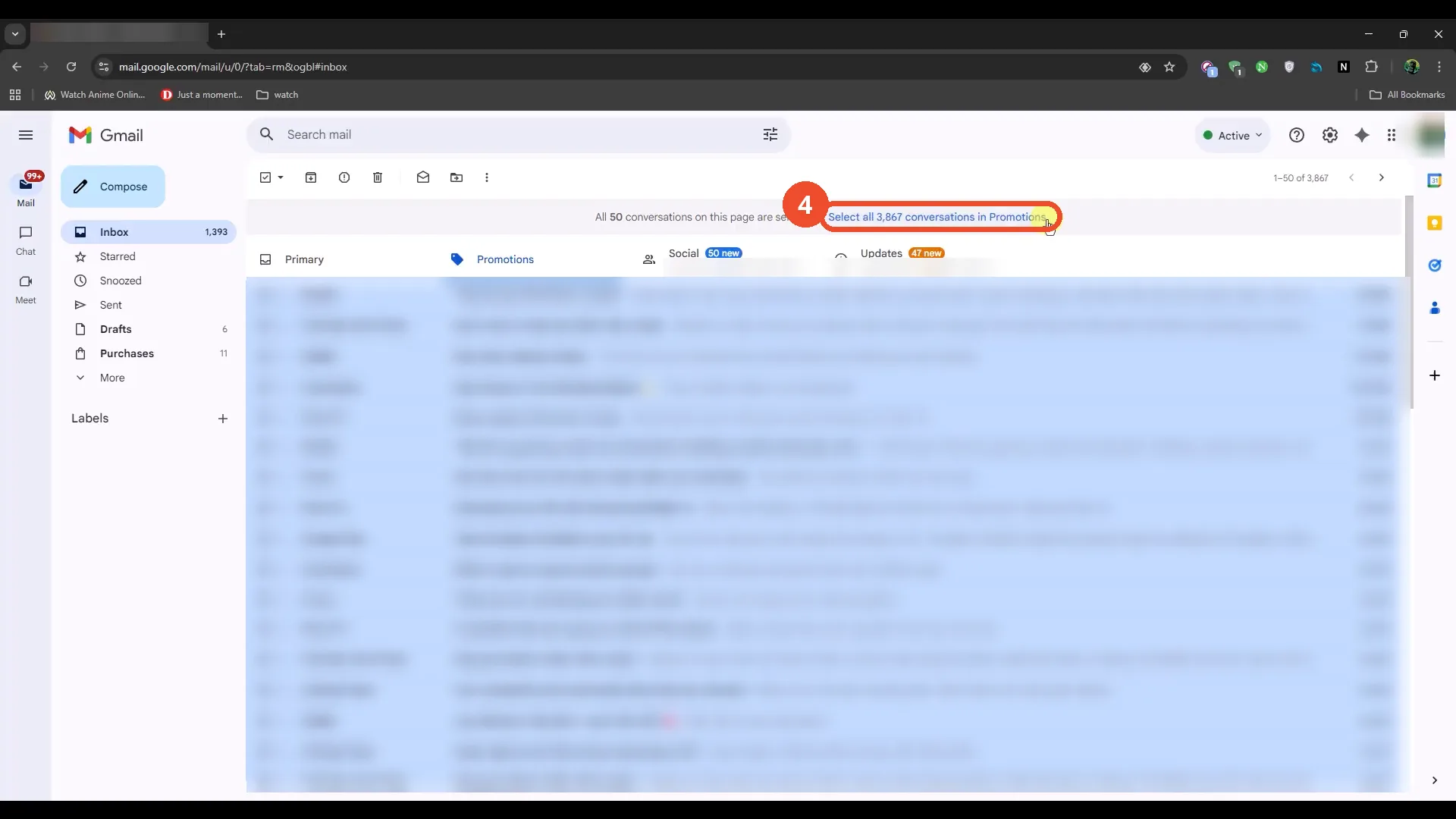
Click the Trash icon
Click the Trash (Delete) icon in the toolbar above the list. The toolbar appears once messages are selected.
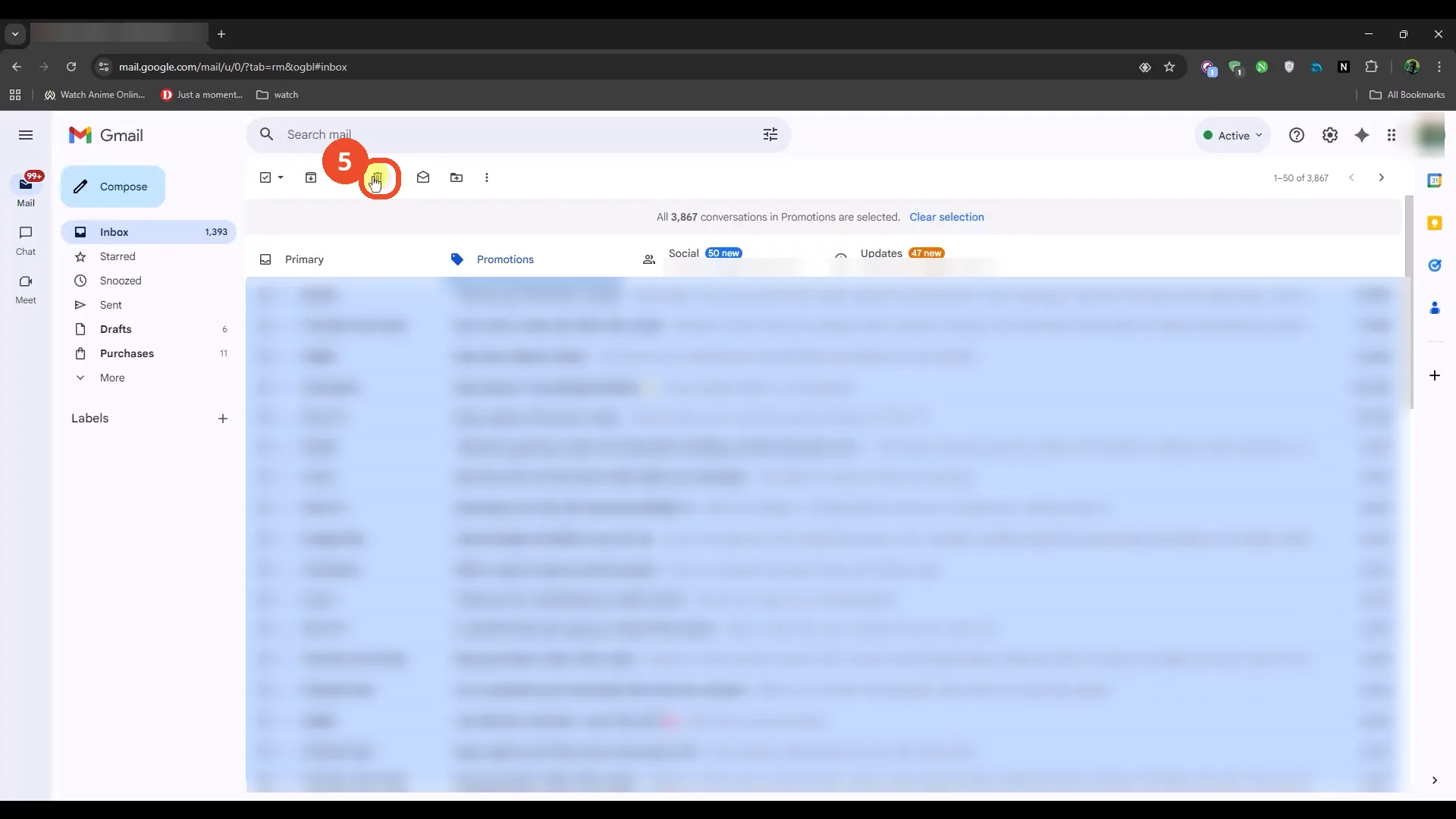
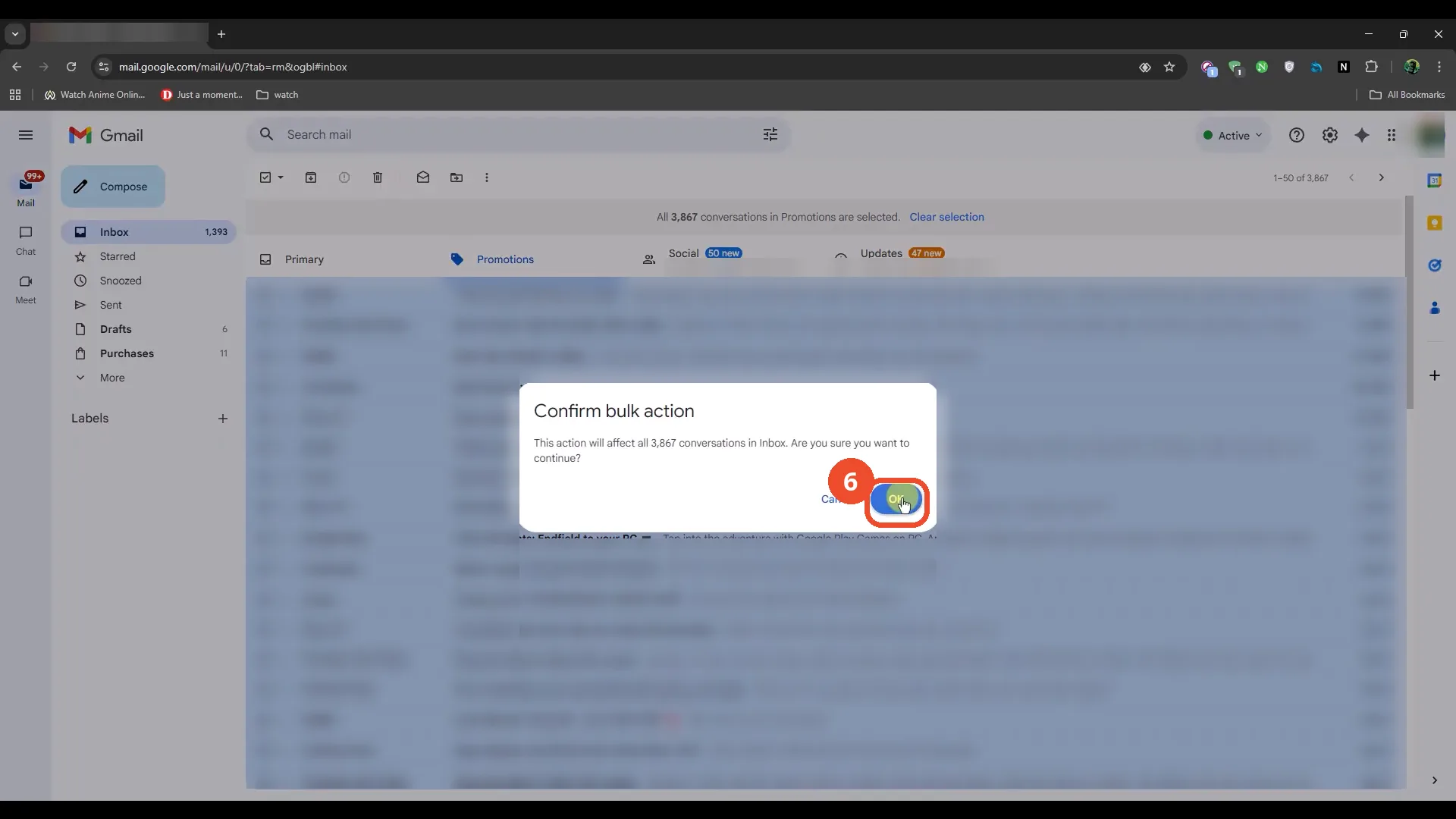
Confirm the bulk action
Gmail asks you to confirm: ‘This action will affect all 3,867 conversations in Inbox. Are you sure you want to continue?’ Click OK to move them all to Trash.
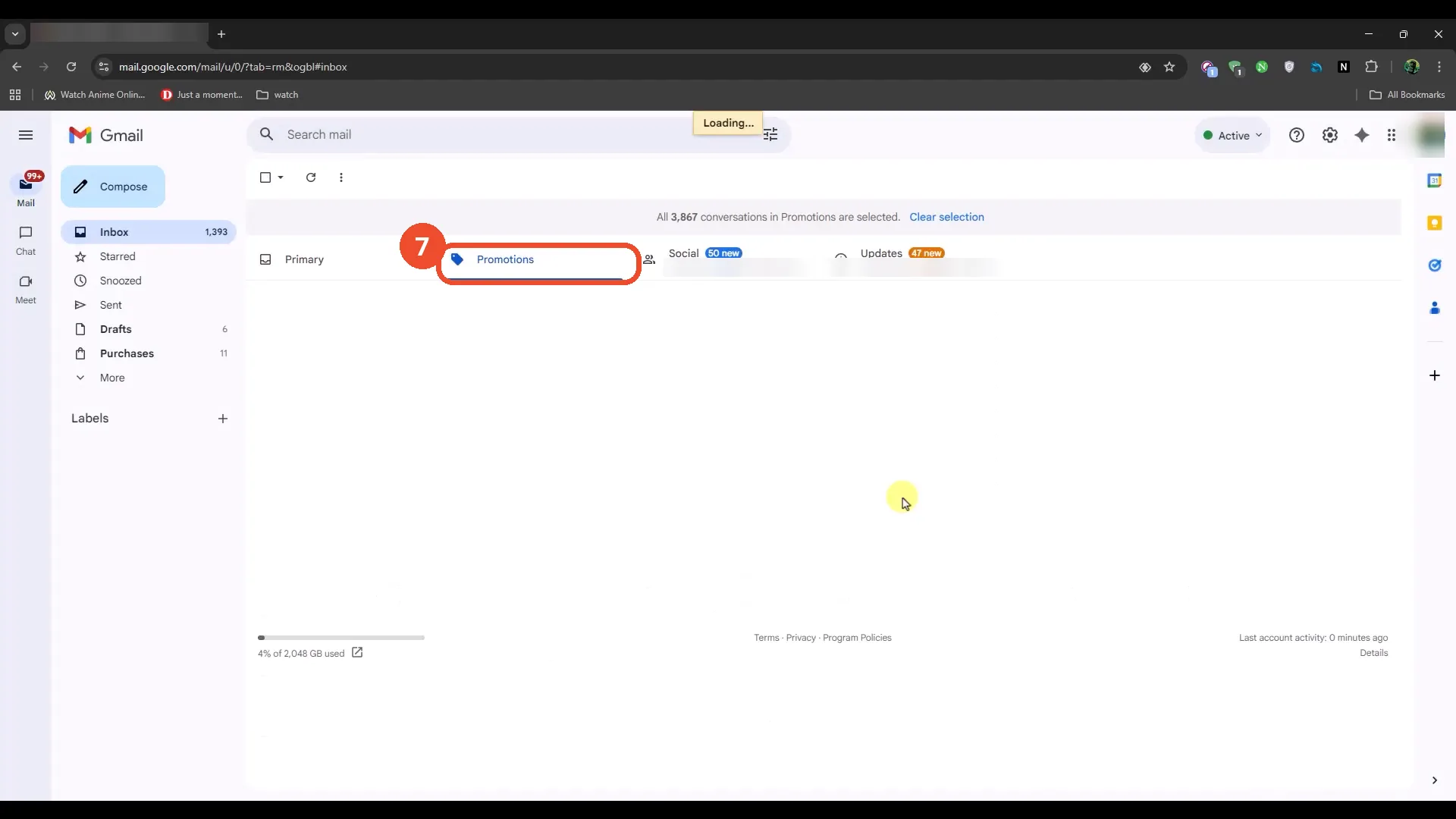
Check the Promotions tab - it is now empty
Back on the Promotions tab, the list is empty - all 3,867 conversations have moved to Trash. Gmail still shows the old selection banner while the list reloads.
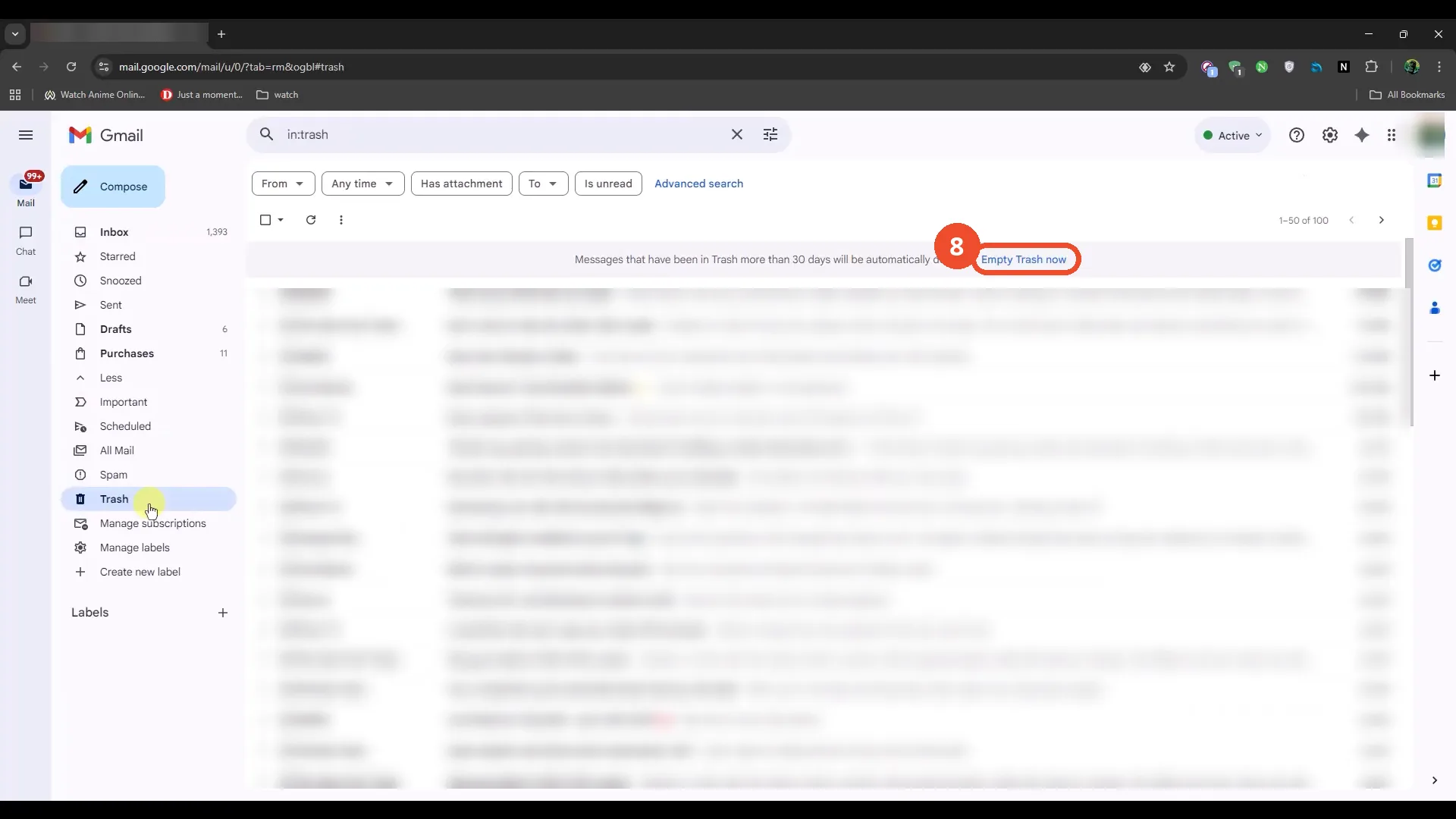
Open Trash to check where they went
Open Trash in the left sidebar to see the deleted mail. The banner at the top offers ‘Empty Trash now’ to delete them permanently - the film shows the link but never clicks it on camera, so the mail stays in Trash.
Good to know
- The film really does select everything: the top checkbox first selects the 50 on the page, then the ‘Select all 3,867 conversations in Promotions’ link extends the selection to the whole tab before anything is deleted.
- Deleting moves mail to Trash, it does not erase it. Mail in Trash is deleted automatically after 30 days, or sooner if you click ‘Empty Trash now’ - the film never clicks that link on camera.
- When the film opens Trash, the counter reads ‘1-50 of 100’ even though 3,867 conversations were moved. The count had not caught up while the film was recording; do not take the 100 as the number deleted.
- This is a tab-wide delete, not a search: no search query is used, which is what makes it different from deleting by unread status or by date.
- The film opens with a long title card (about 20 seconds) and a Windows desktop before Gmail appears; the inbox itself is a real, busy account, so the message list is blurred in the screenshots here.
More on Gmail
- How to Create a Contact Group in Gmail
- How to Delete All Emails Before a Certain Date in Gmail
- How to Delete Folders in Gmail
- How to Delete All Unread Emails in Gmail
- How to Recover Deleted Emails in Gmail
- How to Automatically Forward Specific Emails in Gmail Using Filters
- How to Send Encrypted Emails in Gmail Using Confidential Mode
- How to Change the Archive Option to Delete in Gmail
- How to Download Emails from Gmail in Bulk
- How to Automatically Move Emails to a Folder in Gmail
- How to Forward an Entire Email Thread in Gmail