How to Delete All Emails in Gmail (Mass Delete Everything)
This is the nuclear option: deleting every email in your Gmail account at once. The trick is to work from All Mail — not the inbox — so archived and sent mail is included too, then empty Trash to get the storage back. The film deletes all 3,328 conversations in All Mail and then empties Trash.
- SystemWindows (browser)
- AppGmail web app
- Last verifiedNovember 23, 2026
Every screenshot below is taken from the actual recording on this device — no stock images.
Steps
Open Gmail
Open Gmail in your browser and sign in. The film opens on the inbox, which holds 1,391 messages. The film starts with about 35 seconds of Windows desktop before Gmail loads.
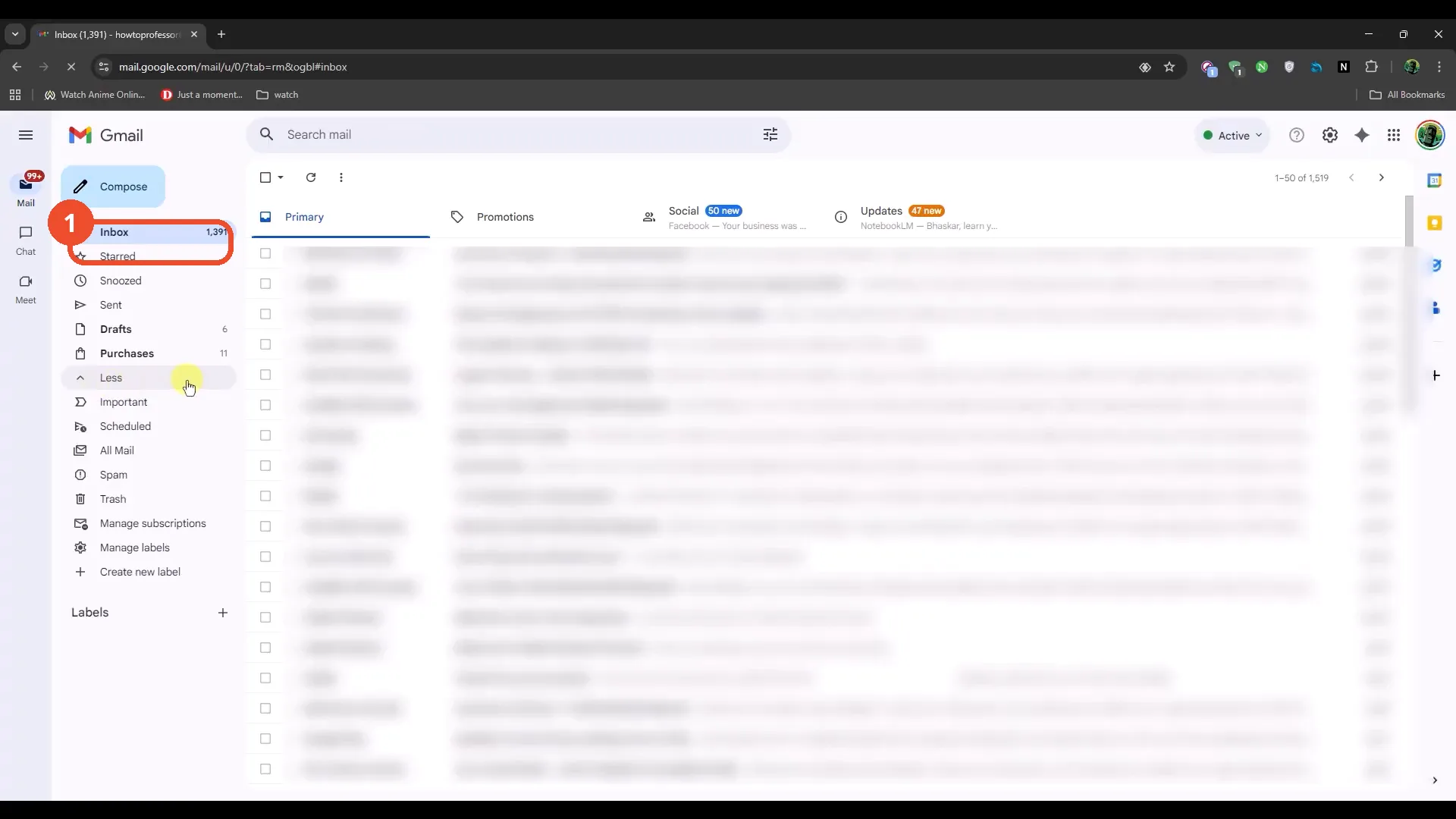
Open All Mail
In the left sidebar, click All Mail. All Mail shows every message in the account — inbox, archives, and sent mail — 3,328 conversations here.
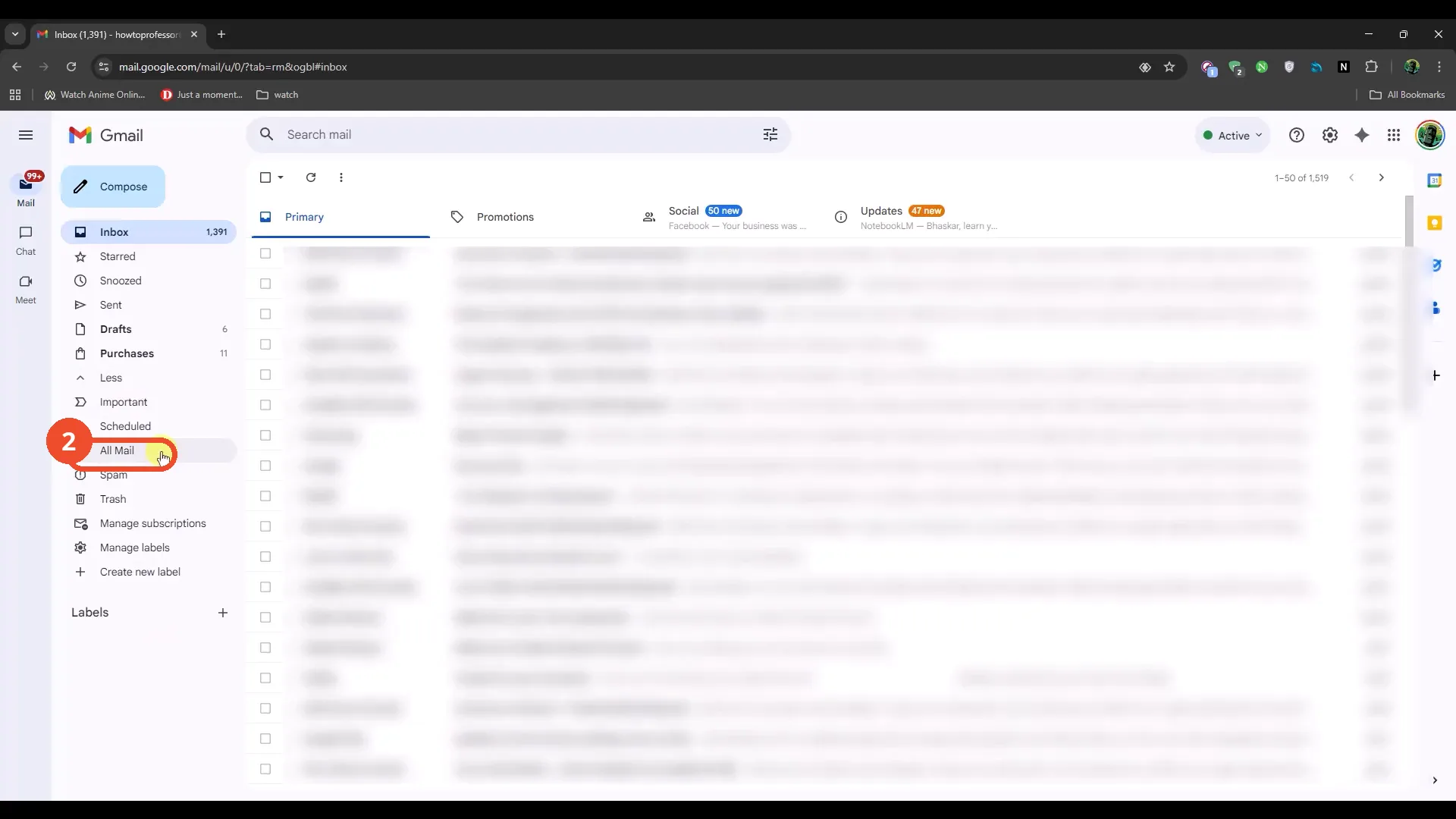
Select all emails on the page
Click the checkbox at the top left of the list. That selects the 50 conversations on this page.
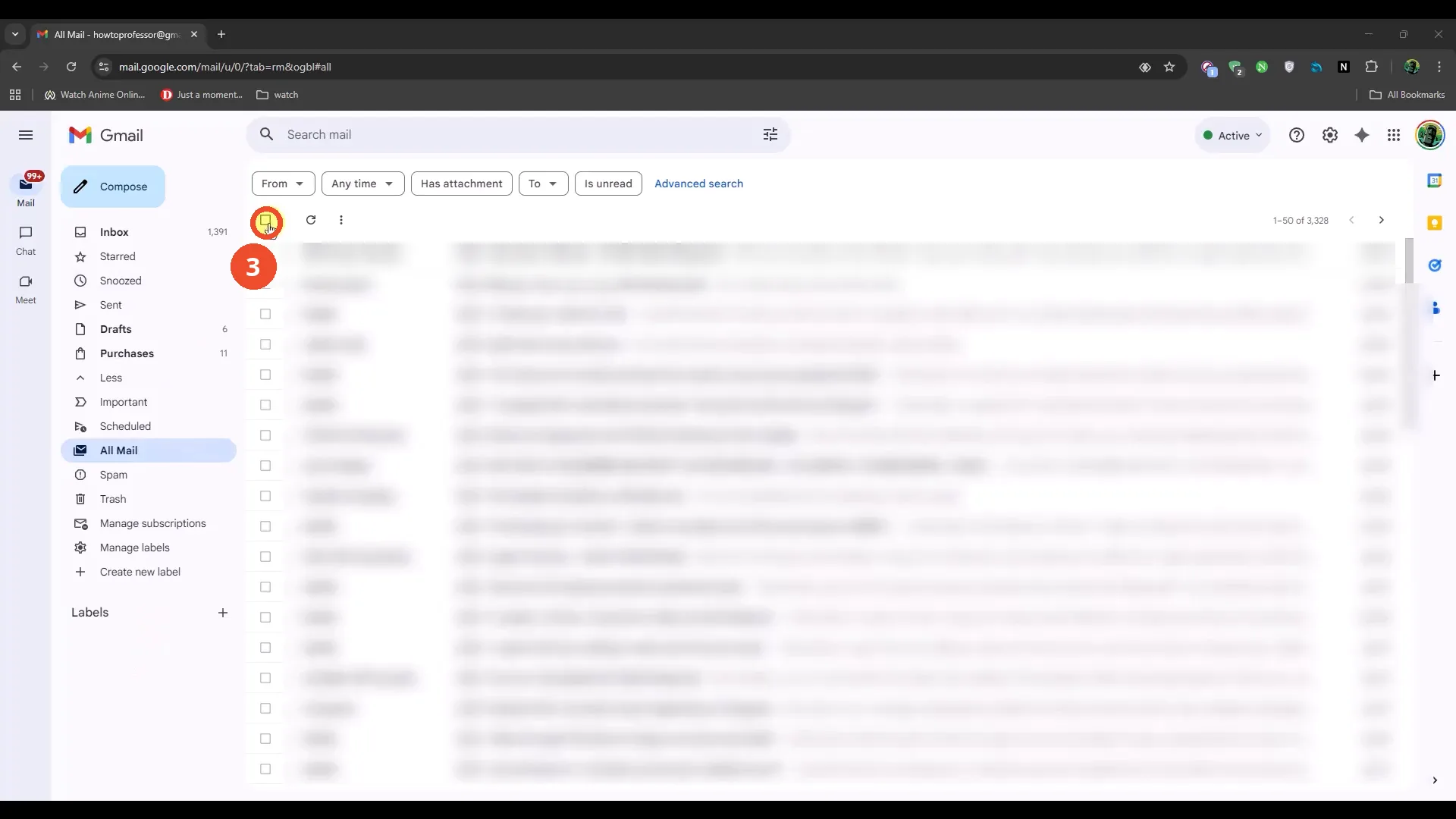
Select all conversations in All Mail
A banner appears above the list: “All 50 conversations on this page are selected.” Click the “Select all 3,328 conversations in All Mail” link next to it — that is what selects everything, not just this page.
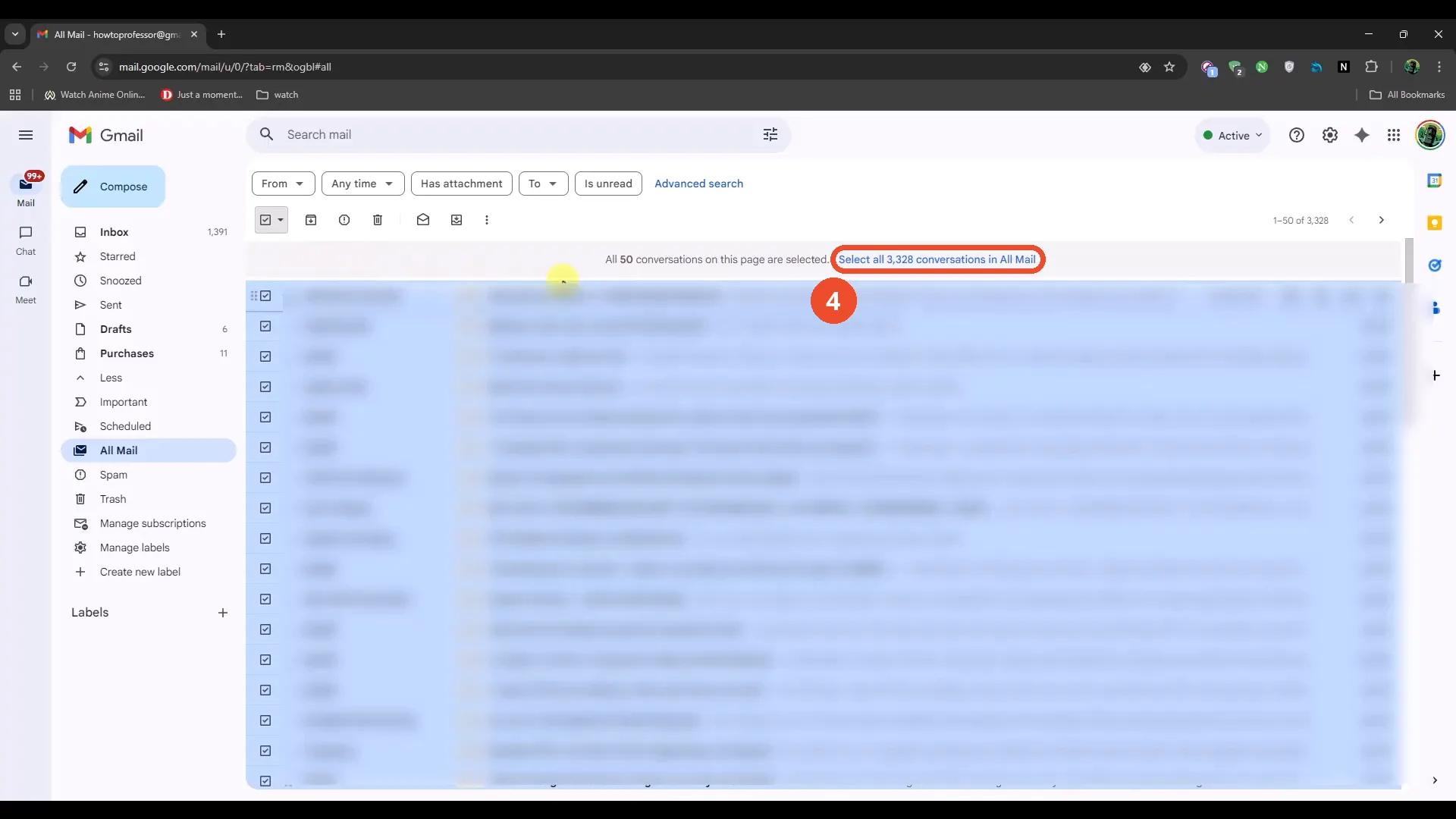
Click Delete and confirm
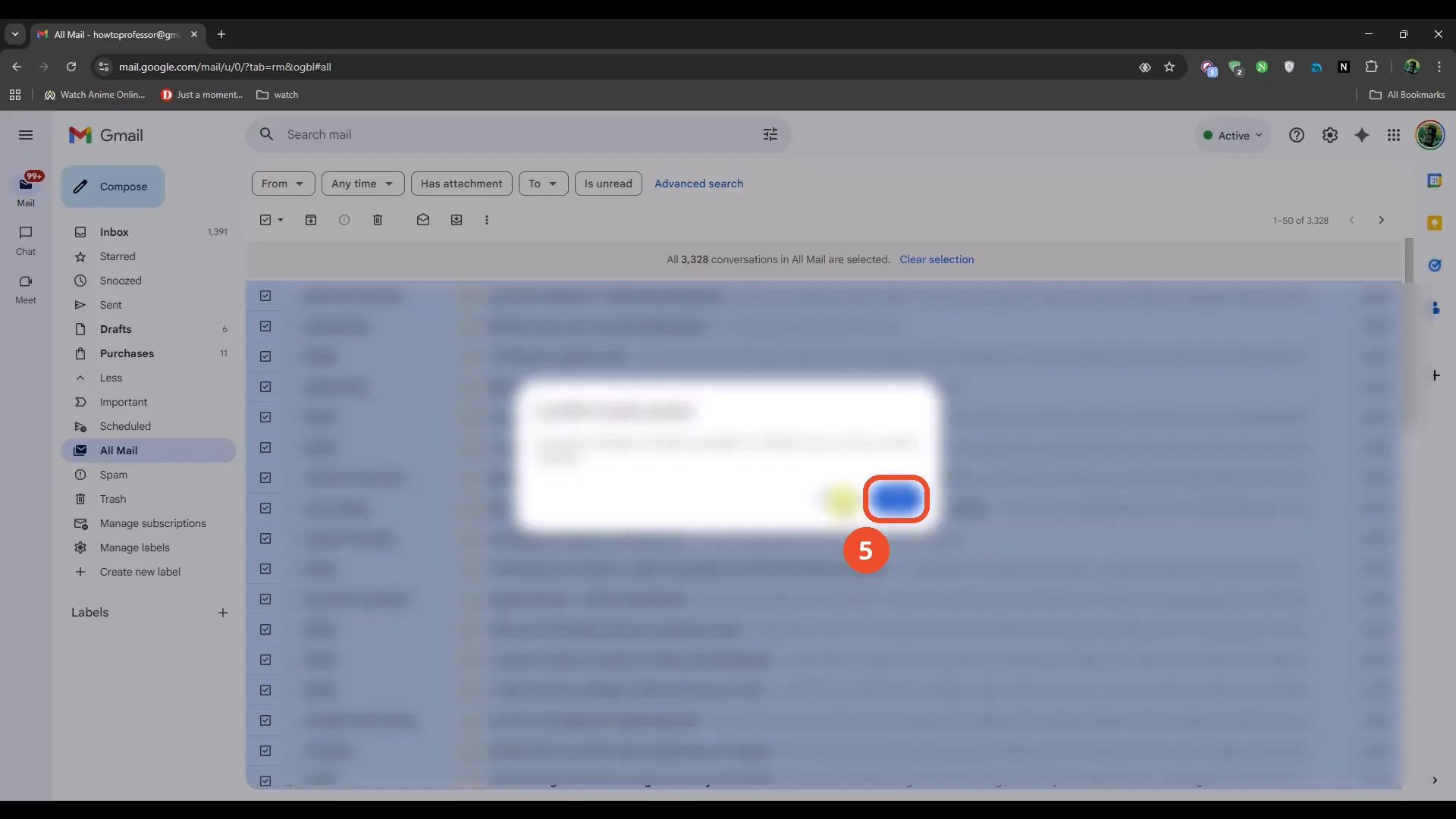
Click the trash (Delete) icon in the top toolbar. Gmail asks you to confirm — the film blurs the dialog’s text — then click OK.
Open Trash
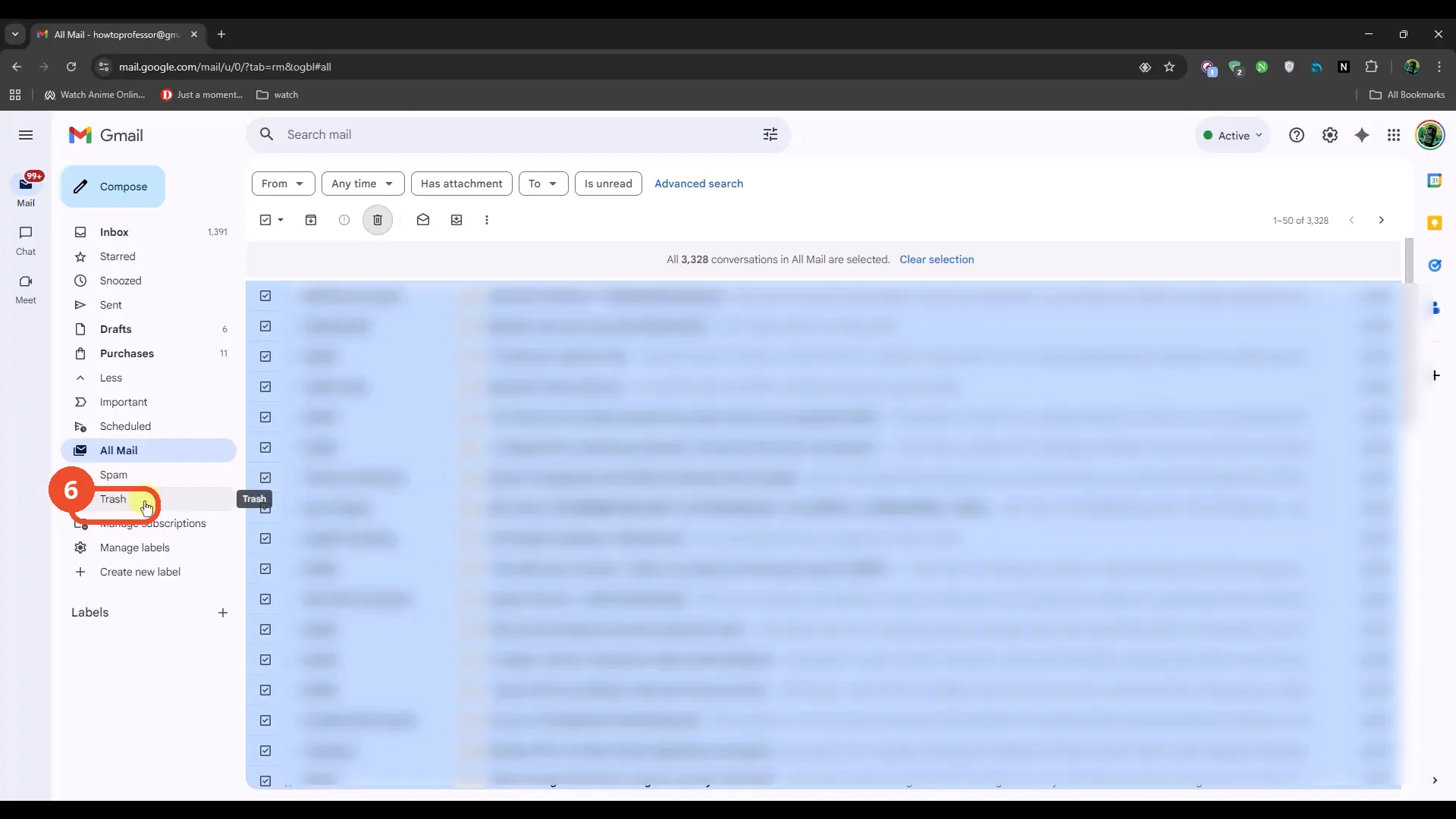
The messages are now in Trash, still taking up space. In the left sidebar, click Trash.
Click Empty Trash now and confirm
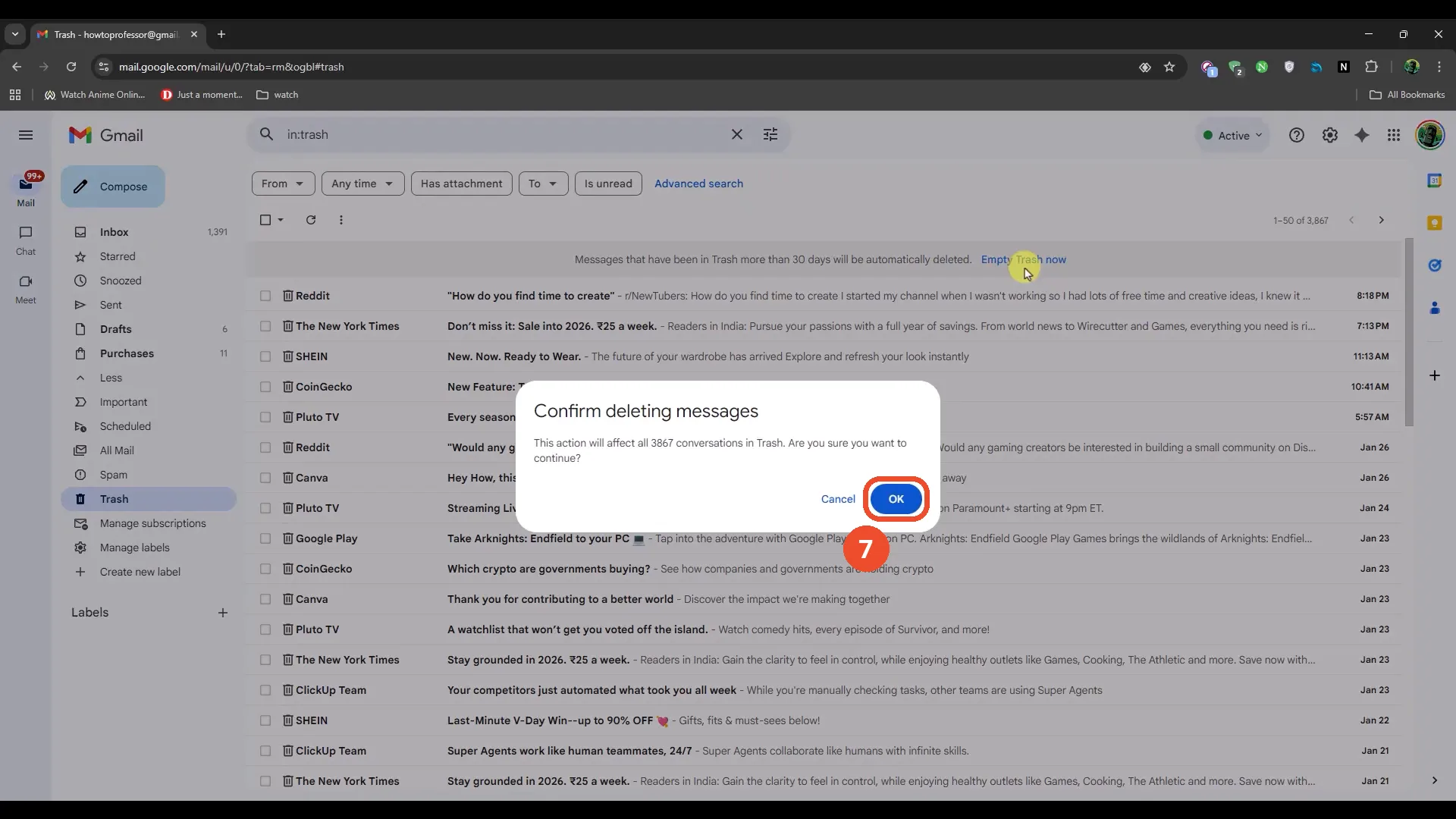
At the top of the Trash list, click “Empty Trash now”. Gmail warns that this will affect all 3,867 conversations in Trash — click OK.
Check Trash is empty
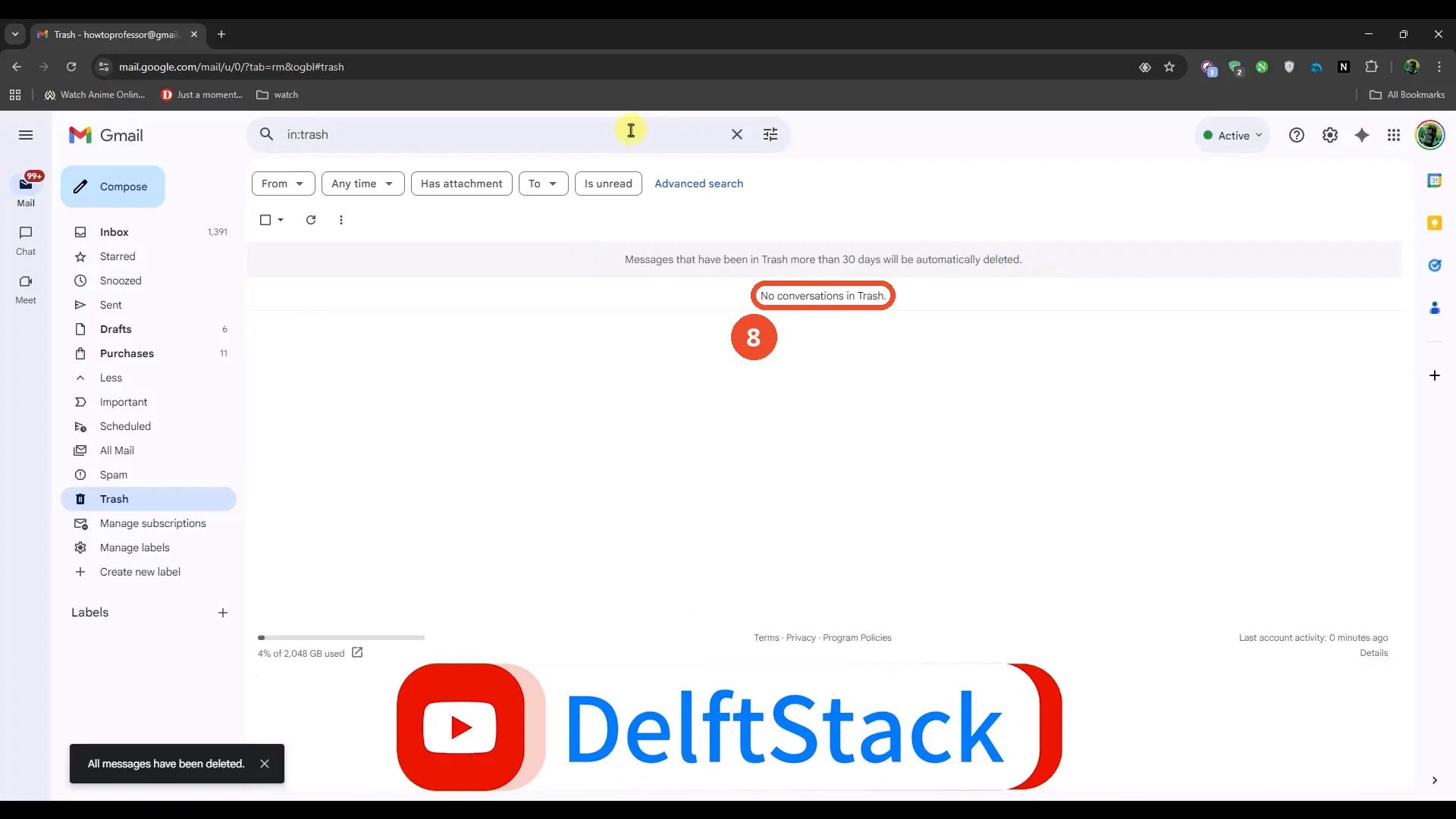
Trash shows “No conversations in Trash.” and a toast confirms “All messages have been deleted.” The account is empty.
Good to know
- Deleting from the inbox alone would miss archived and sent mail — All Mail is the only view that holds everything.
- The checkbox alone selects only the 50 conversations on the page. The “Select all conversations in All Mail” link is the step that grabs the whole account.
- Deleted mail sits in Trash for 30 days and still uses storage. Click “Empty Trash now” to get the space back immediately — this cannot be undone.
- The film blurs the message list and the first confirmation dialog; the second confirmation (“Confirm deleting messages”) is readable.
- The film’s All Mail count reads 3,395 when the view first loads and settles on 3,328 — the selection uses 3,328.
More on Gmail
- How to Create a Contact Group in Gmail
- How to Delete All Emails Before a Certain Date in Gmail
- How to Delete Folders in Gmail
- How to Delete All Unread Emails in Gmail
- How to Recover Deleted Emails in Gmail
- How to Automatically Forward Specific Emails in Gmail Using Filters
- How to Send Encrypted Emails in Gmail Using Confidential Mode
- How to Change the Archive Option to Delete in Gmail
- How to Automatically Move Emails to a Folder in Gmail
- How to Delete All Promotional Emails in Gmail at Once
- How to Forward an Entire Email Thread in Gmail
- How to Delete Attachments in Gmail
- How to Change Font Color in Gmail
- How to Delete Contacts From Gmail
- How to Change the Gmail Background
- How to Change Gmail to Dark Mode
- How to Create Folders in Gmail
- How to Block and Unblock an Email Address in Gmail
- How to Find Archived Emails in Gmail
- How to Recover a Forgotten Gmail Password
- How to Download Emails from Gmail in Bulk
- How to Change Font Size in Gmail
- How to Change Your Email Signature in Gmail
Guide complete
Every step above comes from the original recording, with a screenshot for each step. Want more like this? Browse all Gmail guides.