How to Create Folders in Gmail
Gmail has no folders in the usual sense — it uses labels instead. Create a label, then label the emails you want to file: they move into that label’s view. The film creates a DelftStack label and files five emails into it.
- SystemWindows (browser)
- AppGmail web app
- Last verifiedNovember 20, 2026
Every screenshot below is taken from the actual recording on this device — no stock images.
Steps
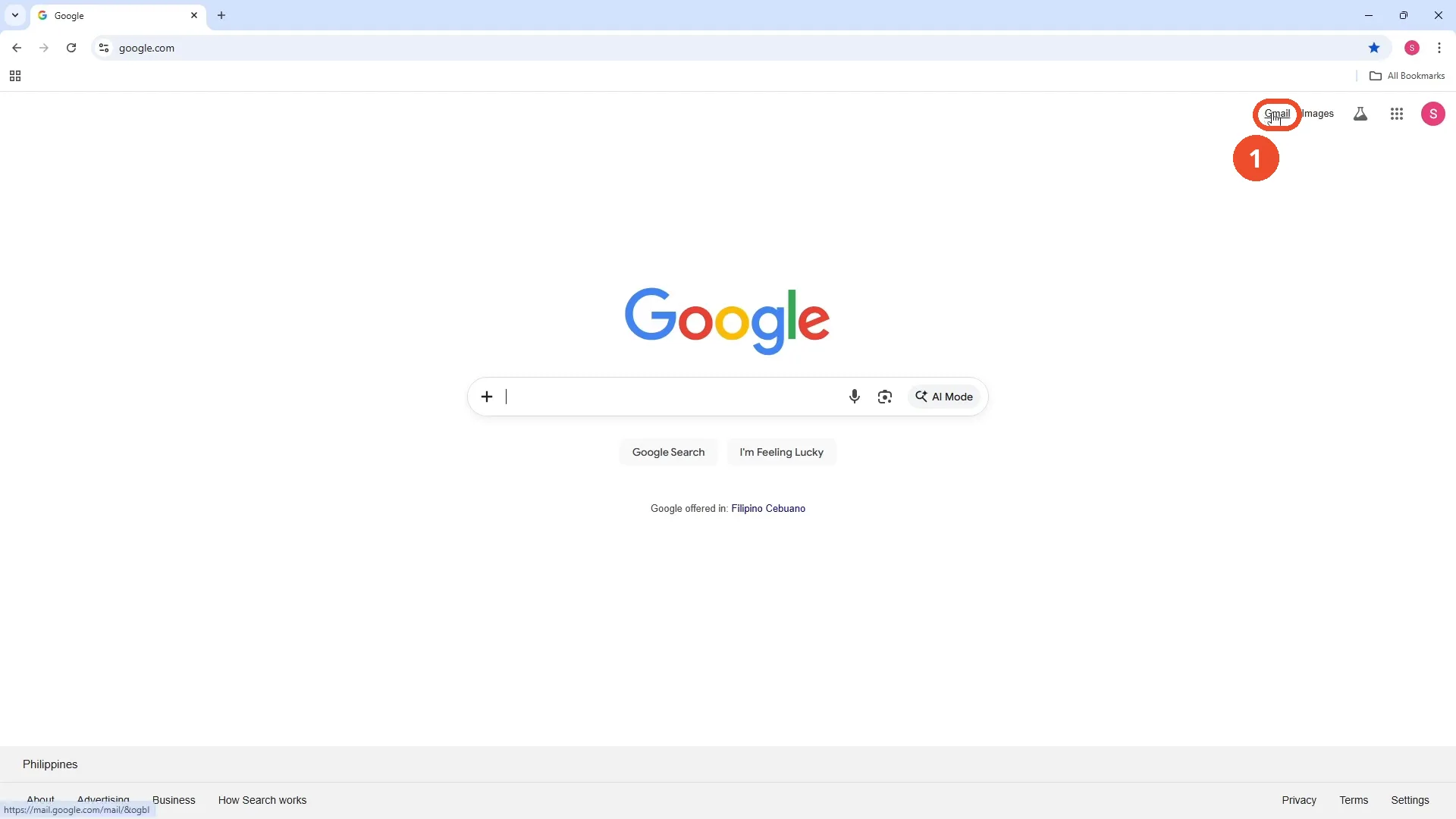
Open Gmail from Google
Open google.com and click the Gmail link at the top right.
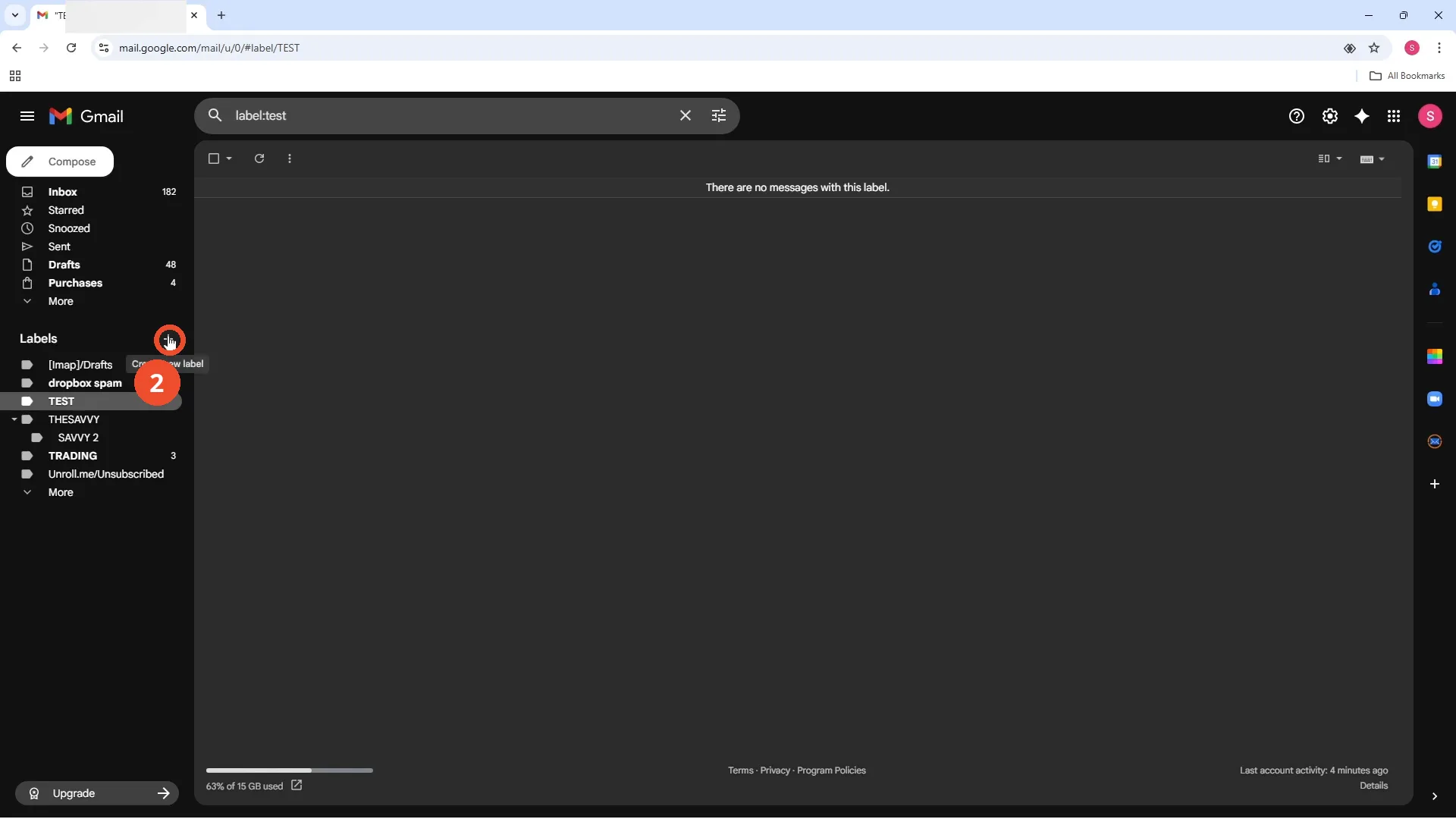
Click the plus beside Labels
In the left sidebar, find the Labels section and click the plus sign beside it. A tooltip reads Create new label.
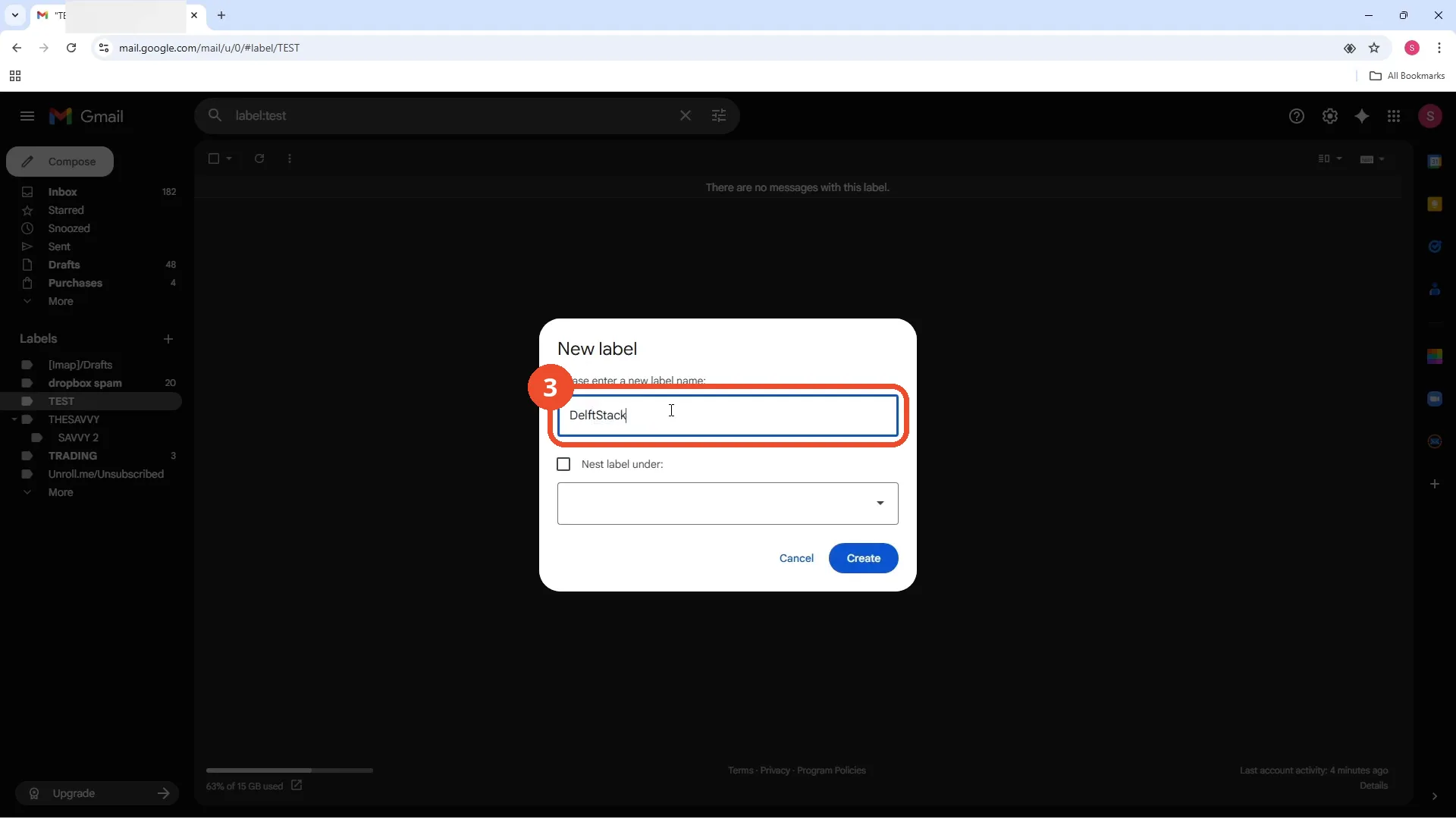
Type the folder name
In the New label dialog, type the name for your folder — the film types DelftStack.
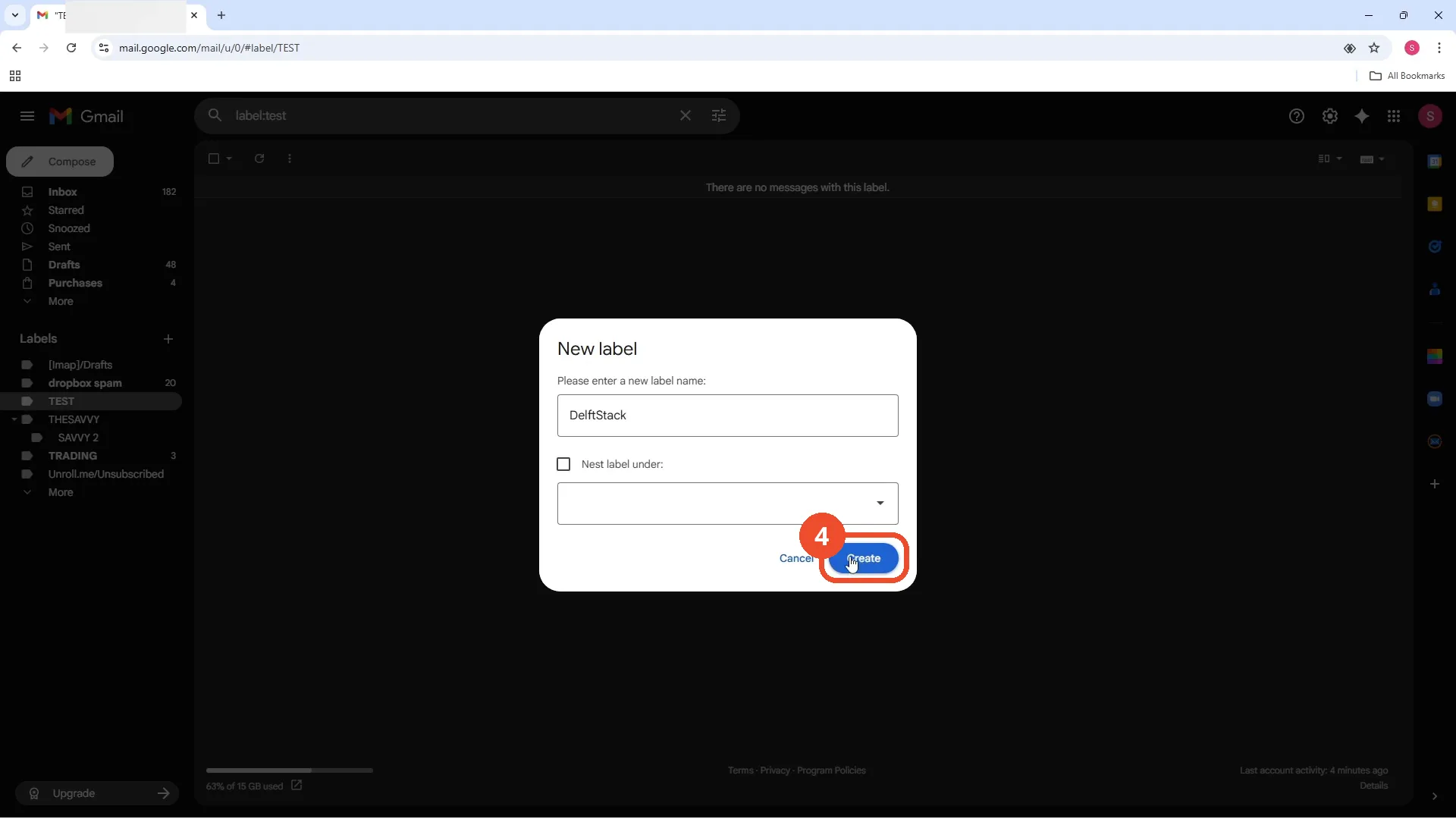
Click Create
Click Create at the bottom right of the dialog. The label is created at the top level.
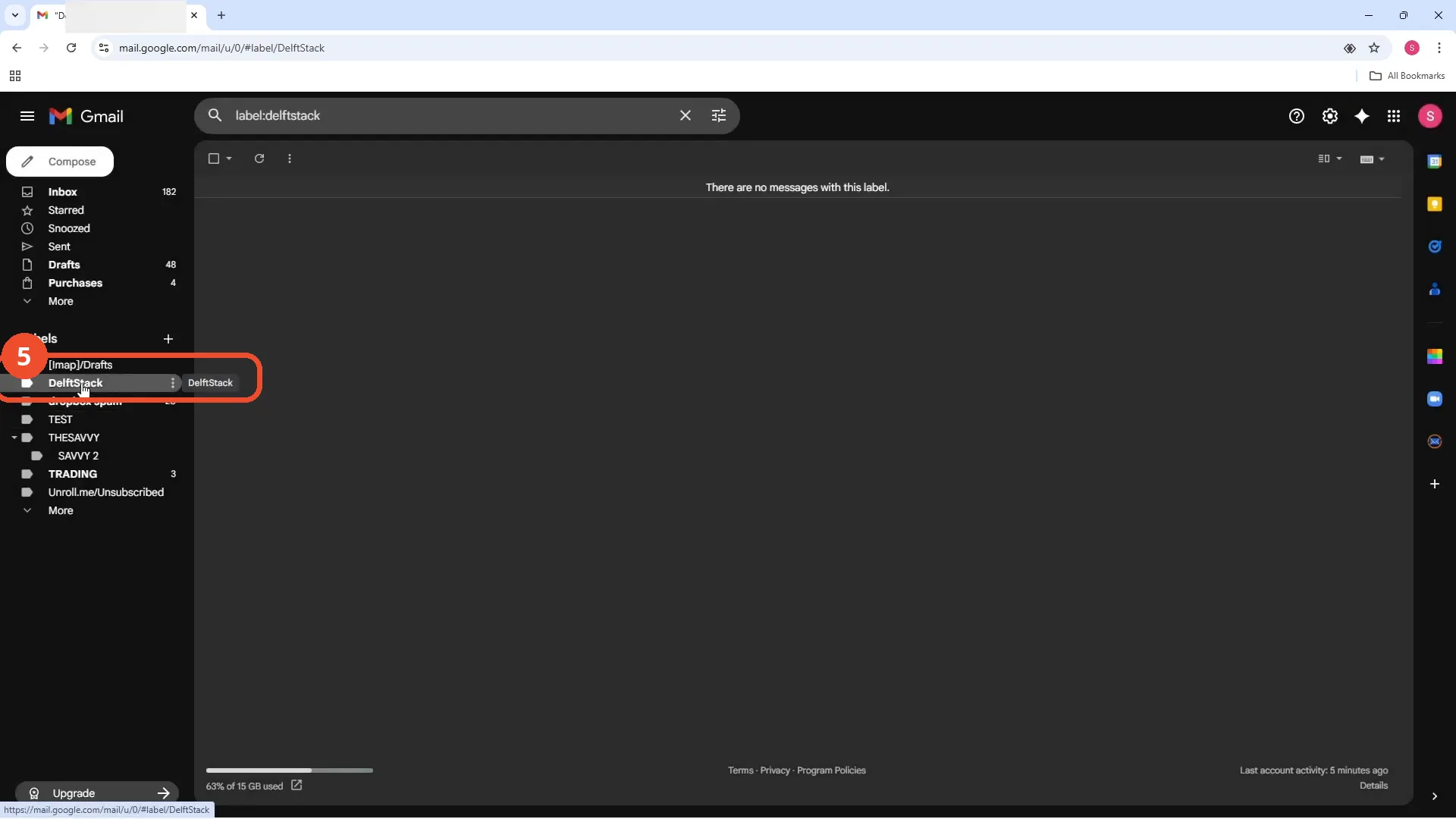
Check the label in the sidebar
The new label appears in the sidebar under Labels. Click it to open the folder view — it is empty for now.
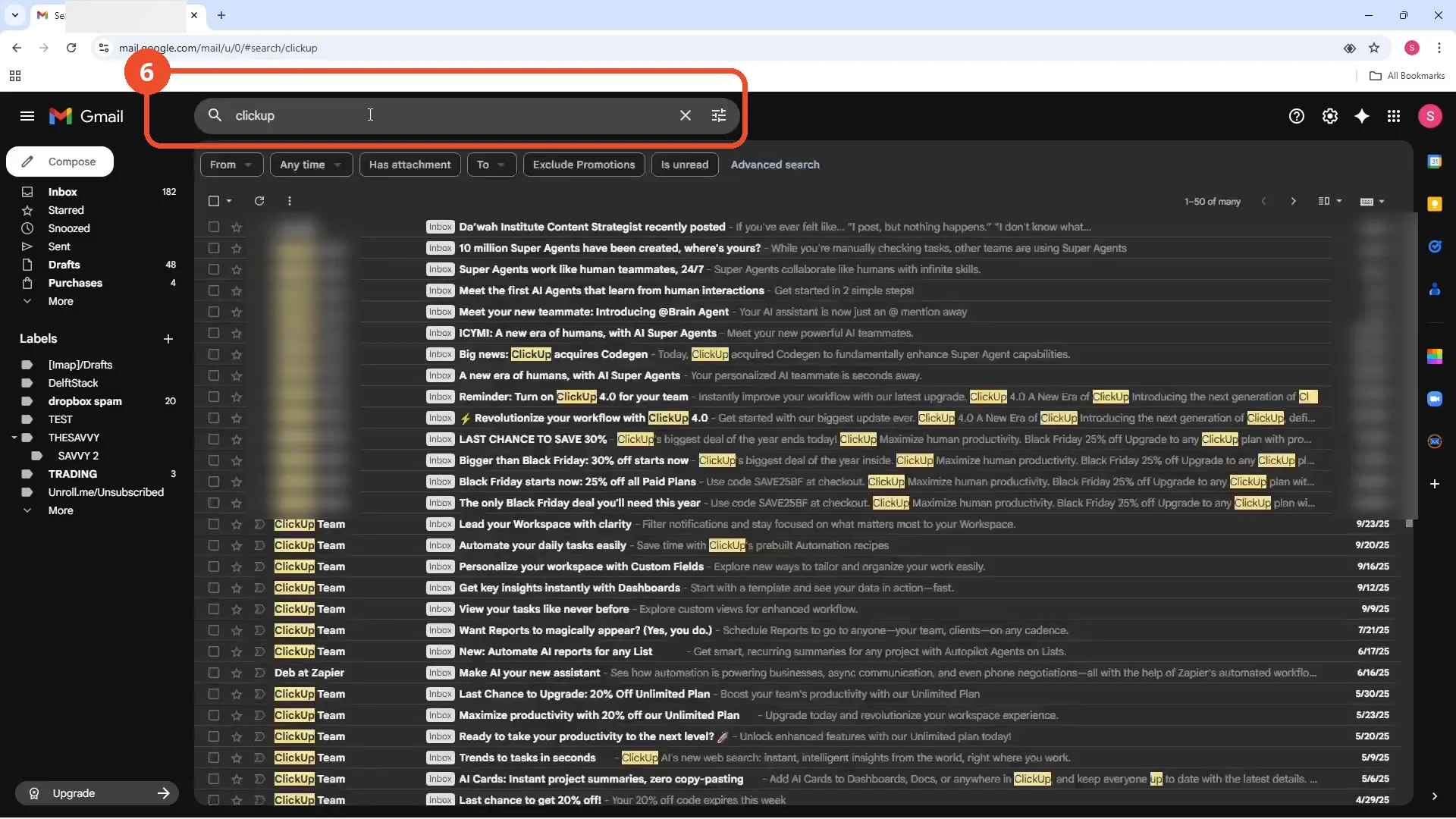
Search for the emails to file
Use the search box to find the emails you want to file — the film searches for clickup.
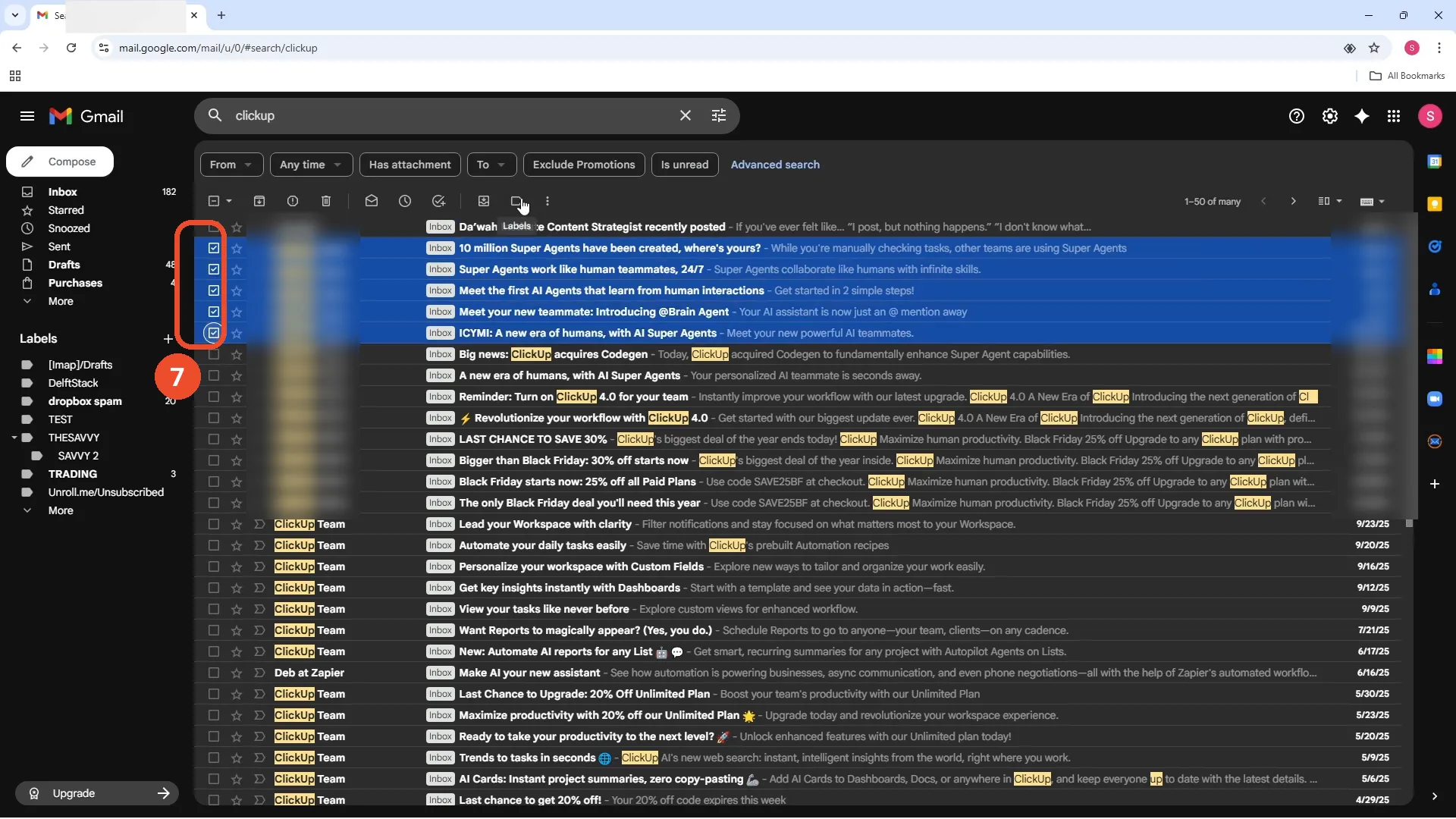
Select the emails
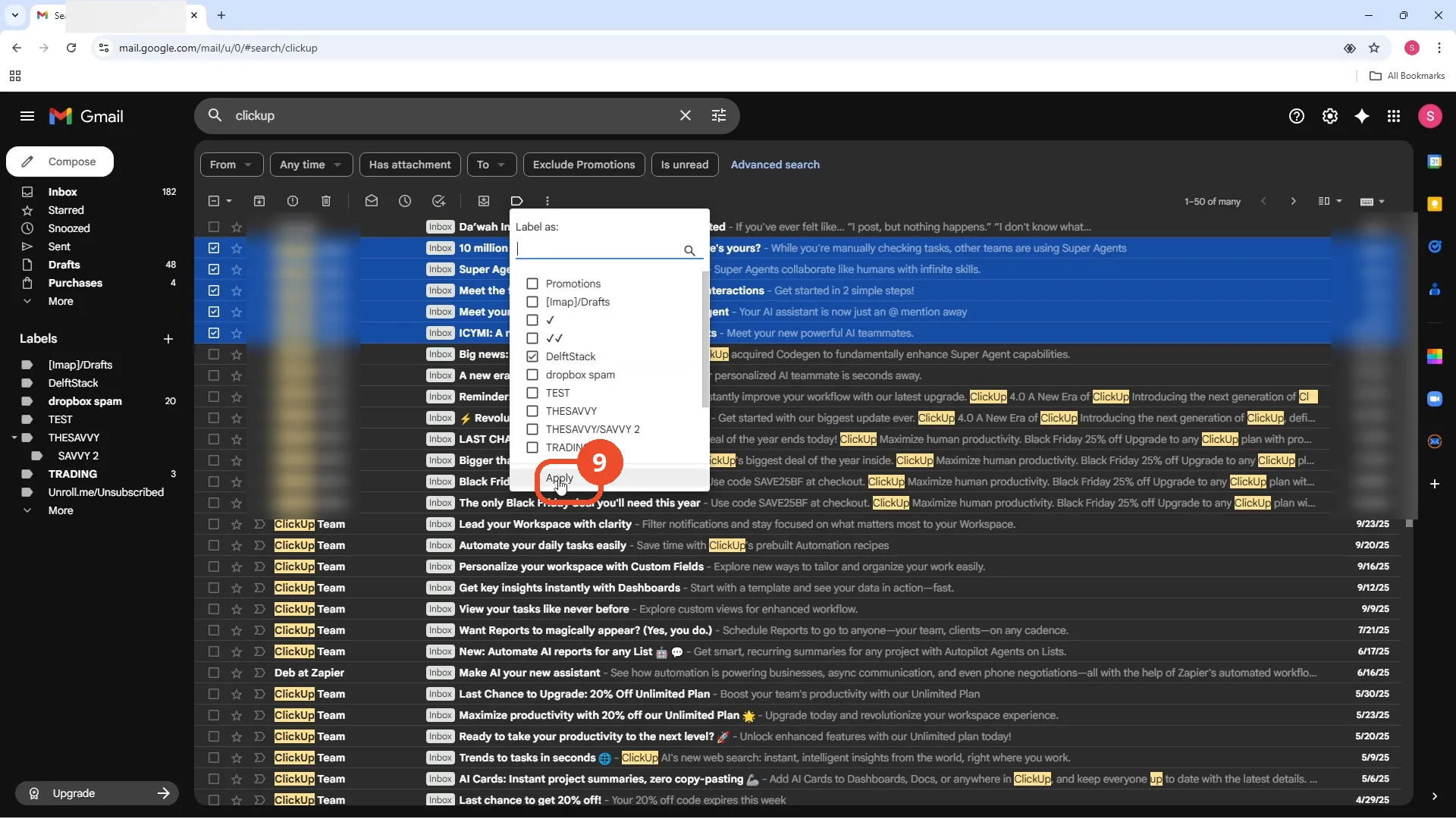
Tick the checkbox on each email you want to file. The film selects five ClickUp emails; the LinkedIn email at the top stays unticked.
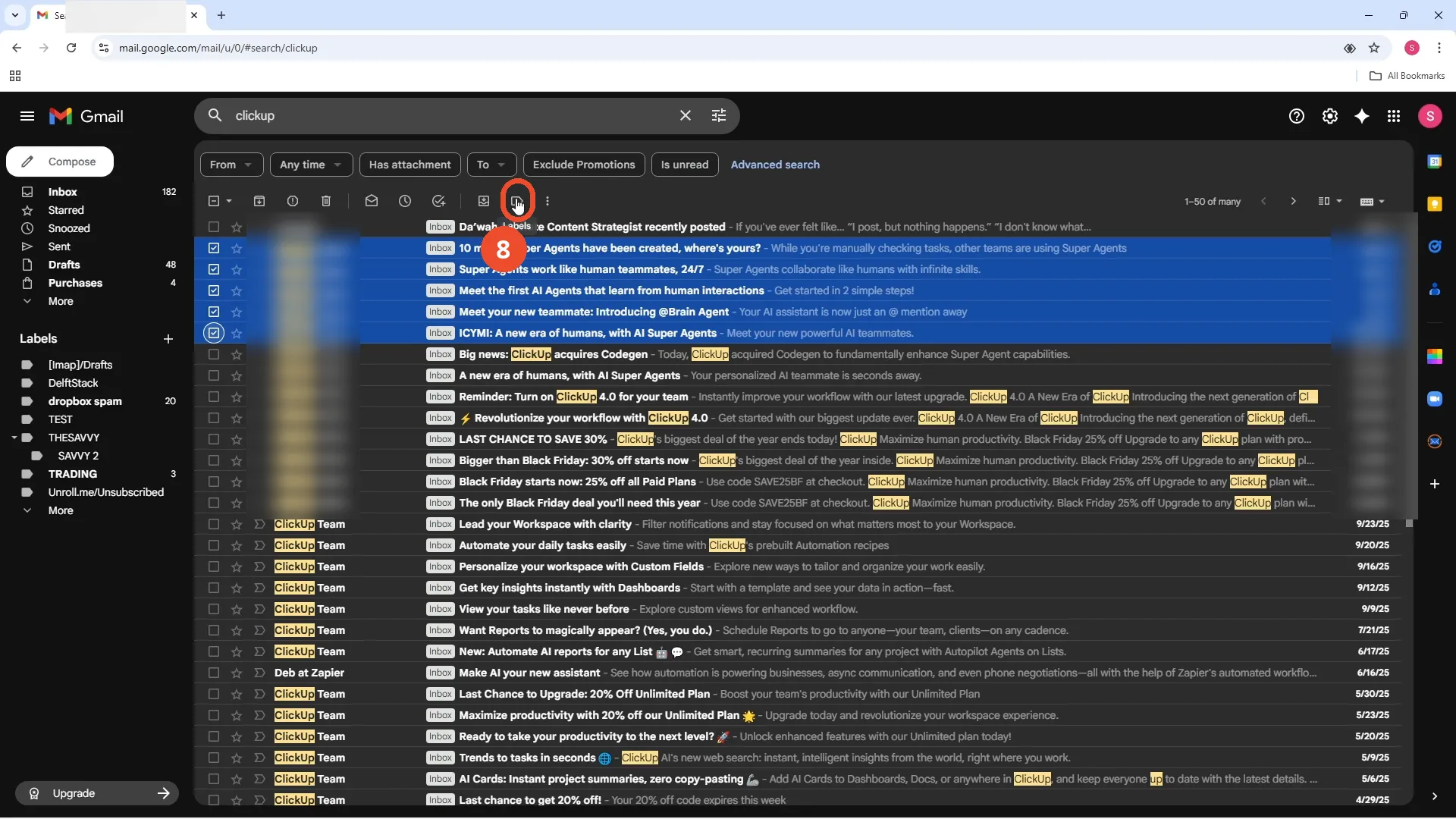
Click Label as
With the emails selected, click the Label as (tag) icon in the toolbar above the list. The Label as menu opens.
Tick the label and click Apply
In the Label as menu, tick the label you created (DelftStack) and click Apply at the bottom.
Check the emails in the folder
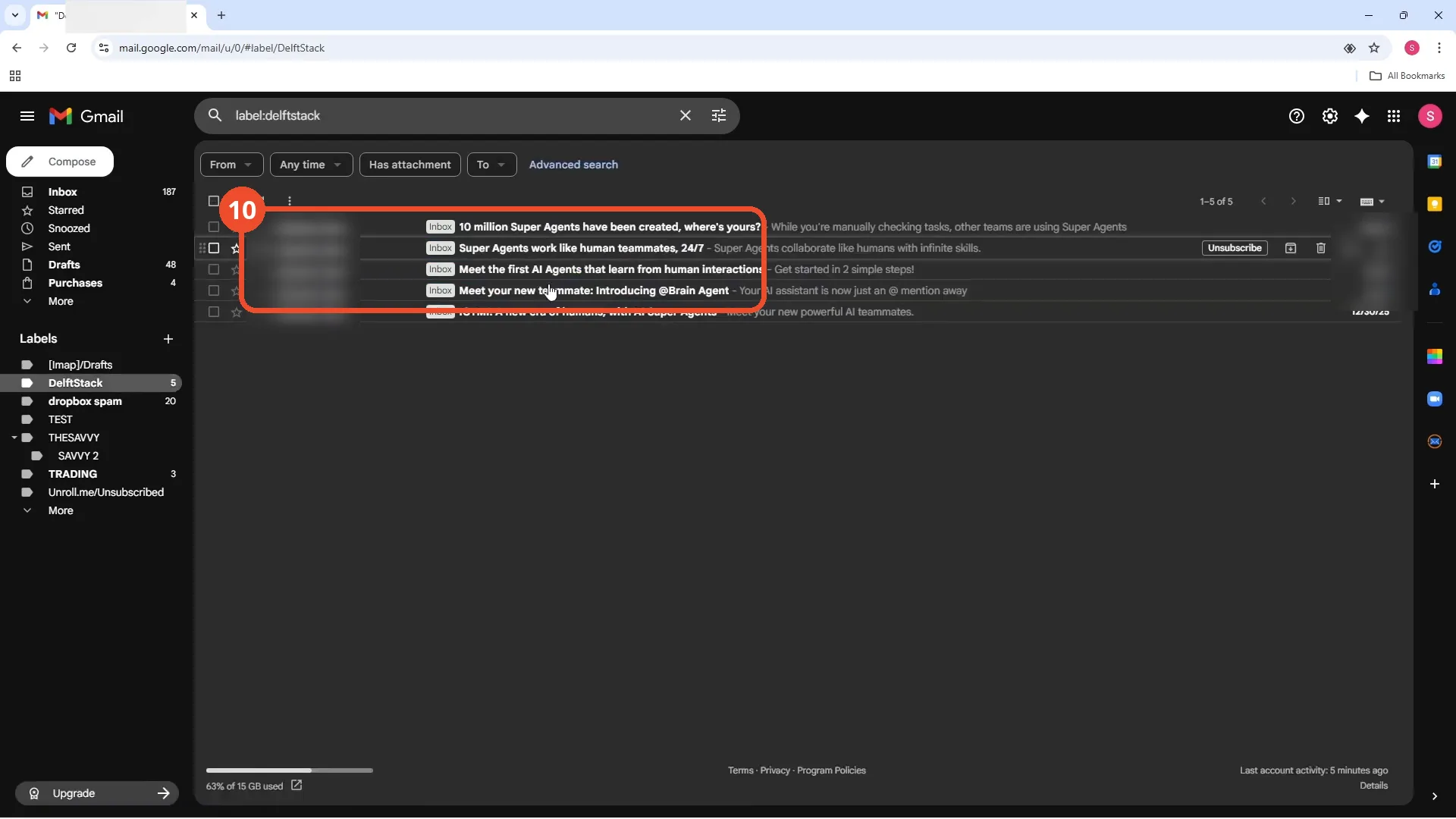
Open the label in the sidebar. The five ClickUp emails are listed there, and a message confirms 5 conversations removed from Promotions and added to DelftStack.
Good to know
- Gmail calls folders labels — a label works like a folder, and one email can sit in several labels at once.
- The film explores the Nest label under option, opening the parent-label dropdown, but leaves it unchecked, so the label is created at the top level.
- The film opens Gmail on an empty TEST label view, not the inbox — the steps are the same from any view.
- Applying the label also removed the five emails from Promotions, as the confirmation message shows.
- The sender names and dates in the screenshots are blurred.
More on Gmail
- How to Create a Contact Group in Gmail
- How to Delete All Emails Before a Certain Date in Gmail
- How to Delete Folders in Gmail
- How to Delete All Unread Emails in Gmail
- How to Recover Deleted Emails in Gmail
- How to Automatically Forward Specific Emails in Gmail Using Filters
- How to Send Encrypted Emails in Gmail Using Confidential Mode
- How to Change the Archive Option to Delete in Gmail
- How to Automatically Move Emails to a Folder in Gmail
- How to Delete All Promotional Emails in Gmail at Once
- How to Forward an Entire Email Thread in Gmail
- How to Delete Attachments in Gmail
- How to Change Font Color in Gmail
- How to Delete Contacts From Gmail
- How to Download Emails from Gmail in Bulk
- How to Change the Gmail Background
- How to Change Gmail to Dark Mode
Guide complete
Every step above comes from the original recording, with a screenshot for each step. Want more like this? Browse all Gmail guides.