How to Create a Contact Group in Gmail
A contact group in Gmail is a label in Google Contacts: you create the label, add contacts to it, and then type the label name in the To field of a new email. This tutorial creates a group called family and shows how to address an email to it.
- SystemWindows (browser)
- AppGmail web app
- Last verifiedNovember 15, 2026
Every screenshot below is taken from the actual recording on this device — no stock images.
Steps
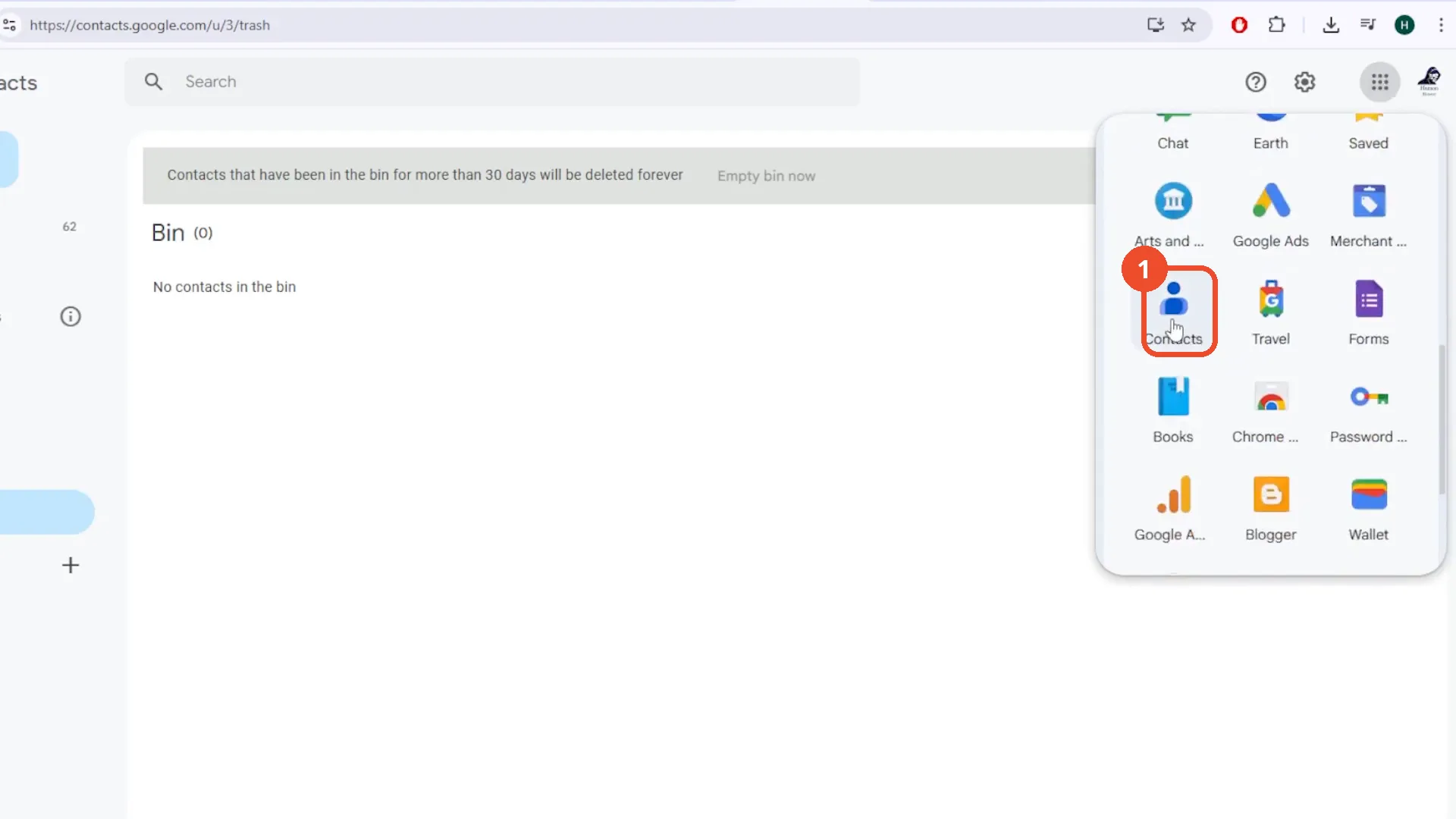
Open Google Contacts
From Gmail, click the nine-dot Google Apps icon at the top right, scroll the menu, and click Contacts. The film opens this menu from inside Contacts, but the route is the same.
Create the group label
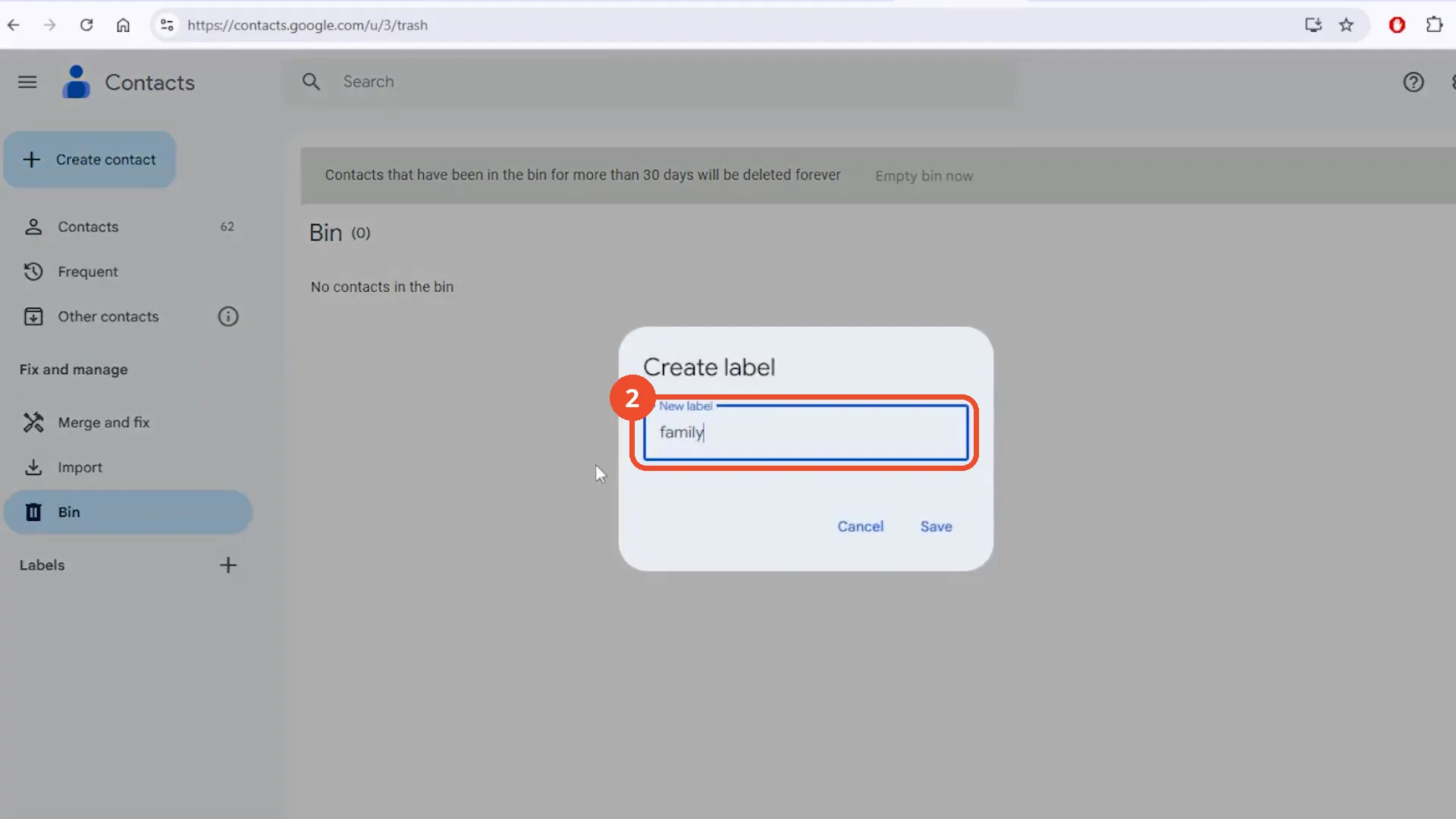
In Google Contacts, click the + next to Labels in the left sidebar. In the Create label dialog, type a name for the group — the film types family — then click Save.
Select the contacts to add
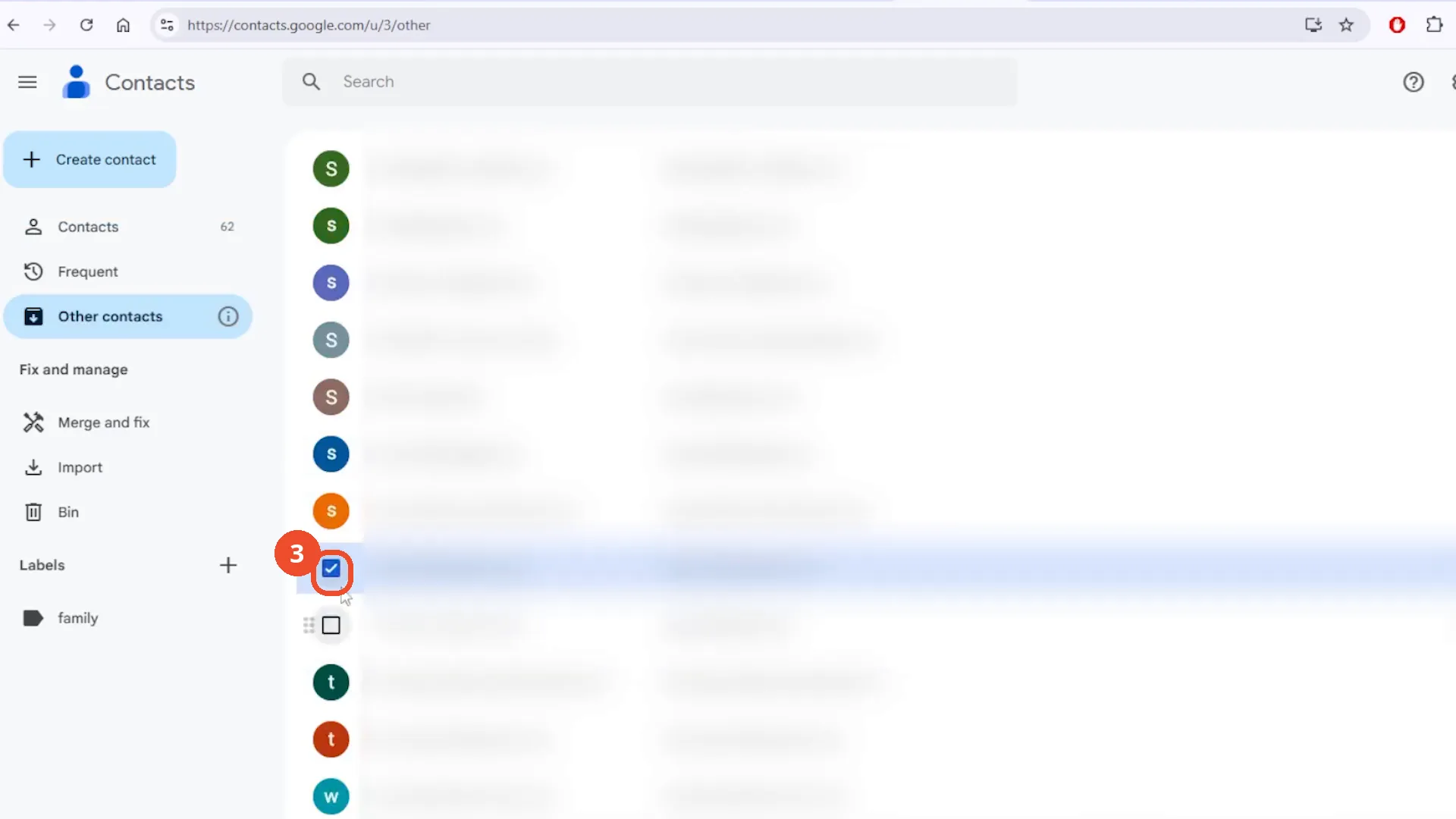
Tick the checkbox on each contact you want in the group. The film selects contacts from Other contacts.
Click the label icon
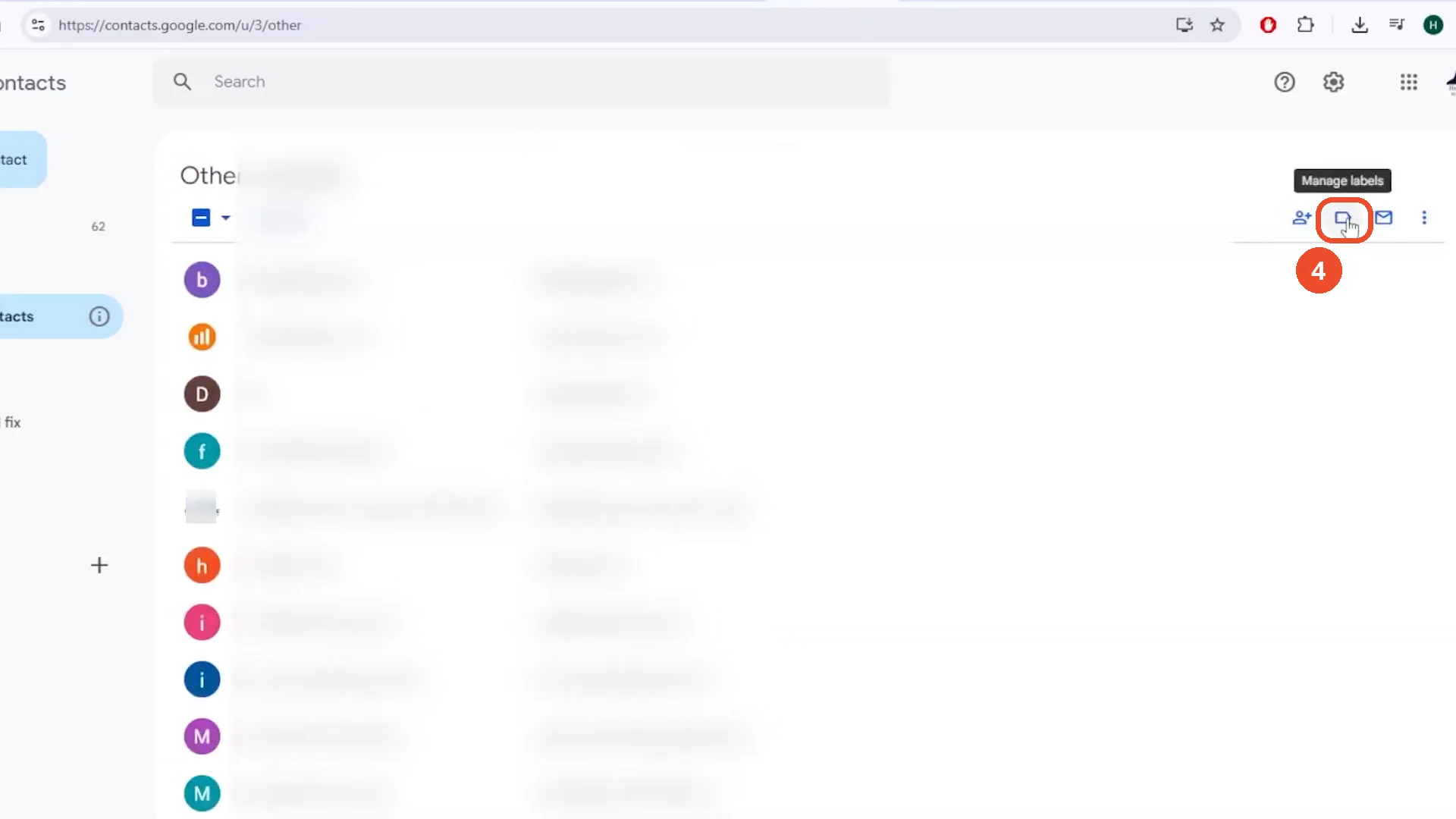
With the contacts selected, click the label icon in the toolbar at the top right — the tooltip reads Manage labels.
Choose the group
In the Manage labels menu, click the group you just created — here family.
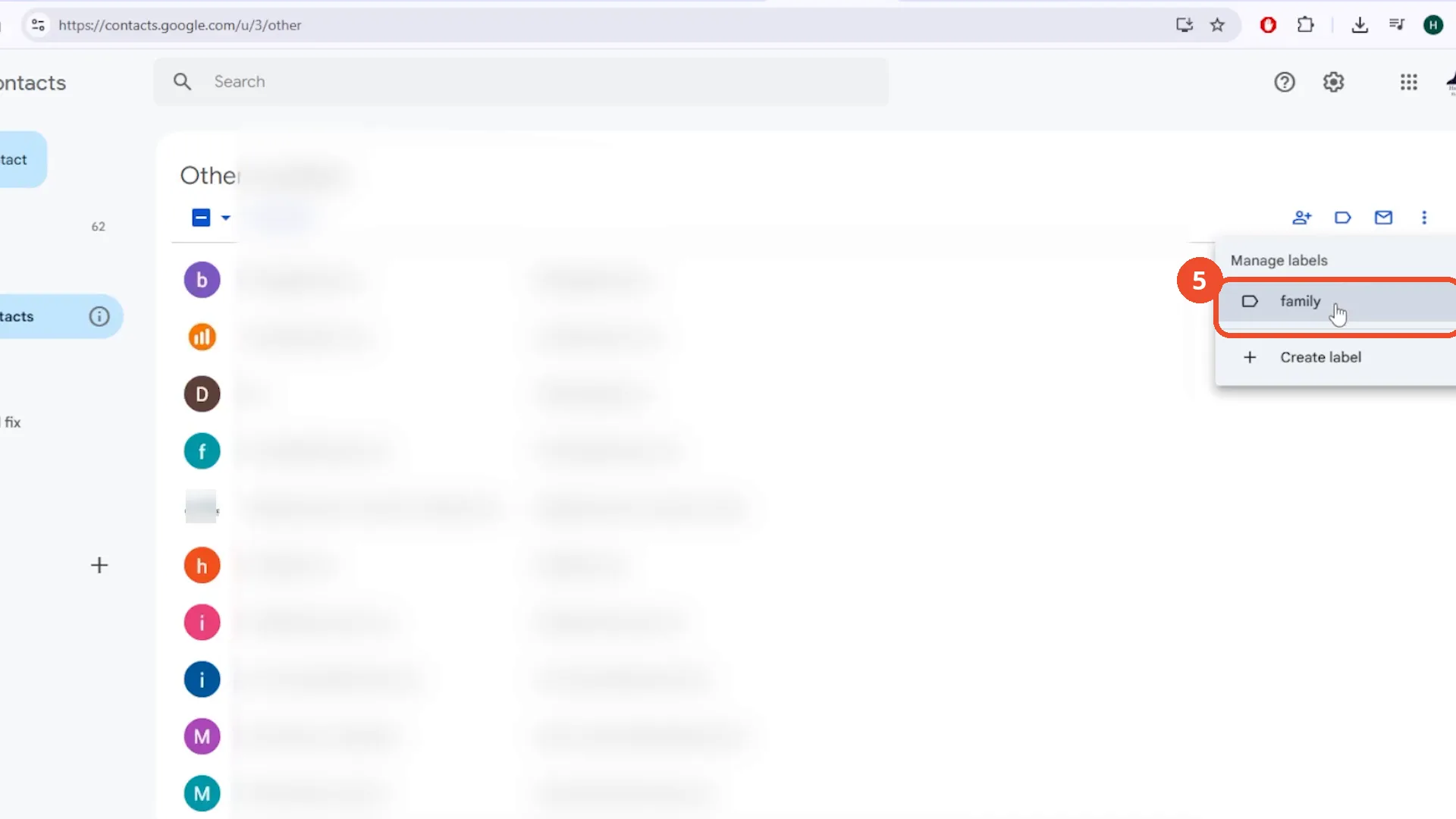
Check the group
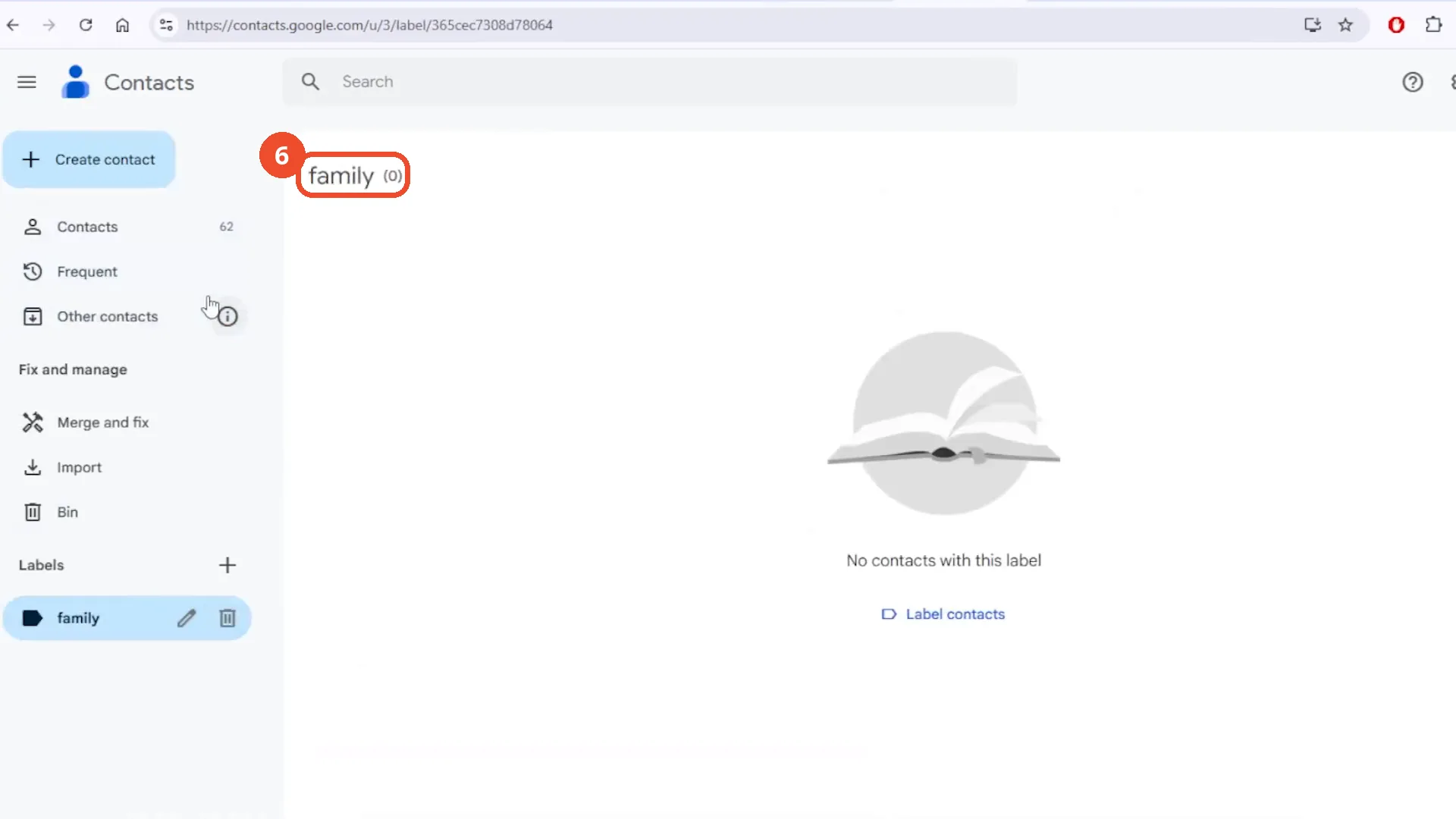
Click the group in the sidebar to check it. In the film, the family label shows 0 contacts — ‘No contacts with this label’ — so the contacts did not visibly land in the group.
Go back to Gmail and click Compose
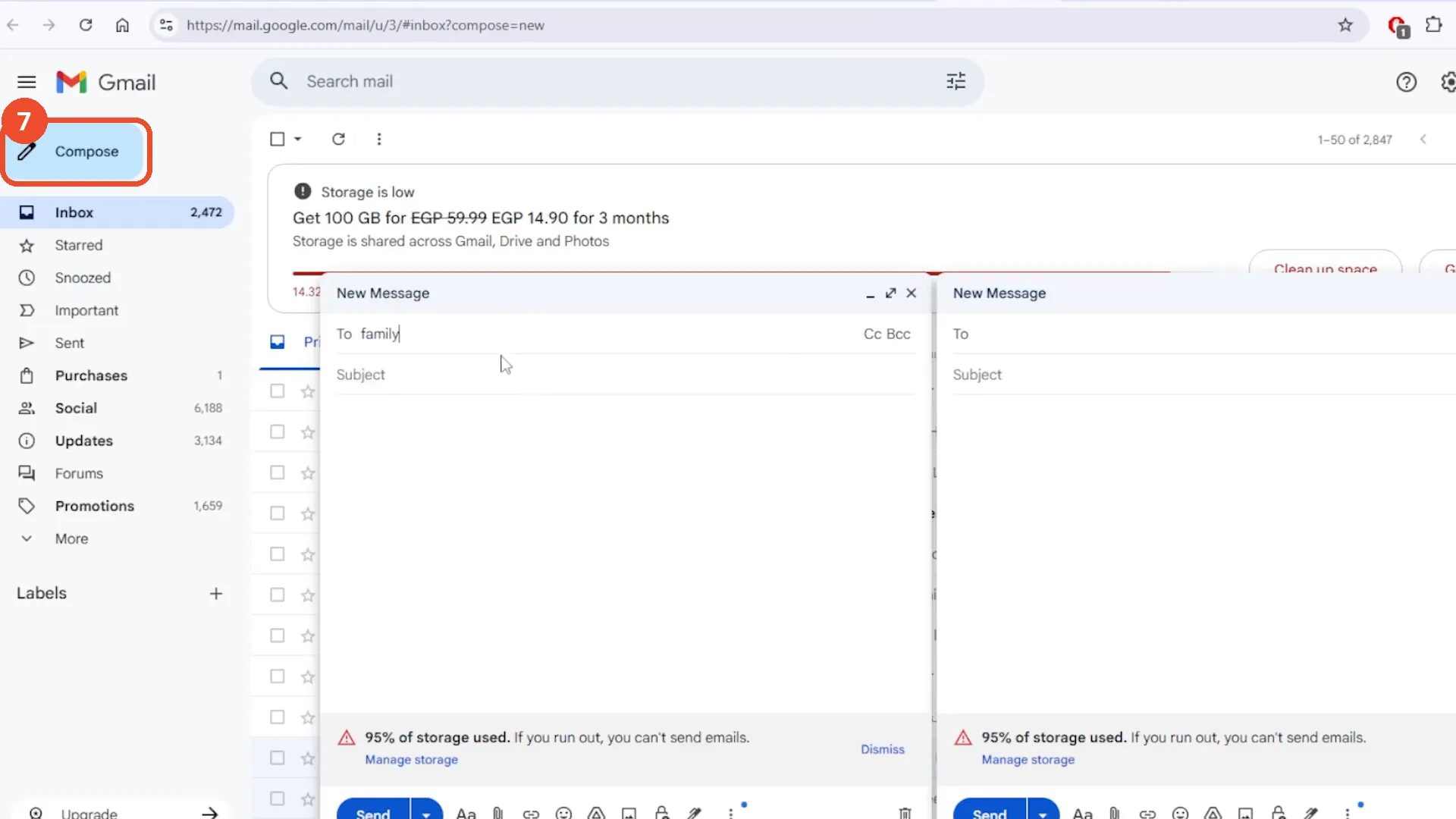
Go back to Gmail and click Compose to open a new message. The film shows two overlapping compose windows side by side here, an edit artifact; the left one is the one the film types into.
Type the group name in the To field
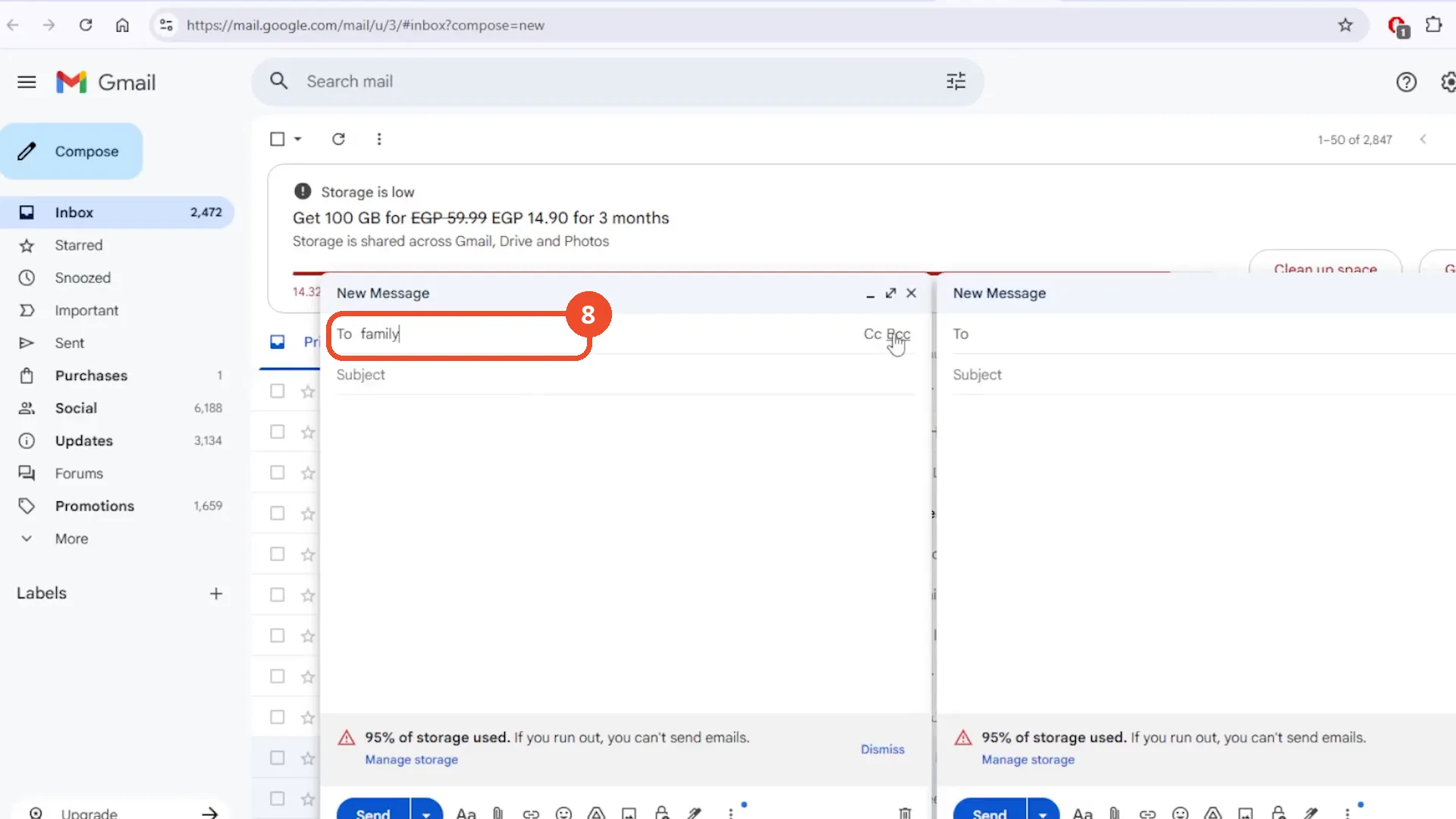
In the new message, type the group name in the To field — the film types family. No group suggestion appears, and the film does not write a subject or body or click Send.
Good to know
- The film’s own check shows the family label with 0 contacts — ‘No contacts with this label’ — so the contacts did not visibly land in the group, even though the film clicks Manage labels and then family.
- When the film types family in the To field of a new email, no group suggestion appears, and the film does not write a subject or body or click Send — that part is narration only.
- The film selects its contacts from Other contacts, not from the main Contacts list.
- A mid-film subscribe bumper appears at 00:54-00:58.
- Contact names and email addresses are blurred in the film itself; the one photo avatar in the contact list is blurred in the screenshots.
- The film shows two overlapping “New Message” windows side by side from 01:30 on - an edit artifact, not a Gmail feature; the left window is the one the film types into.