How to Change Your Email Signature in Gmail
A Gmail signature is added to the emails you send. The film edits the existing “Delftstack” signature, replacing its text with “Like and subscribe”, and saves it.
- SystemWindows (browser)
- AppGmail web app
- Last verifiedNovember 23, 2026
Every screenshot below is taken from the actual recording on this device — no stock images.
Steps
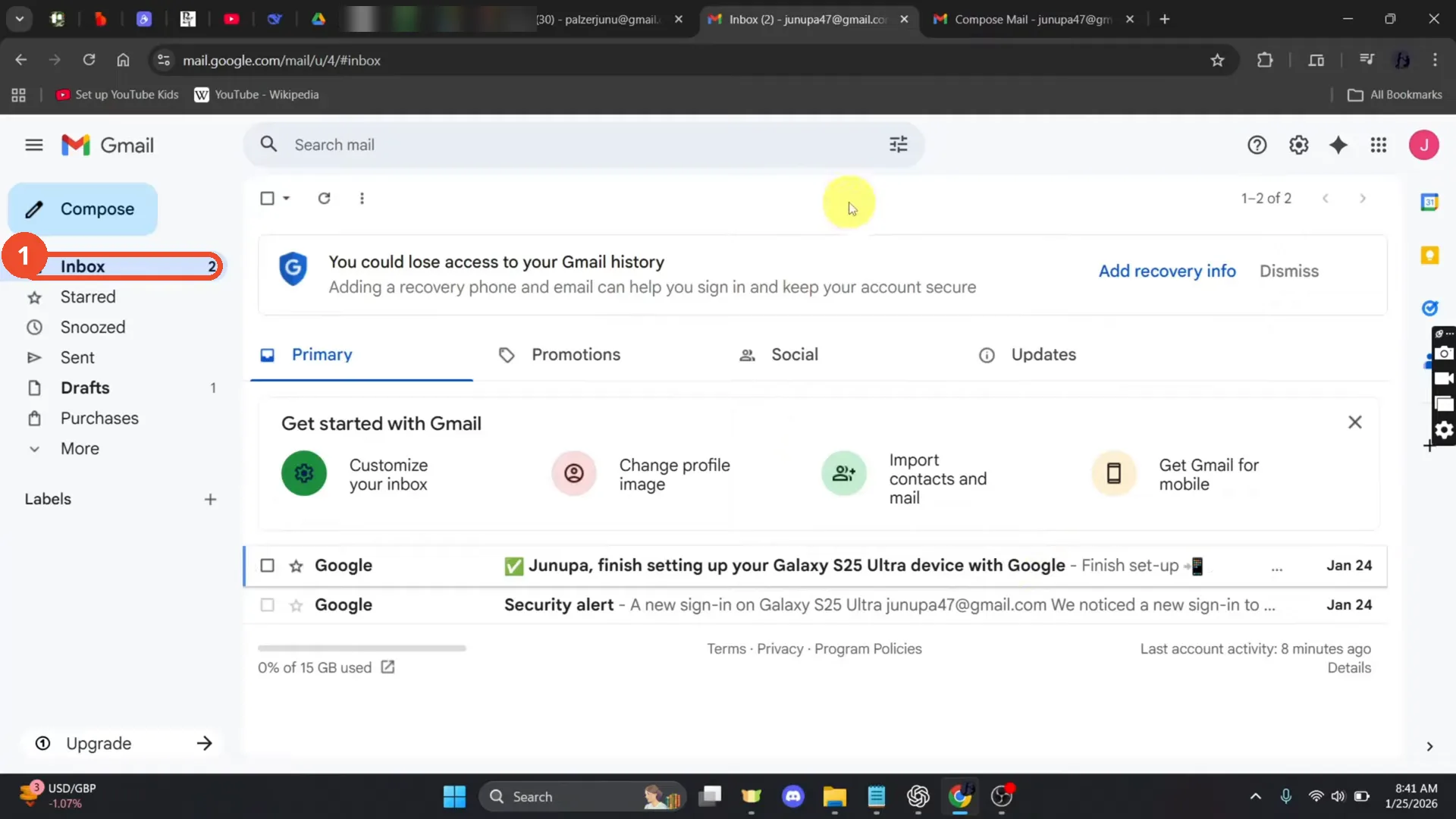
Open Gmail
Open Gmail in your browser and sign in.
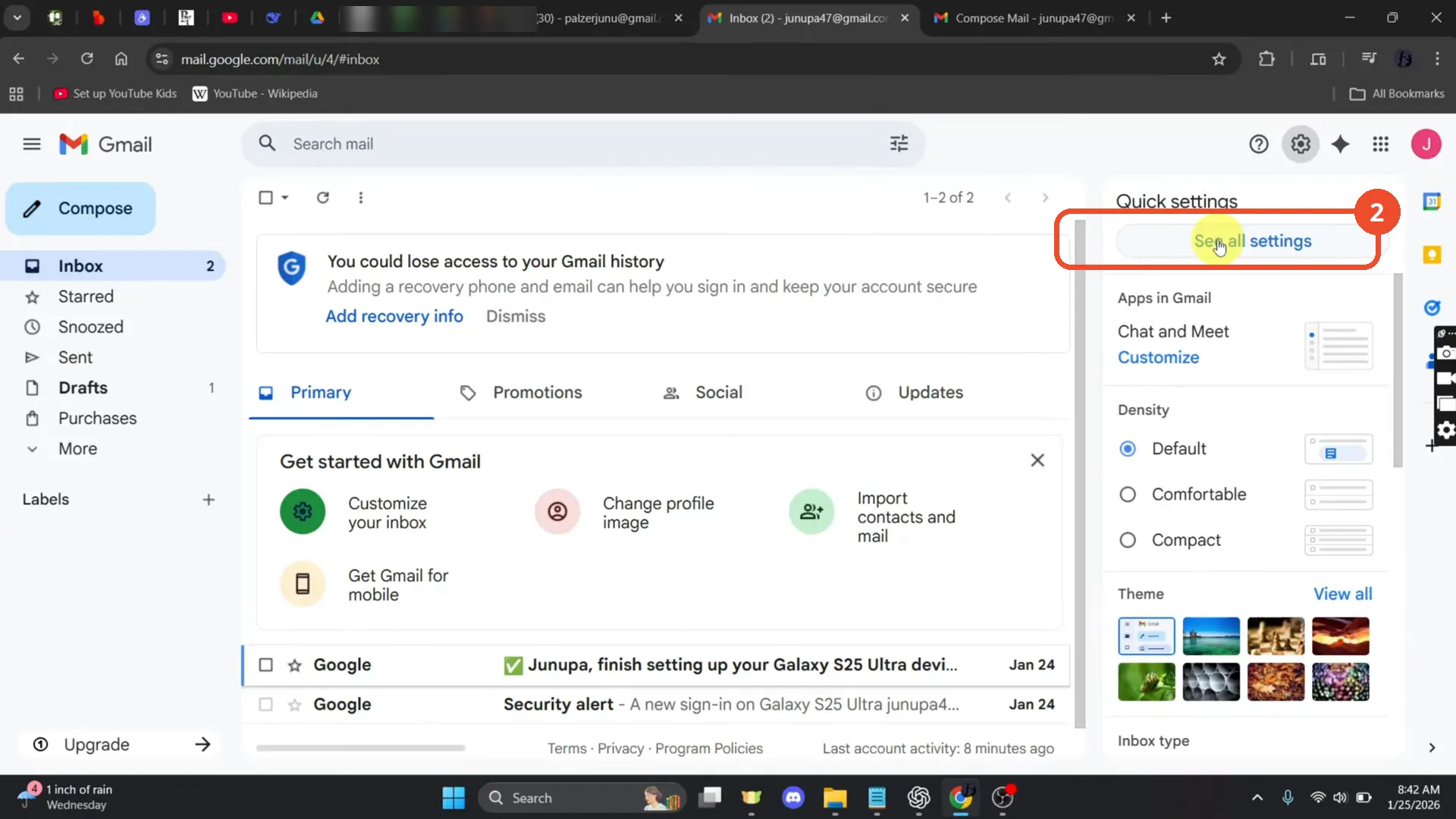
Open Settings
Click the gear icon at the top right, then See all settings in the Quick settings panel.
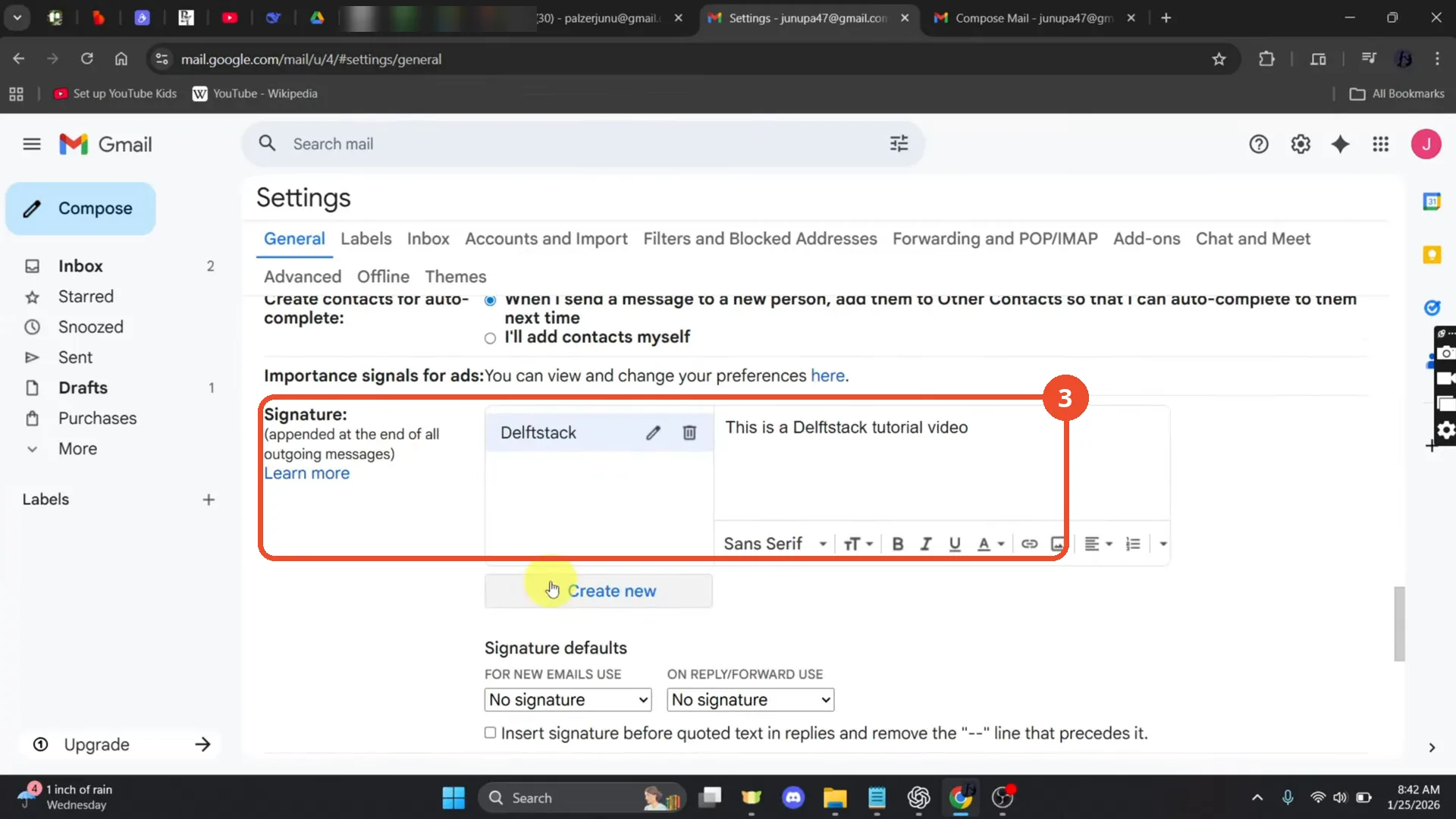
Scroll to the Signature section
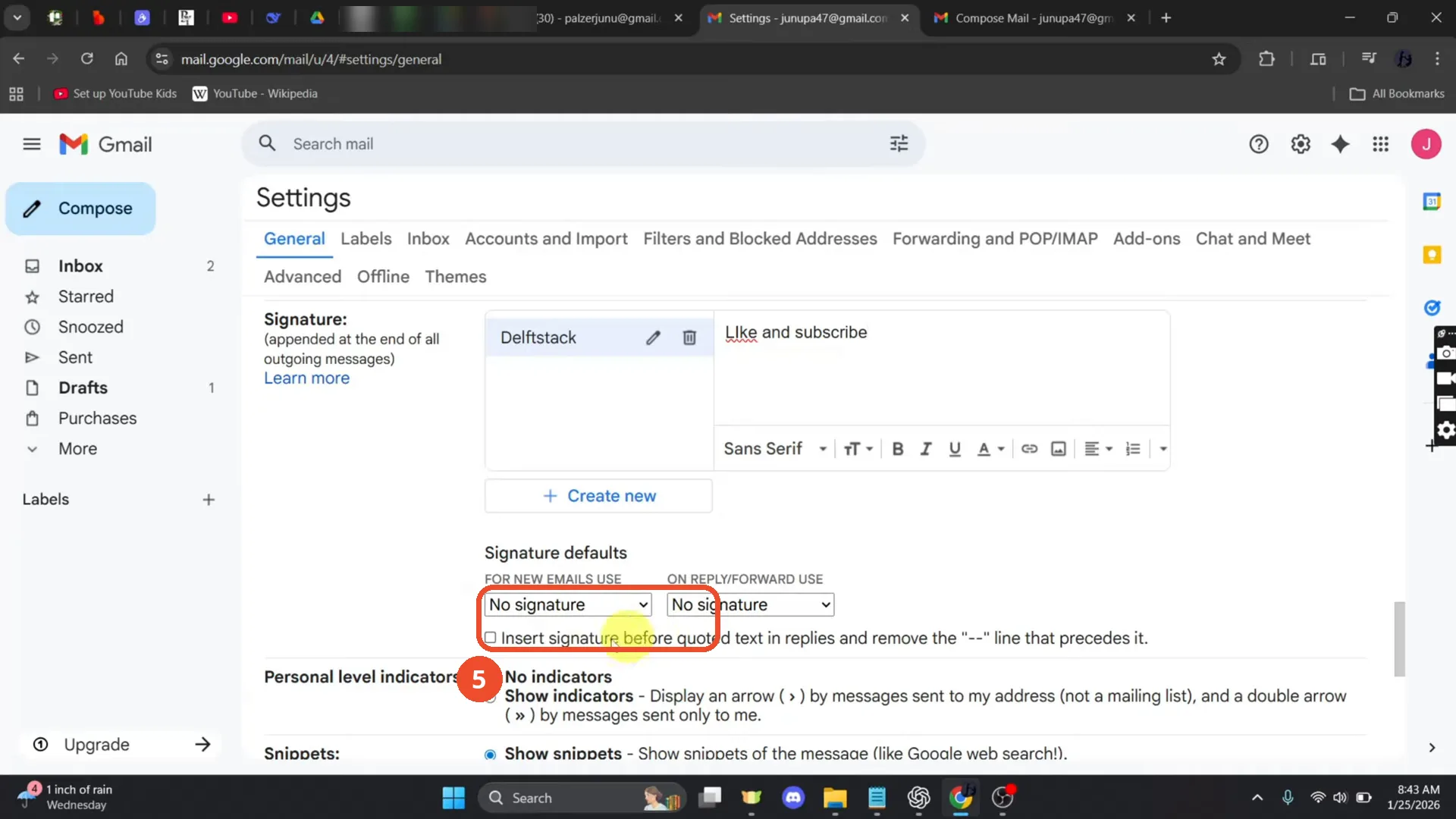
On the General tab, scroll down until you find Signature. The film’s account already has a signature called “Delftstack”.
Edit the signature text
Select the existing signature and type your text in the editor. The film replaces the old text (“This is a Delftstack tutorial video”) with “Like and subscribe”.
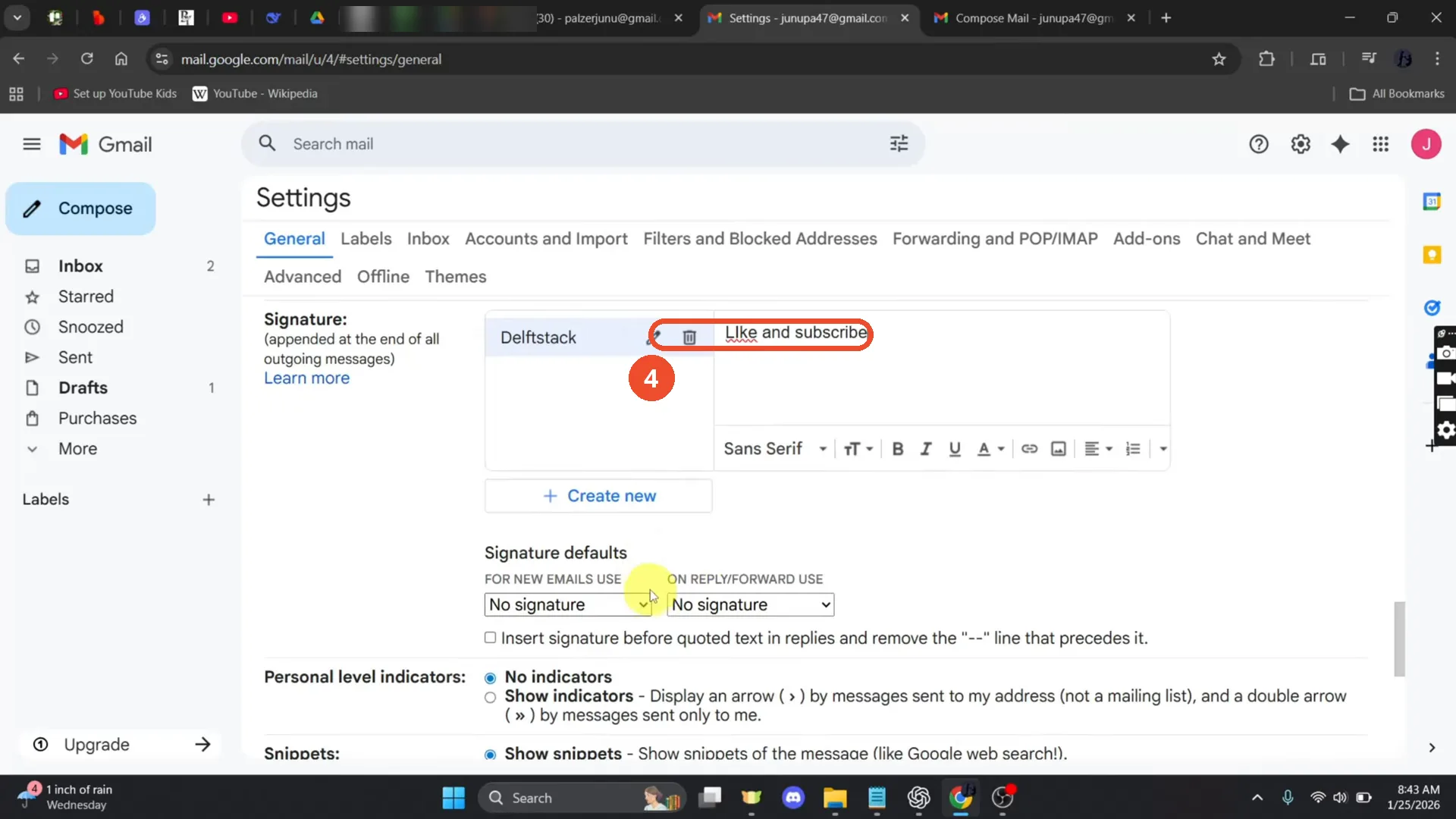
Check the signature defaults
Under Signature defaults, choose when the signature is used for new emails and for replies. The film shows the two dropdowns but leaves both on “No signature”.
Scroll down and click Save Changes
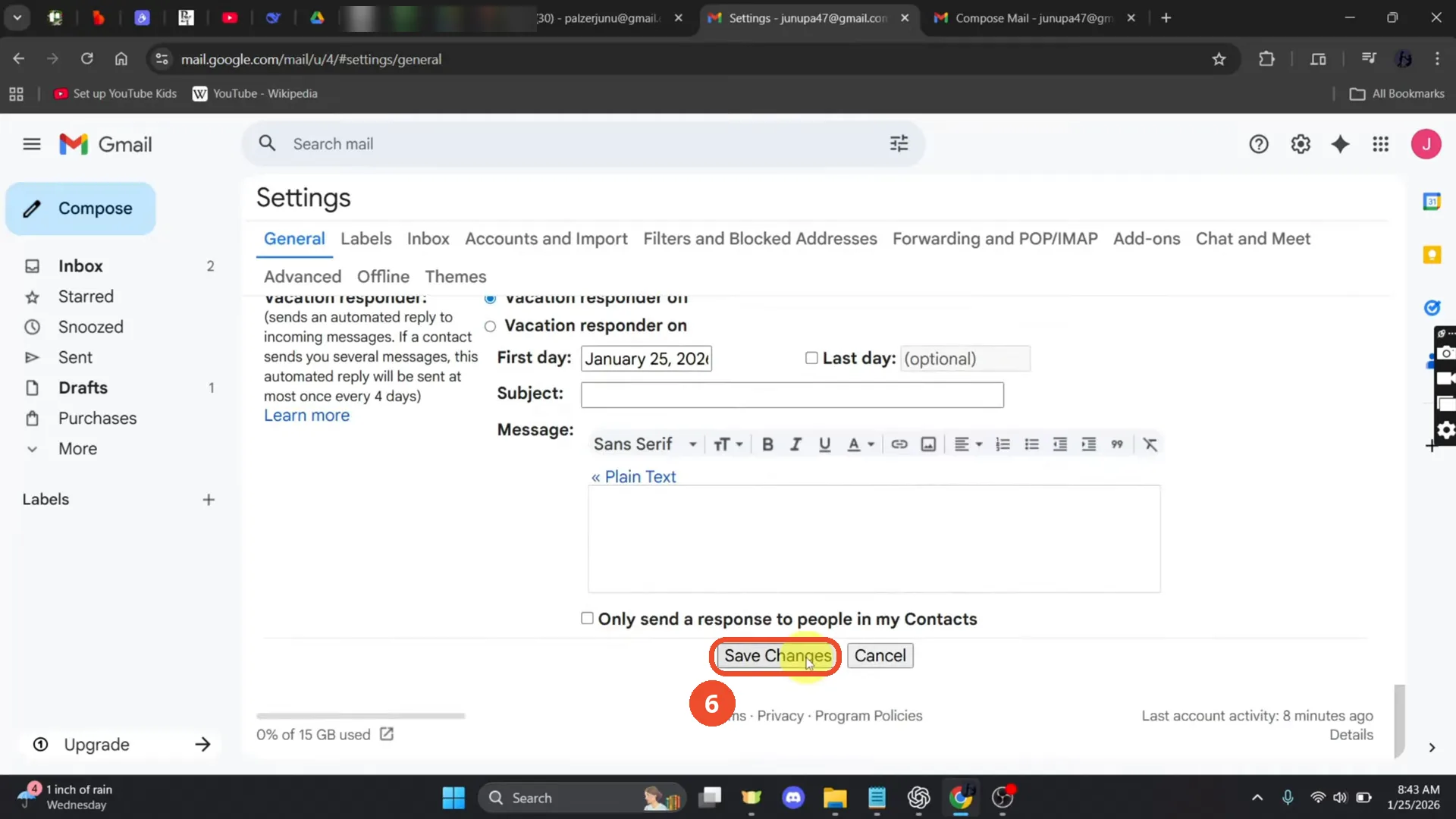
Scroll to the bottom of the Settings page and click Save Changes. Gmail shows a “Saving…” indicator.
Check Gmail returns to the inbox
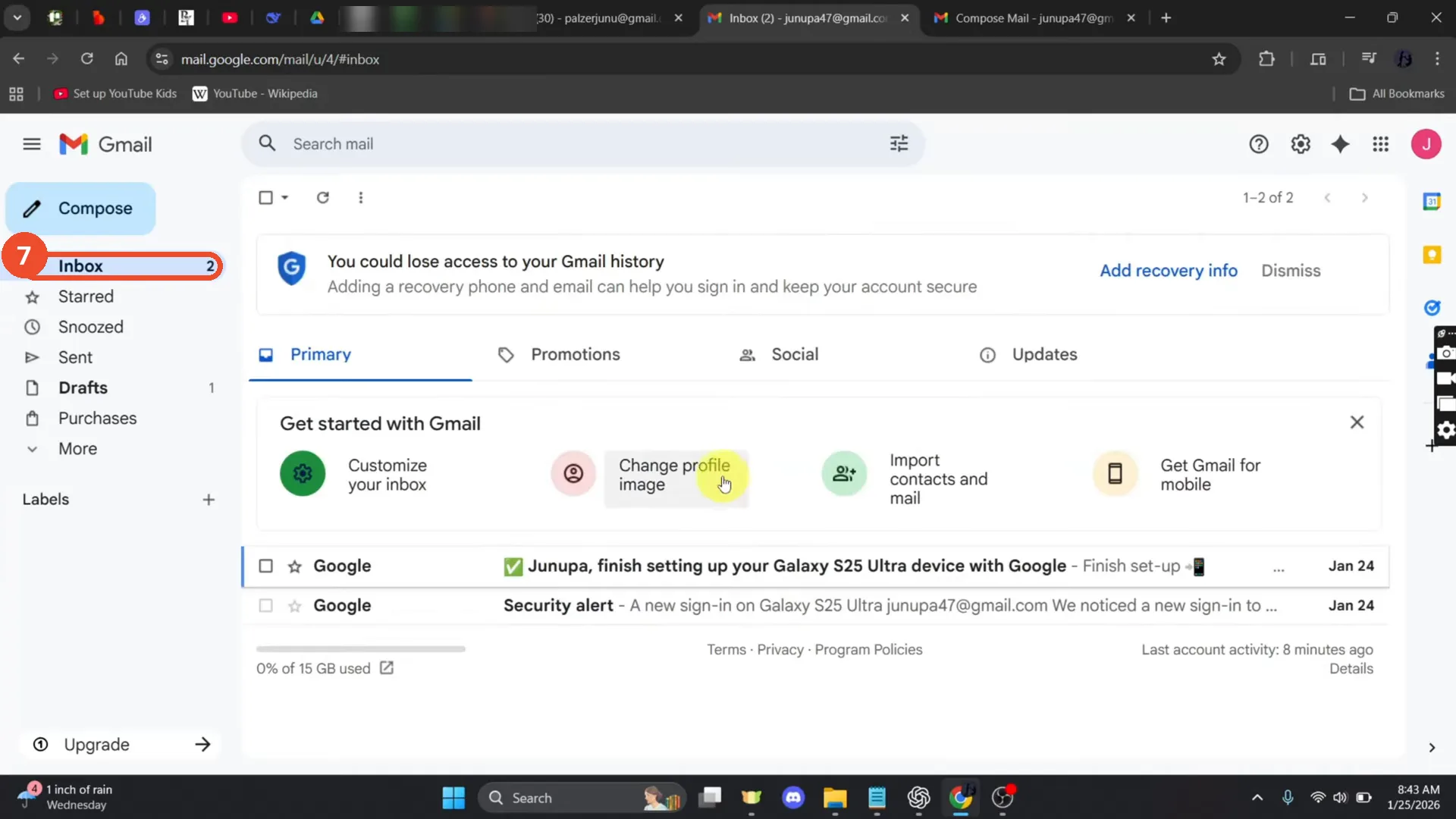
Gmail returns to the inbox. The signature is saved — but because the defaults were left on “No signature”, it will not be added to new emails automatically.
Good to know
- The film edits the signature that is already there — it never clicks “Create new”, so no new signature is created.
- The signature defaults are left on “No signature” in the film. To have Gmail add the signature automatically, pick it in the “For new emails use” and “On reply/forward use” dropdowns before saving.
- The film briefly opens the account switcher before going to Settings; that detour is not a step.
- The other account’s tab in the browser tab bar is blurred in every screenshot here.
More on Gmail
- How to Create a Contact Group in Gmail
- How to Delete All Emails Before a Certain Date in Gmail
- How to Delete Folders in Gmail
- How to Delete All Unread Emails in Gmail
- How to Recover Deleted Emails in Gmail
- How to Automatically Forward Specific Emails in Gmail Using Filters
- How to Send Encrypted Emails in Gmail Using Confidential Mode
- How to Change the Archive Option to Delete in Gmail
- How to Automatically Move Emails to a Folder in Gmail
- How to Delete All Promotional Emails in Gmail at Once
- How to Forward an Entire Email Thread in Gmail
- How to Delete Attachments in Gmail
- How to Change Font Color in Gmail
- How to Delete Contacts From Gmail
- How to Change the Gmail Background
- How to Change Gmail to Dark Mode
- How to Create Folders in Gmail
- How to Block and Unblock an Email Address in Gmail
- How to Find Archived Emails in Gmail
- How to Recover a Forgotten Gmail Password
- How to Download Emails from Gmail in Bulk
- How to Change Font Size in Gmail
- How to Delete All Emails in Gmail (Mass Delete Everything)
Guide complete
Every step above comes from the original recording, with a screenshot for each step. Want more like this? Browse all Gmail guides.