How to Change the Archive Option to Delete in Gmail
In the Gmail app, swiping an email usually archives it. This film changes that: in General settings, the right swipe becomes Delete and the left swipe is turned off - then a right swipe deletes one email on camera to prove it. Filmed on an Android phone.
- SystemAndroid
- AppGmail app
- Last verifiedNovember 17, 2026
Every screenshot below is taken from the actual recording on this device — no stock images.
Steps
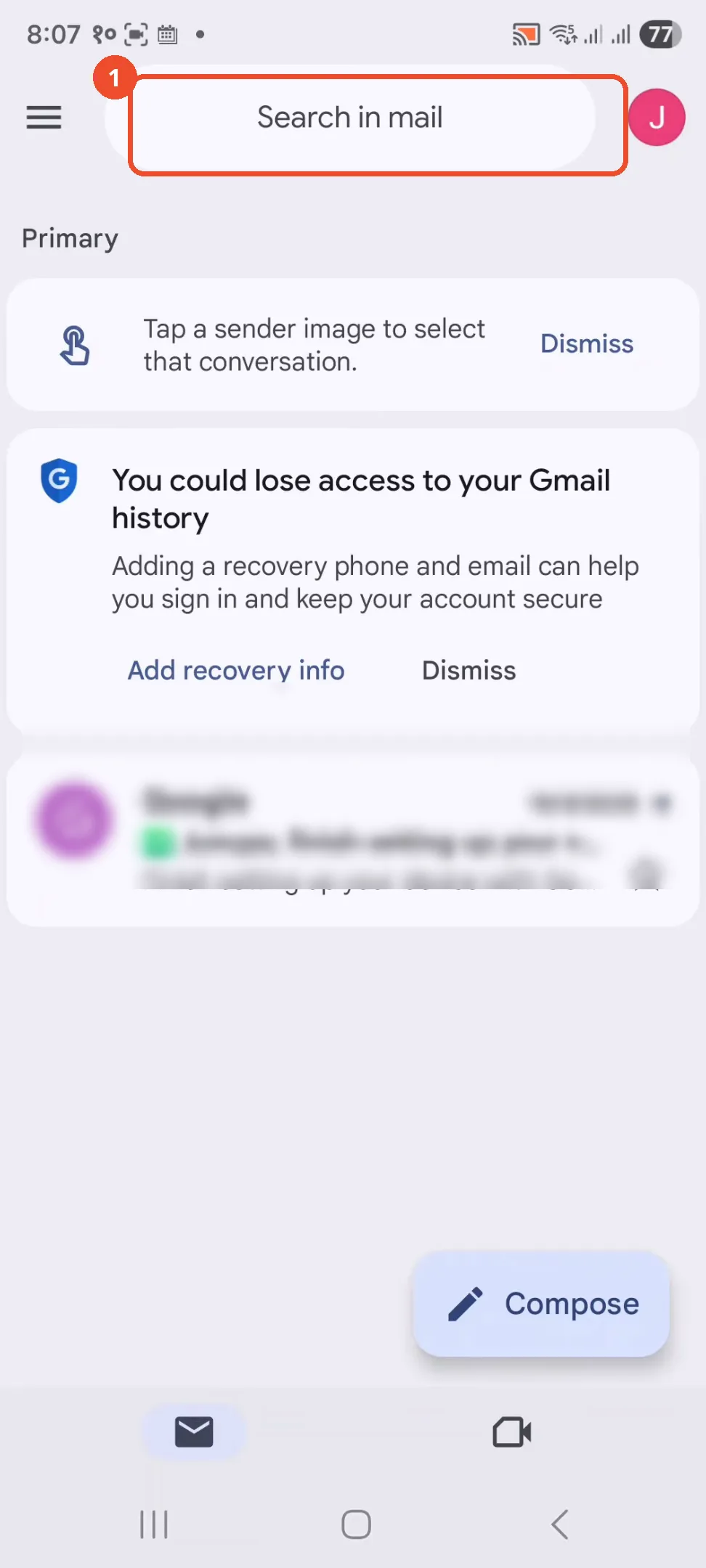
Open the Gmail app
Unlock your phone and open the Gmail app. The Primary inbox loads with one Google email and two tip cards.
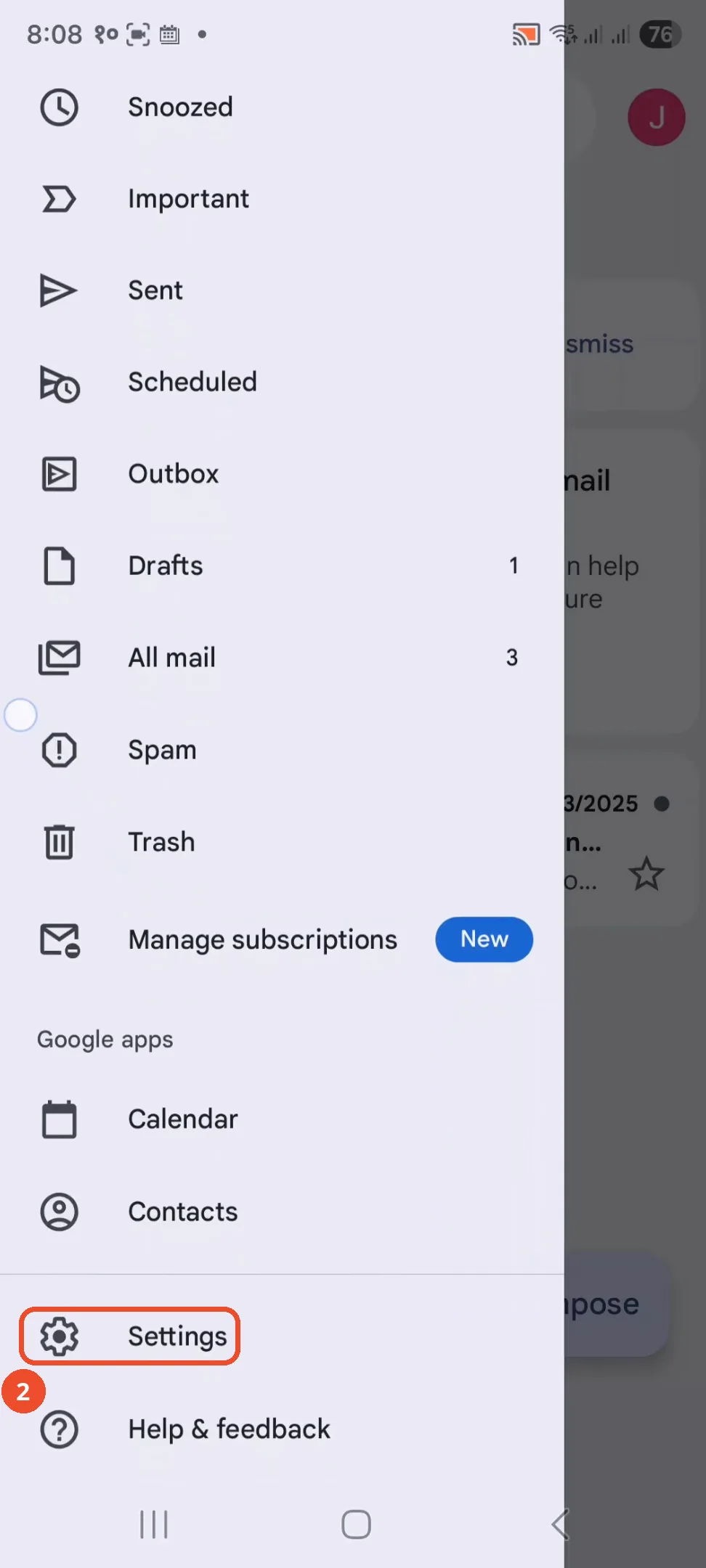
Open the menu and find Settings
Tap the three-line menu at the top left, then scroll down the drawer to Settings near the bottom.
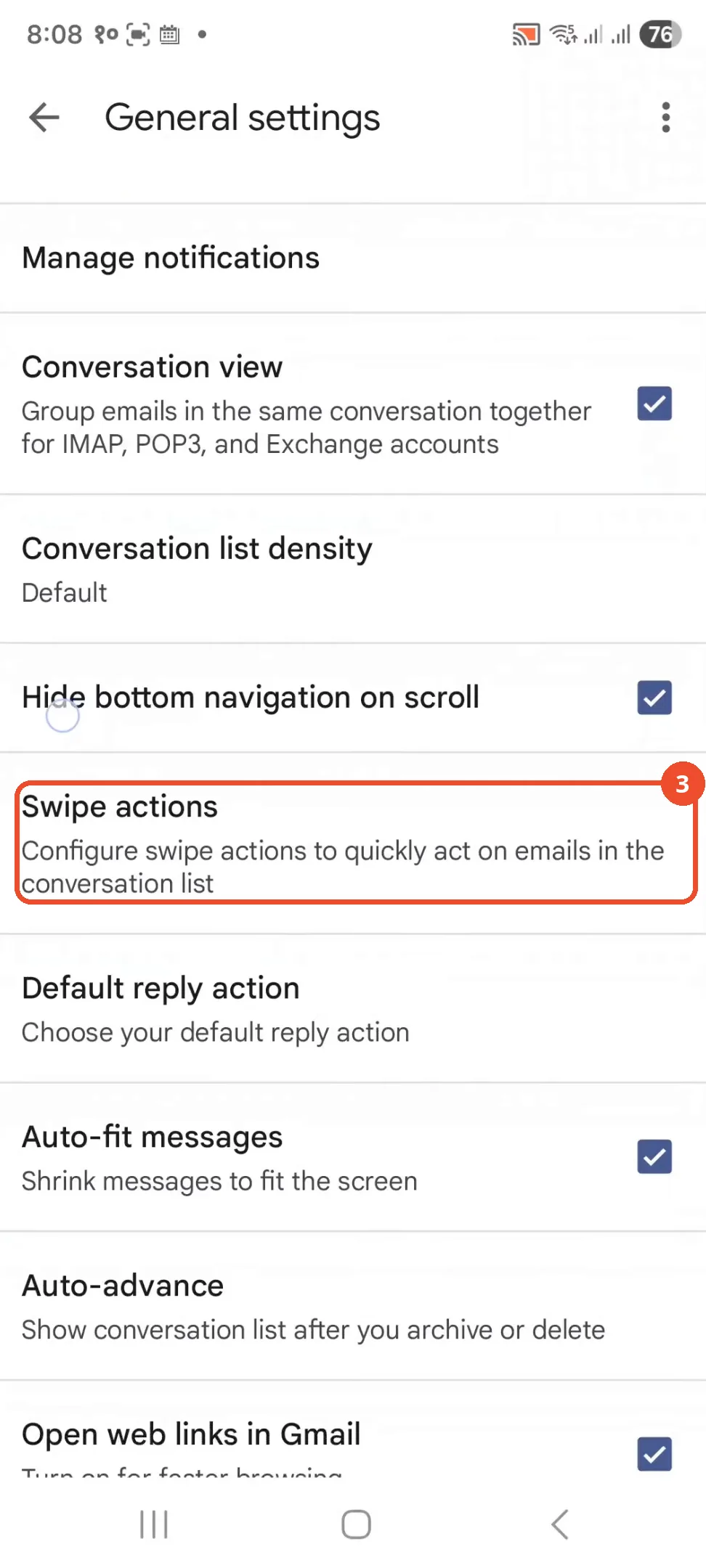
Open General settings
In Settings, open General settings and scroll down to ‘Swipe actions’.
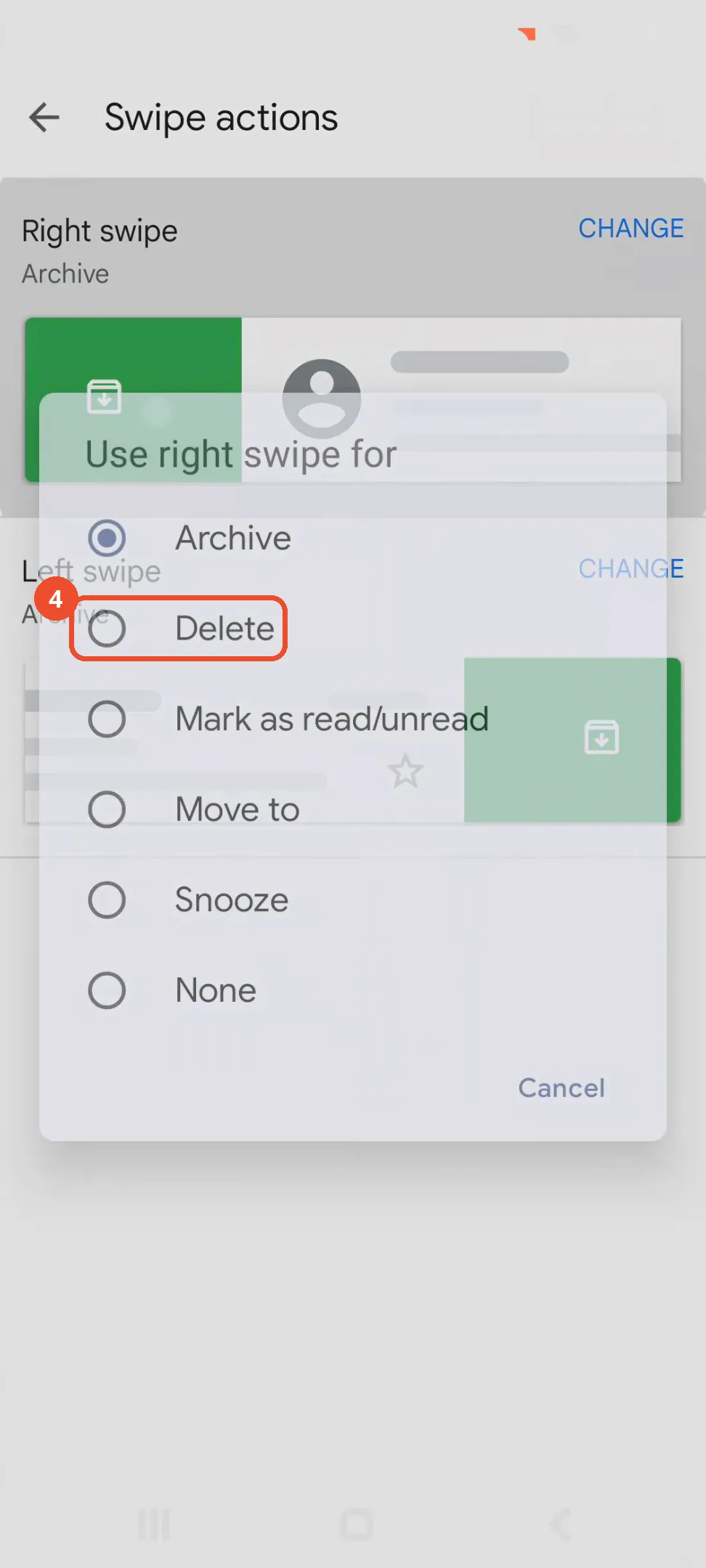
Choose Delete for the right swipe
Tap the Right swipe row (currently Archive) and pick Delete from the list: Archive, Delete, Mark as read/unread, Move to, Snooze, or None.
Check the right swipe is Delete
The Right swipe row now reads Delete, with a red trash preview. The left swipe is still Archive.
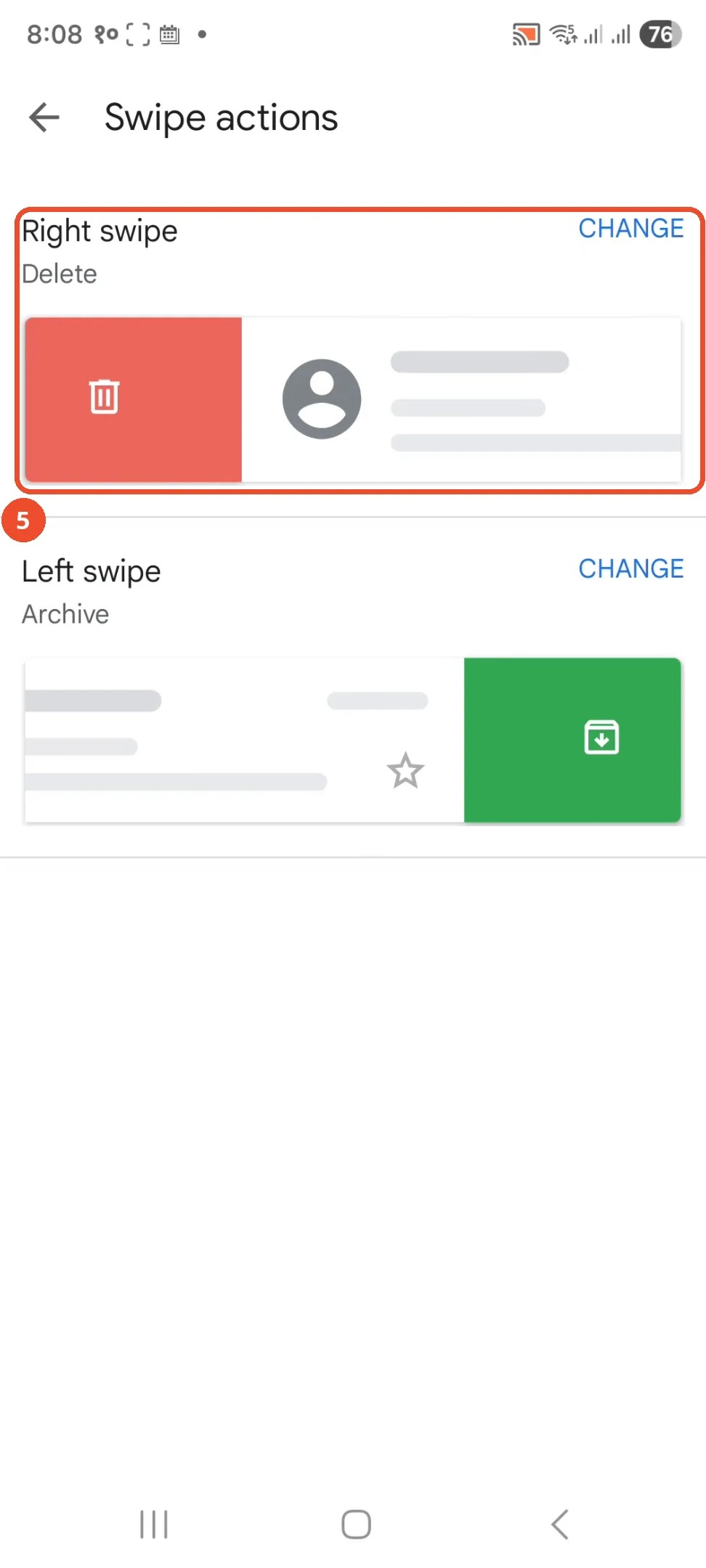
Choose an action for the left swipe
Tap the Left swipe row and pick an action from the same list. The film chooses None, not Delete.
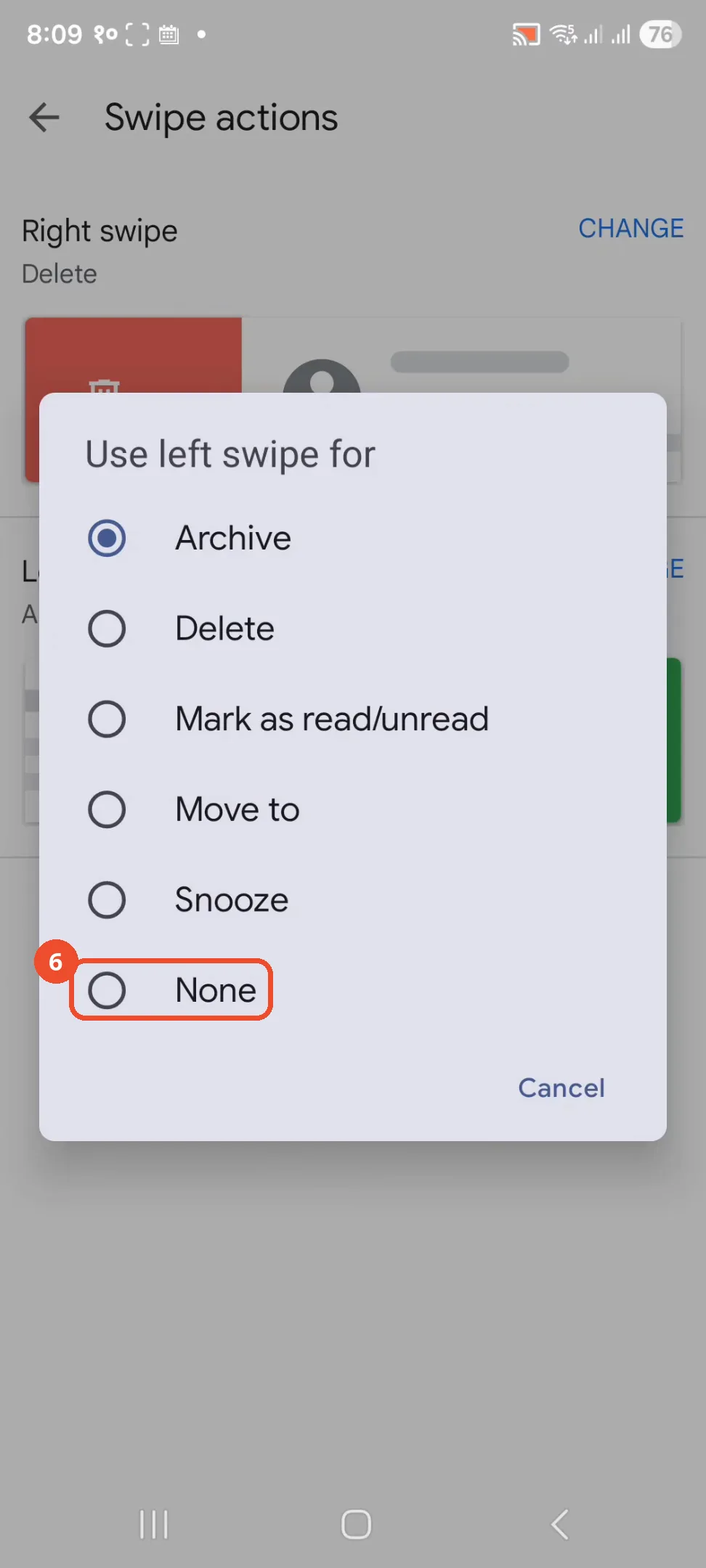
Check the left swipe is None
The Left swipe row now reads None, so swiping left will do nothing. The right swipe stays Delete.
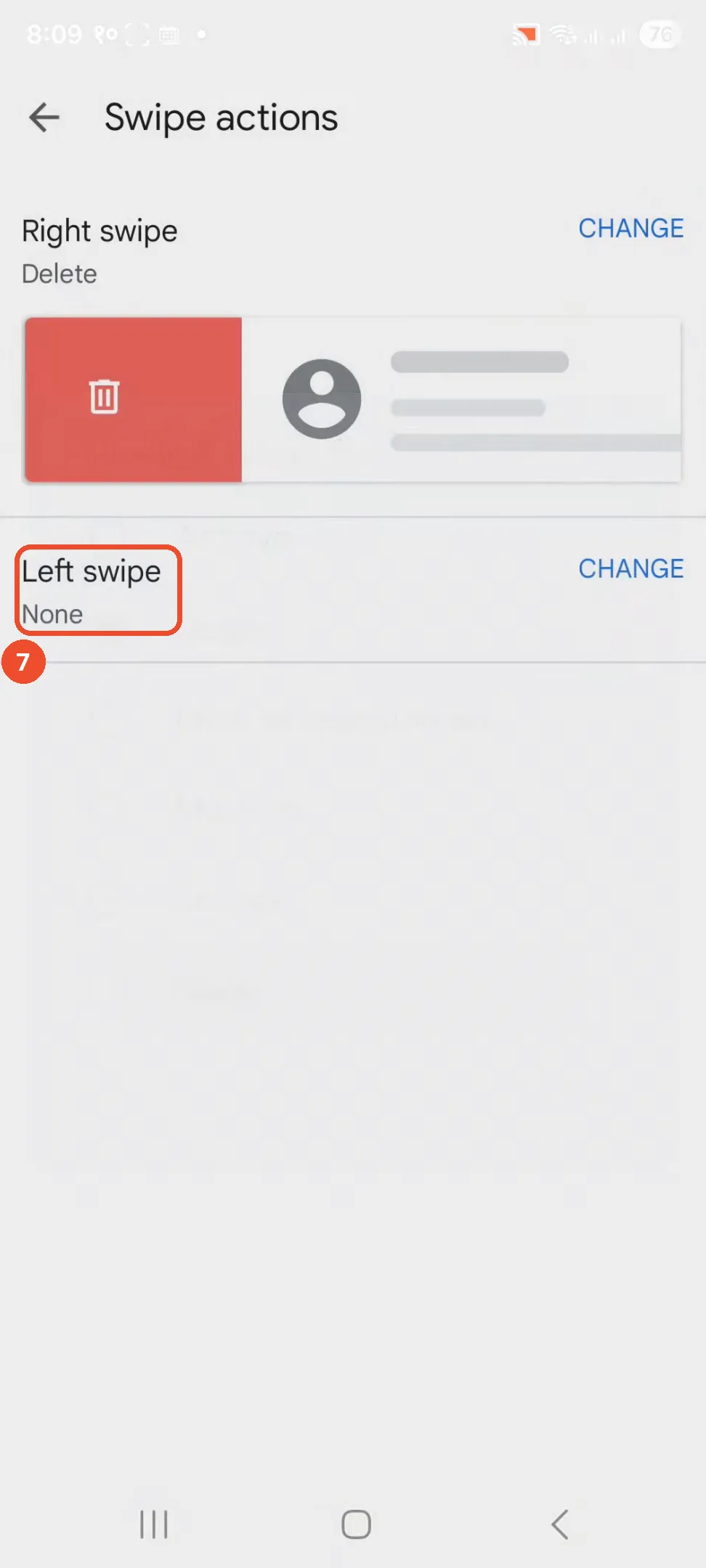
Swipe an email right to test it
Back in the inbox, swipe the Google email to the right. The red Delete background slides in with the trash icon as the email moves.
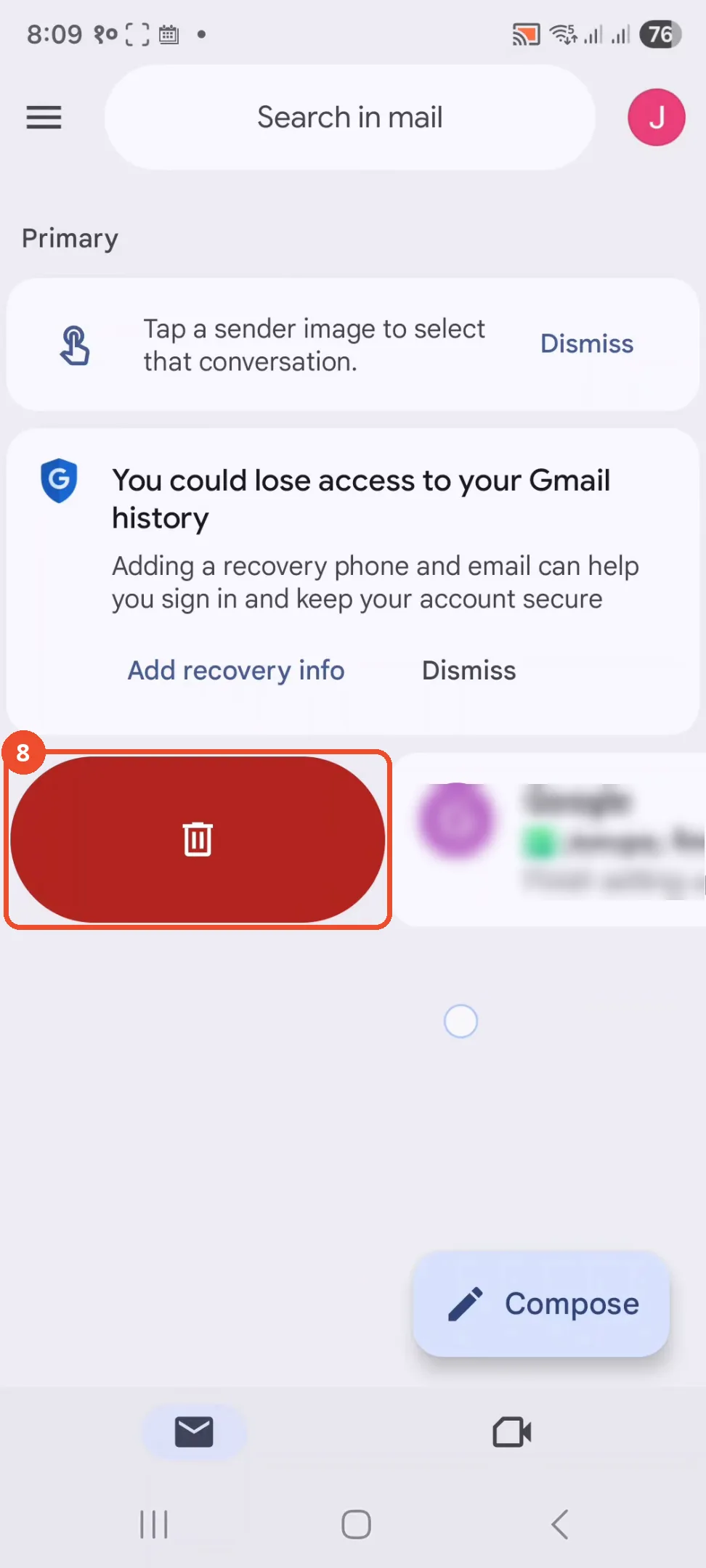
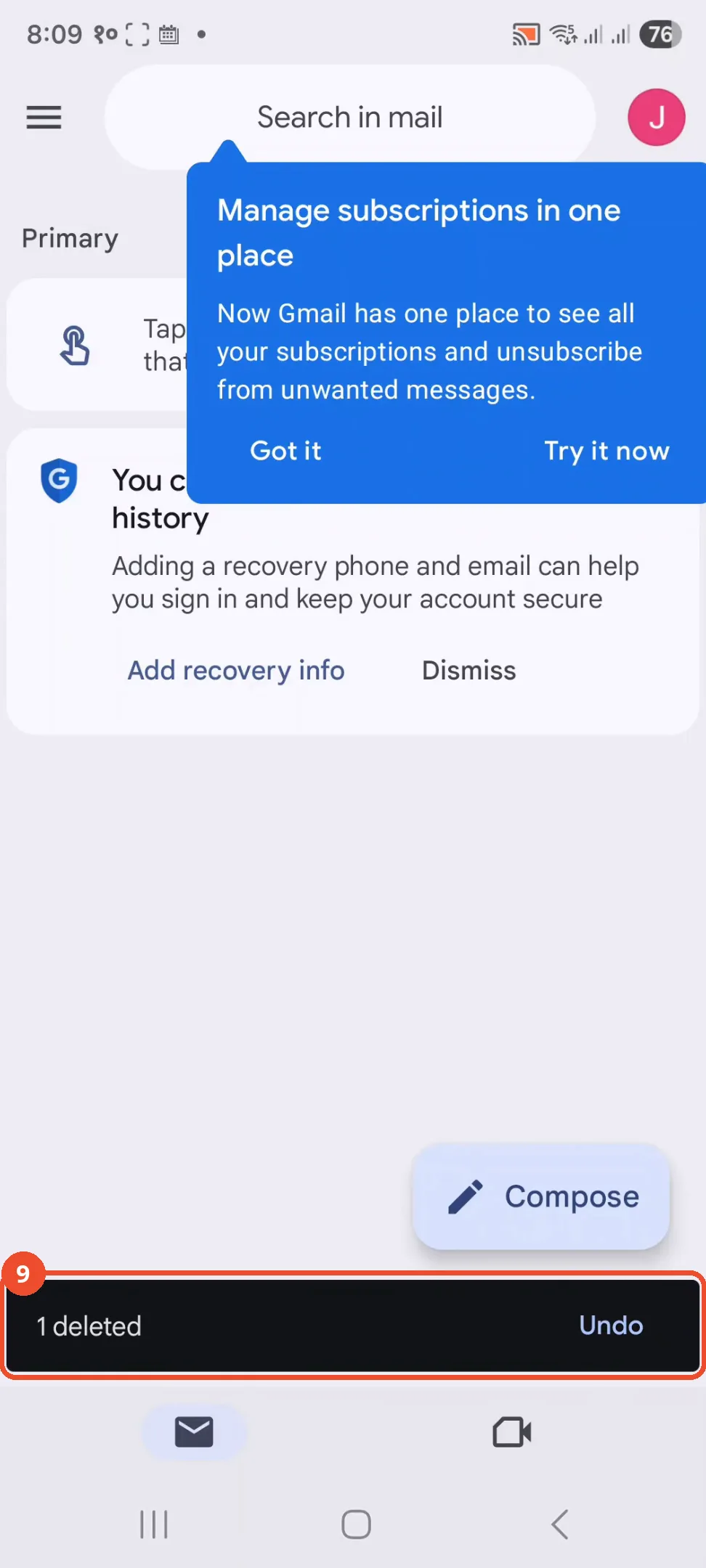
Check the toast confirms the delete
A black toast at the bottom reads ‘1 deleted’ with an Undo option, and the email is gone from the inbox. A ‘Manage subscriptions’ popup covers the top of the screen at the same time.
Good to know
- The film sets the left swipe to None, not Delete - the narration offers Delete as an option, but the on-camera choice is None, so a left swipe does nothing.
- Only the right swipe is tested on camera. The narration’s claim that ‘if you swipe left and nothing happens, the left swipe setting is working’ is never demonstrated - no left swipe is performed.
- The deleted email is the account’s Google welcome message; the film deletes the only email in the inbox, and Undo is offered in the toast.
- Swipe actions only change what a swipe does in the app’s conversation list; they do not change the Archive button or desktop Gmail behaviour.
- The film is shot on an Android phone (three-button navigation bar, Android status bar); the setting sits under General settings in the Gmail app on both Android and iPhone, but only Android is shown here.
More on Gmail
- How to Create a Contact Group in Gmail
- How to Delete All Emails Before a Certain Date in Gmail
- How to Delete Folders in Gmail
- How to Delete All Unread Emails in Gmail
- How to Recover Deleted Emails in Gmail
- How to Download Emails from Gmail in Bulk
- How to Automatically Forward Specific Emails in Gmail Using Filters
- How to Send Encrypted Emails in Gmail Using Confidential Mode