How to Change Gmail to Dark Mode
Gmail has a built-in dark theme. Open Settings, open the theme picker, scroll down to the solid colors, pick the black Dark tile, and save — the whole inbox turns dark.
- SystemWindows (browser)
- AppGmail web app
- Last verifiedNovember 20, 2026
Every screenshot below is taken from the actual recording on this device — no stock images.
Steps
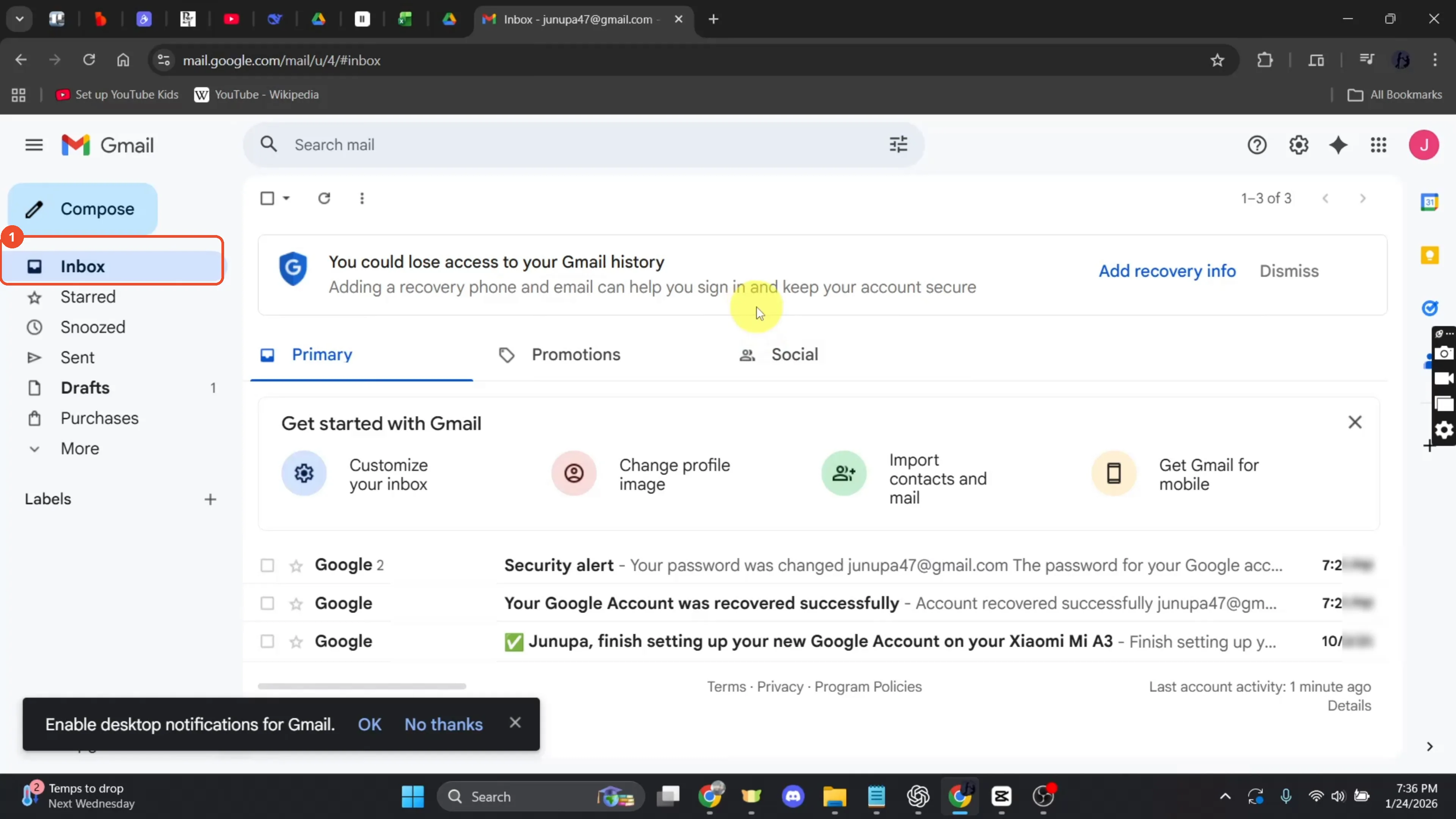
Open Gmail
Open Gmail in your browser and sign in. The film starts already signed in, with the inbox showing three Google emails.
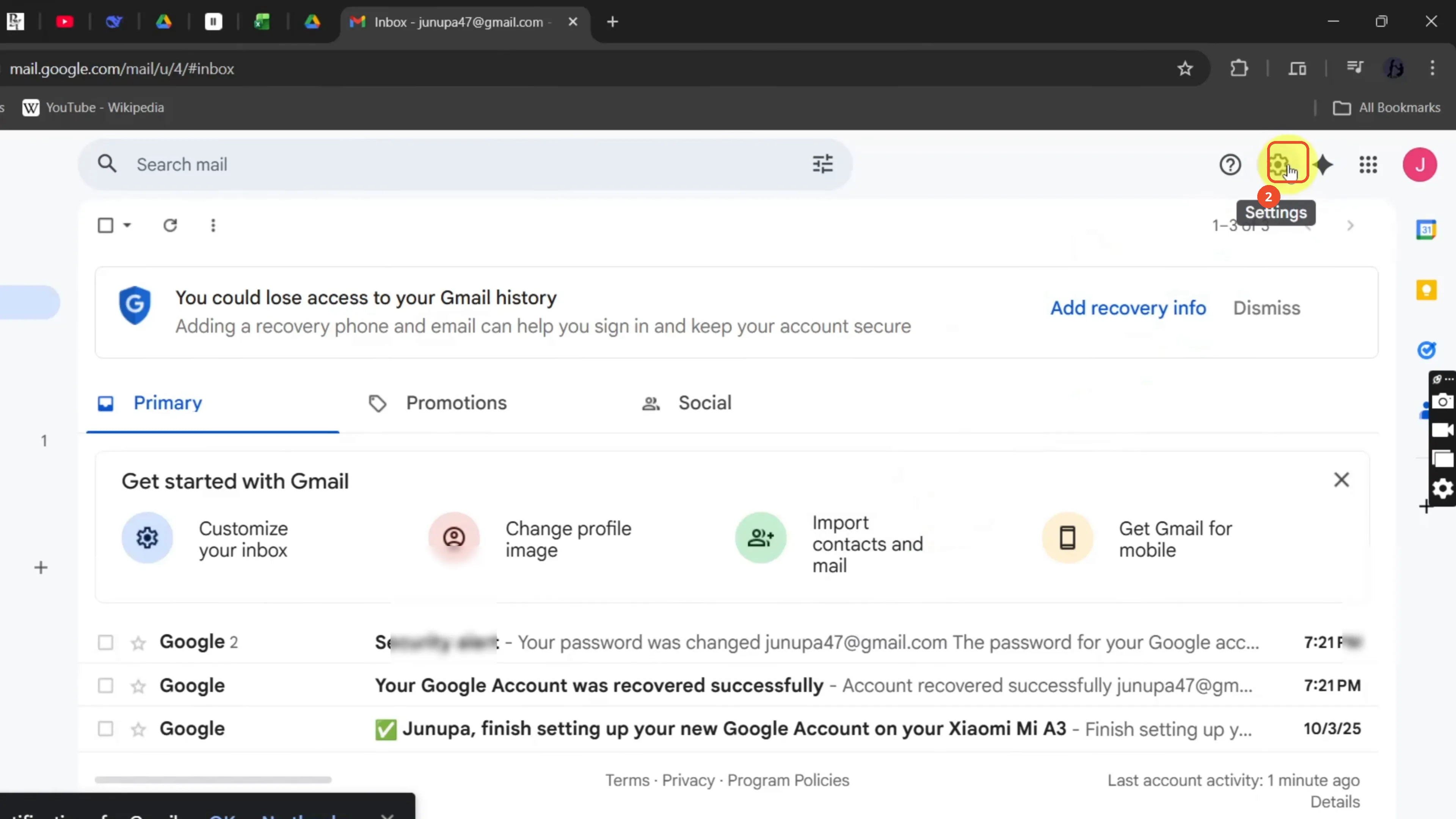
Click the Settings gear
Click the gear icon at the top right, beside your profile picture. The Quick settings panel opens.
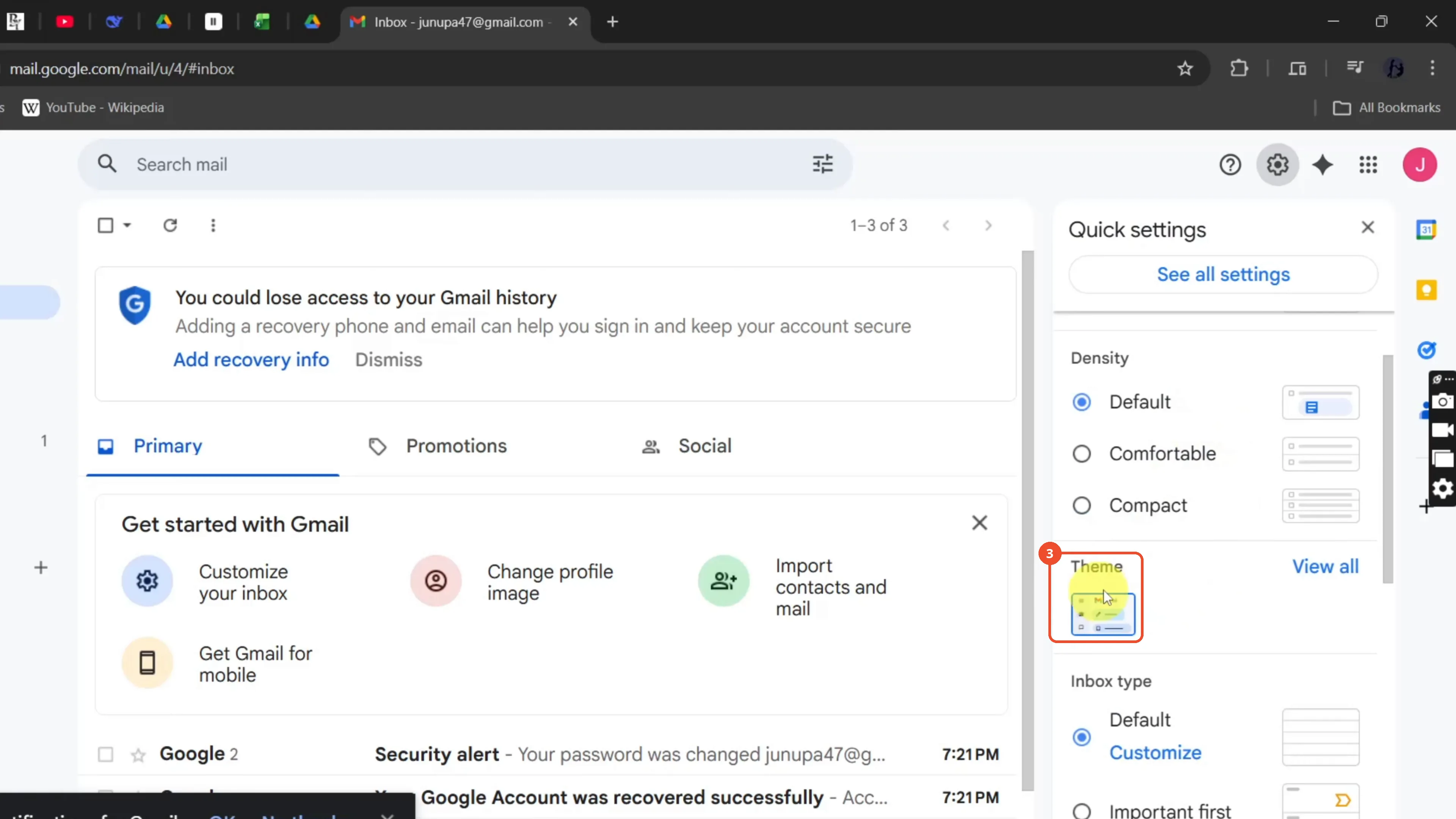
Scroll down to Theme
In Quick settings, scroll down until you reach the Theme section at the bottom of the panel.
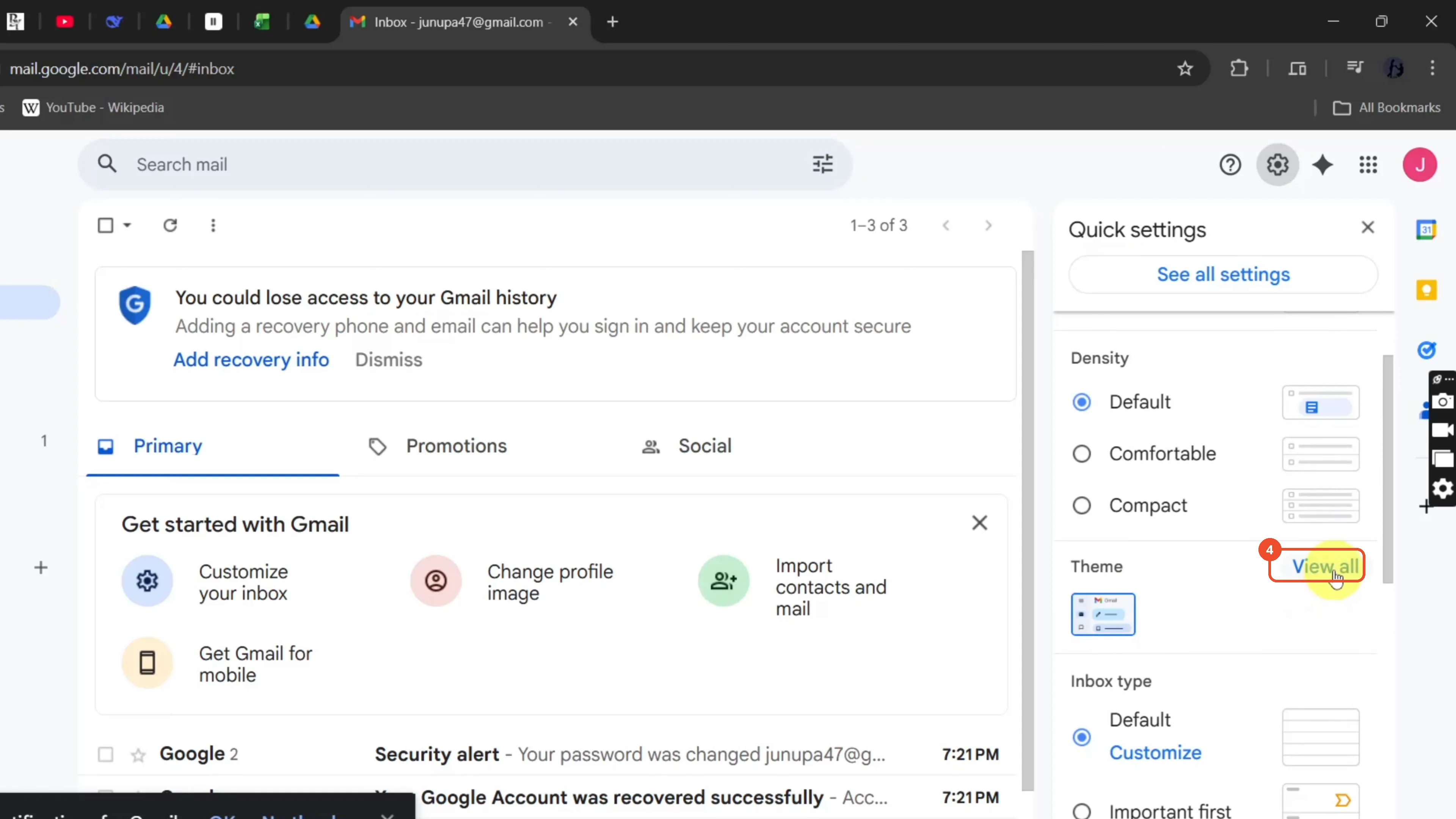
Click View all
Click View all next to Theme to open the full theme picker.
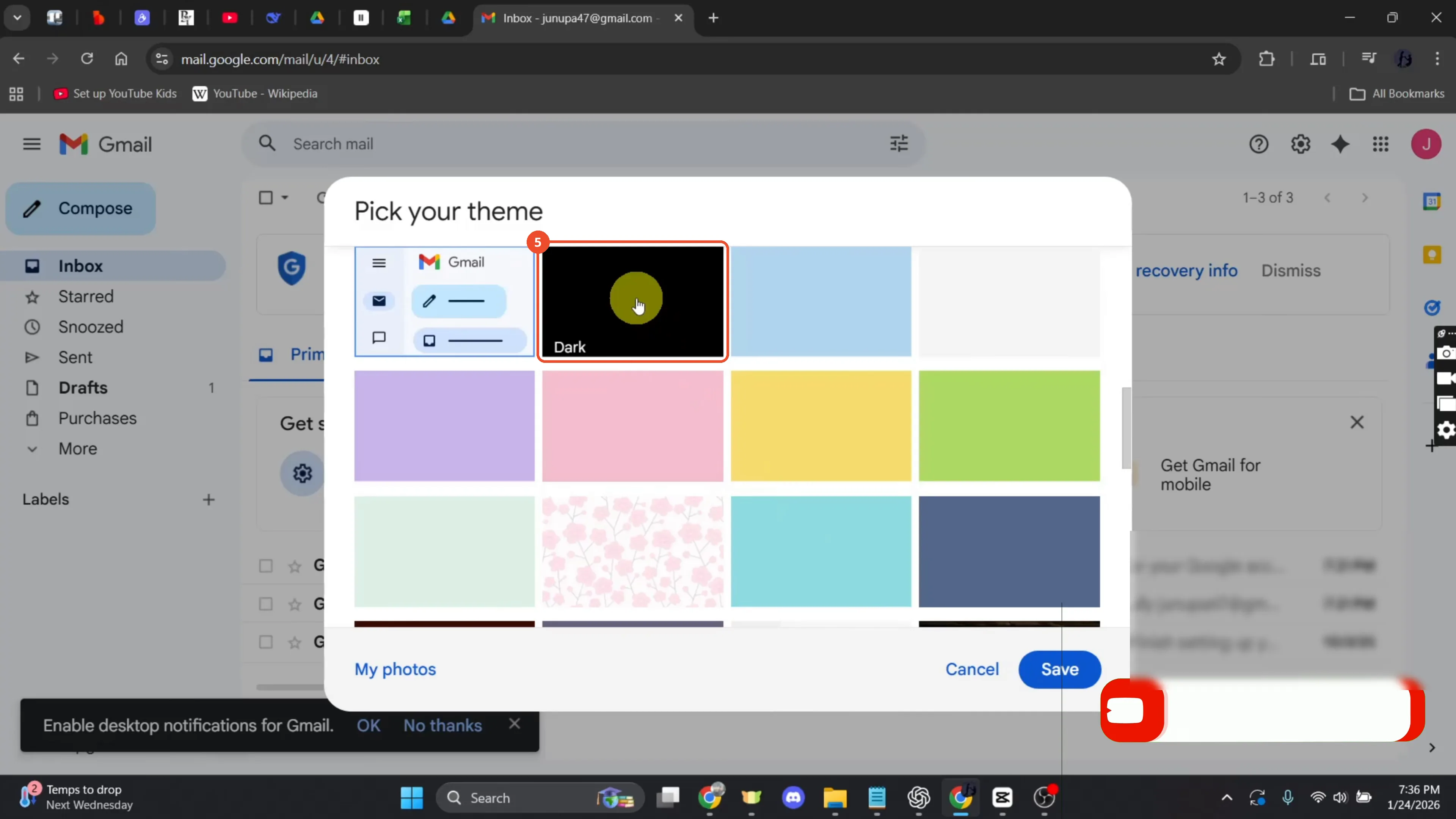
Pick the black Dark theme
Scroll past the photo themes to the solid colors and click the black tile labelled Dark. The inbox behind the dialog previews the dark theme at once.
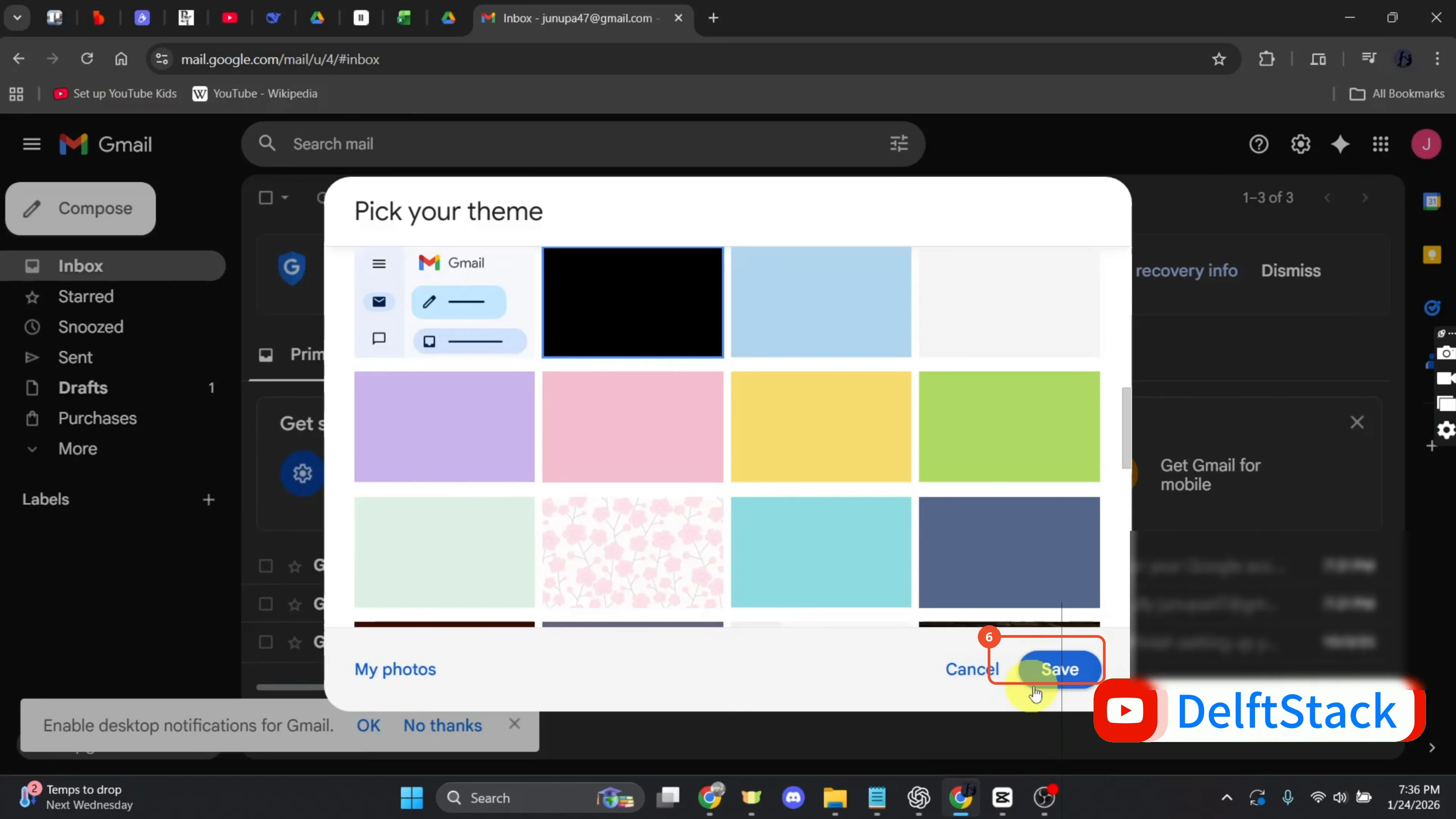
Click Save
Click Save at the bottom right of the dialog.
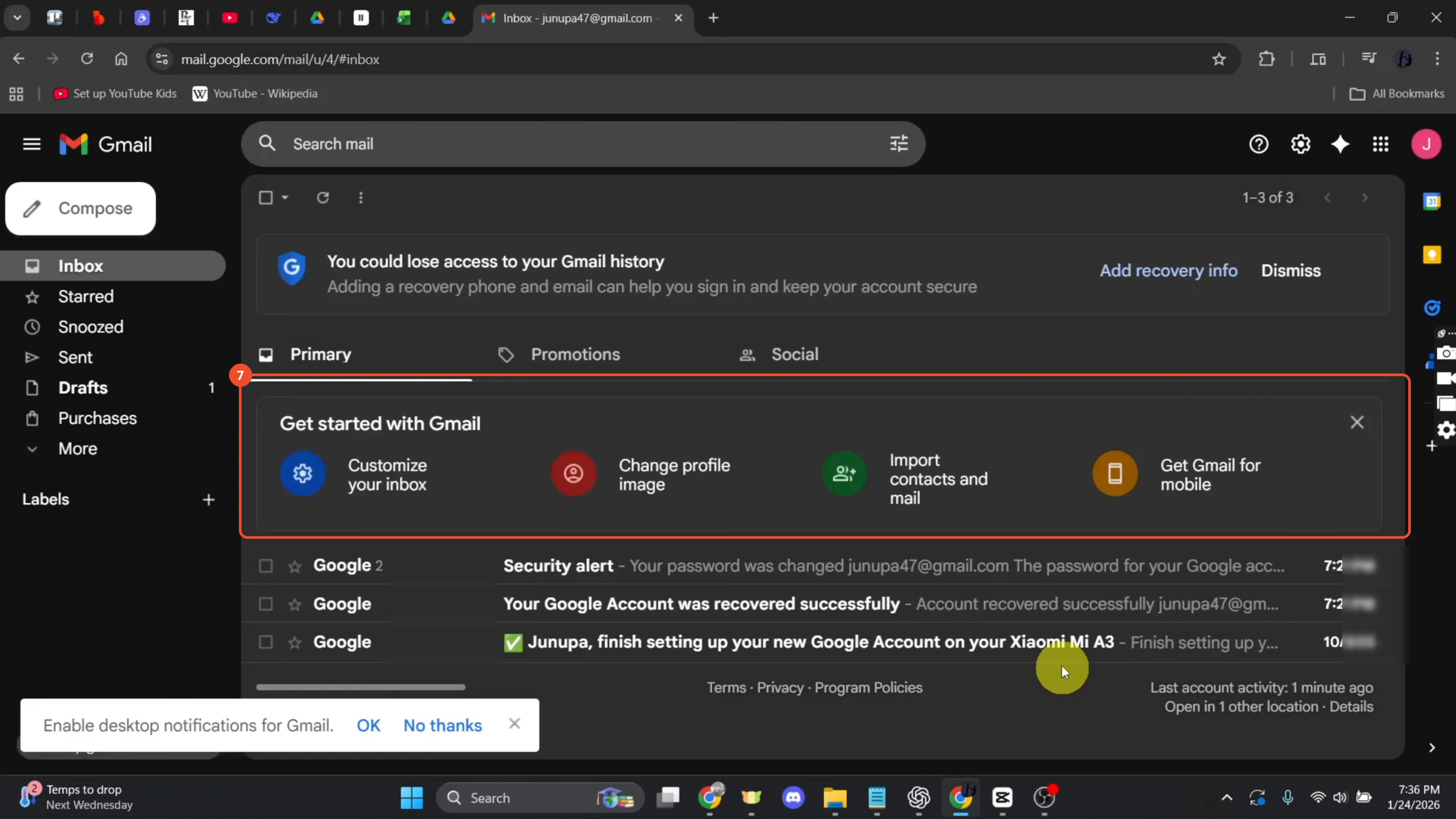
Check Gmail is dark
The dialog closes and the whole inbox — sidebar, message list, and cards — is dark.
Good to know
- The film hovers other solid colors, including Seafoam, before picking the black Dark tile — any dark color works, but the black tile is the true dark theme.
- Switching back to light mode is mentioned in the narration but never shown on camera; to go back, repeat the steps and pick the Default theme.
- The sender names and dates in the screenshots are blurred.
More on Gmail
- How to Create a Contact Group in Gmail
- How to Delete All Emails Before a Certain Date in Gmail
- How to Delete Folders in Gmail
- How to Delete All Unread Emails in Gmail
- How to Recover Deleted Emails in Gmail
- How to Automatically Forward Specific Emails in Gmail Using Filters
- How to Send Encrypted Emails in Gmail Using Confidential Mode
- How to Change the Archive Option to Delete in Gmail
- How to Automatically Move Emails to a Folder in Gmail
- How to Delete All Promotional Emails in Gmail at Once
- How to Forward an Entire Email Thread in Gmail
- How to Delete Attachments in Gmail
- How to Change Font Color in Gmail
- How to Delete Contacts From Gmail
- How to Download Emails from Gmail in Bulk
- How to Change the Gmail Background
- How to Create Folders in Gmail
Guide complete
Every step above comes from the original recording, with a screenshot for each step. Want more like this? Browse all Gmail guides.