How to Change Font Color in Gmail
Gmail’s compose window has a Text color option under the “A” formatting icon: pick a color before you type, or select text and recolor it after. The film changes the color of a test draft — no recipient is ever entered and the email is never sent.
- SystemWindows (browser)
- AppGmail web app
- Last verifiedNovember 19, 2026
Every screenshot below is taken from the actual recording on this device — no stock images.
Steps
Open Gmail
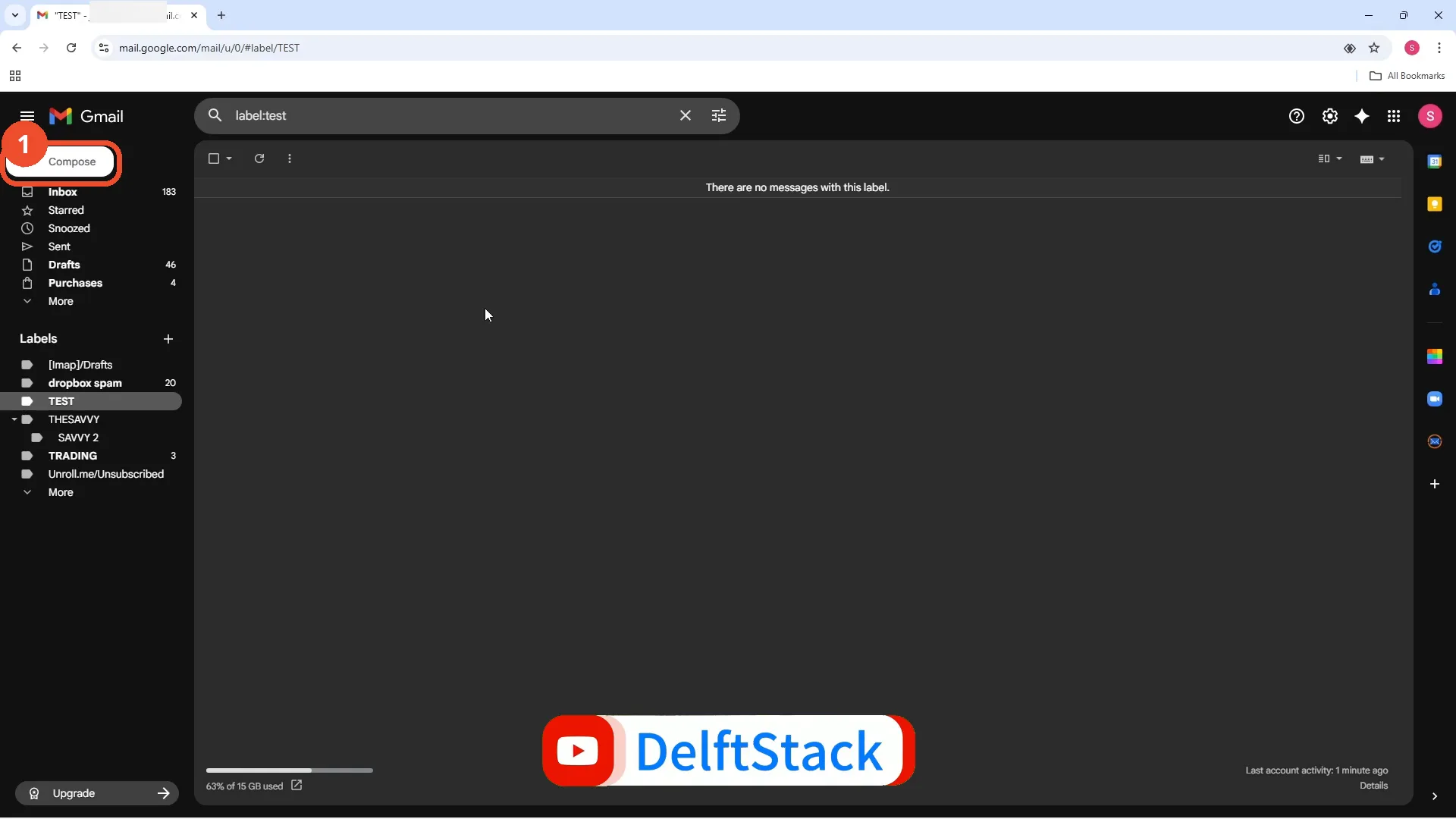
Open Gmail in your browser and sign in. The film opens on the TEST label view, not the inbox, and the Compose button is at the top left.
Click Compose
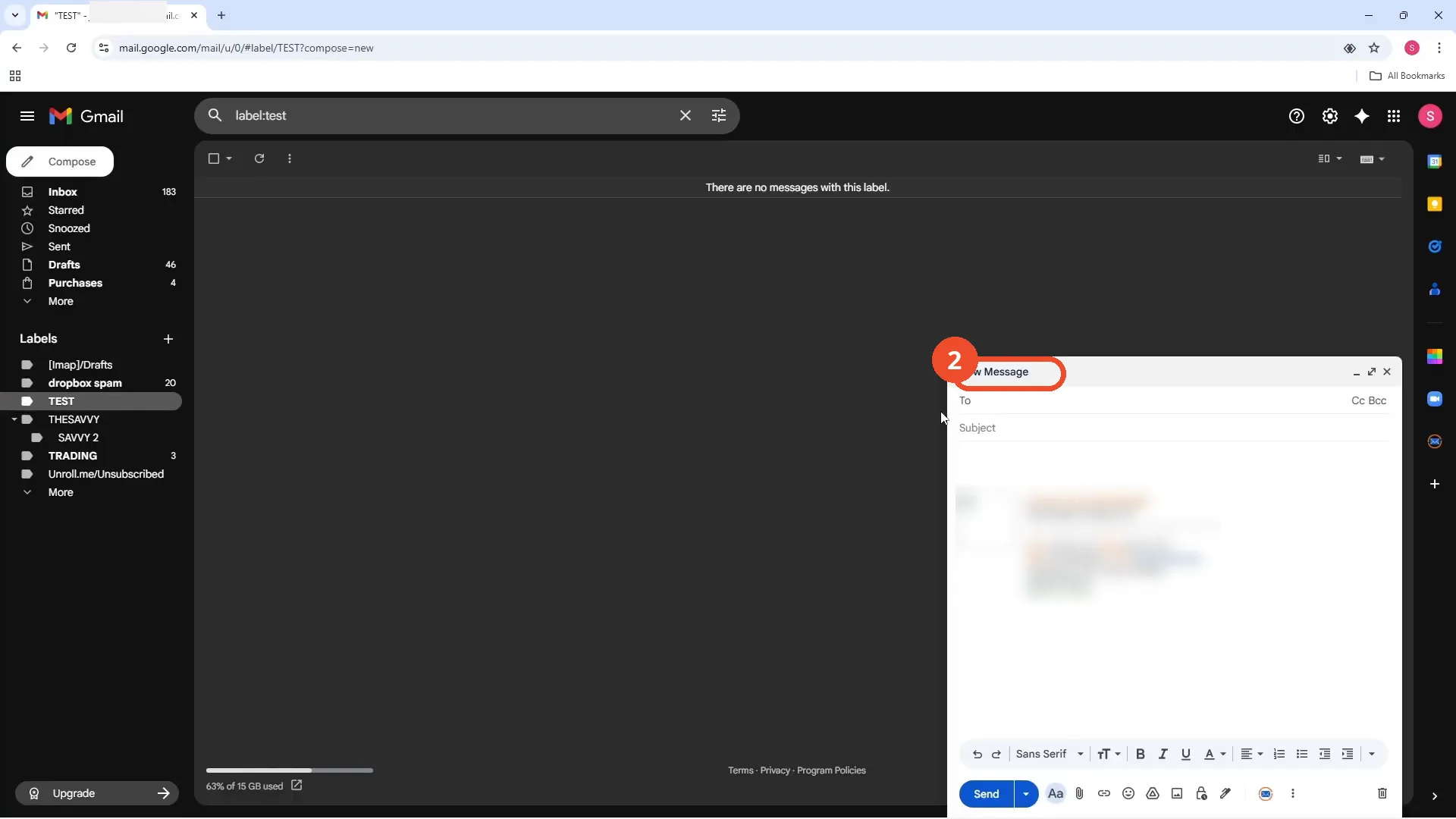
Click Compose at the top left. A New Message window opens at the bottom right.
Add a subject
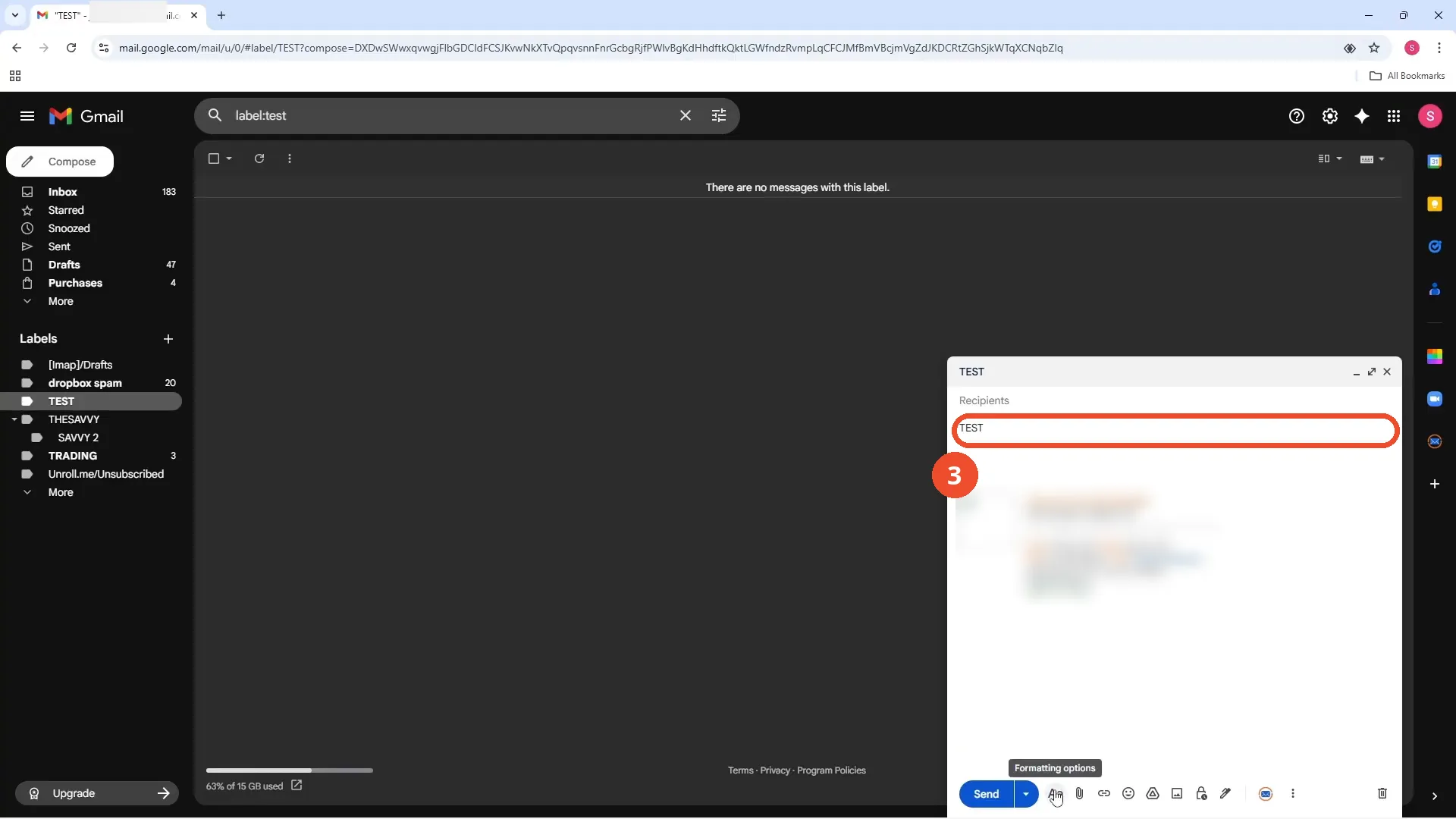
Type a subject — the film types TEST. The recipient field stays empty here; the film never addresses or sends this email.
Pick red from Text color
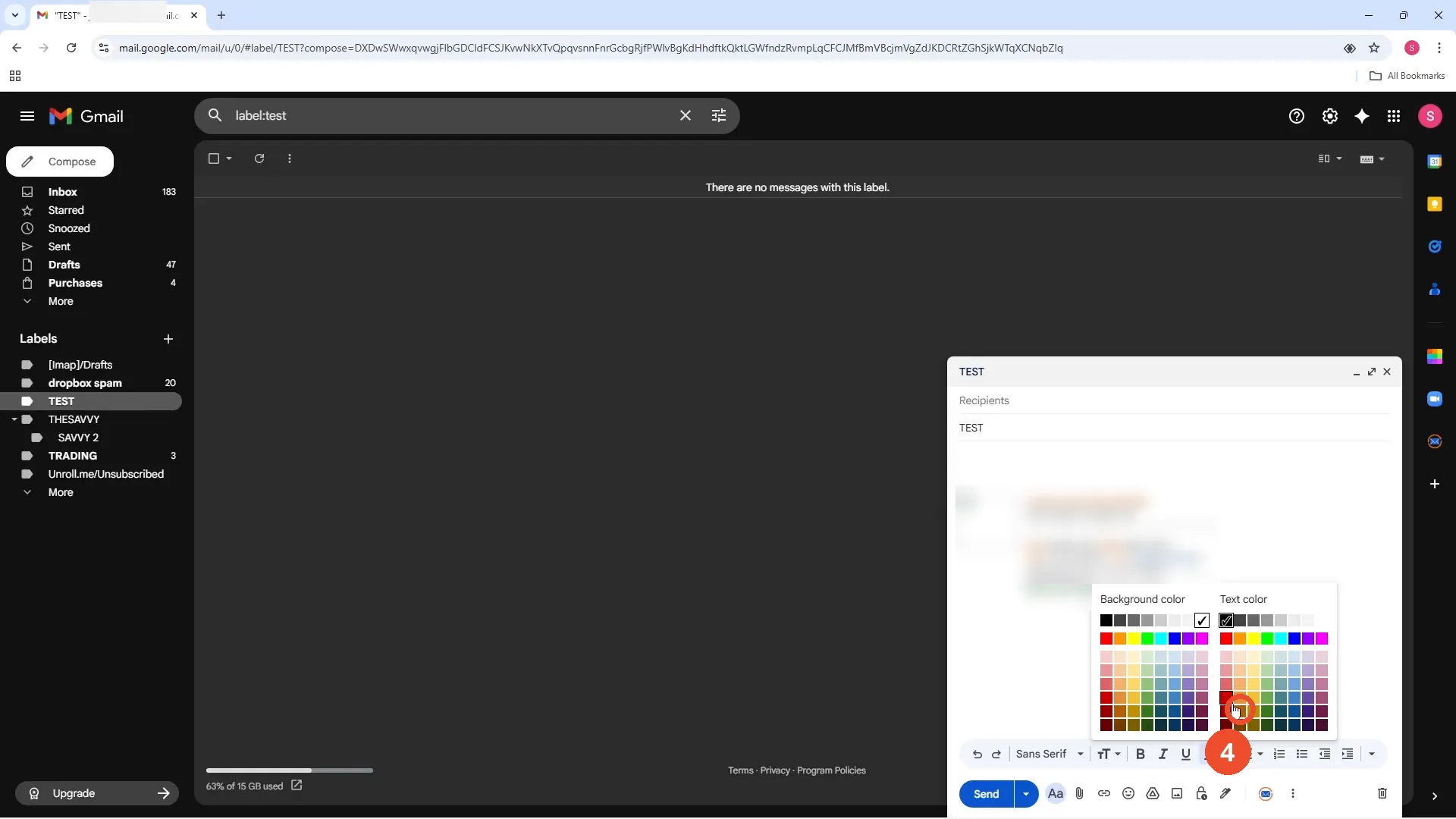
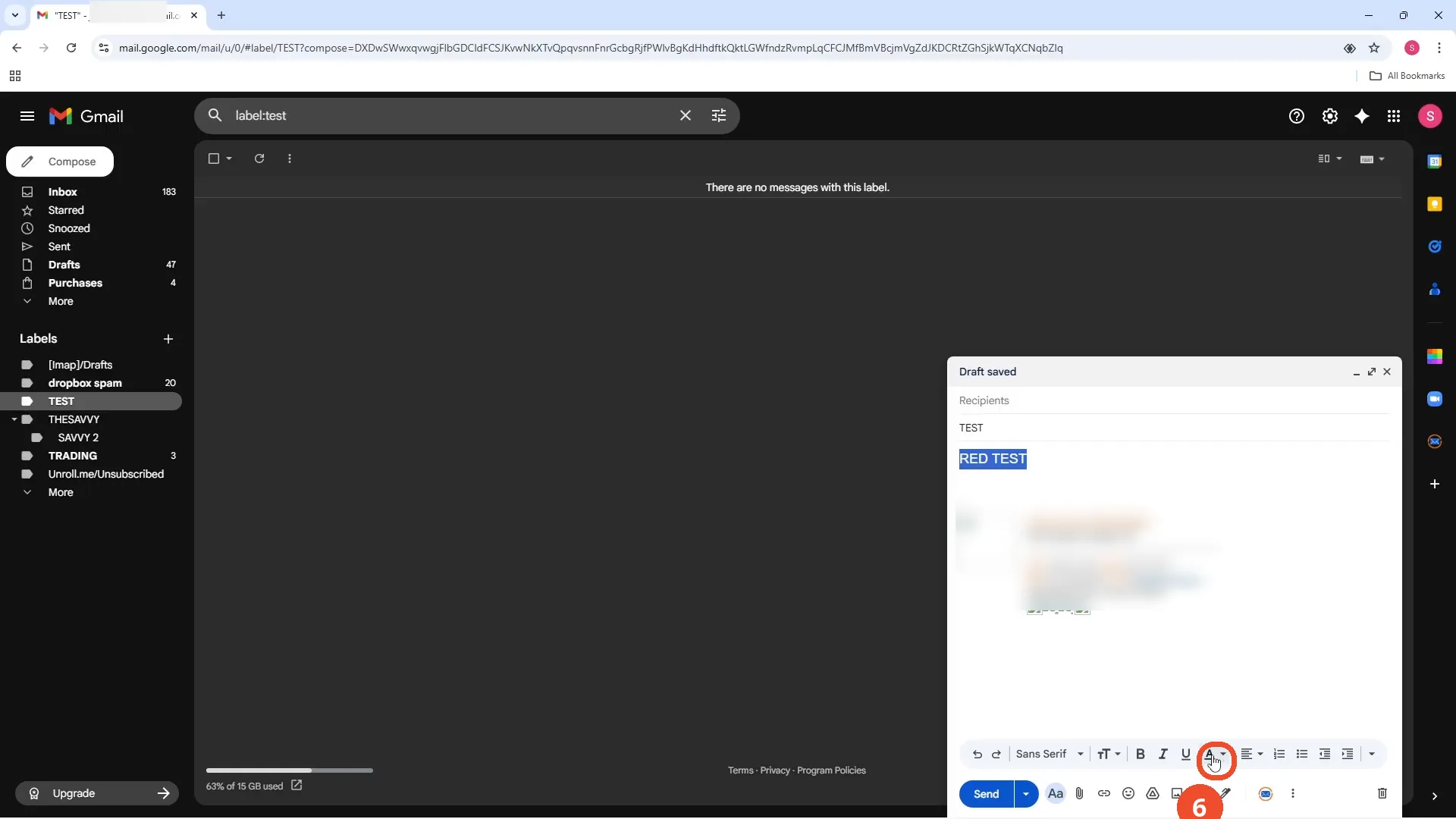
Click the “A” formatting icon at the bottom of the compose window, then Text color, and pick a color from the grid. The film picks red.
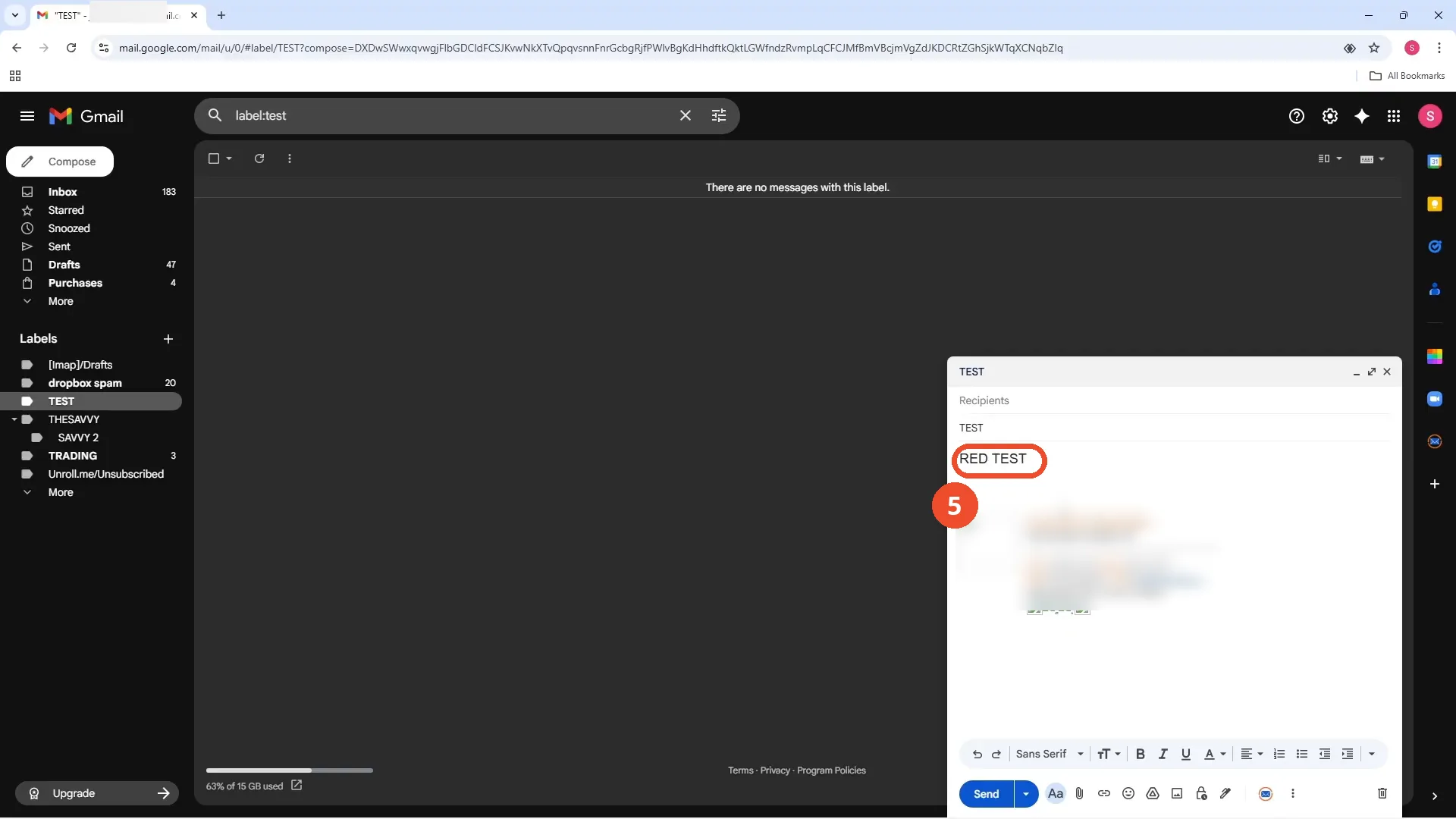
Type the text — it comes out red
Type in the message body and the text appears in the color you picked. The film types RED TEST and it comes out red.
Select the text and open Text color again
To recolor text you already typed, select it first, then open Text color again and pick another color. The film selects RED TEST and opens the color picker a second time.
Good to know
- No recipient is ever entered and the email is never sent — it is only auto-saved as a draft.
- The film opens Gmail on the TEST label (“There are no messages with this label”), not the inbox.
- The same “A” menu also offers a background color, shown next to Text color in the picker.
- The email signature in the film contains a real person’s contact details; it is blurred in every screenshot here.
More on Gmail
- How to Create a Contact Group in Gmail
- How to Delete All Emails Before a Certain Date in Gmail
- How to Delete Folders in Gmail
- How to Delete All Unread Emails in Gmail
- How to Recover Deleted Emails in Gmail
- How to Automatically Forward Specific Emails in Gmail Using Filters
- How to Send Encrypted Emails in Gmail Using Confidential Mode
- How to Change the Archive Option to Delete in Gmail
- How to Automatically Move Emails to a Folder in Gmail
- How to Delete All Promotional Emails in Gmail at Once
- How to Forward an Entire Email Thread in Gmail
- How to Download Emails from Gmail in Bulk
- How to Delete Attachments in Gmail
- How to Delete Contacts From Gmail