How to Block and Unblock an Email Address in Gmail
Getting unwanted mail from one sender? Block the address and Gmail sends their future messages to Spam. If you change your mind, unblock it from Settings, under Filters and Blocked Addresses. The film blocks X (verify@x.com) and then unblocks it again, so both directions are shown on screen.
- SystemWindows (browser)
- AppGmail web app
- Last verifiedNovember 22, 2026
Every screenshot below is taken from the actual recording on this device — no stock images.
Steps
Open Gmail and find the email
Open Gmail and find an email from the sender you want to block. The film uses an X security-alert email in the TEST label view.
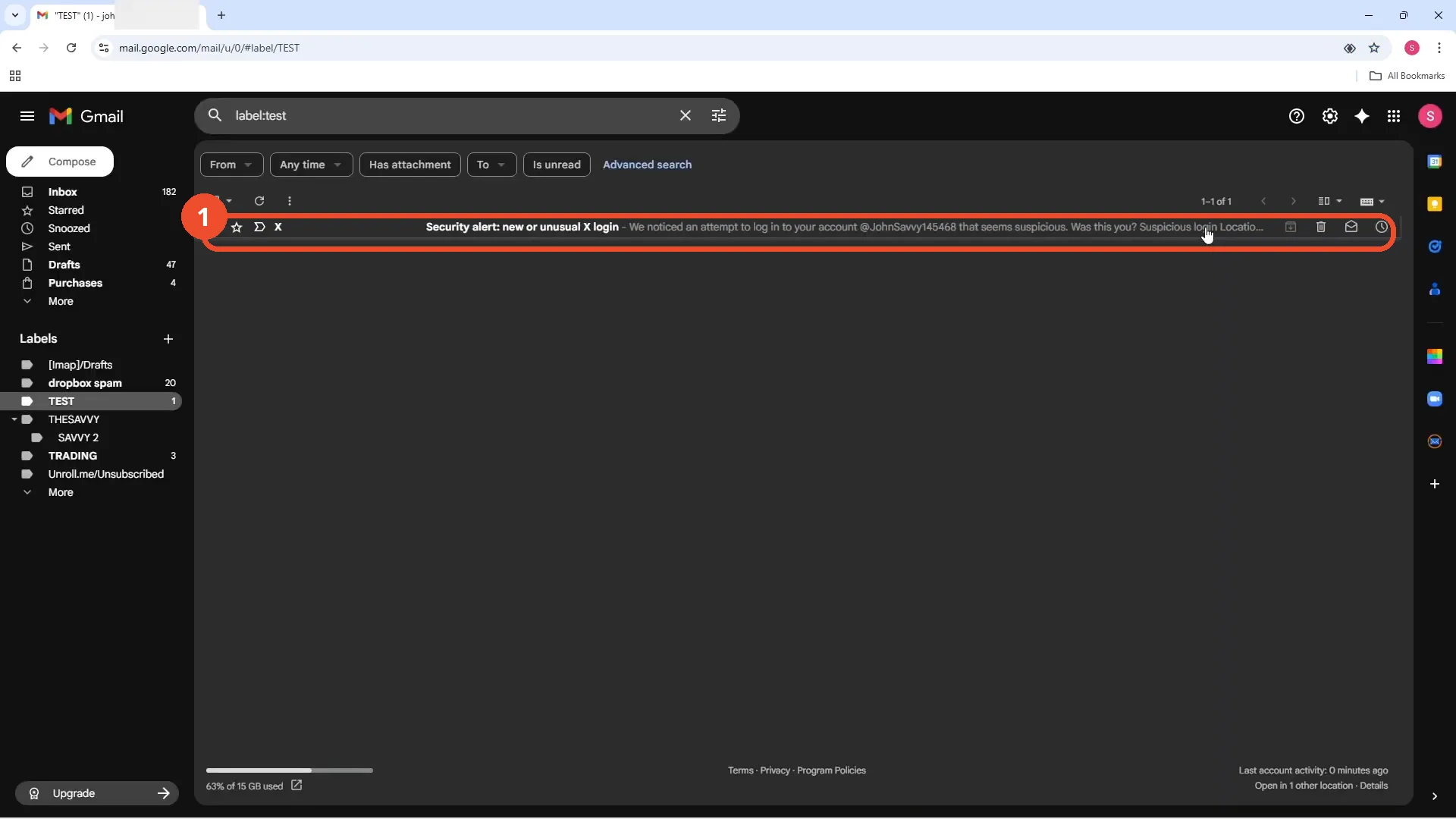
Open the email
Click the email to open it.
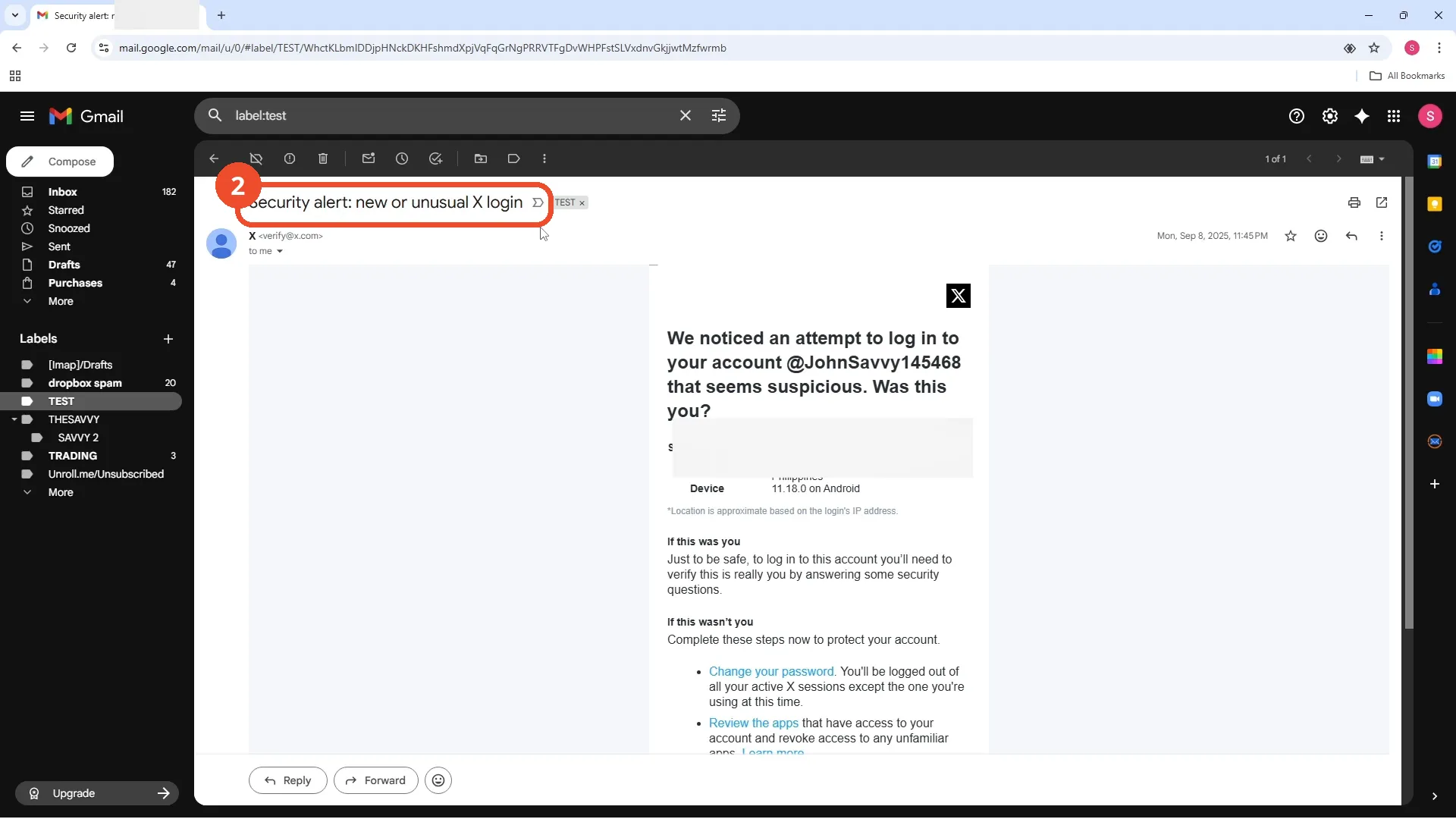
Open the menu and click Block “X”
Click the three-dot menu at the top right of the open email, then click Block “X” in the menu.
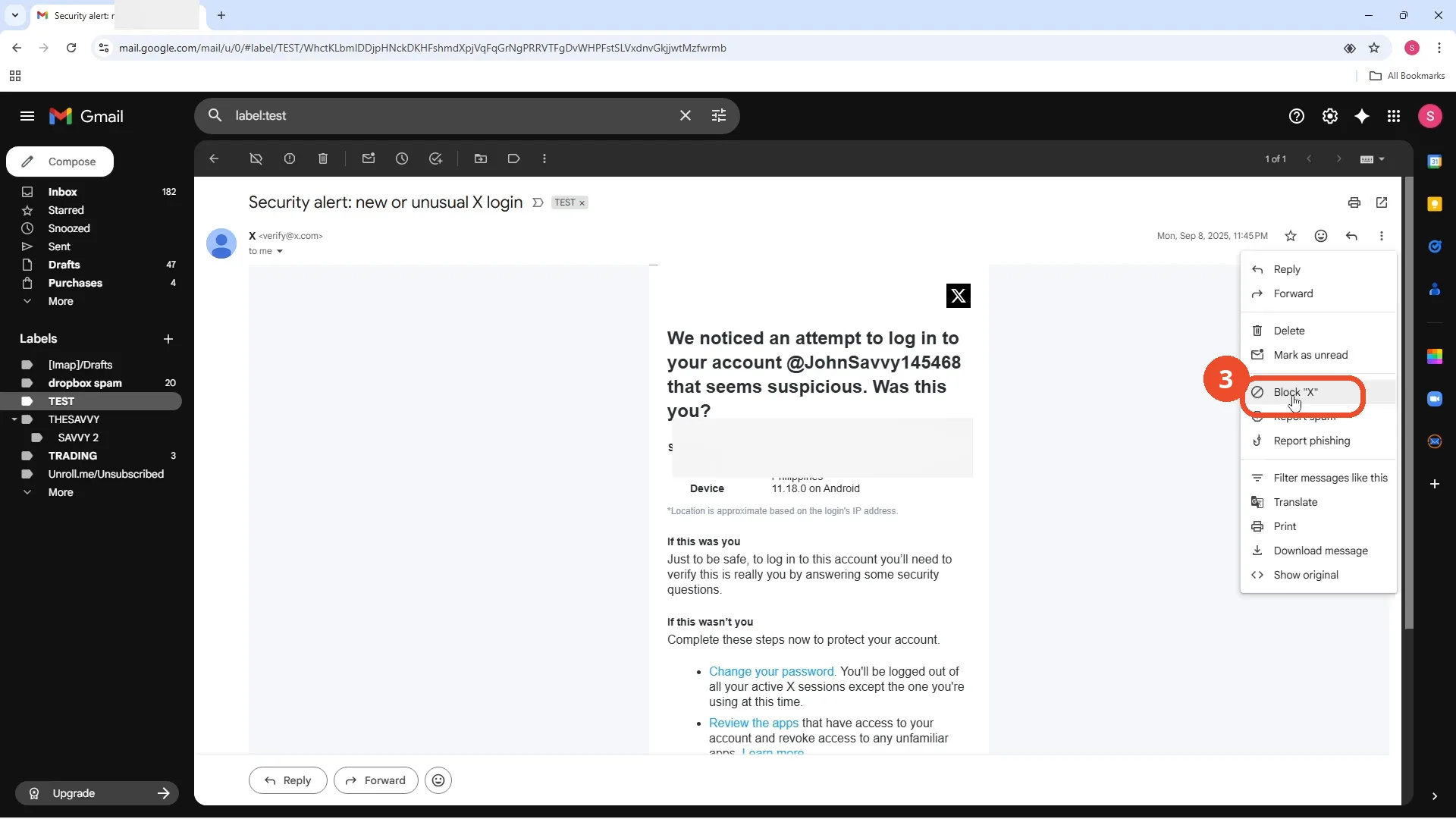
Click Block to confirm
A confirmation dialog says future messages from this sender will be marked as Spam. Click Block.
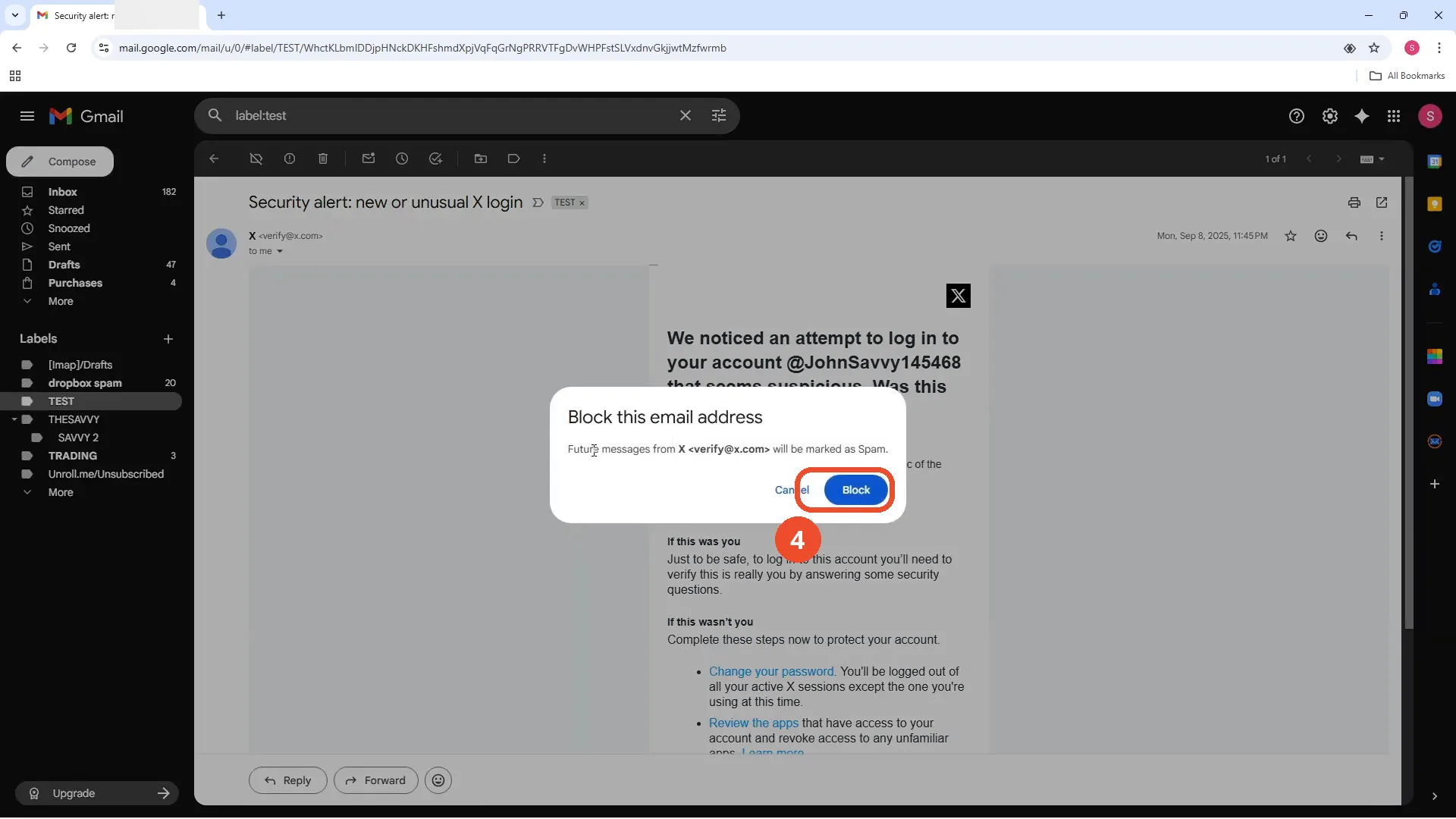
Check the block worked
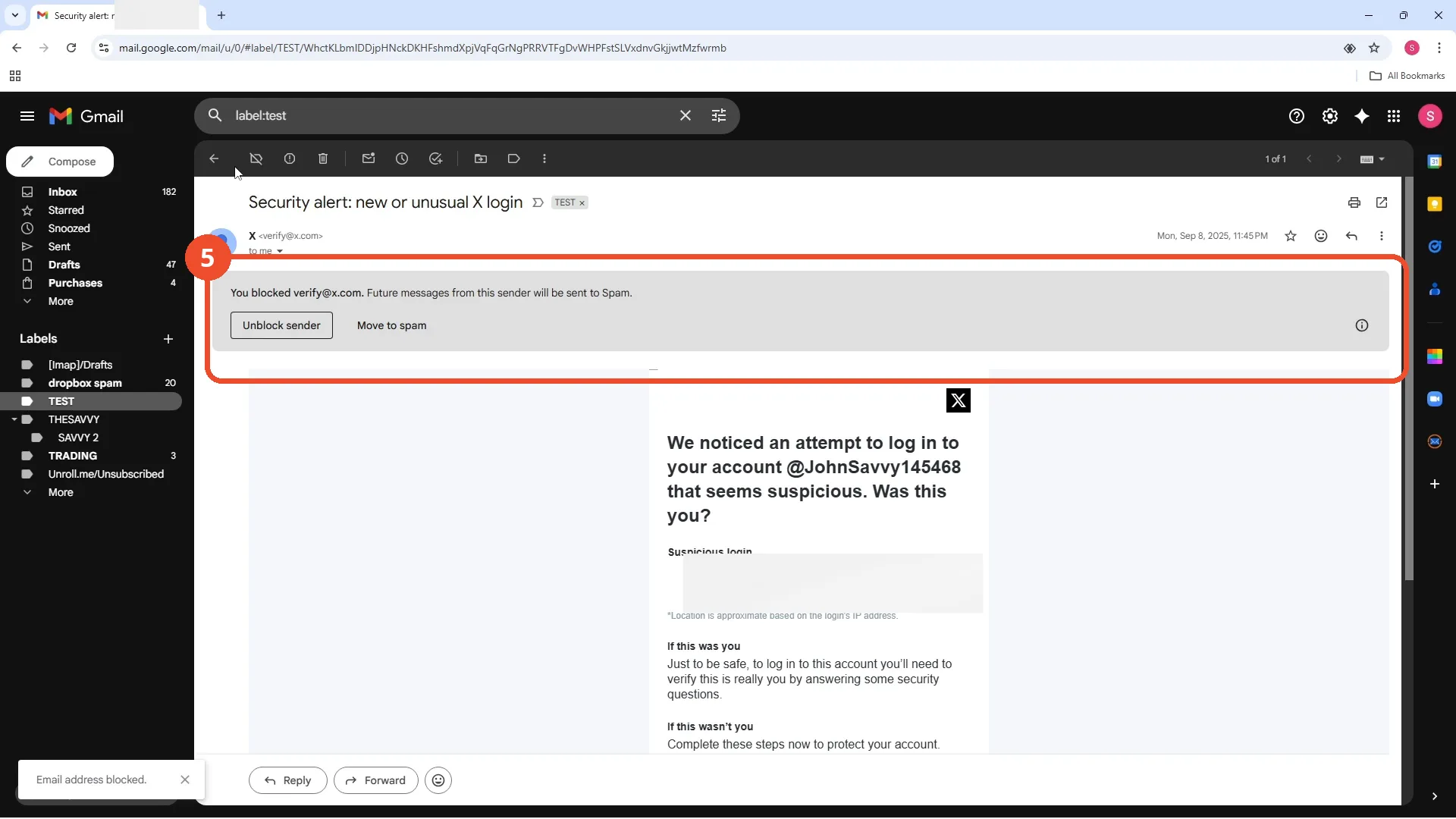
Gmail shows a banner over the message: “You blocked verify@x.com. Future messages from this sender will be sent to Spam.” A toast at the bottom left reads “Email address blocked.”
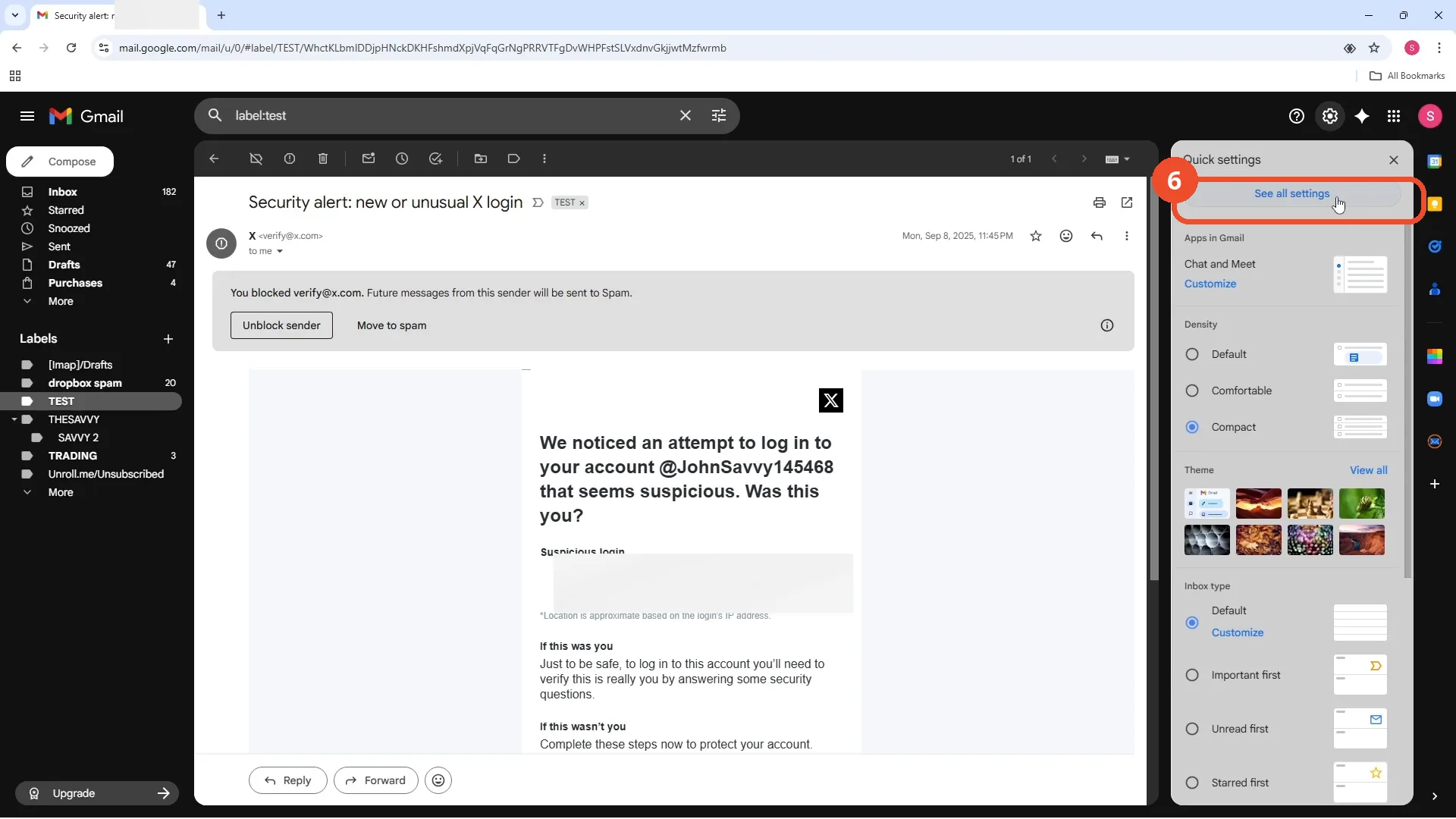
Open Settings and click See all settings
To unblock the address, click the Settings gear at the top right, then click See all settings in the Quick settings panel.
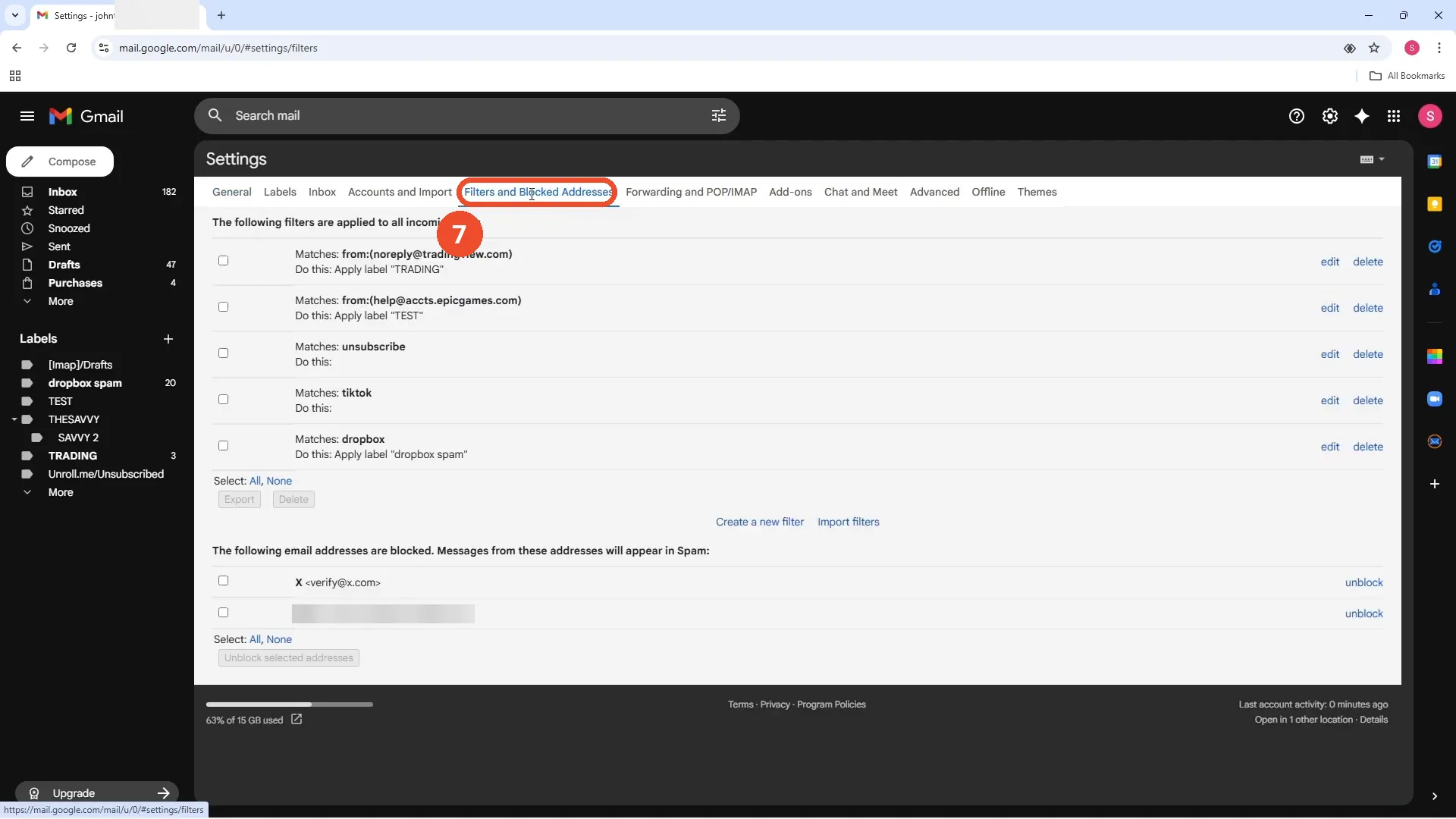
Open Filters and Blocked Addresses
Click the Filters and Blocked Addresses tab, then scroll down to “The following email addresses are blocked”. The X address is listed there.
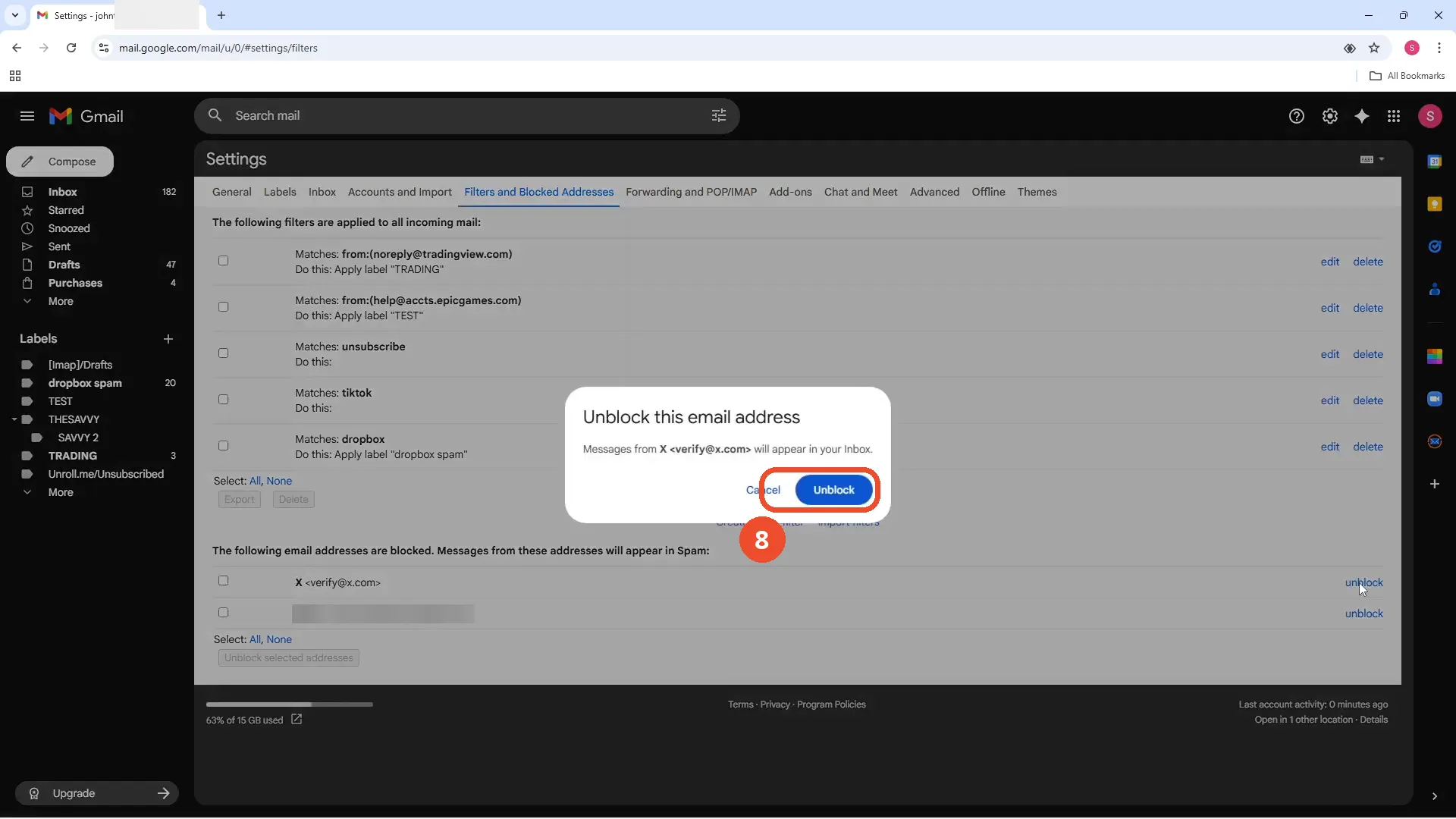
Click unblock, then Unblock
Click unblock next to the blocked address. In the confirmation dialog, click Unblock — Gmail says messages from this sender will appear in your Inbox again.
Check the address is gone from the blocked list
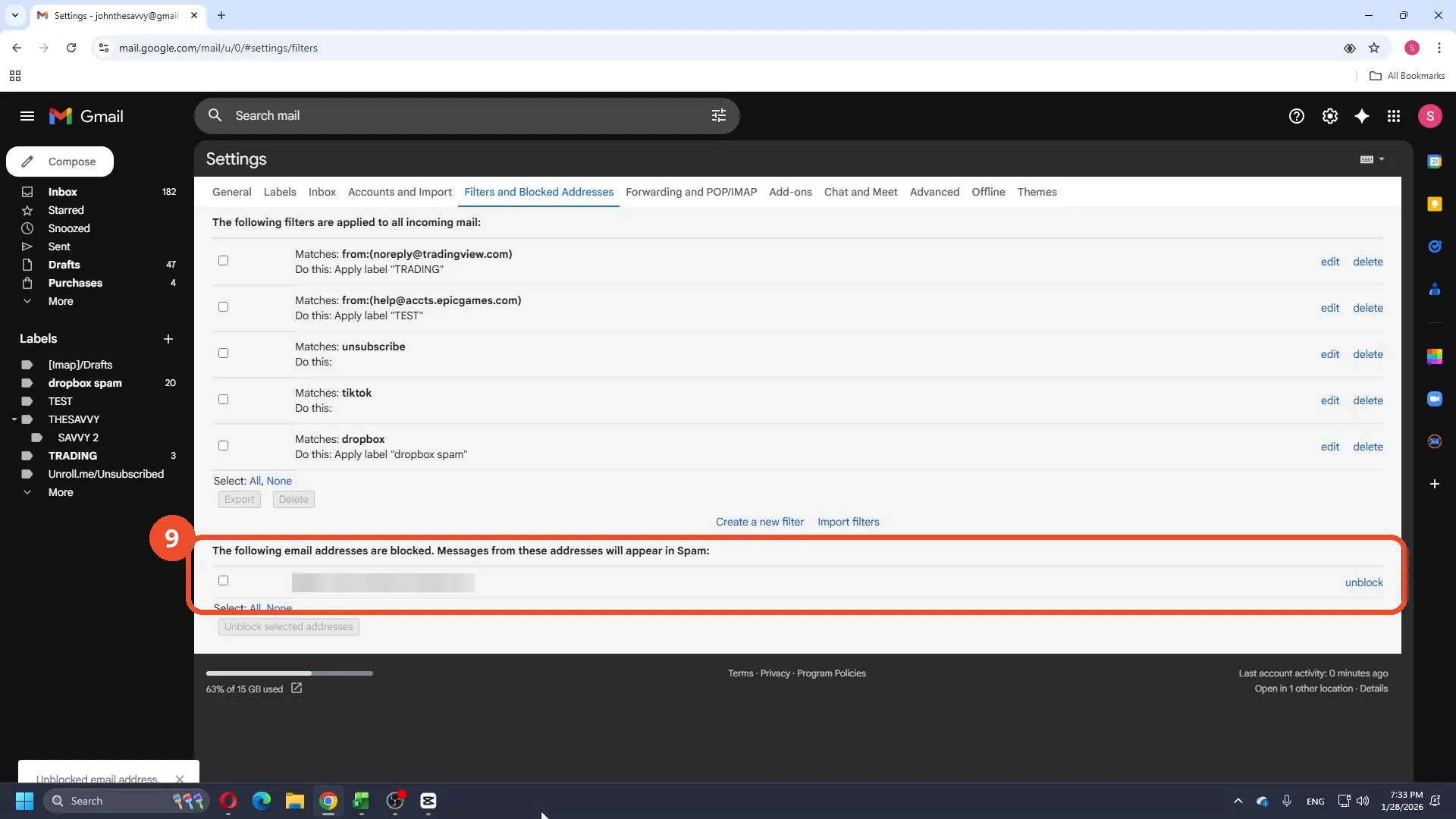
Back on the Filters and Blocked Addresses page, the X address is gone from the blocked list — only the other blocked address remains — and a toast reads “Unblocked email address”.
Good to know
- Blocking sends the sender’s future messages to Spam; it does not delete the emails already in your inbox.
- The blocked address stays in the blocked list until you unblock it — check Settings, under Filters and Blocked Addresses to see all blocked addresses.
- The film blocks an X security-alert email; the sender shown is X’s verify@x.com address.
- The operator’s own X handle (@JohnSavvy145468) stays visible in the screenshots, per precedent; the unrelated Nitro address in the blocked list is blurred.
More on Gmail
- How to Create a Contact Group in Gmail
- How to Delete All Emails Before a Certain Date in Gmail
- How to Delete Folders in Gmail
- How to Delete All Unread Emails in Gmail
- How to Recover Deleted Emails in Gmail
- How to Automatically Forward Specific Emails in Gmail Using Filters
- How to Send Encrypted Emails in Gmail Using Confidential Mode
- How to Change the Archive Option to Delete in Gmail
- How to Automatically Move Emails to a Folder in Gmail
- How to Delete All Promotional Emails in Gmail at Once
- How to Forward an Entire Email Thread in Gmail
- How to Delete Attachments in Gmail
- How to Change Font Color in Gmail
- How to Delete Contacts From Gmail
- How to Change the Gmail Background
- How to Change Gmail to Dark Mode
- How to Create Folders in Gmail
- How to Download Emails from Gmail in Bulk
- How to Find Archived Emails in Gmail
- How to Recover a Forgotten Gmail Password
Guide complete
Every step above comes from the original recording, with a screenshot for each step. Want more like this? Browse all Gmail guides.