How to Automatically Move Emails to a Folder in Gmail
Gmail folders are labels, and a filter can file matching mail into one automatically. The film builds a filter for one sender, tells it to skip the inbox, and files everything under a new label - but the example sender has no mail in this account, so the folder ends up empty. Read the notes below before you follow along.
- SystemWindows (browser)
- AppGmail web app
- Last verifiedNovember 18, 2026
Every screenshot below is taken from the actual recording on this device — no stock images.
Steps
Open Gmail in your browser
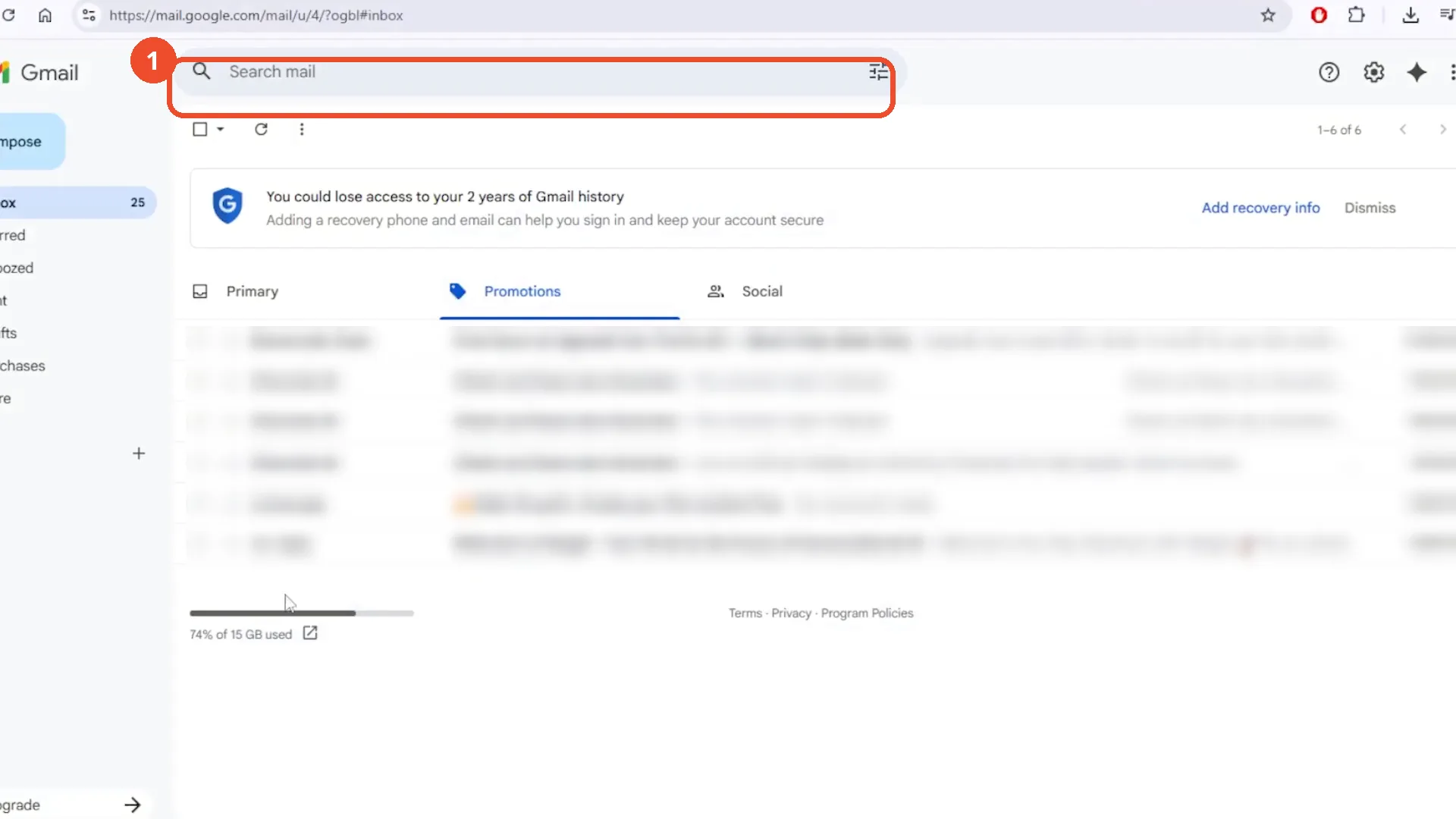
Open Gmail in your browser and sign in. The film starts on the Promotions tab, where this account has six conversations.
Open the search options
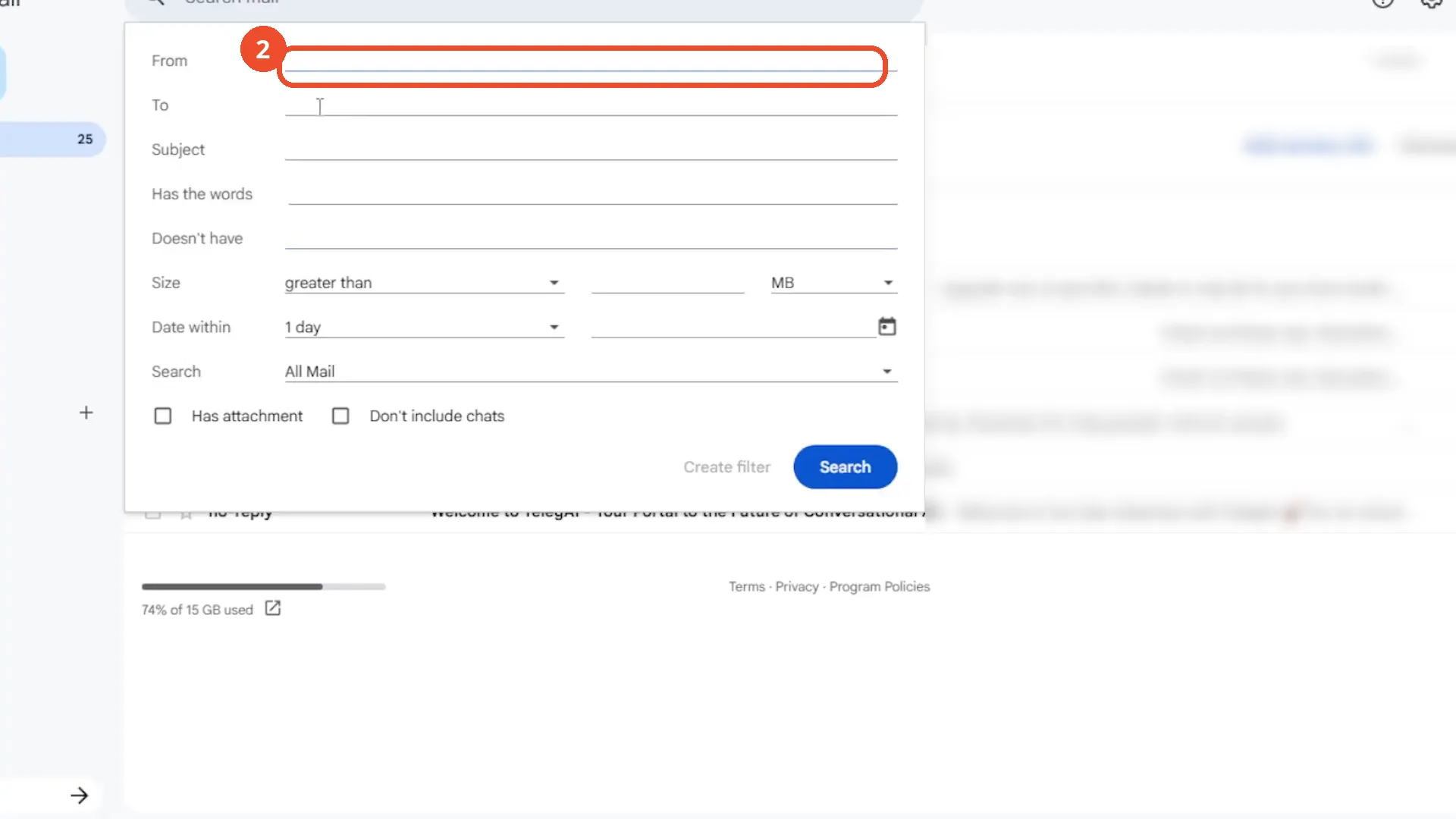
Click the filter icon at the right end of the search bar. The search options panel opens. The panel already has ‘greater than’ under Size and ‘1 day’ under Date within from a previous search, with no values filled in - the film leaves them alone and they filter nothing.
Type the sender’s address and click Create filter
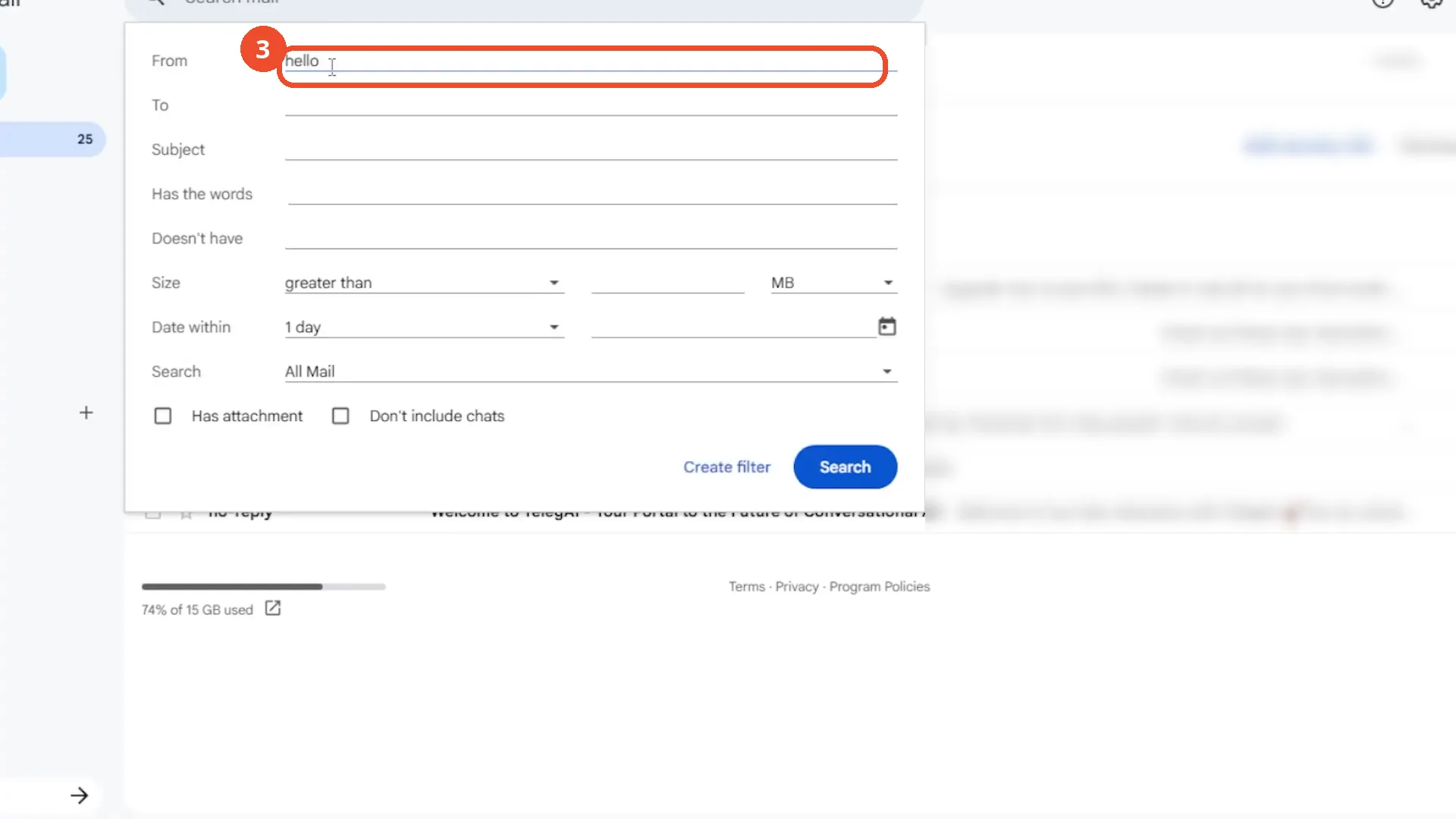
Type the sender’s address in the From field - the film types hello@gmail.com as its example - then click Create filter at the bottom of the panel. The film hovers Create filter while it is still greyed out first, with the tooltip ‘Enter some search criteria first’, because the From field is still empty.
Tick Skip the Inbox and choose Apply the label
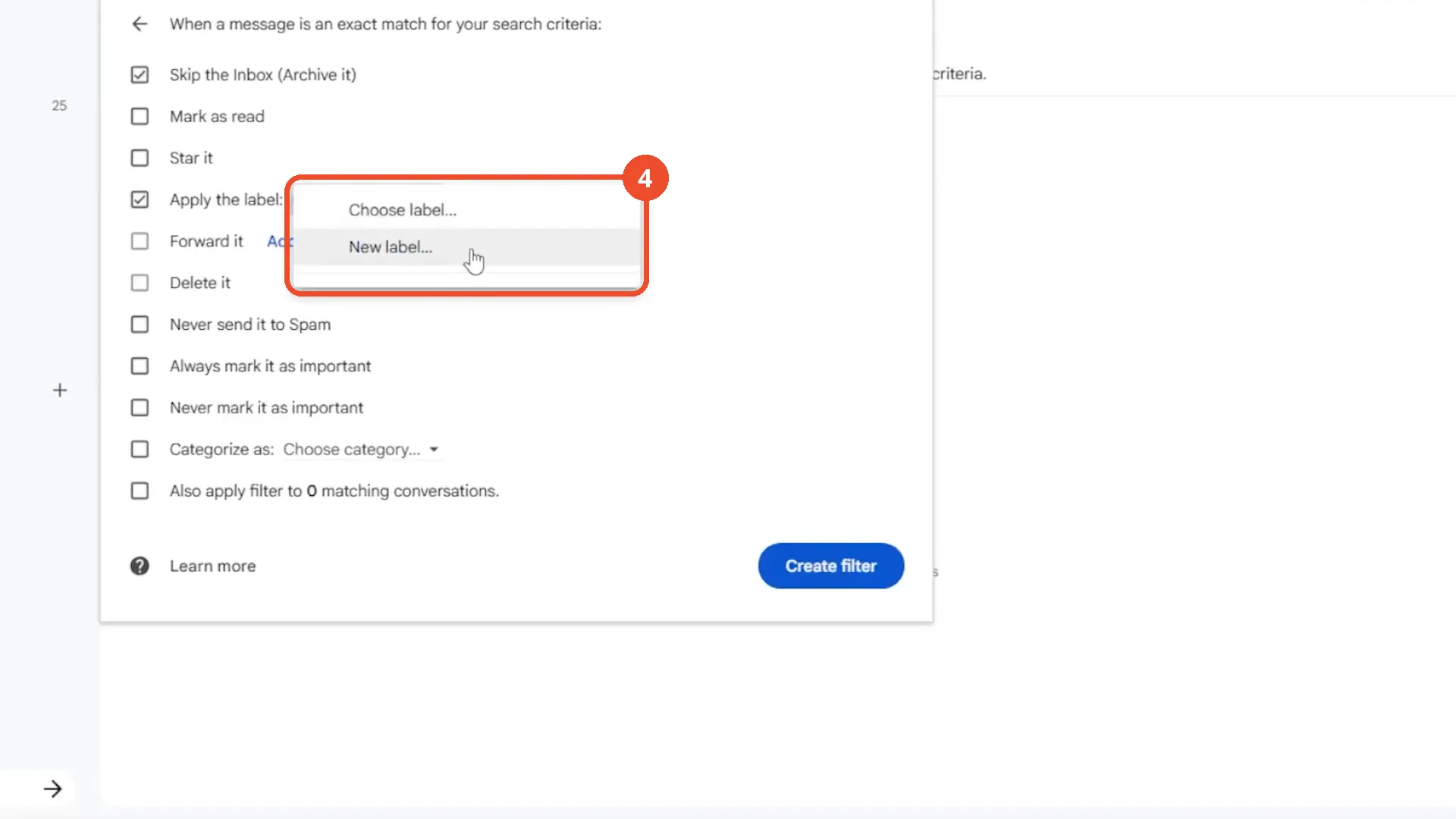
Gmail asks what to do with matching messages. Tick ‘Skip the Inbox (Archive it)’ and ‘Apply the label’, then open the label dropdown and choose ‘New label…’. Leave ‘Forward it’ unticked - this filter moves mail, it does not forward it.
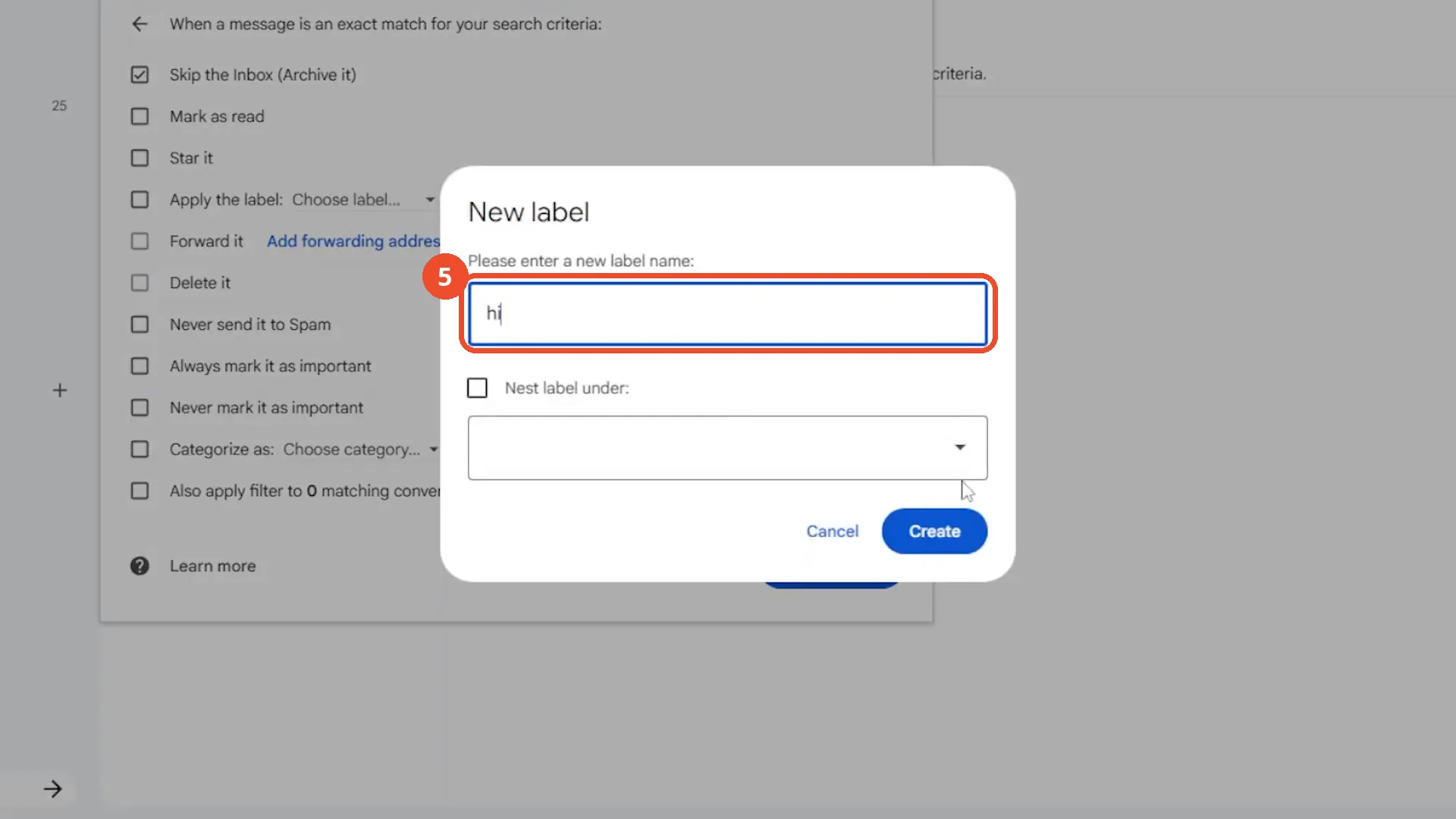
Create a new label called hi
Type a name for the new label and click Create. The film names it ‘hi’ - a meaningless demo name; use a name that describes the mail, such as the sender or the topic.
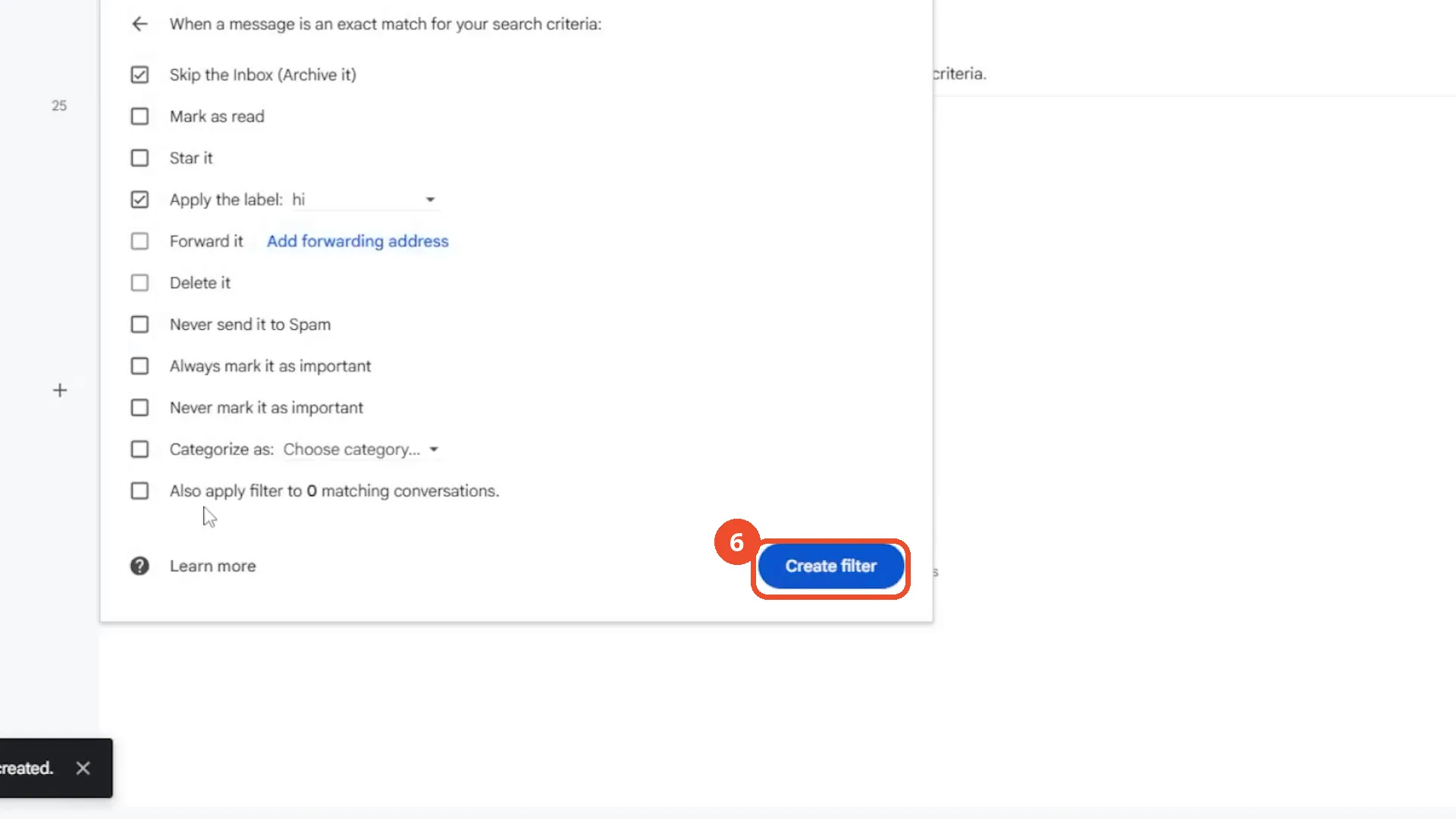
Click Create filter
Back in the actions panel, check the two ticked boxes - Skip the Inbox and Apply the label: hi - then click Create filter. The panel reports ‘Also apply filter to 0 matching conversations’ and that box stays unticked, so nothing already in the account is moved.
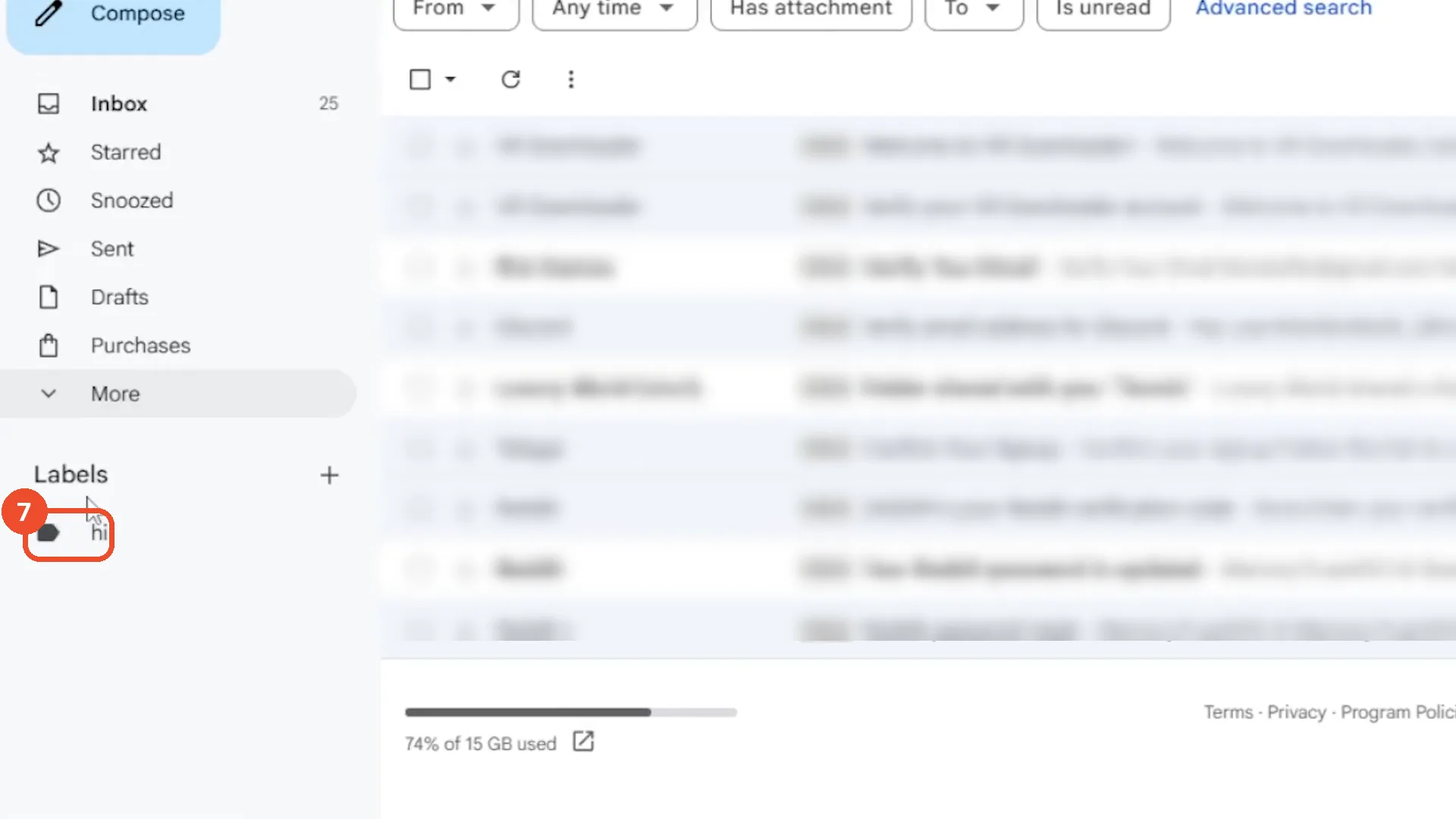
Find the new folder under Labels
Back in the inbox, the new label appears in the left sidebar under Labels - that is the folder. The toast at the bottom confirms ‘Your filter was created.’
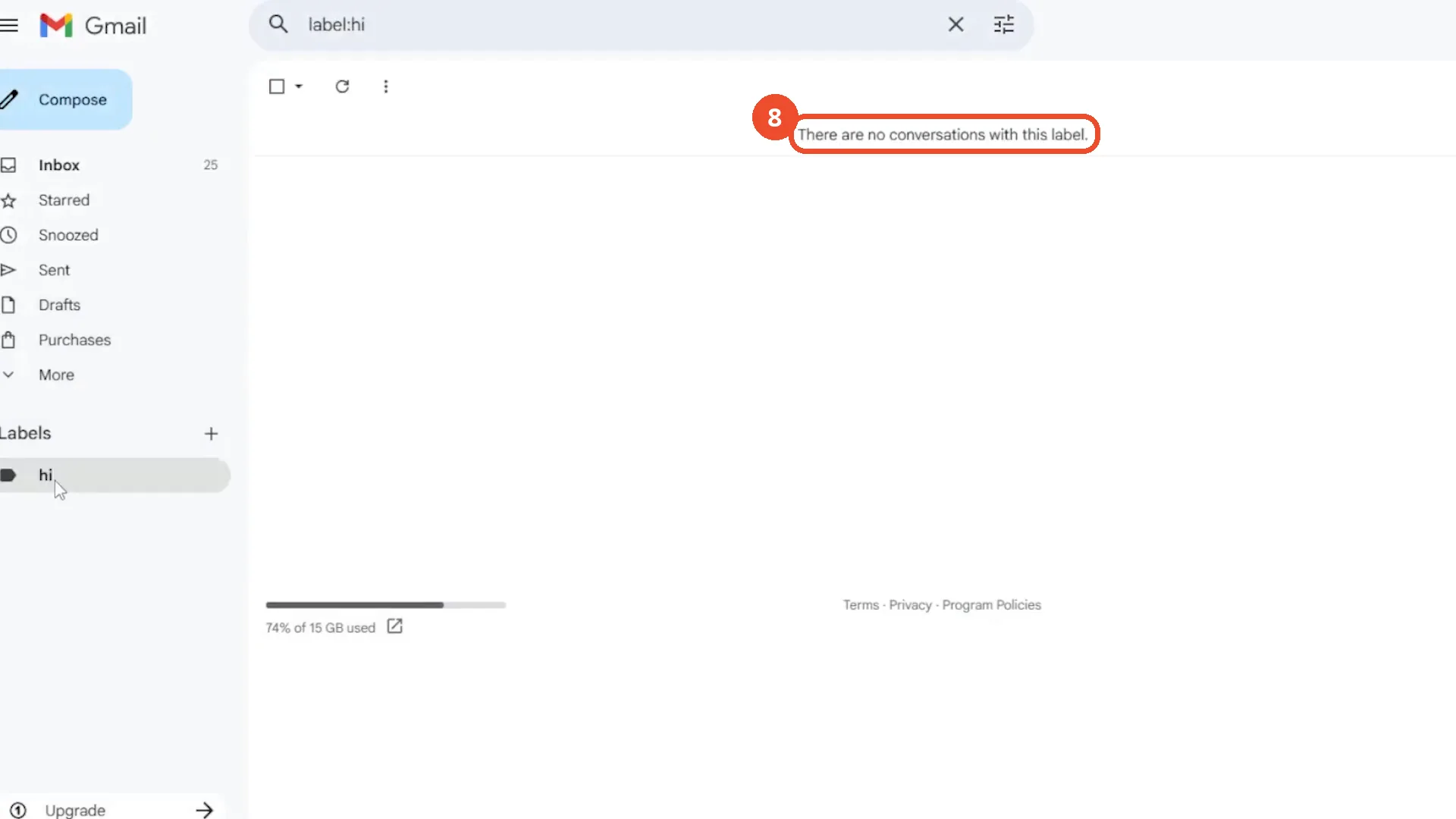
Open the folder to check it
Click the label to open it. It reads ‘There are no conversations with this label’ - no mail from hello@gmail.com exists in this account, so the filter has nothing to file yet. New mail from that sender will be labelled and skip the inbox from now on.
Good to know
- The example filter matches nothing: the film filters from hello@gmail.com, and the dialog reports ‘Also apply filter to 0 matching conversations’. The folder it creates stays empty.
- ‘Also apply filter to matching conversations’ is never ticked, so even if matching mail existed, it would not be moved into the folder - only future mail would be filed.
- The label name ‘hi’ is the film’s demo name. Pick a descriptive name, because the label is the folder your mail is filed under.
- This is a move, not a forward: ‘Forward it’ stays unticked and no forwarding address is added, so it is a different setup from the automatic-forwarding filter in ‘How to Automatically Forward Specific Emails in Gmail Using Filters’.
- After creating the filter the film also opens the label’s three-dot menu and the Edit label dialog, then cancels without renaming anything - that detour is not part of the setup.
- The search options panel opens with leftover Size and Date within selections from a previous search (no values filled in); the film leaves them untouched and they do not affect the filter.
More on Gmail
- How to Create a Contact Group in Gmail
- How to Delete All Emails Before a Certain Date in Gmail
- How to Delete Folders in Gmail
- How to Delete All Unread Emails in Gmail
- How to Recover Deleted Emails in Gmail
- How to Automatically Forward Specific Emails in Gmail Using Filters
- How to Send Encrypted Emails in Gmail Using Confidential Mode
- How to Change the Archive Option to Delete in Gmail
- How to Download Emails from Gmail in Bulk
- How to Delete All Promotional Emails in Gmail at Once
- How to Forward an Entire Email Thread in Gmail