How to Automatically Forward Specific Emails in Gmail Using Filters
Gmail can forward only the emails that match a rule you define, instead of everything in your inbox. The film builds that rule from the search bar: type the condition, turn it into a filter, and point the filter at a forwarding address. Read the notes below before you follow along - the film stops short of finishing the setup on camera.
- SystemWindows (browser)
- AppGmail web app
- Last verifiedNovember 17, 2026
Every screenshot below is taken from the actual recording on this device — no stock images.
Steps
Open Gmail in your browser
Open Gmail on your computer and sign in to the account where the emails arrive. The film starts in Settings with an unsaved Out-of-Office draft, discards it, and lands on the Bin view.
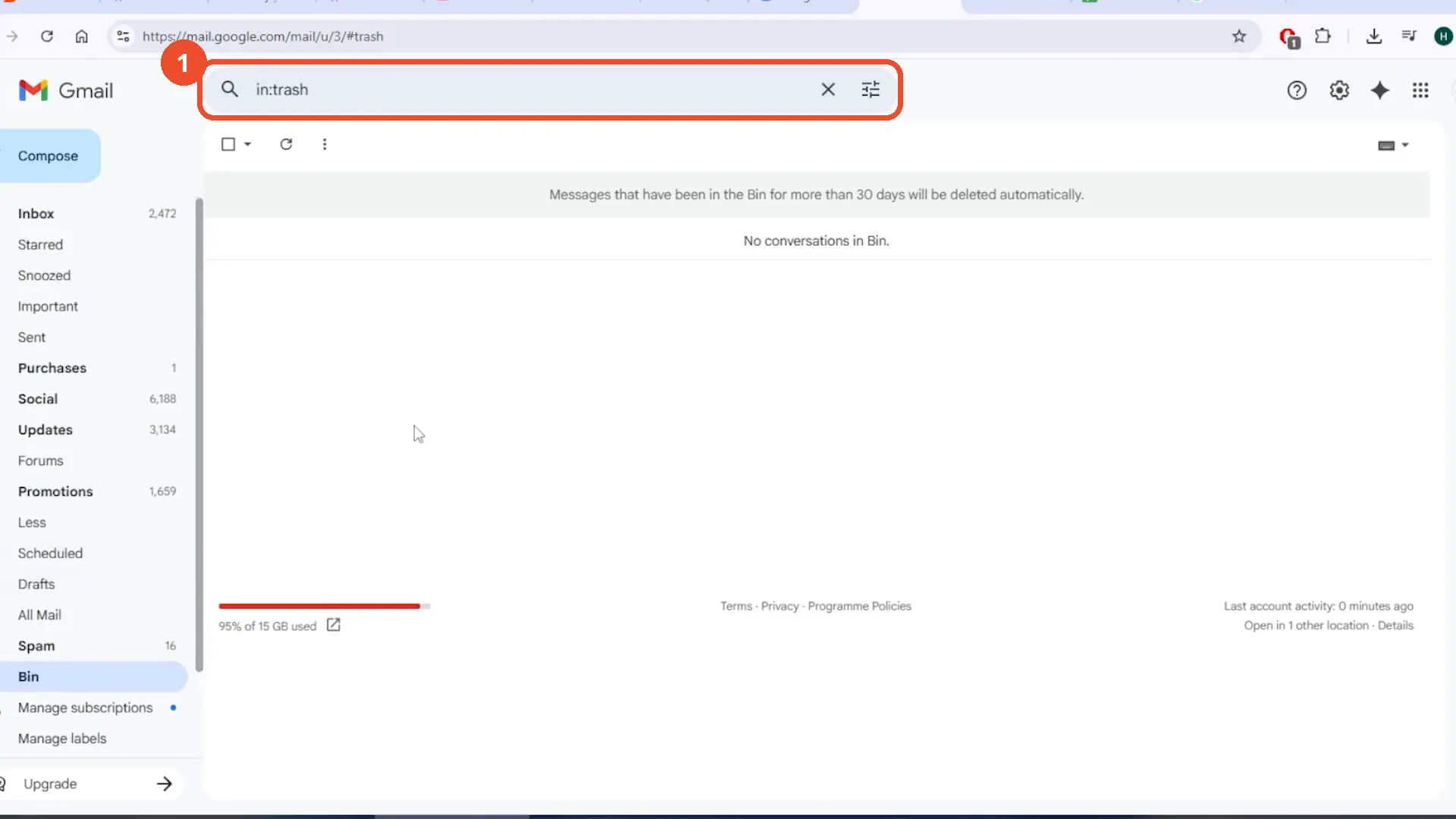
Type the condition in the search bar
Click the search bar and type the condition that identifies the emails to forward. The narration suggests from:example@gmail.com, but the film types the plain text from@gmail - Gmail files it under ‘Includes the words’, not the From field.
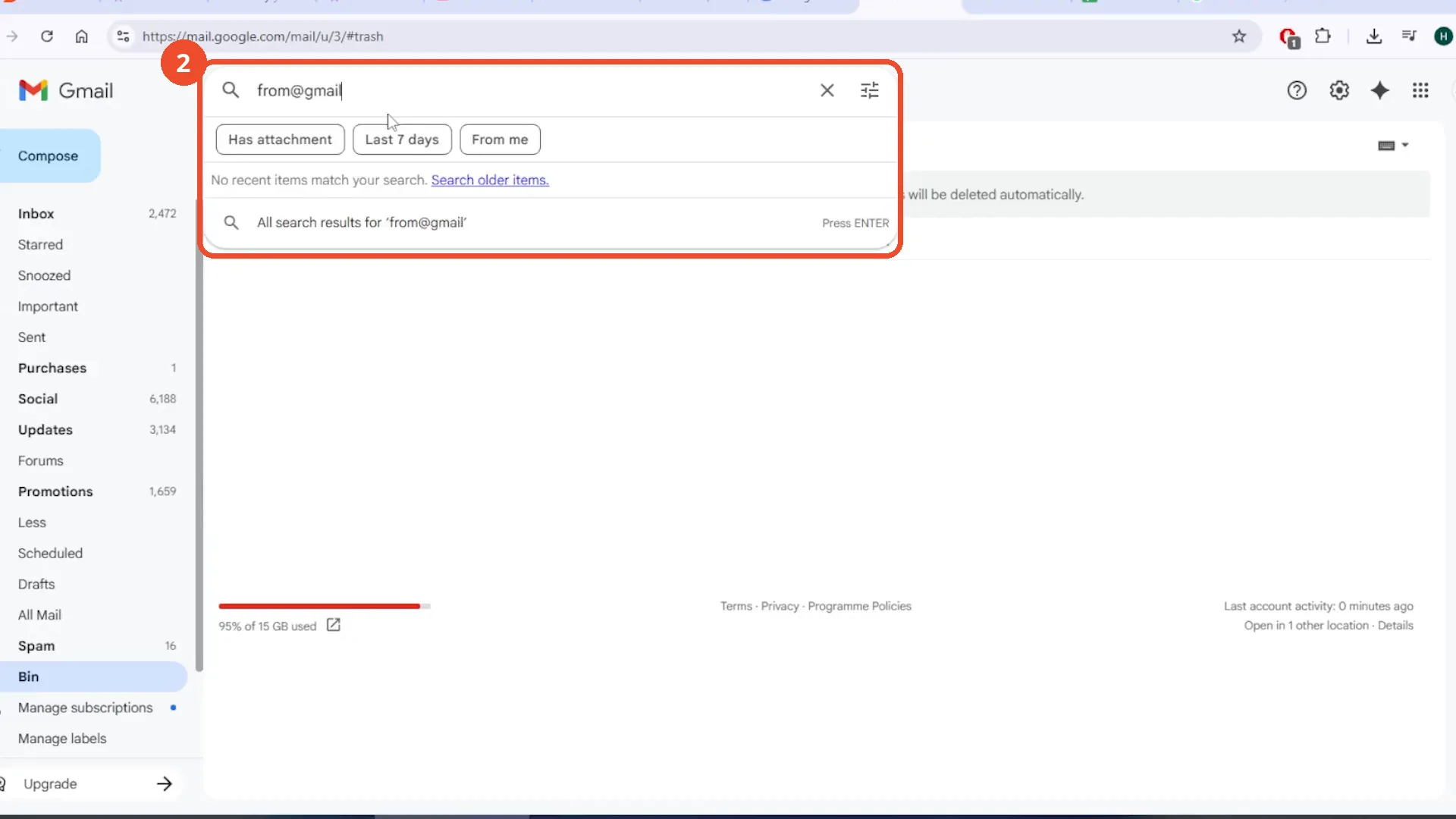
Open the search options and click Create filter
Click the filter icon at the right end of the search bar. The search options panel opens with from@gmail already filled in under ‘Includes the words’; click Create filter at the bottom.
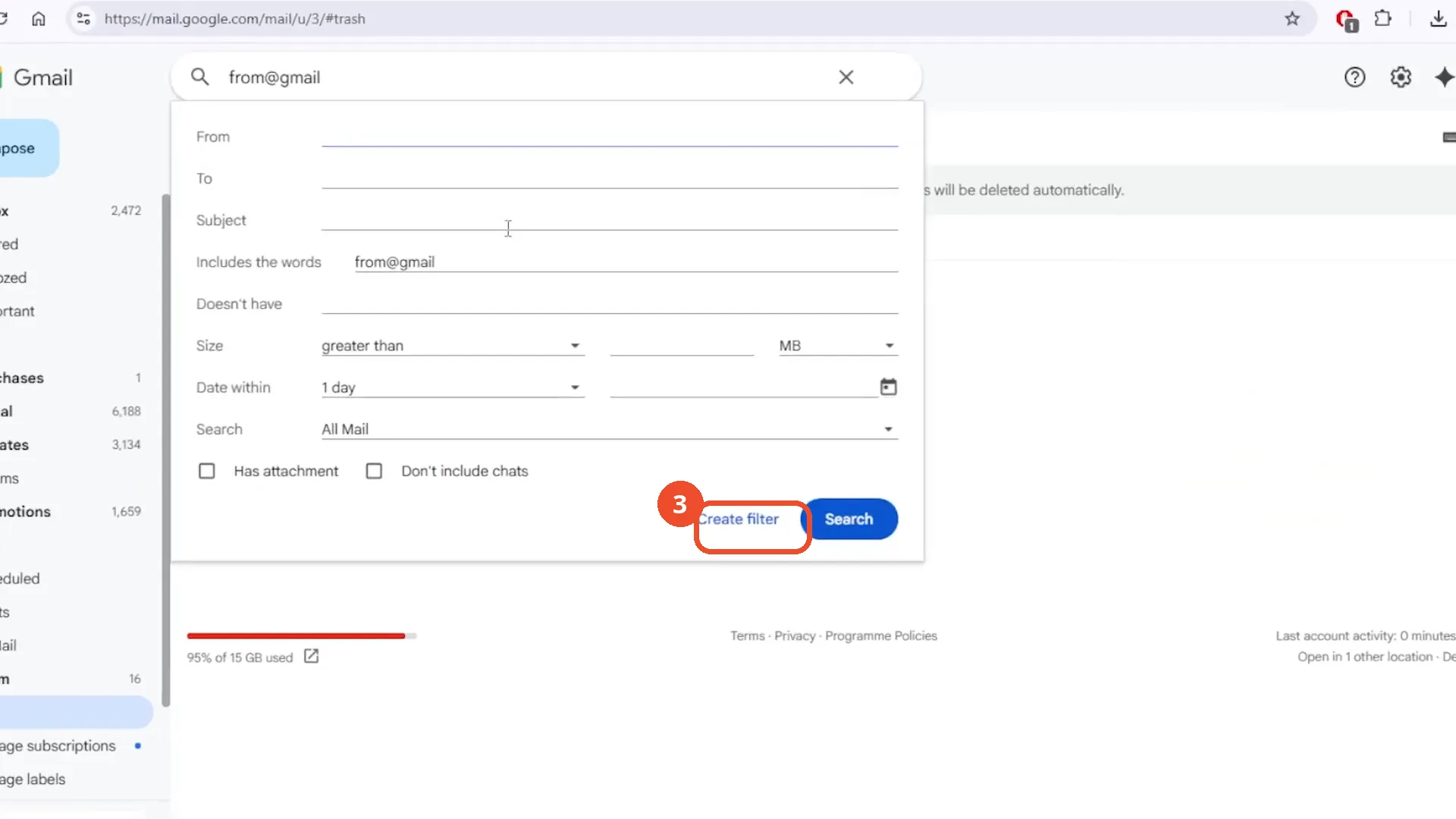
Choose the Forward it action
Gmail shows what to do with matching messages. Tick Forward it and click ‘Add forwarding address’ - the film shows the panel but never ticks the box; it goes straight to the link.
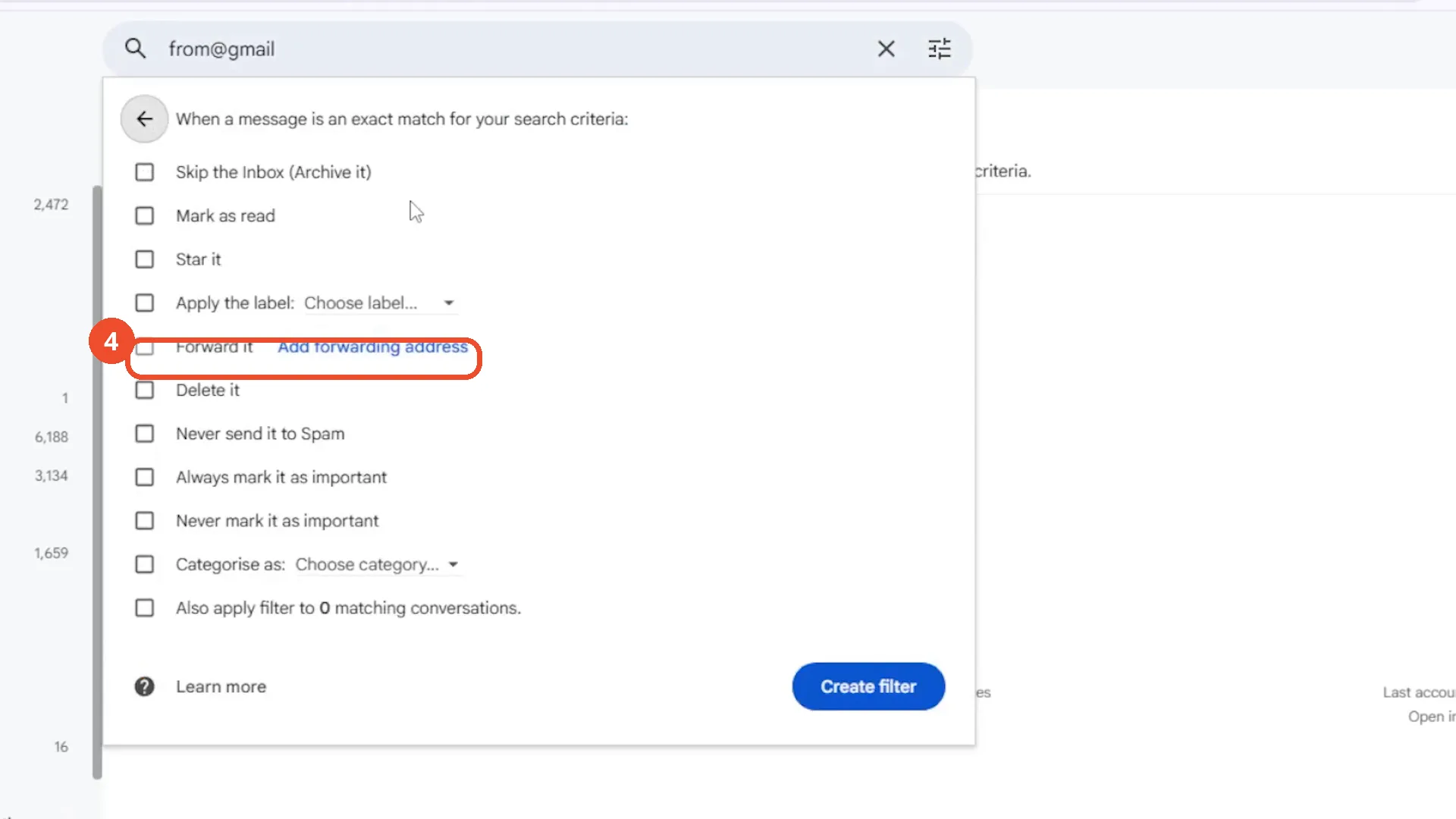
Open the Forwarding settings
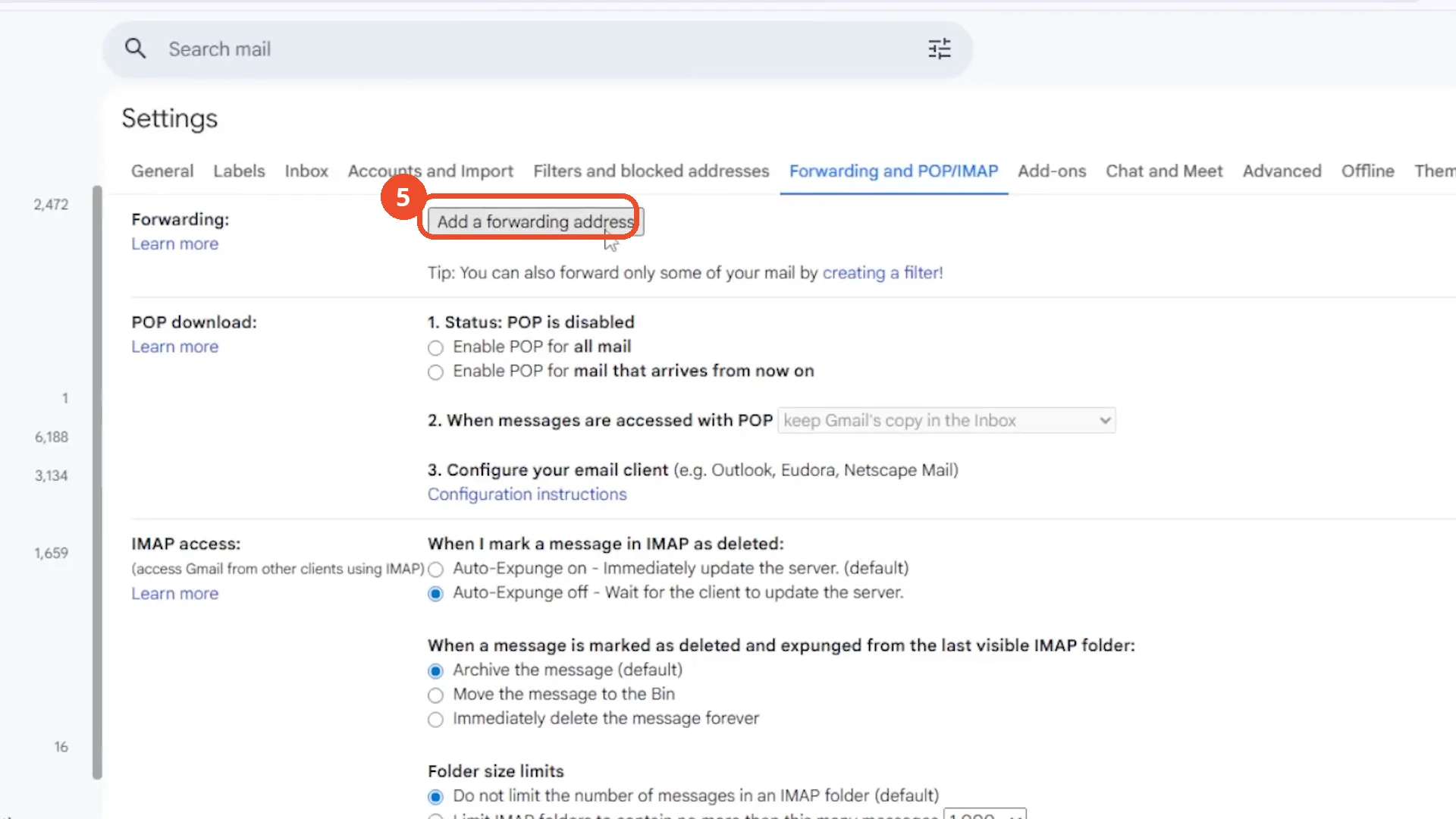
The link opens Settings on the ‘Forwarding and POP/IMAP’ tab. Click ‘Add a forwarding address’.
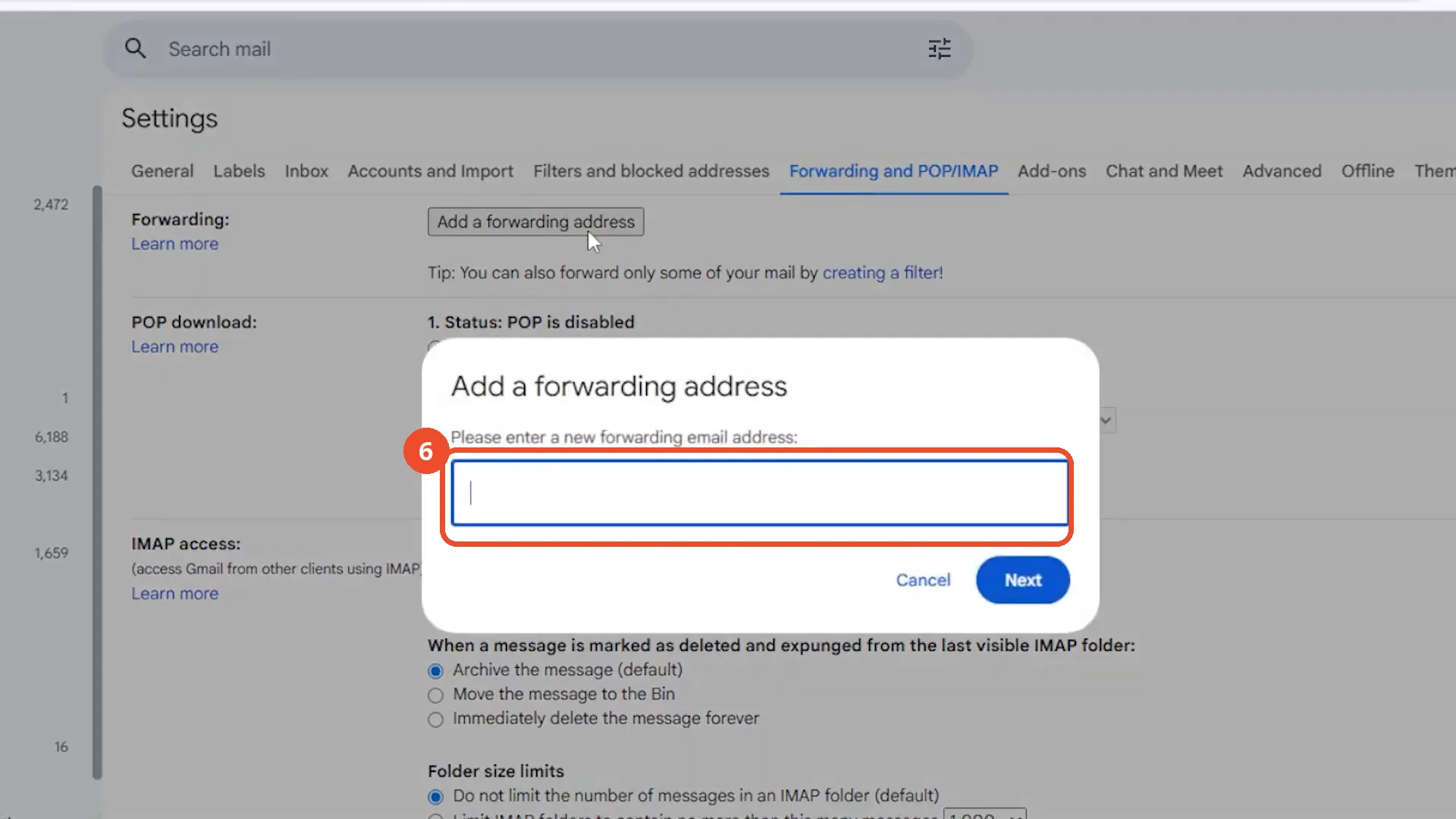
Enter the forwarding address
A dialog asks for the new forwarding email address. Type the address of the account that should receive the forwarded mail, then click Next.
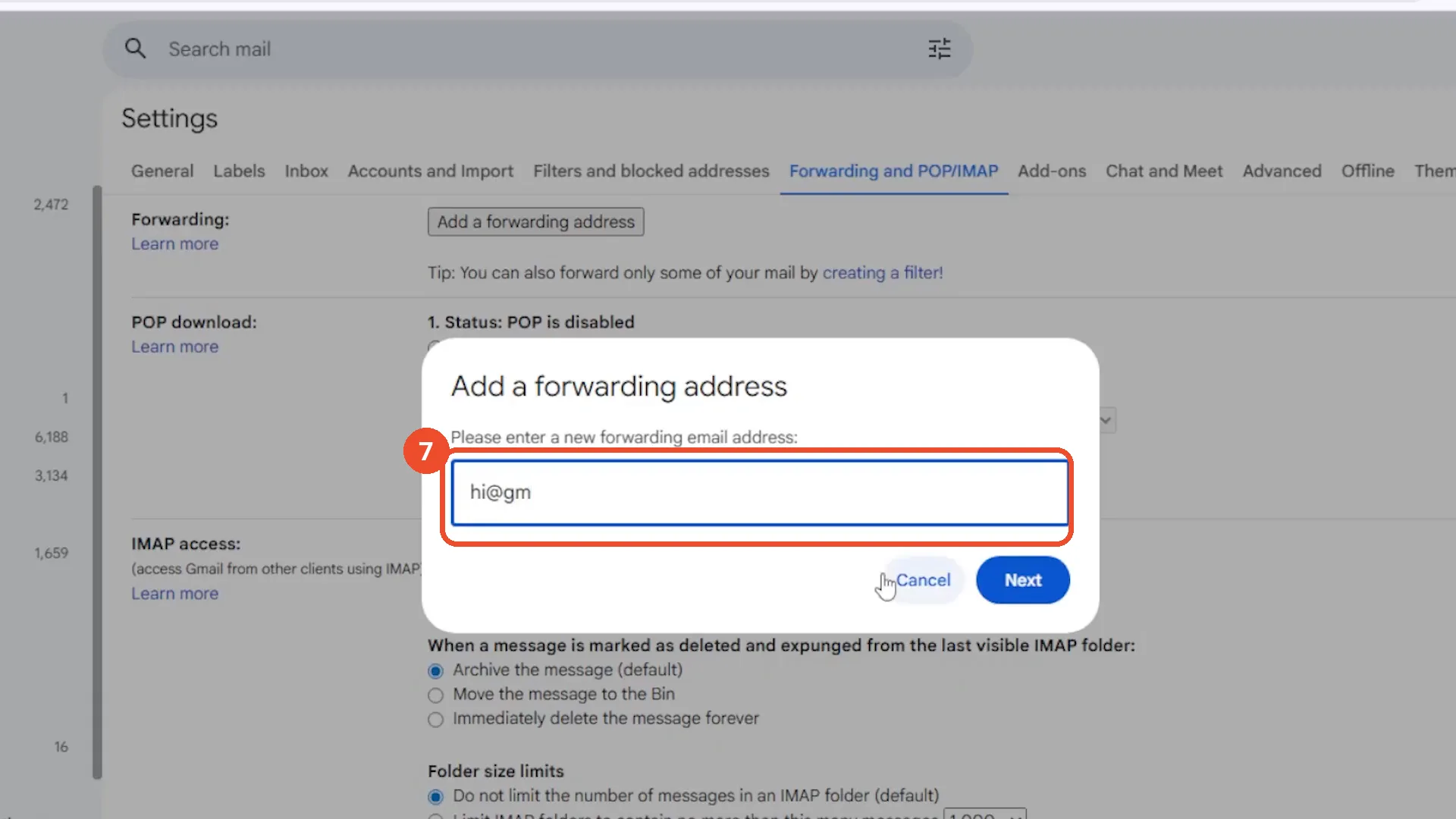
Type the address - the film stops at ‘hi@gm’
The film types only hi@gm, then moves the cursor to Cancel and closes the dialog. No forwarding address is added and no confirmation code is ever sent.
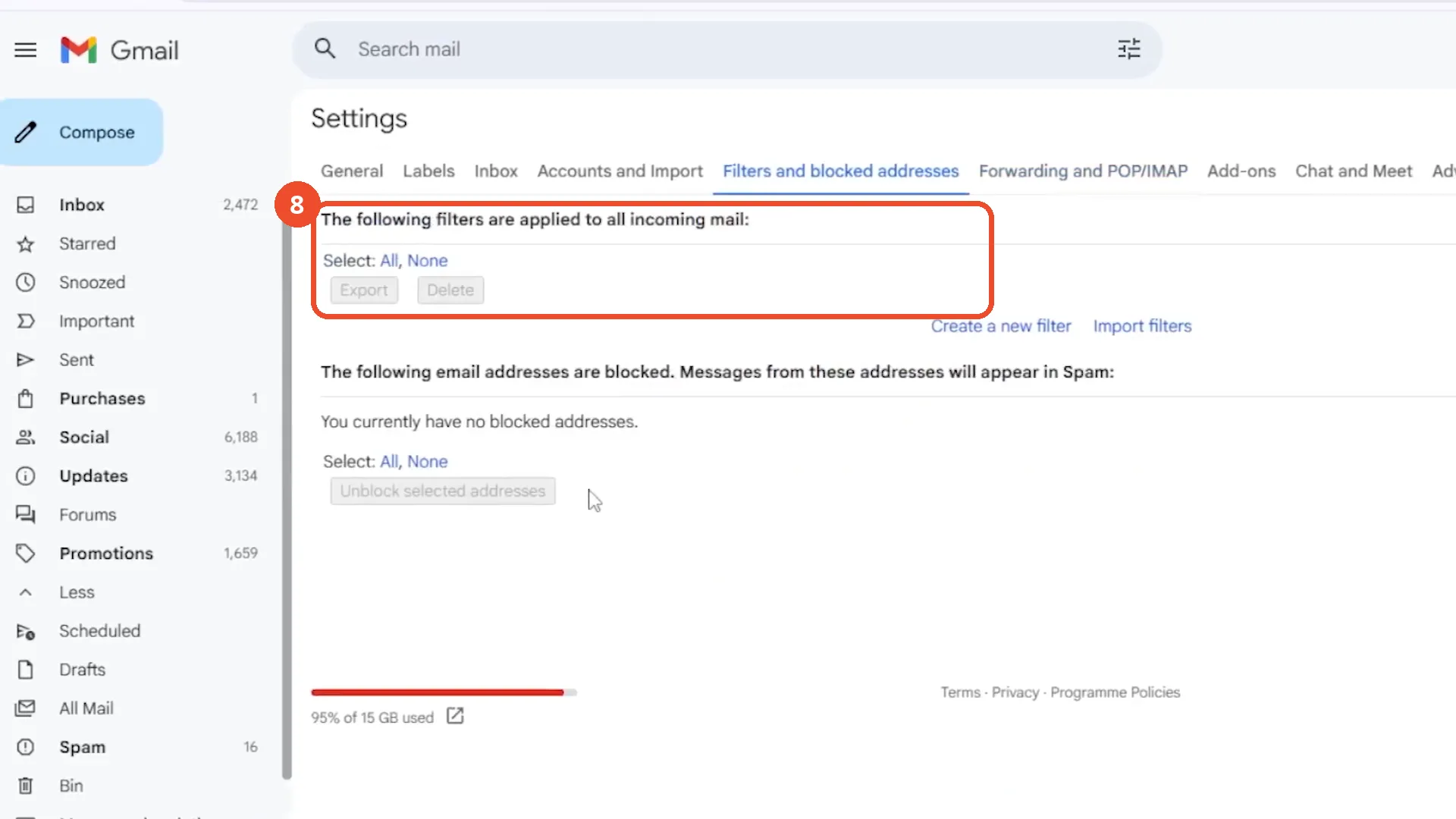
Check the Filters list
Back in Settings, the ‘Filters and blocked addresses’ tab lists no filters at all. Nothing in this film is actually forwarded - follow the steps above through to Create filter and Next to finish the setup yourself.
Good to know
- The filter is never finished on camera: the ‘Forward it’ box is never ticked, the forwarding address stops at the partial text hi@gm, and the Filters list at the end of the film is empty.
- The film types from@gmail, not from:example@gmail.com as the narration says. Without the from: operator Gmail files it under ‘Includes the words’, so the filter would match those words anywhere in a message, not just the sender.
- The panel reports ‘Also apply filter to 0 matching conversations’ - no email in this account matches from@gmail, so even a finished filter would forward nothing until a matching message arrives.
- Gmail only forwards new mail that arrives after the filter is created. Old emails are never forwarded unless you tick ‘Also apply filter to matching conversations’ when you create it.
- Adding a forwarding address normally triggers a confirmation code sent to that address; the code step is narration only in this film and never appears on camera.
- The film opens in Settings with a leftover Out-of-Office draft (subject ‘out of office’, first day 9 February 2026) and discards it with OK before starting; that draft is unrelated to forwarding.
More on Gmail
- How to Create a Contact Group in Gmail
- How to Delete All Emails Before a Certain Date in Gmail
- How to Delete Folders in Gmail
- How to Delete All Unread Emails in Gmail
- How to Recover Deleted Emails in Gmail
- How to Download Emails from Gmail in Bulk
- How to Send Encrypted Emails in Gmail Using Confidential Mode
- How to Change the Archive Option to Delete in Gmail