How to Zoom In and Out on Discord
Discord text too small to read? On desktop you can zoom the whole Discord page with keyboard shortcuts — no setting buried in menus. Zoom in, zoom out, and reset in three moves.
✅ Tested on
- SystemWindows
- AppDiscord web app
- Also works onDiscord desktop app (the same shortcuts work).
- Last verifiedOctober 30, 2026
Every screenshot below is taken from the actual recording on this device — no stock images.
Steps
Zoom in with Ctrl + scroll up
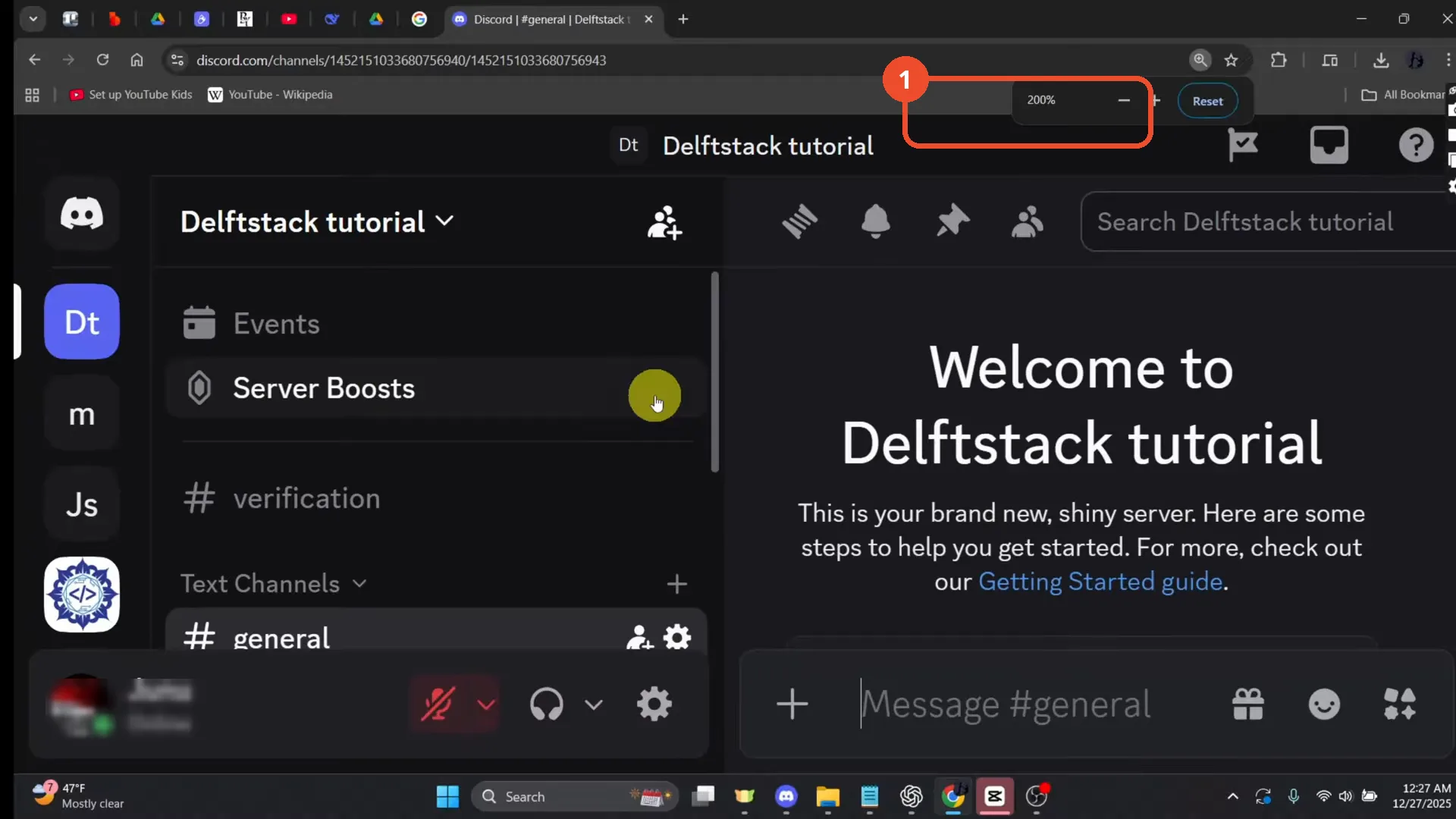
In Discord, hold down the Ctrl key and scroll the mouse wheel up. The page enlarges — here the browser zoom indicator shows 200%.
Zoom out with Ctrl + scroll down
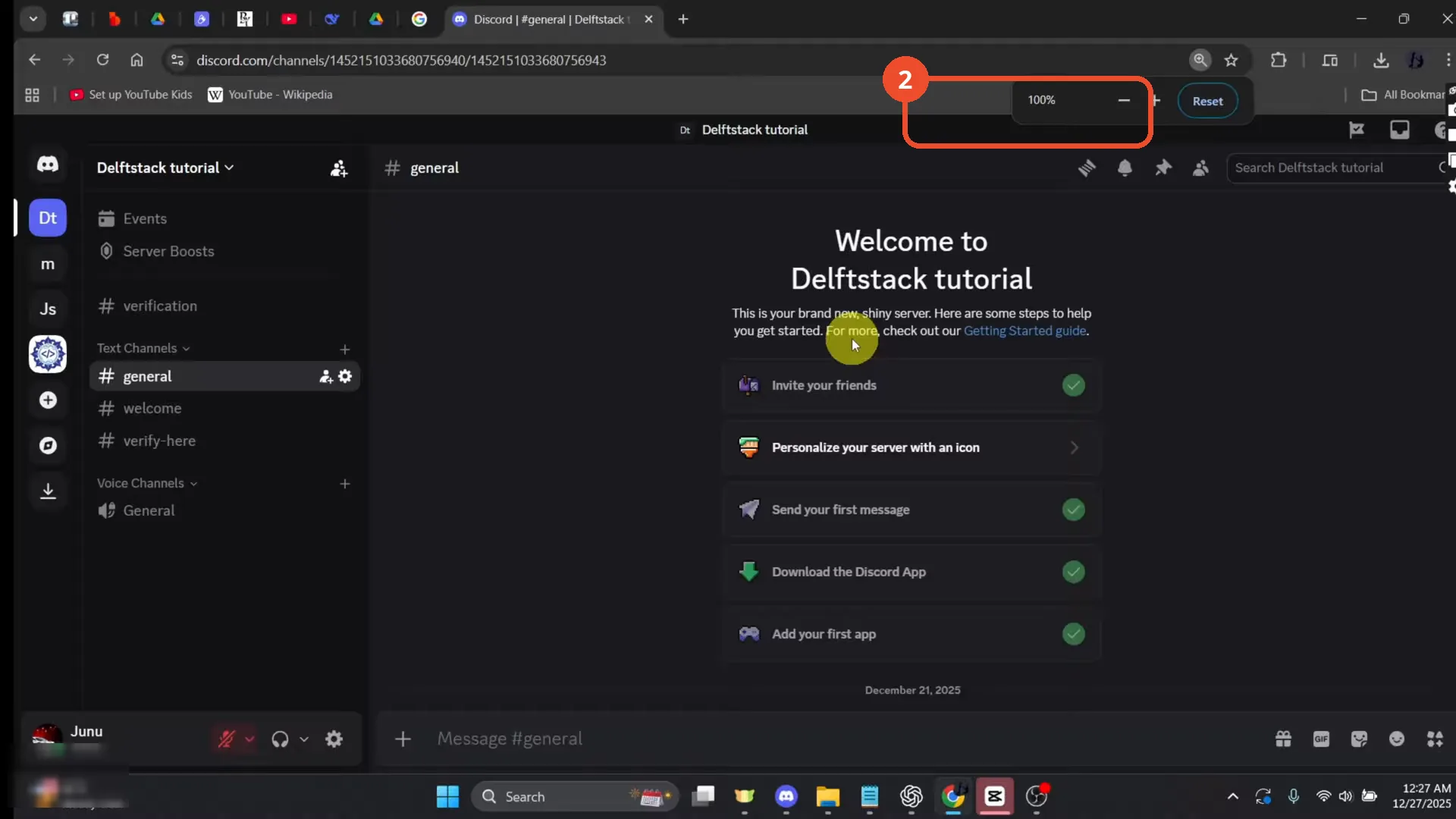
Hold Ctrl and scroll the mouse wheel down to shrink the page again. The zoom indicator drops back to 100%.
Reset the zoom with Ctrl + 0
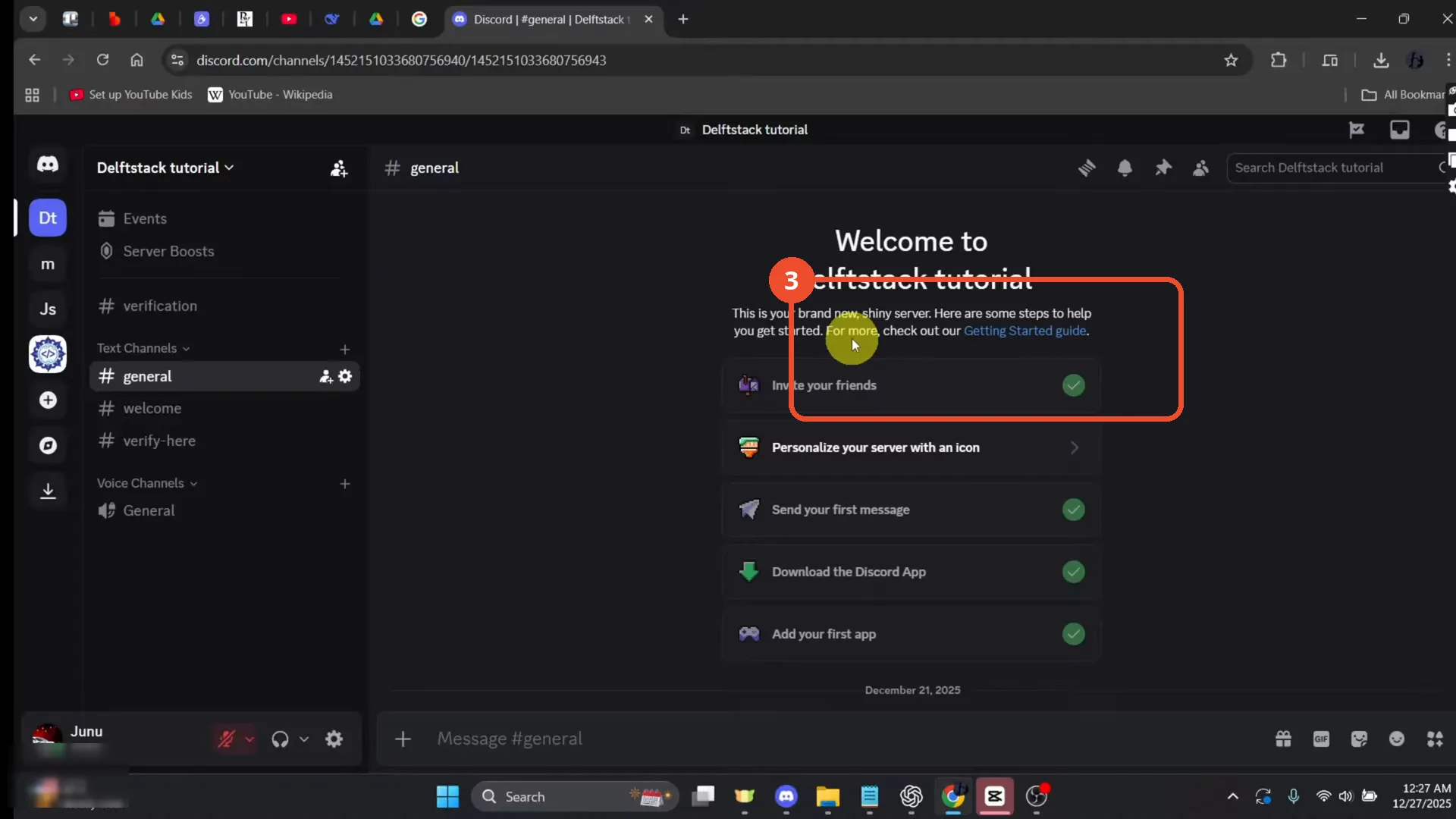
Press Ctrl + 0 to reset the zoom level to default. Discord is back to its normal size and the zoom indicator disappears.
Good to know
- On mobile there is no in-app zoom — use your phone’s accessibility or display-size settings instead.
- Ctrl + 0 always returns Discord to its default zoom.
- Browser zoom also enlarges the whole Discord page, including the sidebar and message list.
More on Discord
- How to Stop Spotify From Pausing on Discord
- How to See Who Owns a Discord Server
- How to Make Discord Open on a Second Monitor by Default
- How to Remove Someone from a Discord Group
- How to Self-Assign Roles in Discord Using ProBot
- How to Scan a QR Code with the Discord Mobile App
- How to Stream OBS to Discord with Sound
- How to Create a Discord Server Template Link
- How to Make Your Name Invisible on Discord
- How to Send a Discord Friend Request
- How to Turn Off DMs on Discord
- How to Enable Age-Restricted Commands on Discord Mobile
- Add Someone to an Ongoing Discord Voice or Video Call