How to Turn Off DMs on Discord
Anyone in a Discord server with you can send you a direct message by default. Turn that off in Content & Social, and apply it to all your servers at once.
- SystemWindows
- AppDiscord web app
- Also works onDiscord desktop app (the settings look the same).
- Last verifiedOctober 30, 2026
Every screenshot below is taken from the actual recording on this device — no stock images.
Steps
Open User Settings
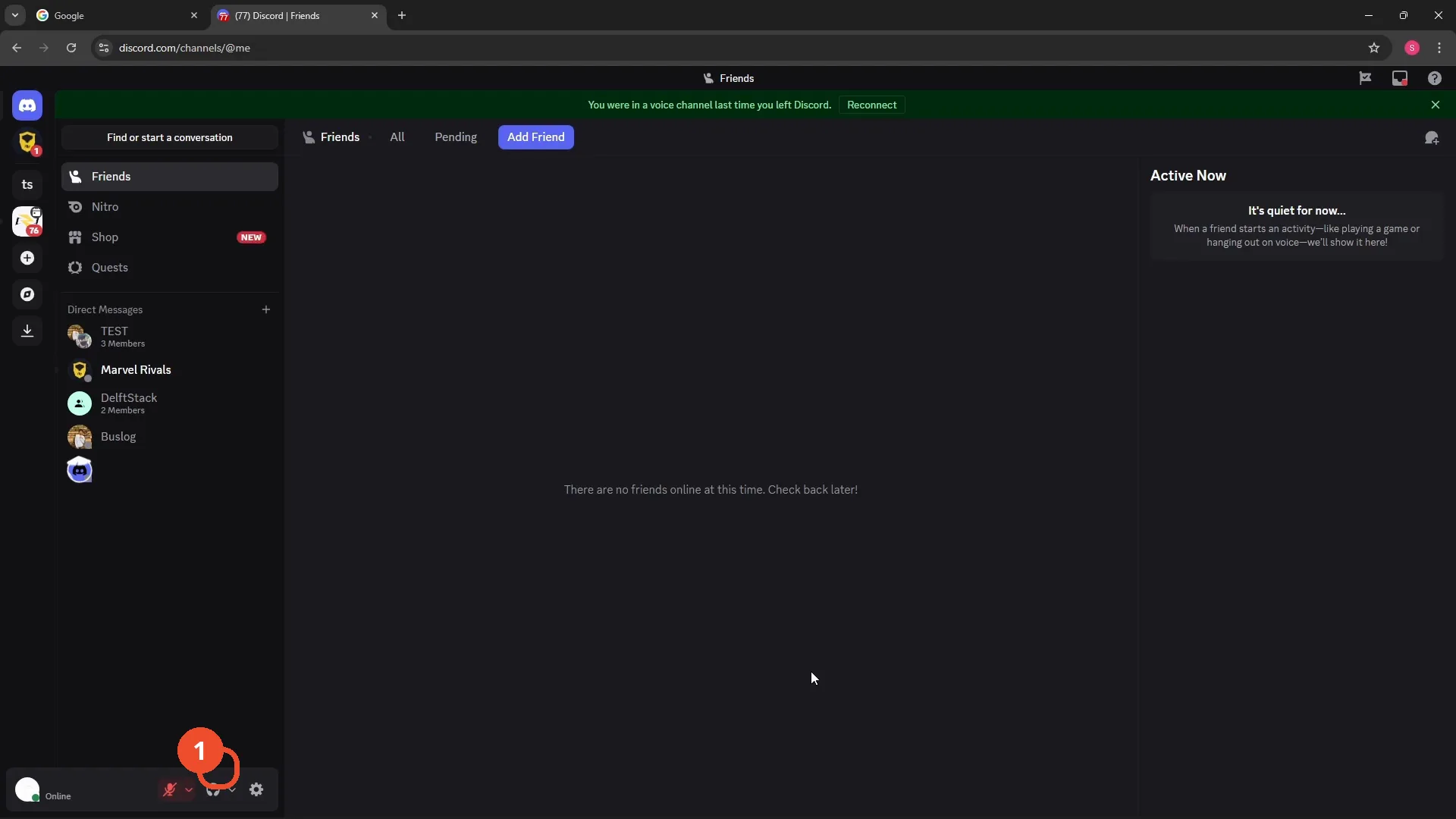
Open Discord (in a browser at discord.com or in the desktop app) and click the gear icon at the bottom left, next to your avatar.
Open Content & Social
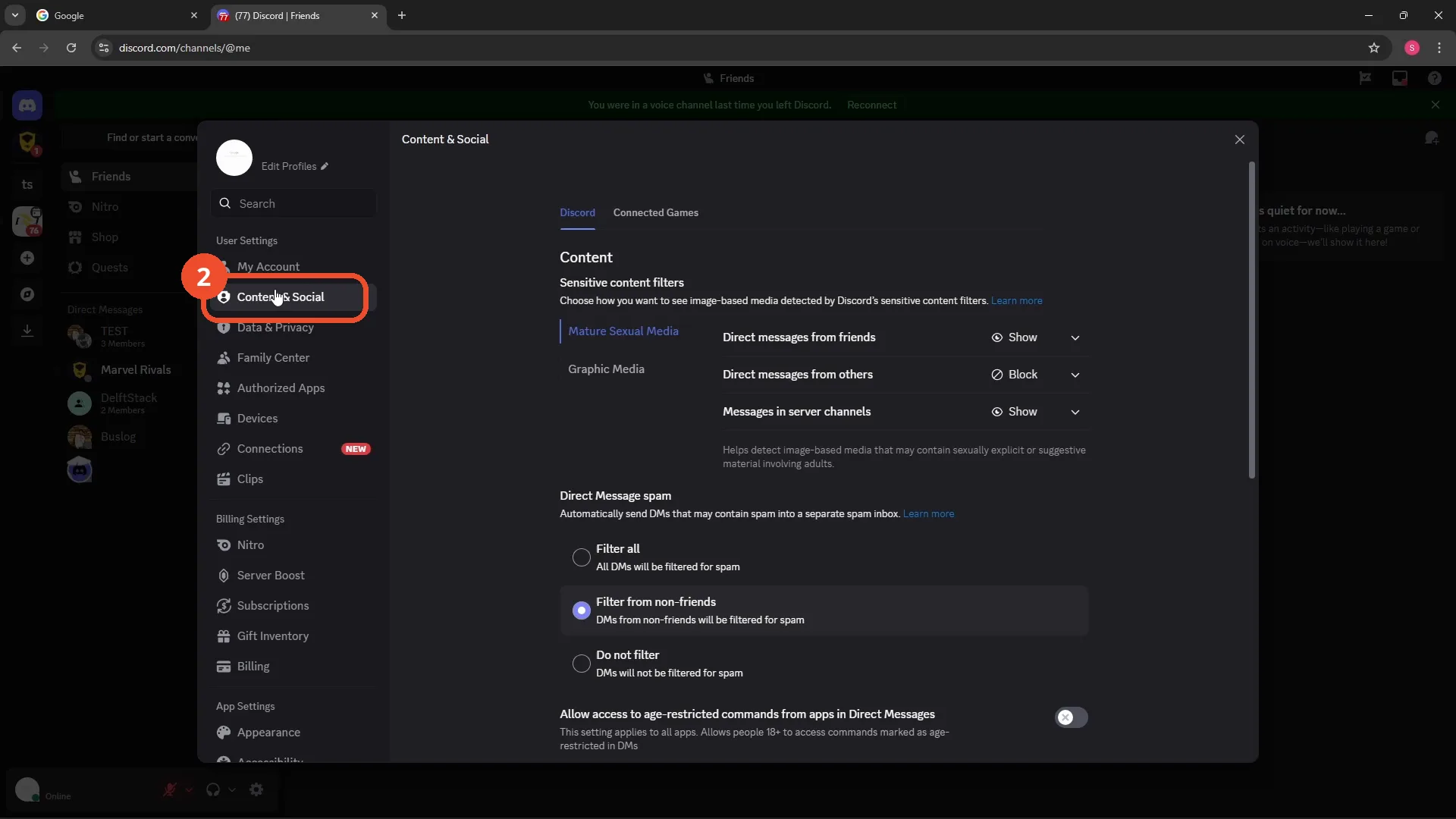
In the settings sidebar under User Settings, click Content & Social.
Set Social permissions to All servers
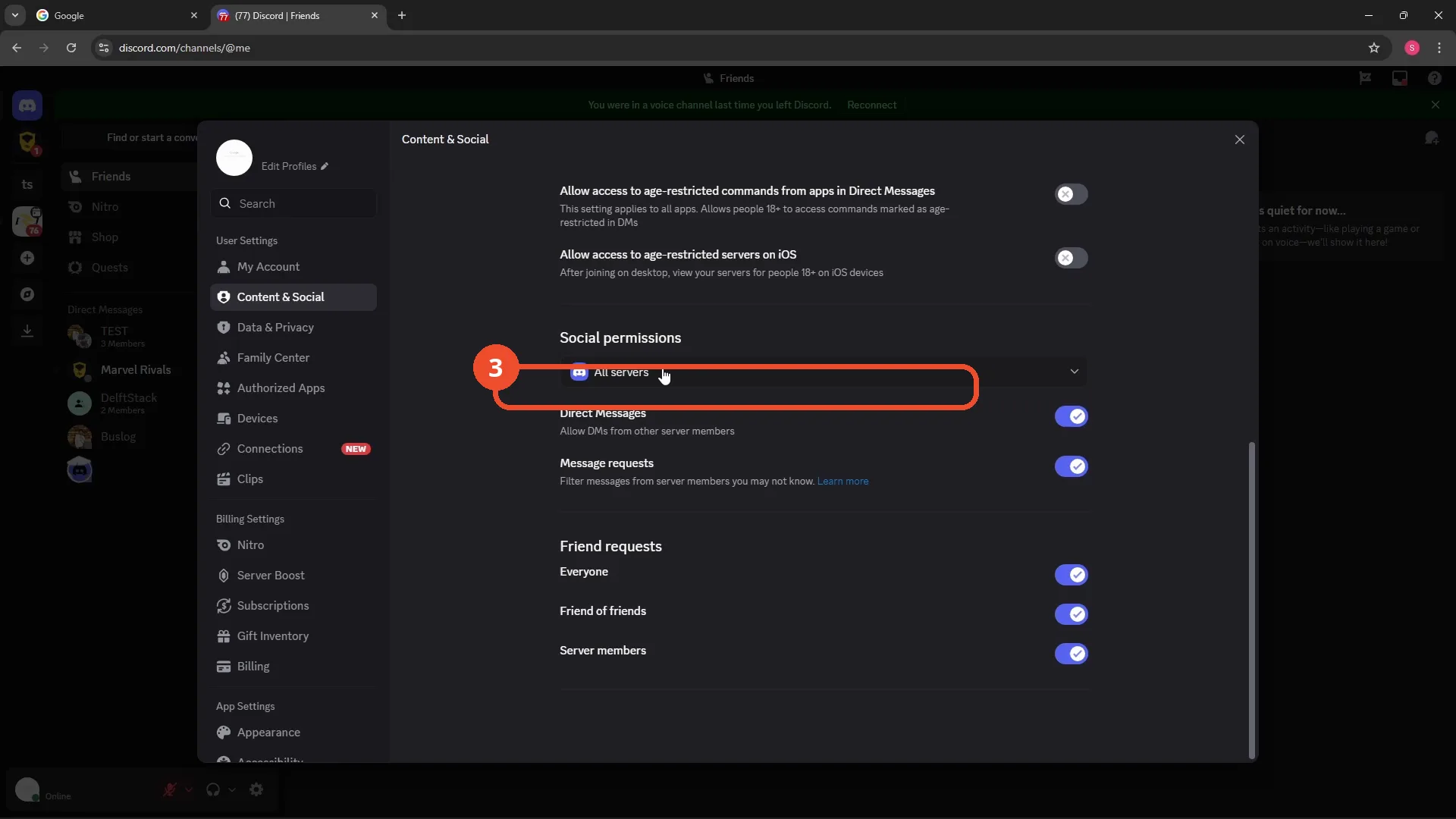
Scroll down to Social permissions and make sure the server list is set to All servers, so the change covers every server you are in.
Turn off DMs from server members
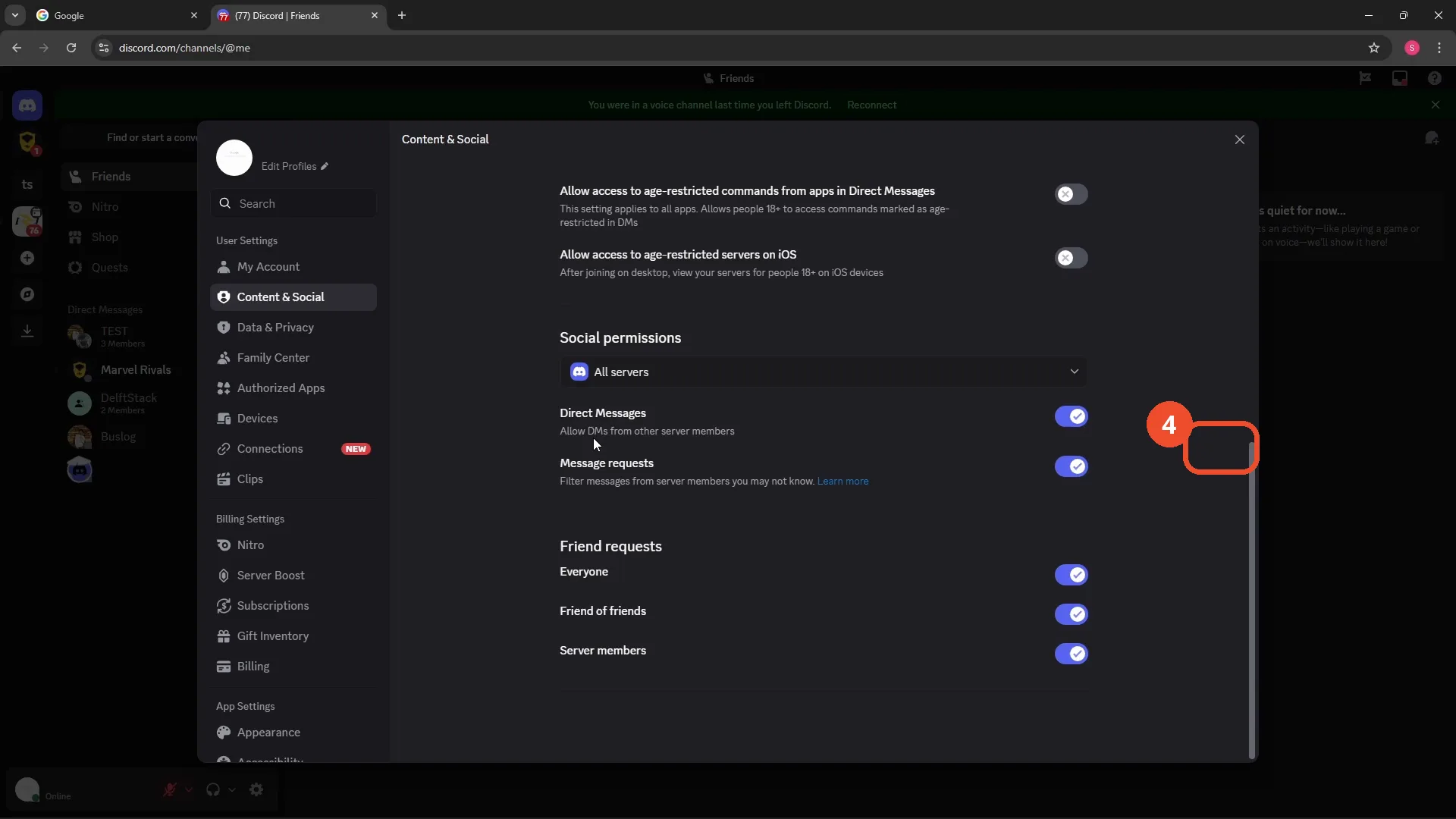
Under Social permissions, click the toggle next to Direct Messages — ‘Allow DMs from other server members’ — to switch it off.
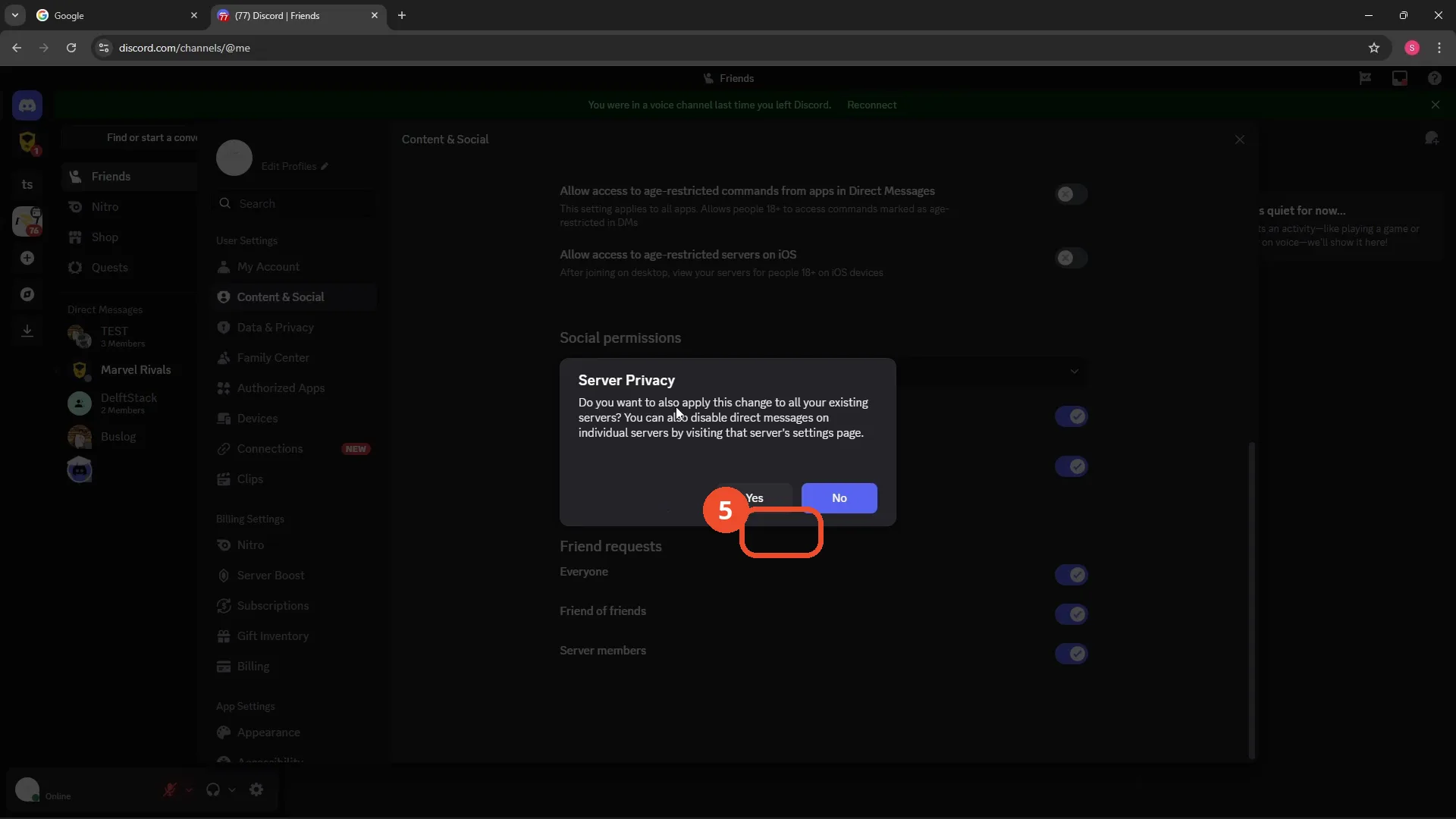
Apply the change to all existing servers
In the Server Privacy dialog, click Yes to also apply this change to all your existing servers.
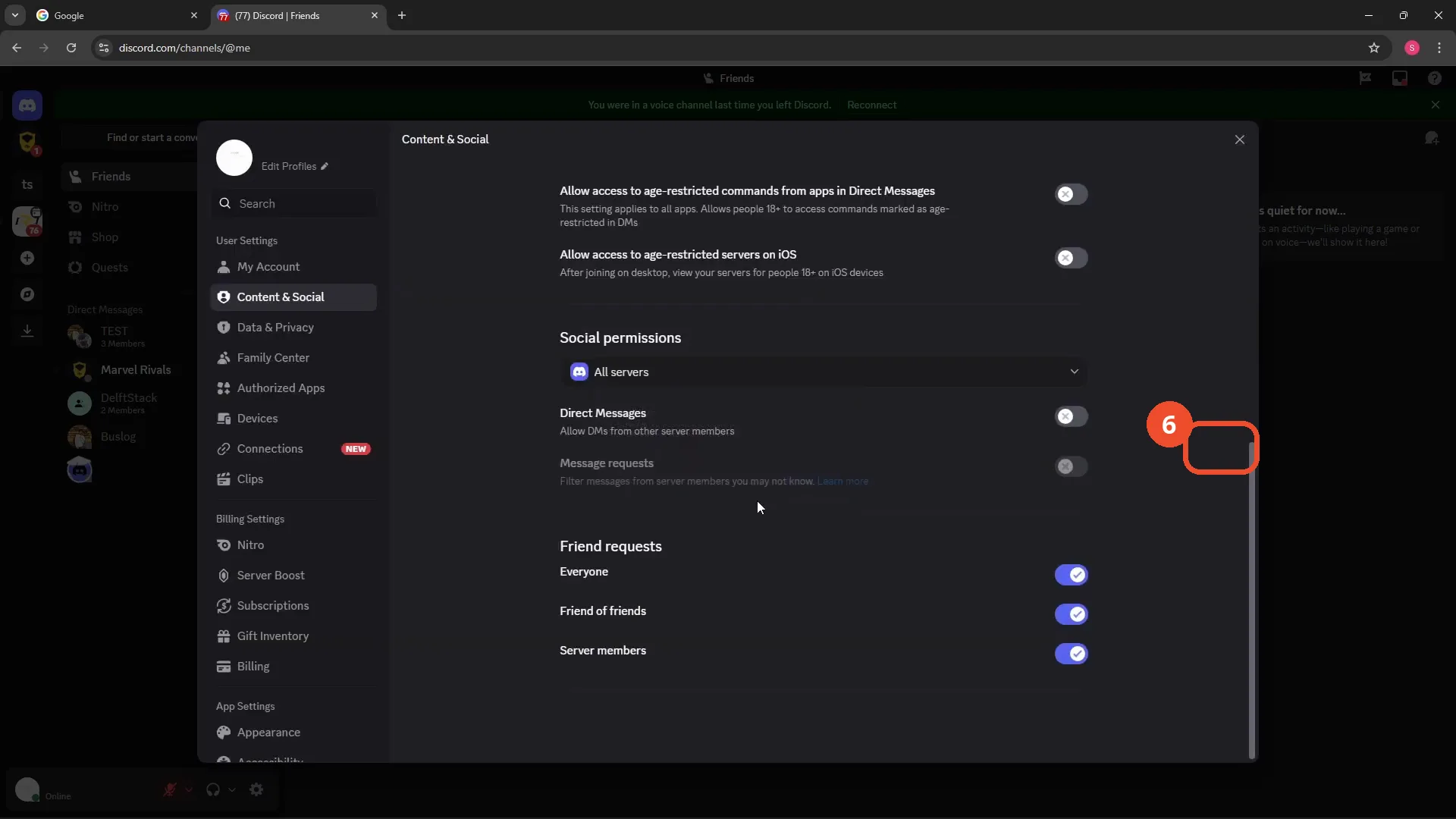
Check DMs are off
Back on the Content & Social page, the Direct Messages toggle is now off (grey). Server members can no longer send you direct messages.
Good to know
- This only stops DMs from server members — friends can still message you.
- Use the Friend requests section on the same page to control who can send friend requests.
- Per-server DM settings can still override this for individual servers.
More on Discord
- How to Stop Spotify From Pausing on Discord
- How to See Who Owns a Discord Server
- How to Make Discord Open on a Second Monitor by Default
- How to Remove Someone from a Discord Group
- How to Self-Assign Roles in Discord Using ProBot
- How to Scan a QR Code with the Discord Mobile App
- How to Stream OBS to Discord with Sound
- How to Create a Discord Server Template Link
- How to Make Your Name Invisible on Discord
- How to Send a Discord Friend Request
- Add Someone to an Ongoing Discord Voice or Video Call